The popularity of free educational material for wedding filmmakers has grown significantly over the past year. Now there is not only Wedding Film School, but Wedding Film University, and Wedding Film Academy (Google them, they all exist! haha). I’ve also been known to make some free wedding filmmaker training too.
Two weeks ago, Jordan Bunch from the Wedding Film Academy Podcast got in touch with me about recording an episode of his podcast all about storytelling in wedding films. Of course I said yes, and in our hour-long discussion, we went deep on how I engage with couples and get the best stories from them. I also may have professed my new love for my Nintendo Switch in there too.
This means that I’ve now been on both a Podcast for Wedding Film School AND Wedding Film Academy. I’m hoping for more in the future! Someone really needs to start a Wedding Film Community College.
There are some things that you can learn by reading books and manuals, but some only come through years of experience. In my wedding tutorial vlogs, I attempt to distill all my years of knowledge into easy to understand tips and tutorials to give you a “shortcut” so you can improve quicker. My goal with these tutorials is to not only tell you how I do something, but why I do it.
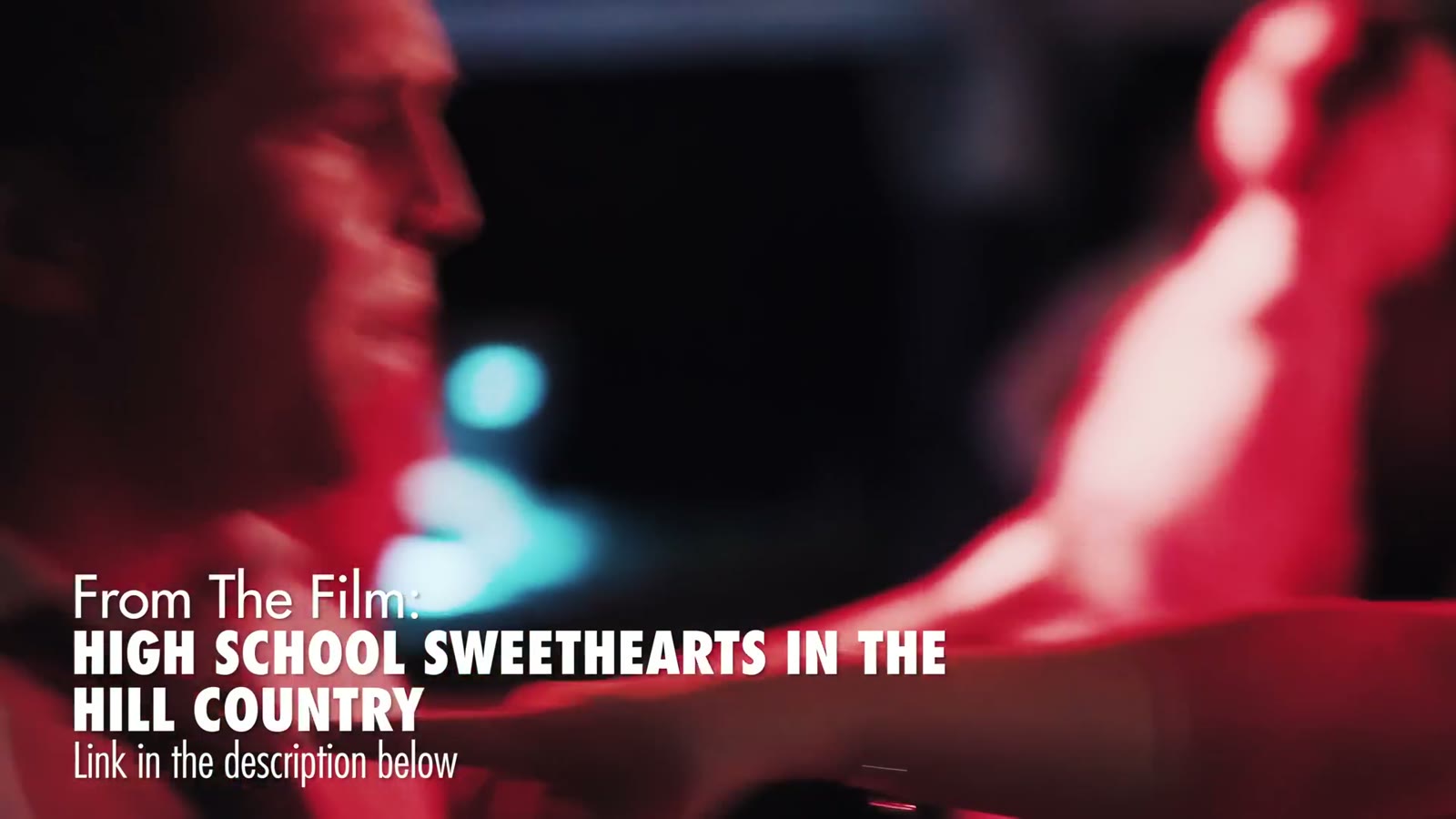
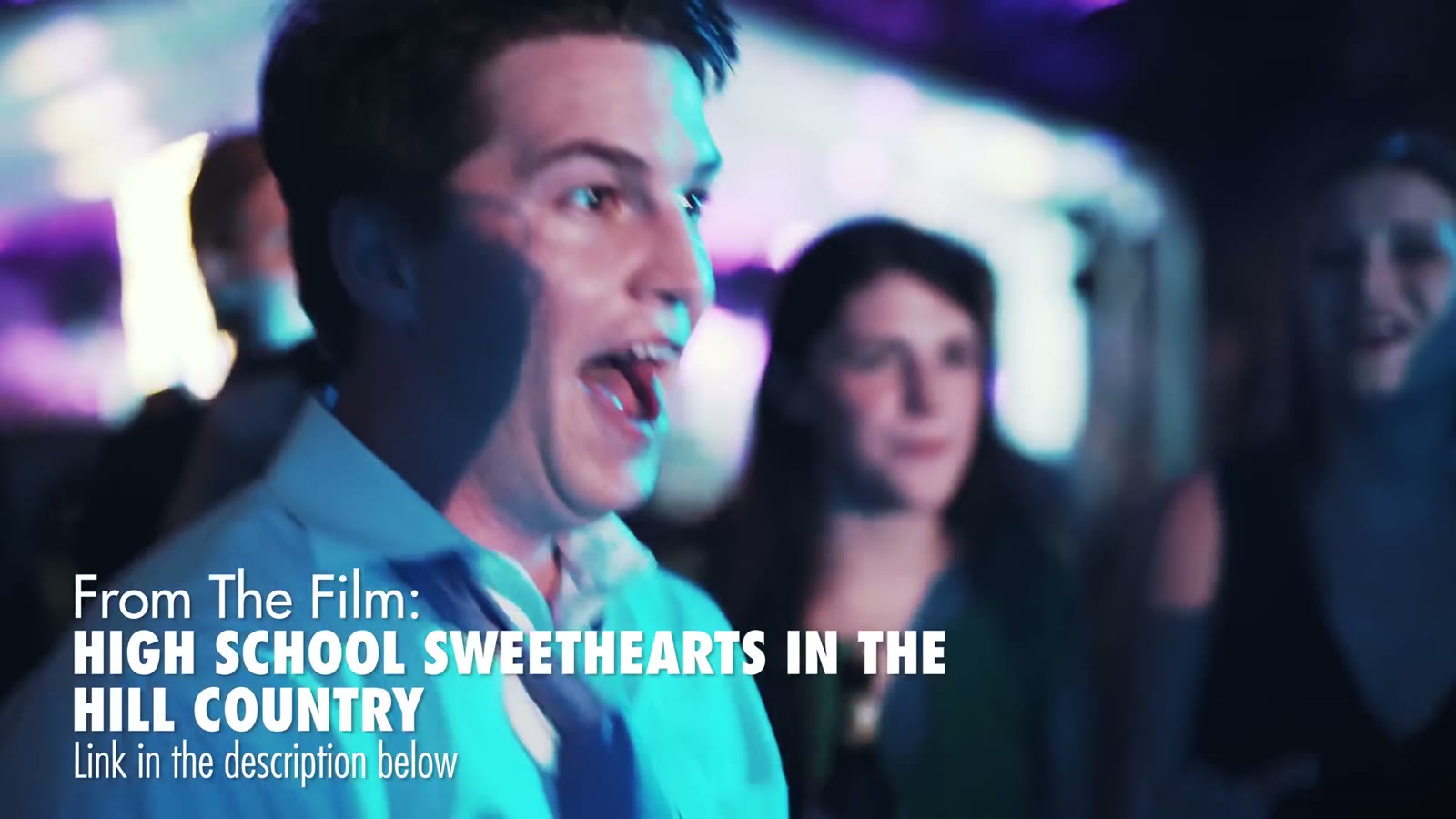
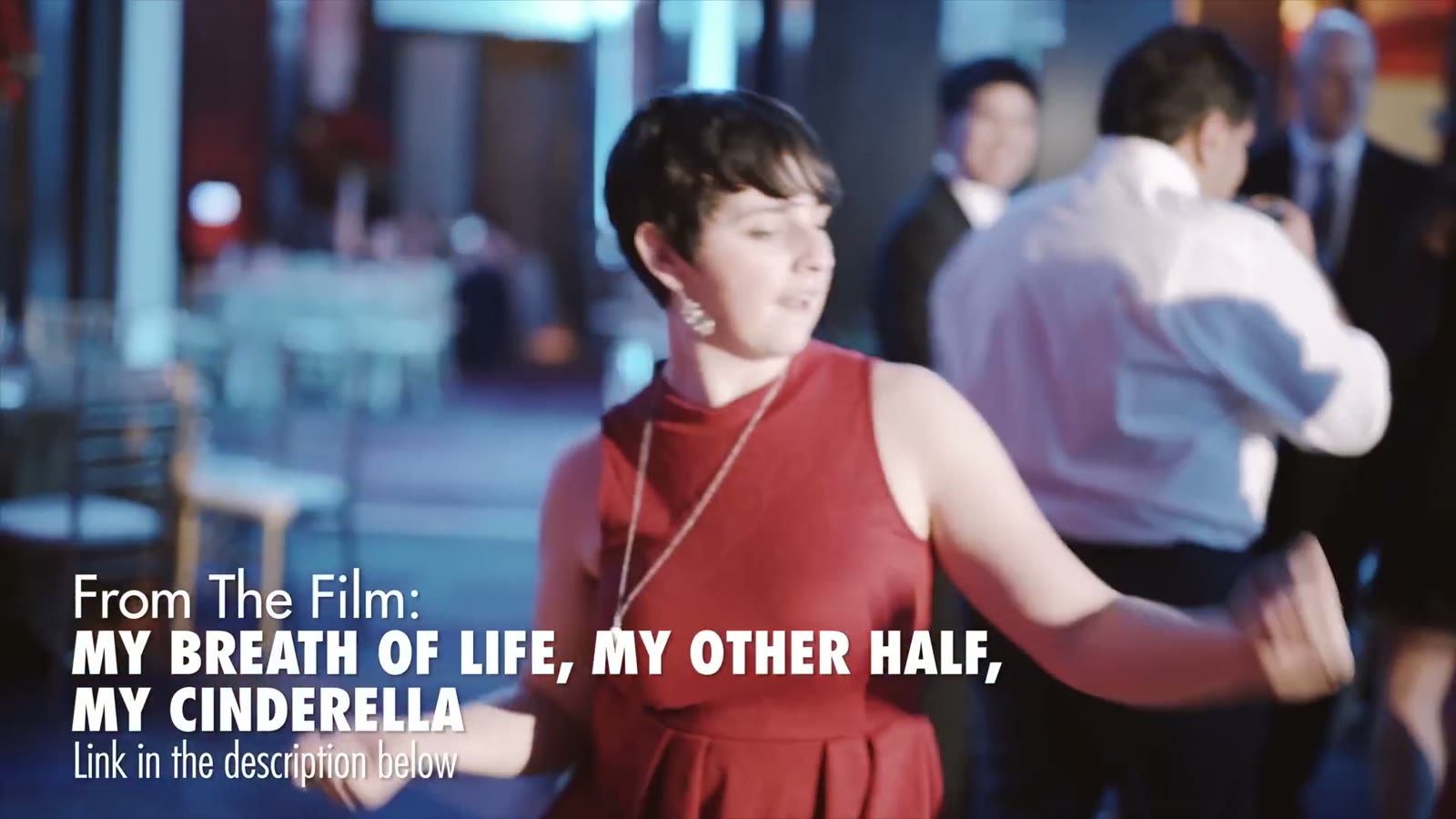
Today, in the same vein as those favorite tutorials I bring you a new one, all about how I film dancing at a wedding reception. In it, I cover four key tips that should help your improve your footage of people dancing during a wedding reception. The open dance floor doesn’t have to be boring or intimidating! It can be a lot of fun, I promise.
Tip One: Talk To Everybody Before The Day
This goes back to my entire philosophy for how I film weddings, honestly, which is that you should be talking to everyone you possibly can and doing as much pre-production ahead of time as you can get away with. For the dancing specifically, that means three separate conversations.
The couple. Ask about their colors and their venue. Colors matter more than people realize, because sometimes they’ll hire an uplighting specialist who shows up and floods the room in bright green, and you’re standing there watching skin tones fall apart on your monitor. Any time you can talk to them ahead of the day and offer a constructive suggestion, not a demand, about what’s going to photograph well, that’s a win. Then look up the venue online and see what other people’s footage from that room actually looks like.
The coordinator. Get to know them, be friendly, and if they’re helping make any of the color decisions, offer the same constructive input. A coordinator who likes you makes your entire day easier, and that’s true whether or not the lighting ever comes up.
The DJ. This is the one nobody thinks to do. Couples hire a DJ, and the DJ says he’ll bring uplighting and stage lights and handle the whole dance floor, and sometimes those are LED fixtures that band on camera or throw purple and green across everybody’s face. So I reach out and ask: are you bringing lights, what kind, what colors were you thinking? These are weird niche questions that a DJ probably never gets asked, and every single one of them makes the video better.
Tip Two: Bring Your Own Light
Ideally, for the dance scenes, you want the venue’s lights turned down. And I already hear you: Matt, I don’t have an a7S II, I can’t shoot in the dark, why are you telling me to do this. I’m not saying don’t bring light. I’m saying don’t use the venue’s light. Bring your own.
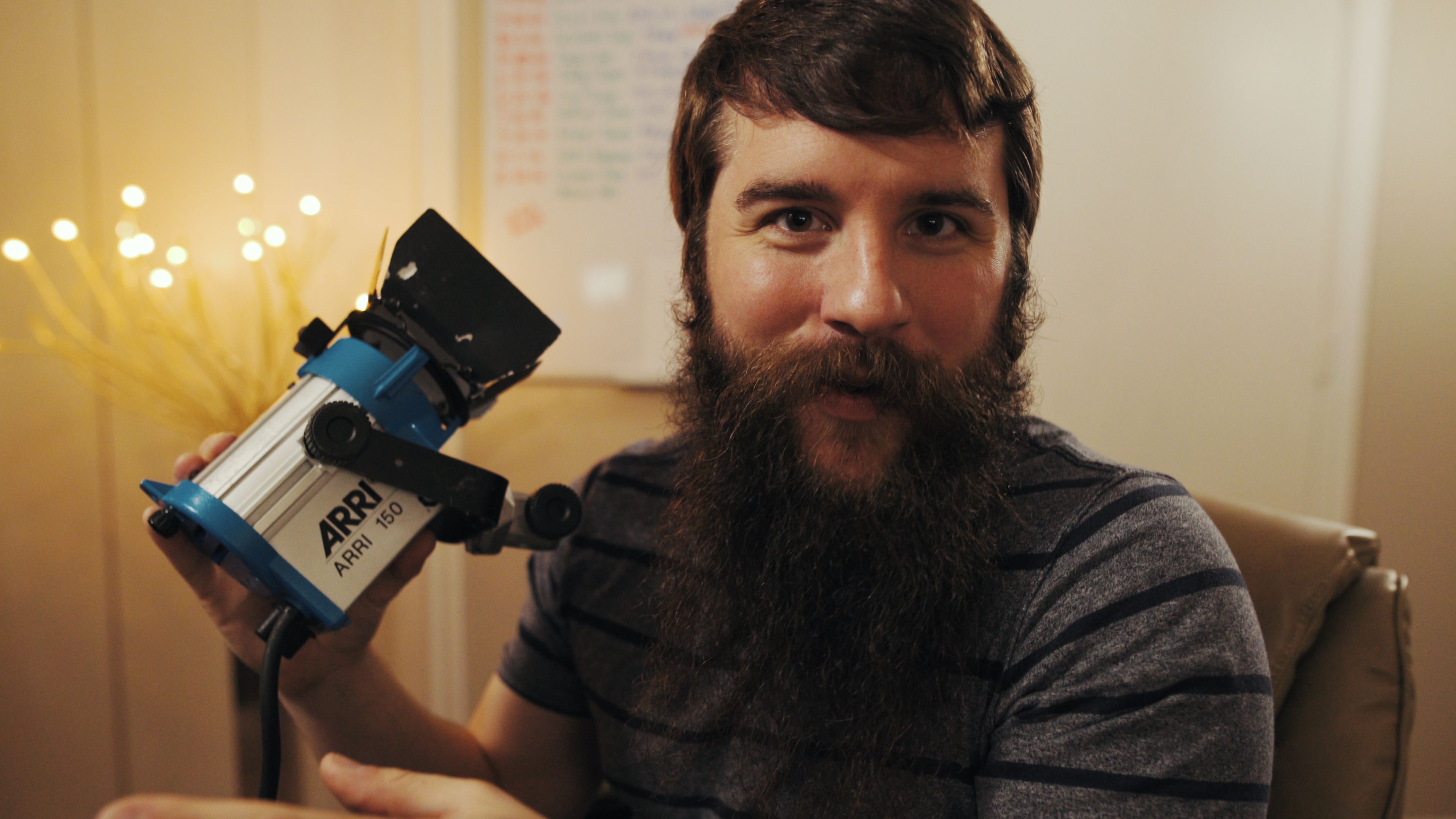
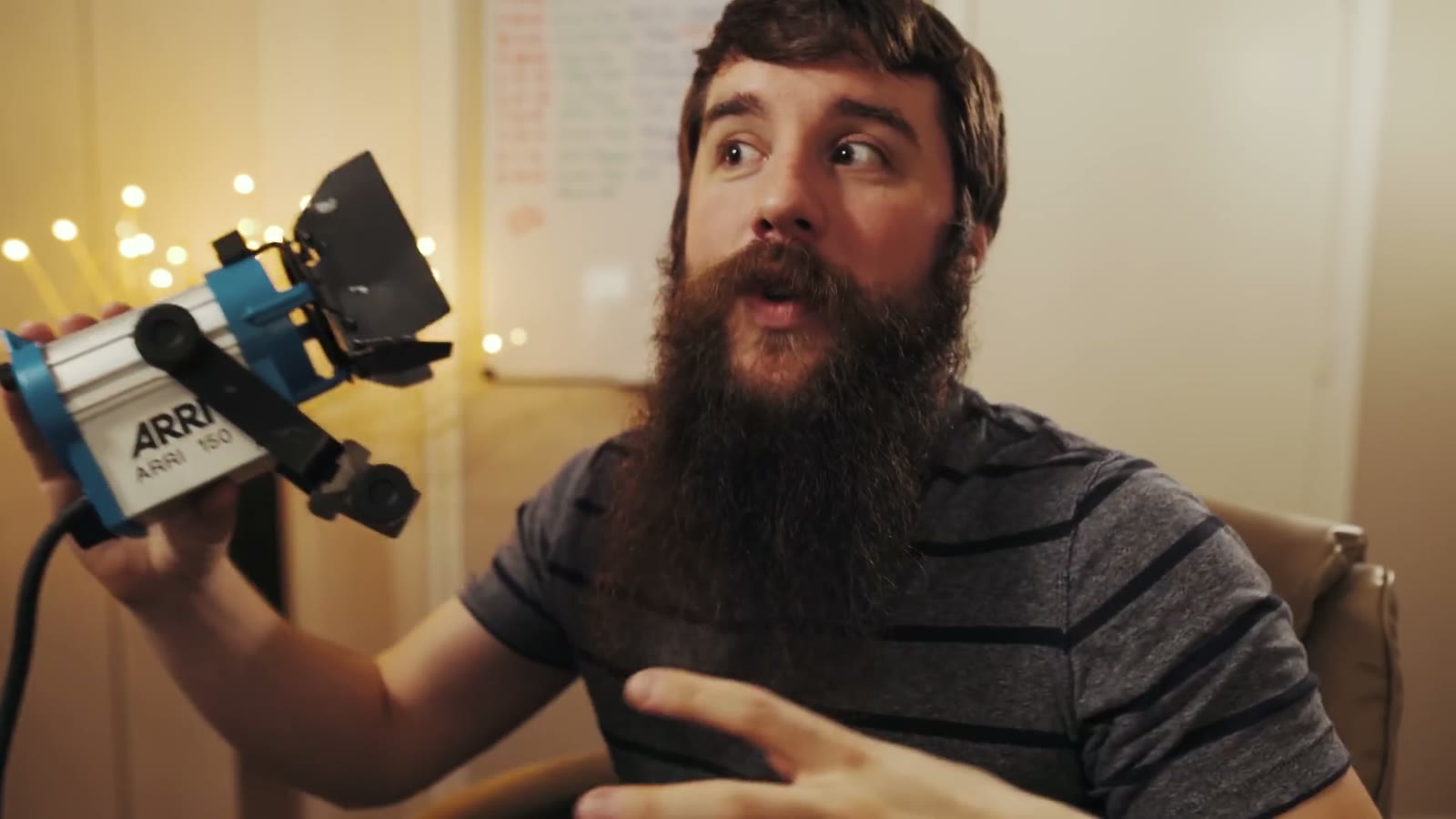
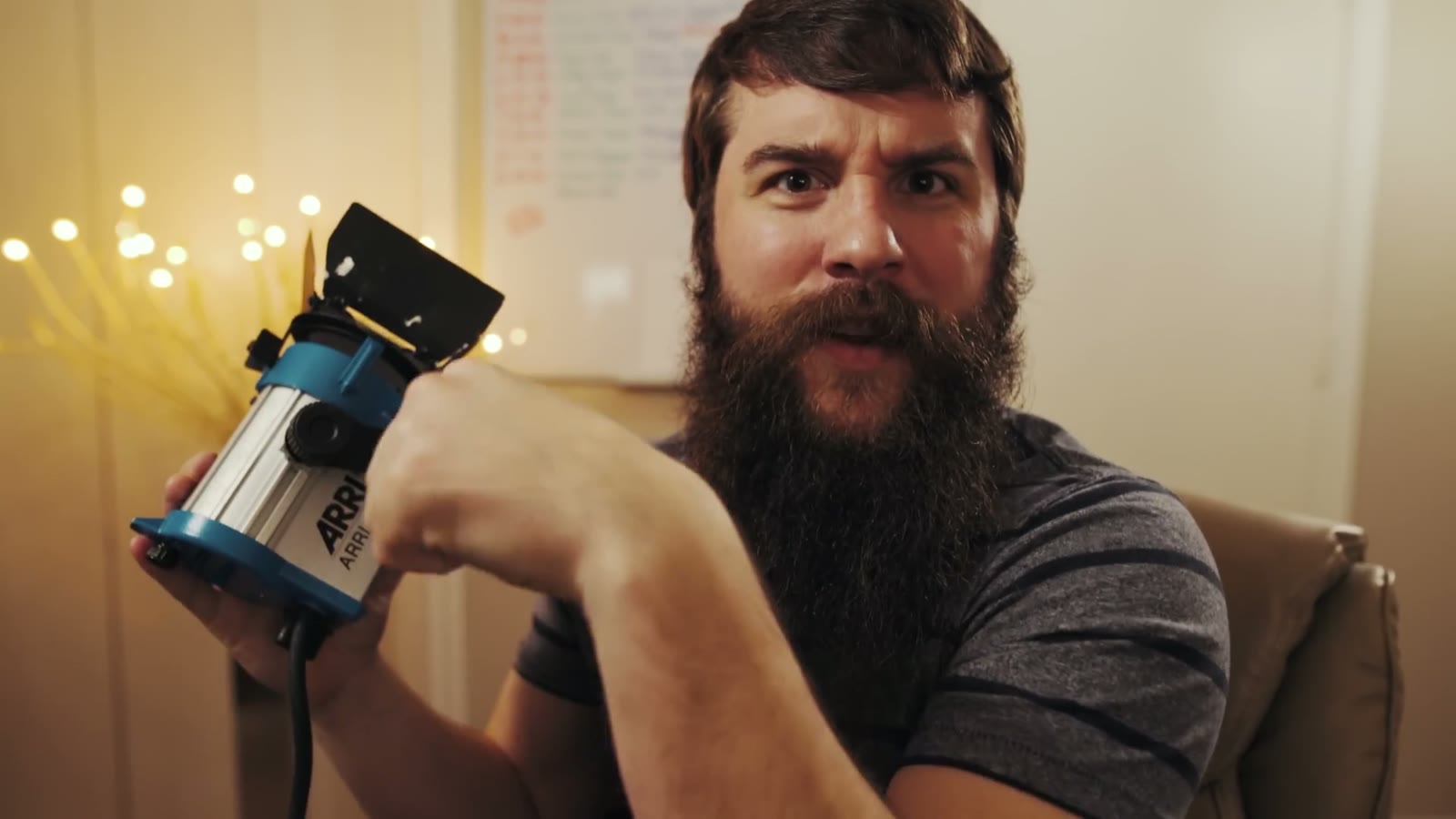
I use the Arri 150, which is a 150 watt spotlight balanced to 3200K. It doesn’t flicker in slow motion, which by itself rules out a lot of cheaper fixtures, and it gives beautiful skin tones. It’s also beam focusable, so there’s a knob on the back that takes you from a tight spot to a wide wash depending on how big the dance floor is. I usually leave it wide.
The barn doors are sold separately and you want them. They’re how you keep the light off the wall behind the dance floor and off the head table and pointed where you actually want it.
And here’s the real reason this matters. If you’ve talked to the couple and the coordinator and the DJ and they still want the purple uplighting, this light saves you, because whatever it’s shining on has good color. You’re not fighting the room anymore, you’re just overpowering it on the one patch of floor that ends up in your film.
Stands And The Cheap Alternative
For stands I use CheetahStands, which spread their legs out automatically the second you set them down. That sounds like a small thing right up until you’re speed-walking across a reception hall with a light in one hand trying to get set before the first dance.
And if the Arri is too rich for your taste, the Lowel Pro-light does most of the same job for a fraction of the price and I genuinely love that light too. You don’t need to spend a fortune here. There are other well-regarded spotlights out there as well, but between those two you’re covered.
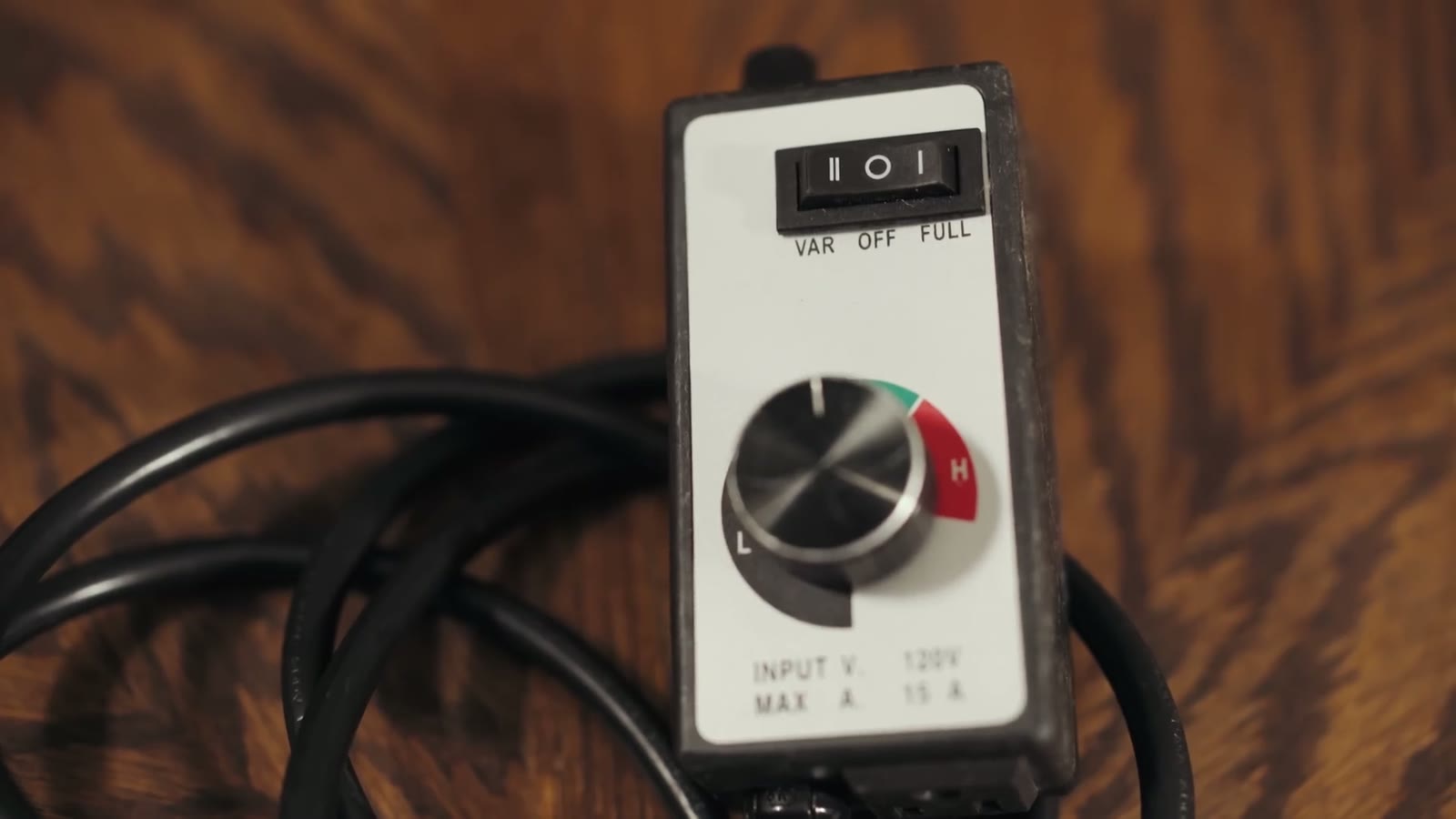
This is my favorite trick in the whole video and it cost me about twenty bucks. Get an inline dimmer with a control knob so you can set your light anywhere from low to full.
Here’s why. I set my light up the moment I get to the reception, before anybody is even in the room, so it’s already part of the furniture by the time guests walk in and nobody ever has that “whoa, what is that” reaction. I run it somewhere between low and medium at first. Then, all night long, I creep it up. It’s the boiling a frog thing, where you raise the temperature slowly enough that the frog never notices. In this case the guests are the frog, and I would like to slowly boil them.
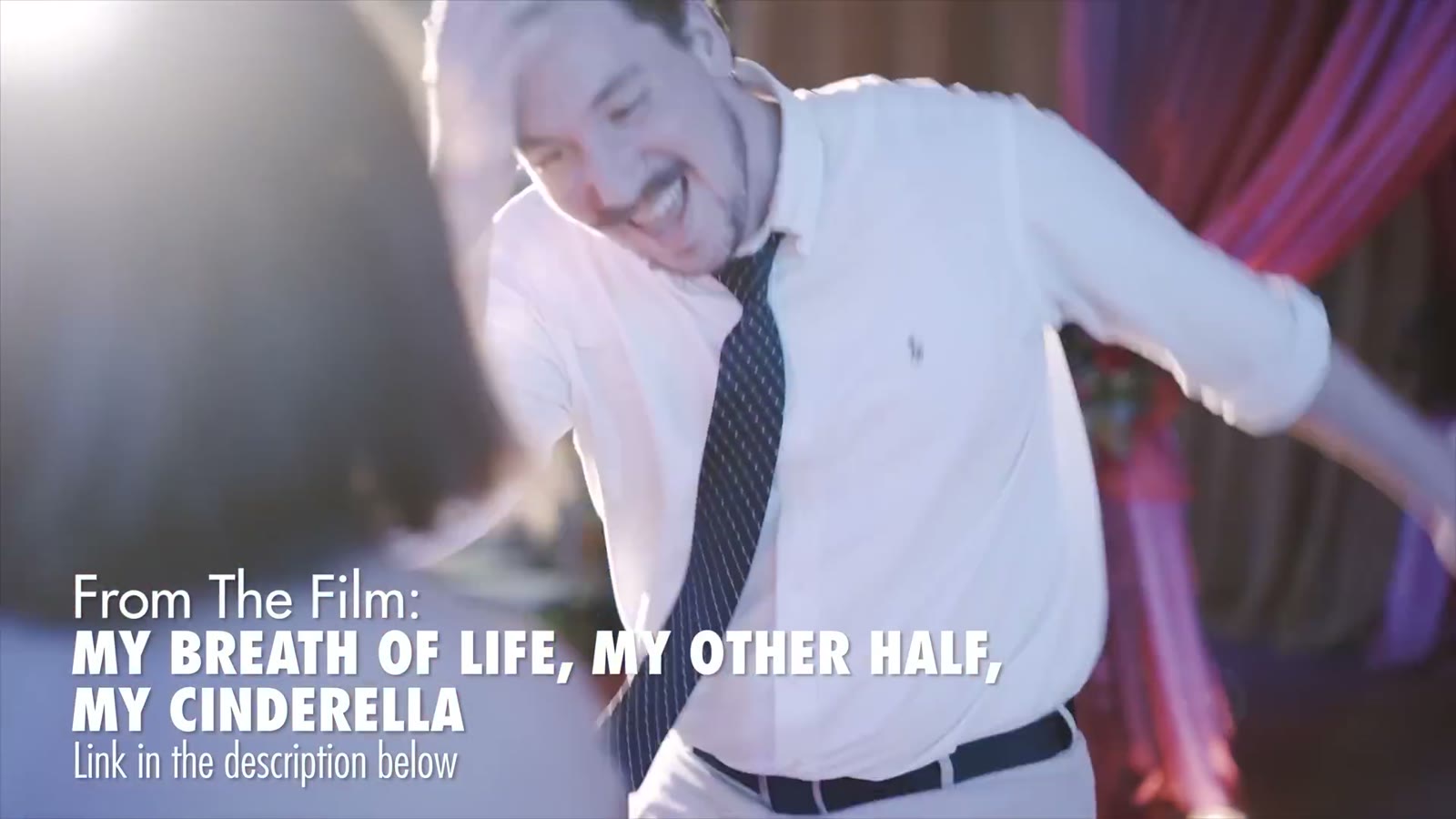
By the time we’re deep into the open dancing and everybody’s had a couple of drinks and is going crazy out there, that light is at maximum, and nobody blinked at it once. That’s when I get the bright backlight, the lens flares, the whole look.
Whatever spotlight you pick, having one opens up options you simply don’t have otherwise. You can put it behind people and shoot into it for backlight and flares. You can push it off to the side for nice side lighting. And if your camera isn’t great in low light, you can just shoot from the side the light is on, and hey, people are lit and they look good.
Tip Three: Get In There
This is the camera technique that totally blew my mind whenever I started doing it, to the point that I wondered why I hadn’t been shooting everything this way the whole time. Put a 50mm or an 85mm or a 135mm on your camera and get close. Not “zoom in from the edge of the room” close. Actually in there, near people’s faces, moving with them.
People on a dance floor are already packed together like sardines, so nobody thinks it’s weird that you’re in there too. And the difference in the footage is enormous, because you get the energy and the feeling of it. When I started shooting weddings I’d stand off to the side with a 70-200 zoomed all the way in going “okay, that looks good, those people over there,” and the footage always felt removed. Sterile. Like watching a party through a window instead of being at one.
And yes, this means handheld. If you’re about to tell me you don’t have in-body stabilization, that’s fine, because I used to shoot handheld dance floors on a Sony FS100 and they looked great. Whenever you have high tempo music and fast cuts, people forgive the shakiness completely, and honestly it adds a bit of that shaky frenetic energy that never quite worked in the movies that overused it but works beautifully here.
Close in on the action, spotlight behind them, fast cuts, good music, and suddenly people watch your film and think “man, that dancing looked fun, I hope my wedding is that fun, I should hire this guy.” Just saying. It works.
Tip Four: Use The Buddy System
Not like swimming. Like filming. If you’re shooting with a second shooter, do not send them off across the room to cover something random. Keep them with you and tag team.
The way it works is that whenever you’re filming a couple dancing, one of you films one person and the other films the other person, roughly at a 90 degree angle so you’re never in each other’s shot. My wife and I do this constantly. I’ll be on a 50mm on one of them, she’ll be right next to me on an 85mm on the other, and the different focal lengths mean the two shots cut together instead of looking like the same shot twice.
And this is the part that pays you back later, because in the edit you’re no longer stringing together random dancing shot, random dancing shot, random dancing shot. You have couple shot one, couple shot two, couple shot three, and the whole sequence ties itself together. It’s almost editing itself.
One note if you’re reading this years later: the prices I quoted in the video were current in 2017 and the fixtures have moved around since. Check what things actually cost before you buy.
More Gear And More Help
You can check out the rest of the gear I use for filmmaking at my Gear Page or over on Kit. Here’s what’s in the bag now:
Everything is color graded with my own WhoisMatt LUTs, and the music comes from Sound Stripe (coupon code “WHOISMATT” for 10% off), Art List (free extra 2 months through that link), and Musicbed. Whenever I need help with an edit I use Archaius Creative, who’ll knock 10% off your first project.
Oh, and in the video I mention that my Mavic Pro review is coming eventually, after I went through three of them before getting one that worked. I did finally make it: here’s a wedding filmmaker’s review of the DJI Mavic Pro.
As always, if you have any questions or comments, please feel free to leave one below or get in touch. You can also follow along on Instagram.
I am also now offering one-on-one personal filmmaker consulting! Wanna talk about cameras, lighting, or booking clients? Let’s do it!
This is the second video in my tutorial series all about the video settings that I use when rendering my videos in Adobe Premiere Pro CC. While first video and text tutorial was all about my 4K export settings, this one tackles my 1080p export settings. If you are using Adobe Premiere Pro CS6, CS 5.5, or CS5, I have an earlier blog post I wrote back in 2012 detailing my 1080p export settings for those programs.
This tutorial is significantly shorter than my 4K export settings tutorial due to me not going nearly as in-depth about my reasoning for choosing the settings that I use. So if you are watching this video or reading the text tutorial below and are confused about why I am using a certain setting, I would highly recommend watching the 4K export settings video, as many of the settings that I go over are similar and include explanations.
Lastly, if you would rather read how to export your videos in 1080p instead of watch, I have included a text tutorial with screenshots below, detailing my exact export settings.
Premiere Pro handles 1080p footage easily.
My text guide for how to export 1080p video in Premiere Pro CC for YouTube and Video
First, make sure you have Adobe Premiere Pro installed. Don’t have a copy of Premiere?! Download a free 7-day trial from adobe here.
SEQUENCE PRESET SETUP
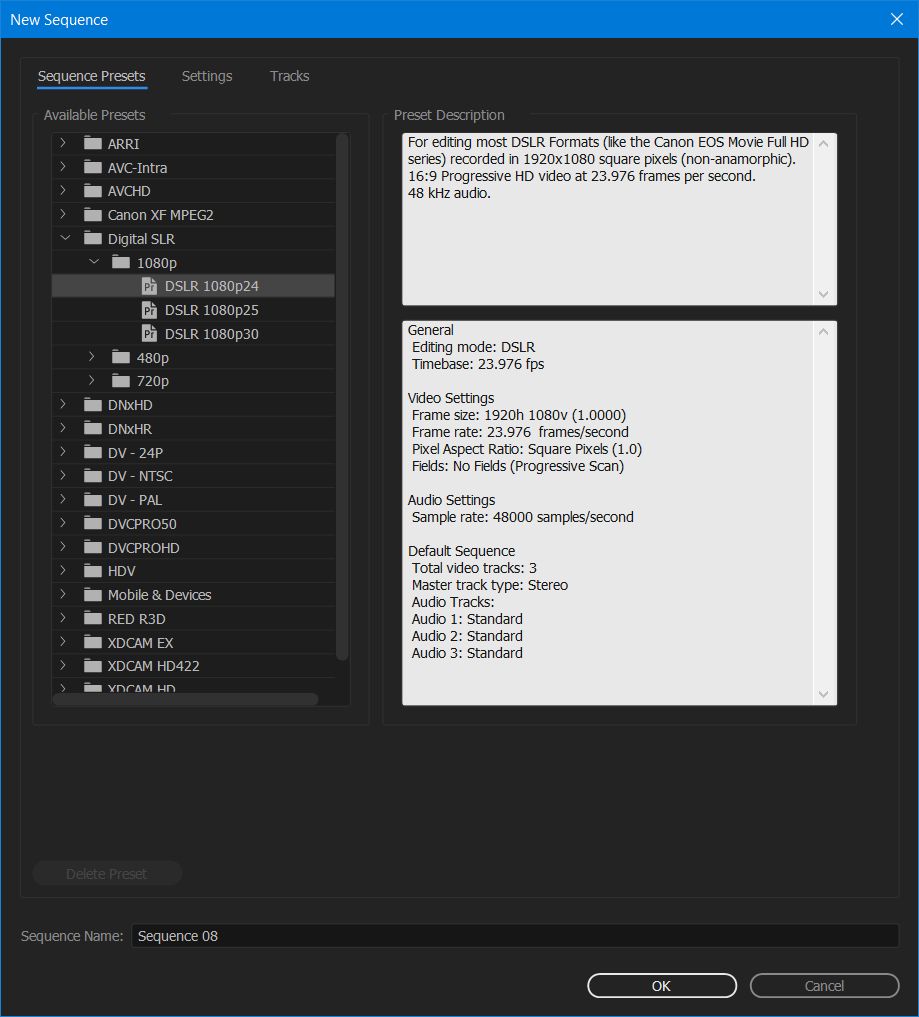
Before I get to my export settings, I need to discuss the sequence preset that I use. Premiere uses the term “sequence” to describe the timeline that you will use when editing your video. It is important to select a sequence preset that is the same as the video settings that you used when filming with your camera. You can use “Ctrl + N” or go to “File > New > Sequence” to open the new sequence dialog box. For the video clip I use in this project, I filmed in 1920×1080 resolution at 120fps with the Sony A7Sii. I then used Premiere to interpret the footage to 23.976 fps and that is what we will be exporting today. I need to select a new sequence preset that is the same as these video settings. Select Digital SLR > 1080p > DSLR 1080p24. Name your sequence in the dialogue box below, and click “OK.”
The New Sequence Preset Window
EDIT YOUR VIDEO
Your video is now ready to be edited as you would normally on the timeline. Once you have finished editing and are ready to export your video, go to the next step.
SET YOUR IN AND OUT POINTS
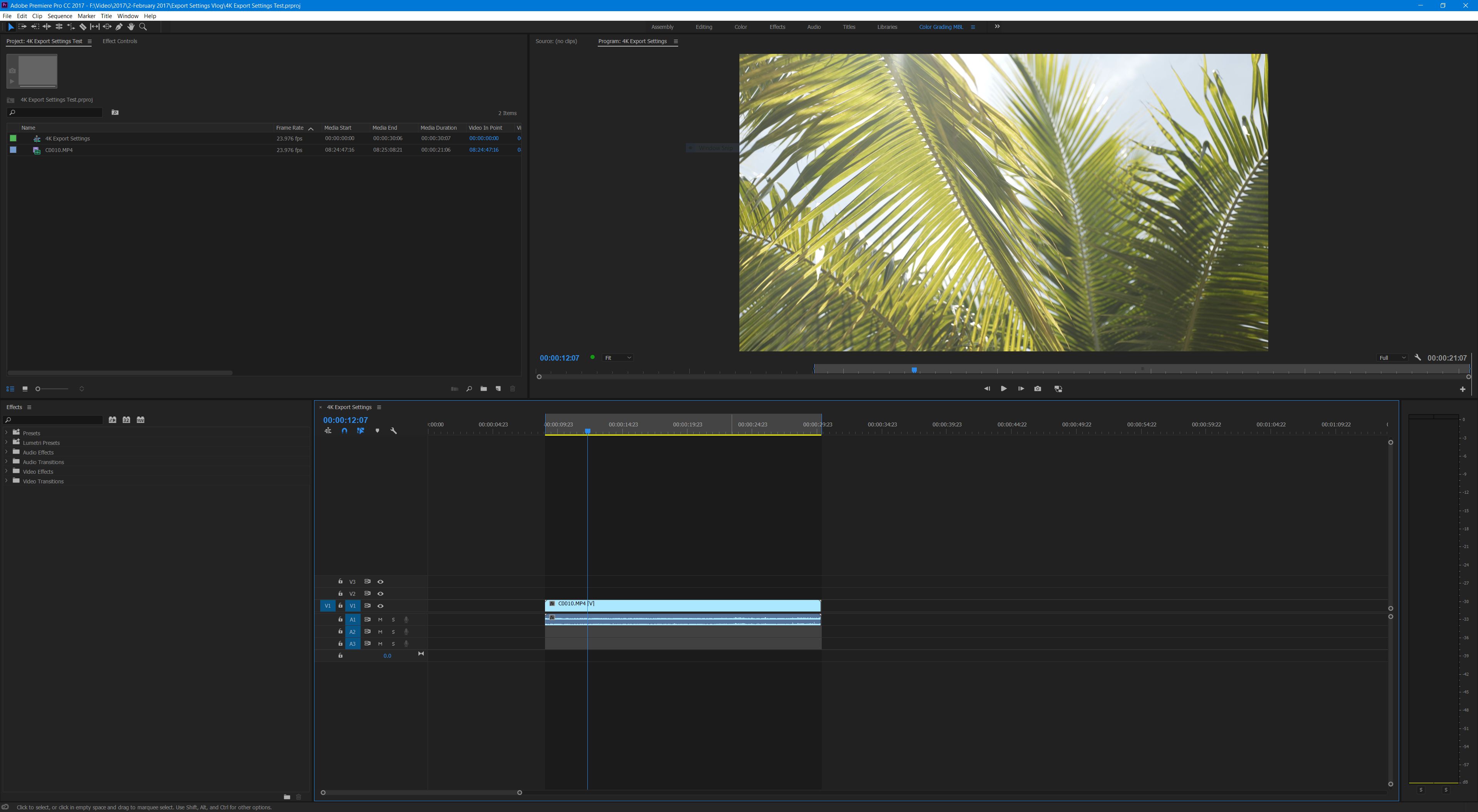
Once your video is edited and ready to render. You need to set your “In” and “Out” points. Do this by moving the video playhead to where you want the opening frame of your rendered video to begin and press the “I” key on your keyboard. Then move the playhead to the end of your video and select the “O” key on your keyboard. The timeline will turn a darker color where your in and out points are selected. It is now time to export your video! With the timeline selected you can either press “Ctrl + M” on the keyboard, or navigate to “File > Export > Media” in the menu.
Set your “In” and “Out” points.
BEGIN CHANGING YOUR EXPORT SETTINGS
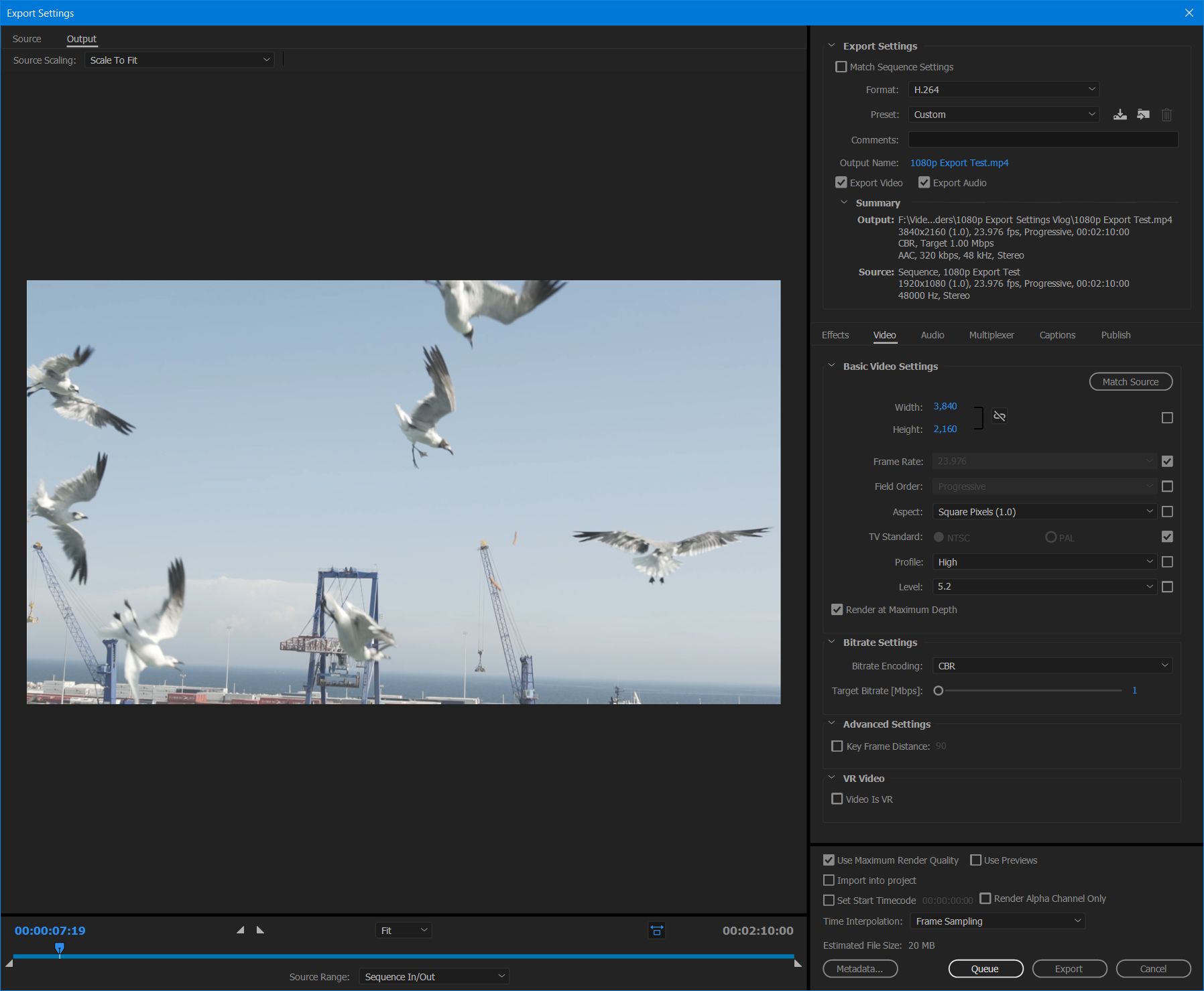
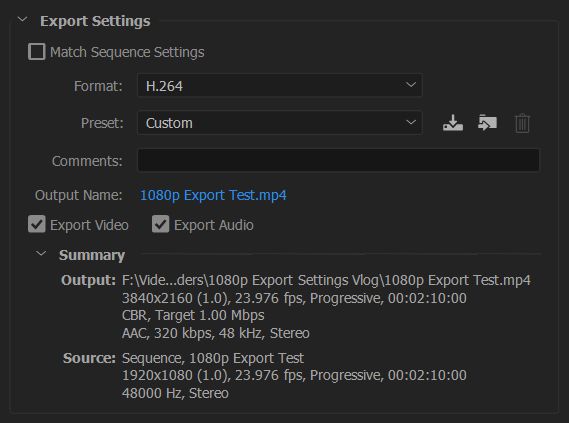
You’ve now opened the “Export Settings” dialog box and there’s approximately 3,000 settings you could change. Don’t freak out though, we’re going to tackle this one section at a time. First, under the “Export Settings” heading on the left, next to “Format” select “H.264” from the drop down menu. For Preset select, “Custom.” Click the blue text next to “Output Name” and select a name and location to save your video file. Make sure both the “Export Video” and “Export Audio” boxes are checked.
How the export settings dialogue box looks upon opening it for the first time.
The export settings heading of the dialog box.
BASIC VIDEO SETTINGS AND BITRATE SETTINGS FOR YOUTUBE, VIMEO, FACEBOOK, AND OTHER VIDEO SITES
If you are uploading your video to YouTube, Vimeo, Facebook, or any other video site, I recommend using the below settings. The file sizes will be quite large, but this will ensure that your video retains its quality when you upload it to these sites and they convert it into different formats and resolutions. Also, if you want to know my reasoning for choosing these settings, please watch my 4K export settings video.
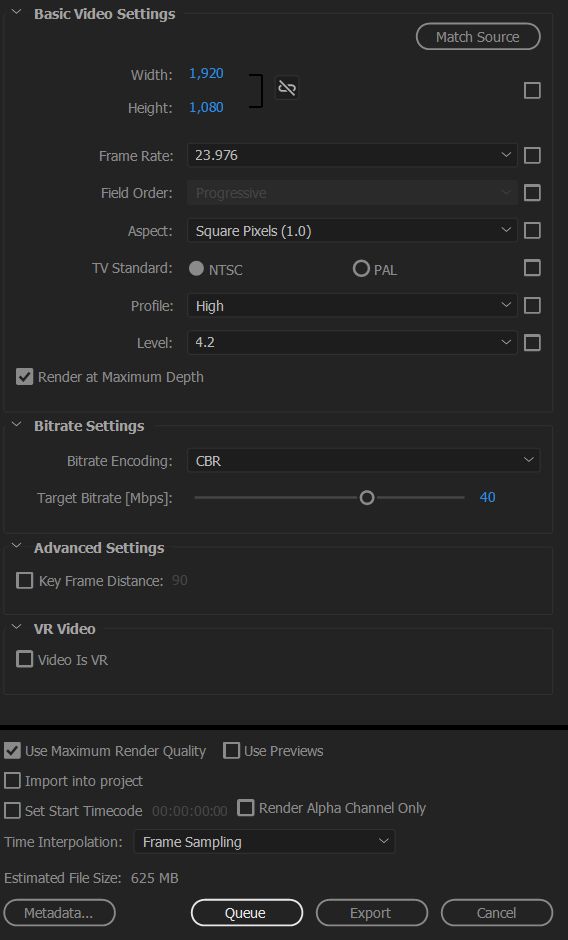
Select the “Video Tab” in the middle of the export settings dialog box and set “Profile” to “High” and “Level” to “4.2”. Then make sure your “Width” is set to “1,920” and your “Height” is set to “1,080”. Set your frame rate to “23.976”, and check the “Render at Maximum Depth.”
Under “Bitrate Settings” set “Bitrate Encoding” to “CBR” and your “Target Bitrate [Mbps] to “40.” Lastly, check “Use Maximum Render Quality” at the bottom.
HD Video export settings for YouTube, Vimeo, Facebook, etc.
BITRATE SETTINGS FOR GIVING YOUR 1080p VIDEO TO CLIENTS
If you are not planning on uploading your video to an online video site, and instead are giving it to a client, I would recommend using these bitrate settings because the file size won’t be nearly as large.
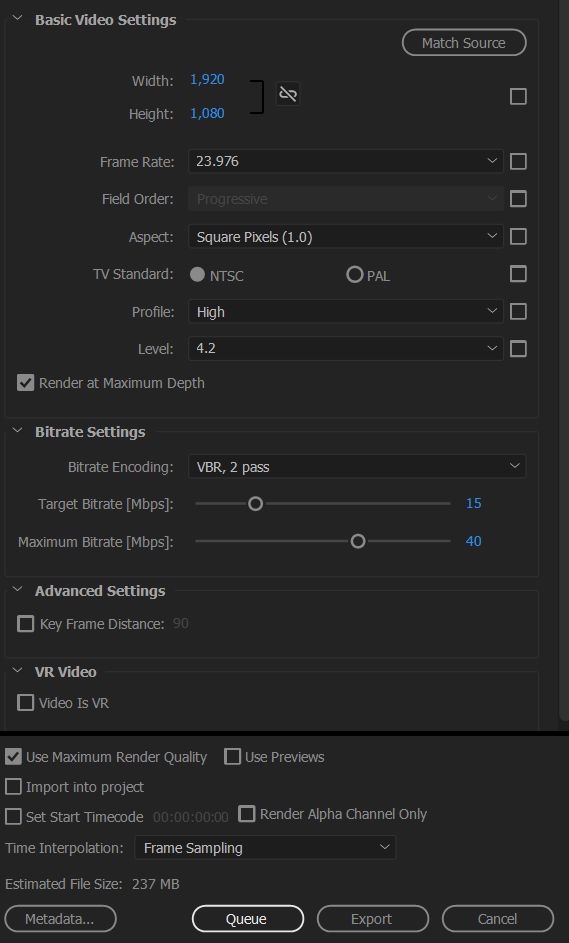
For “Basic Video Settings” use the same settings as you would if you were uploading to an online video site. For “Bitrate Settings,” change “Bitrate Encoding” to “VBR, 2 Pass.” Set “Target Bitrate [Mbps]” to “15” and Maximum Bitrate [Mbps] to “40”. Lastly, check “Use Maximum Render Quality” at the bottom.
HD Export settings for rendering your videos for clients.
CHANGE YOUR AUDIO EXPORT SETTINGS
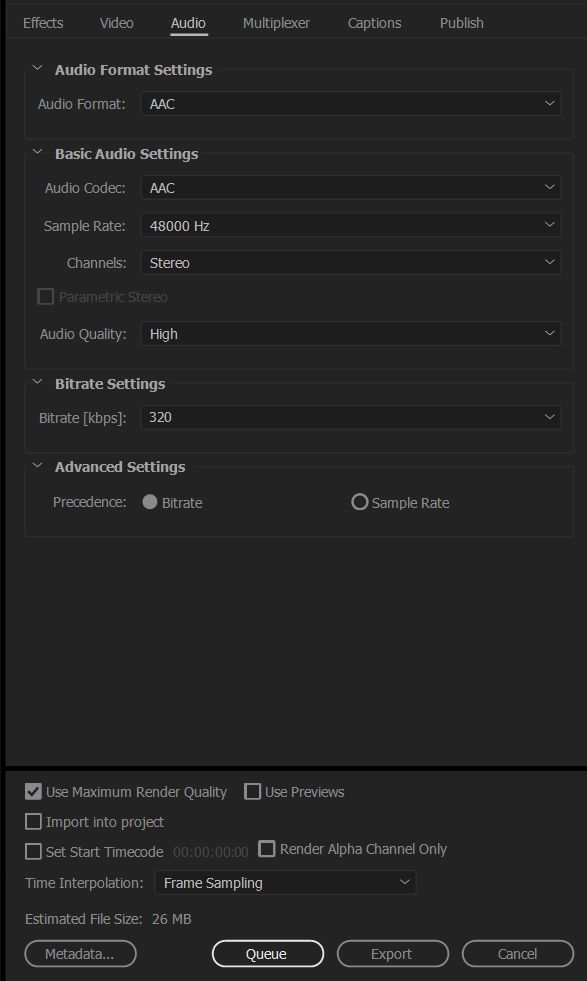
Click the “Audio” tab in the middle of the Export Settings window and for “Audio Format” select “AAC”. Under Basic Audio Settings, set the “Audio Codec” to “AAC”, Sample Rate to “48000 Hz”, “Channels” to “Stereo”, and “Audio Quality” to “High”. Lastly, for “Bitrate Settings” set “Bitrate [kbps]” to “320” and under Advanced Settings set “Precedence” to “Bitrate”.
Audio export settings.
SAVE YOUR VIDEO PRESET
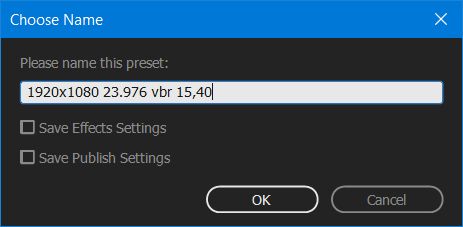
Now that you have created your video settings, click the down arrow icon to the right of your “Preset” at the top, and name your new Export Preset either “1920×1080 23.976 cbr 40” or “1920×1080 23.976 vbr 15,40” depending on whether you are saving the 40mbps CBR preset or the 15,40 VBR preset.
EXPORT YOUR VIDEO
You are ready to click “Queue” or “Export” at the bottom of the dialog box and render your video!
I hope this video and tutorial has been helpful to you. As always, if you have any questions or comments, please feel free to leave one below or get in touch.
Save time and download my free 4K Export Preset for Premiere Pro!
Way back in 2012 I wrote a blog post about my export settings for high definition videos in Premiere Pro. That post went on to become one of the most popular posts on my site. Wanna know what the second most popular post was? My video export settings for Instagram videos in Premiere Pro.
There’s a trend here, and I realized that with the advent of 4K video, I had the opportunity to create a new text and video tutorial about the settings that I use when shooting with my Sony A7Sii. As I prepared to create this tutorial, I decided that this would be the perfect time to revisit those posts about my high definition and Instagram export settings, and create videos for them as well.
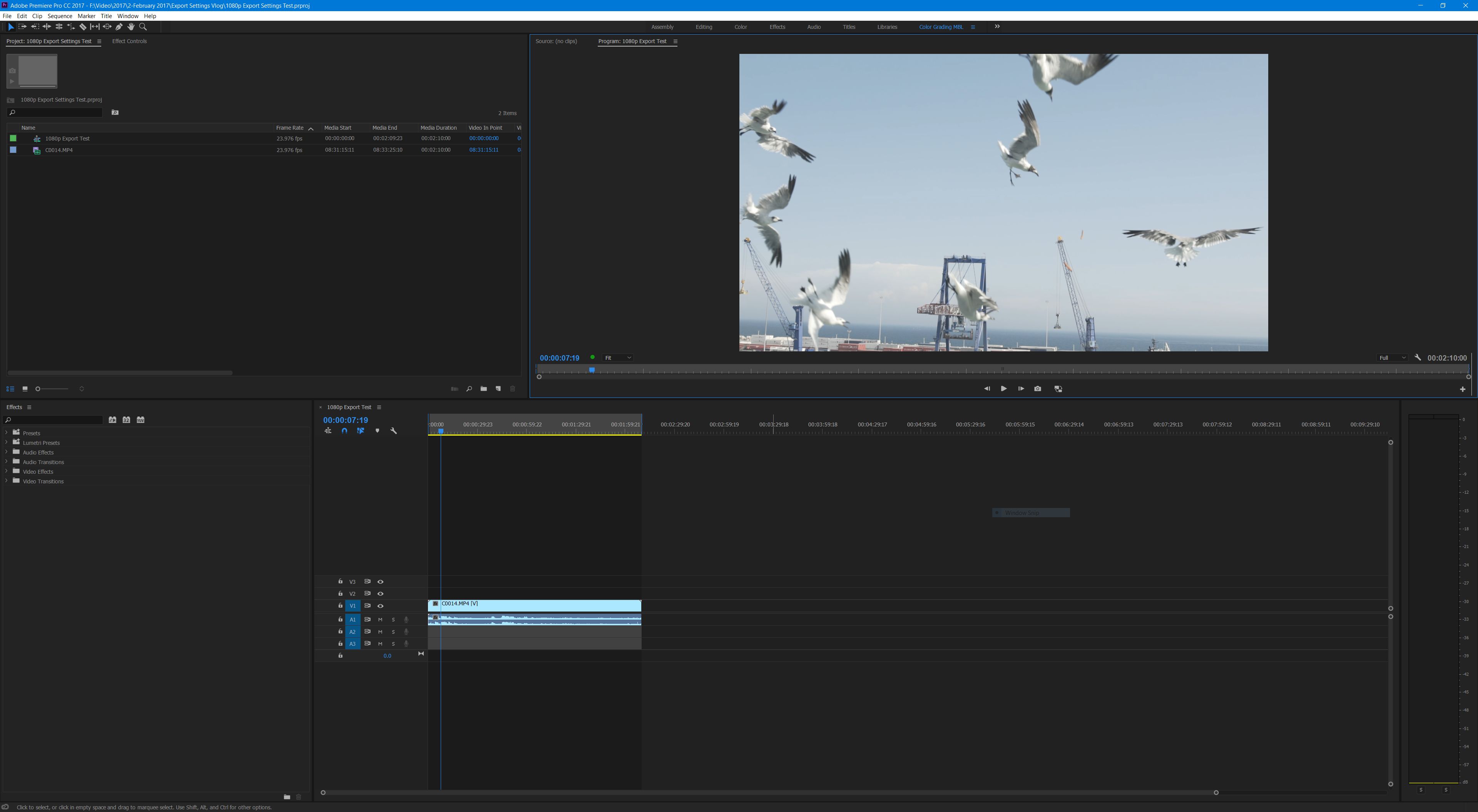
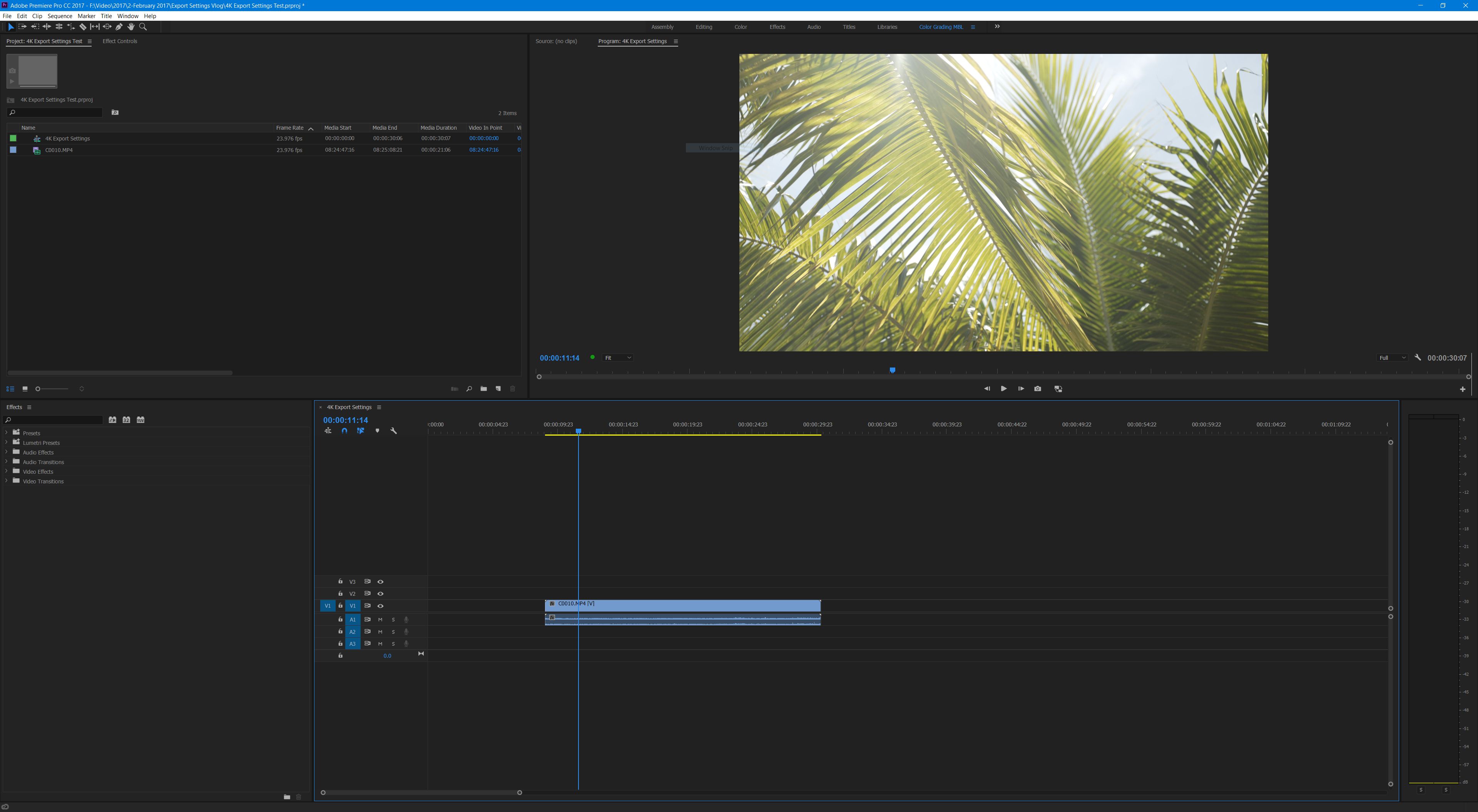
Adobe Premiere Pro CC 2017 doesn’t look very different from CS5.
My text guide for how to export 4K video in Premiere Pro CC for YouTube and Video
Before I get to my export settings, I need to discuss the sequence preset that I use. Premiere uses the term “sequence” to describe the timeline that you will use when editing your video. It is important to select a sequence preset that is the same as the video settings that you used when filming with your camera. You can use “Ctrl + N” or go to “File > New > Sequence” to open the new sequence dialog box. For the video clip I use in this project, I filmed in 3840×2160 resolution at 23.976 fps with the Sony A7Sii. I need to select a new sequence preset that is the same as these video settings.
The New Sequence Preset Window
SEQUENCE PRESET SETTINGS
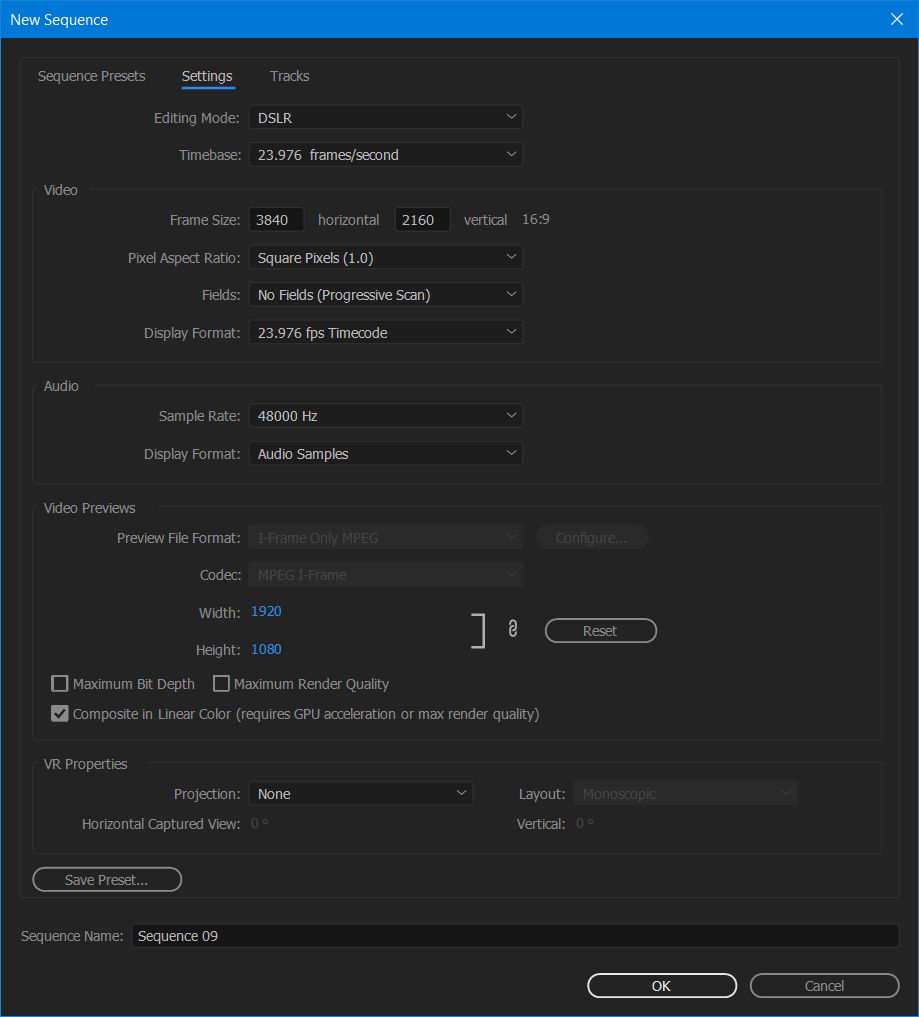
Once you have opened the New Sequence window, you have many presets to choose from. Because there aren’t any available for 3840×2160 footage, I would instead select “Digital SLR > 1080p > DSLR 1080p24” and then select the “Settings” tab at the top of the window. Under the “Video” heading, change the “Frame Size” to “3840 horizontal” and “2160 vertical”. Keep the rest of the settings the same as the preset.
New Sequence Settings
SAVE YOUR NEWLY CREATED PRESET
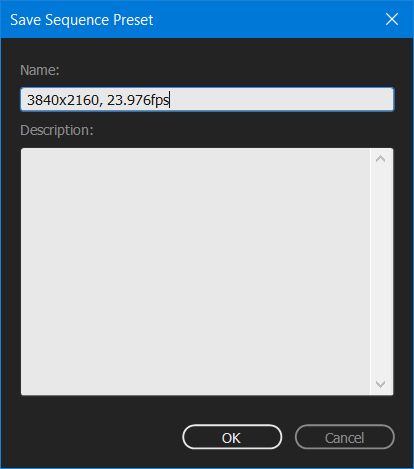
Click “Save Preset” at the bottom and save your settings as a new preset. I named mine “3840×2160 23.976fps” so I can easily remember it when editing future videos. Next select your newly made preset, and edit your video clips on the timeline you have created.
Save your sequence preset.
SET YOUR IN AND OUT POINTS
Once your video is edited and ready to render. You need to set your “In” and “Out” points. Do this by moving the video playhead to where you want the opening frame of your rendered video to begin and press the “I” key on your keyboard. Then move the playhead to the end of your video and select the “O” key on your keyboard. The timeline will turn a darker color where your in and out points are selected. It is now time to export your video! With the timeline selected you can either press “Ctrl + M” on the keyboard, or navigate to “File > Export > Media” in the menu.
Set your “In” and “Out” points.
BEGIN CHANGING YOUR EXPORT SETTINGS
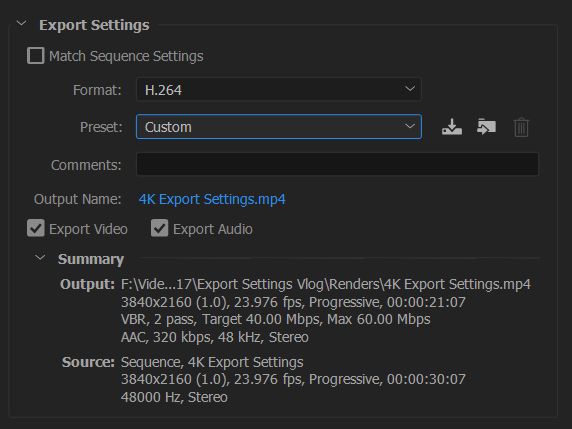
You’ve now opened the “Export Settings” dialog box and there’s approximately 3,000 settings you could change. Don’t freak out though, we’re going to tackle this one section at a time. First, under the “Export Settings” heading on the left, next to “Format” select “H.264” from the drop down menu. For Preset select, “Custom.” Click the blue text next to “Output Name” and select a name and location to save your video file. Make sure both the “Export Video” and “Export Audio” boxes are checked.
How the export settings dialogue box looks upon opening it for the first time.
The export settings heading of the dialog box.
BASIC VIDEO SETTINGS AND BITRATE SETTINGS FOR YOUTUBE, VIMEO, FACEBOOK, AND OTHER VIDEO SITES
If you are uploading your video to YouTube, Vimeo, Facebook, or any other video site that supports 4K, I recommend using the below settings. The file sizes will be quite large, but this will ensure that your video retains its quality when you upload it to these sites and they convert it into different formats and resolutions. Also, if you want to know my reasoning for choosing these settings, please watch the tutorial video.
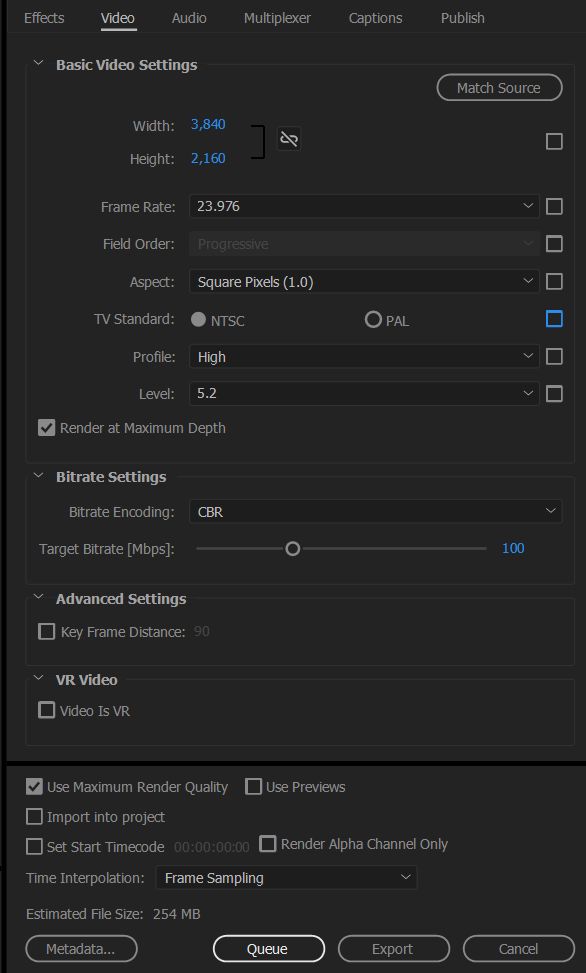
Select the “Video Tab” in the middle of the export settings dialog box and set “Profile” to “High” and “Level” to “5.2”. Then make sure your “Width” is set to “3,840” and your “Height” is set to “2,160”. Set your frame rate to “23.976”, and check the “Render at Maximum Depth.”
Under “Bitrate Settings” set “Bitrate Encoding” to “CBR” and your “Target Bitrate [Mbps] to “100.” Lastly, check “Use Maximum Render Quality” at the bottom.
Basic video settings and Bitrate settings.
BITRATE SETTINGS FOR GIVING YOUR 4K VIDEO TO CLIENTS
If you are not planning on uploading your video to an online video site, and instead are giving it to a client, I would recommend using these bitrate settings because the file size won’t be nearly as large.
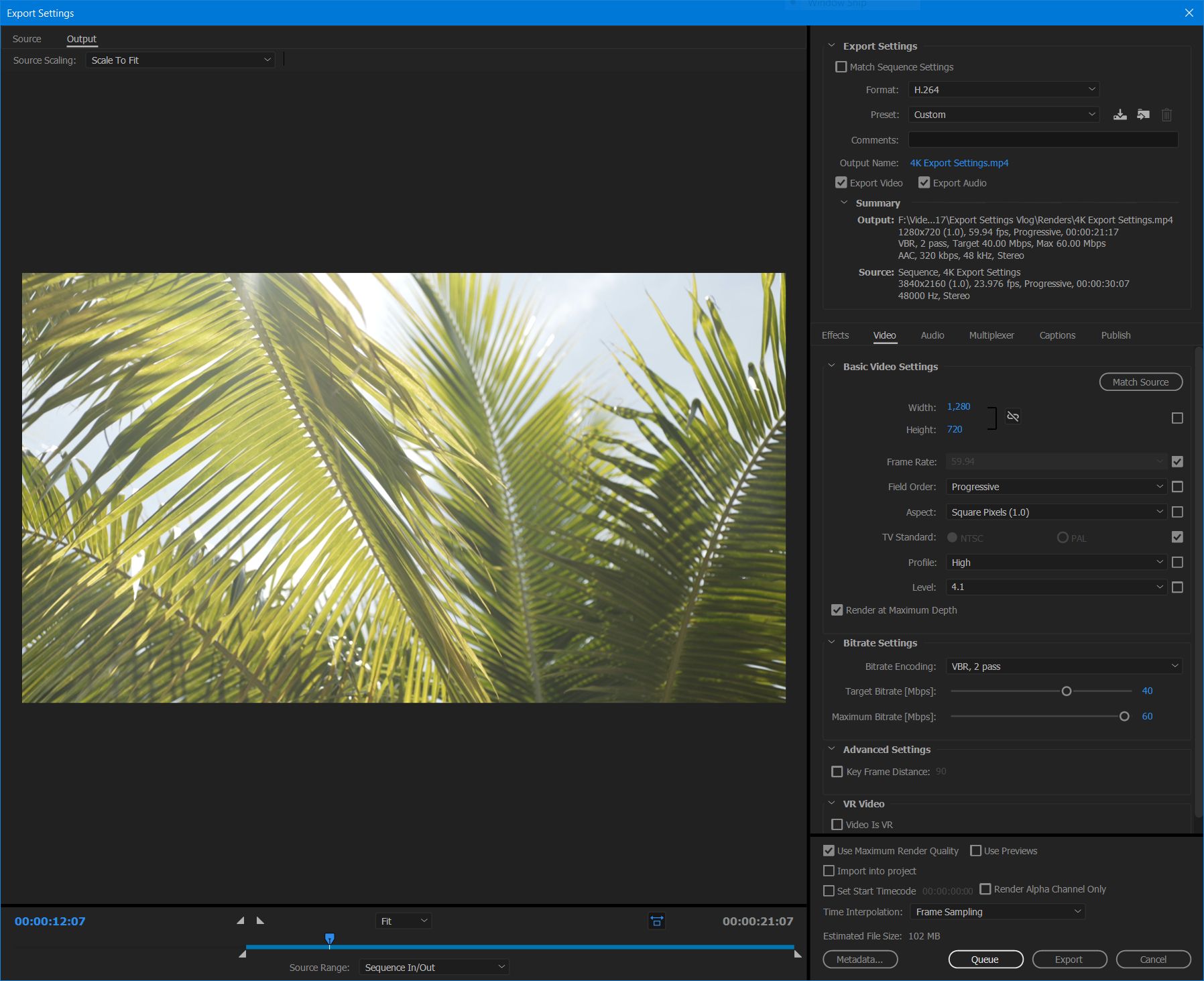
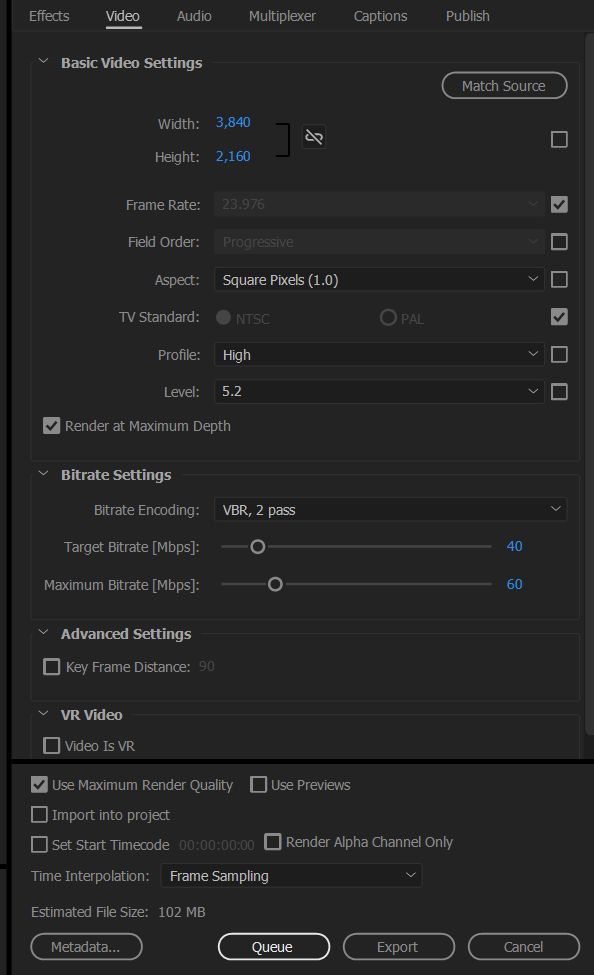
For “Basic Video Settings” use the same settings as you would if you were uploading to an online video site. For “Bitrate Settings,” change “Bitrate Encoding” to “VBR, 2 Pass.” Set “Target Bitrate [Mbps]” to “40” and Maximum Bitrate [Mbps] to “60”. Lastly, check “Use Maximum Render Quality” at the bottom.
Basic Video Settings and Bitrate Settings for clients.
CHANGE YOUR AUDIO EXPORT SETTINGS
Click the “Audio” tab in the middle of the Export Settings window and for “Audio Format” select “AAC”. Under Basic Audio Settings, set the “Audio Codec” to “AAC”, Sample Rate to “48000 Hz”, “Channels” to “Stereo”, and “Audio Quality” to “High”. Lastly, for “Bitrate Settings” set “Bitrate [kbps]” to “320” and under Advanced Settings set “Precedence” to “Bitrate”.
Audio export settings.
SAVE YOUR VIDEO PRESET
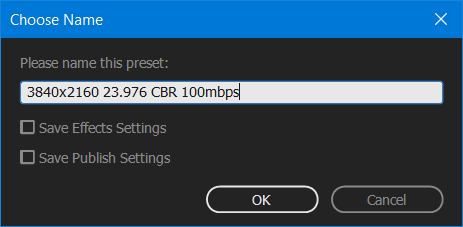
Now that you have created your video settings, click the down arrow icon to the right of your “Preset” at the top, and name your new Export Preset either “3840×2160 23.976 100mbps cbr” or “3840×2160 23.976 40,60 vbr” depending on whether you are saving the 100mbps CBR preset or the 40,60 VBR preset.
Video Export Preset
EXPORT YOUR VIDEO
You are ready to click “Queue” or “Export” at the bottom of the dialog box and render your video!
I hope this video and tutorial has been helpful to you. As always, if you have any questions or comments, please feel free to leave one below or get in touch.