How to Play 10-Bit Video in Windows 11 and Windows 10

How to Play 10-Bit Video in Windows 10

You just bought a camera that shoots 10-bit footage, you copied that footage over to your PC, and now Windows either refuses to play it at all or plays it back like a slideshow, and even VLC, which normally plays back anything you throw at it, is just sitting there stuttering. You’re not doing anything wrong! This is a Windows problem, and you can fix it in about five minutes with a completely free program.

One heads up before we start. I made the video above back in 2021, and the mpv download page has changed since then. In the video I tell you to click “stable” over on SourceForge, and that folder does not exist anymore, which is why so many of you have left comments saying you can’t find it. You’re not going crazy! The written steps below are updated for what the site actually looks like today, so follow these and you’ll be fine.

Hey, my name is Matt Johnson, I’ve been filming weddings for over 15 years, and I’m here to help you become a better filmmaker and video editor.

Why won’t Windows play 10-bit video?

Whenever your camera records in 10-bit, it’s storing a lot more color information than the 8-bit footage Windows has been handling comfortably for years, and Windows doesn’t ship with everything it needs to decode that on its own. So you get one of two things: a file that won’t open, or playback so choppy that you assume the file is corrupted. It isn’t corrupted! Windows just doesn’t know what to do with it.
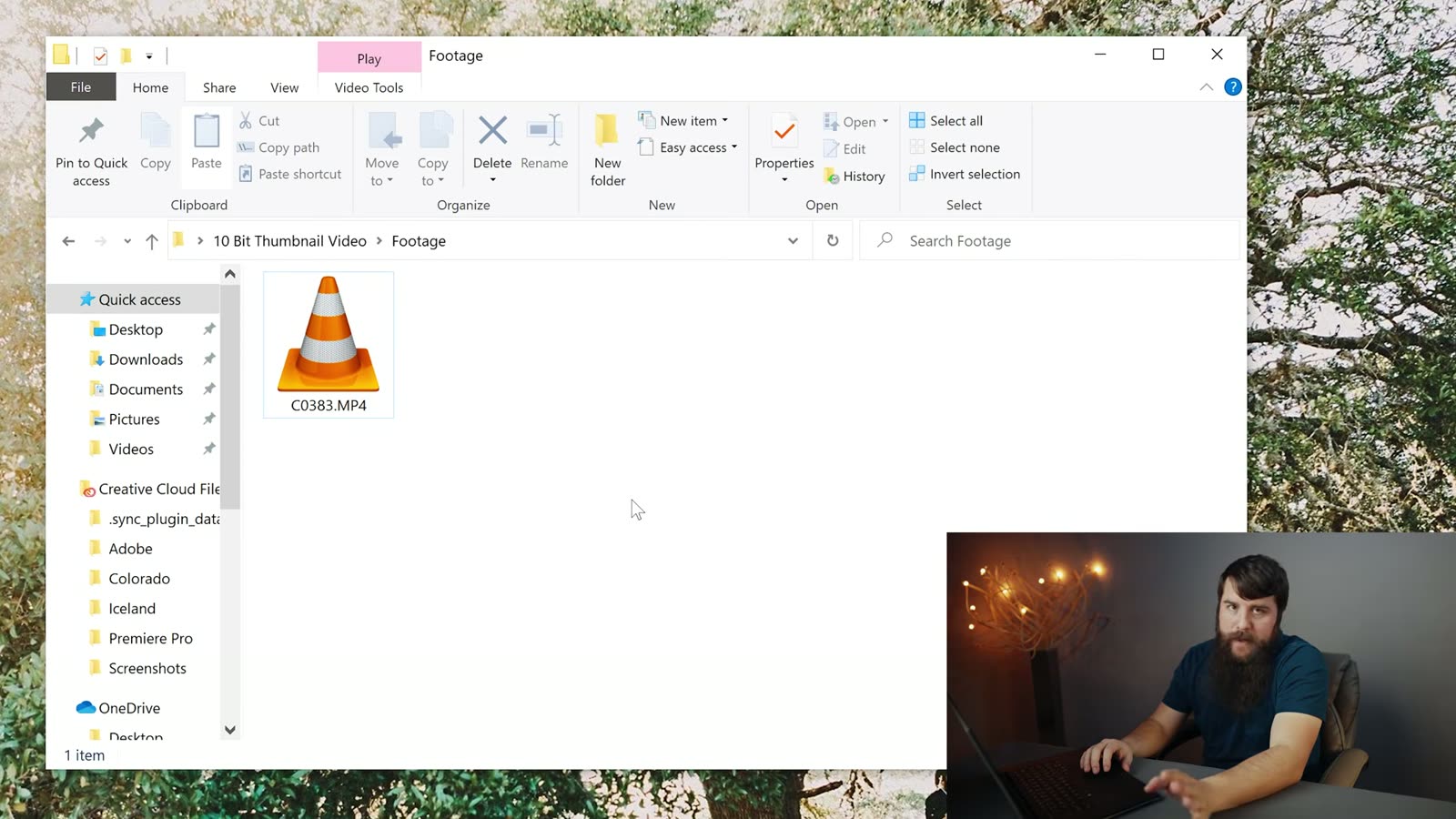
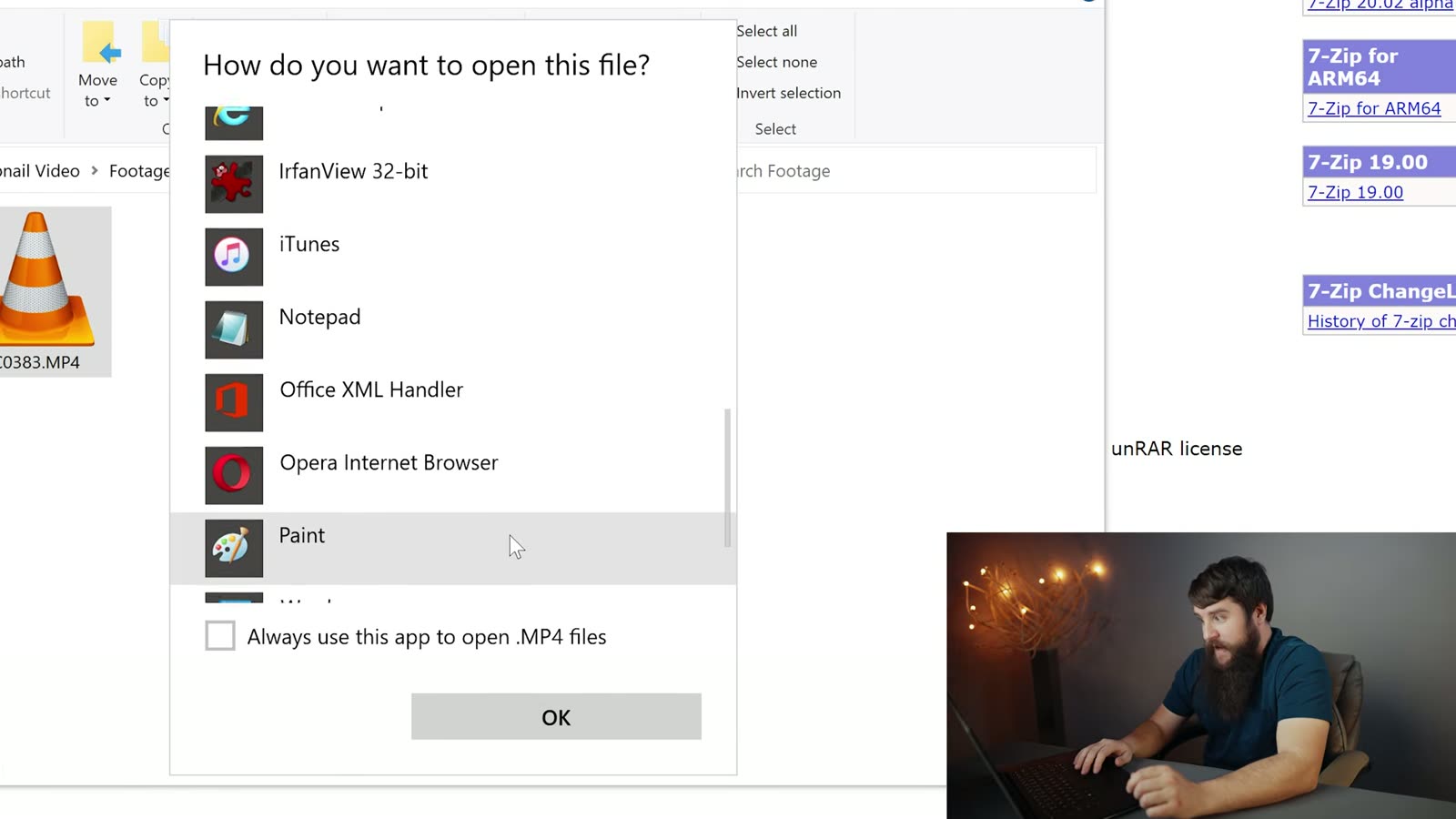
A Windows folder of 10-bit clips showing only VLC traffic cone icons instead of preview thumbnails
A whole folder of footage and not one preview. Just traffic cones.

The fix is a free media player called mpv. I’ve traditionally loved VLC, and I still use it for plenty of things, but for 4K 10-bit files it just does not hold up, and mpv handles them without breaking a sweat.

How do you download mpv now that the page has changed?

Here’s the deal: mpv doesn’t build its own Windows version, so the site sends you off to a third party who does, and that’s the part that moved. It used to live on SourceForge with a folder called “stable” and now it lives on GitHub with no such folder, which is why the old instructions dead-end.

Go to mpv.io/installation. Under the Windows heading, the very first row says “Windows builds by shinchiro (git)”, and the link next to it goes to github.com/shinchiro/mpv-winbuild-cmake/releases. That’s your destination. There’s a second row for builds by zhongfly, and that works too, so if one of them is ever down you have a backup.

Which file do you actually download?

This is the part that trips everybody up, because that GitHub page throws about eight files at you with names like mpv-x86_64-20260809-git-dd5d17d328.7z and none of them say “stable” or “download this one.” Those numbers aren’t random though, and once you know what they mean it’s easy.

Take the newest release at the top of the page, open the Assets list, and grab the file that starts with mpv-x86_64- followed by a date. That’s the normal 64-bit Windows build, and it’s the one almost everybody wants.

Skip the rest, and here’s what they are so you’re not guessing:

  • Anything with dev in the name is for programmers building software against mpv. It’s not the player. You don’t want it.
  • i686 is the 32-bit build, and unless you’re on a very old PC, that’s not you.
  • aarch64 is for ARM processors, like a Surface Pro X. Not a normal desktop or laptop.
  • x86_64-v3 is the same player tuned for newer processors. It’ll usually work fine, but plain x86_64 is the safe pick and you won’t notice a difference playing back footage.

Unzip it with 7-Zip

That download is a .7z file, which Windows can’t open by itself, so you’ll need 7-Zip. It’s free, it takes ten seconds to install, and honestly it’s worth having on your machine anyway. On the homepage, click the download link next to the 64-bit version.
The 7-zip.org download page with the 64-bit Windows download link
Grab the 64-bit version unless you know you need otherwise.

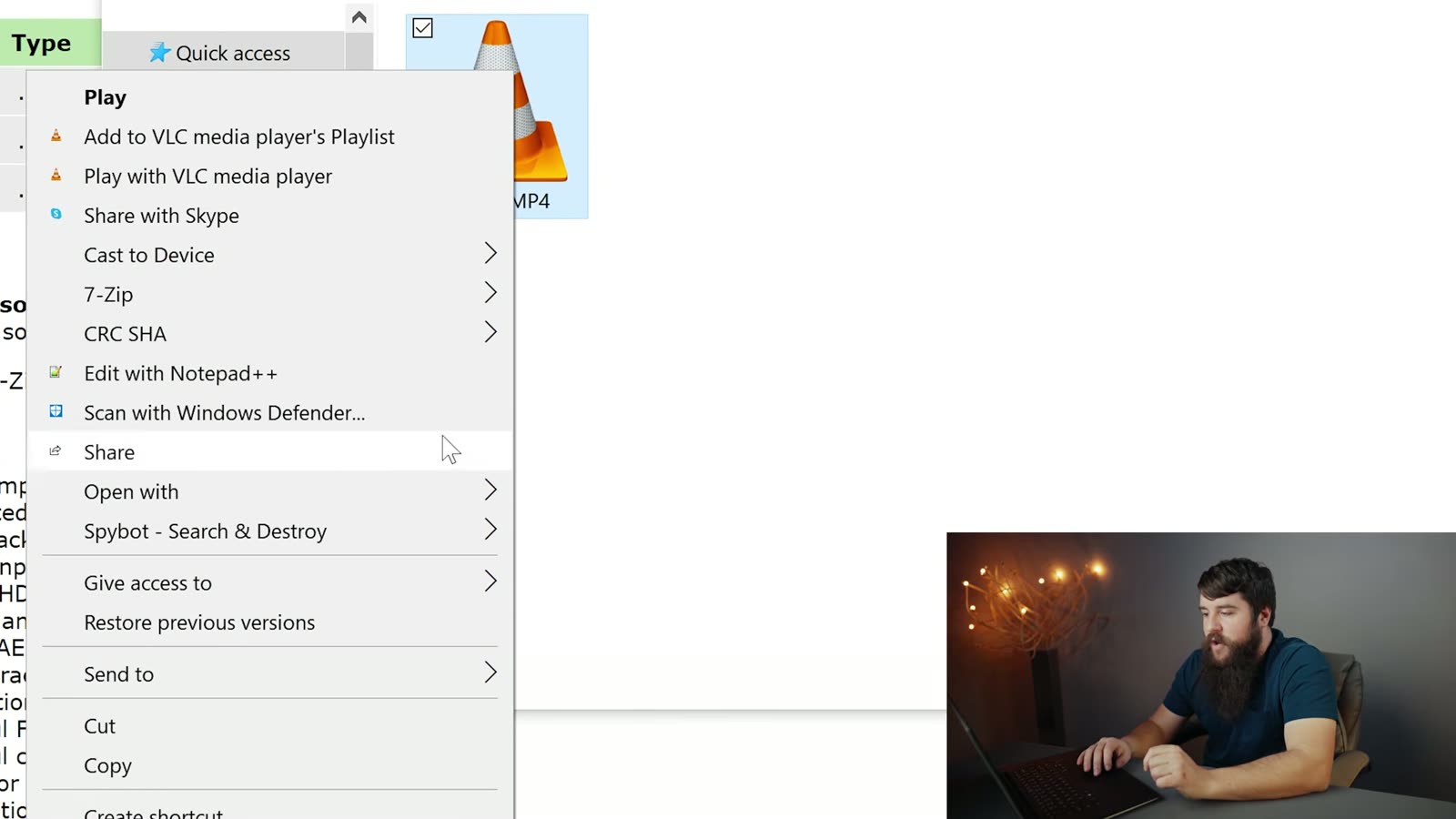
Once 7-Zip is installed, right click the .7z file you downloaded, go to the 7-Zip menu, and click Extract to “mpv-…”. That drops everything into its own folder.

While you’re here, take a look at How To Play Wedding Videos From A USB Flash Drive On ANY TV.
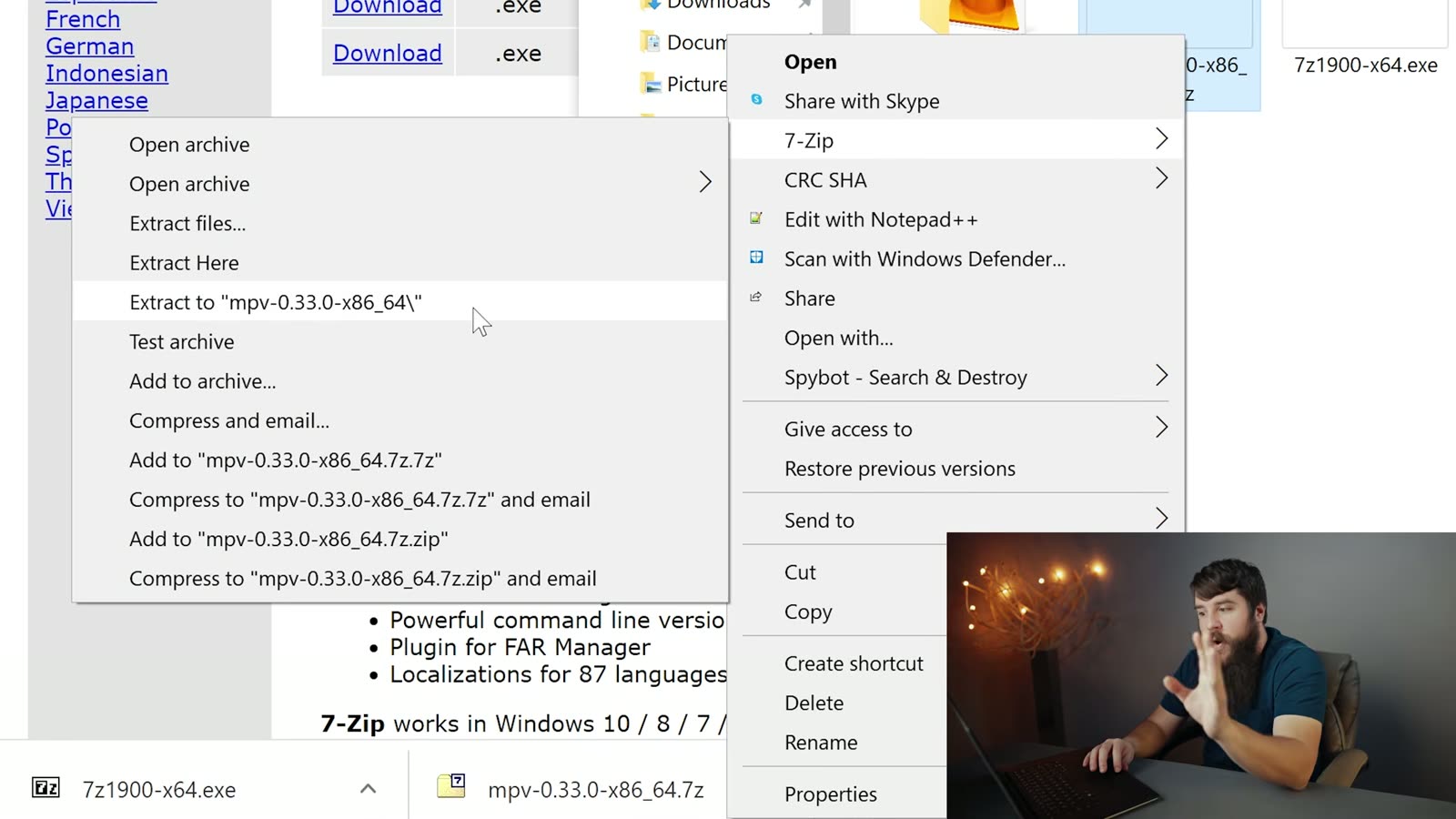
The 7-Zip extraction dialog unpacking the downloaded mpv archive
Extracting the archive into its own folder.

Open that folder and you’ll find mpv.exe sitting inside. There’s no installer here and nothing else to run, that file is the program. Remember where it lives, because we’re gonna come back to it in a second. I’d honestly move the whole folder somewhere sensible like your Documents rather than leaving it in Downloads, because whenever you clean out your Downloads folder in six months you’ll break your video playback and have no idea why.

Tell Windows to open your footage with mpv

Now navigate to some 10-bit footage that you can’t normally play. Right click the video file, go to Open with, then Choose another app. Scroll to the bottom of the box that opens, click More apps, scroll down again, and click Look for another app on this PC. Then browse to that mpv.exe file, select it, and click Open.
The Windows Open with browse dialog with mpv.exe selected inside the extracted mpv folder
Point Windows straight at mpv.exe inside the folder you extracted.

Ta-da, your footage plays. Smoothly!

One last step, because right now you’ve only told Windows to open that one file that one time. Right click your video file again, go to Open with, Choose another app (this’ll feel familiar), and this time mpv is right there in the list. Click it, tick Always use this app to open .MP4 files, and click OK.
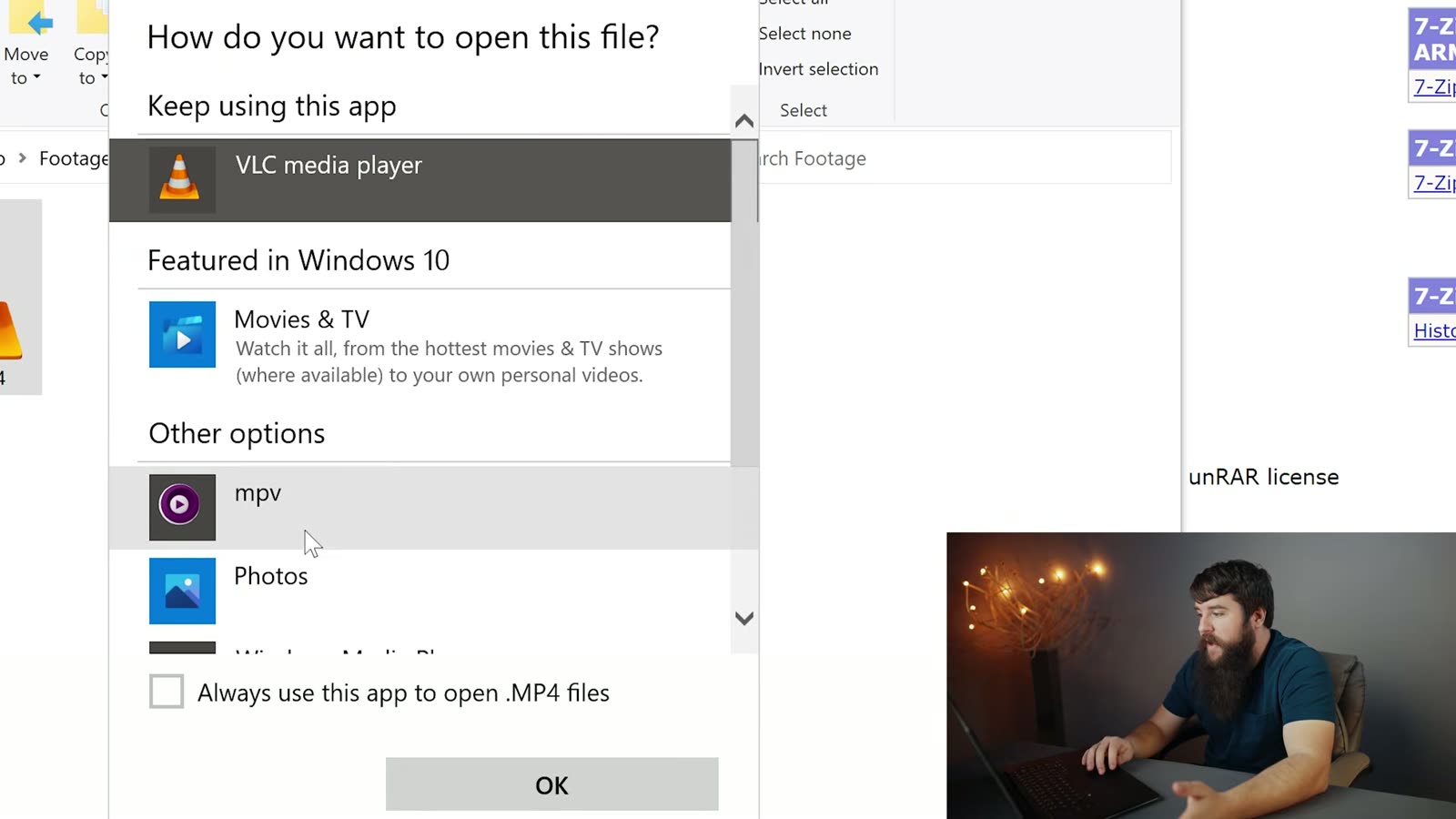
The How do you want to open this file dialog with mpv chosen and Always use this app ticked
Tick the box or you’ll be doing this dance for every single clip.
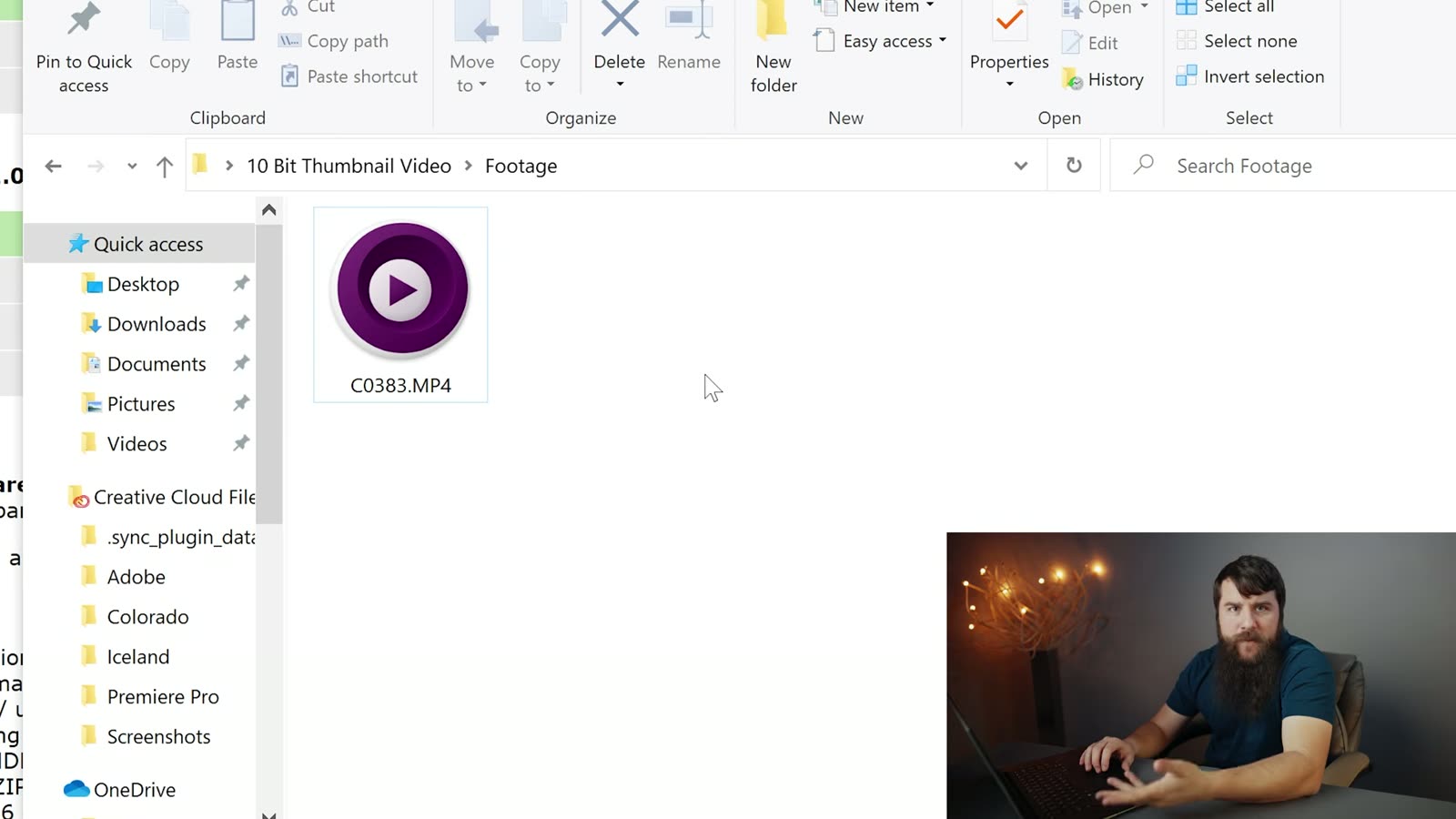
A 10-bit MP4 in Windows Explorer now showing the purple mpv icon after being associated with the player
The purple mpv icon means Windows got the message.

Does this work on Windows 11?

Yes. The video was filmed on Windows 10 back when that’s what everybody was running, and Windows 10 stopped getting support in October of 2025, so most of you reading this are on 11 now. mpv runs on Windows 11 exactly the same way, and the steps above are identical. The Open with menu looks a little different on 11 and you may need to click Show more options first to get to the full right-click menu, but everything else is where you’d expect it.

Common questions

I can’t find “stable” anywhere. Where did it go?

It’s gone, and it’s not coming back. The builds moved from SourceForge to GitHub, and GitHub doesn’t use folders like that, it just lists releases newest-first with the files attached underneath. Take the top release and grab the mpv-x86_64- file. That’s the modern equivalent of what “stable” used to give you.

Will this fix playback in Premiere or Resolve too?

Nope, and I don’t want you to be disappointed later, so I’ll say it plainly. mpv fixes playback in Windows, for previewing and sorting your footage. Your editing program does its own decoding and doesn’t care what media player you installed. If your 10-bit footage is choppy on the timeline, that’s a proxy workflow conversation, not this one.

My files still have no thumbnails. Didn’t this fix that?

Playback and thumbnails are two separate problems, and mpv only solves the first one. Getting real preview images back in Explorer takes a second free tool, and I wrote that up separately: how to show thumbnail previews for 10-bit video in Windows. Do both and your footage folder finally behaves like it used to.

$1500 Video Editing PC Build Guide | Edits 4K, 6K, RAW Video in 2021!

$1500 Video Editing PC Build Guide | Edits 4K, 6K, RAW Video in 2021!

Powerful and genuinely affordable 6K cameras exist now. The Blackmagic Pocket 6K, the RED Komodo, the Panasonic S1H. Which is great, right up until you drop that footage on a timeline and your computer starts making noises like it’s in pain.

So here are the exact parts to build a machine that edits it fast, for around $1500. Whether you’re shooting 4K, 6K, or raw, this build will handle it in Premiere Pro, DaVinci Resolve, or basically anything else, and it’s great for photo editing, mixing music, gaming and livestreaming too.

Finished black NZXT PC on a wooden table with the tempered glass side panel showing RGB-lit internals

Everything is linked below and organized together on my parts list for this build.

This is what to buy, not how to assemble it. For that, my step by step build guide walks from opening boxes to pressing the power button, and all of it still applies here. It’s not hard. It’s kind of like building Legos.

If this is the wrong budget for you, I also have a $750 budget build and a $2000 monster build.

CPU, The Brain Of The Computer

The most important part here, because the more cores and threads you have, the faster your videos edit and render.

Get the Ryzen 7 3700X. Eight cores, sixteen threads, around $320. In my opinion that’s the sweet spot of power to price in 2021.

But I hear you. Matt, the sweet spot is great and all, what else you got? Okay: for about $230 more, the Ryzen 9 5900X takes you to twelve cores and twenty-four threads. It’s a stellar chip and it will handle 4K, 6K, 8K. No matter the Ks, this thing should handle it.

CPU Cooler

Good news on the 3700X: it comes with a stock air cooler in the box, and from everything I can find it’s a good one, so save your money and skip the aftermarket option.

Close-up of the stock AMD Wraith cooler fan installed on the Ryzen CPU inside the open case

The 5900X does not come with a cooler, so if you go that route, budget for the Cooler Master Hyper 212 Evo, which is a much loved cooler and does the job. If you’d rather water cool, here’s the option I’d point you at.

Motherboard

The MSI MPG B550 Gaming Edge Wifi. Feature packed, and it has wifi built in, which is genuinely nice not to have to think about.

Newegg listing for the MSI MPG B550 Gaming Edge WiFi AM4 ATX motherboard priced at $189.99

One thing you need to know: if you go with the upgraded 5900X, there’s a chance you’ll need to update the motherboard BIOS to make it work. If that sounds like a foreign language, don’t worry. All you need is a USB flash drive and access to a second computer to download a file on, and you can borrow a friend’s. This tutorial walks through every step.

Memory

Not goats. RAM.

A minimum of 32GB of Corsair Vengeance LPX at 3200MHz. I ran 32GB in my editing desktop for years and it handled 4K fine, but I’ll be honest about where it started to hurt: rendering footage above 4K, and rendering long 4K videos, think twenty minutes and up. That’s whenever I’d watch it run out.

So if you’re regularly rendering long videos or anything higher than 4K, go straight to 64GB instead and stop thinking about it.

SSD And Storage

Best mix of price, size and speed is the 1TB Samsung 970 EVO at around $140, or the 2TB version if you have the budget. Extra space is always a good thing.

Same rule as always though: this SSD is for your operating system and programs only. For the fastest editing you want one drive holding your software and a separate drive holding your footage. If you travel a lot like I do, that means an external SSD or a large external hard drive. This case will also take an internal SSD or a big internal hard drive if you’d rather keep it inside.

Graphics Cards, And The Mess That Is Buying One

A ton of great cards have come out recently and you cannot buy any of them at a sane price. Perfect storm: a shortage of workers building cards because of the pandemic, everybody home wanting to game because of the pandemic, cryptocurrency mining, which is always an issue, and scalpers buying up stock the moment it lands and flipping it on eBay at double or triple MSRP.

eBay search results showing scalped RTX 3080 and 3070 graphics cards listed from $935 to $1,450

So rather than name one card like I normally would, here are several, to give you the best chance of finding something in stock.

On brands: ASUS, MSI, EVGA, Gigabyte, ZOTAC, PNY. For video editing it genuinely doesn’t make much difference which one you buy, and right now we care far more about availability. If it’s one of those and it doesn’t have a pile of horrible reviews, go.

Cheaper options, MSRP roughly $400 to $500: the NVIDIA RTX 3070, and AMD’s RX 5700 and 5700 XT. All three perform very well for editing, and if you can find one new and not at an outrageous markup, they’re great.

Best Buy listing for an MSI Radeon RX 6800 XT 16GB graphics card marked Sold Out at $649.99

More expensive, roughly $580 to $700: the AMD 6800, the 6800 XT, and the NVIDIA RTX 3080. Because who doesn’t want more power. Same advice, wait until you can get one near those prices.

I do one of these every year, so $1500 – $2000+ Video Editing PC Build Guide 2022 and 4K Video Editing Laptop Buyer’s Guide for $1500+ in 2022 are still up if you want to see how much has changed.

Here are the ones I found in stock as I made this, and I cannot promise they stay that way, because this changes hour to hour: the main pick, then option two, three, four, five, and six.

Close-up inside the open case of an EVGA GeForce GTX 1060 graphics card being seated into its slot

Set up stock alerts at Amazon, Newegg and B&H. And if you’re near a Micro Center or a Best Buy, walking in gives you a far better shot than refreshing a page. If you do find a store with stock, go leave a comment on the video so other people can sort by newest and grab one too.

Case

Same case as the budget build: the NZXT H510. It’s beautiful without being flashy, and here’s my honest reasoning. Whenever I build a computer I’d rather buy a cheaper case with good airflow and put the savings into the components inside it. You can absolutely go crazy here and there are much cooler looking options, but they don’t make your renders faster. Grab a case fan adapter while you’re at it.

Best Buy listing for the NZXT H510 compact matte black ATX mid tower case with tempered glass

If you want a 5.25 inch bay for an internal Blu-ray or DVD burner, I’d personally just buy an external USB Blu-ray drive or a cheap USB DVD drive. But if you really want it internal, get the Phanteks Enthoo Pro M TG. It costs a bit more than the H510 and it looks professional.

Newegg listing for the black Phanteks Enthoo Pro M steel and tempered glass ATX mid tower case

Power Supply

Building the base version with none of the upgrades? The EVGA BQ 500 watt has you covered.

Buying any of the upgrades, or the alternative case with the optical drive? Go with the EVGA BQ 650 watt instead.

Amazon listing for the EVGA 650 BQ 80+ Bronze 650W semi-modular power supply priced at $84

Both of those are semi-modular, meaning some cables are permanently attached, which affects how tidy your cable routing can be. If you want to spend a bit more and be fancier about it, the fully modular EVGA G3 750 watt is the one.

Everything Else

Mouse, keyboard, monitor, speakers, operating system, all mostly down to preference. What I use and recommend: a keyboard with macro keys, the best mouse I’ve ever used, some affordable speakers, and a quick USB wifi adapter if you need one.

For a monitor there’s a good affordable 1080p option, but you’re building a 4K editing machine, so I’d definitely go with the 27 inch 4K to match it.

Windows 10 for the operating system, and this Tom’s Hardware article covers getting a copy free or very cheap.

And if after all this you’d rather not build anything, that’s completely fine. Here’s my prebuilt video editing PC guide instead.

Build a Budget 4K Video Editing PC for $750 in 2021! AMD Ryzen Build

Build a Budget 4K Video Editing PC for $750 in 2021! AMD Ryzen Build

It’s early 2021, winter is upon us, and here are the parts you need to build a 4K video editing computer for around $750. This will comfortably edit 4K and HD in Premiere Pro or DaVinci Resolve, edit photos, mix music, stream on Twitch, and game, and it should hold up for years.

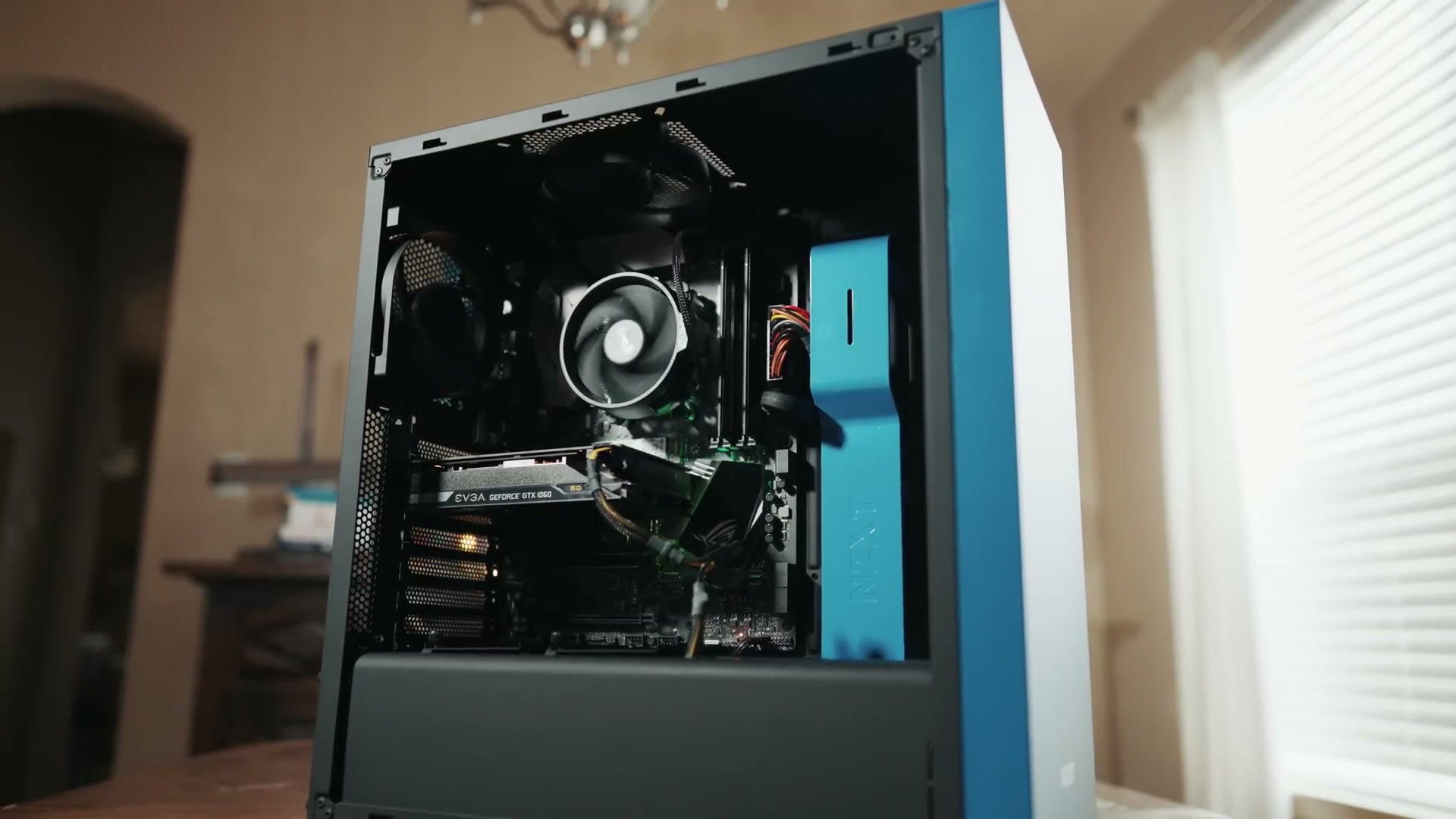
Finished build with the tempered glass side panel open, showing the CPU cooler and GPU, on a table by a window

Four things before we get to parts.

Everything is linked below and all of it is organized together on my parts list for this build.

This is a parts list, not an assembly guide. For that I have an hour-plus step by step build guide that walks from opening the boxes to pressing the power button, and all of these parts go together the same way. Please don’t be intimidated by it. Building a PC is genuinely fun, and it’s a lot like putting together Legos.

I’ve included upgrade options throughout, so whenever you have a little extra room in the budget you know exactly where to spend it.

And if $750 isn’t your budget, I have two other guides: a mid-tier build that handles 6K and a high-end build that eats 8K and 12K.

Motherboard

This is what everything else plugs into and what makes it all talk to each other. I recommend the MSI B450-A PRO MAX. Good mix of features for the price, and importantly it should work with future AMD CPUs, so whenever you upgrade the processor down the road you don’t have to replace the board too.

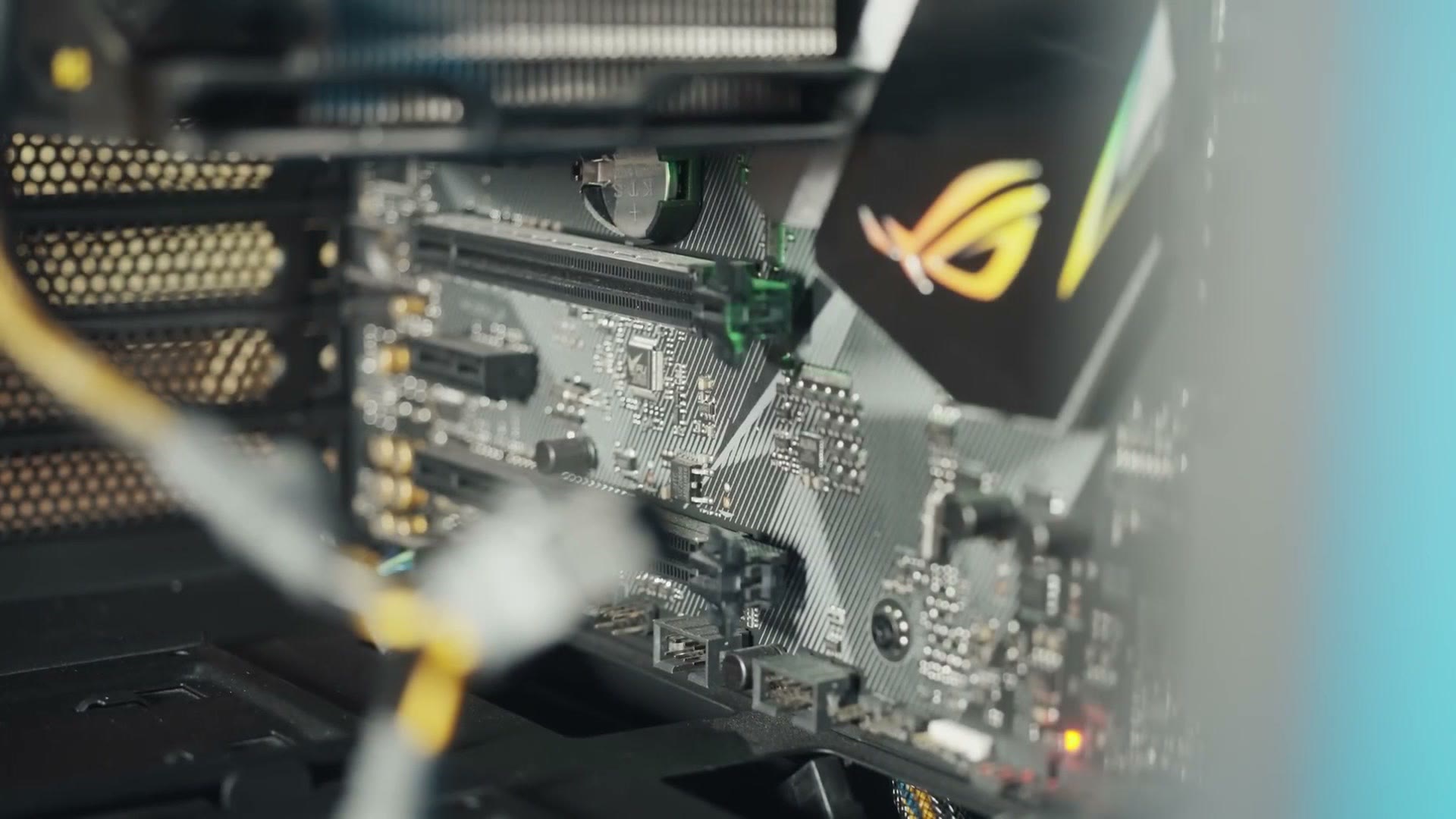
Motherboard being installed in the case with the ROG box and PCIe slots visible in the background

CPU, The Brain Of The Computer

Arguably the most important part for video editing, because a fast CPU with a lot of cores makes a drastic difference in how quickly your videos edit and render.

Get the Ryzen 5 3600. Six cores, twelve threads, around $200 as I record this. Great chip, great price.

Upgrade: the Ryzen 7 3700X gives you two more cores and a nice jump in performance for roughly $120 more.

Memory

16GB of Corsair LPX DDR4 at 3200MHz. That’s enough for 4K editing, but it is not quite enough for multitasking, so try not to have a pile of other programs running alongside your editor.

Upgrade: I’ve found the real sweet spot for 4K editing is 32GB. I’ve run that much in my desktop and my laptop for years and it’s been great.

SSD And Storage

The SSD holds your operating system and programs. Prices keep falling on these and it’s shockingly affordable now.

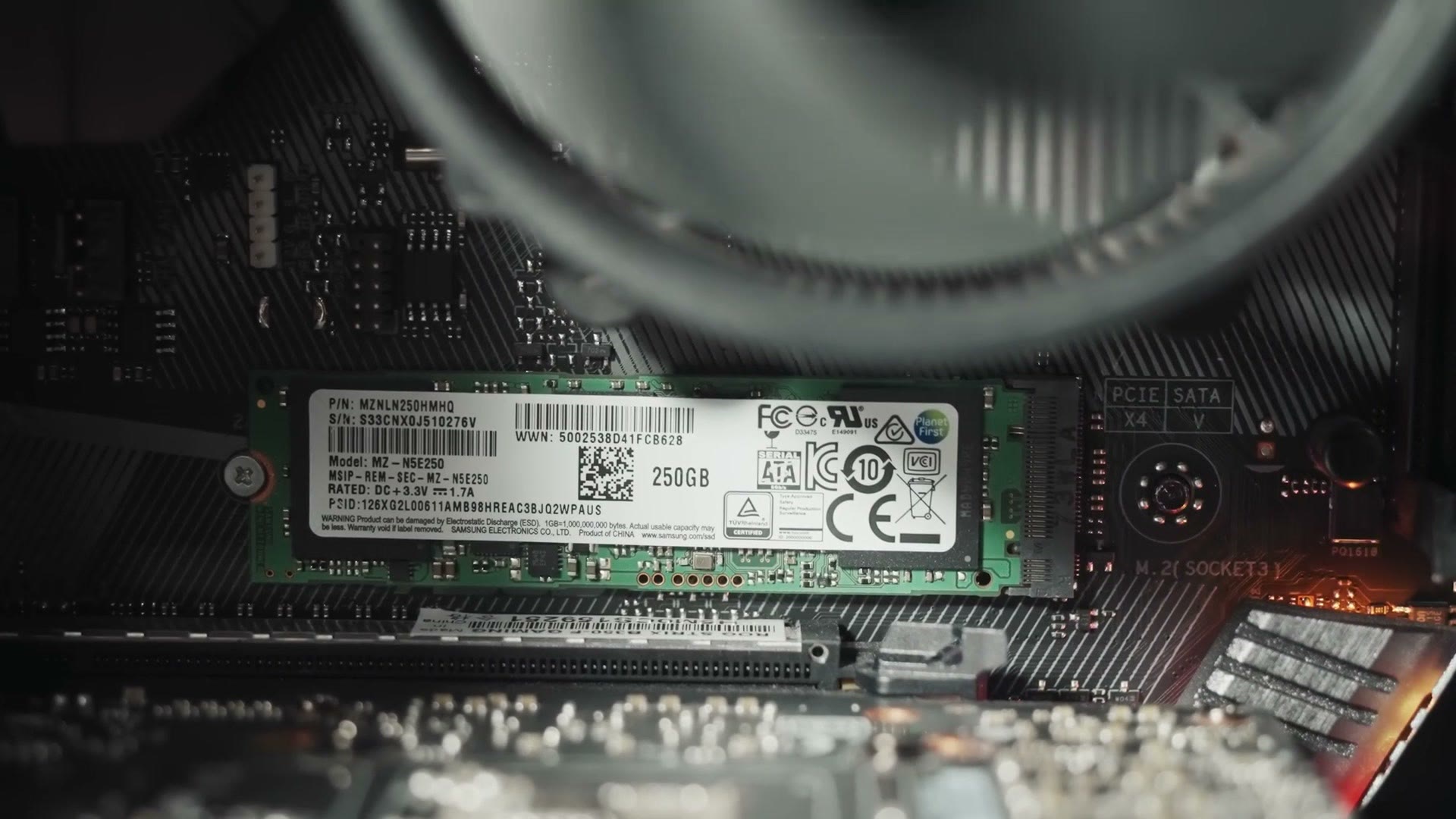
Samsung 970 EVO 250GB M.2 SSD installed in the motherboard's M.2 slot near the PCIe and SATA labels

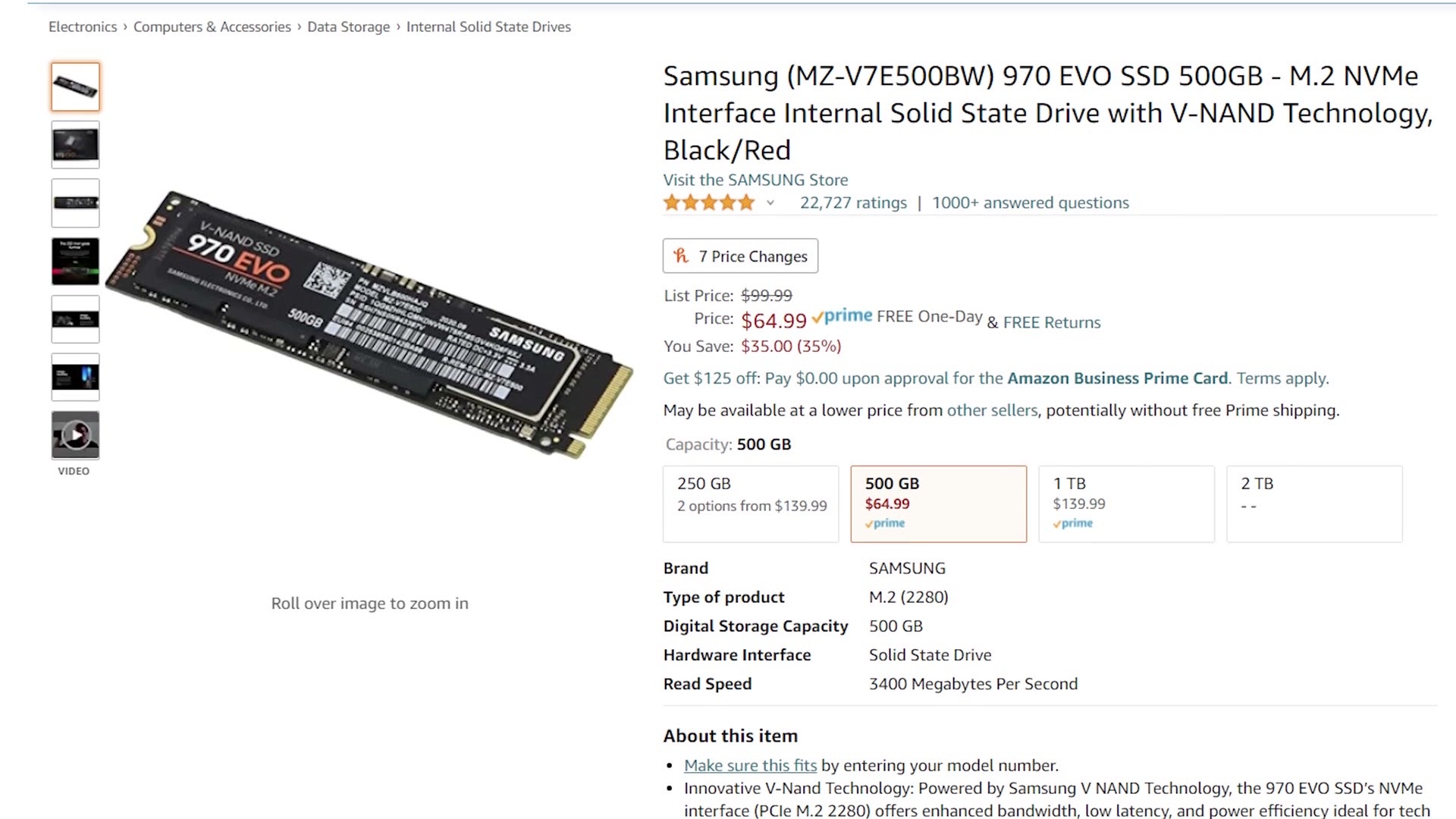
For a fast budget option, the Kingston A400 gives you 240GB for about $34, which is plenty for Windows and your programs. Want more room? The Samsung 970 EVO is around $65 for 500GB, and there’s a 1TB for about $140.

Amazon listing for the Samsung 970 EVO 500GB M.2 NVMe SSD priced at $64.99

One thing I want to be clear about: only use this SSD for programs. For the fastest editing you want a smaller SSD holding your software and a separate, larger drive holding your video files. If you travel a lot like I do, get an external SSD or a large external hard drive and edit from that. This case will also take internal drives, so an internal SSD or a big internal hard drive works just as well.

Graphics Cards, And How To Actually Find One

This is where this build guide is different from every one I’ve made before.

A ton of great cards have come out recently, and you cannot buy any of them. It’s a perfect storm: a shortage of workers building the cards because of the pandemic, everybody stuck at home wanting to game because of the pandemic, cryptocurrency mining, which is always an issue, and scalpers running bots that buy up the supply the instant it lands and resell it on eBay at double MSRP or worse.

So instead of naming one brand and model like I usually do, I’m going to give you several, to maximize the chance you can actually find something in stock at a sane price.

On brands: you’ll see ASUS, MSI, EVGA, Gigabyte, ZOTAC, PNY and a dozen more. In my experience, for video editing, it does not make a huge difference which one you buy. If it’s one of those and it doesn’t have a pile of horrible reviews, you’re fine.

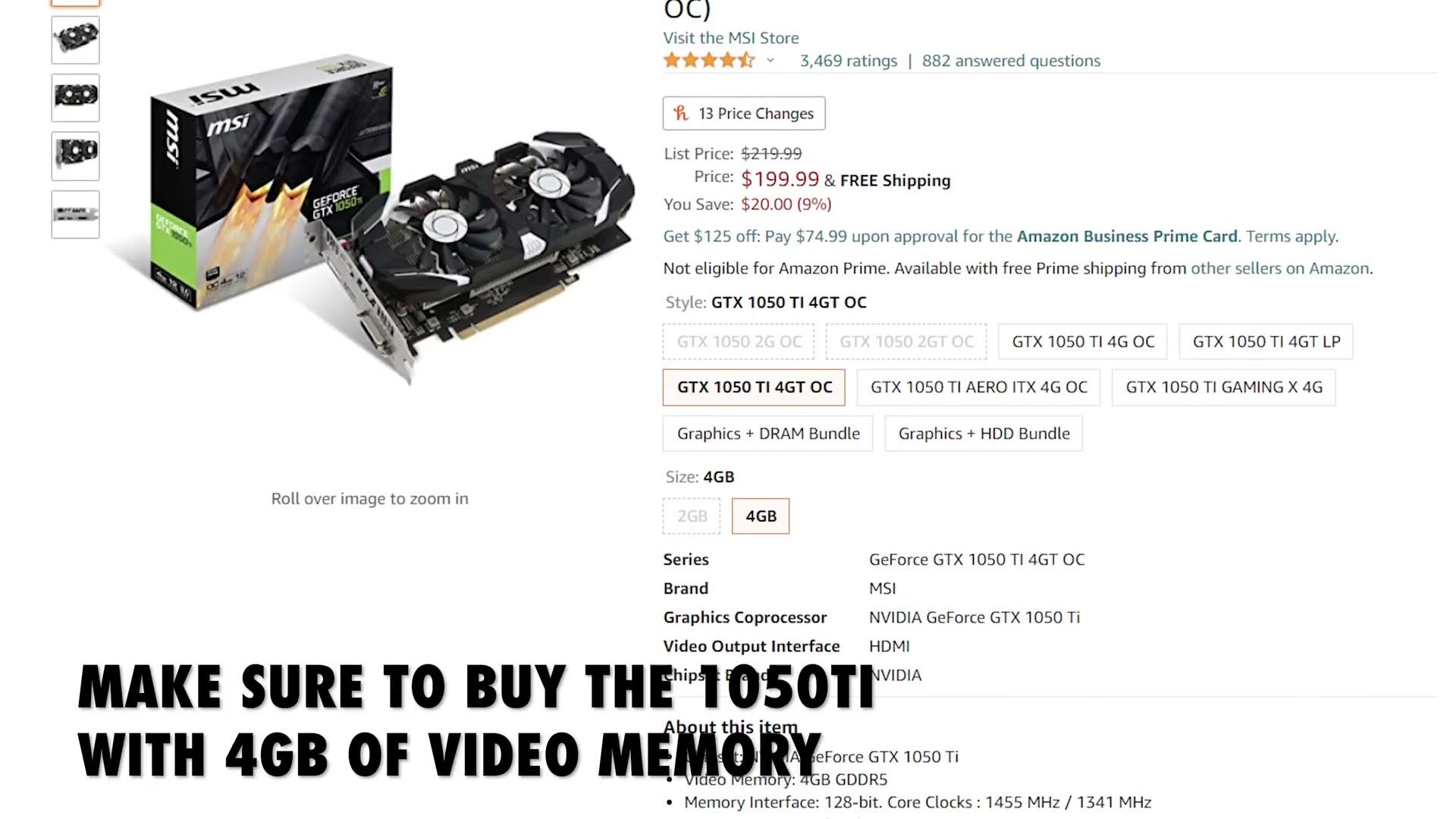
Amazon listing for the MSI GeForce GTX 1050 Ti 4GT OC with on-screen text reminding to buy the 4GB version

My starting recommendation is the NVIDIA GTX 1050 Ti, one of the cheapest cards you can buy that’s genuinely capable of 4K editing, and I’ve mostly been able to find it in stock under $200. Its one weakness is only 4GB of video memory, so if you can find one of the cards below instead, take it.

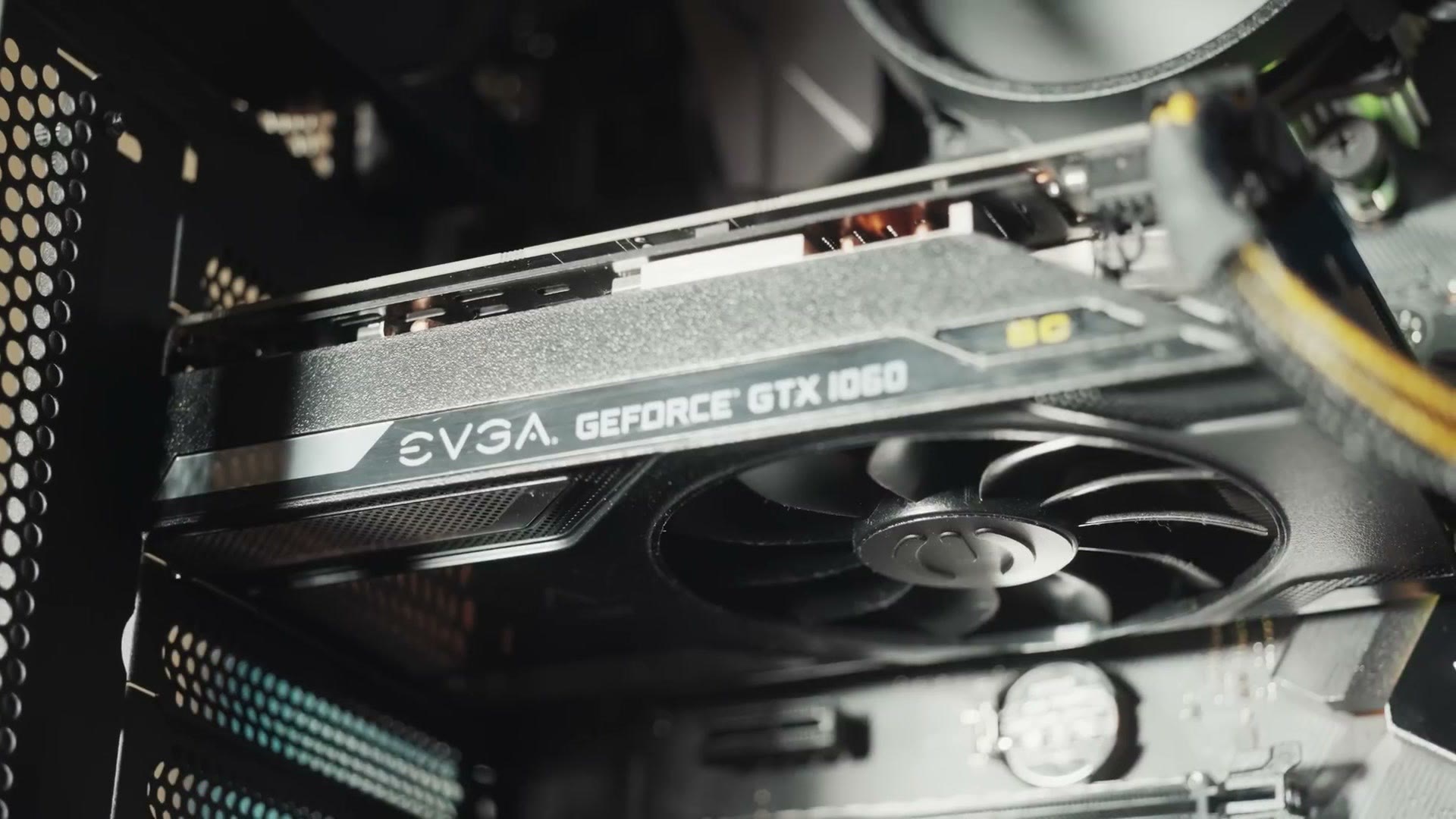
Close-up of an EVGA GeForce GTX 1060 graphics card installed in the build, fan blades visible

On the NVIDIA side, the GTX 1660 SUPER and the RTX 3060 Ti. Both are hard to find, the 3060 especially, but at retail you should be around $400 or less. On the AMD side, the Radeon RX 570, RX 580, 5500 XT and 5600 XT will all do 4K editing fine, but make sure you get the 8GB version. They make 4GB models of these too and they aren’t as good.

Here are the ones I found in stock as I made this, though I cannot promise they stay that way, because this changes hour to hour: option two, option three, and option four. If you have more to spend, the faster cards are here, here, here, and at Best Buy.

Two practical tips. Set up stock alerts at Amazon, Newegg and B&H so you’re notified the moment something reappears. And if you live near a Micro Center or a Best Buy, walking into the physical store gives you a much better shot than refreshing a webpage.

Power Supply

The EVGA 500 watt is a great price and quite efficient. Be aware it isn’t modular, meaning every cable is permanently attached, which makes cable management more annoying but keeps the cost down.

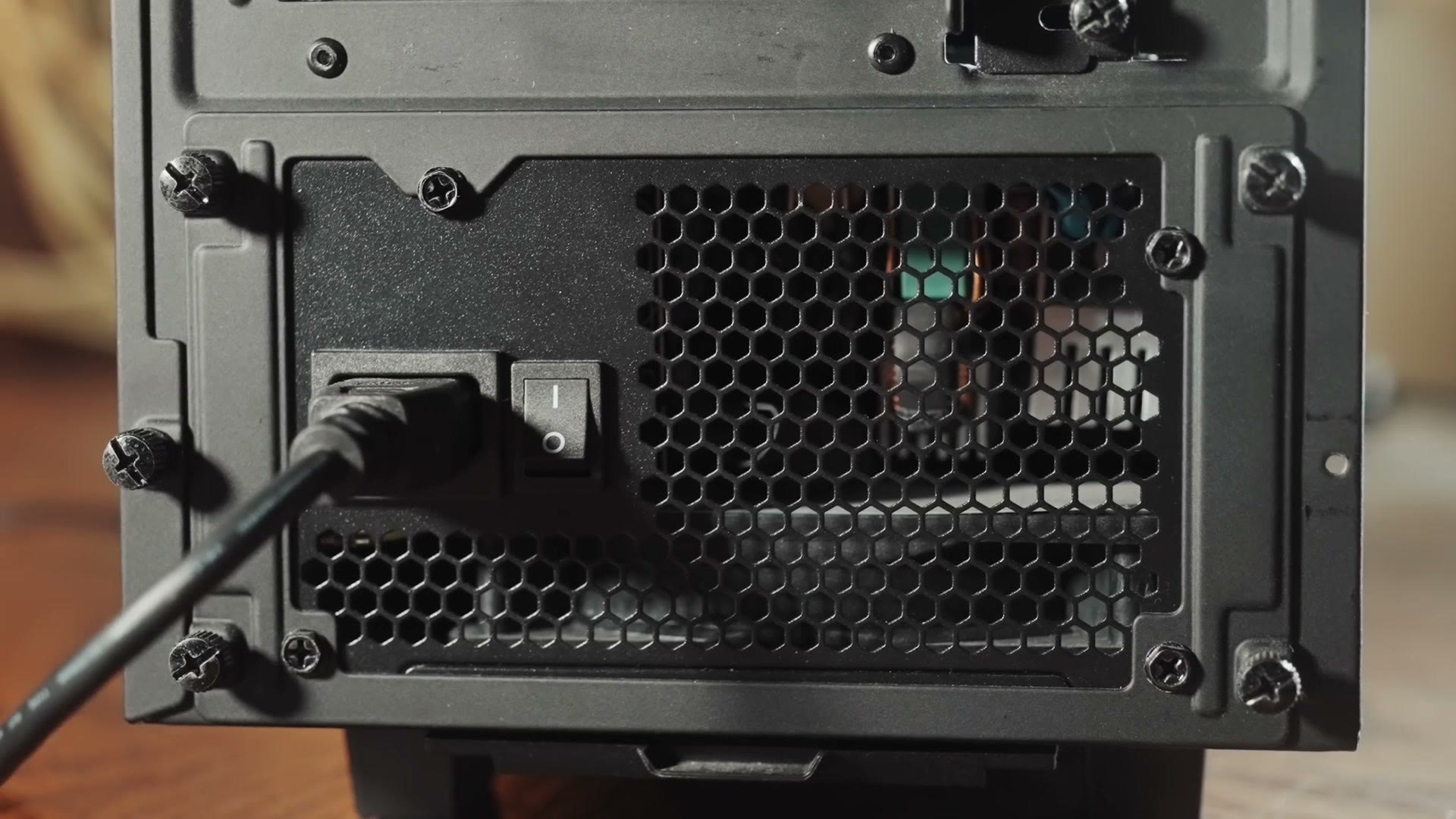
Close-up of the power supply's rear panel with the power cord plugged in and the switch flipped on

Upgrade: the EVGA BQ 500 watt is semi-modular and will give you a much cleaner looking build for not much more money.

Case

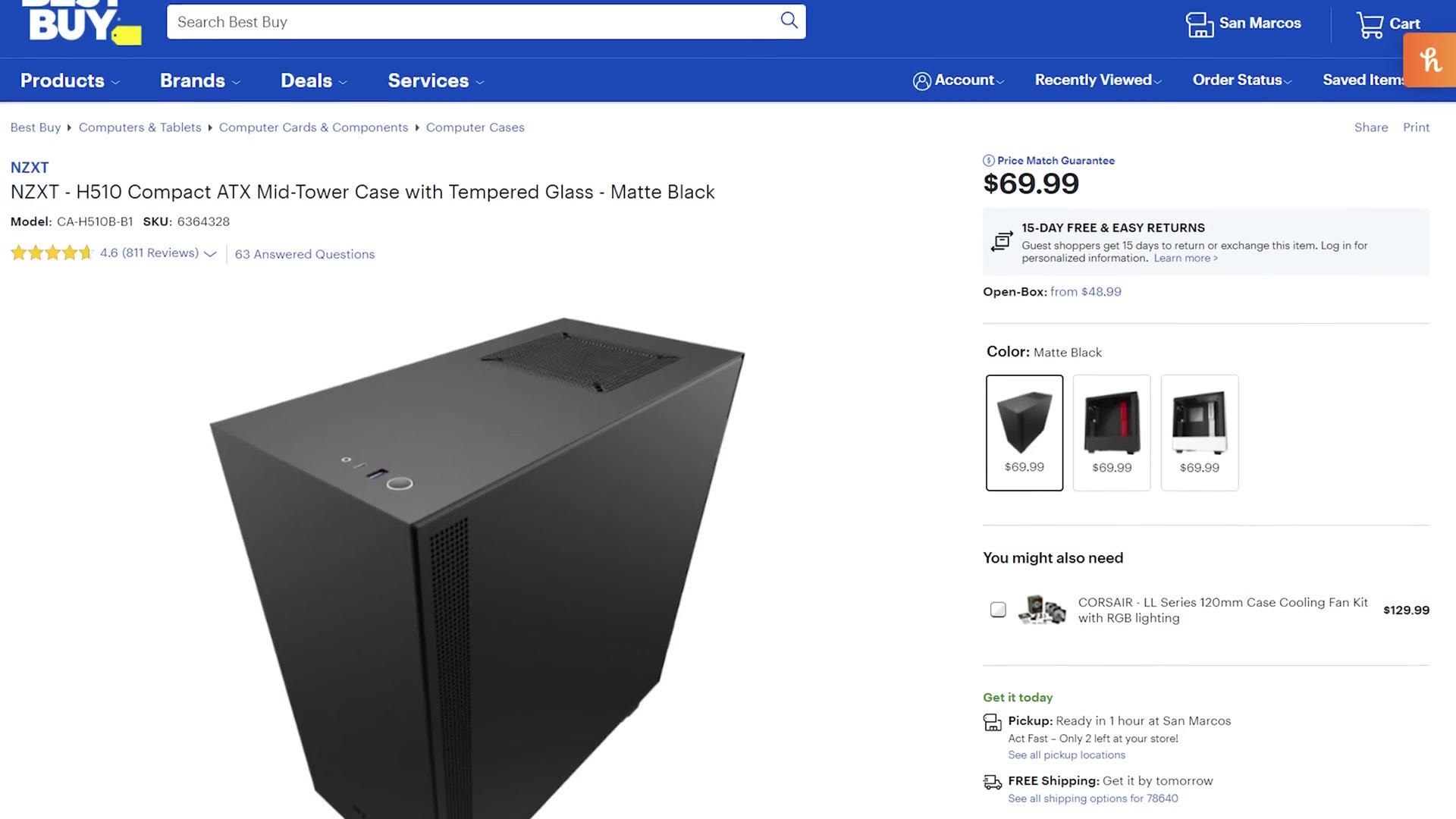
One of my favorites is the NZXT H510. It’s pretty but still looks professional, with no RGB and no crazy colors, just a well built case that looks good on or under a desk. Around $70. You’ll also want a case fan adapter to power the fans.

Best Buy listing for the NZXT H510 Compact ATX Mid-Tower Case in Matte Black, priced at $69.99

One catch: the H510 has no 5.25 inch bays, so you cannot put a CD, DVD or Blu-ray burner inside it. The easy answer is an external DVD burner for about $25 or an external Blu-ray burner for under a hundred. If you really want an internal drive, get the Cougar MX330-G instead, which isn’t as pretty but has great airflow and thousands of very happy owners.

Close-up inside the NZXT case showing the teal PSU shroud panel next to the ROG motherboard heatsink

Everything Else

Mouse, keyboard, monitor, speakers, operating system. There are so many options here that it comes down entirely to what you like, but here’s what I’d point you at: a keyboard with macro keys for editing, a good affordable 1080p monitor or, and this is what I’d personally pick, a 27 inch 4K monitor, the best mouse I’ve ever used, a quick USB wifi adapter, and some affordable but good speakers.

For the operating system, Windows 10, and this Tom’s Hardware article explains how to get a copy free or very cheap.

A Note On Prices

Prices change and parts go out of stock, sometimes very quickly, especially right now. If something on this list looks way too expensive or has vanished, let me know and I’ll swap the link for something that’s actually available.

And if you find a store with graphics cards in stock, go leave a comment on the video telling everybody else. People can sort by newest and hopefully grab one too.

Finally, if you’d rather not build at all, that’s completely fine, and I have a prebuilt video editing PC guide for you instead.