
Between the amazing weather, 12th man towel waving, and constant whoops throughout the day, I knew their wedding film was going to be fun to create.
Continue reading
Between the amazing weather, 12th man towel waving, and constant whoops throughout the day, I knew their wedding film was going to be fun to create.
Continue reading
The band was loud, the BBQ was delicious, the pies were decadent, and God was glorified through it all. Also, I don’t believe I’ve ever had a minister yell so loudly in excitement when he pronounced them husband and wife.
Continue reading
Ever since I made my first video reviewing the Sony a7S II, people have been asking me what camera settings I use. I’ve shown you my picture profile, and I talked about lenses a little bit in my review of the a7S II, but I’ve never made a video that goes all the way through my settings, and I have definitely never talked about my run and gun settings. So that changes here.
By run and gun I mean I need to get to the settings on this camera as fast as humanly possible, change them, and then have the camera get out of my way so I can tell the best story I can on a wedding day. And this may be an understatement, but Sony is not known for having the most intuitive menus. So the more settings I can push out onto buttons and dials and toggles and switches, the faster I can shoot.
Imagine being on a shoot and never having to open the menu for anything except formatting a card. Sounds pretty good, right? That’s where this series ends up, and it takes four parts to get there:
Why four videos instead of one quick five minute one? Because it isn’t enough to just tell you what settings I use. I want to tell you why I use them, so you aren’t out filming with them because Matt said they were good settings, but because you tried them and you know they work for your workflow and your shooting style.
Before we touch anything, hit the menu button, go to the toolbox at the far right, over to subheading six, down to Setting Reset, and reset the camera settings. Now the camera is basically how it comes out of the box and we’re both looking at the same thing.
Then check the mode dial on top and make sure it’s on the film strip. Not M, not S, not A, not P, and heavens no, not Auto. Never Auto. We’re changing video settings, so it goes on the film strip.
One thing that will save you a lot of scrolling: a big chunk of this menu is photo only. Image size, aspect ratio, quality, panorama, drive mode, bracketing, flash, red eye, soft skin, auto object framing, scene selection, silent shooting, AF microadjust, all of it is for stills. Whenever you see a little photo icon next to a setting, you can move right past it.
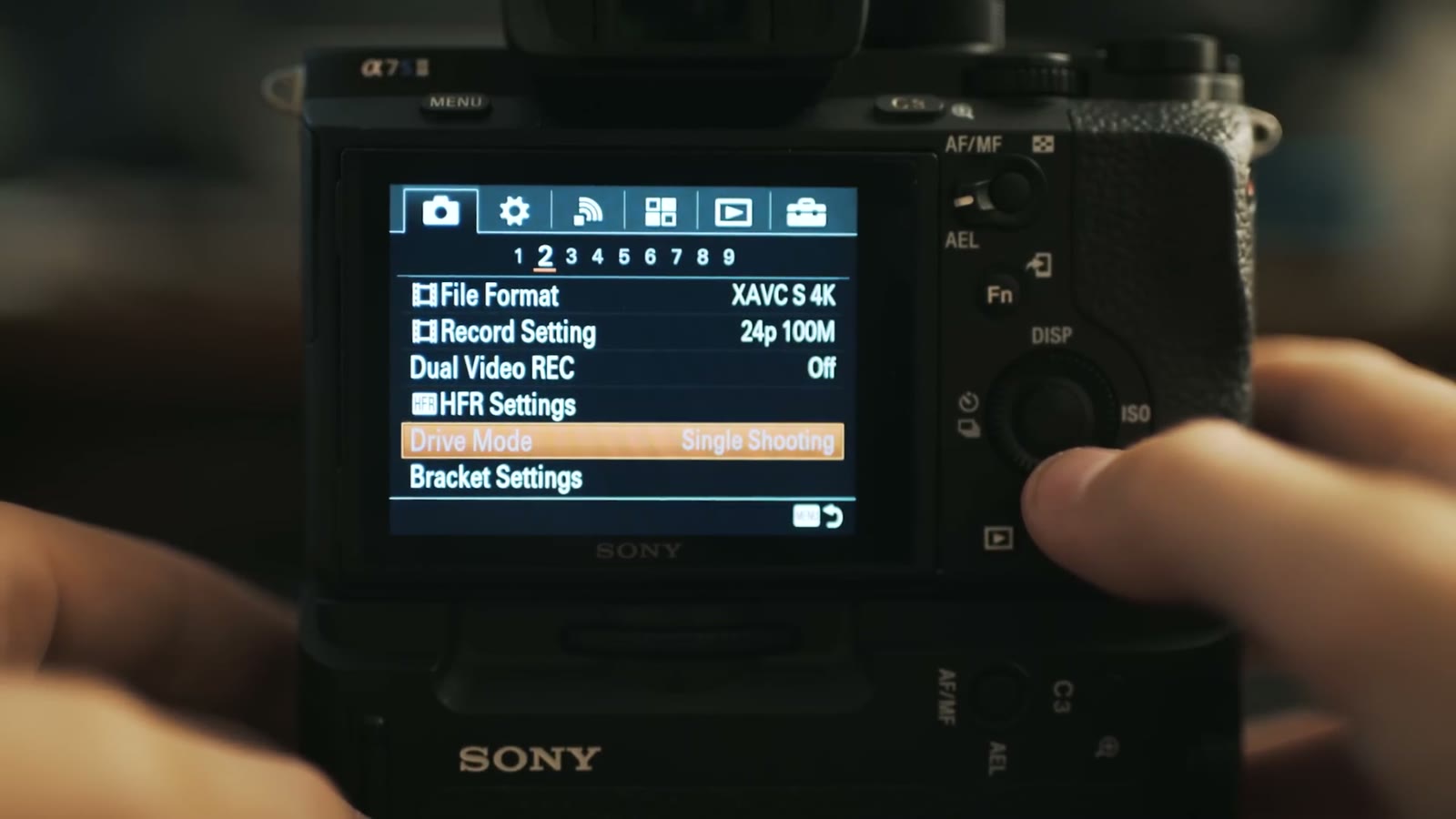
This one is huge. Set File Format to XAVC S 4K or XAVC S HD depending on what you’re shooting. Do not shoot AVCHD or MP4, they are not Sony’s latest codec and they will not look as good. If you want the best color grading depth and the best looking image, it’s one of the two XAVC S options, and lately I’ve been shooting XAVC S 4K because I want that quality.
Then Record Setting goes to 24p 100M. You’ll also see 30p 100M and 30p 60M in there. Always pick one of the 100M options, because the 60M ones are just lower video quality, and that goes double in 4K where you want every bit of data you can get.
Dual Video REC is really cool and underused. This camera can record a 720p proxy alongside your main file, so if your computer chokes on 4K you can edit the 720p files and relink them to the 4K at the end of the edit. 4K plus 720p, 1080p plus 720p, whatever you want. It saves you and your computer a lot of stress.
HFR settings look like they’d matter here and they really don’t for what we’re doing, so leave them alone.
If you’re on a native Sony E mount lens, Focus Mode lights up and gives you two options: AF-C, which is continuous autofocus, and MF, which is not what you’re thinking, you sicko, it’s manual focus. I use continuous AF a lot, especially whenever I’m flying the glidecam.
Focus Area gives you wide, zone, center, flexible spot, expand flexible spot, and lock on AF. Ninety percent of the time mine is on wide, because the camera picks something in most of the frame and I’m usually shooting pretty wide anyway so I want everything sharp. If you’re doing a slider move and you want the cake in focus and nothing else, that’s what zone or flexible spot are for. There’s a much faster way to get at this, and it’s in the function menu video.
While you’re in here, turn AF Illuminator off. It’s a photo thing that flashes a little light at people and it’s weird.
Open ISO and everything looks grayed out, which panics people. Scroll down a little and the options appear, starting at 50. Set it to something like 100 so you’re off Auto ISO, because Auto ISO is gross and you do not want the camera making that decision during a ceremony.
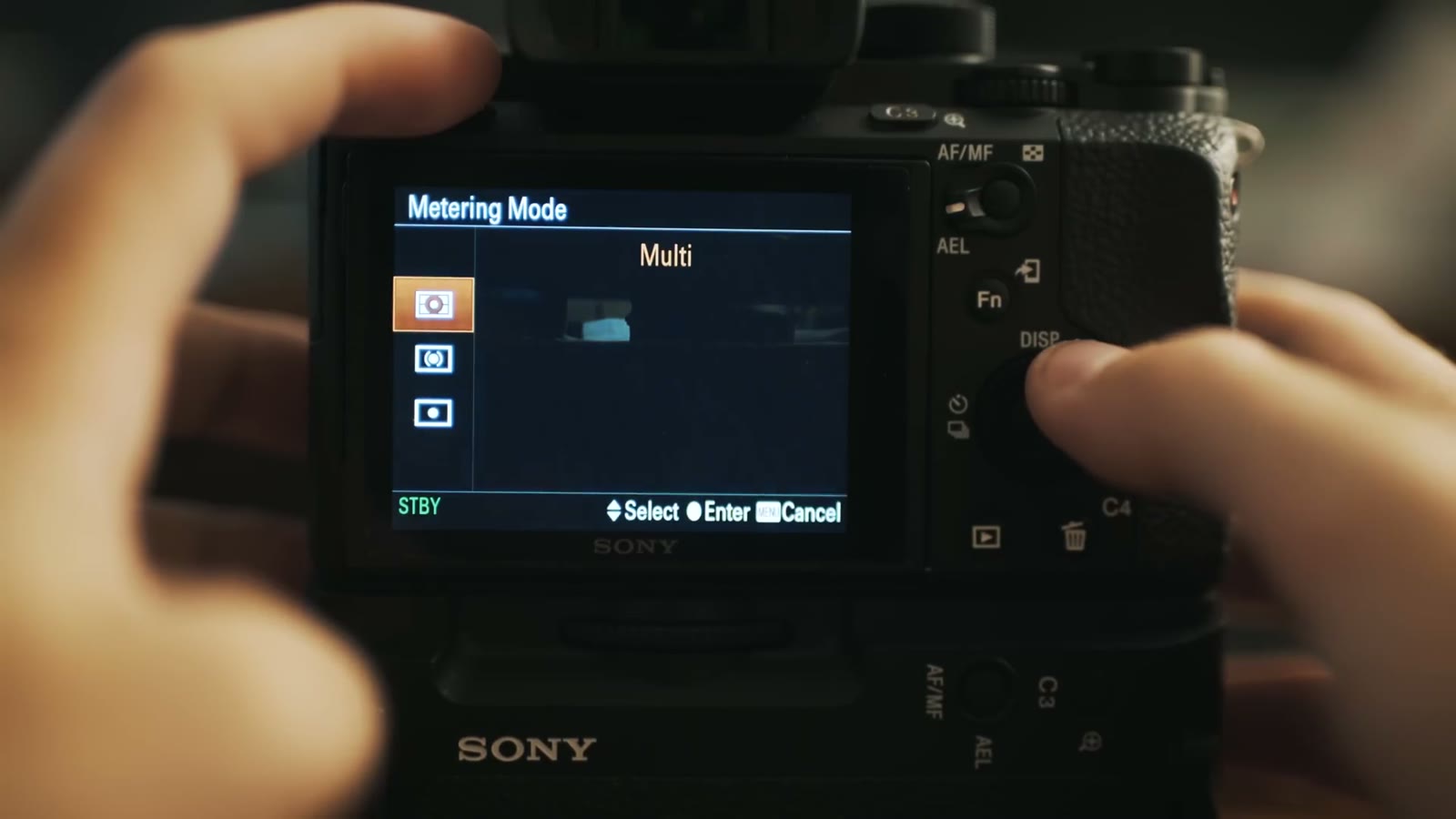
Metering Mode I leave on Multi. Multi means the camera analyzes all the light in the frame, so whenever you’ve got a blown out window shining in it knows the image is hot. Spot and center only meter the middle, and since we’re shooting video and not composing everything dead center, Multi is the one.
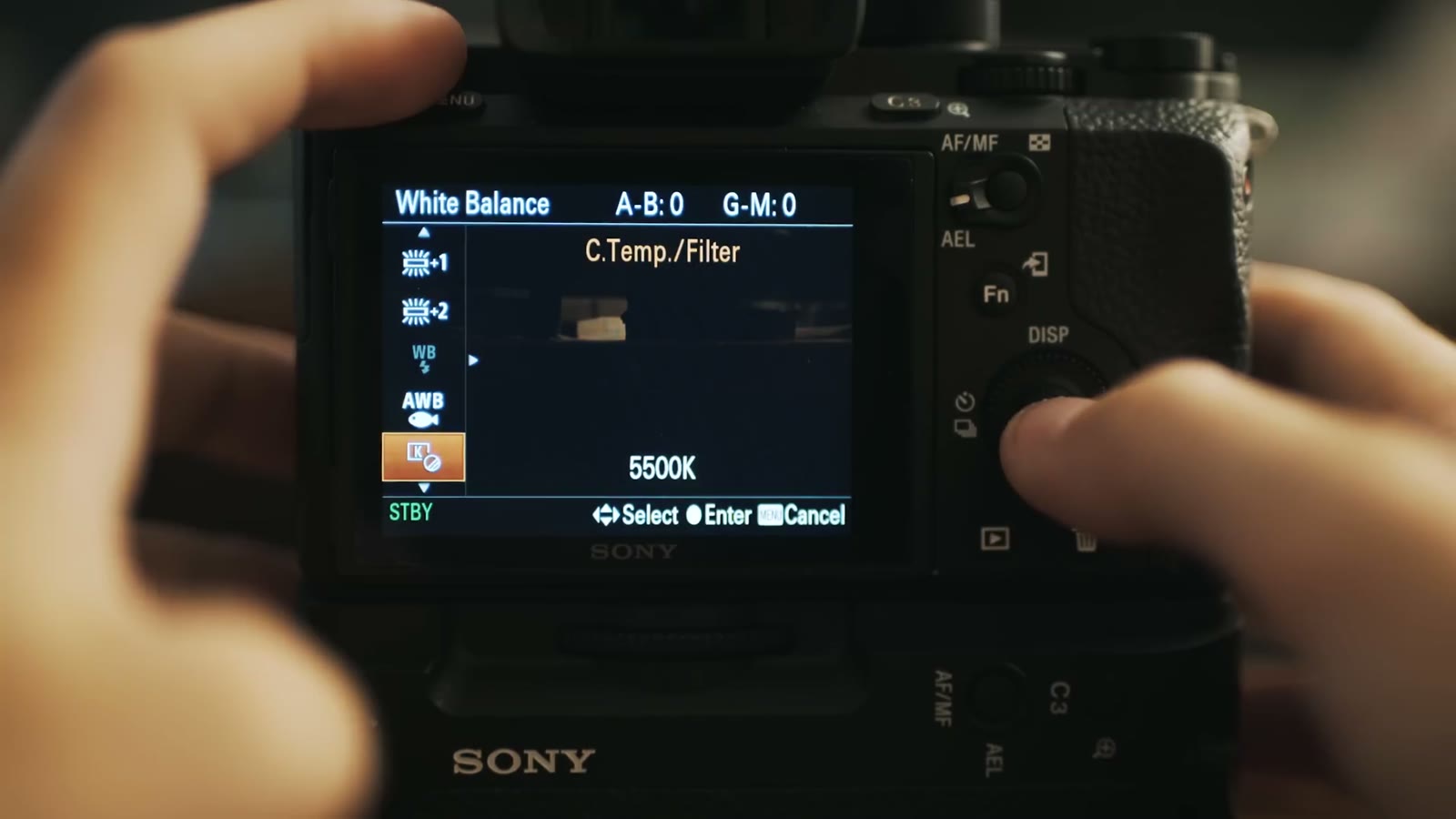
Auto white balance is a horrible idea, so scroll down to C.Temp./Filter, the one with the little K icon. Press right and you can spin the control wheel up and down to dial in your color temperature by hand.
And yes, digging into the menu every time you walk into a different room is miserable, which is exactly why the custom buttons video exists.
Turn DRO/Auto HDR off, leave Creative Style on standard and don’t touch it with a ten foot pole, and never, ever go near Picture Effect. Toy camera, pop color, posterization, retro. These are disgusting. Don’t do it to yourself.
Picture Profile is the one that actually matters, and mine is set to PP8. Rather than repeat myself here, go watch my favorite picture profile video, which explains all my settings and why they’re set that way, and then watch my color grading video so you’re not sitting there going “Matt, this looks washed out and gross, why would I use this.” Between those two you’re covered.
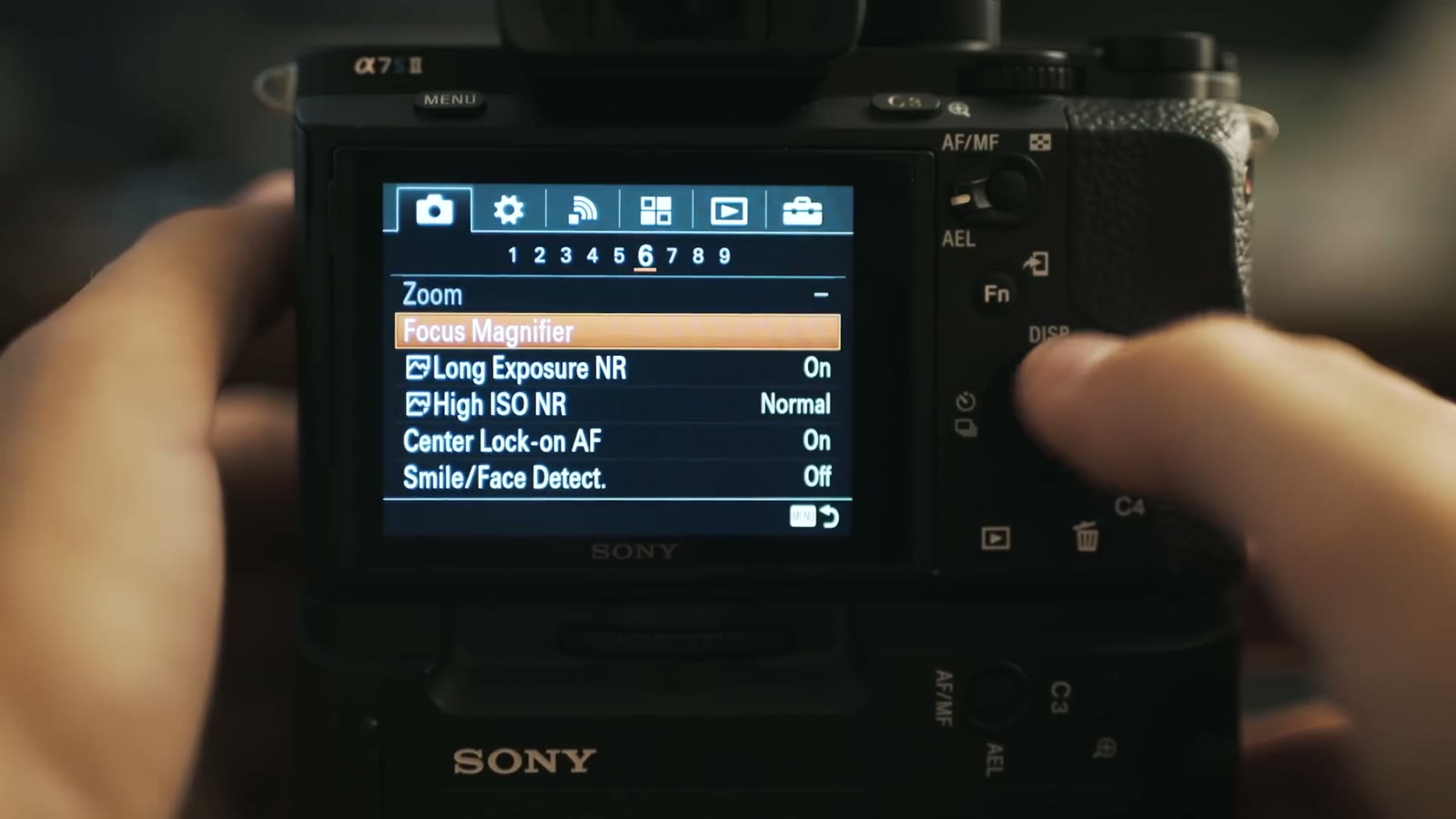
Focus Magnifier punches in so you can check focus, which is great, except getting to it through the menu is a pain. That gets a button in part three.
Turn Long Exposure NR and High ISO NR both off. I’m fairly sure they only apply to photos, but I turn them off anyway because I don’t want the camera deciding to smear my footage on my behalf.
Smile/Face Detect is the fun one. Set it to On, skip Register Faces for now, and leave it there. It works with continuous autofocus, so whenever I’m filming a bride getting ready and I’m on AF, the camera knows to grab the face instead of the flowers. It works for video and I like it a lot.
This is the one I get emails about. Look at the top left of your screen and if the film strip has a P next to it, your shutter speed and aperture are blinking because the camera is in program mode and it’s making your creative decisions for you.
Fix it in Movie under camera subheading 7. It shows you a bunch of weird little icons with cats and ladybugs and fountains and fireworks. You want the fireworks, because fireworks are awesome, and because that is Manual Exposure. Select it, hit enter, and now aperture and shutter speed are yours.
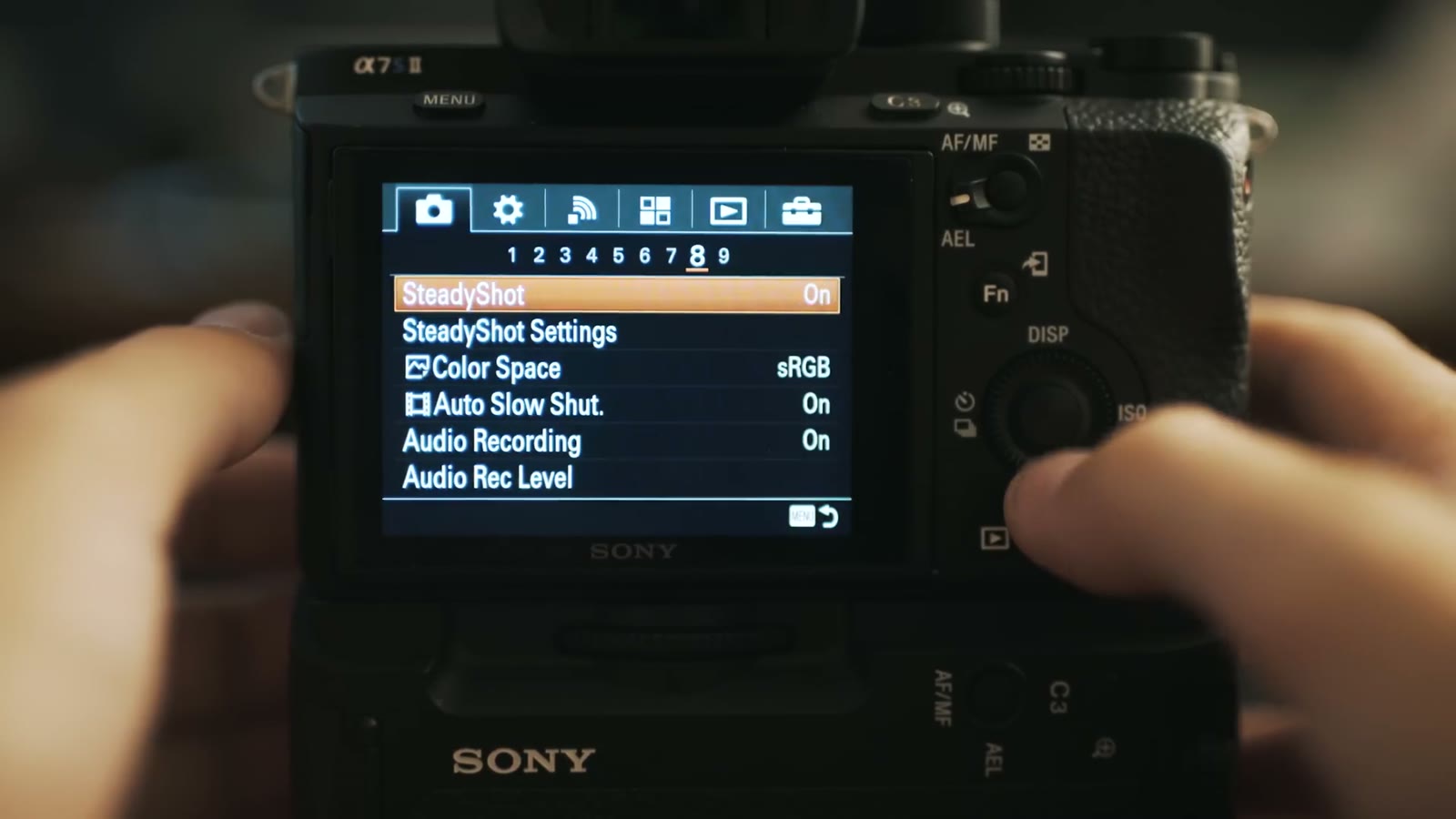
SteadyShot is the in body stabilization and you definitely want it on. If you go into SteadyShot Settings and Adjust is on Auto with focal length grayed out, that means your lens is talking to the camera electronically and you don’t have to do anything.
But if you’re like me and half your glass is a Sigma Art lens in Nikon mount on a Fotodiox adapter, that’s a dead lens with no electronic connection, and you have to set SteadyShot Adjust to Manual and then type in the focal length yourself so the sensor knows how to stabilize. In this case, 24mm.
And if you’re thinking that sounds like a lot of menu digging every time you swap a lens, you’re right, and I don’t do it that way. That’s the function menu video again.
While you’re on this page: leave Color Space on sRGB so your colors work across the widest variety of monitors, turn Auto Slow Shutter off because we don’t want to auto anything, and leave Audio Recording on. I keep the audio level at the default. It’s only ever scratch audio, because anything I actually need, a bride reading a letter, the ceremony, the vows, is going into a separate recorder.
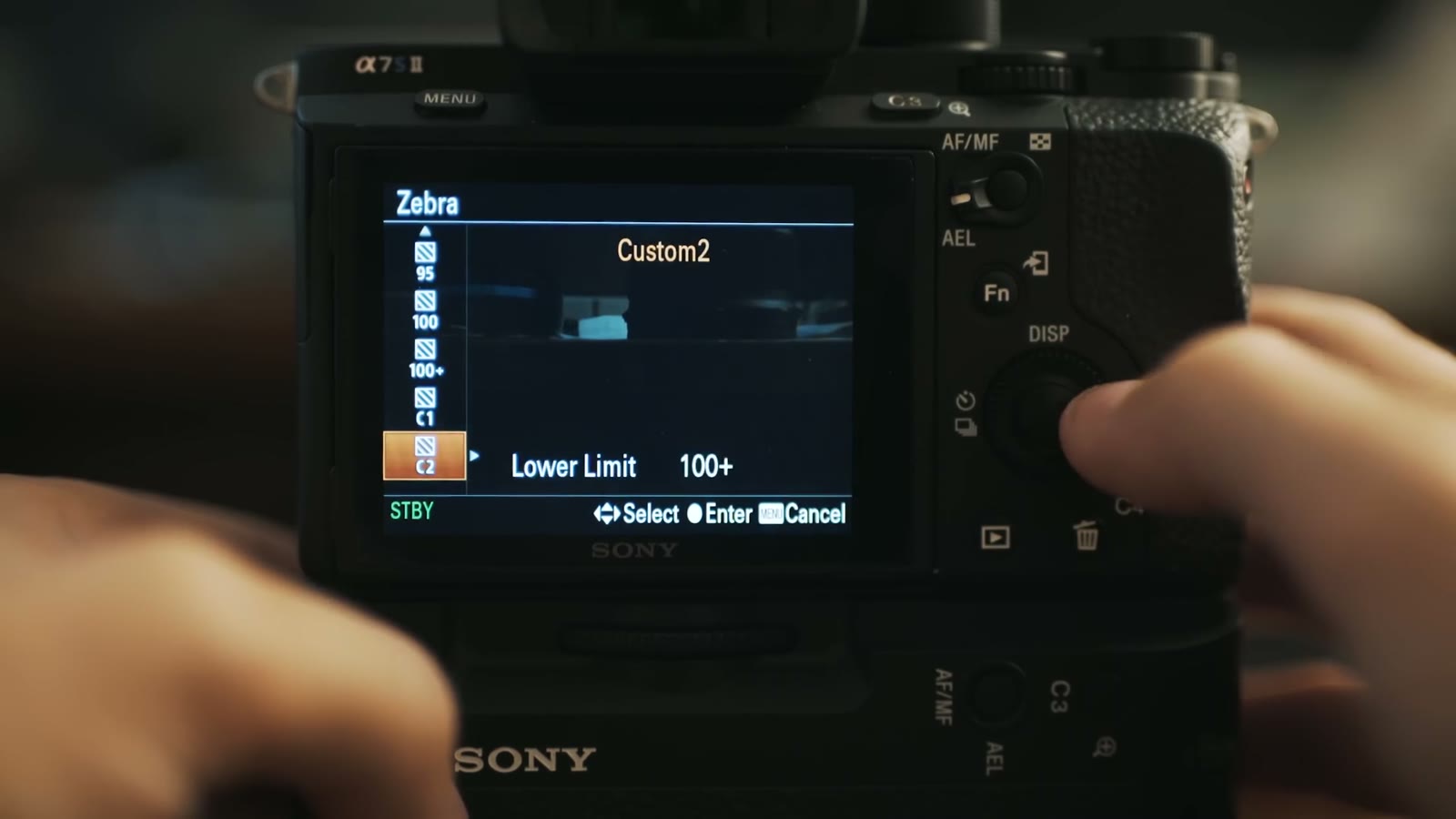
Zebra is very important, especially if you’re shooting my flat picture profile. Set it to 100+. Some of the lower zebra settings clip out and stop showing you the stripes past a point, and I want to know about everything that’s overexposed, all of it. That way I can look at a shot and go, okay, that window is blown out and that’s fine, but oh no, her skin is blown out and I need to fix that right now.
Turn MF Assist off, and set Focus Magnification Time to No Limit, since I’d rather click a button again to turn it off than have it time out on me mid shot.
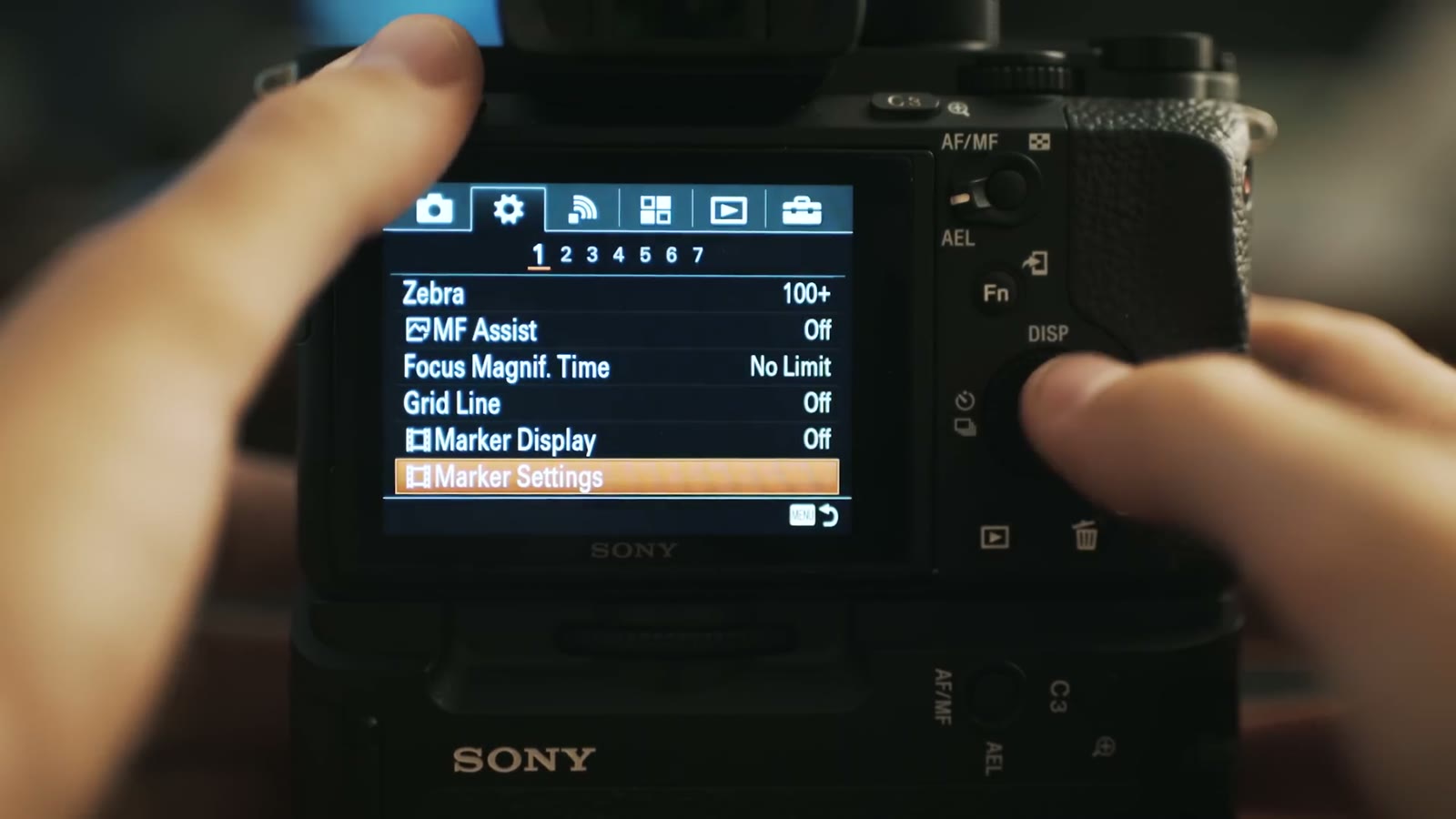
Grid Line, Marker Display, and Marker Settings all work together and really should have been grouped as one thing. Grid Line gives you rule of thirds, square, and diagonal plus square, which is handy for keeping a horizon straight or making sure a bride’s head isn’t tilted during the ceremony. I leave mine off and have a fast way to bring it up whenever I need it.
Markers are the cool part. Whenever you want to shoot for 2.35:1, go into Marker Settings, into Aspect, and pick 2.35:1. Then nothing happens and you think it’s broken. Go back and turn Marker Display on, and now you have two white lines showing you exactly where your crop is going to land. There’s also a safety zone at 80 or 90 percent if you’re delivering for broadcast.
Audio Level Display on, so you can see meters and know audio is actually recording.
DISP Button lets you choose what the display button cycles through on the monitor and the finder separately. I never check the graphic display box on either one, because there’s already plenty of information on the back of the screen.
Peaking I usually leave off, because I can punch in to check focus instead, unless I’m flying the glidecam and don’t want to be touching the camera. Peaking color is red, white, or yellow, which means Sony is clearly not patriotic, because it should obviously be red, white, and blue.
Exposure Set Guide is the most annoying thing on the planet and you should turn it off immediately. Whenever you change your shutter speed it throws a giant number up over your image telling you what you just set, as if you couldn’t read the tiny numbers you were already looking at. Off. I have another filmmaker to thank for pointing that one out to me.
Under gear subheading 3, Zoom Setting is probably on Optical Zoom Only. Change it to Clear Image Zoom. This is the setting that unlocks the trick in my video about getting Super 35mm mode while shooting 4K on the a7S II, and once it’s on, that Zoom option that was grayed out earlier in the menu isn’t grayed out anymore, no matter which lens you’re on.
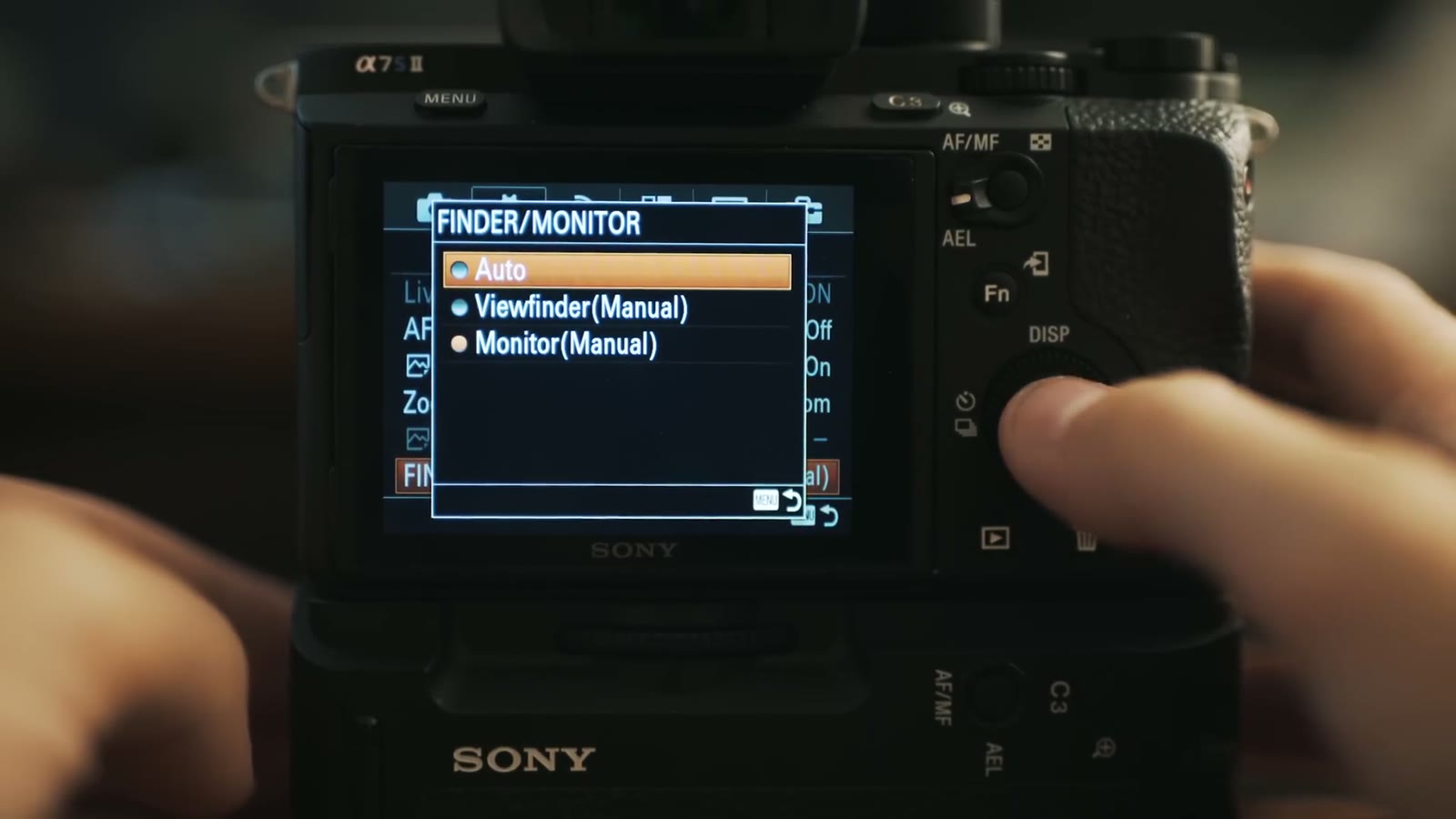
FINDER/MONITOR is probably on Auto, which sounds great until you’re leaning in close to change a setting and the camera decides you want the viewfinder and blanks the screen on you. It happens constantly. I set mine to Monitor (Manual) so the back screen stays on and the viewfinder stays out of it.
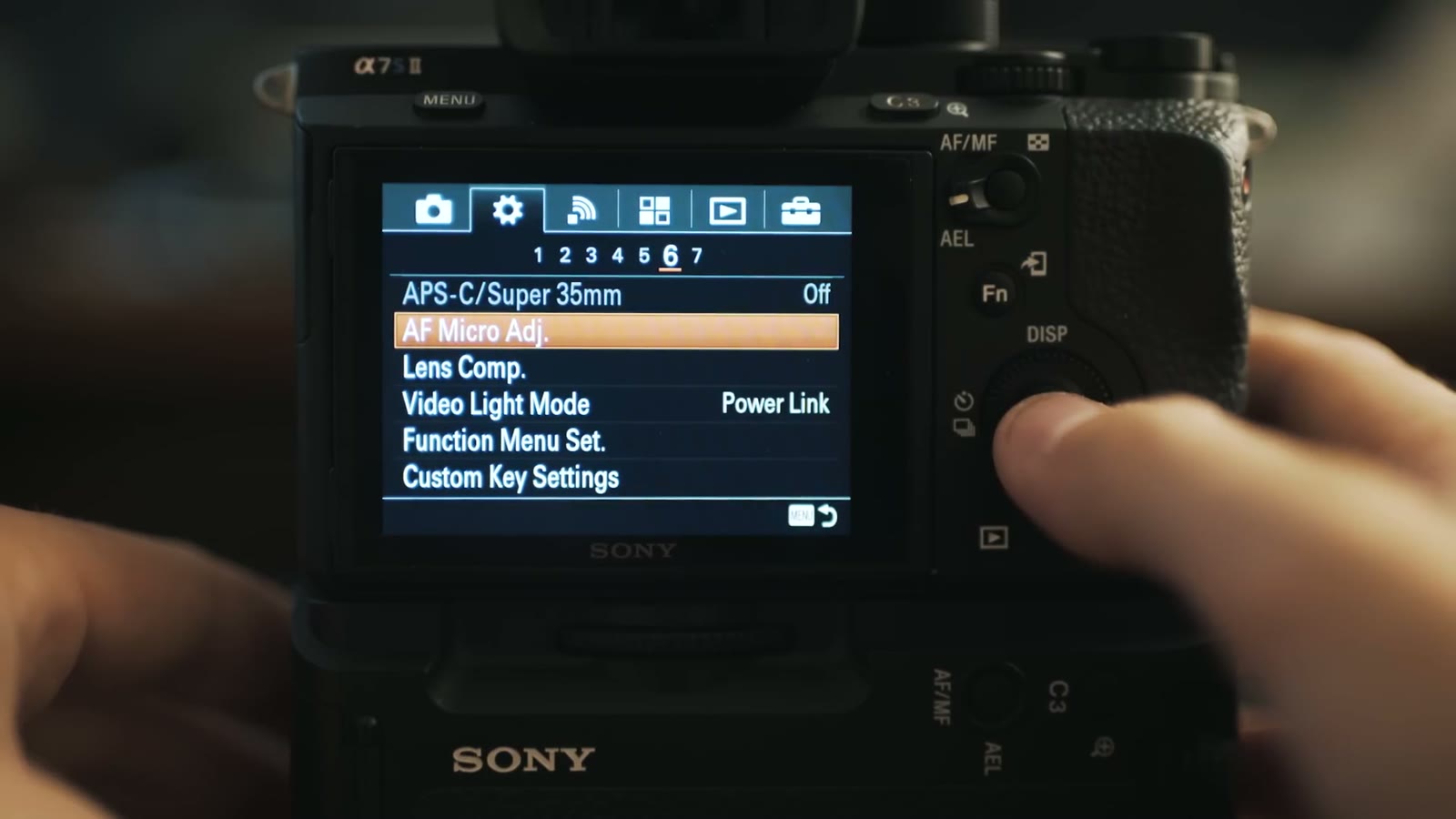
Gear subheading 6. If you’re in 4K this is unavailable, but if you’re shooting 1080p and you want the crop, this is where it lives. Remember the gear icon and remember submenu 6, because there is no way to put this on a quick toggle button. Going full frame to APS-C is one of the very few things you will always have to open the menu for.
Also on this page: leave all three Lens Compensation options off, and please, whatever you do, don’t use Video Light Mode. Don’t put a big LED on top of your camera. Light things off camera.
Gear subheading 7. Dial Setup is just asking whether you want the front dial to be aperture and the back dial to be shutter speed, or the other way around. Either is fine. I’ve left mine on the default, front for aperture, back for shutter, because that’s what I remember under pressure.
MOVIE Button has a choice of Always or Movie Mode Only. Mine is on Always, so that on the off chance I’m sitting in manual mode and something important starts happening, I can just hit record instead of fumbling the mode dial.
Go to the Wi-Fi menu and turn Airplane Mode on. It grays out all the wireless stuff, which you don’t need unless you’re using it at that exact moment, and from everything I’ve read, having those radios off keeps the camera cooler and gets you more battery life. On this little camera you need all the battery life you can get.
I set Monitor Brightness to Manual and mostly leave it at zero, bumping it to +2 in bright sun and down to -1 or -2 at night so the screen isn’t blinding me. And before anyone asks how I judge exposure with the brightness moving around: I don’t use the screen brightness to judge exposure, I use the in camera metering and the zebras. That’s the whole point of setting the zebras properly.
Gamma Display Assist is wonderful. It applies a LUT to your screen only, not to the recorded file, which saturates the image back up so you can actually see what you’ve got. I’ll be recording in my flat profile in some room, wondering whether I’m at 3200K or 3800K or somewhere in between, and I’ll flip Gamma Display Assist to S-Log3 just long enough to check my white balance, then turn it back off.
Volume at zero, because nobody needs the dinky speaker announcing itself. Tile Menu off, for the love of everything, it’s the grossest thing ever and it just dumps you back into the same menu anyway. Delete Confirm on Cancel first, so an accidental button press doesn’t cost you a clip. Display Quality on standard. Power Save Start Time at 5 minutes. Display Rotation on Manual, so the camera doesn’t get creative about orientation. NTSC/PAL depending on which side of the ocean you’re on. USB Connection on Mass Storage, USB LUN Setting on Multi, and turn USB Power Supply on so you can run the camera off an external battery.
Timecode settings all live under their own two headings if you use timecode. I don’t, so I don’t touch them. HDMI settings are all there too if you’re feeding an external recorder, which I’m not.
This last one is worth remembering because it will save you from a very bad afternoon. The a7S II uses an image database to keep track of your clips, the metadata, and how the audio syncs up. Whenever a memory card fails or a battery dies mid write, that database can get corrupted, and the camera will act like your footage is gone.
It isn’t gone. Do not panic. I’ve had this happen and I’ve had friends absolutely convinced they’d lost a wedding. Go to Recover Image Database, run it, and the camera rebuilds its file structure and your video files come back safe and sound. Try not to cry.
That’s every video related setting in the Sony a7S II menu. Not exactly the most intuitive system in the world, but we got through it, and good job for sticking with me, because the whole point of doing this once is that you never have to do it again.
The next three parts are where the speed actually comes from: the mode dial, custom buttons, and the function menu. Once those are set up you can change everything you need with one or two button presses and stay out of the menus entirely.
The rest of my a7S II writing is here too: my review of the camera, my favorite picture profile, how to color grade that profile, and how to get Super 35mm mode in 4K.
Want more help than a video can give? Download my free quick tips guide to booking more wedding film clients, take a look at my wedding film editing course, or come join the Learn Wedding Filmmaking Facebook group. Here’s all my favorite filmmaking gear, and everything I shoot gets graded with my LUTs.
The music licensing sites I recommend are Soundstripe (use the code WHOISMATT for 10% off a yearly or monthly subscription), Artlist (two extra months free), and Musicbed.
This was filmed in September 2016 against the firmware and menu layout of the day. Sony has shuffled a few things since, so a setting may sit a subheading over from where I say it does, and the newer bodies reorganized the menu entirely. The reasoning behind each choice has held up better than the menu positions have.
I’m required to state that I’m part of affiliate programs for Amazon, B&H, Soundstripe, Artlist, Musicbed, and Adobe, and that some of the links above are affiliate links.

Katelyn and Paul are friends of ours, they are extremely fun, and they made Jesus the centre of their wedding day rather than a component of it.
Continue reading
A promo video for Texas A&M’s College of Nursing, which involved a simulation ward, forensic nurses, and one helicopter.
Continue reading
When I was young, I didn’t like trying new things. I wore the same clothes, ate the same food, read a lot of books, and didn’t get out much. Thankfully this all changed around the time that I left for college, when I made a conscious decision to break out of my shell and attempt to be cool. Whether I was successful at being cool is debatable, but I did manage to make some friends and find a wife, so I consider that a win.
These days, I try to put myself in the position to try new things as often as possible. For example, when we go out on a date, my wife and I have a rule that we can’t go to the same restaurant twice. Another example: I create tutorial and review videos to help random strangers on the Internet. I still do enjoy wearing the same clothes and reading though, so I guess everything hasn’t changed.
Now why am I telling you all about my awkward younger years? What does me trying new things have to do with Suneera and Amos’ wedding? Quick answer: Because their wedding was something new that I haven’t done before.
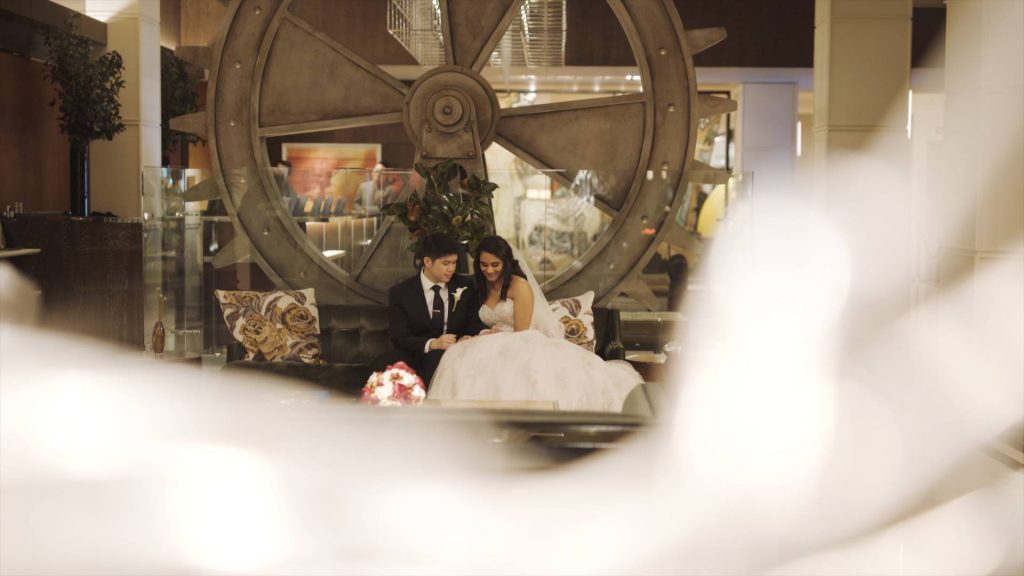
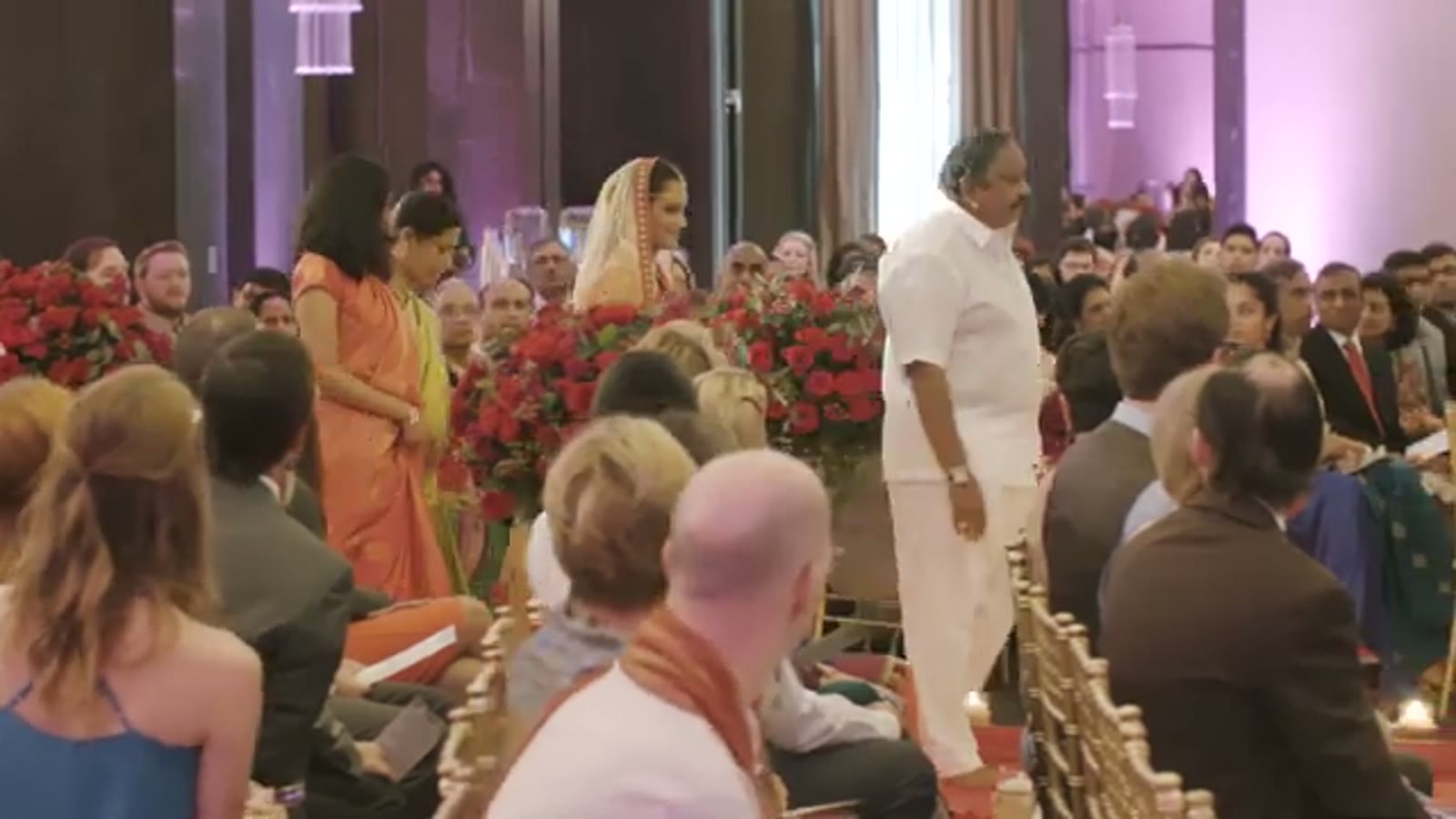
Longer answer: This wedding was a major step outside of my comfort zone. Instead of one wedding ceremony, I would be filming two. The first of which would be a traditional Indian ceremony, with all the outfits, music, and flower petals (so many flower petals!), that I had never experienced before. But due to my desire to try new things – and especially film new weddings – I was glad to do it.
Thankfully, Suneera and Amos were patient with me, as I learned all about Saris, Sherwanis, Garlands, and Talis. There was so much to keep track of, but throughout it all I was grateful for the chance to experience another culture’s traditions and ceremonies. Suneera and Amos, as you can see from the video, are such a sweet couple and I am glad I was able to film their wedding.
The whole thing happened in a downtown Dallas hotel, which turned out to be the only reason the day was physically possible, because two full ceremonies plus a reception means you are running on somebody else’s clock all day long and you cannot afford to lose forty minutes to a drive across town.
And here’s the thing I want to say to any filmmaker looking at a two-ceremony day and feeling their stomach drop, because mine did too. You are not filming two weddings. You are filming one day that happens to contain two ceremonies, and the couple is the same couple in both of them. Once I stopped treating it as double the work and started treating it as one story told twice, the whole day got a lot easier to hold in my head.
Suneera’s morning was the longest getting-ready I have ever filmed, and it was also the most interesting, because there was constantly something happening with somebody’s hands. Braiding. Pinning. Jewelry going on. Family members moving in and out of frame the entire time.
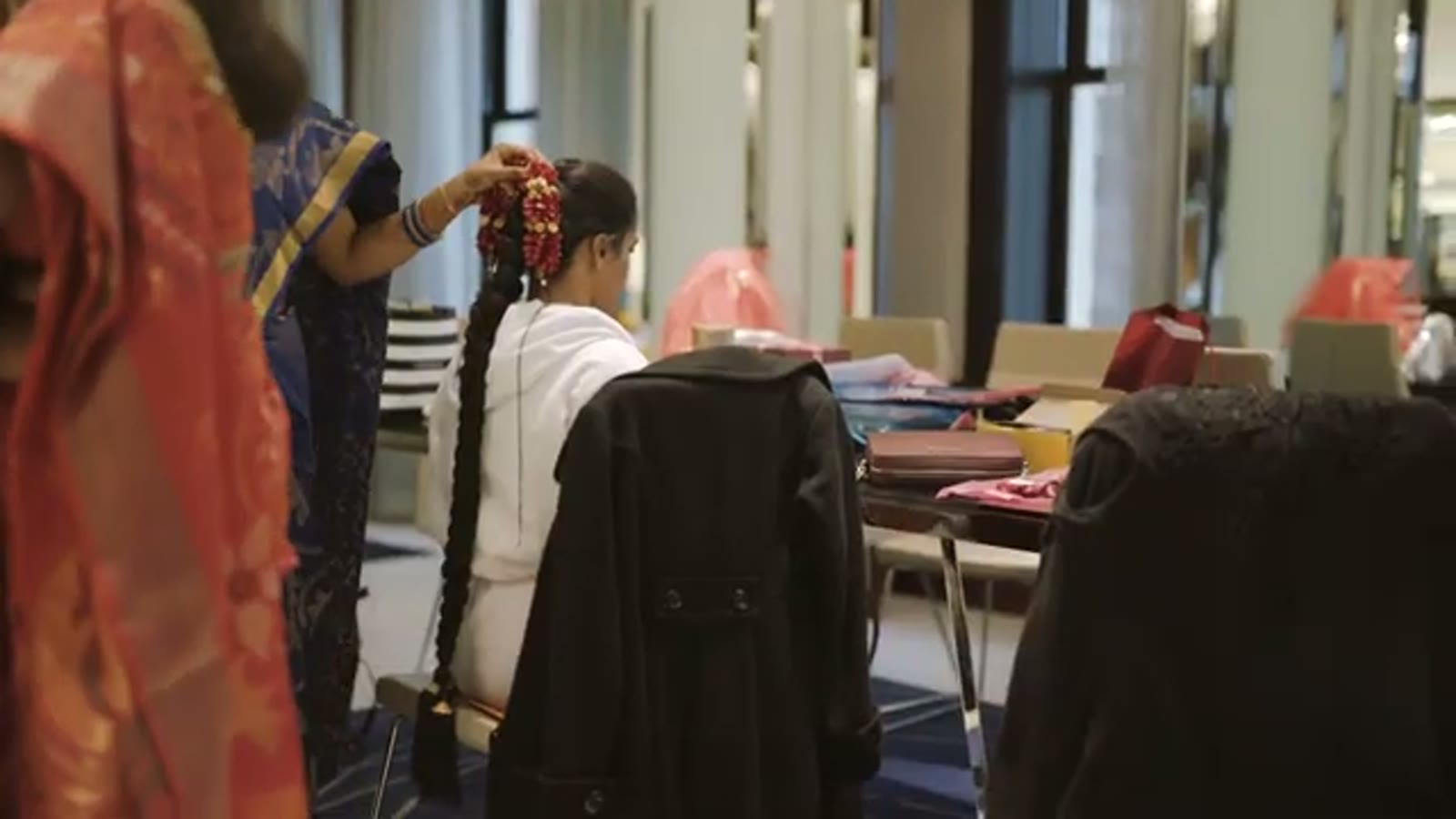
Whenever you’re used to a getting-ready room that’s quiet for long stretches, this is a genuinely different experience, and I loved it. There is no waiting around for a moment. You just point the camera at whatever is going on and something is going on.
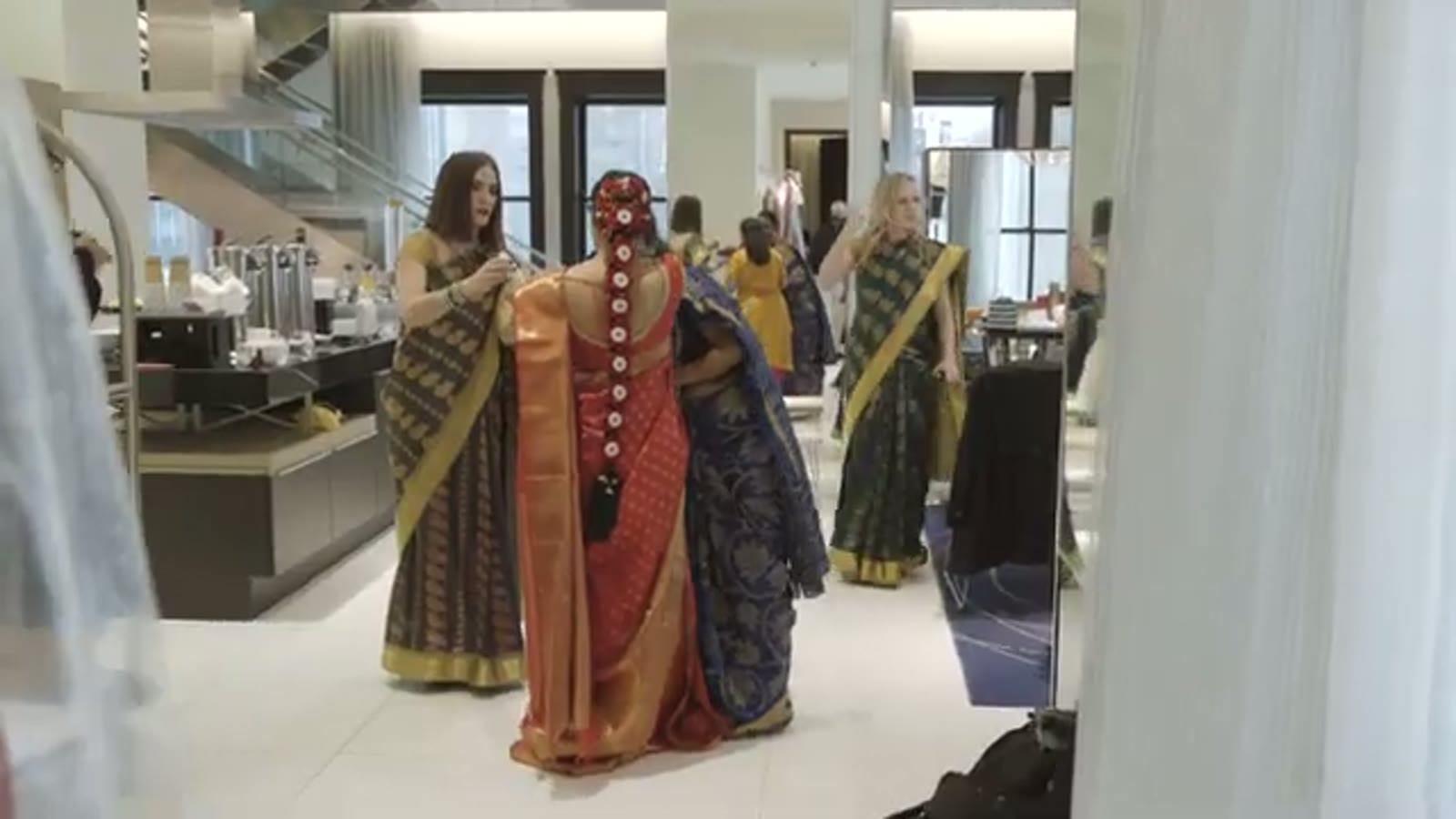
This is the part I had never filmed before, and I did a lot of asking beforehand so I would know roughly what was coming and where I needed to be standing when it did. That is the entire trick, by the way. Whenever you’re filming a tradition you don’t know, ask somebody in the family to walk you through the order of it in advance, because the moments are just as important as the ones you already know how to anticipate, and you only get one pass at them.
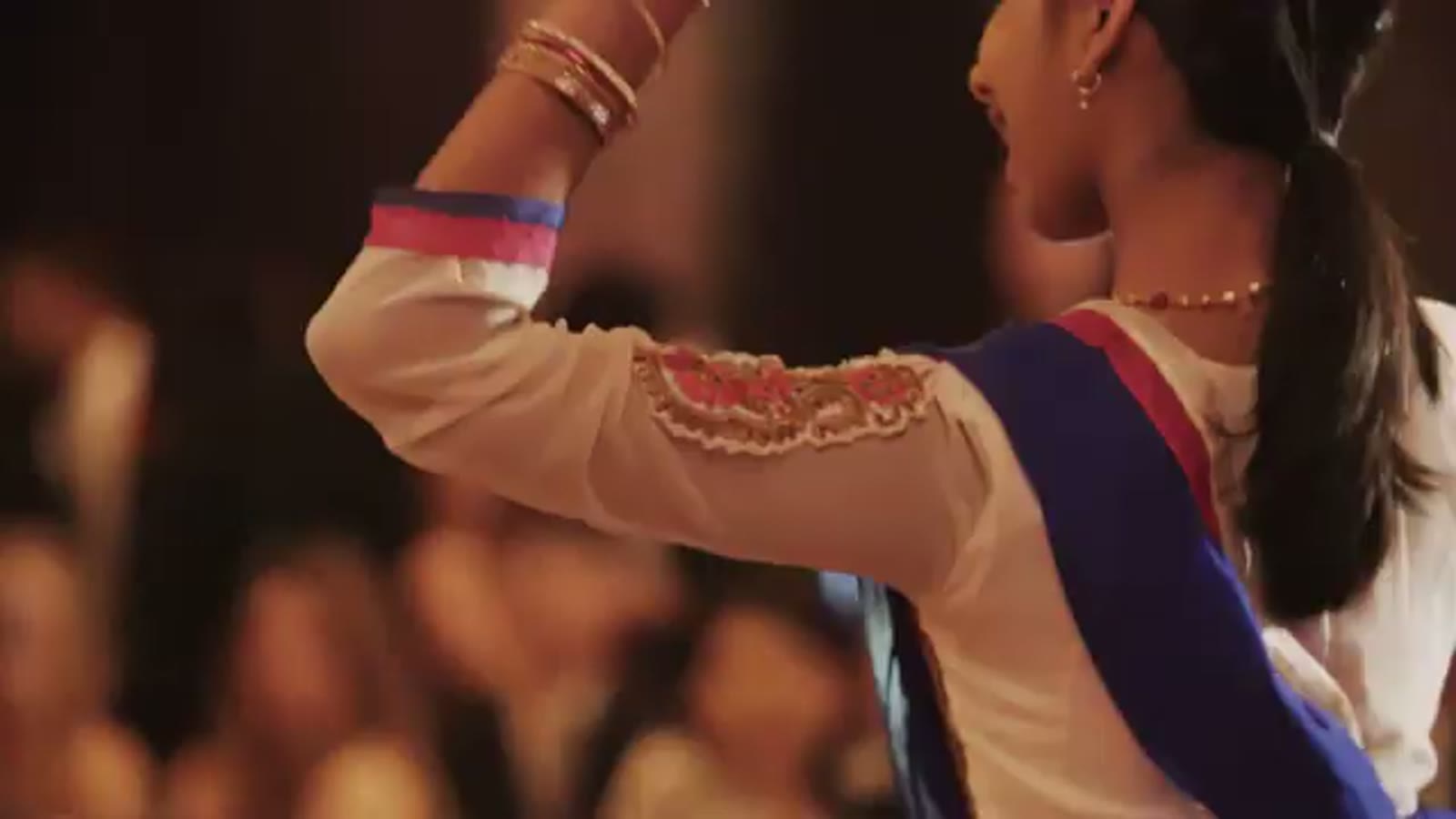
The color in that room was unbelievable. Reds and golds everywhere, in the clothes, in the flowers, in the drapes behind them, all of it saturated in a way that a typical wedding simply is not. And the flower petals. So many flower petals.
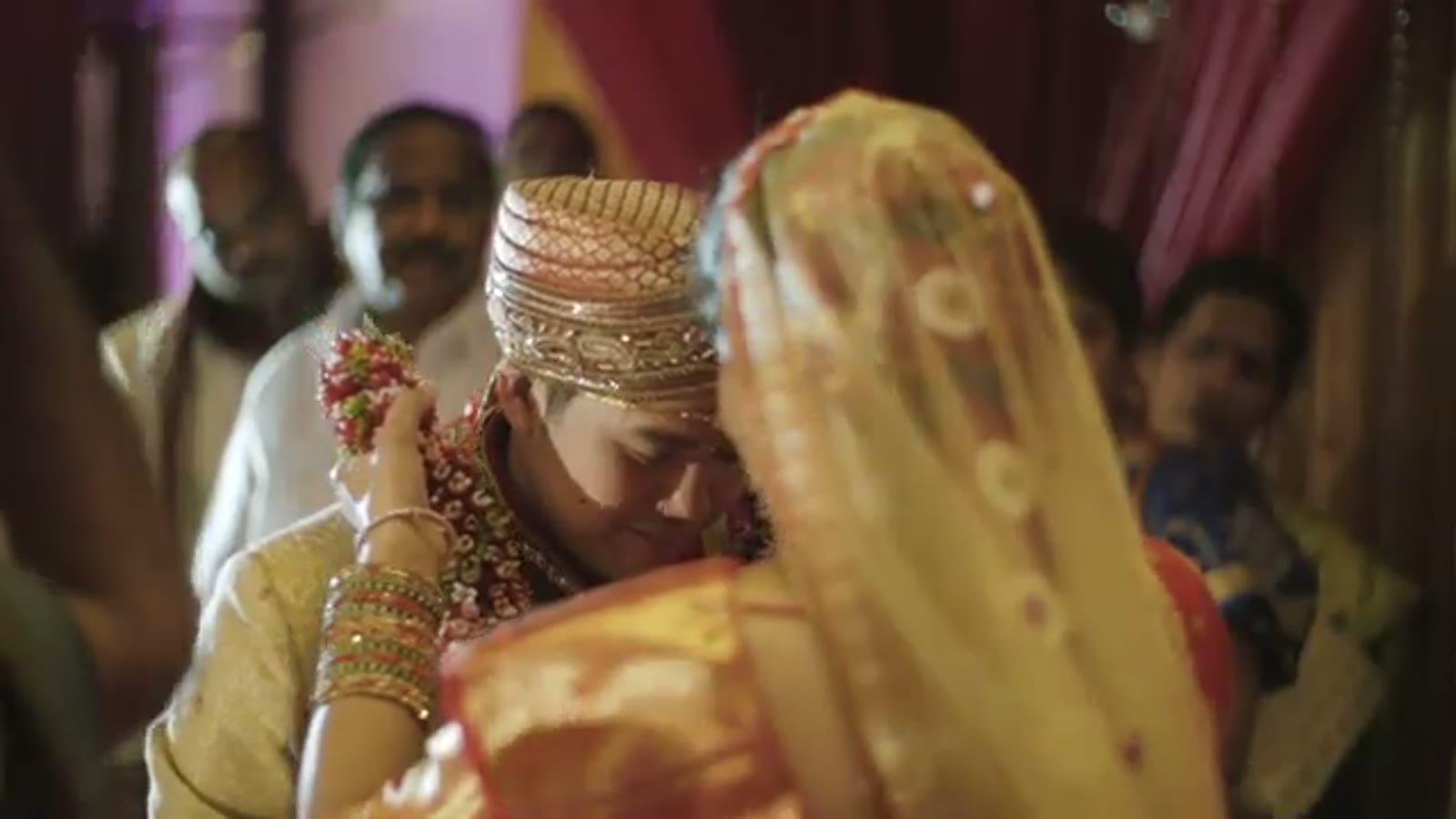
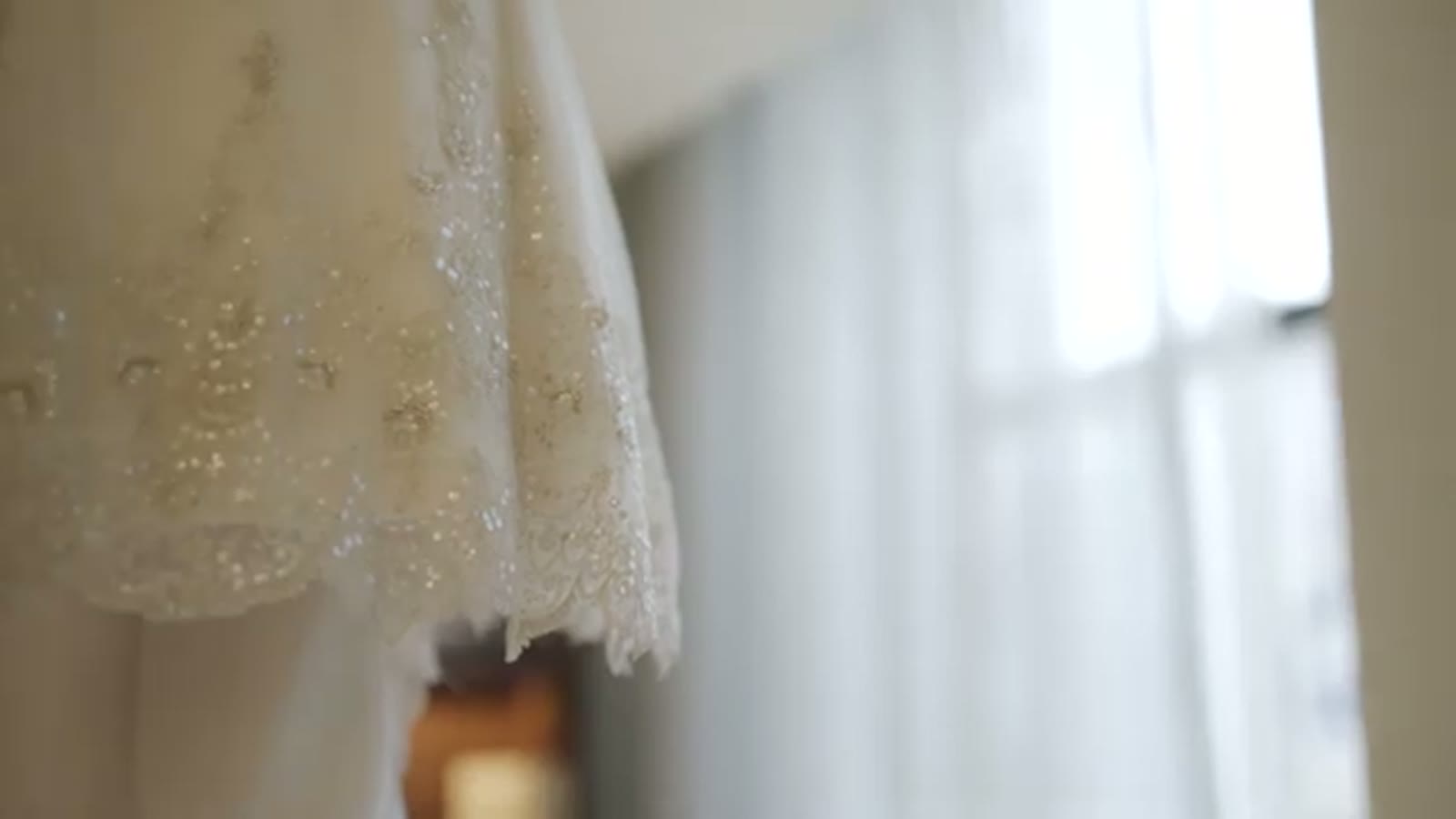
And then everybody changed, and the same two people got married again in a white dress and a black tux, and the room went from red and gold to soft window light and cream.
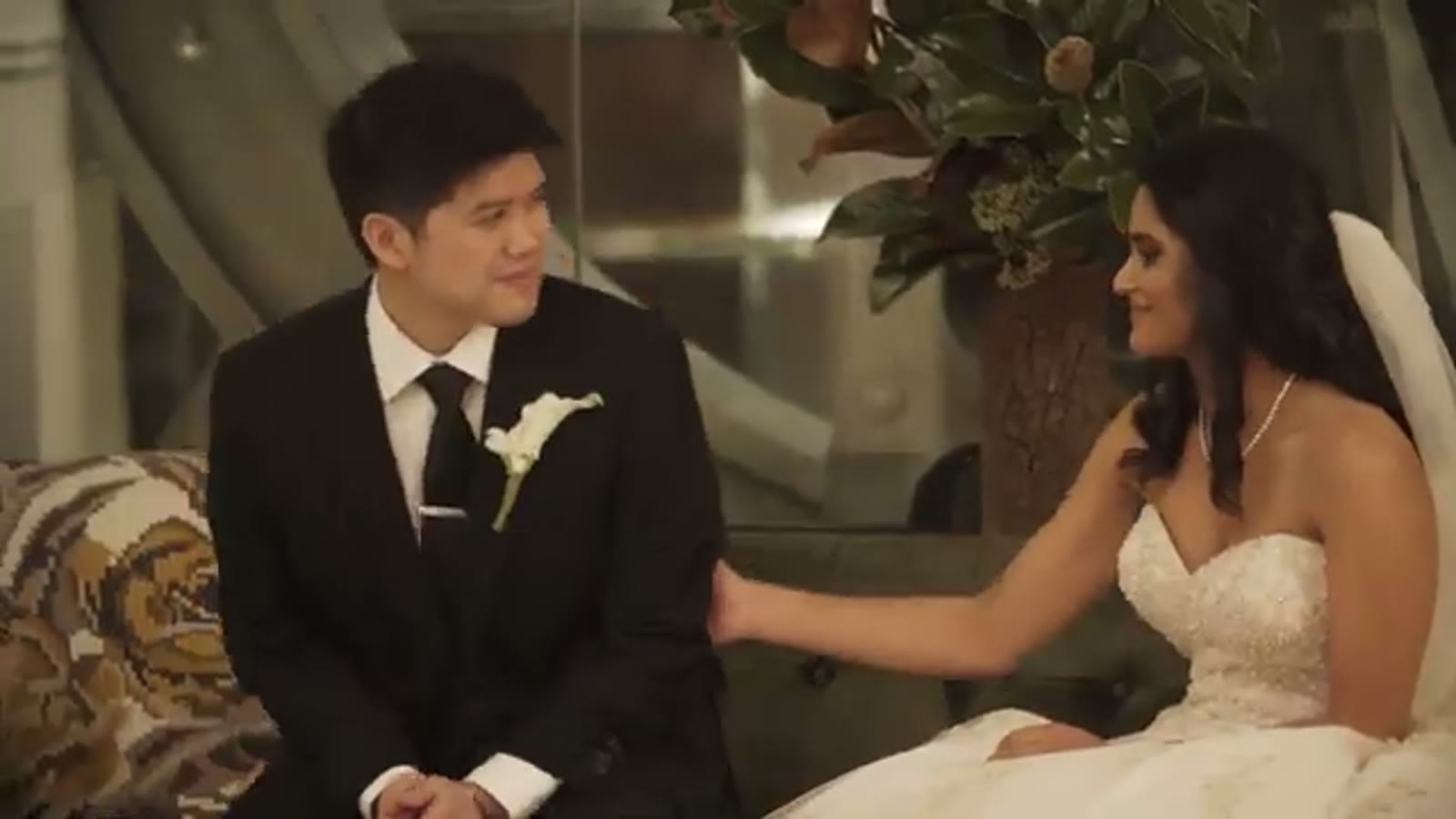
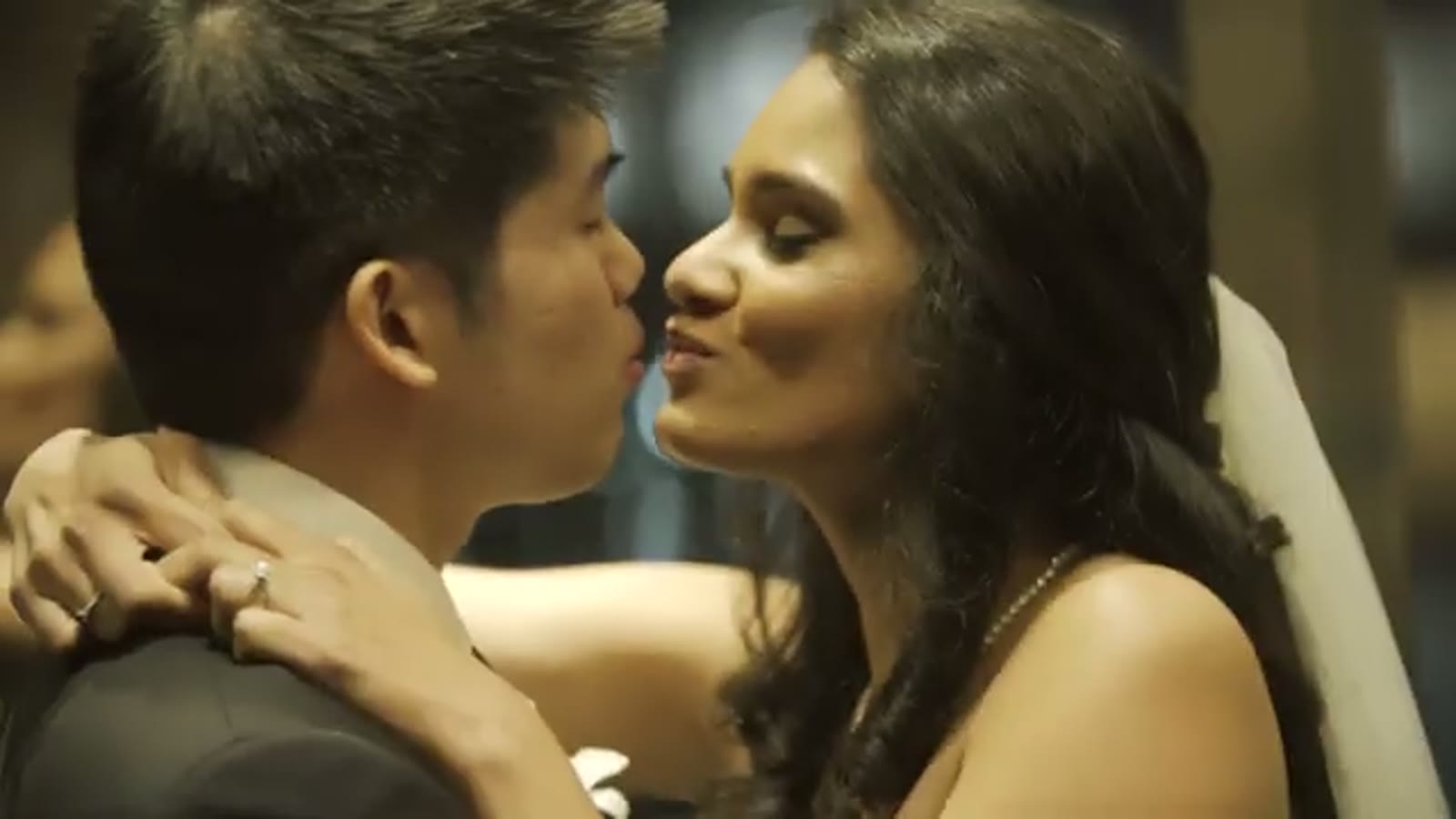
What I did not expect is how much I would like cutting between them in the edit. Two completely different palettes, two sets of clothes, two sets of traditions, and the same couple looking at each other the exact same way in both. You don’t have to say anything about it in the film. The images do it.
By the time the dancing started, everyone in that ballroom had been together for the better part of a day, which does something to the energy of a reception that you cannot manufacture. They were not strangers politely finding the dance floor. They were a couple hundred people who had already been through two ceremonies together and were ready.
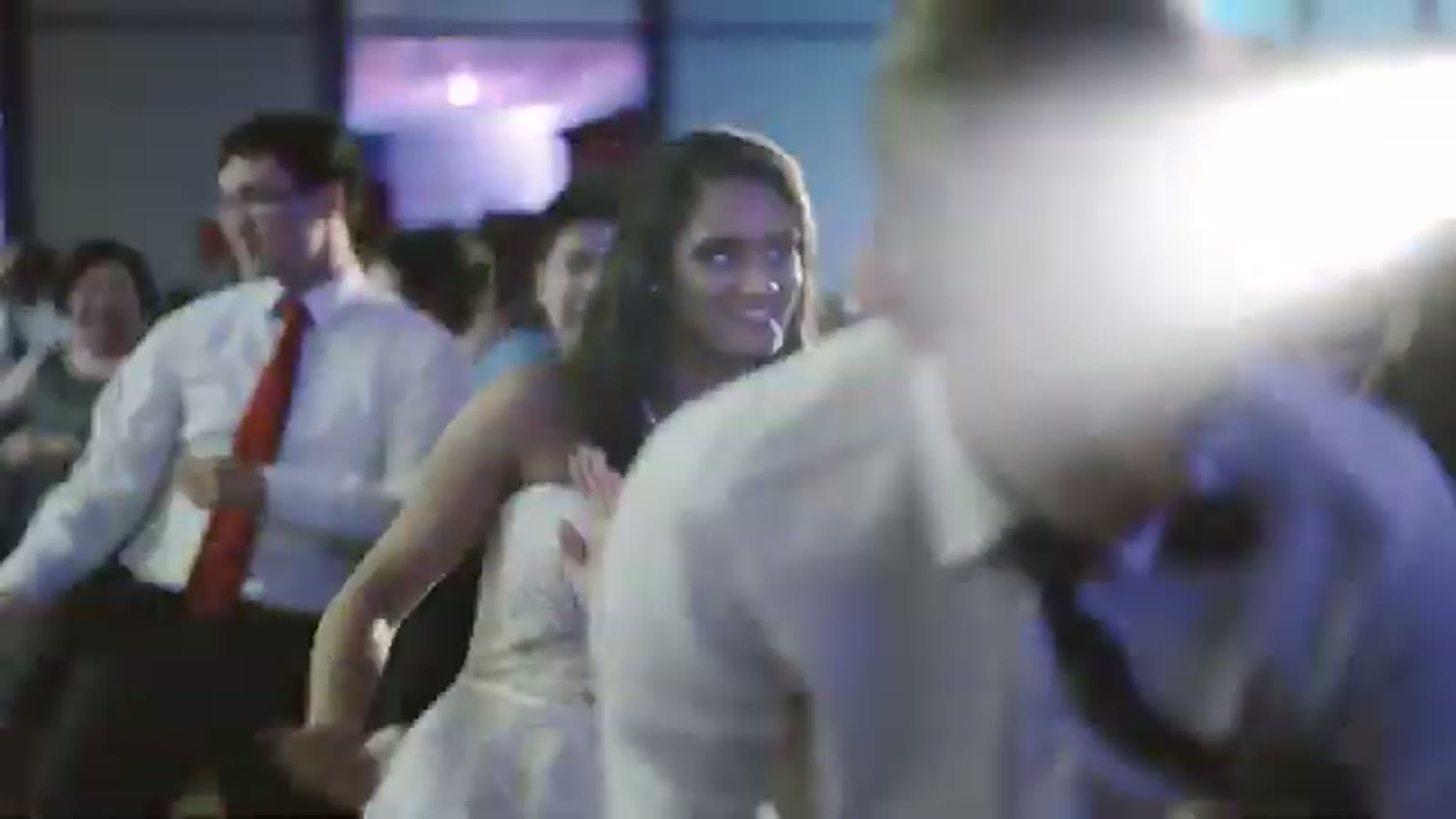
I learned a lot that day, and I’m looking forward to learning more in the future. So if you are planning a wedding and it looks like something that I haven’t filmed before, please get in touch. I would love to try something new.
Check out Suneera and Amos wedding highlight below:
The dance floor footage from this wedding also ended up as one of my examples in how to film incredible dancing footage in your wedding films, if you want to see how I lit and shot it.
People ask constantly what I shoot weddings with, so here’s the current list. This film is from 2016 and the bag has turned over a few times since, so treat this as what I reach for now rather than a shot list of what was on my shoulder that day.
The full list lives on my favorite wedding filmmaking gear page, and everything is color graded with my own WhoisMatt LUTs.
If you’re trying to book more weddings, I have a free quick tips guide on how to book more wedding film clients, and my wedding film editing course covers the edit start to finish. There’s also a free Learn Wedding Filmmaking Facebook group, and whenever I need help with an edit I use Archaius Creative, who’ll take 10% off your first project through that link.