
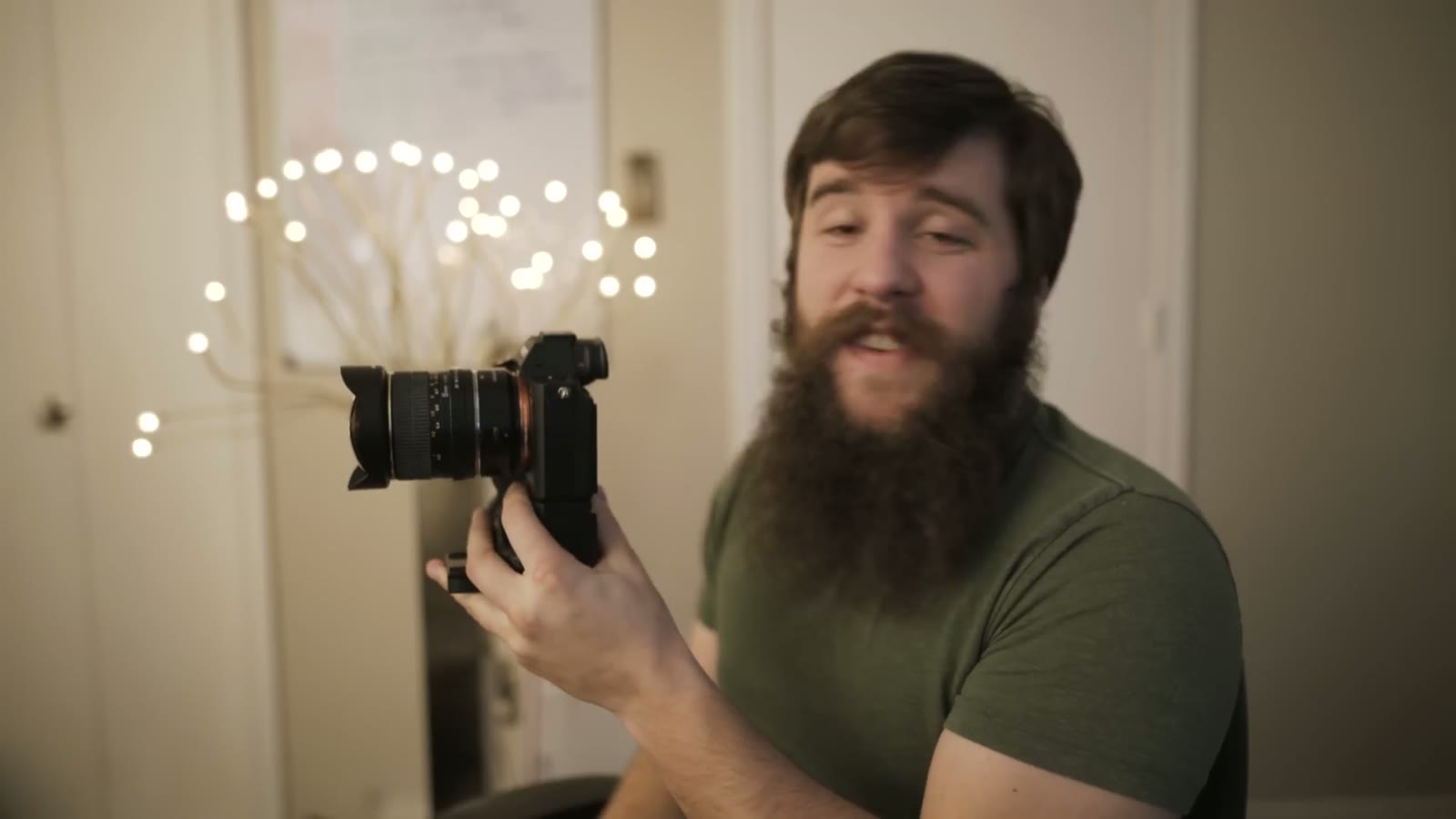
I’ve owned my Sony A7Sii for about four months, and I am still learning new things about this fantastic camera all the time. Sony has packed it full of so many features, and many of them are either lacking documentation, or hidden away in a menu somewhere, waiting to be discovered. Today, I would like to share with you a cool workaround I discovered that enables you to shoot with your camera in APS-C/Super35mm crop sensor mode, WHILE shooting in 4K.
What Crop Sensor Mode Is
When Sony released the A7 series of full frame mirrorless cameras, they knew that many of their users did not have lenses that would work with that sensor size. Lenses like Nikon DX, Canon EF-S, and many Super35mm cinema lenses are only made for cameras with a cropped sensor that is approximately 1.5x smaller than full frame. To enable these lenses to work with the A7 series, Sony created the APS-C/Super35mm crop sensor mode. When enabled, this feature causes the camera to read from a 1.5x smaller portion of the sensor, one that perfectly fits the APS-C mode. This enabled photographers and cinematographers to use a massive variety of lenses without needing to buy a separate cropped sensor camera body.
If you don’t use Super35mm mode and you put one of those crop-sensor lenses on a full frame body, you end up with massive vignetting all the way around the image, and it’s basically unusable.
The Problem
When Sony released the A7Sii in October of last year, many people assumed that the APS-C/Super35mm crop sensor mode would be available and it was, with one major caveat. Because of the sensor size of the camera, it was unable simultaneously record 4K, while reading a smaller crop of the sensor. To put it as simple as possible, the 12 megapixel sensor of the A7Sii lacks the pixels to be 1.5x smaller, and record a 3840×2160 image. While the crop sensor mode was still available when shooting 1080p, many people, myself included, were upset that some of our lenses would be unusable on the A7Sii while recording in 4K.
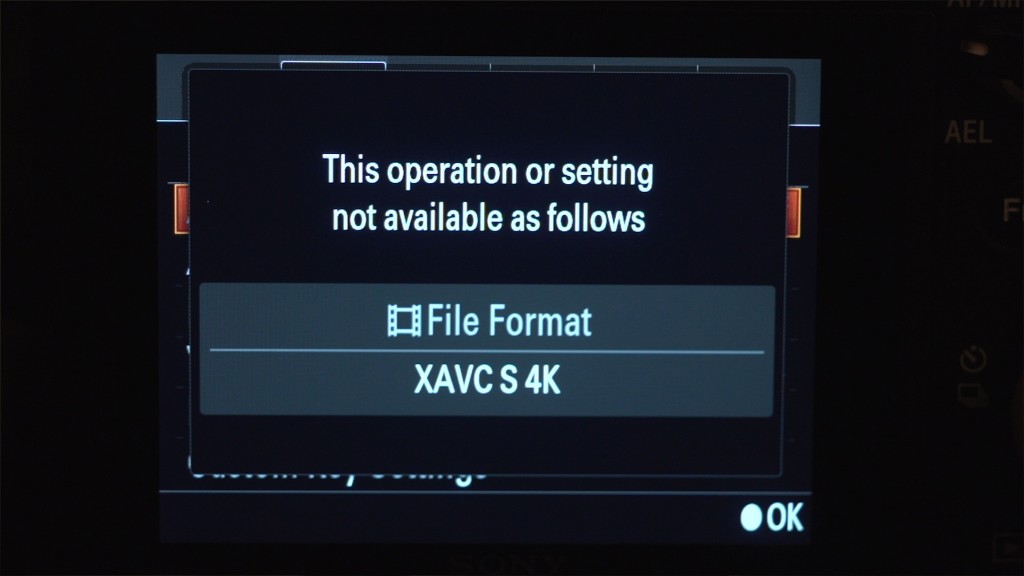
I believe this is a hardware level limitation and I don’t expect a firmware update to ever fix it. But I have great news, because there’s a workaround.
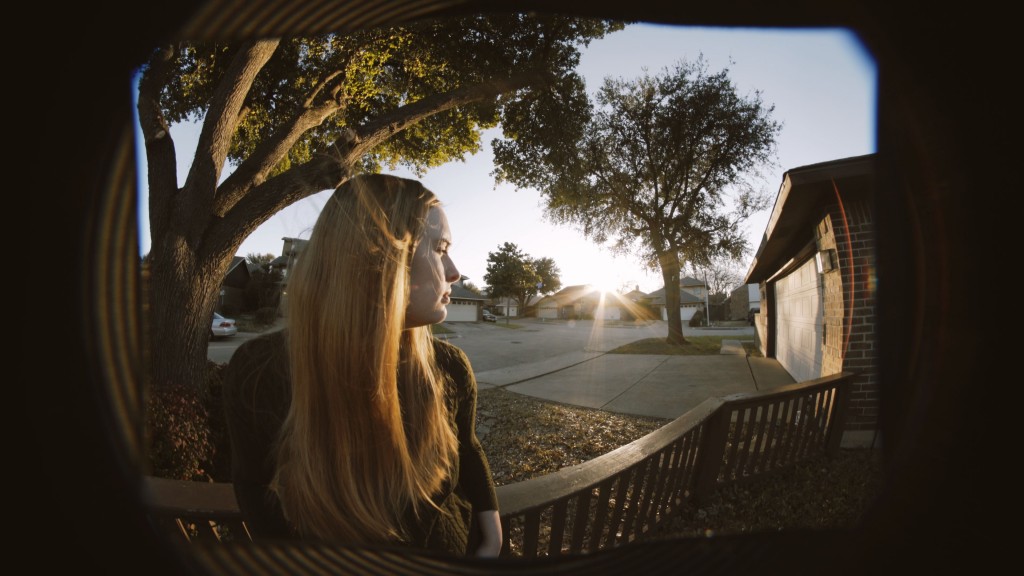
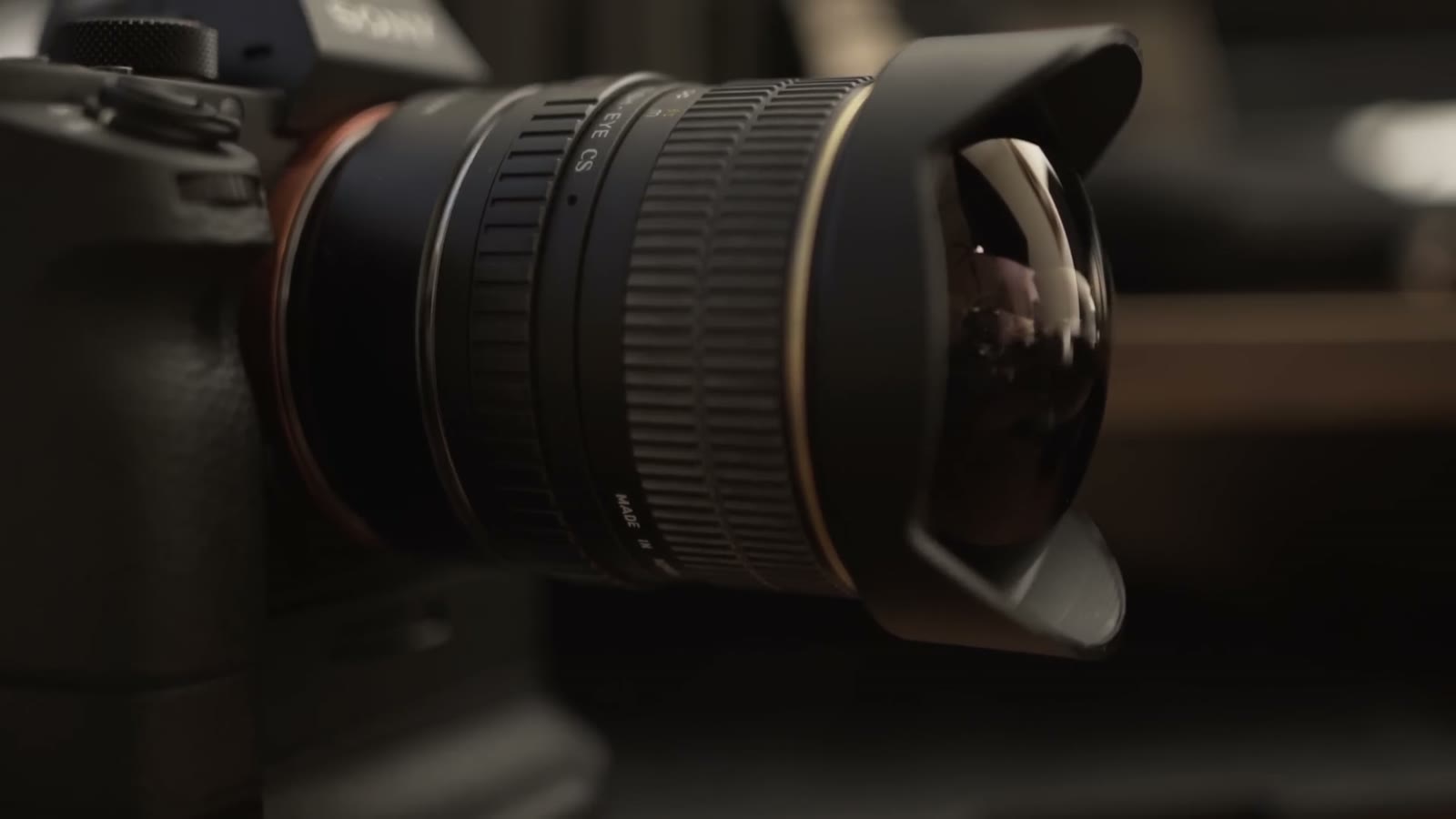
For this demonstration I’m using a Fotodiox Canon EF to Sony E-mount adapter with a Pro Optic 8mm fisheye, which is a lens made only for crop sensor cameras. Here’s what that looks like on a full frame body.
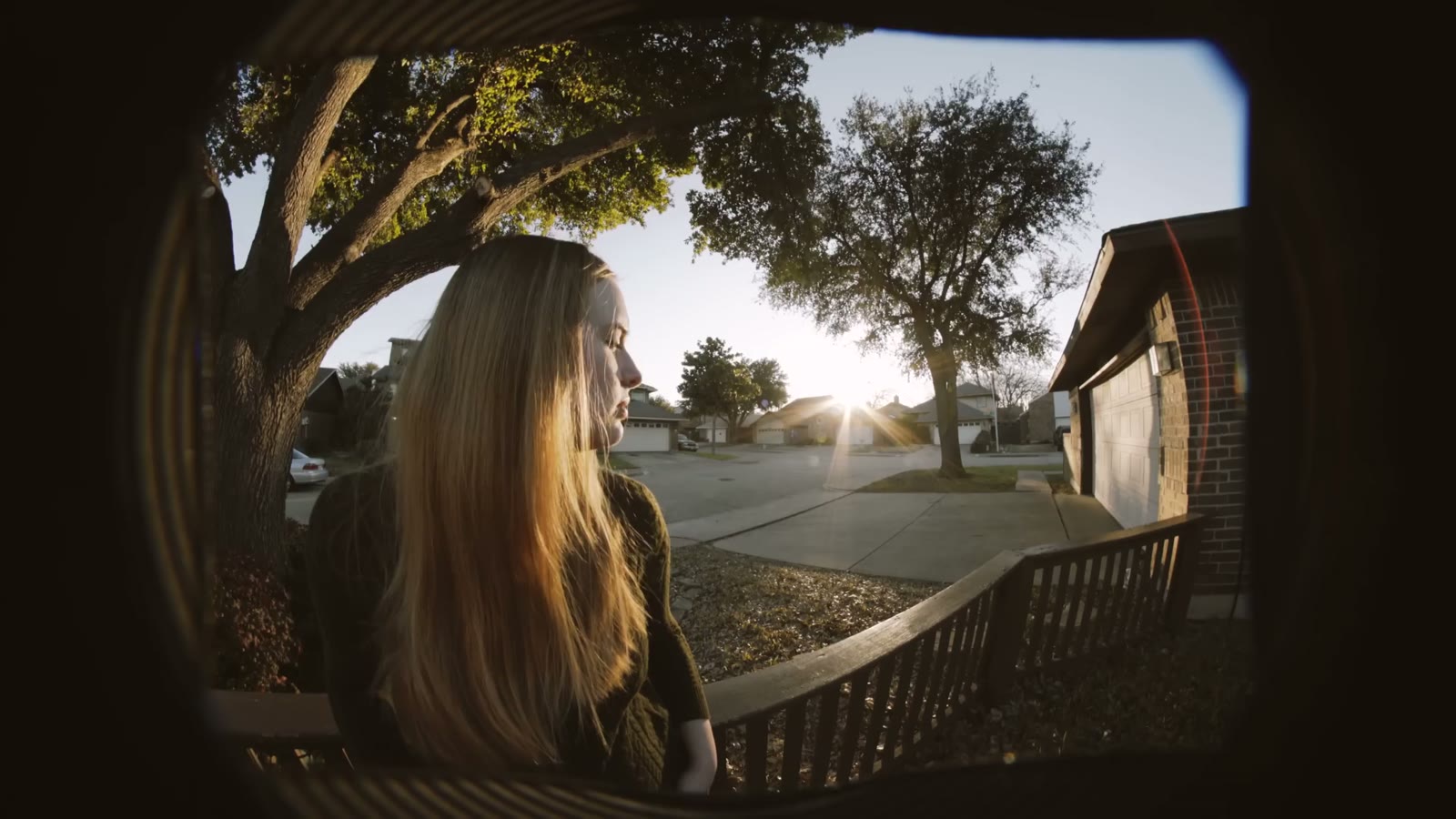
You get massive, really odd vignetting all the way around the center of the image, and at that point it’s unusable unless you were going for some hyper-stylized awkward look, which I don’t think you really want.
The Workaround, Step By Step
Step 1: Turn on Clear Image Zoom
Go into the menu, go to the gear icon at the top, which is the second tab over. Go to heading three, scroll down to Zoom Setting, and set it to On: ClearImage Zoom.
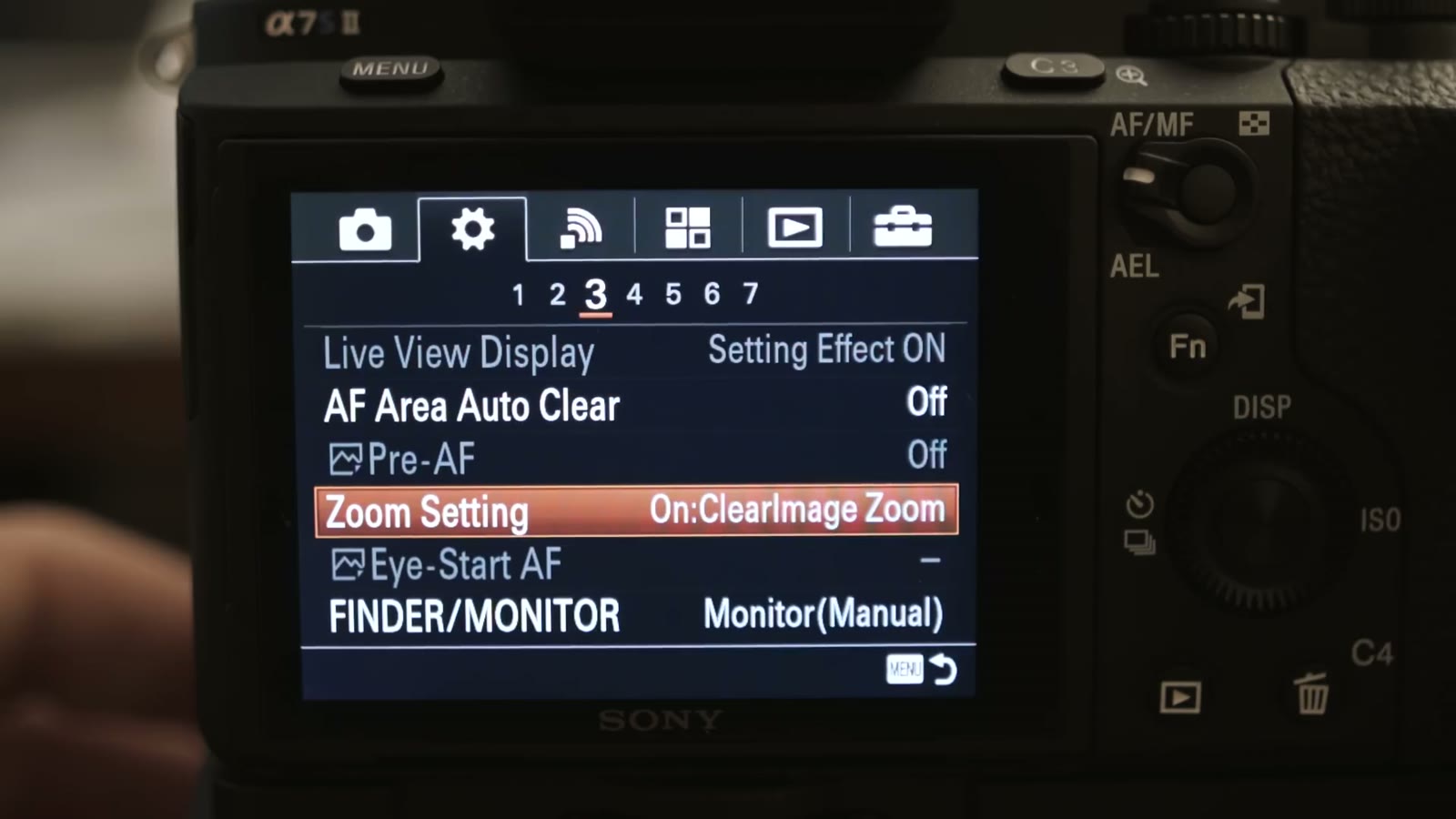
What Clear Image Zoom does is turn any of your prime lenses into zoom lenses, and any of your zoom lenses into even better zoom lenses. That’s done through a mixture of pixie dust and unicorn blood, in a very proprietary ratio that Sony has not made public, so it’s best if I just show you.
Step 2: Assign Zoom to a custom button
Stay in the menu, stay on the gear icon, and scroll over to heading six. Scroll down to Custom Key Settings.
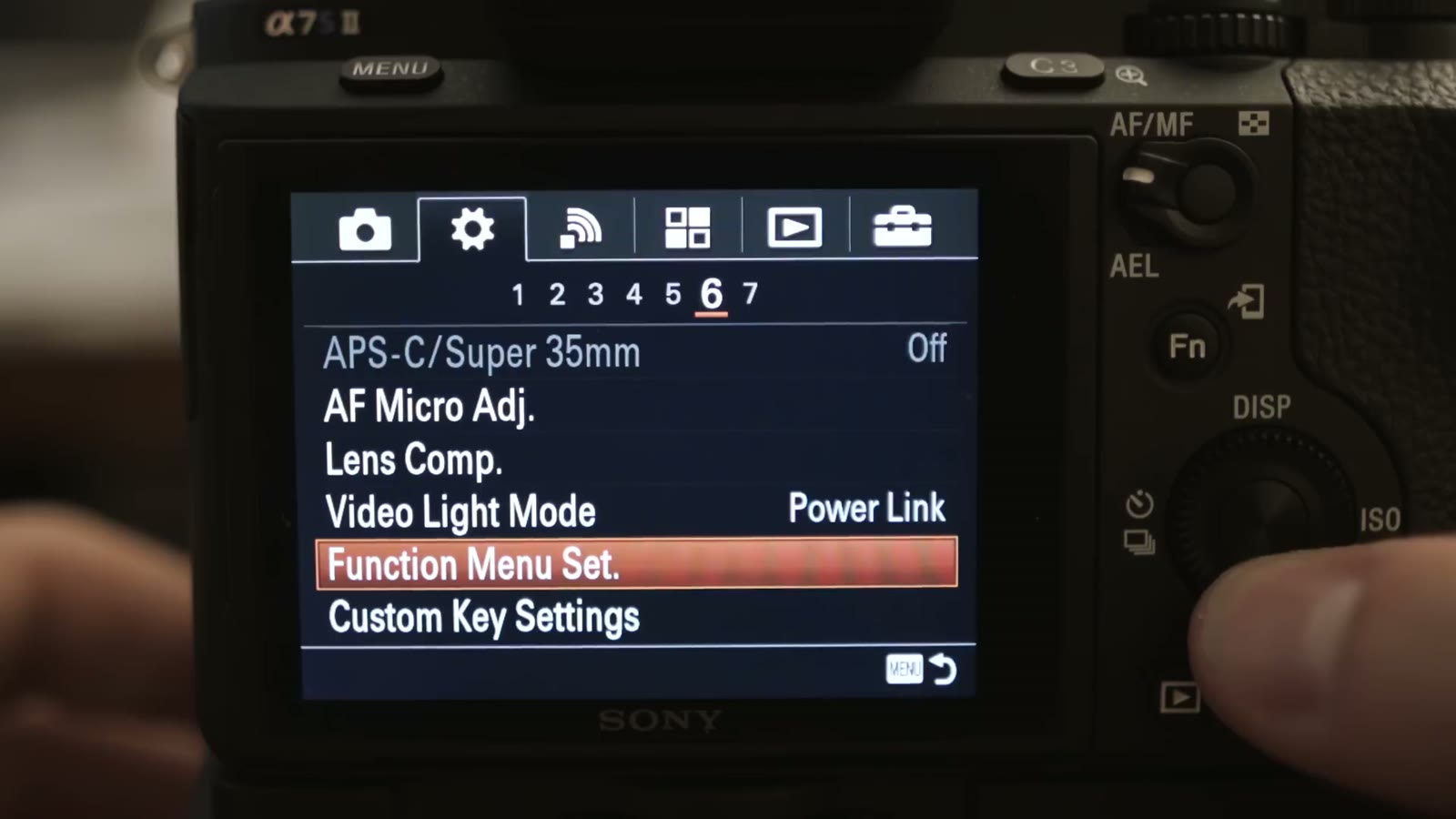
Pick one of your custom buttons. I used Custom Button 4. There are a ton of options in that list, so you may have to scroll a while, but find Zoom and select it.
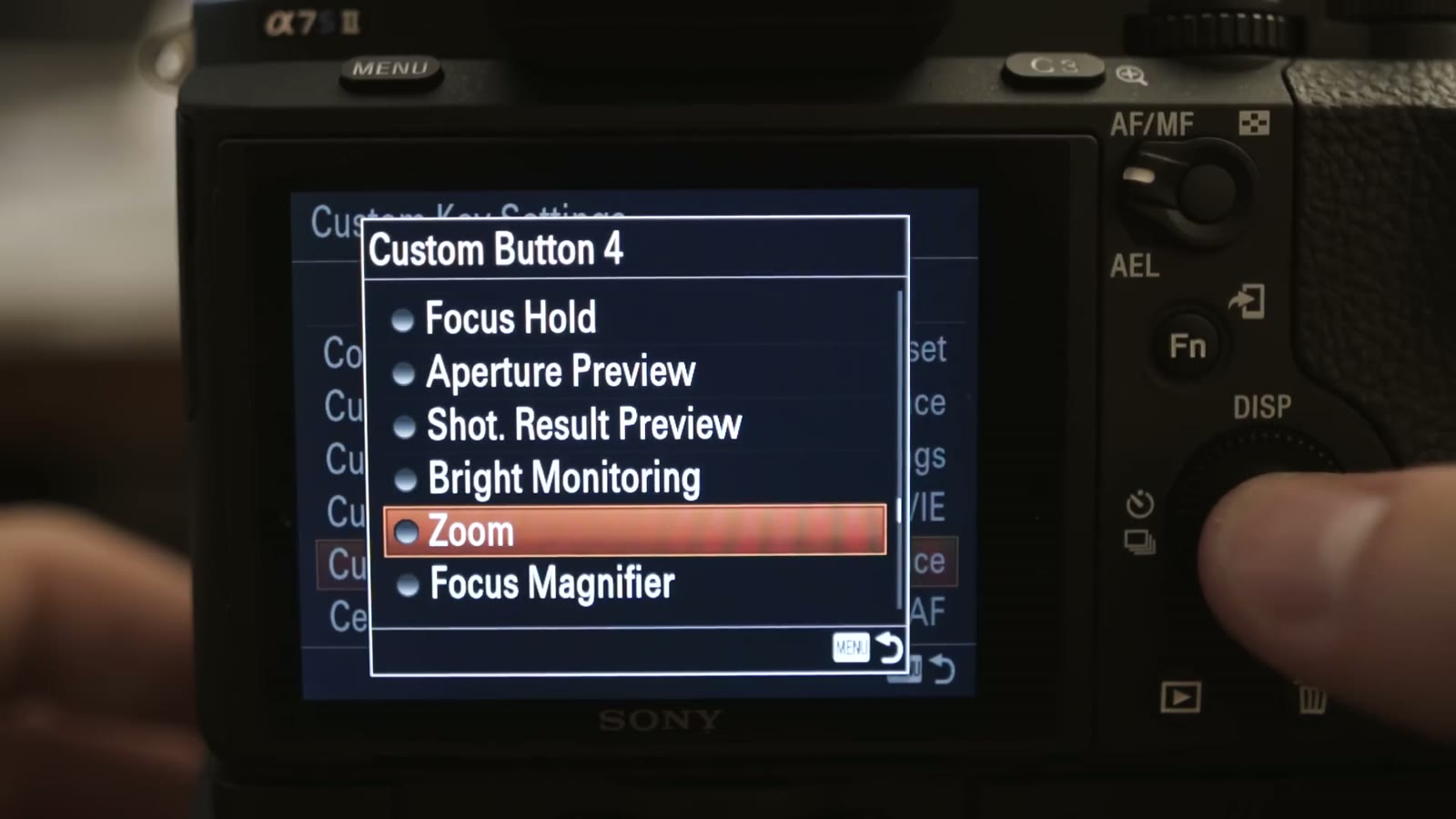
Then hit menu twice to back all the way out to your video.
Step 3: Zoom until the vignette is gone
Tap the custom button you assigned. It brings up a little magnifying glass that says Zoom, and it does not blow up your camera. Now use the scroll wheel to zoom in and out.
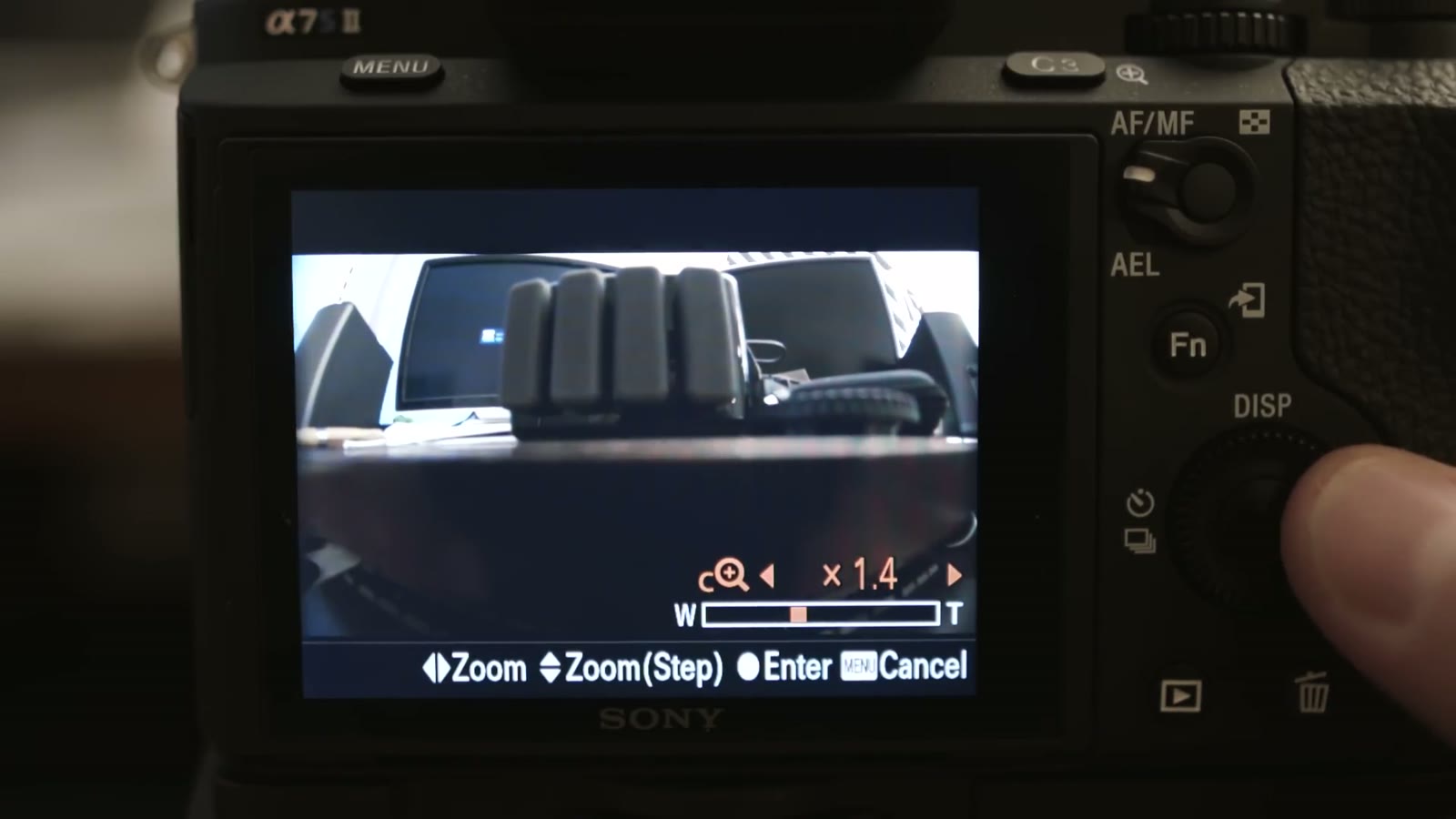
Watch the vignetting as you go. Around 1.4x there’s very little left. At 1.5x it’s gone completely, which makes sense, because 1.5x is exactly the crop factor. Hit the center button to lock it in, and you are now shooting Super35mm/APS-C while still recording 4K.
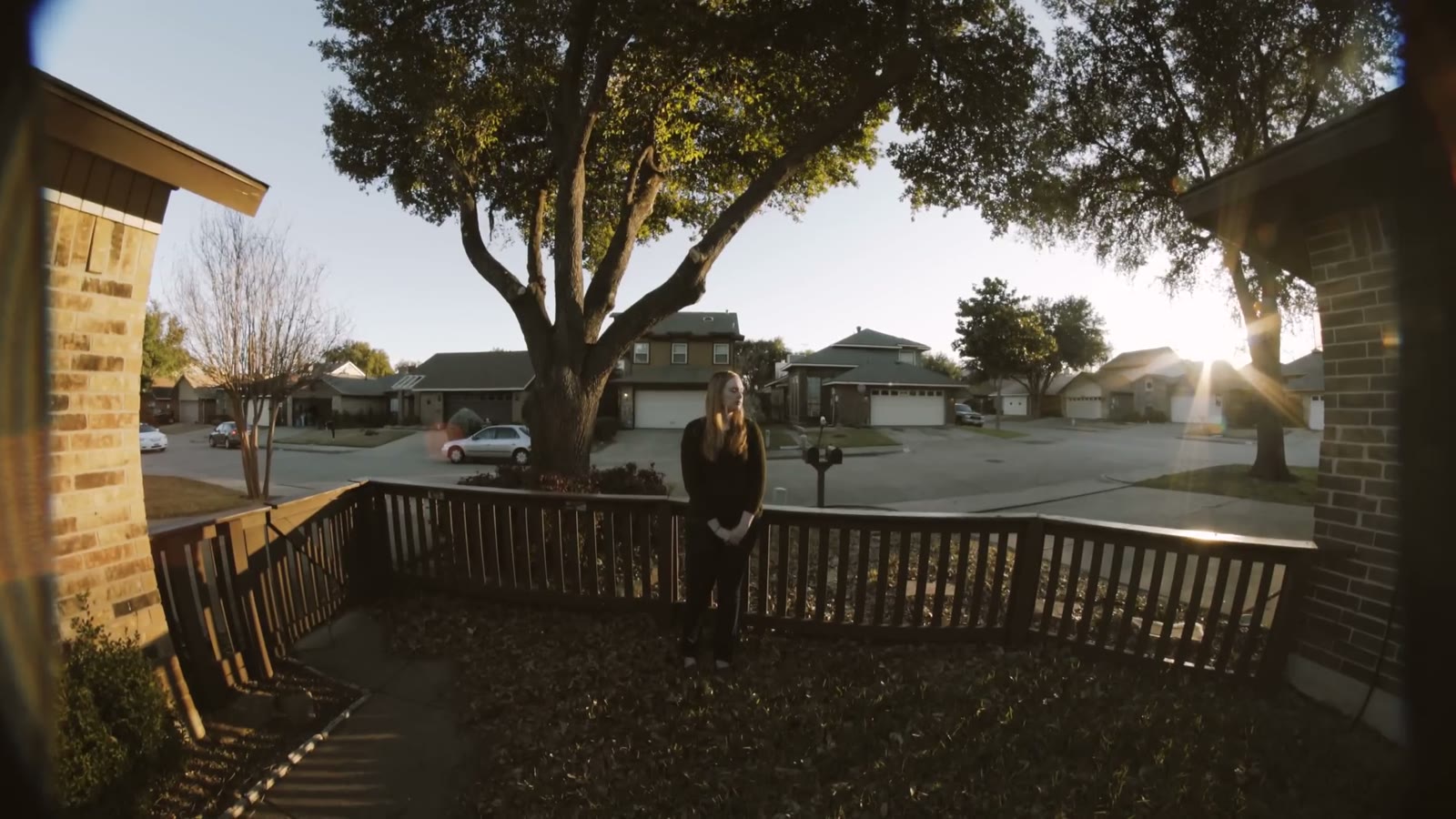
You can push it further, all the way to 2x, if you want the extra reach. So an EF-S lens that is not supposed to work on this camera, on a camera that is not supposed to do Super35 in 4K, is now doing exactly that.
People ask whether that’s a drop in quality, and Sony’s position is that Clear Image Zoom involves no visual loss in quality. What I can tell you from my own testing is that because of the zooming, especially in low light at high ISO, you will see more noise in your image. That’s the trade.
What This Unlocks
You can now use all of your EF-S lenses, your Nikon DX lenses, and your cinema lenses built for Super35mm on the A7Sii while shooting 4K, up to 30 frames per second.
One thing that isn’t worth doing
You could put a speed booster adapter on this camera with a full frame lens and then use the zoom to bring yourself back to a full frame field of view. Some people did that with the original A7S, myself included, because shooting in Super35 mode minimized rolling shutter, since the sensor was refreshing a smaller area faster.
That benefit does not carry over here. Because this is Clear Image Zoom rather than an actual sensor crop, the sensor isn’t refreshing any faster, so there’s no tangible advantage to the speed booster route over just shooting full frame. The one exception is if a speed booster is genuinely the only adapter you have with you on a shoot. Then this technique gets you working. Otherwise there’s no reason to do it.
If you have any questions or comments, please leave one below, or get in touch.
Want To Watch More?
- My review of the A7Sii for wedding cinematographers, which is what to read first if you’re considering the camera
- My favorite picture profile for the Sony A7Sii and FS5
- How to easily color grade A7Sii, FS5, and a6300 footage in Premiere Pro CC
- A wedding cinematographer’s guide to run and gun filming with the A7Sii: menus
- A wedding filmmaker’s review of the Sony FS5
You can also check out my wedding films at Filmstrong Productions.
A note on timing: this was filmed in February 2016, a few months after the A7Sii shipped. Menu layouts have moved around on later Sony bodies, and newer cameras handle Super35 in 4K natively, so this workaround is specific to the A7Sii of that era.