
Today I’m going to show you the parts you need to build a powerful video editing PC for $1,500 and up. This build will make it easy to edit 4K, 6K, even 8K or raw video in Premiere Pro, DaVinci Resolve, or basically any other editing software other than Final Cut, which is Mac only. Side note: if you want to edit photos, mix music, do 3D and After Effects, or even game and stream, this will be a fantastic choice for you too.
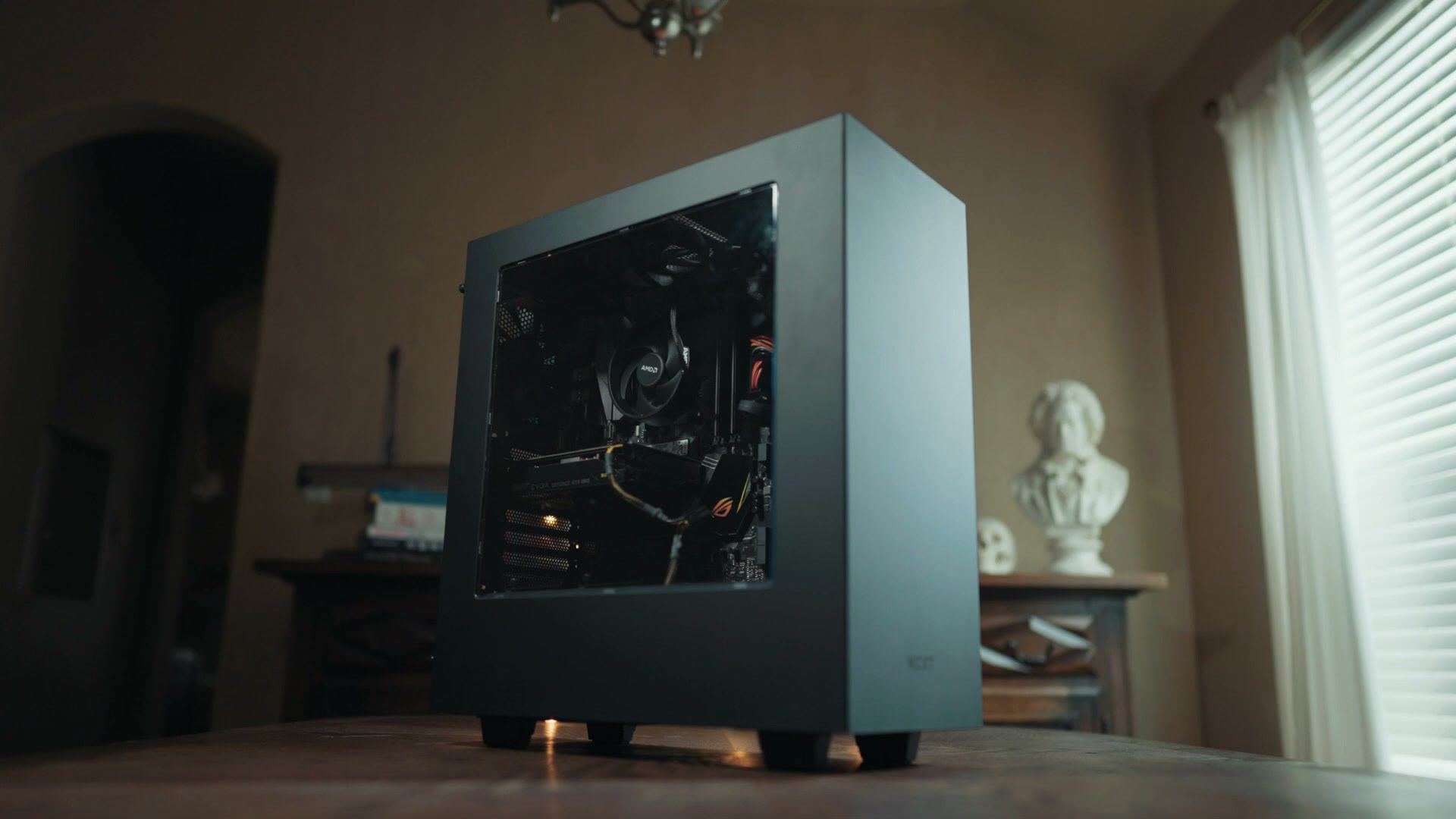
I’m also going to show you some upgraded parts you can buy that will cost more but have the potential to dramatically speed up your editing. For a sense of how much this has changed, my $3,000 build from 2017 is still up.
Two quick things first. Every part in this build is on my gear page, nicely organized. And second, this covers the parts you need to buy, not how to put them together. Good news there though: I made a video a while back walking through exactly how to assemble a video editing PC, from opening the boxes all the way to turning it on, and those instructions still apply to this build. It’s not hard. It’s kind of like Legos.
CPU – The BRAIN Of The Computer
The CPU is arguably the most important part, because the more cores and threads your computer has, the faster your videos edit and render.
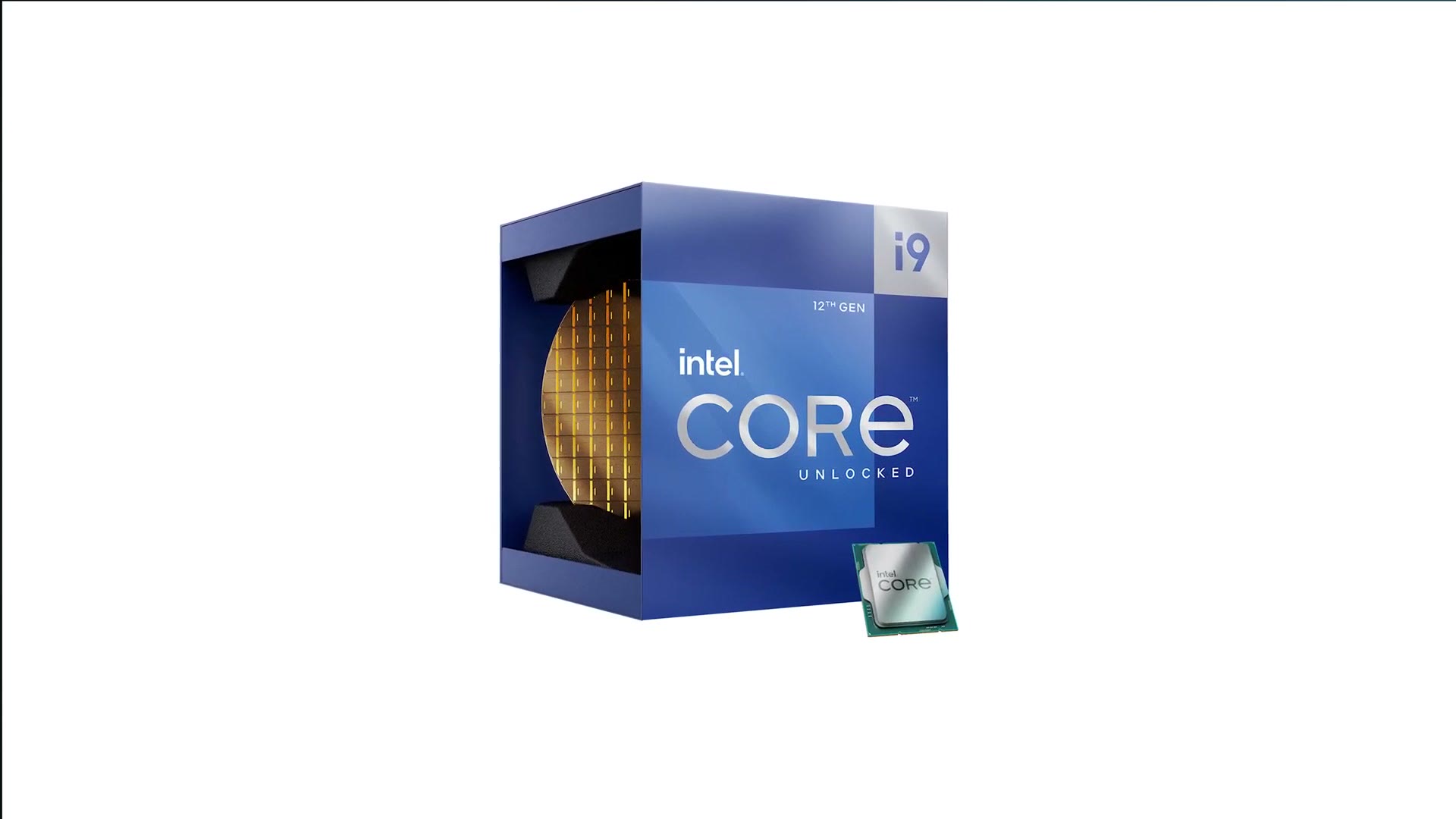
I’d recommend the Intel Core i7-12700K, with 12 cores and 20 threads, for $382. That processor sits right in the sweet spot for power and price.
But I hear you saying the sweet spot is great, Matt, what else you got? Isn’t there something more powerful that won’t completely break the bank? Alright. If you have more to spend, go with the Intel Core i9-12900K, which takes you from 12 cores and 20 threads to 16 cores and 24 threads for a few hundred dollars more. It’s a stellar CPU, and no matter what you throw at it, 4K, 6K, 8K, this thing should handle it.
Neither of those CPUs comes with a cooler, so you’re buying aftermarket. If you want to save a bit, the Noctua NH-U9S is a great air cooler at $58 at the time of writing and it’ll work well. If you want to spend a little more, the Noctua NH-D15 is pretty universally heralded as one of the best air coolers you can buy today, and I think it’s worth the $40 upgrade.

And if you want to water cool your computer, because that’s what all the cool kids are doing these days, the NZXT Kraken X63 is a great, easy to use option that fits in the cases I recommend below.
Motherboard
The motherboard holds your CPU, RAM and graphics card and makes them all work together, and here’s where you have a choice to make.
Right now the computer world is shifting from motherboards that support DDR4 memory to ones that support DDR5. In short, things are getting faster, but it also means choosing between a cheaper DDR4 board and a more expensive DDR5 one.
For the first option, I’d go with the MSI PRO Z690-A DDR4 WiFi at $239. Great board with a lot of features, including WiFi, so you don’t need a separate USB WiFi adapter.

It only supports DDR4 memory, which is still plenty fast but isn’t the most cutting edge thing available. So if you want DDR5, my second recommendation is the confusingly similar MSI PRO Z690-A WiFi at $249. Notice this one doesn’t say DDR4, which is how you know it’s the DDR5 version. Other than the memory support it’s very similar, just a bit more futureproofed.

Memory
So you need to choose DDR4 or DDR5 RAM, and to be clear, a DDR5 motherboard is not backwards compatible with DDR4 memory. If you buy the DDR4 board, buy DDR4 RAM. If you buy the DDR5 board, buy DDR5 RAM. Otherwise it simply will not work. Got it? Okay.
For DDR4, I recommend at least 32GB of Silicon Power gaming RAM at 3200MHz. I had 32GB in my editing desktop for years and it was enough for 4K footage, though I did notice I was starting to run out whenever I edited and rendered higher resolution stuff.

To avoid that, if you often render longer 4K videos or anything above 4K, buy 64GB of Corsair Vengeance LPX at 3200MHz for $290 instead. That should be plenty for video editing.
If you go DDR5, I recommend 32GB of Corsair Vengeance at 5200MHz, which is much faster than DDR4. The con is the price, at $314. And if you want 64GB of DDR5, that’s possible, but be prepared to spend $600 plus.

So to wrap up memory and motherboards: DDR5 is faster, but if I were buying a computer right now I don’t think it’s necessarily worth the price premium, and I’d probably go DDR4 until prices drop. Once DDR5 RAM comes down about a hundred bucks, I’d switch to the DDR5 build. Check prices on both when you’re looking, then make the call.
SSD & Hard Drives
Your SSD stores your operating system and every program you use. One of the best price to size to performance options right now is the Sabrent 1TB Rocket M.2 SSD at $130.
If you have a bigger budget and want something even faster, check out the WD Black SN850. That one is blazing fast.

Keep in mind though, I only recommend using this SSD to store your programs. For the fastest editing, have one SSD for programs and a separate SSD or regular hard drive for your video files. Because I travel a lot, I’d get a fast external SSD or a large external hard drive for your footage. This build’s case will also take internal drives if you’d rather go that way. I have also written up how I keep all of those drives backed up.
Graphics Cards & How To Find One In Stock
Now for one of the most exciting parts of the computer, and this is where this build guide goes a bit off the rails.
NVIDIA and AMD keep designing new graphics cards, but there are major supply chain issues and a lot of companies can’t keep them in stock. It’s the perfect storm: a shortage of workers building the cards because of the pandemic, everybody staying home and wanting to play computer games because of the pandemic, cryptocurrency mining, and scalpers using bots to buy up most of the supply the second it lands so they can resell it at usually triple the MSRP.
Because of all that, it is quite difficult to buy a graphics card at a reasonable price right now, which makes buying a video editing computer on a budget even harder. That’s exactly why this is a “$1,500 plus” build and not an exact number, because card prices swing so much depending on what’s in stock. I estimate you’ll end up around $1,500, but it could be more or less.
Don’t worry though, I’m here to help you save money. And the first thing you need to know is that there is still one guaranteed way to get a decent graphics card at a reasonable price: buy a prebuilt computer. Yes. In a video all about buying parts to build your own computer, I’m telling you not to. We live in a strange world right now.
Good news is I’ve made a whole video on great prebuilt video editing PCs for under a thousand bucks. There are of course plenty of prebuilts above $1,000 that are much more powerful, but I haven’t covered those yet, so leave me a comment if you want that video.
By all means, I want you to build your own. But if you start looking at graphics cards and everything is out of stock and you get discouraged, save that prebuilt video and come back to it, so you can at least end up with a video editing computer.
Now let’s find you a card. In the past I’d recommend one particular brand and model, because cards would stay in stock. These days I’m going to give you several brands and models, so you have the maximum chance of finding one in stock at a reasonable price.

On brands, you’re going to see Asus, MSI, EVGA, Gigabyte, Zotac, PNY and a ton of others. In my experience, for video editing it doesn’t make a huge difference which one you buy from, and with this shortage we’re much more concerned with actually finding a card. So if you find one from any of those brands, you’re probably good to go, as long as it doesn’t have a ton of horrible reviews online.
So which model? Starting cheaper, I’d recommend the RTX 3060 Ti, RTX 3070 or RTX 3070 Ti. These have an MSRP around $400 to $600 and perform very well for editing, if you can find them in stock, new, and not being sold at an outrageous price.

If you have more to spend and want more power, because who doesn’t want more power, consider the RTX 3080, 3080 Ti or 3090, or AMD’s 6800 and 6900 XT. Those retail for roughly $650 to $700 and up, and just like the cheaper options, I’d wait until you can get one for something close to MSRP.

I’ve linked all of those, but I can’t guarantee they’ll stay in stock, because this changes hour to hour and really minute to minute. So I’d recommend setting up stock alerts at Amazon, Newegg and B&H so you get notified the moment they come back. And if you live near a Micro Center or a Best Buy and can go in person, there’s a much better chance of finding one on a shelf.
Case
I’m changing things up from my previous builds with a case from Corsair, the $105 4000D Airflow mid tower, and as the name implies, it offers great airflow.

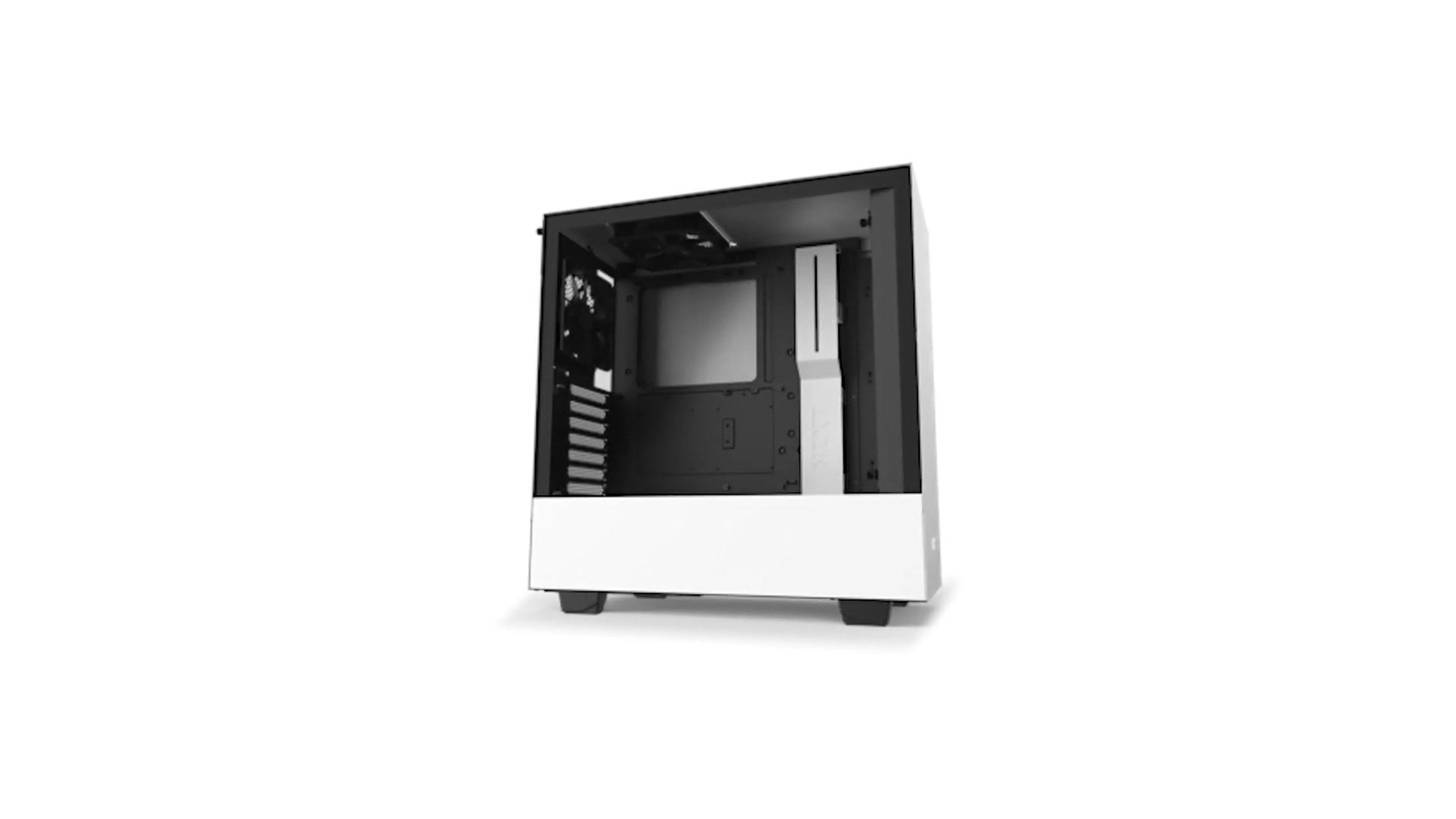
In the past I’ve recommended the NZXT H510, mostly because my PC build guide video shows everything going into that specific case. But I really want you to have good airflow, which is why I’m recommending the Corsair now. Don’t worry, the parts go into this case very similarly, so you’ll still be able to follow along with that build video.
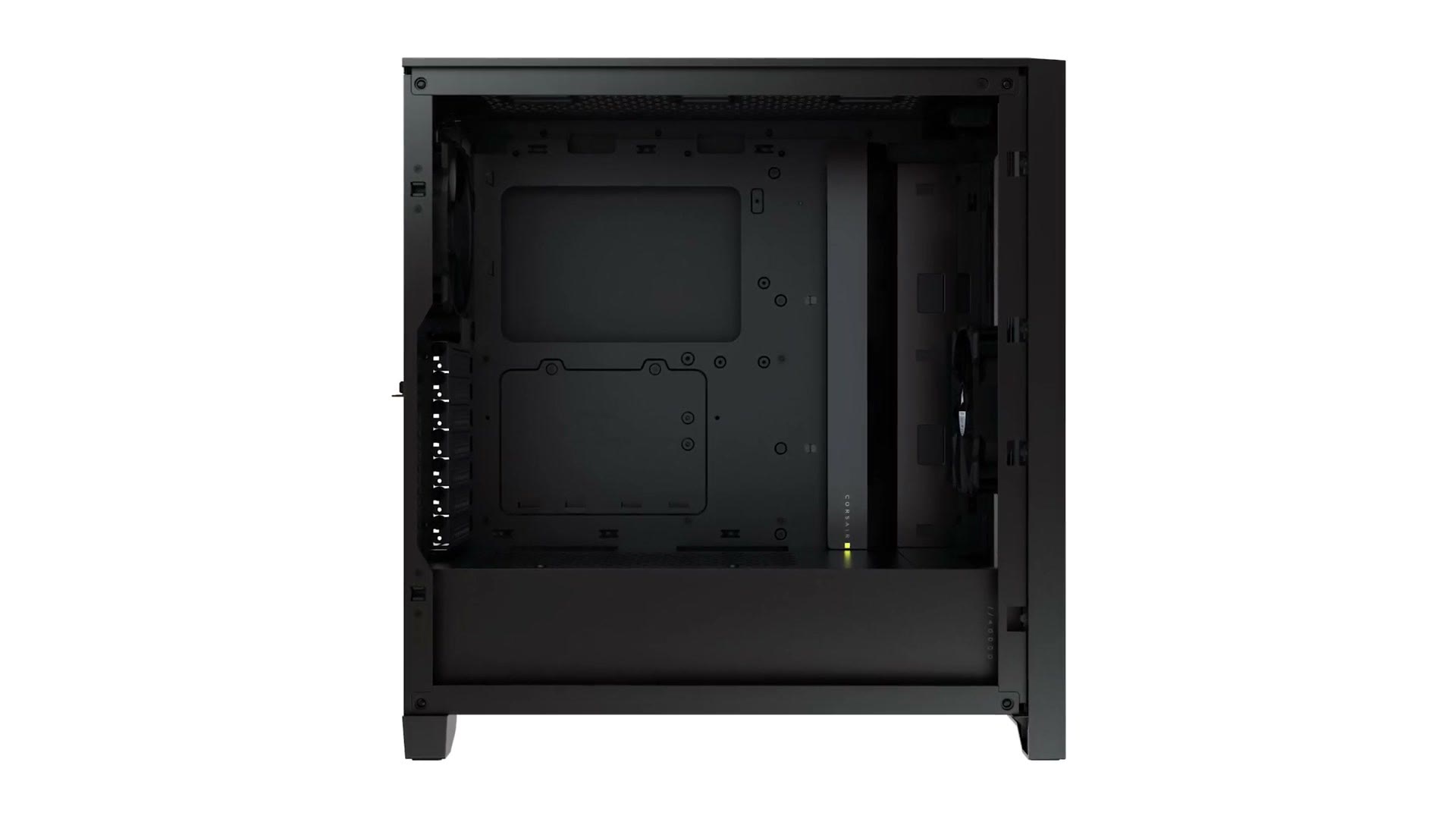
One thing to be aware of: this case has no 5.25 inch drive bays, meaning you won’t be able to install a CD, DVD or Blu-ray burner inside it. Good news is you can pick up an external DVD burner for around 25 bucks and an external Blu-ray burner for under a hundred.
If you really want a case with a 5.25 inch bay so you can install an internal burner, I’d go with this other Corsair case at $130. It still offers great airflow and gets you the drive bays.

Power Supply
Last part. The power supply gives this computer the sweet, sweet electricity it craves. To make sure you have enough for these graphics cards, I’d go with the EVGA SuperNOVA 850W, currently $110. As a plus, it’s fully modular, so you should be able to build something really clean without a lot of loose wires.

And congratulations, that is your $1,500 plus video editing PC.
Mouse, Keyboard, Monitor, Speakers Etc…
There are accessories you’ll need too, a mouse, keyboard, speakers and a monitor, and a lot of that comes down to personal preference. I’d point you at the best mouse I’ve ever used, a keyboard with macros for editing, affordable speakers or upgraded studio speakers, and either an affordable 1080p monitor or a 27 inch 4K one. Since you’re building a monster editing PC, I’d definitely go 4K.
As for the operating system, I’d go with Windows 10, and here’s a Tom’s Hardware article on how to get a copy for free or very cheap. Once you have Windows 10, you can upgrade to Windows 11 for free.

What About Apple?!
Before we finish, I want to restate how crazy the computer industry is right now and how hard it is to find parts. Heck, in the time it took me to research this build and edit the video, parts went out of stock and I had to re-record sections to make it work.
So I want to give you one final alternative. If you’ve read all of this and you’re finding that parts are out of stock, by all means comment and let me know so I can try to update the links. But even then, as weird as it is to say in a guide about building a PC, I think you should also consider an Apple computer with one of their M1 chips.
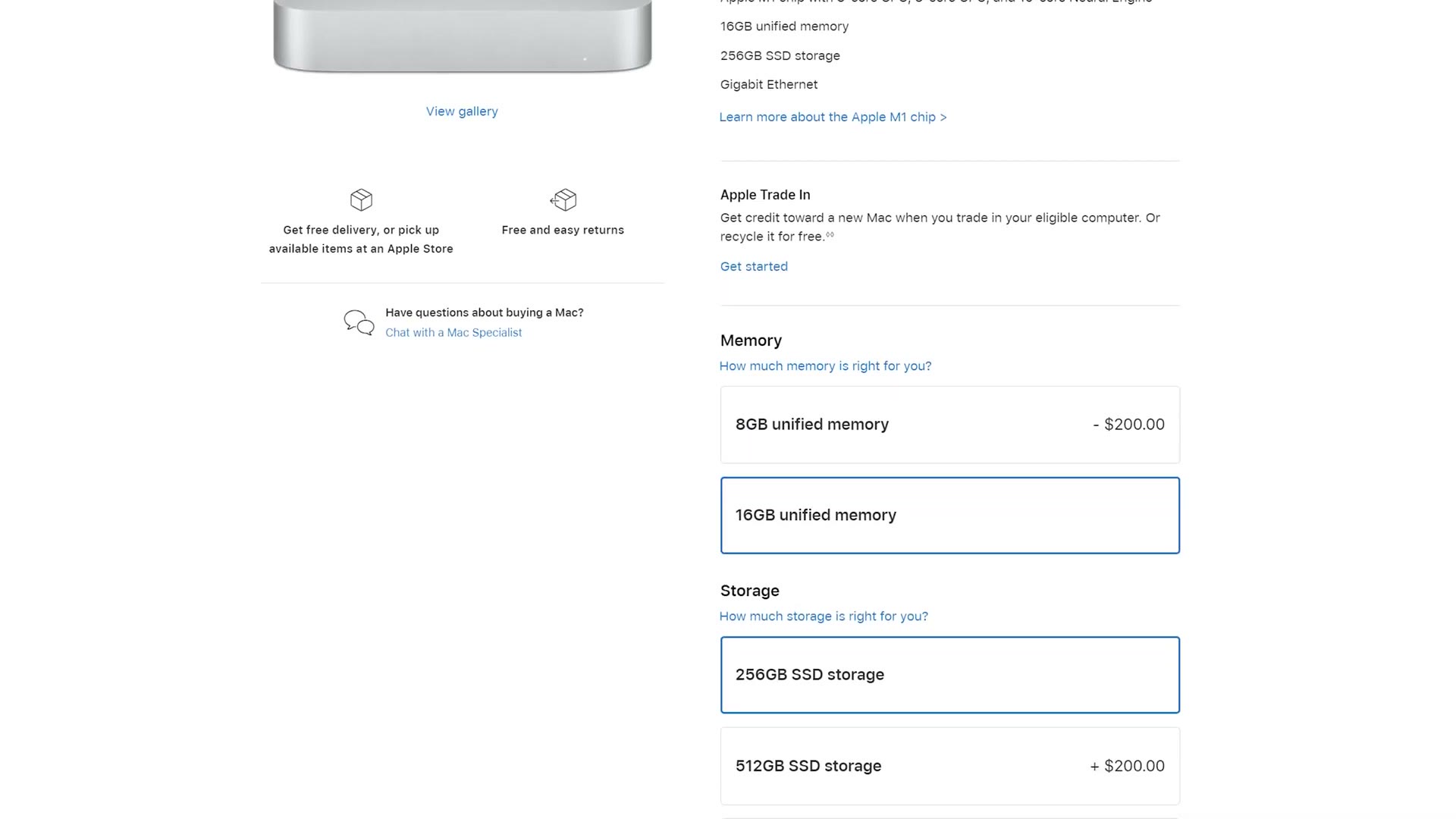
You can get an M1 Mac mini with 16GB of RAM for under a thousand bucks, and it’s a very capable machine for 4K editing. Apple has also released the 14 and 16 inch MacBook Pros with the M1 Pro and M1 Max chips, and both are very capable for editing. I made a buyer’s guide for those laptops as well.
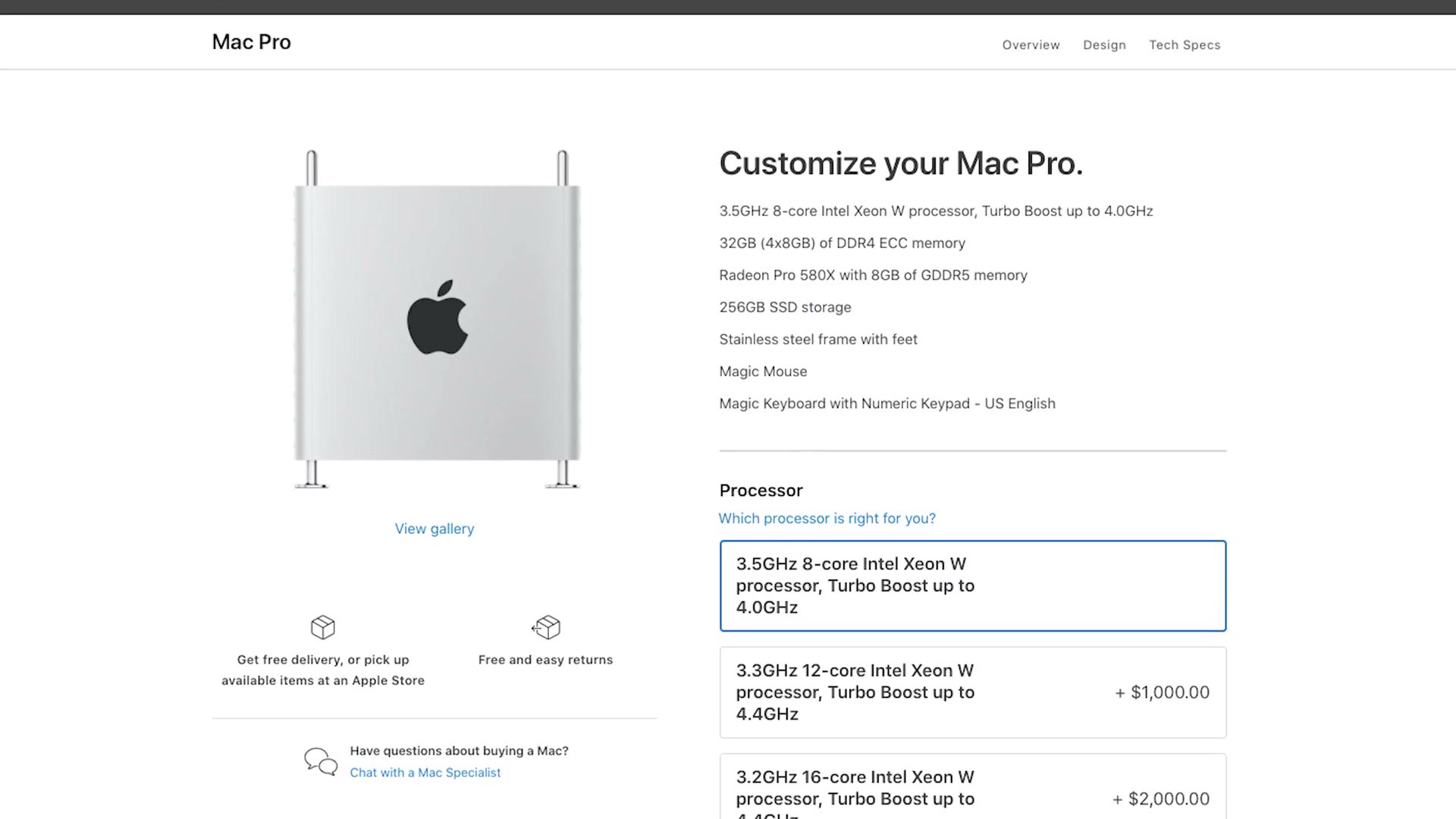
And whenever Apple comes out with an updated iMac Pro, or whatever they want to call it, that puts the M1 Pro and M1 Max in a desktop, I’ll make a buyer’s guide for those too. I eventually did, and the M4 iMac buyer’s guide is here.

If your budget is tighter than this, I also have an under $1,000 video editing PC build guide. Every part in this build is listed together on my gear page.

The footage here is graded with my own color presets at whoismatt.com/luts, my filmmaking gear list is on kit.co, and I have filmmaking courses if you want to go deeper.
Thanks so much for reading, and have a great day!