
One of my most popular series has been the budget video editing PC build guides, and the latest one shows you how to build a 4K editing PC for $650.
But what if your budget is bigger than $650? What if you need to edit 4K but it’s raw, or 6K, or 8K? With powerful and affordable cameras like the Blackmagic Pocket 6K and the Panasonic S1H around now, it’s time to build something that can chew through what they produce.
So today I’m showing you how to build a very powerful video editing computer for $1,400, plus upgrades that cost more but have the potential to drastically speed your edits up. Premiere Pro, DaVinci Resolve, anything really, as long as it isn’t Final Cut, which is Mac only. And if you also want to edit photos, mix music, game or livestream, this machine is perfect for all of it.
Two quick things first. Everything is linked below and organised on my Gear page. And this is what to buy, not how to assemble it. I made an hour-long build-along that covers every step from taking the parts out of the box to switching it on, so watch that after you’ve bought the parts.
Processor
The brain, and the part that matters most, because more cores and more threads makes editing so much faster.
I recommend the Ryzen 7 3700X, eight cores and sixteen threads, for a quite reasonable $330. It’s from AMD’s latest generation and in my opinion it’s the sweet spot for price to performance.
But I hear you saying, Matt, sweet spot sounds great, what else have you got that won’t break the bank? For about $170 more, the Ryzen 9 3900X takes you from eight cores and sixteen threads to twelve cores and twenty four threads. This is nuts, and it should handle 4K, 6K, 8K, all the Ks you want to throw at it.
Cooling
Good news. Both the 3700X and the 3900X come with a stock air cooler in the box, and from all my research it’s a good one, so save your money rather than buying aftermarket. If you do find your machine running warm, there’s a better air cooler and a watercooled option, both of which also make sense if you plan to overclock.
Motherboard
I recommend the MSI X570 Gaming Plus at around $170. It has nearly every feature you’ll need with plenty of room to upgrade later. The one thing it doesn’t have is built-in wifi, but you can add an internal or external adapter for twenty or thirty bucks.
If you’d rather have wifi built in and not deal with a card or a USB port, take the MSI MPG X570 Gaming Edge Wifi instead. Very similar board, wifi included.
A word on why I’m recommending these specifically. There are cheaper boards out there, but a lot of them came out before AMD’s latest processors, and using them with the CPUs I’m recommending means updating the motherboard firmware first. Which requires an older CPU. Which you won’t have. It’s a lot of hassle for not much saving.
RAM
No, not goats. You do not need any goats to build a computer. Memory.
I’d buy a minimum of 32GB of Corsair Vengeance LPX at 3200MHz. I ran 32GB in my own editing desktop for years and it handled 4K. But I did start noticing it running out whenever I was editing and rendering higher resolution footage, and on longer 4K renders, think twenty minutes or more.
So to stop that happening, buy 64GB instead. That should be plenty, and both boards above go up to 128GB if you ever want more.
SSD
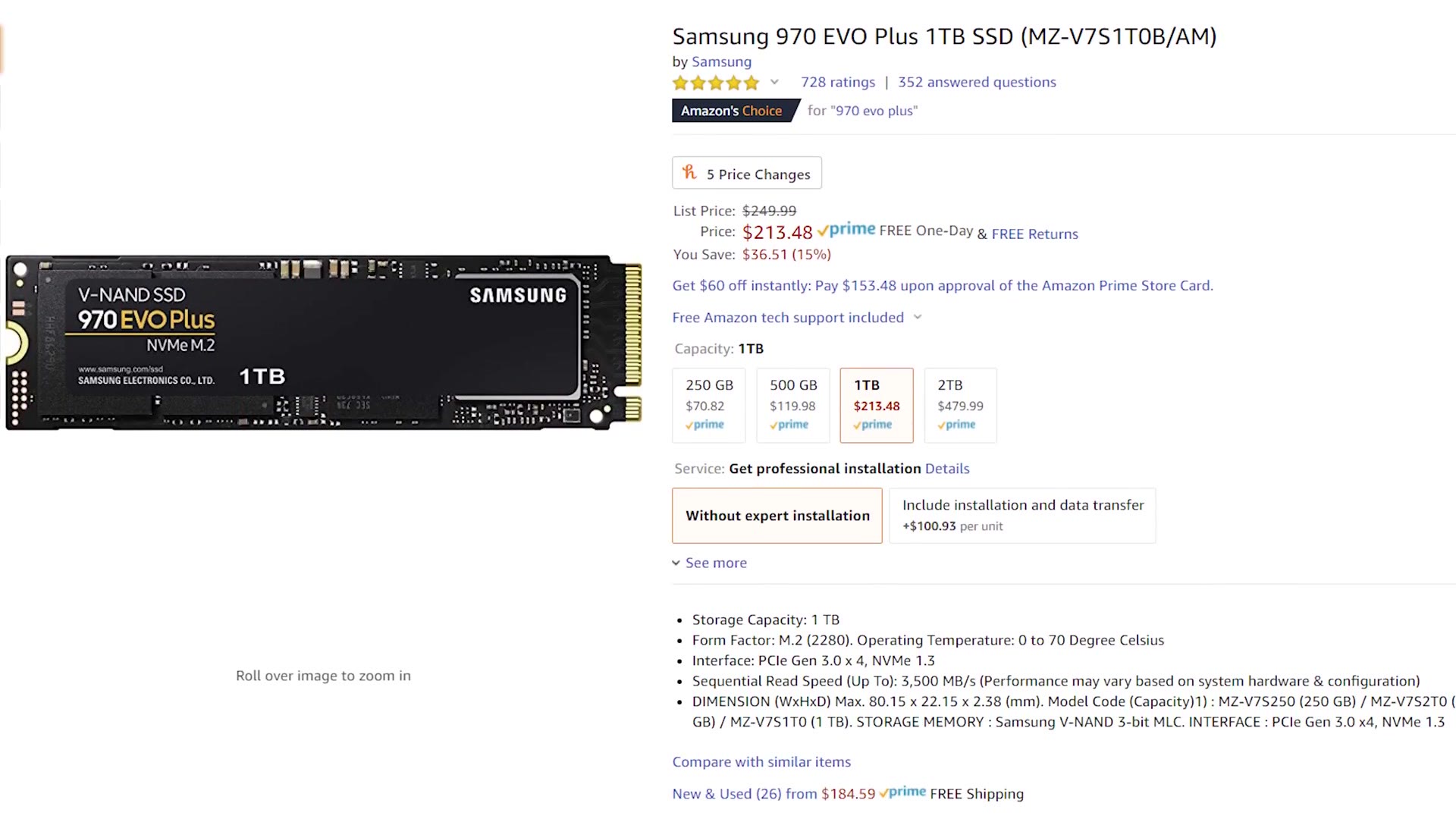
This holds your operating system and your programs. The best balance of price, size and performance comes from Samsung: the 500GB 970 EVO Plus at about $120, or the 1TB version if you have the budget. Extra space is always a good thing.
For the fastest editing, keep only the OS and programs on it. Not your footage. I travel a lot, so I edit from an external SSD, with an external hard drive for bulk storage. The case below will also take internal SSDs and internal hard drives if you’d rather keep it all inside.
Graphics Card
If you edit in Premiere and don’t often apply a lot of GPU-accelerated effects, get the EVGA RTX 2060 Super SC Ultra Gaming. Premiere still prioritises the CPU over the GPU, so saving a bit here makes sense.
If you edit in Resolve, or you’re in Premiere with a lot of effects, both of those genuinely benefit from a stronger card, so I’d take the EVGA RTX 2080 Super Black Gaming. Noticeable bump in performance, noticeable bump in price.
One ordering note though: upgrade the CPU from the 3700X to the 3900X before you upgrade the graphics card.
Case
Same case I recommended in the budget build, the NZXT H510. It’s beautiful without being flashy, and building computers has taught me I’d rather spend less on the case with good airflow and put the savings into what goes inside it. If you want to go crazy there are plenty of more expensive options that look very cool.
If you want an internal 5.25 inch bay for a DVD or Blu-ray burner, personally I’d rather buy an external USB DVD drive or external Blu-ray drive. But if you really want it internal, the Phanteks Enthoo Pro M TG is a bit more expensive and looks very professional.
Power Supply
If you’re buying the $1,400 version with none of the upgrades, the EVGA SuperNOVA G3 550W gives you plenty.
But if you’re taking any of the upgrades, or even just the alternative case so you can run a Blu-ray drive, get the 750W version instead. I’ve run the calculations and there are scenarios where 550W doesn’t leave enough headroom, and I want you to have room to plug in five hard drives of footage and whatever else, the way I do.
Everything Else
And that’s your $1,400 video editing computer. Now, what about the mouse, the keyboard, the speakers, the monitor? Here’s what I’d buy: my favourite mechanical keyboard, the best mouse I’ve ever used, some affordable but good speakers or proper studio monitors, and either a 1080p monitor that won’t make you poor or a 27 inch 4K one.
Since this machine exists to edit 4K and higher, I’d definitely go 4K on the monitor.
For the operating system, Windows 10, and this Tom’s Hardware article shows you how to get it very cheaply or free.
Prices on all of this change from day to day. If you click a link and the price looks crazy, or the part is out of stock, leave a comment and let me know so I can update it here and on the Gear page with something properly priced and actually available.
And if you made it this far thinking this computer is way too expensive, remember there’s that $650 build, or if you’d rather not build at all, my prebuilt recommendations.