
If you want to buy a Mac Studio for 4K or 6K or 8K video editing, I have two recommendations for you at two different price points. First a best bang for your buck option, which gives you a powerful machine that doesn’t break the bank. Then an extremely powerful beastly option that will handle anything you throw at it. And lastly, as a bonus, a budget alternative that isn’t a Mac Studio at all, which will save you a ton of money and still give you a great machine for 4K editing.
Sound cool? To save you time, I’ve linked all three computers below, because I respect your time like that. Here’s the full list of them in one place.
Best Bang For Your Buck Video Editing Mac Studio
I would call this the budget option, but considering it’s over $2,000, that amount of money and the word budget don’t really go together.
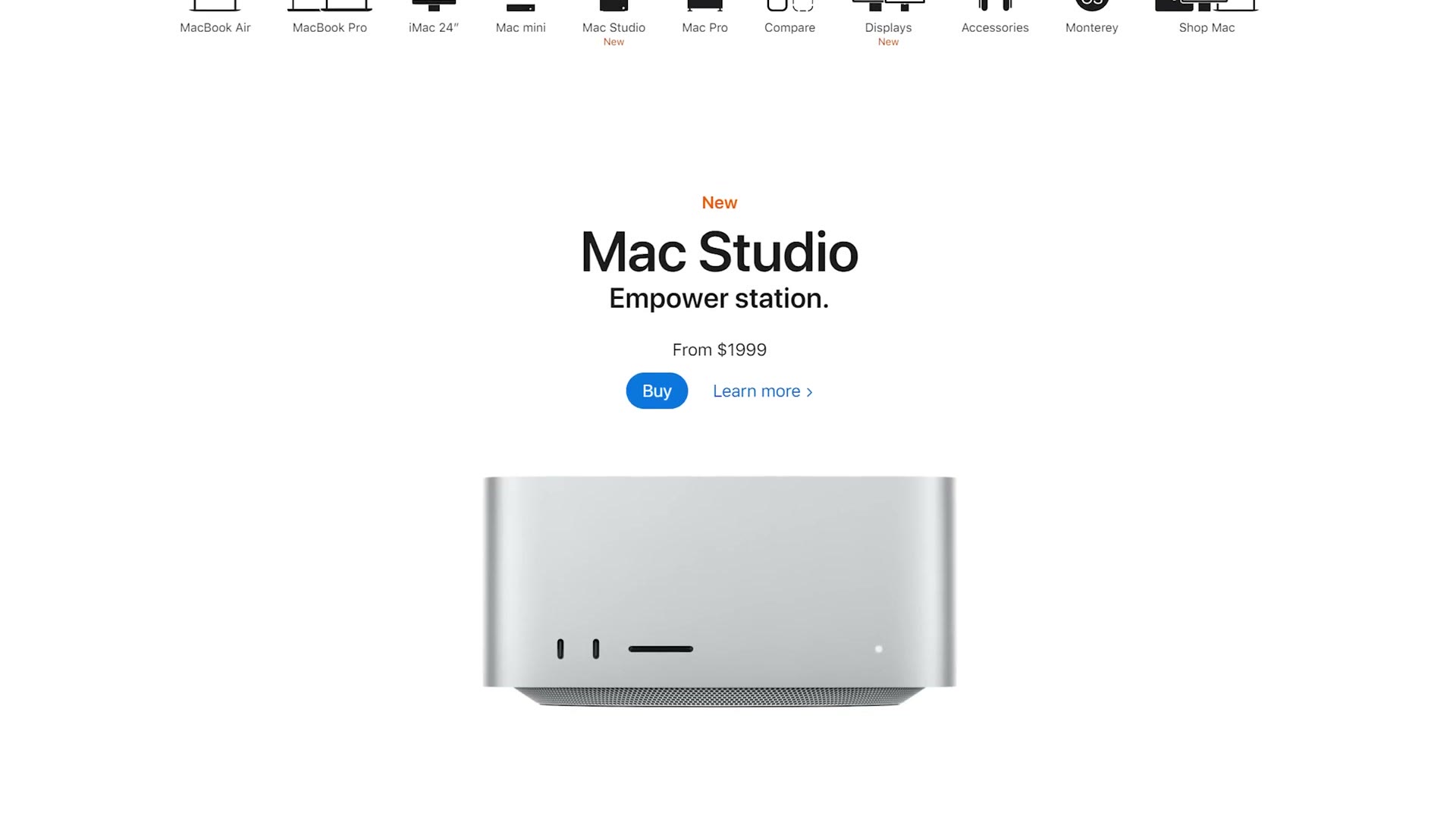
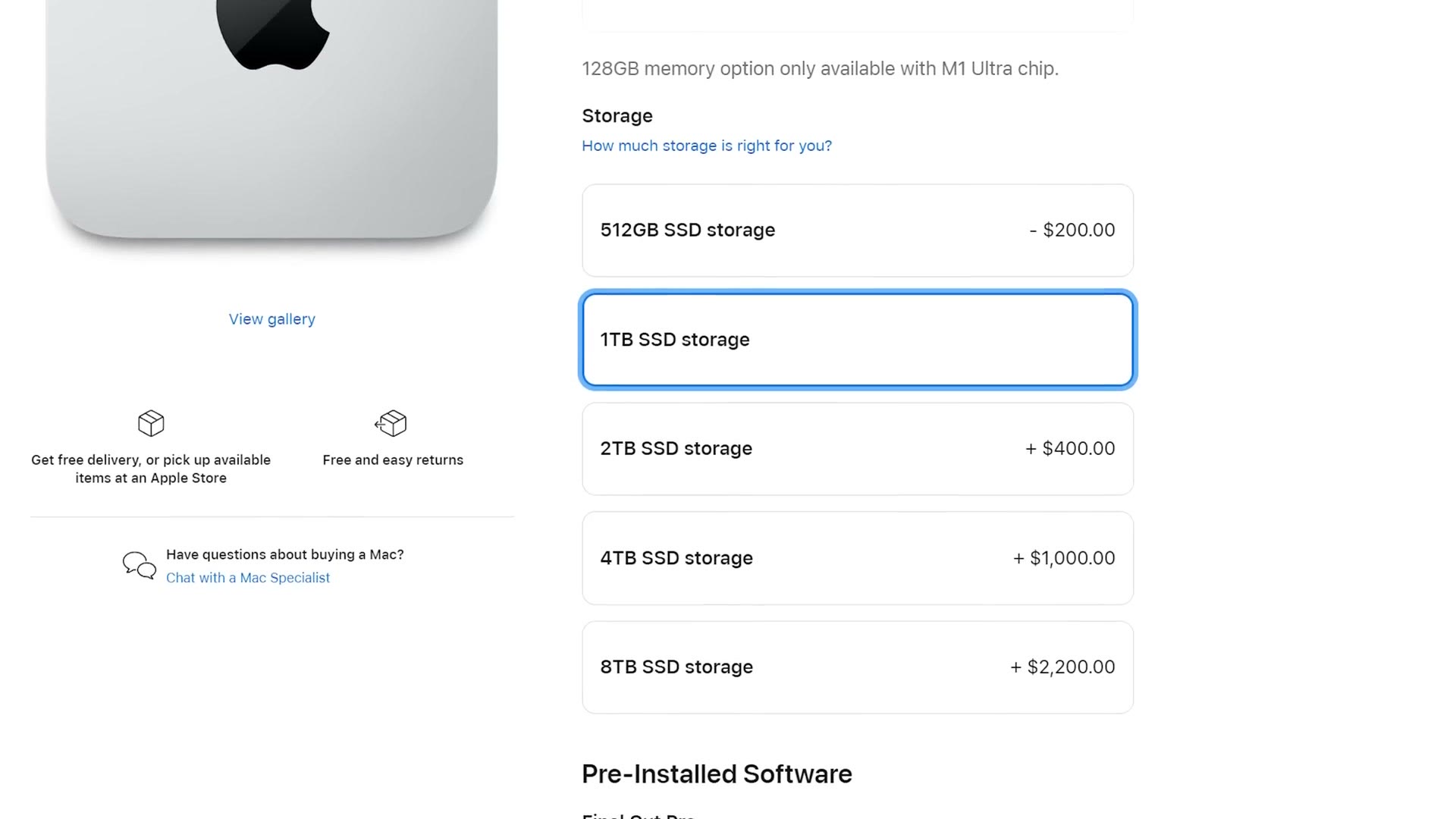
The best bang for your buck option is the base Mac Studio with the M1 Max, 10 core CPU and 24 core GPU. The only upgrade I would make is adding 1TB of SSD storage, which brings this computer up to about $2,200. And if you have a bit more room in your budget, the jump to 2TB is a good choice too, because these internal SSDs in the Mac Studio are just so much faster than any external SSD you can buy today.
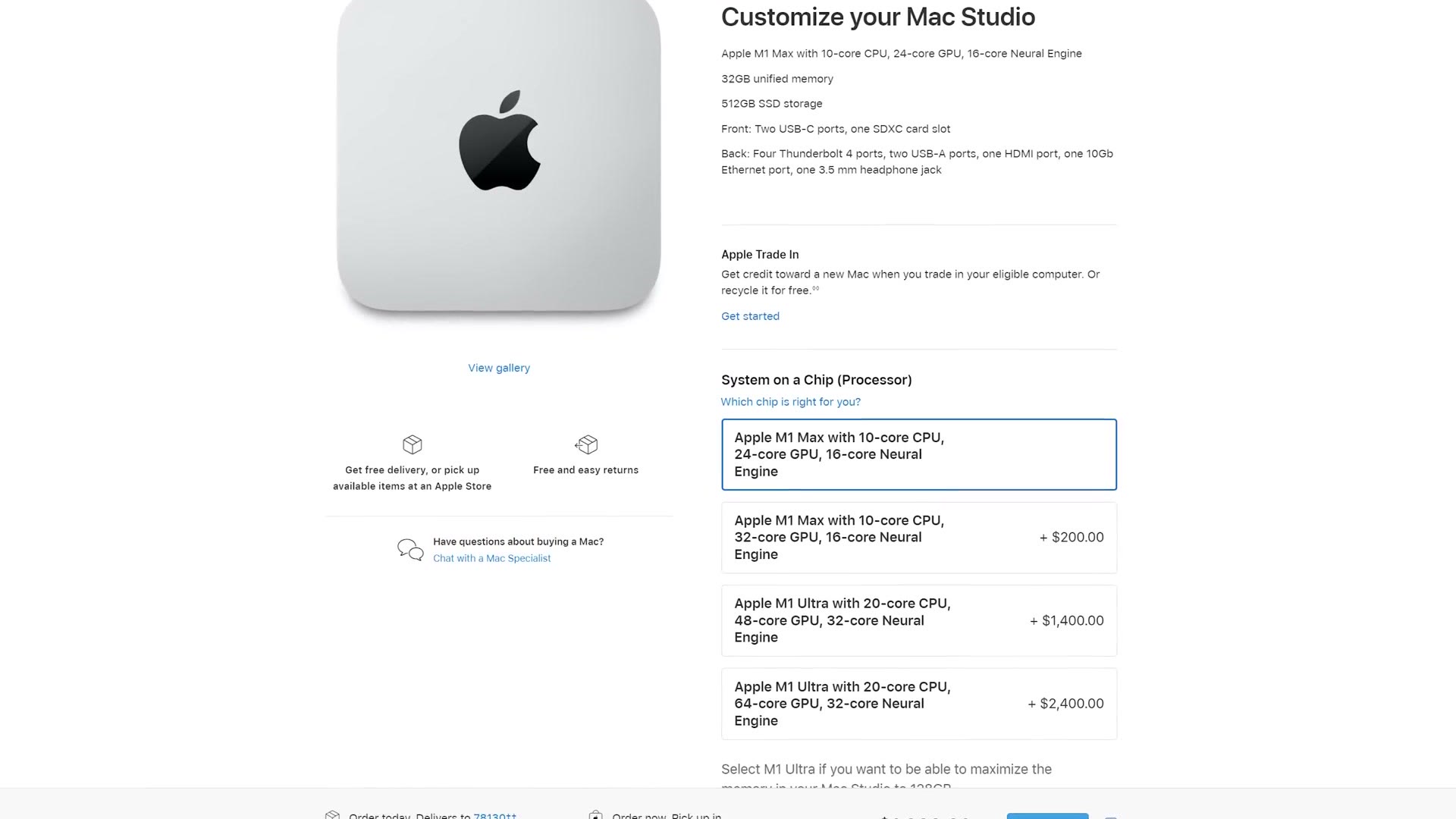
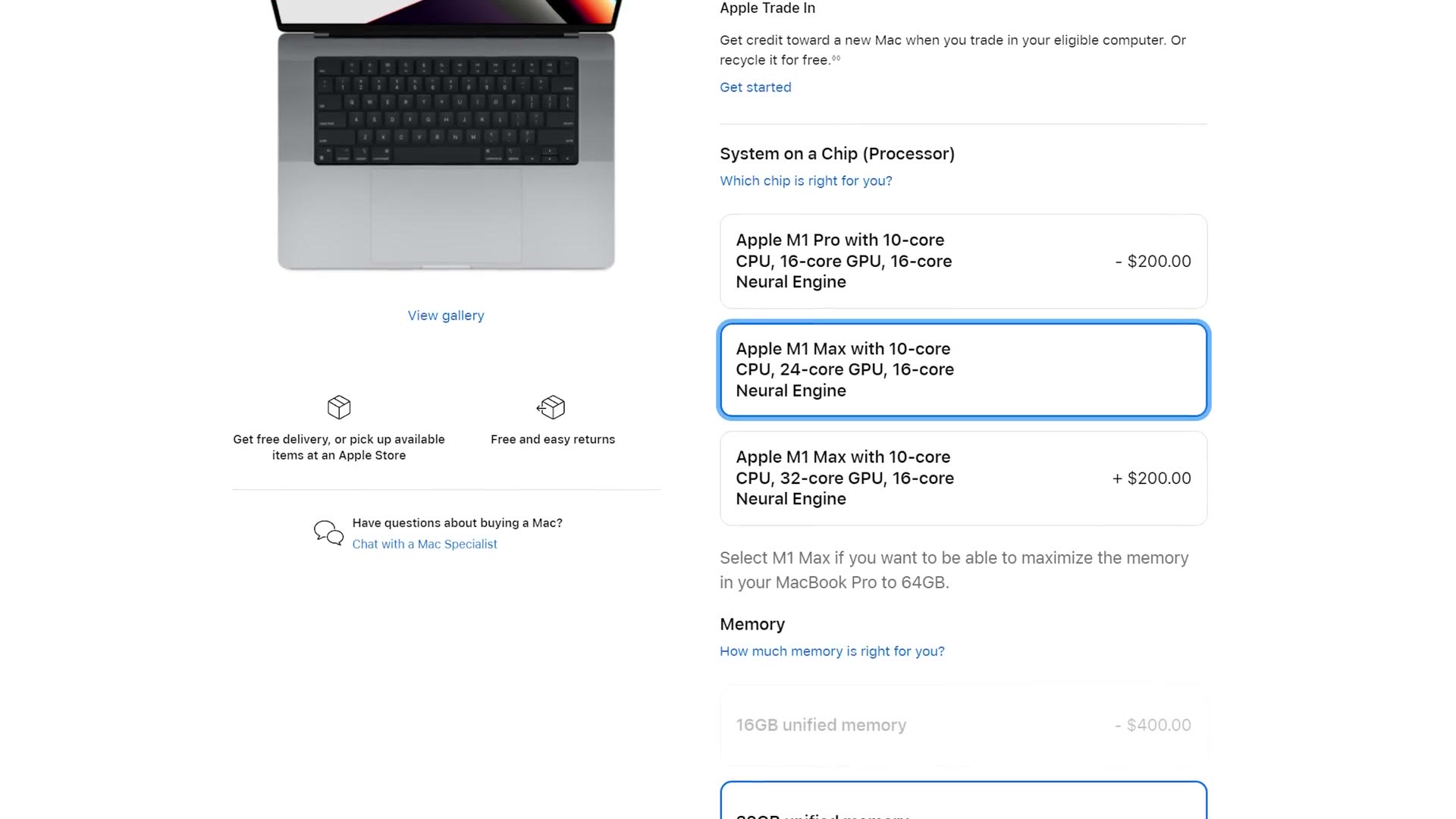
Now you’re probably wondering why I’m saying the base model with a minor storage upgrade is the best bang for your buck. Well, in my video editing MacBook buyer’s guide, my recommendation for an absolute beast of a laptop that could edit anything you throw at it was a MacBook Pro with the M1 Max, 10 core CPU and 24 core GPU.
And wait a second. Look at this base Mac Studio. You are getting that exact same M1 Max, 10 core CPU and 24 core GPU, except instead of costing $3,100 in the MacBook Pro, you’re getting it for $2,000. Do you see what a great bang for your buck that is?
You can grab this one at B&H, Amazon (select the 1TB SSD), Adorama, or Best Buy (select the 1TB SSD).
Of course this isn’t a mobile editing computer, in the sense that it has no battery and no screen, which is exactly why it’s significantly cheaper. But if you’re not somebody who travels a lot and you just want a powerful editing computer that sits on your desk, the base Mac Studio is a killer deal.
Why Upgrading Isn’t Worth It
Next you’re probably wondering why I’m recommending the base model when Apple offers so many more upgrades. Shouldn’t you spend $200 more to get the 32 core GPU?
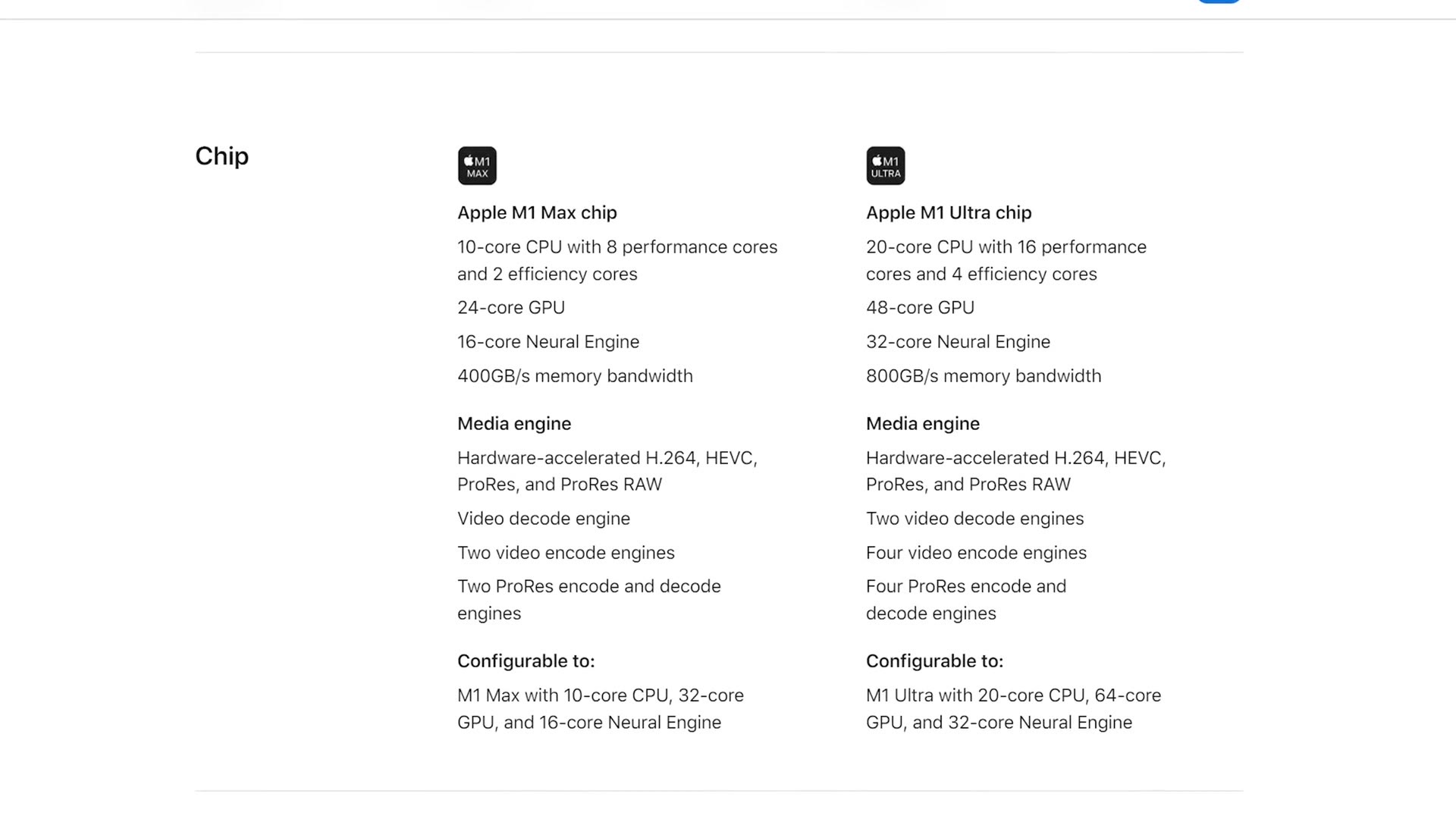
Here’s why I don’t think it’s worth it, and why I don’t want you wasting your money. With the base M1 Max you are already getting 95% of the performance you need, and that $200 GPU upgrade is going to be negligible at best, because the base M1 Max chip already has the two things video editors actually care about.
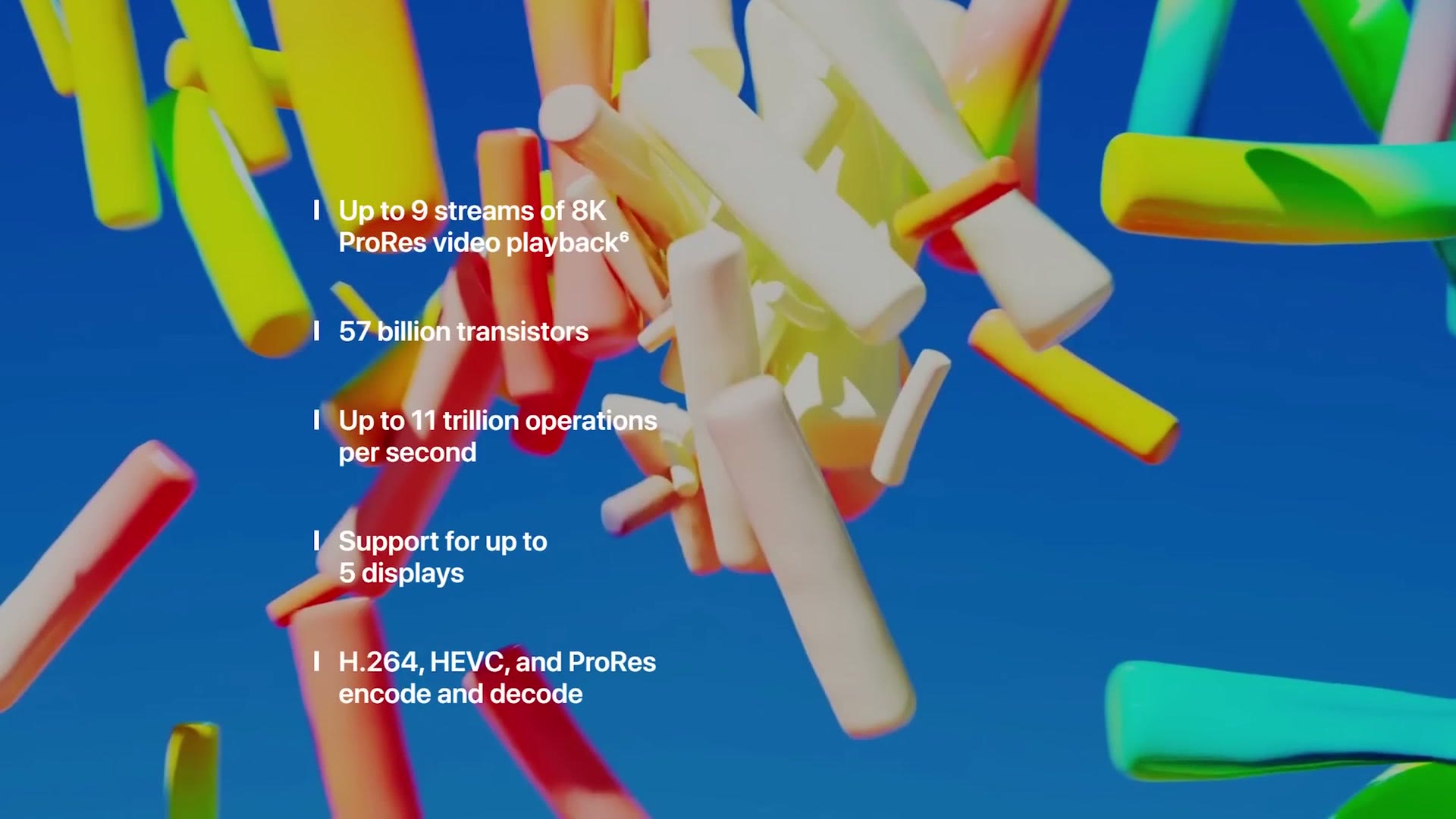
Those two things are hardware encoders and decoders for H.264, HEVC, ProRes and ProRes RAW. That means this computer can play back and render the files coming out of most cameras today significantly faster than anything from Intel or AMD.
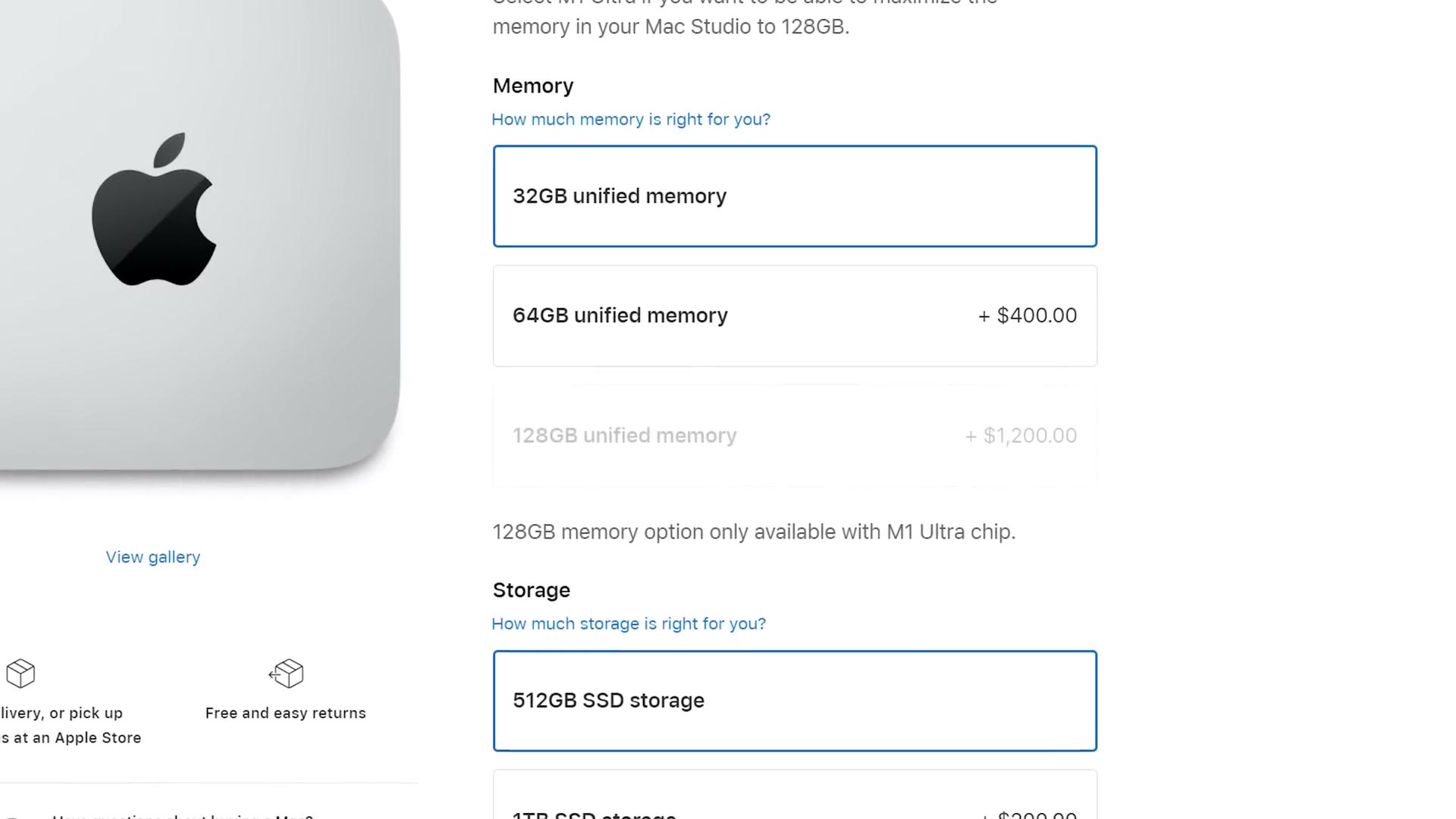
I’d also stick with 32GB of RAM, because this is unified memory shared between the CPU and GPU, and it’s very well optimized, which means it is significantly more efficient than the regular memory you may be used to. Even if you’re a heavy multitasker, I don’t think you’ll see a major difference going from 32GB to 64GB.
At this point you’ve spent $2,200 and you have a cute little cube sitting on your desk that edits video very quickly, hopefully without destroying your wallet.
BEAST Video Editing Mac
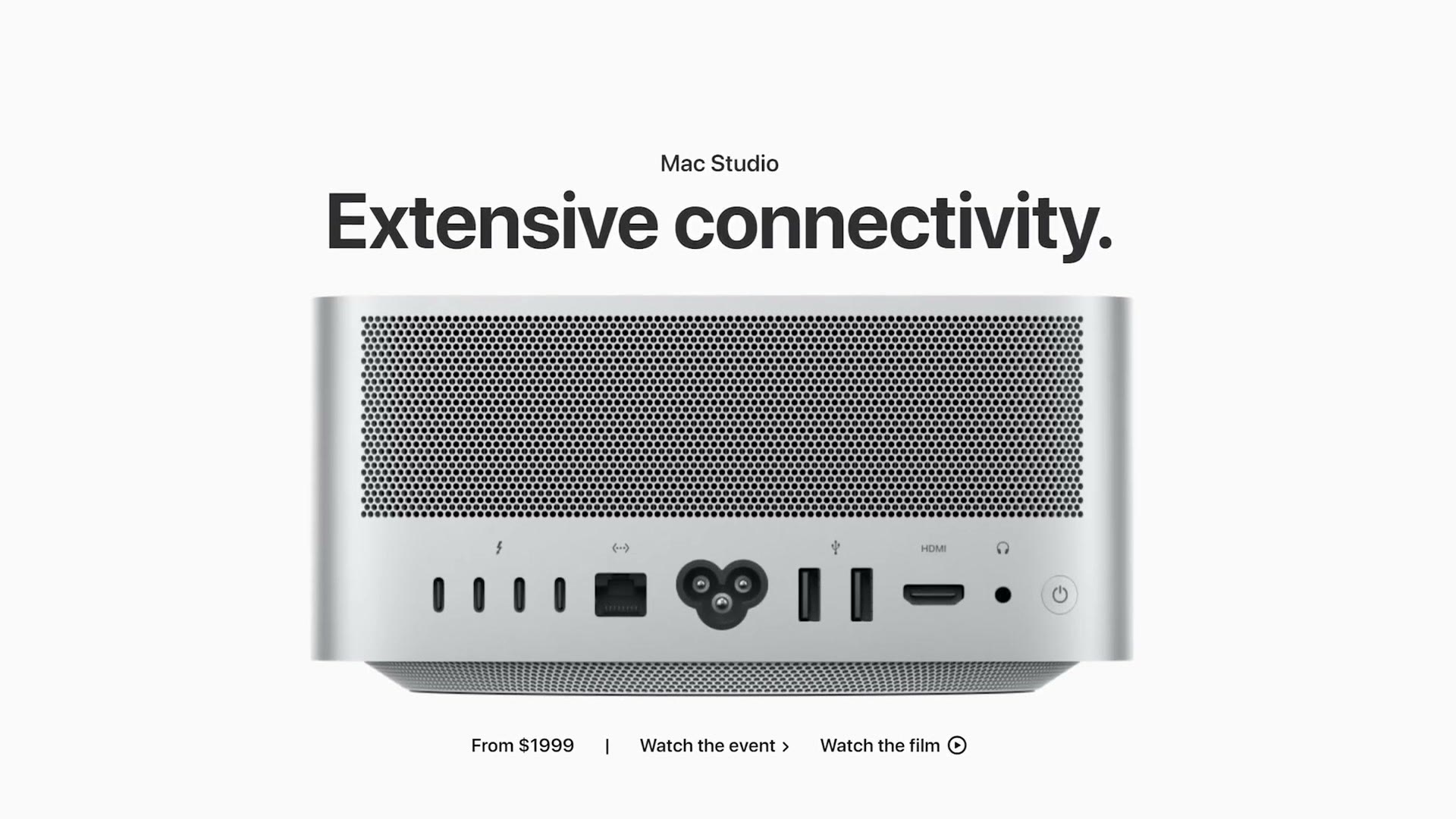
But we ain’t done yet. There’s one more Mac Studio to talk about, and this one is an absolute beast.
If you edit 6K, 8K, 12K or raw video, and to be clear the cheaper M1 Max can handle all of that, but if you want your editing to be as fast as it can possibly be, or you want to futureproof the crap out of your investment, or you just have a huge budget, this is the one I’d recommend.
First though, I know you may be thinking, building a beast Mac Studio is easy math, Matt. I just go down and select the M1 Ultra with the 20 core CPU and 64 core GPU, add 128GB of RAM, throw in 8TB of storage, and I’m dropping a cool $8,000 on an absolute monster of a machine. I wouldn’t do that, and honestly that’s a waste of money.
Instead, I’d upgrade to the M1 Ultra with the 20 core CPU and 48 core GPU. Yes, it’s time to go Ultra.
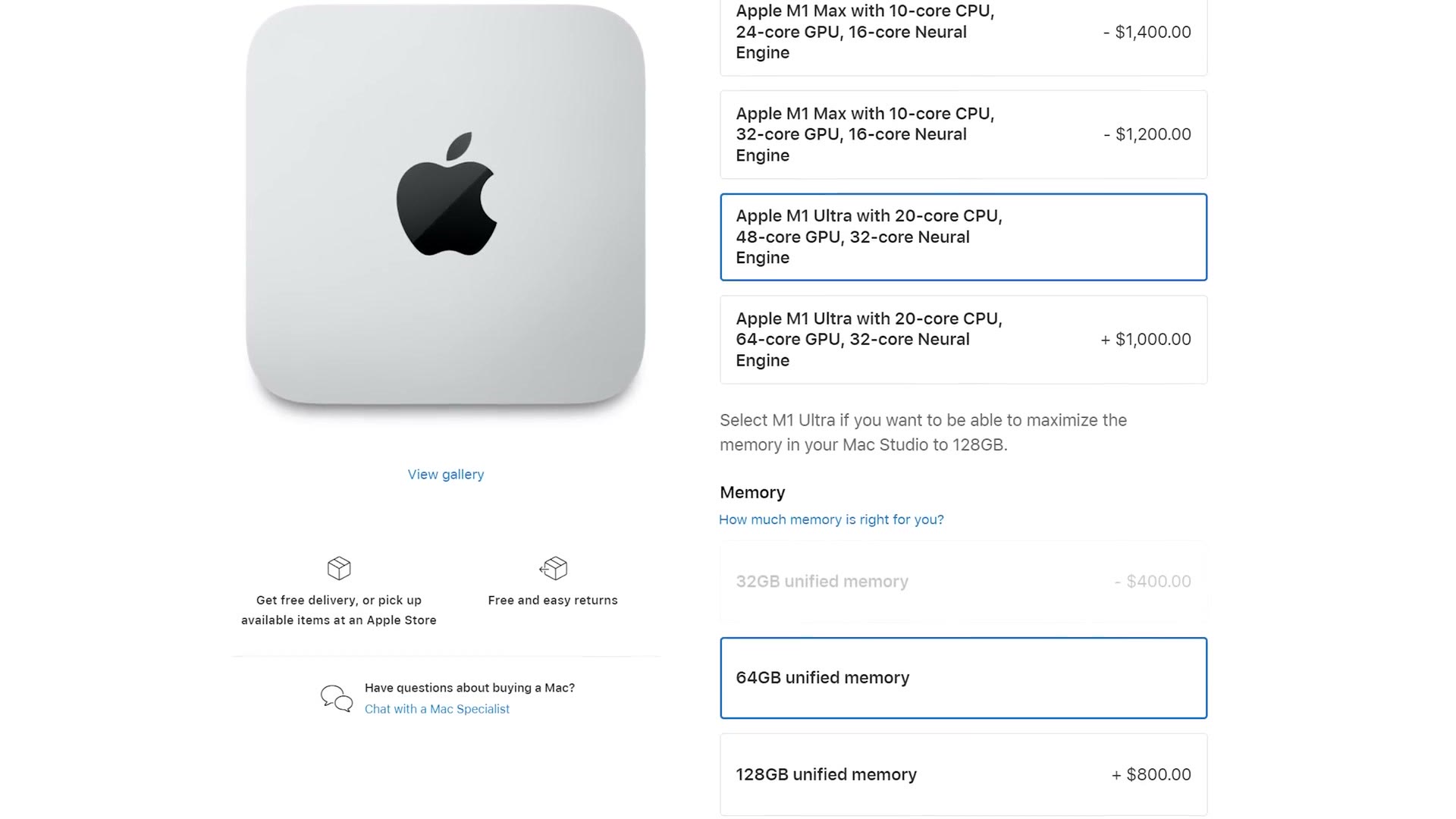
This is the entry level M1 Ultra, but it offers a big jump over the M1 Max in one specific area for video editing. Remember those dedicated hardware encoders and decoders for H.264, HEVC, ProRes and ProRes RAW? The M1 Ultra has twice as many of them as the M1 Max. That’s going to increase your editing and playback speed even further, and it’s especially going to help if you’re working with very high resolution 6K, 8K or 12K footage, or with raw. If you shoot on a RED or a Blackmagic cinema camera in raw, I would definitely go M1 Ultra.
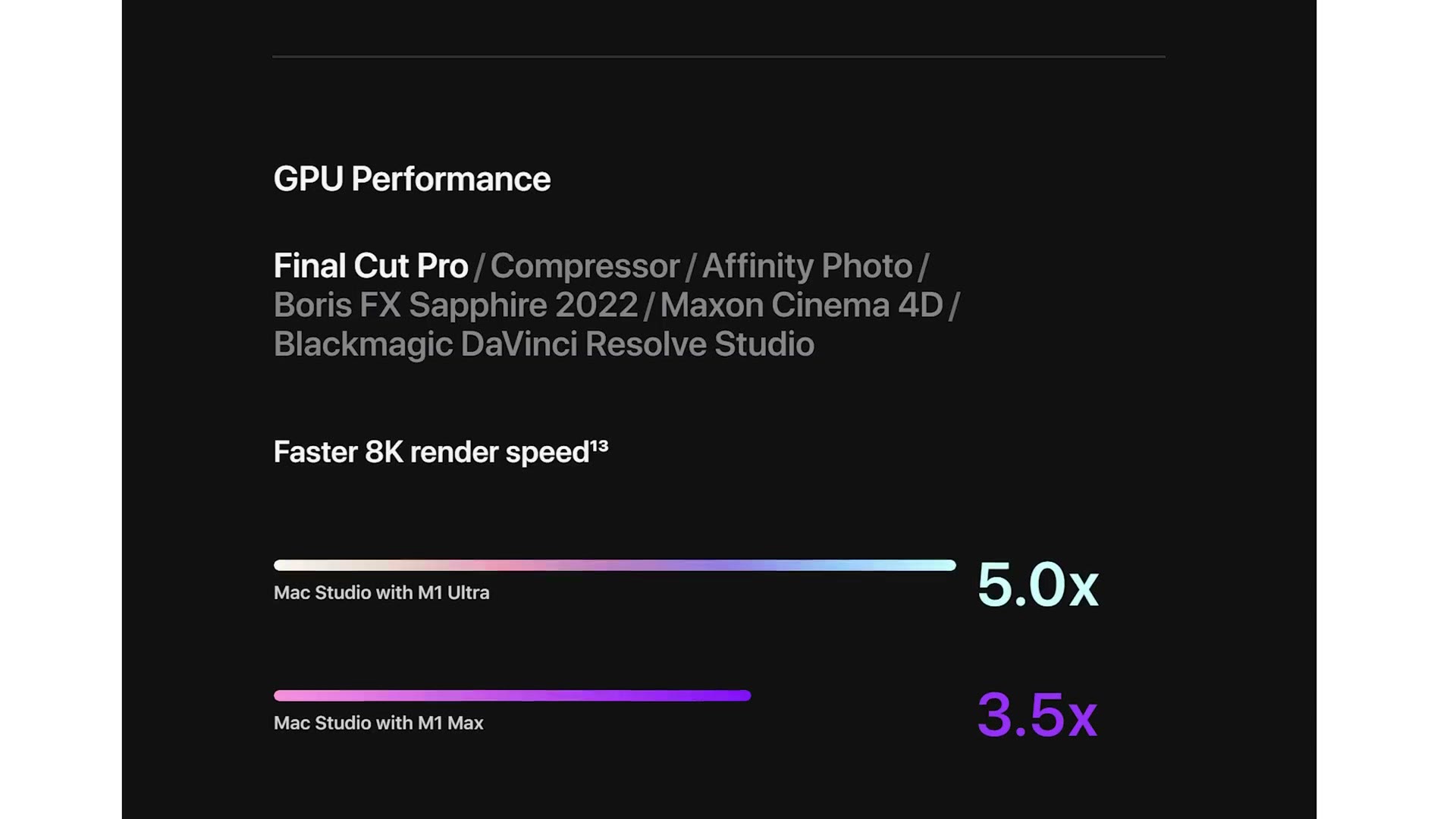
Looking at the price, you’ve probably noticed the cost of the Mac Studio doubles whenever you go Ultra, and that’s not only because the chip is significantly bigger and more powerful, but also because Apple requires you to move up to a minimum of 64GB of RAM and a 1TB SSD. So instead of $2,200, you’re now looking at $4,000.
The good news is that I think the chip is really the only upgrade you need to make from there. If you push the GPU up to 64 cores you’re spending an extra thousand bucks and you are not getting any more video encoders or decoders out of it, so I don’t think that’s worth it for editing.
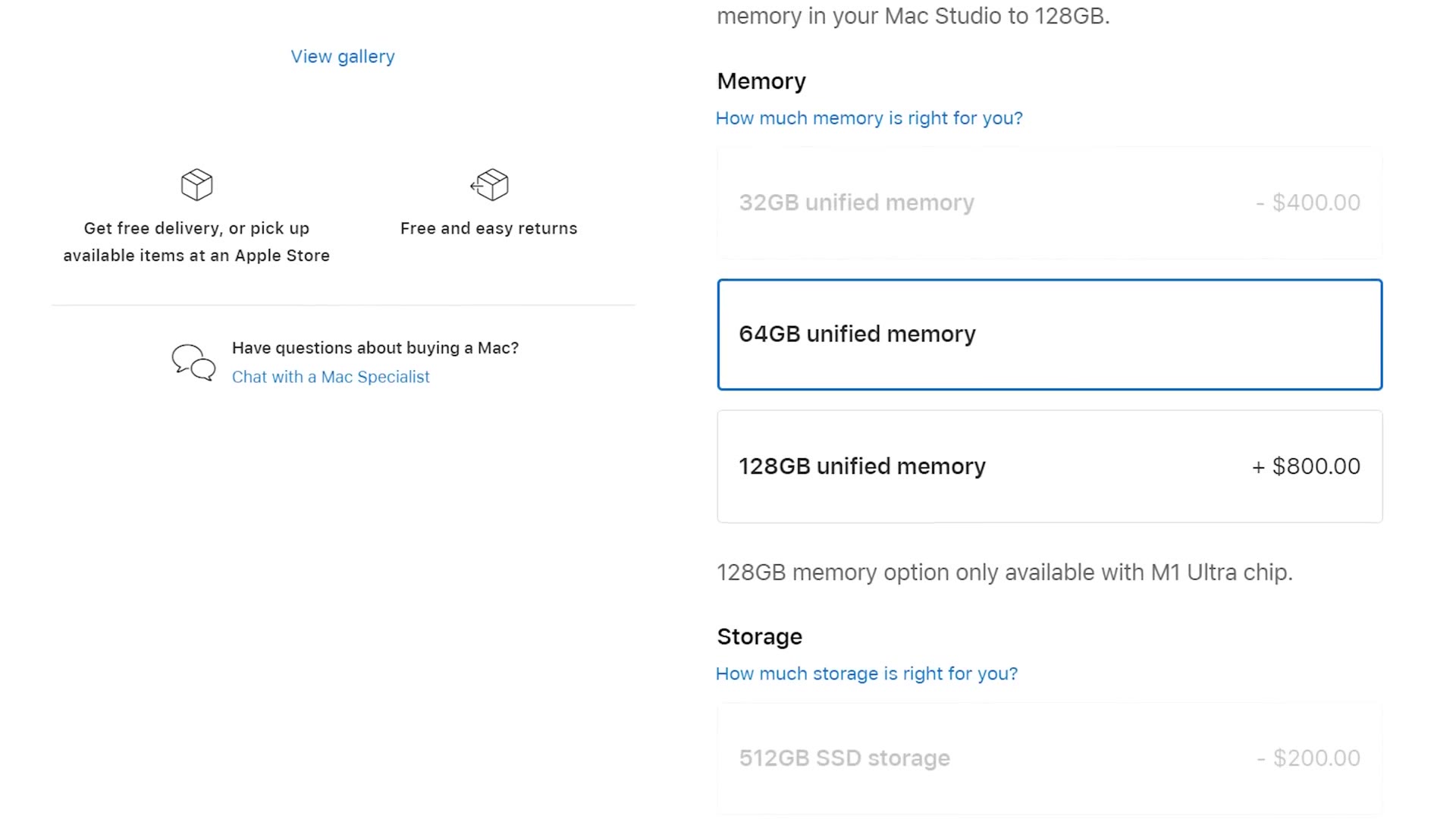
That 64GB of RAM should also be plenty for the vast majority of video projects. That said, if you’re editing 8K or higher, especially raw, and considering that you cannot upgrade the RAM after the fact, I’d probably go 128GB just for futureproofing.
I put together Video Editing M4 Mac Mini Buyers Guide as well, which covers the part I skipped over here.
Lastly there’s the SSD, and while I think 1TB is a good minimum, that $400 upgrade to 2TB doesn’t look as bad whenever you’re already spending $4,000. If you can afford it, I’d go for it.
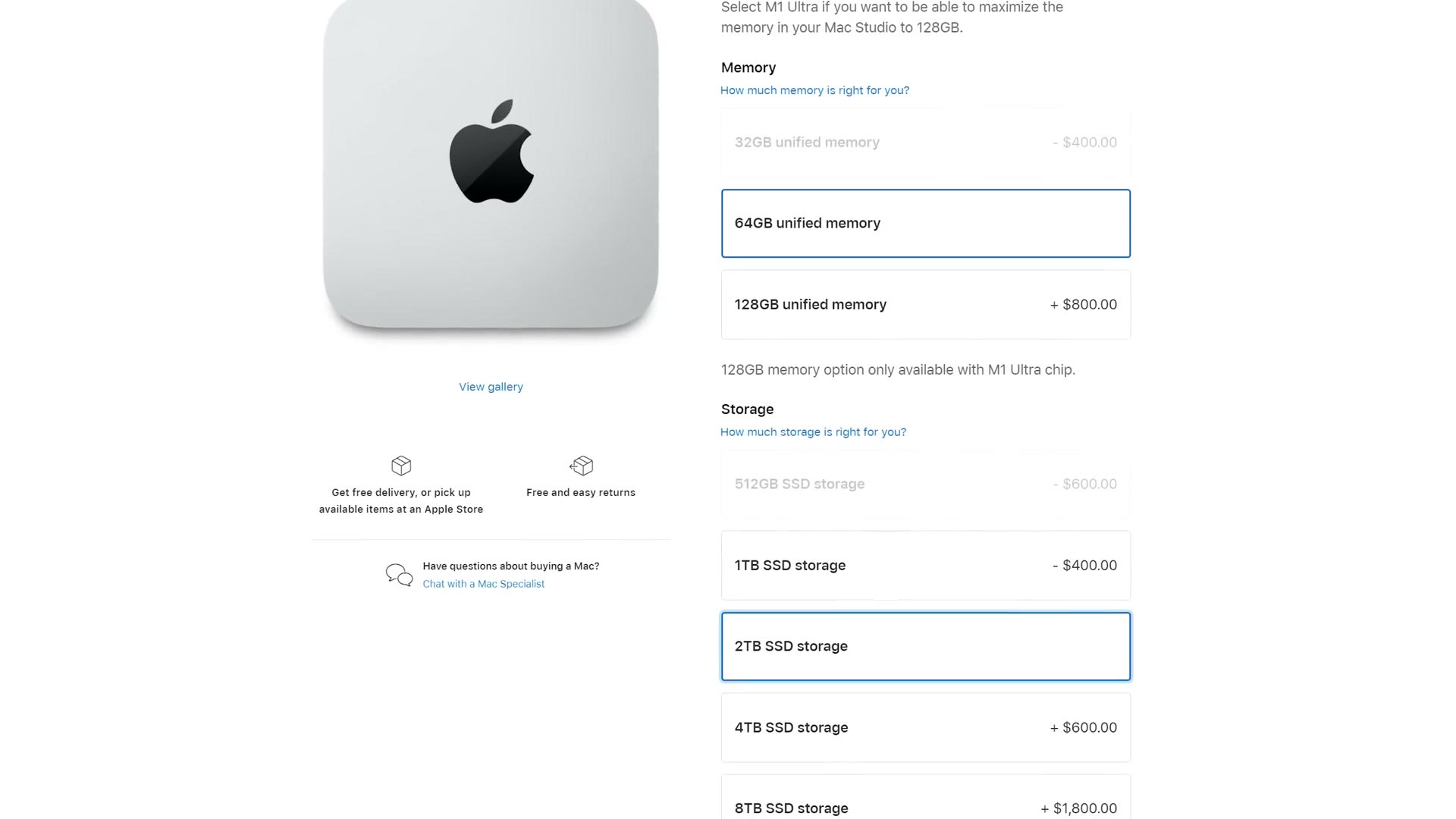
So there you have it. Get the M1 Ultra with the base 64GB of RAM and upgrade the SSD to 2TB if you can swing it, and that brings you to about $4,400, which is definitely an eye watering amount of money. But considering how powerful the Mac Studio is for video editing, I think you’ll be really happy with the investment.
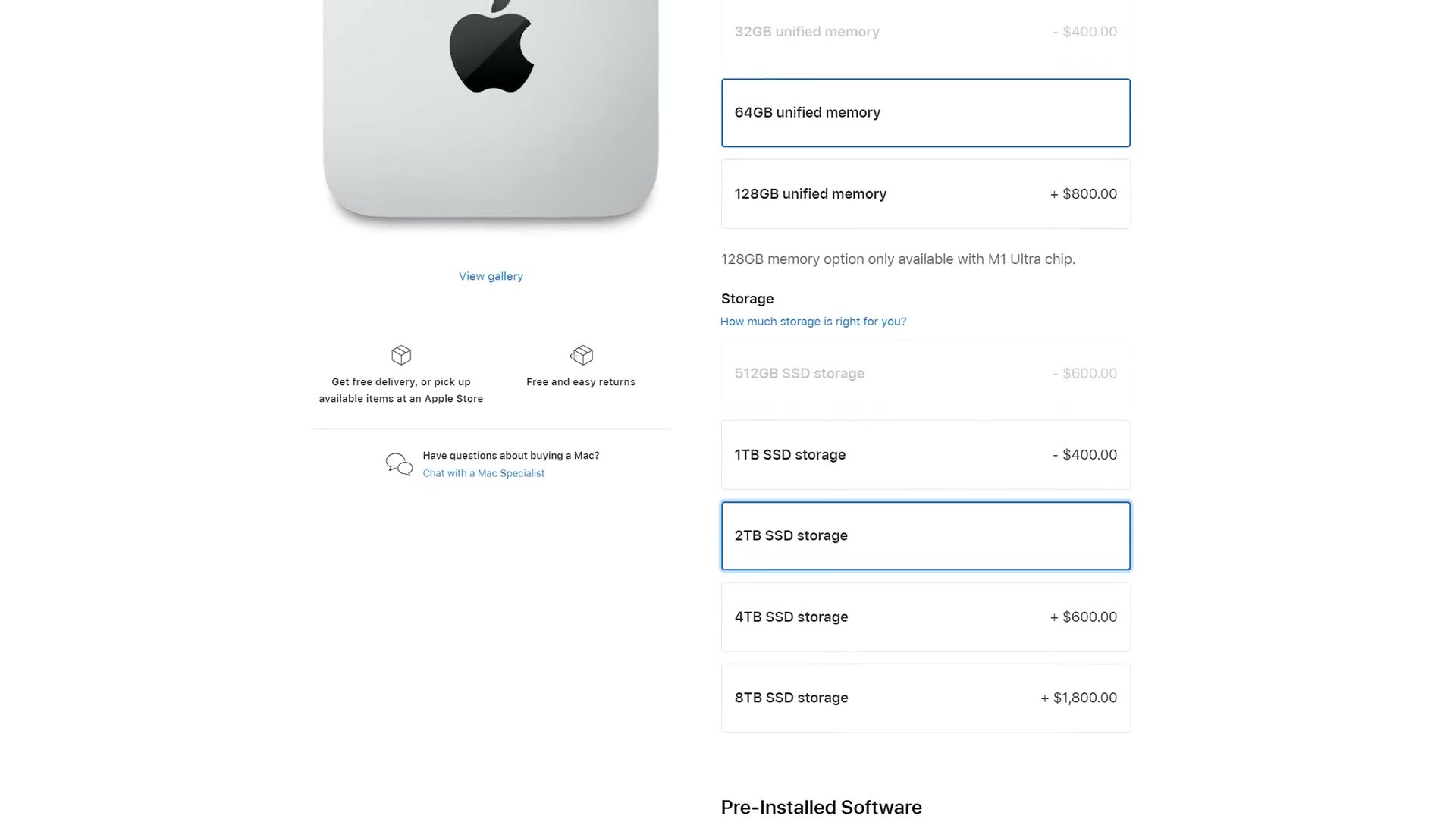
The Ultra is available at B&H, Amazon (select the M1 Ultra), Adorama, and Best Buy.
Budget Video Editing Mac Option (Under $1K)
We have one more computer to talk about, because at the start I said I wanted to give you a budget alternative to the Mac Studio, considering that even the base model comes in at $2,000.
If you’re on a budget and you want a significantly more affordable desktop for editing, and especially if you’re only editing 4K video that isn’t raw, I would seriously consider the M1 Mac mini.

This is an even smaller computer to put on your desk, and more importantly, even the M1 Mac mini comes with those video encoders and decoders we’ve been talking about this whole time. The main differences are that it has a less powerful CPU, less RAM, and fewer of those encoders and decoders than even the base Mac Studio. It also doesn’t have the ProRes encoders and decoders, just the H.264 and HEVC ones. So if you’re editing ProRes, go with the Mac Studio.
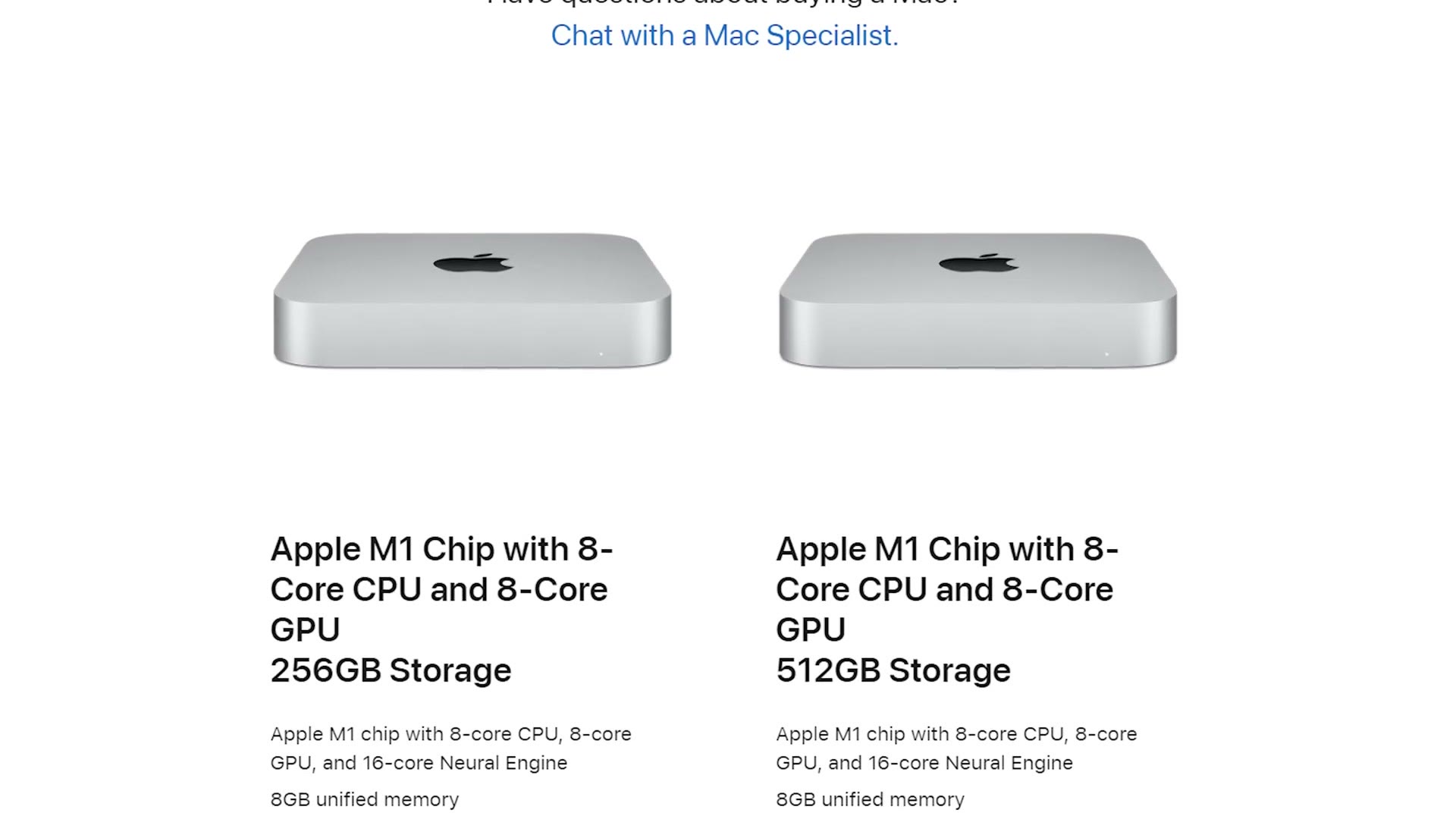
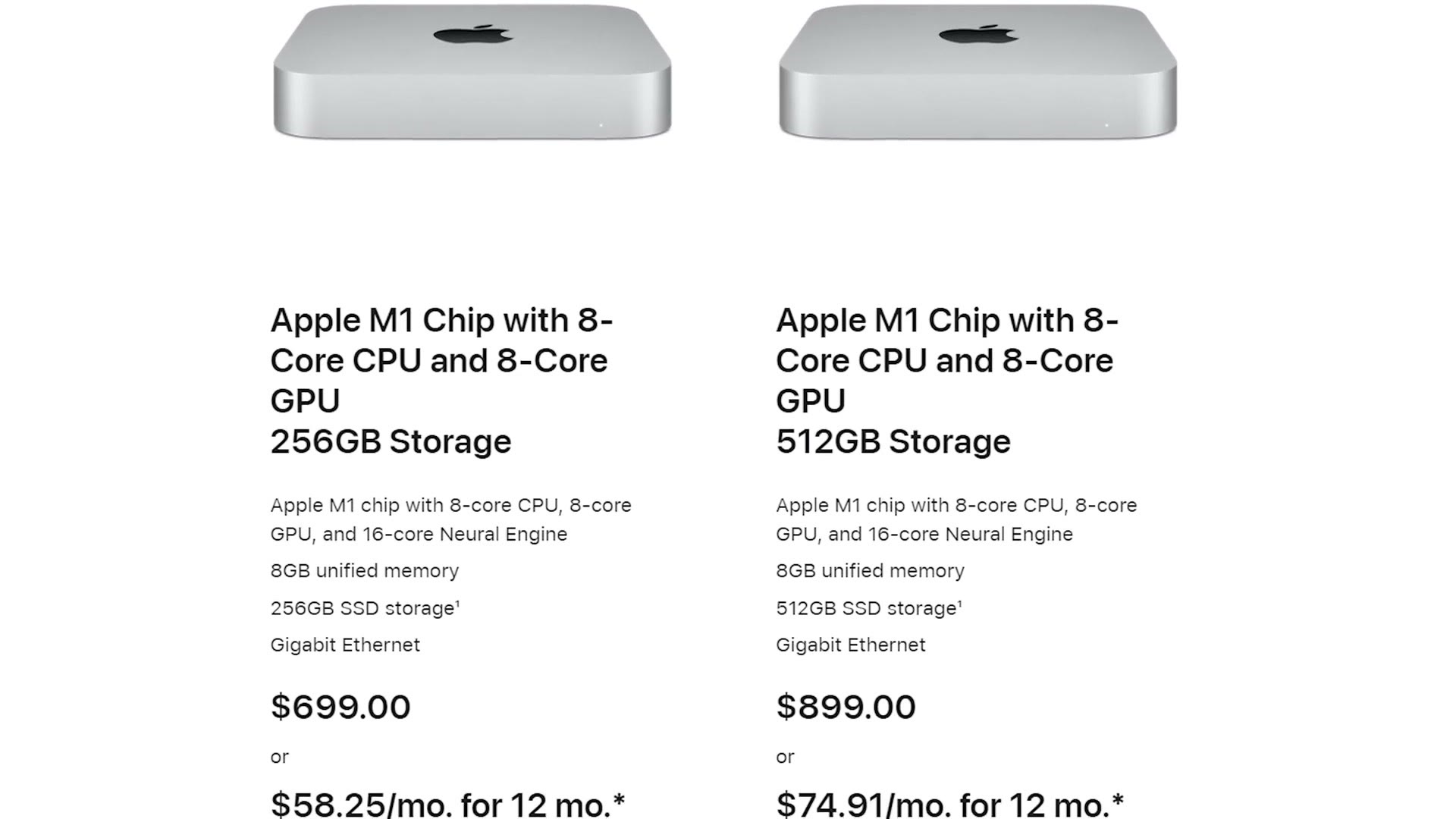
But if you choose the M1 Mac mini with the 8 core CPU and 8 core GPU and upgrade the RAM to 16GB, you’re still only looking at about $900 for a very powerful 4K editing machine. That’s less than half the cost of the base Mac Studio, and I still think you’re getting a great amount of performance for a dramatically cheaper price.
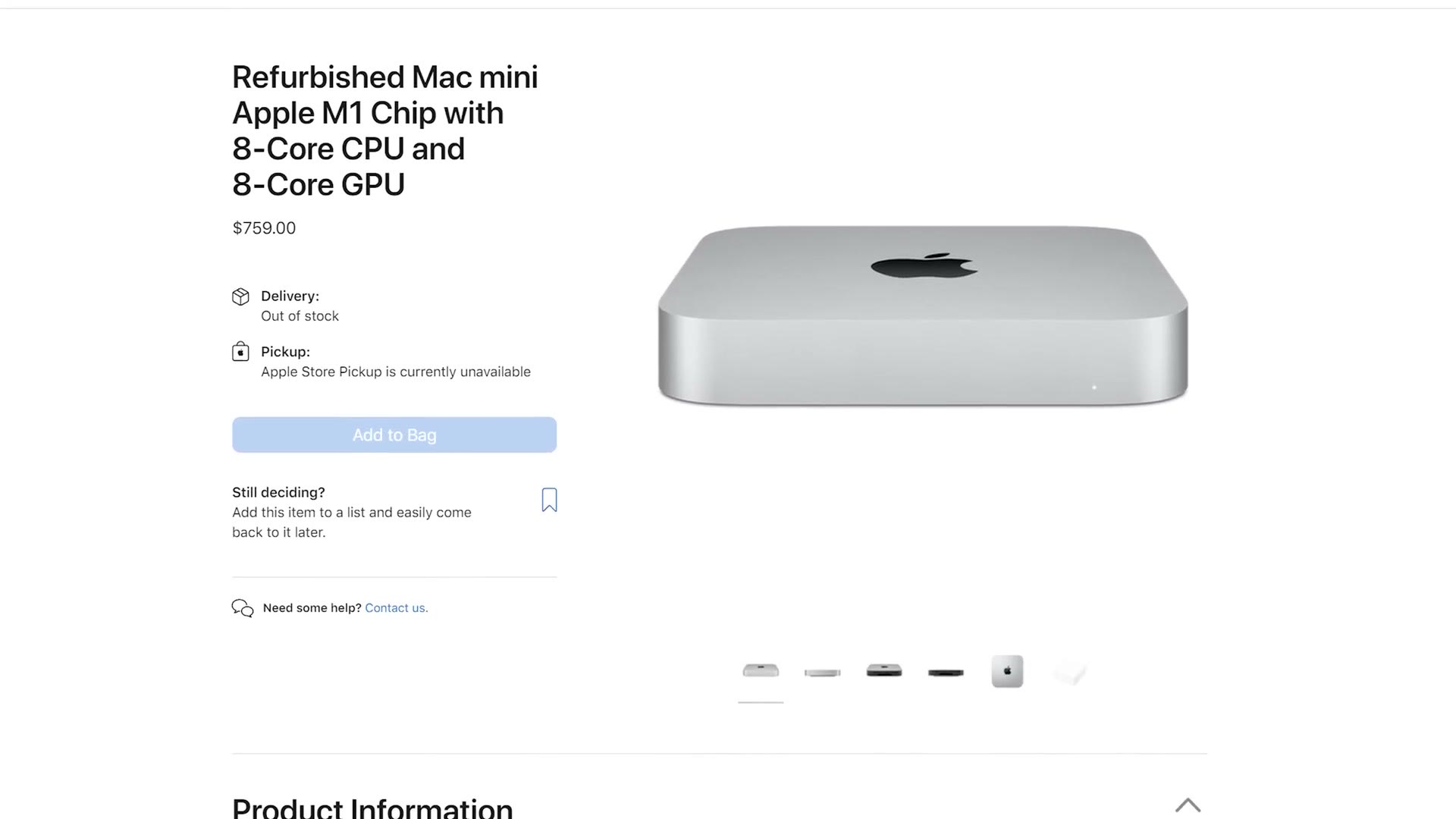
I’ve also seen Apple sell refurbished M1 Mac minis for as cheap as $759, which is a great way to save even more.
So if you’re reading this thinking dang, that Mac Studio looks cool but the price is way out of my budget, don’t ignore the M1 Mac mini. It’s a great budget friendly option.
The Mac mini is at B&H, Amazon, and Adorama.
Video Editing Monitors
Because I want to help you out, I also put together a budget video editing monitors buyer’s guide, since neither the Mac Studio nor the Mac mini comes with a monitor and you’re definitely going to need a screen to use either of them. The monitors in there are incredibly color accurate and all of them are under 500 bucks, which should help if you aren’t interested in buying one of Apple’s displays for thousands of dollars.
BONUS For Video Editors
And if you’re a video editor, which, considering this is a post about video editing, you probably are, I want to help you out even more. I’ve put together a free guide called Edit Videos Like A Pro that walks you through some of the most important editing techniques, the ones that took me years to learn. It’s a completely free gift to you, and you can download it right here.
The footage here is graded with my own color presets, which you can grab at whoismatt.com/luts. My full filmmaking gear list is on kit.co, I have filmmaking courses if you want to go deeper, and if you film weddings, come join us in the Learn Wedding Filmmaking Facebook group.
Thanks so much for reading, and have a great day!