
If you are shooting video with the Sony a7S III, you may be a bit overwhelmed by the amount of video formats you can film in. XAVC S, XAVC HS, XAVC S-I, 4:2:0 8bit, 4:2:2 10bit. What the heck should you pick to film your videos with?
Settings For BEST Quality & SMALLEST File Size
To answer that question right now, I would recommend using XAVC S 4K as your video format.
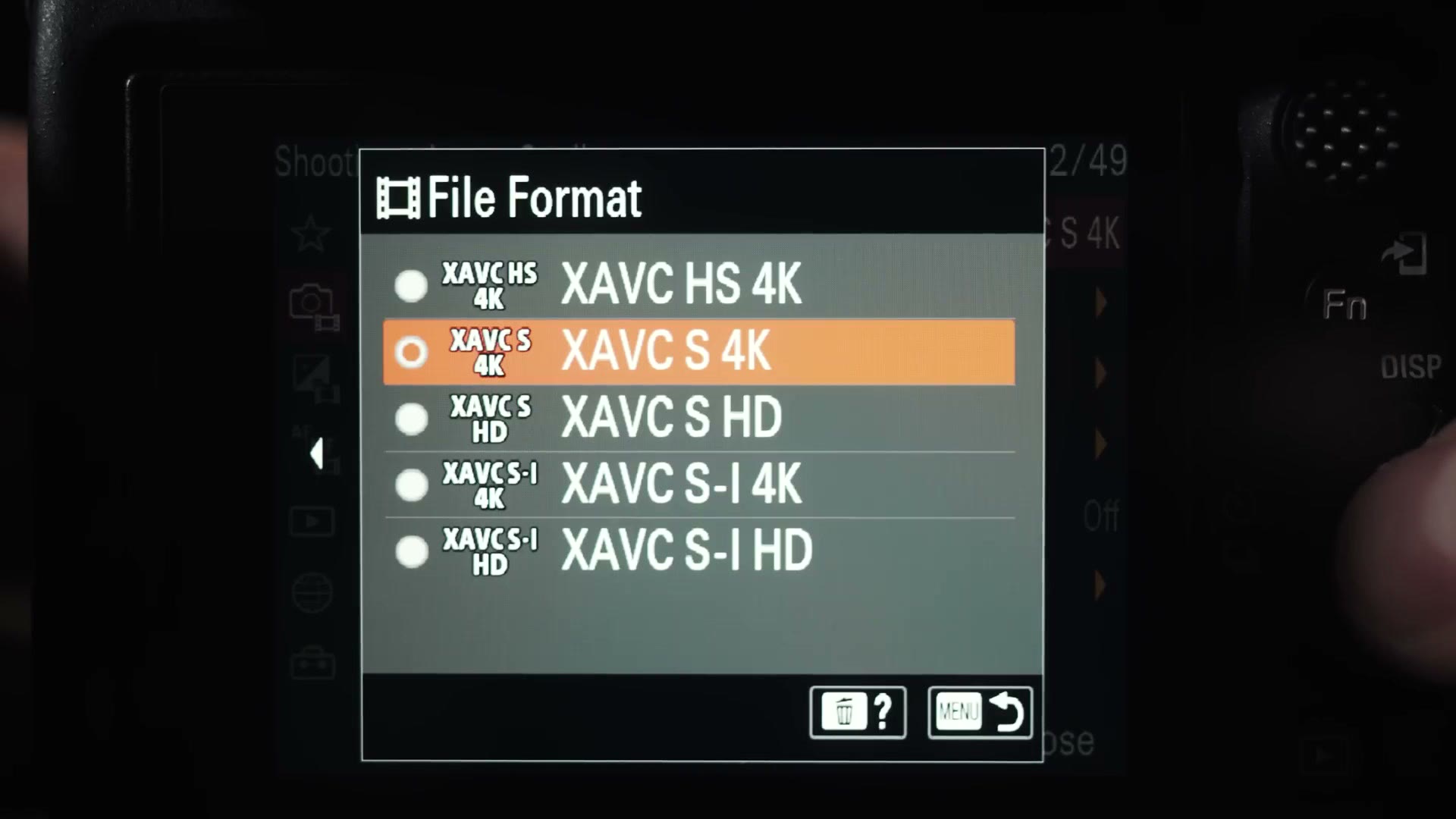
And when you select the specific frame rate that you want to film in, for Record Setting I would select the highest bitrate and 4:2:2 10bit.
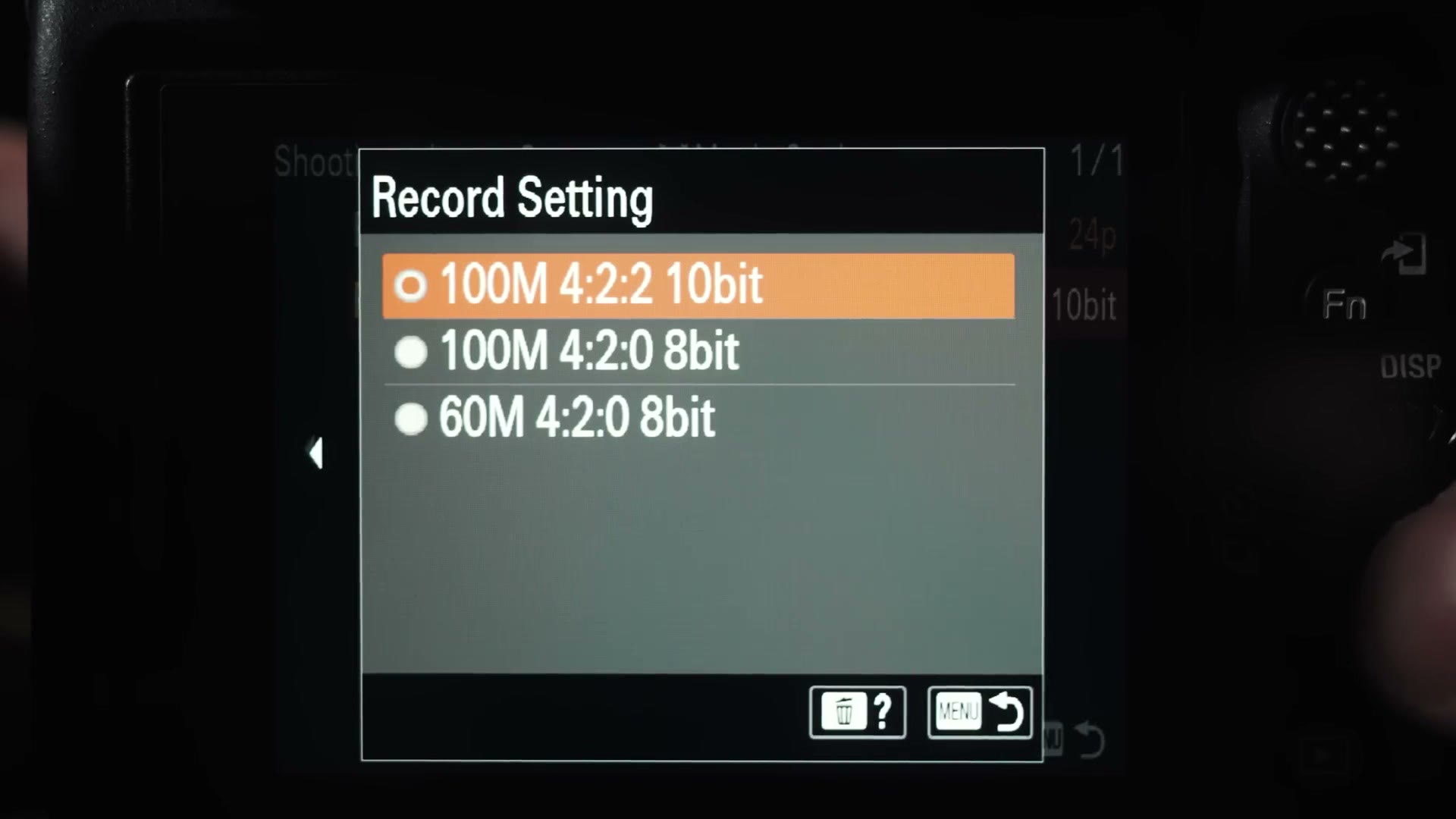
This should record a high quality video while also keeping your file sizes from being too large. Your hard drives will thank you.
Now if you want to know why I’ve chosen these settings, you’re going to have to read the rest of this, because I’m now going to explain why I’ve chosen them.
How The A7S III Organizes Its Video Formats
Let’s start with the basics. Looking at the video format screen for the a7S III, you’ll see that you can record in XAVC with three main options, HS, S, or S-I, in 4K or HD.
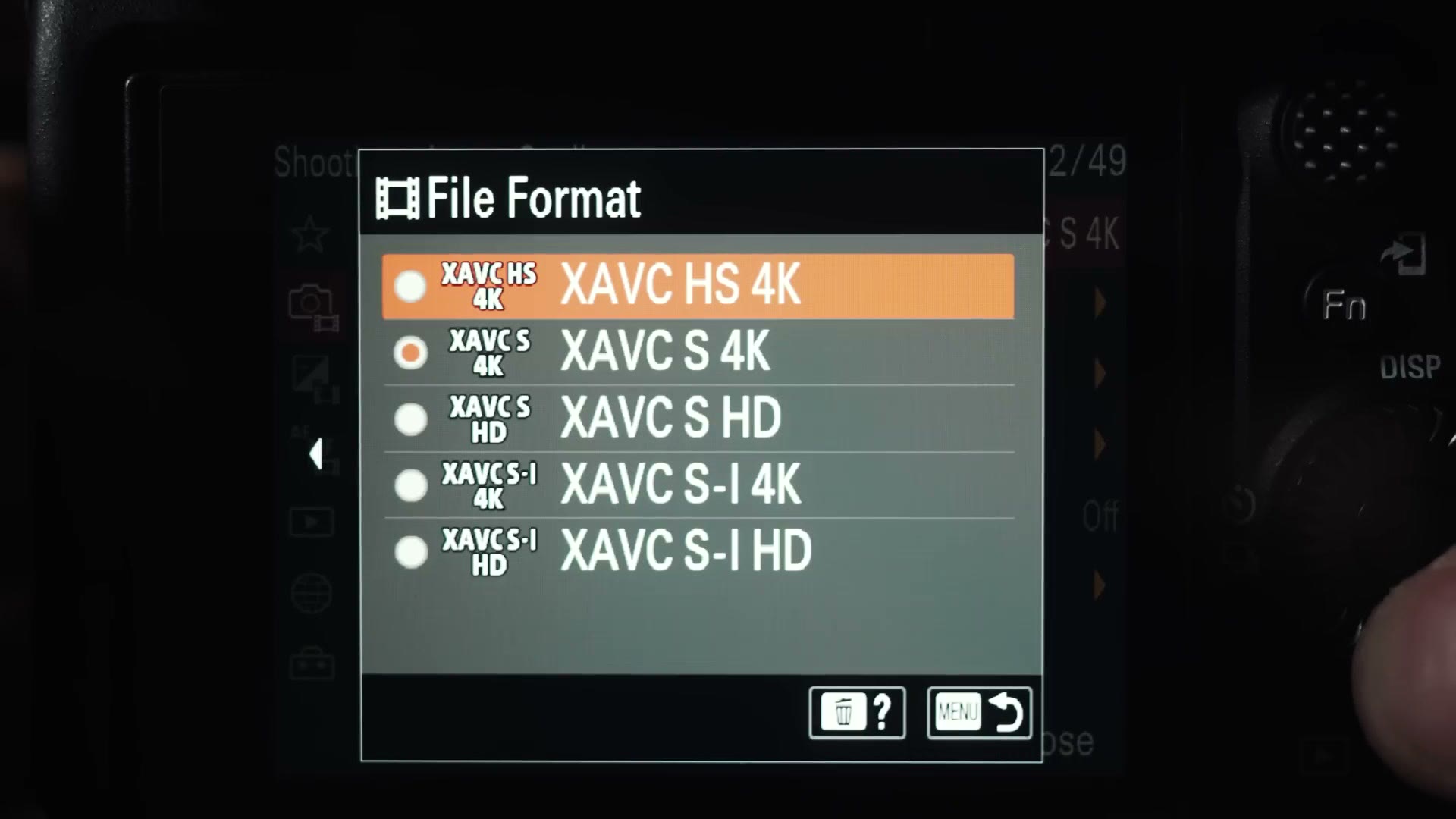
And while it may not look it, Sony has actually organized these formats in an order, and that order is from most difficult to edit to easiest to edit. At the same time, these file formats are also organized from the smallest file size it will create to the largest file size. You wouldn’t know any of this though at first glance. The FX3 lays its formats out the same way, so everything below applies to both cameras.
XAVC HS Explained
Looking first at HS, this format is going to give you the smallest file size you can get while still recording high quality video with the camera.
“Small file sizes? That sounds great, Matt. I can save money on memory cards and hard drives. Let’s film in that.”
Well, hold on to your beard for a second. See, XAVC HS records using the H.265 codec, and if you’ve ever edited with H.265, you’ll know that it is quite difficult and slow to edit on most computers. We’re talking you jump to a part of the video on your timeline, wait five seconds, then finally it loads, slow, seriously affecting your editing speed.
So while XAVC HS may give you the smallest file size, it is also the biggest pain to edit. Because of that I would typically avoid filming in HS, unless you have a video editing workflow that includes creating proxy files to edit your videos. Those proxy files will make editing those HS clips very smooth, but it will of course take more time to create them. Incidentally, I do have a tutorial about how to create proxy files in Adobe Premiere Pro.
Bit Rates And Bit Depths Explained
Going in deeper now. If you’ve chosen to record in XAVC HS, while selecting your frame rate, which record setting should you choose? 100M 4:2:2 10bit, 4:2:0 10bit, 50M 4:2:2 10bit, there are so many options.
This is simple. I would always choose the highest bitrate and 4:2:2 10bit.
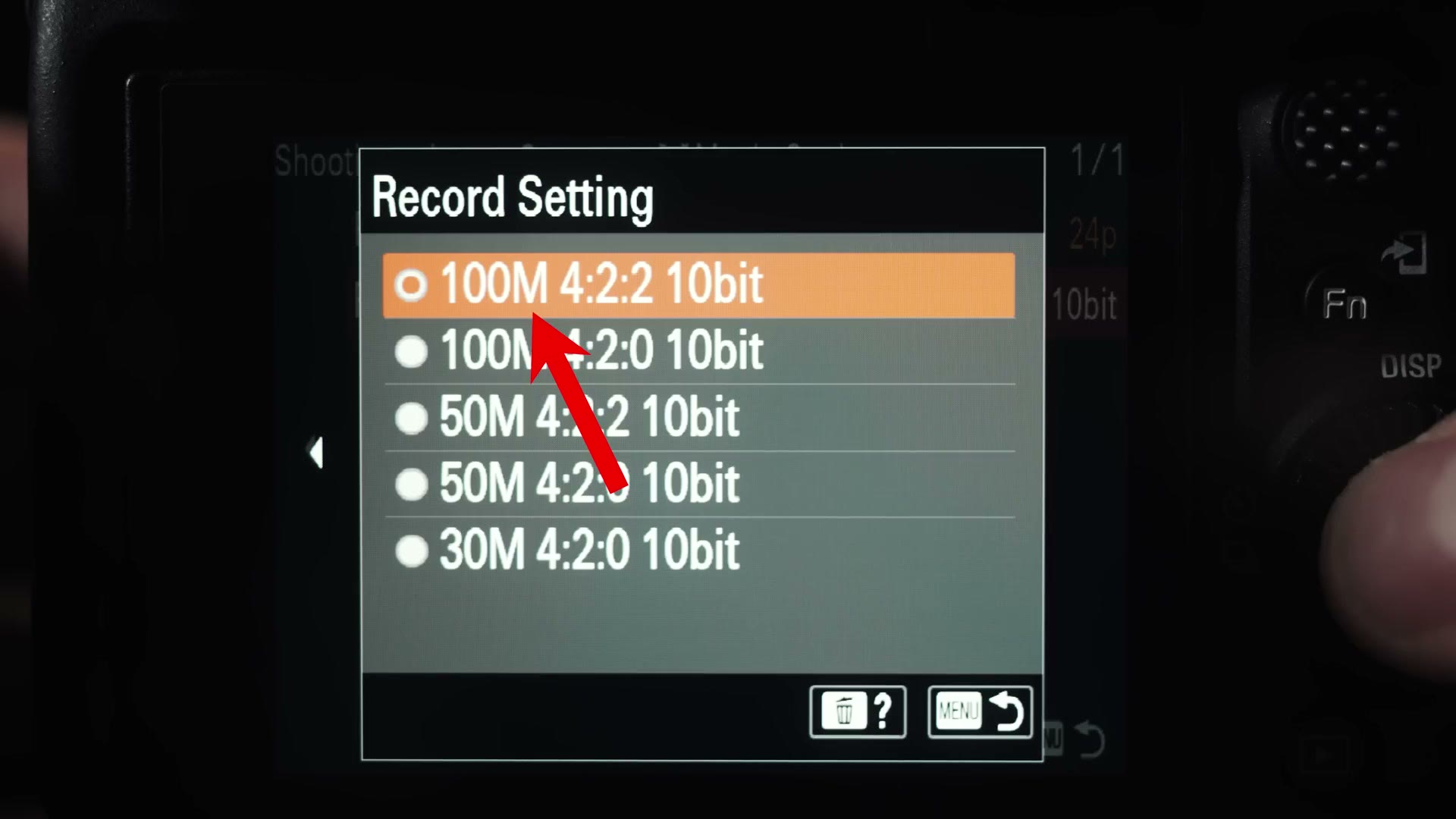
This letter M at the start here stands for megabits per second, which is the bitrate of the video that you will be recording. 100M is 100 megabits per second, and 50M is 50 megabits per second.
What about 4:2:2 10bit or 4:2:0 8bit that you can see when recording in other formats?
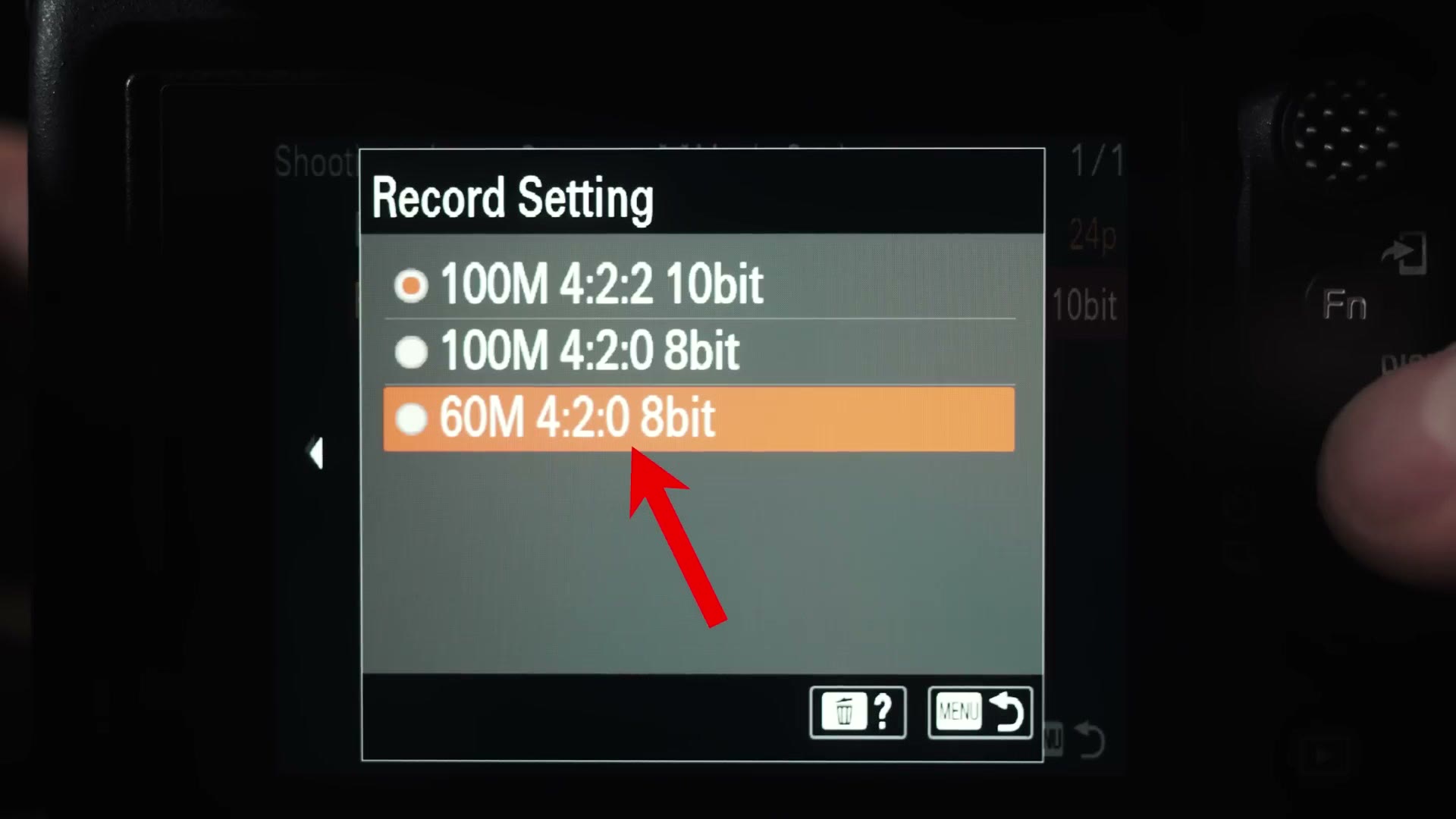
To explain this as simply as possible, by recording in 4:2:2 10bit you are recording significantly more colors than you are in 4:2:0 8bit, so I would always recommend recording in 4:2:2 10bit.
In summary, selecting 100M or a higher number, depending on the frame rate you’re filming at, and 4:2:2 10bit, will give you the highest quality video and colors that you can get while recording in XAVC HS.
XAVC S Explained
Moving on, let’s look at XAVC S, the format I told you at the start that I prefer to film with.
If XAVC S sounds familiar to you, it may be because every single previous Sony mirrorless camera filmed in this format. So if you have experience filming and editing with any Sony mirrorless camera in the past, this format is going to feel familiar to you, and your computer should handle editing it pretty similarly to how it handled previous Sony camera footage.
Notice I’m saying pretty similarly, because unlike previous Sony cameras, this XAVC S format can now record in 10bit and at much higher frame rates than any previous Sony mirrorless camera. So if you notice that your footage is slowing down, it may be time to use proxies or to upgrade your video editing computer. I have some video editing PC build guides for that as well.
Now in my experience, XAVC S may not give you the smaller file sizes you will get when recording in XAVC HS, but the reason it does not is because it’s less compressed. Unlike XAVC HS, which was using the quite difficult to edit H.265 codec, XAVC S is using the older, less compressed, and much more common H.264 codec that most computers can edit much more easily. So your file sizes will probably be larger with XAVC S than XAVC HS, but the tradeoff is that they will also be much easier to edit.
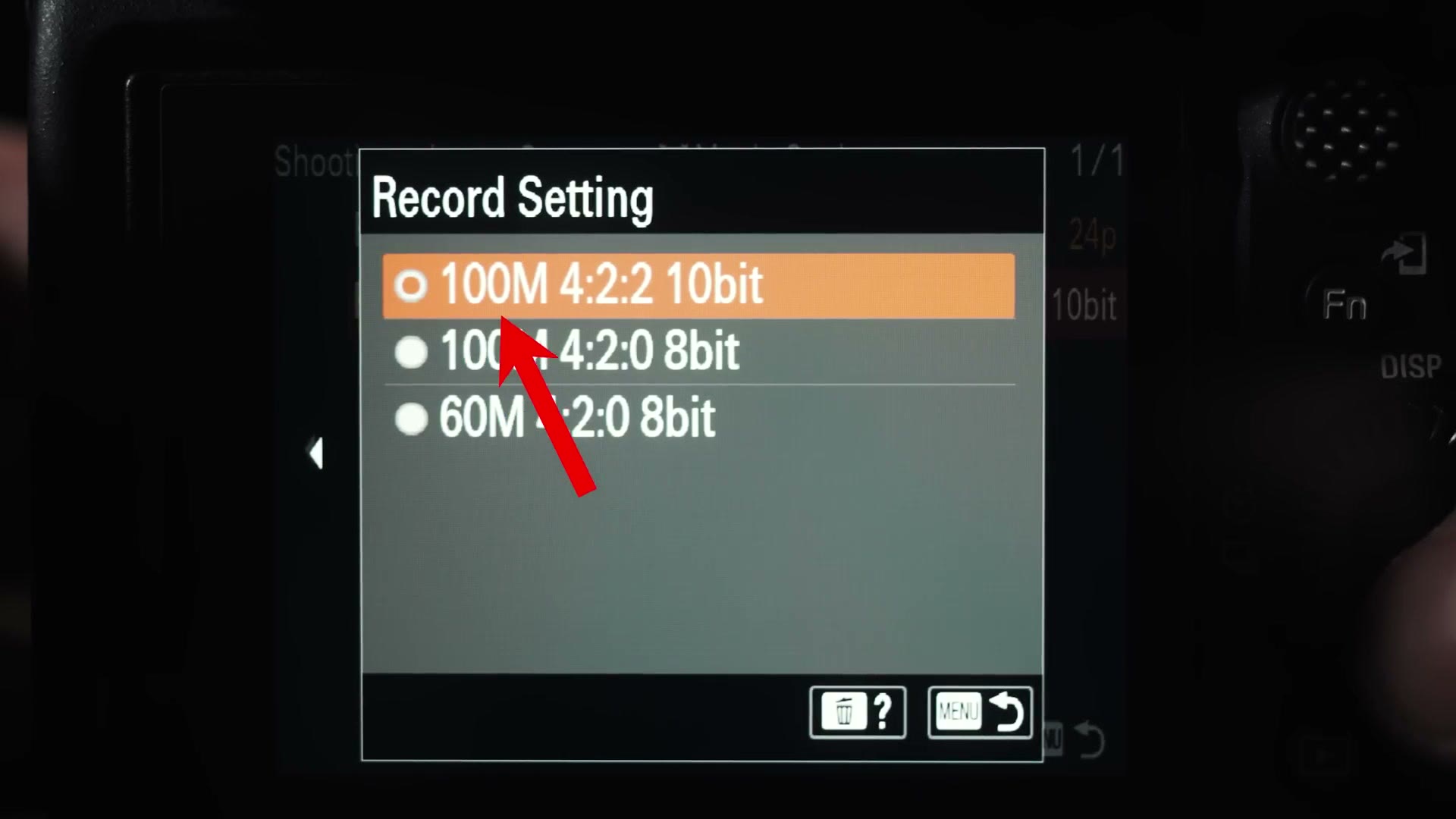
Looking at the record settings now, after you choose your frame rate you will see you have significantly less options than you did in XAVC HS. Do you want to record 100 megabits per second 4:2:2 10bit, 4:2:0 8bit, or 60 megabits per second 4:2:0 8bit? This choice is easy. Yet again, always the highest bitrate you can, 4:2:2 10bit.
XAVC S-I Explained
Last, but definitely not least, we have XAVC S-I, and this is the format where things get crazy, with much larger file sizes and much higher bitrates.
To explain why XAVC S-I is so much larger than the other compression options when it comes to file size and bitrate, video is inherently just a series of still images, or frames, that are played back very quickly, in this video’s case 24 frames per second, so that this looks like I’m moving when in reality it’s just a bunch of still images.
Scientists that are way smarter than me figured out that if they want a camera to compress a video and make it smaller, the camera doesn’t need to record every single one of these frames. Instead, the camera can just record the movement that happens from frame to frame. Everything else not moving can just use what was in the previous frame, and this saves space with a minimal loss in quality.
Sounds great, right? A smaller file size with a minimal loss in quality. Awesome. That’s how XAVC HS and XAVC S work.
XAVC S-I on the other hand says, “Forget that. I don’t care about compression nearly as much. How about we record every single frame regardless of the movement and give people the best possible quality?”
So XAVC S-I is going to give you the largest file sizes by far, because the bitrate is so much higher so it can record every single frame of video. But this comes with the benefit of XAVC S-I being one of the easiest formats to edit, because it’s so lightly compressed. Your computer should be able to handle editing it more easily than XAVC HS or XAVC S.
Do You Need To Film In XAVC S-I?!
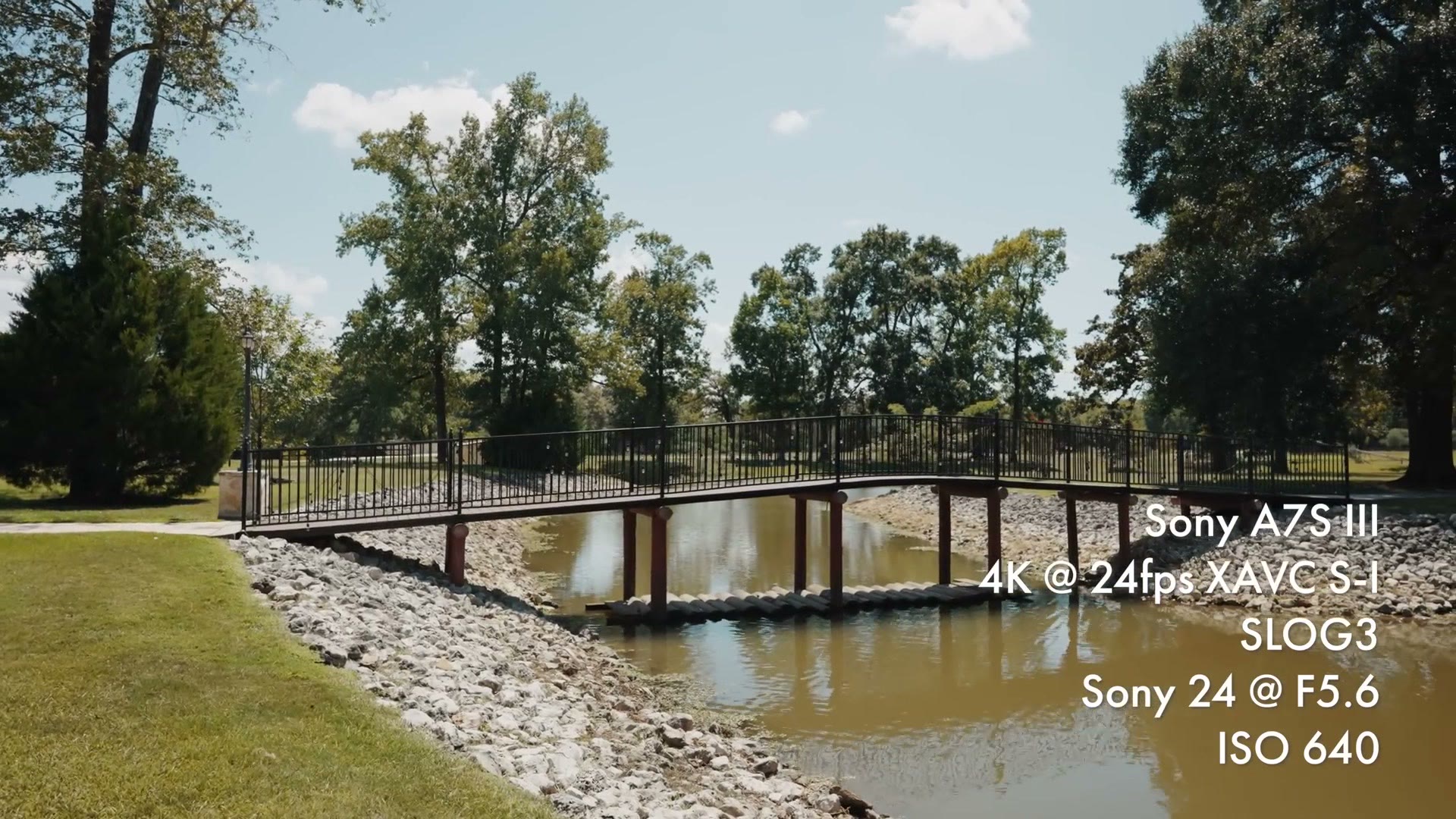
This high bitrate, every frame recorded video file from XAVC S-I is arguably going to give you the highest quality video that you can get internally from the a7S III, but after pixel peeping and really comparing this format versus the other formats, I’m not seeing much, if any, difference in quality between XAVC S-I and the other two formats.
That said, there are two scenarios where you may want to record in XAVC S-I.
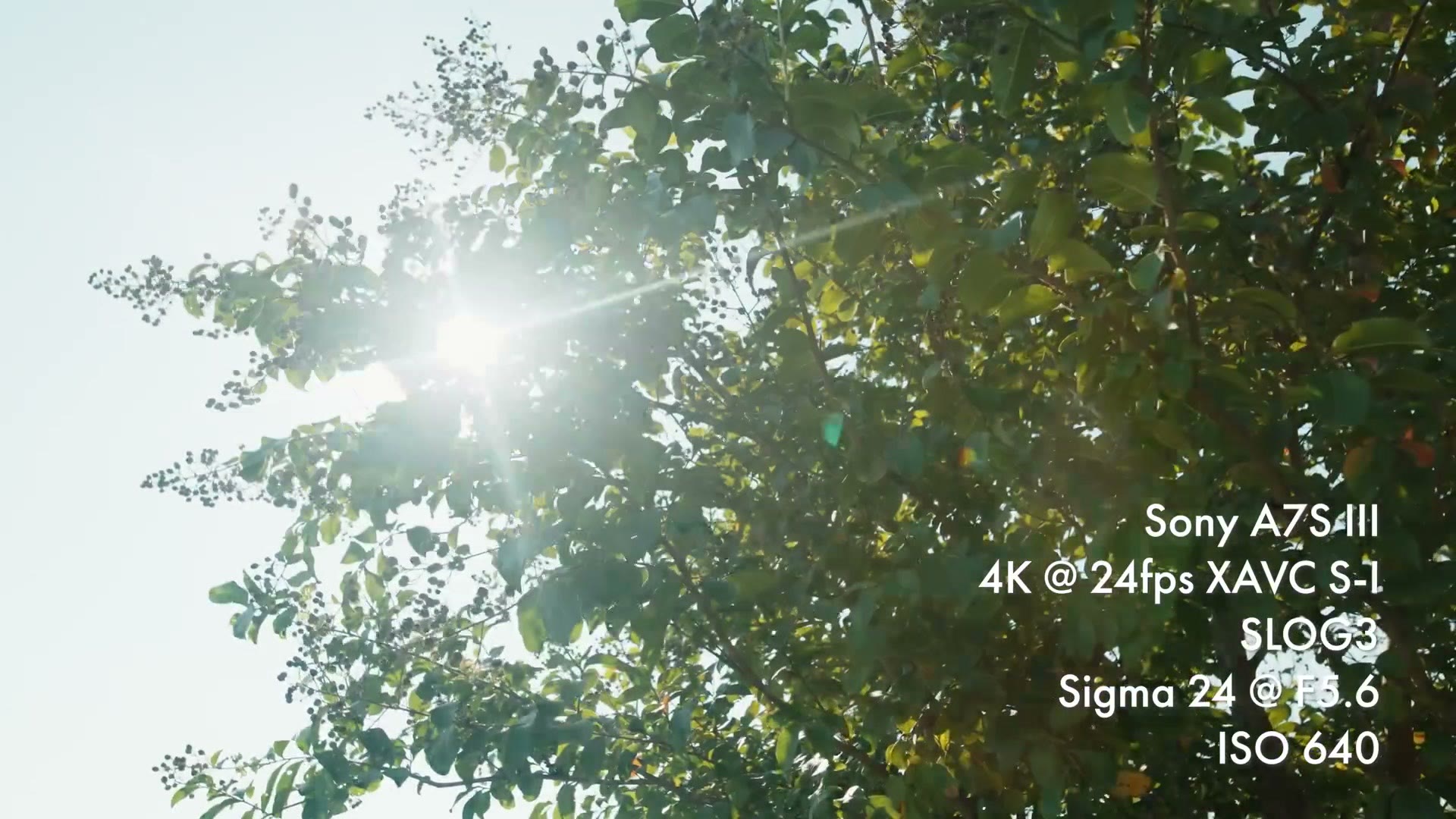
Imagine highly detailed tree branches with leaves blowing quickly in the wind. This is a very difficult shot for more compressed video codecs to record properly, due to the amount of movement that needs to be recorded from frame to frame, but with every frame being recorded by XAVC S-I, you should be good.
The other scenario where you may want to record in XAVC S-I is if you’re recording someone in front of a green screen. I don’t own a green screen, for some reason, I really should buy one just to have, but my understanding is that if you record using XAVC S-I that can help you get a better color key, due to motion detail being better recorded in that video format.
Other than those two scenarios though, whenever you factor in the tradeoff of a minimal gain in quality against a massive increase in file size, I don’t think it’s worth filming most things in this format. I primarily film weddings, which are all day events, and the V90 SD cards and CFexpress Type A cards the a7S III uses are expensive enough even having to buy a few of them. I don’t want to have to buy three times the amount I currently own just to record everything in XAVC S-I.
In my opinion, if you want the ultimate in video quality from the a7S III, skip recording in XAVC S-I and purchase an external recorder like the Atomos Ninja V and record in ProRes or ProRes RAW. Because although that setup may end up costing you nearly a thousand bucks once you factor in the cost of the recorder and the SSDs, those SSDs are still much cheaper than memory cards.
Lastly, you may be thinking, “Matt, you didn’t talk about the record setting for XAVC S-I. Should I be recording in 4:2:2 10bit or 4:2:2 8bit?”
No, I didn’t. You don’t have any option when recording in XAVC S-I. You get one choice: the maximum bitrate in 4:2:2 10bit.
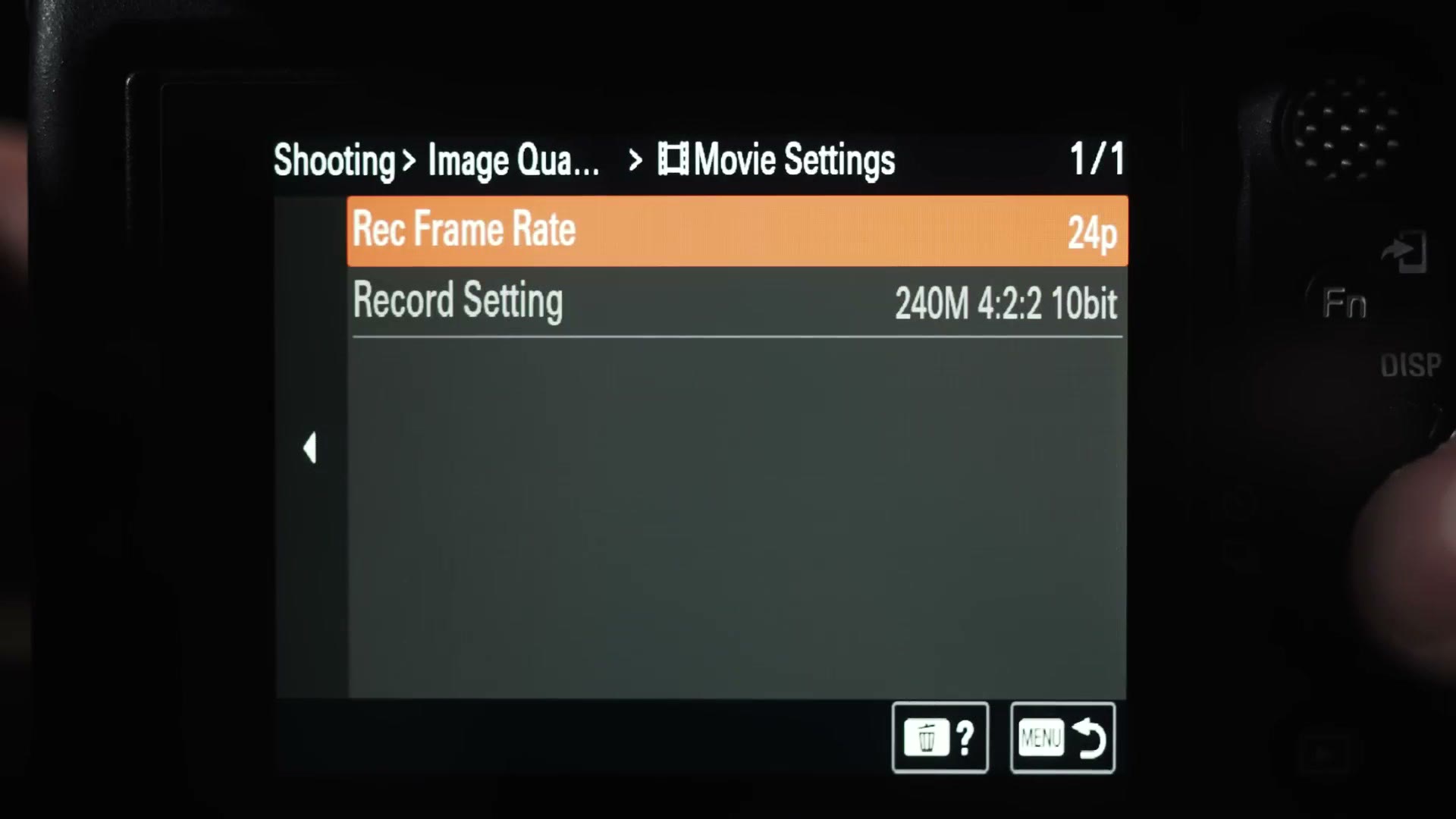
I told you, XAVC S-I is the highest quality you can get recording internally. If 4K at 120 frames per second is what you’re after, I’ve written up how to record 4K 120fps in XAVC S-I separately.
The Format I’m Filming With
With that, you now know the three formats the a7S III films in. And like I said at the start, the most well rounded format, in my opinion, that gives you great quality without a massive file size, is XAVC S 4K in 10bit. That is the format I’m planning on filming with for my wedding films, YouTube videos, and anything else I create for the foreseeable future, but I will occasionally jump up to XAVC S-I if there’s a lot of movement in the shot as well.
If you want the wider version of this across Sony’s lineup rather than just this camera, I’ve also put together the best Sony video format settings, and when you should not use them. And if you want to know how this camera performs at an actual wedding, that’s in my a7S III review for wedding filmmakers.
Incidentally, I also have a memory card buyer’s guide for this camera, so if you’re confused about whether you need to buy SD cards or CFexpress, and what speeds you need and which brands are the best, that one is for you.
Also, do you happen to film weddings like me? You probably want to book more couples and film more weddings. To help you out with that, I’ve created a free guide that’s gonna walk you through some practical steps you can take right now in your business to book more couples and film more weddings. It’s a completely free gift to you.