
It’s 2022 and you should build a budget video editing PC for under a thousand bucks. This one will let you edit in Premiere Pro, DaVinci Resolve, or basically any other editing software, and it’ll handle photo editing, mixing music, gaming and live streaming too.
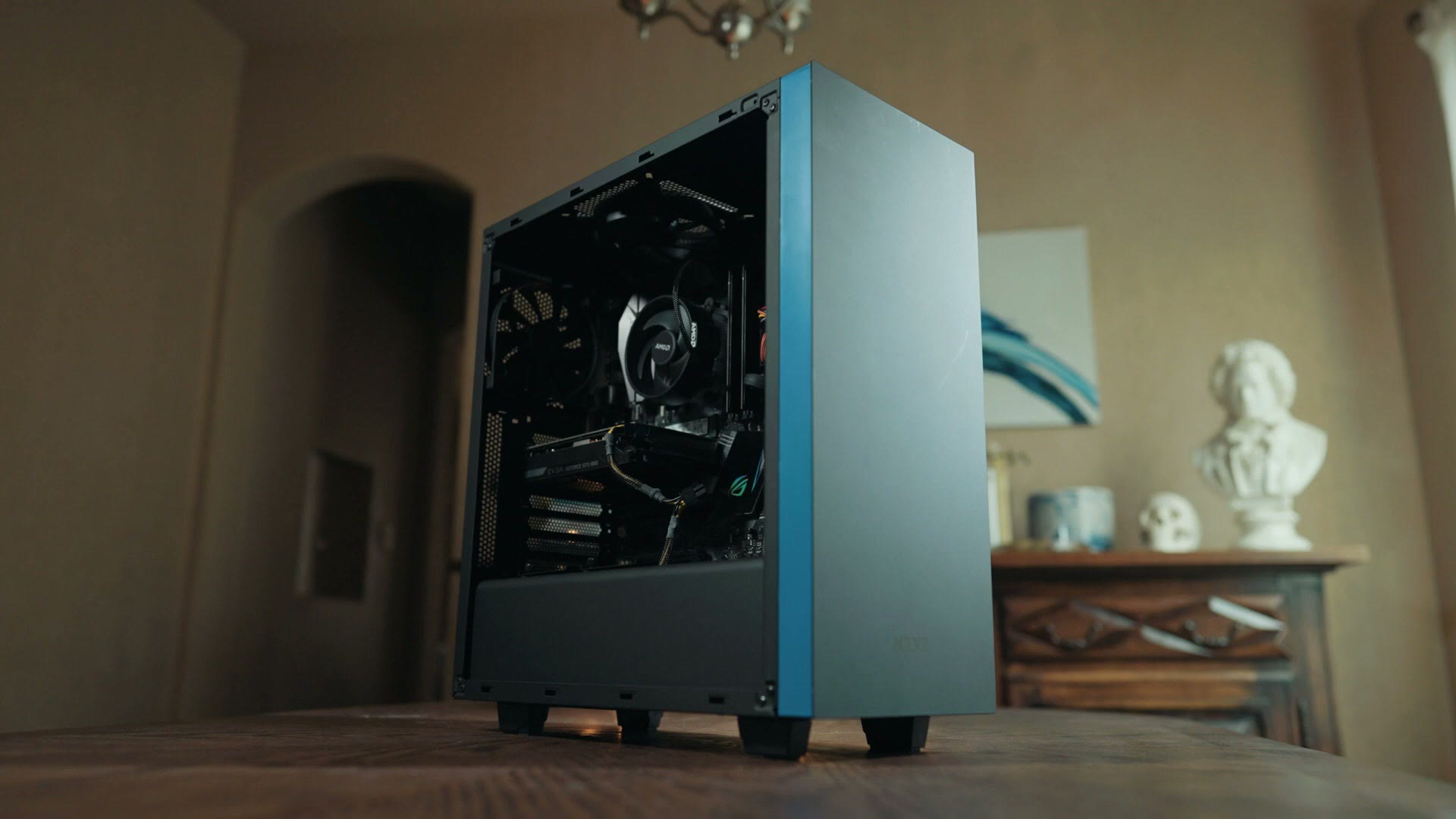
Every part in this build is listed together on my gear page, and I’ll also point out some upgrade parts that cost a bit more but should make this computer noticeably faster.
This covers what to buy, not how to put it together. For that, I made a full build video that walks through every step from taking parts out of the box to turning the computer on, and everything here goes together the same way. Please don’t be intimidated. Building a PC is a lot of fun and kind of like putting together Legos.
And if you have more to spend, I also have a higher tier build guide that will comfortably edit 4K, 6K, 8K or even 12K footage.
Motherboard
The motherboard is what all your parts plug into, and this is already a change from my previous build guides, because we’re switching to an Intel CPU for this one.
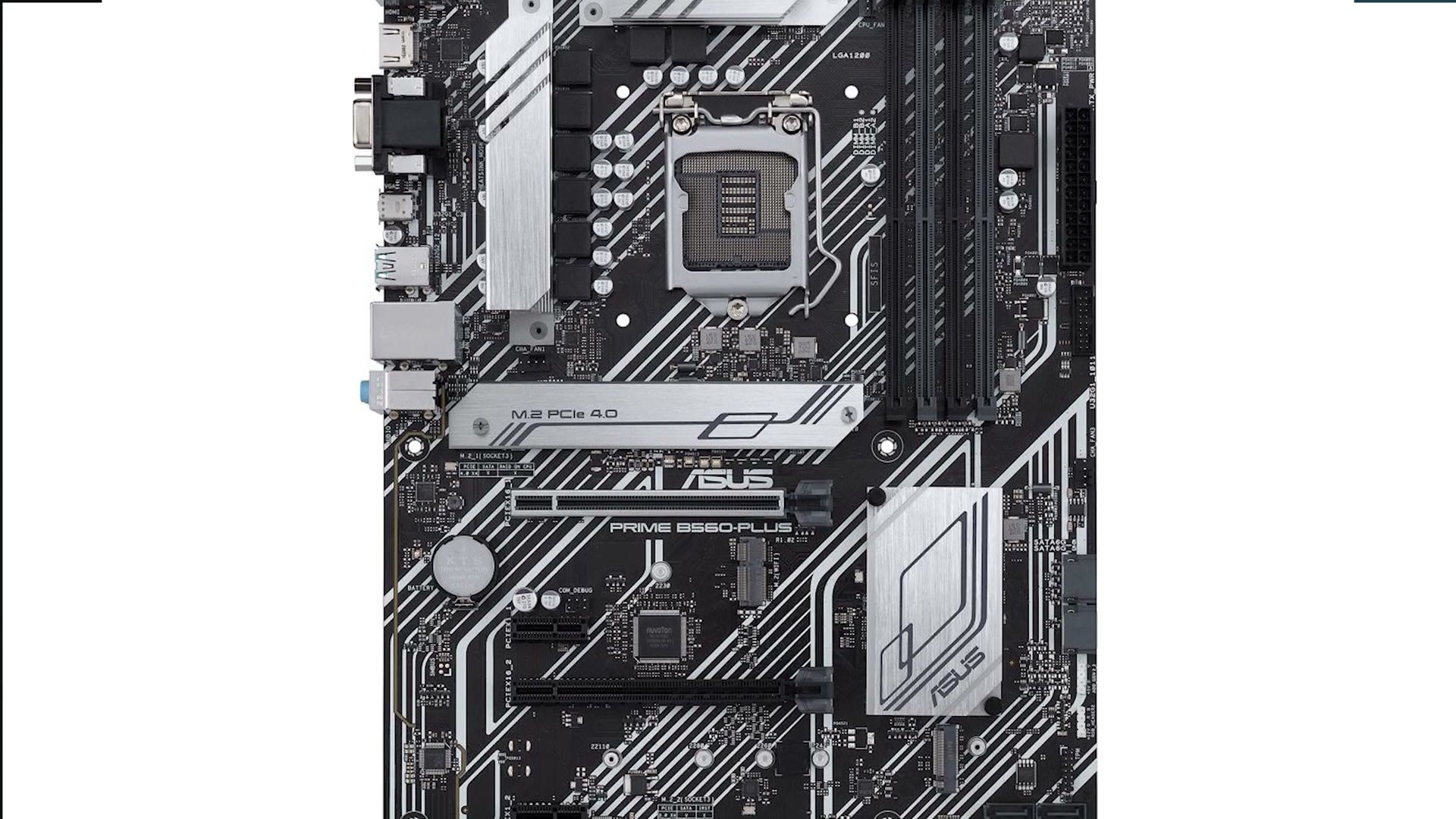
With Intel, I recommend the ASUS Prime B560-Plus ATX motherboard, which is $120 at the time of writing. You get a good mix of features for the price, including PCIe 4.0 and USB Type-C.
The one con is that it doesn’t support WiFi out of the box. So as an upgrade you can get the Gigabyte B560 AORUS Pro AX, which does include WiFi, for $180. Or if you want to save the cash, grab a cheap USB WiFi adapter instead.
CPU – The BRAIN Of The Computer
The CPU is arguably the most important part for video editing, because a fast processor with a lot of cores makes a drastic difference in how quickly your videos edit and render.
Sticking with Intel, since we have an Intel motherboard, get the Core i5-11400F, which has six cores and 12 threads.
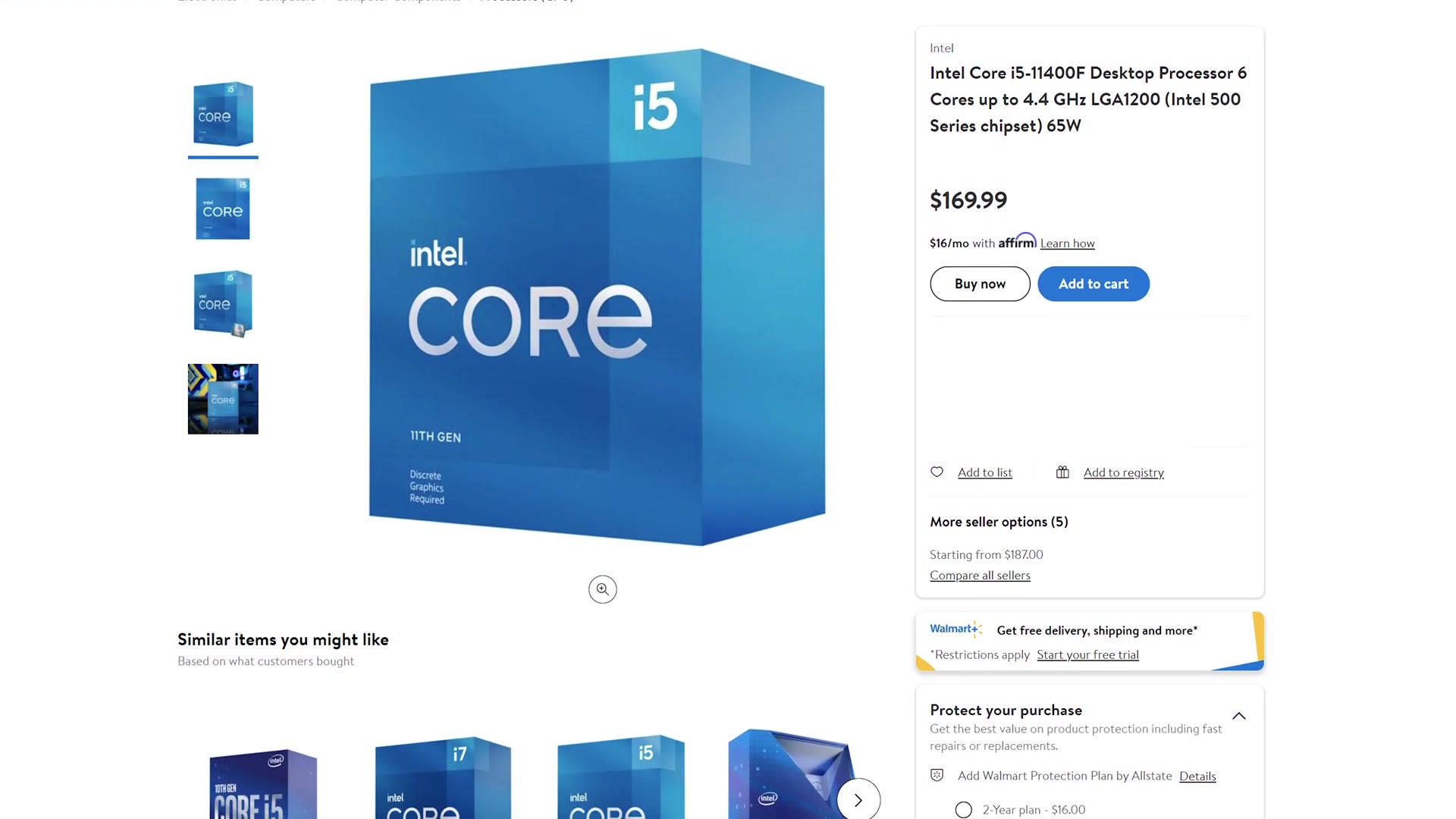
In the past I never would have recommended an i5, but Intel has made great strides competing with AMD, and the bang for your buck on this chip is stellar at only $170. As a plus, it comes with a cooler that works great, so you save money there too.
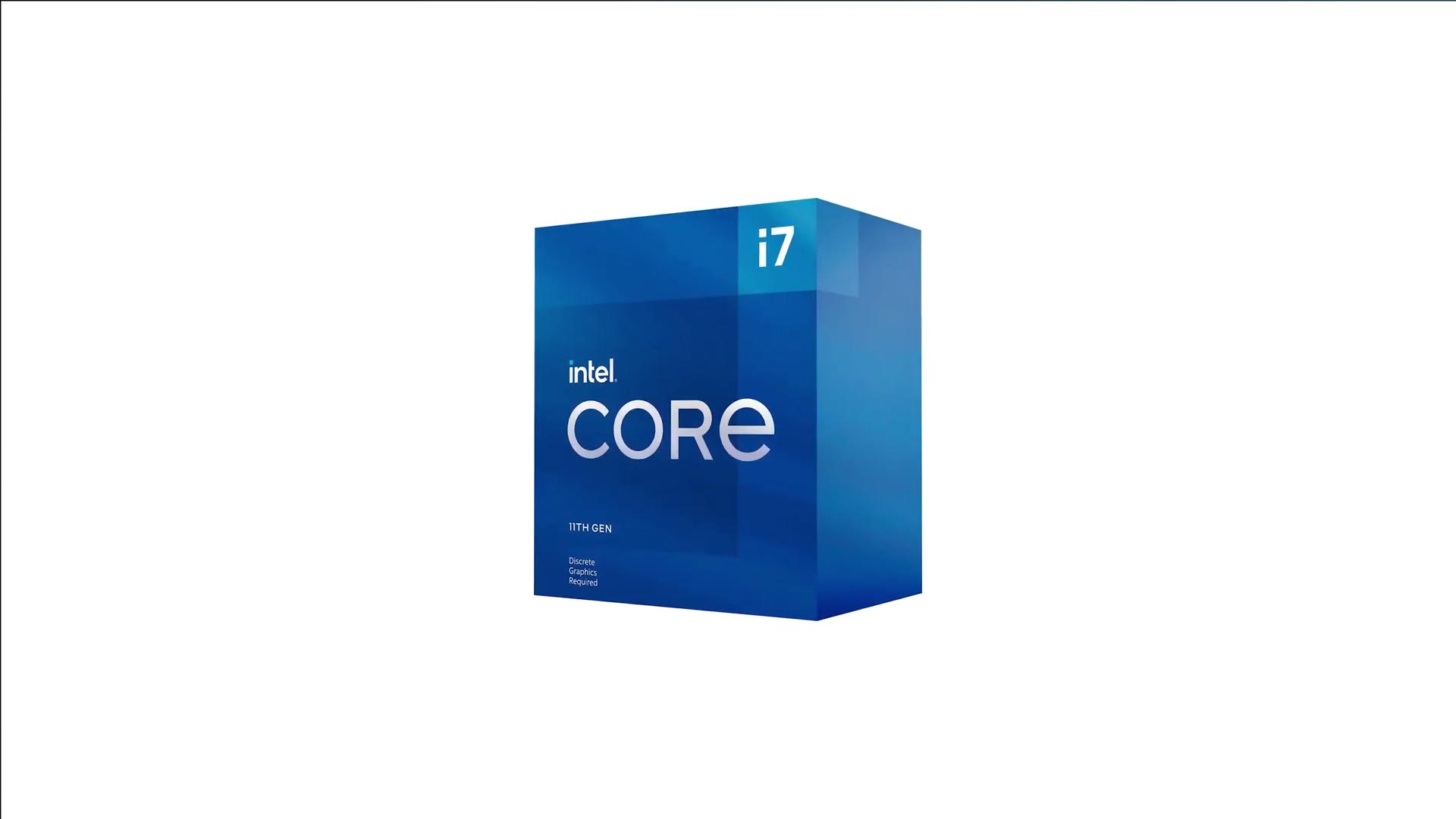
That said, if you have more to spend, Intel’s i7-11700 gives you two more cores and a nice jump in performance. Keep in mind you’ll need to buy a cooler for that one.
Memory
For RAM I recommend 16GB of Silicon Power XPOWER at 3200MHz. That’s enough for 4K video editing, but it isn’t quite enough for heavy multitasking, so I wouldn’t run too many other programs alongside your editing software if you can help it.
As an upgrade, I’ve found the sweet spot for 4K editing is 32GB, and for this build specifically I’d get 32GB of Silicon Power gaming RAM, also at 3200MHz.
SSD & Hard Drives
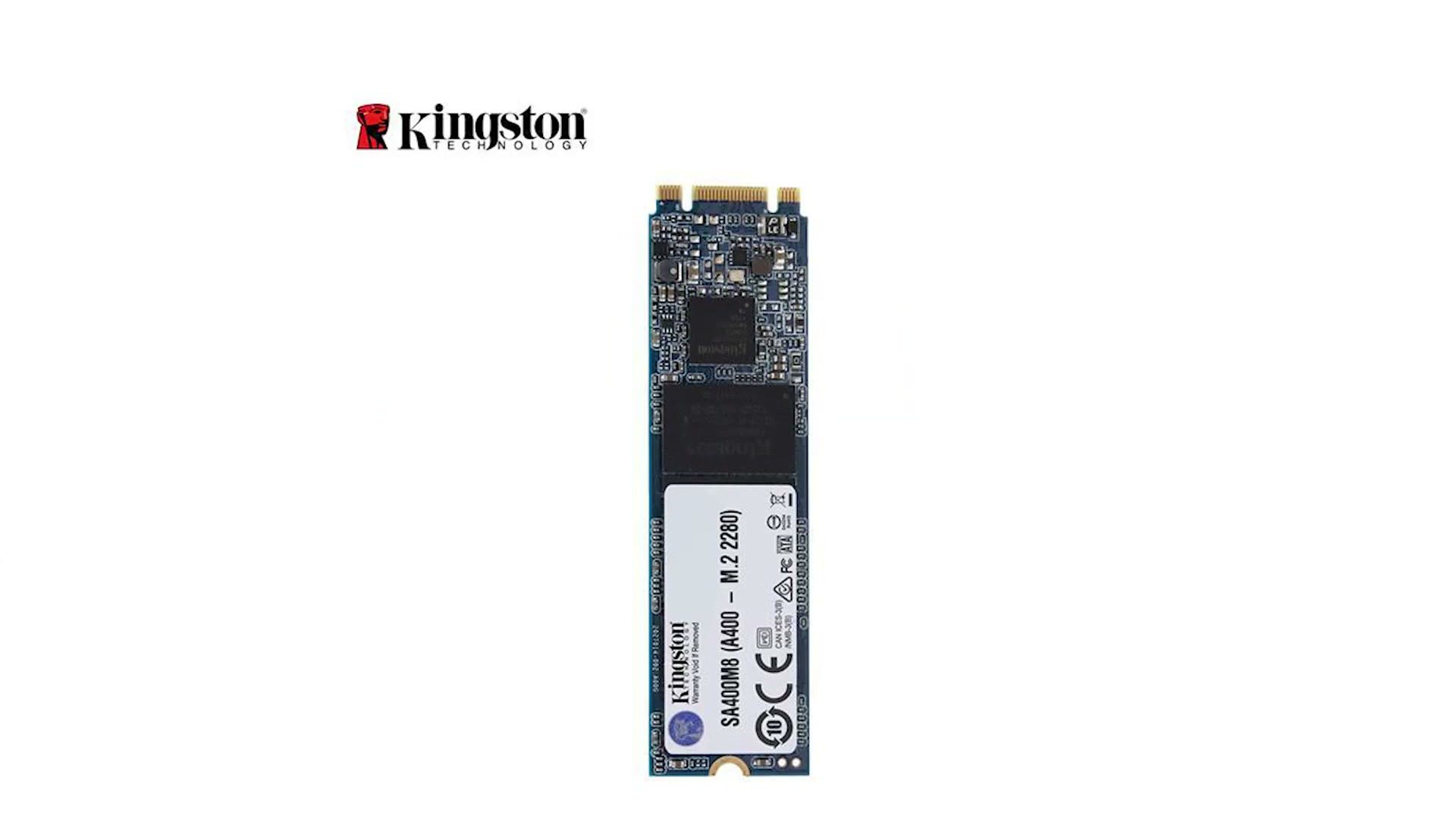
Your SSD is the very fast drive that stores all of your programs. Prices have kept dropping every year and these are very affordable now. I’d go with the Kingston A400 SSD, which gives you 240GB for only $36. That’s plenty for your operating system and program files.
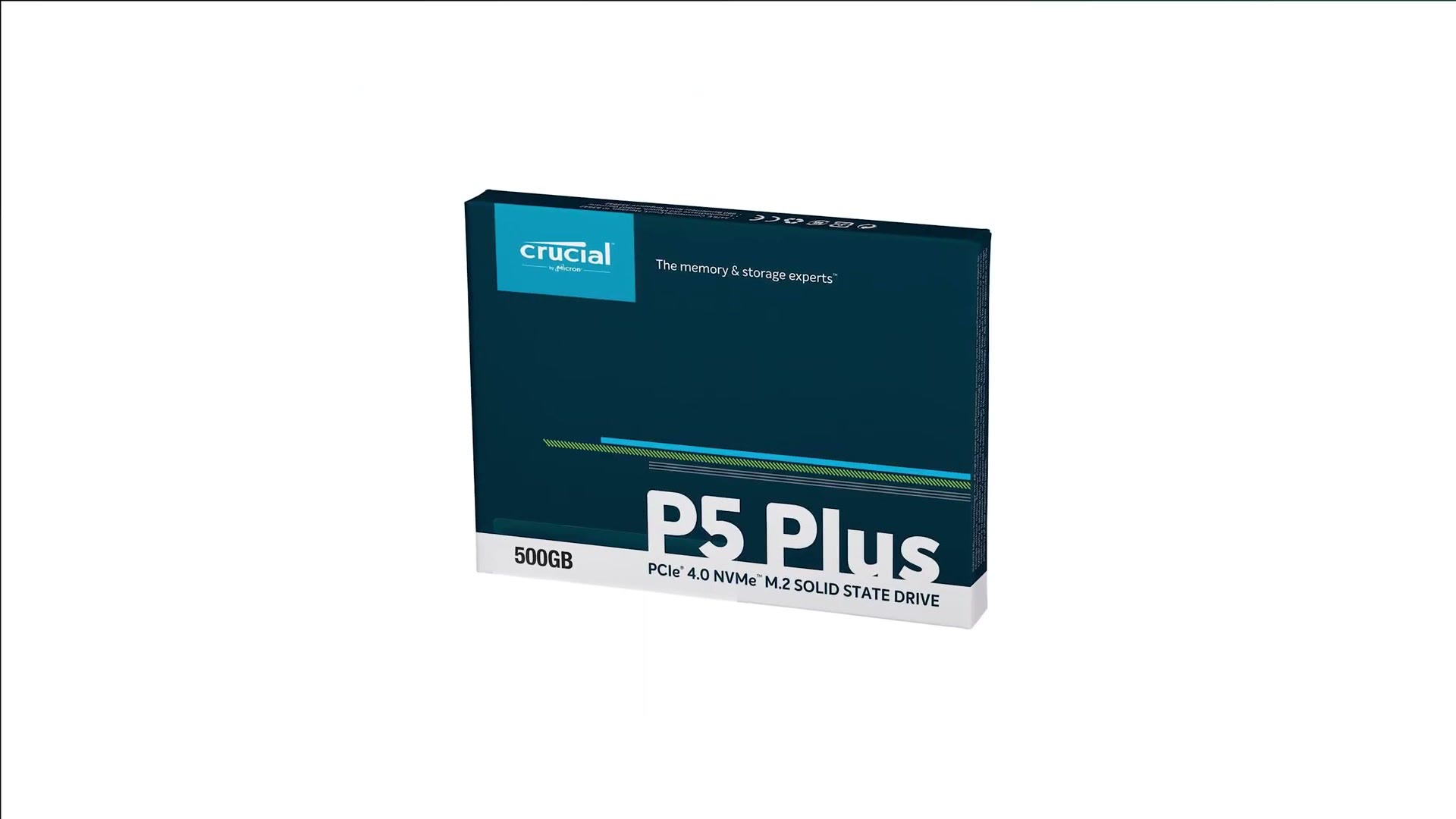
If you want more space and dramatically faster speed, upgrade to the 500GB Crucial P5 Plus for $90. It supports PCIe 4.0 and is one of the fastest options you can buy today.
Keep in mind I only recommend using this SSD for your programs. For the fastest editing, keep a smaller SSD for programs and a larger SSD or regular hard drive for your video files. Because I travel a lot, I’d get a fast external SSD or a big external hard drive to edit from. If you don’t travel much, this case will take internal drives too.
Graphics Cards & How To Find One In Stock
Now everyone’s favorite part, and this is where this build guide goes off the rails a little.
NVIDIA and AMD keep designing new cards, but there are major supply chain issues and companies can’t keep them in stock. It’s a perfect storm: a shortage of workers building the cards because of the pandemic, everyone staying home wanting to game, also because of the pandemic, cryptocurrency mining, and scalpers using bots to buy up the supply the moment it lands so they can flip it on eBay at usually triple MSRP.
That’s exactly why this is an “under $1,000” build without a precise number, because card prices swing so much depending on what’s in stock.
There is still one guaranteed way to get a decent card at a reasonable price, and that’s to buy a prebuilt computer. Yes, in a guide about building your own, I’m telling you not to. What a strange world we live in. The good news is I made a whole video on prebuilt video editing PCs for under a thousand bucks. By all means, build your own. But if you keep hitting out of stock pages and you get discouraged, come back to that one so you at least end up with a computer.
On brands, you’ll see Asus, MSI, EVGA, Gigabyte, Zotac, PNY and a ton of others. For video editing it doesn’t make a huge difference which you buy, and with this shortage we’re much more concerned with finding one at all. If you find a card from any of those brands, you’re probably good to go, as long as it doesn’t have a pile of horrible reviews.
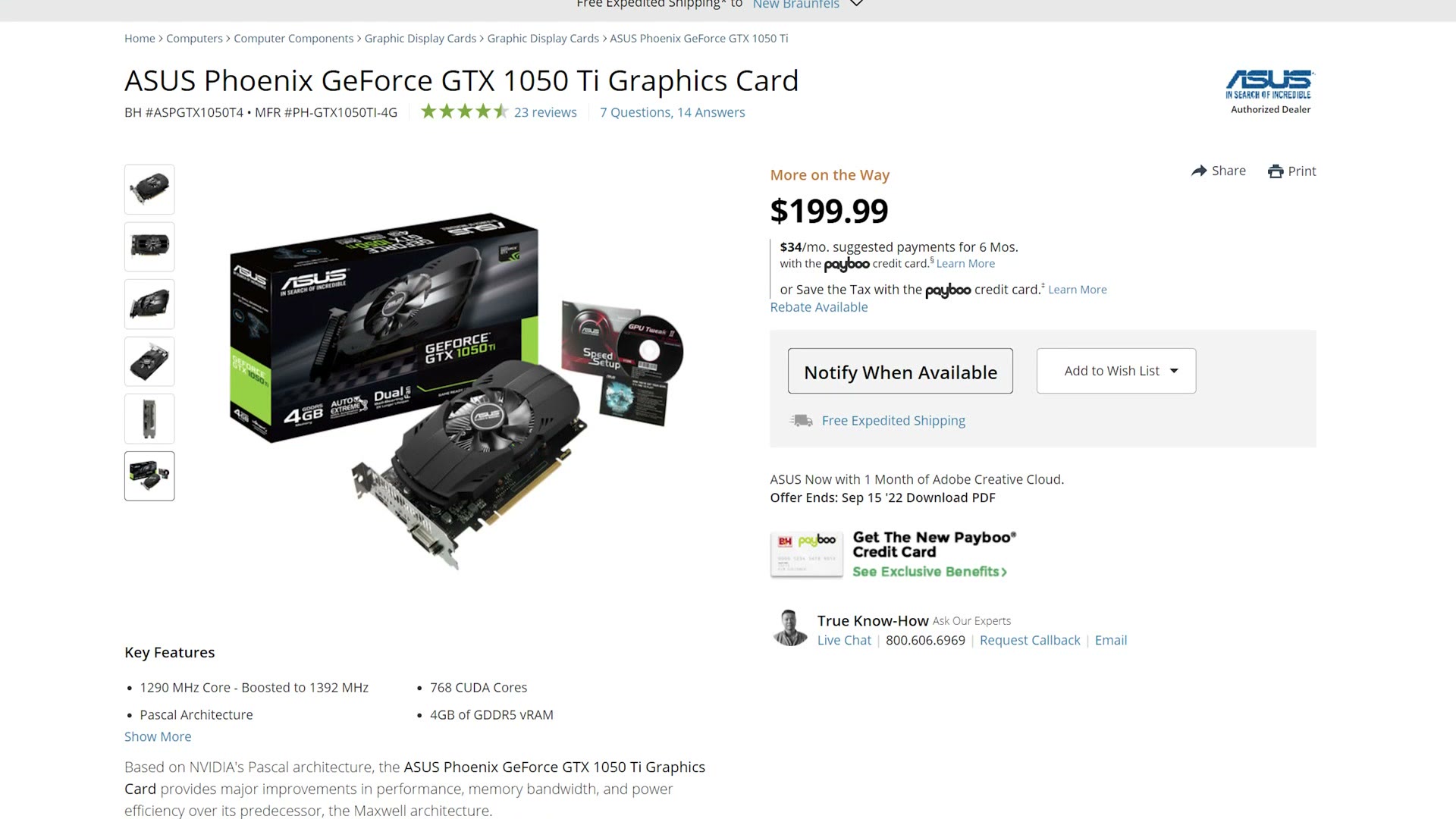
Starting at the bottom, I’d recommend the GTX 1050 Ti. It’s the bottom of the barrel and one of the cheapest cards still available that can handle 4K editing, and even so you’re looking at a couple hundred bucks. The catch is it only has 4GB of video memory, so while it will work, if you can find one of the other cards with more video RAM, go with that instead.

The cards I’d actually reach for are the GTX 1660 Super, the RTX 2060, the RTX 3060, the RTX 3060 Ti and the RTX 3050. These are hard to find, especially the 3050 and the 3060 Ti, but if you can get one at retail it should be around $400 or less.
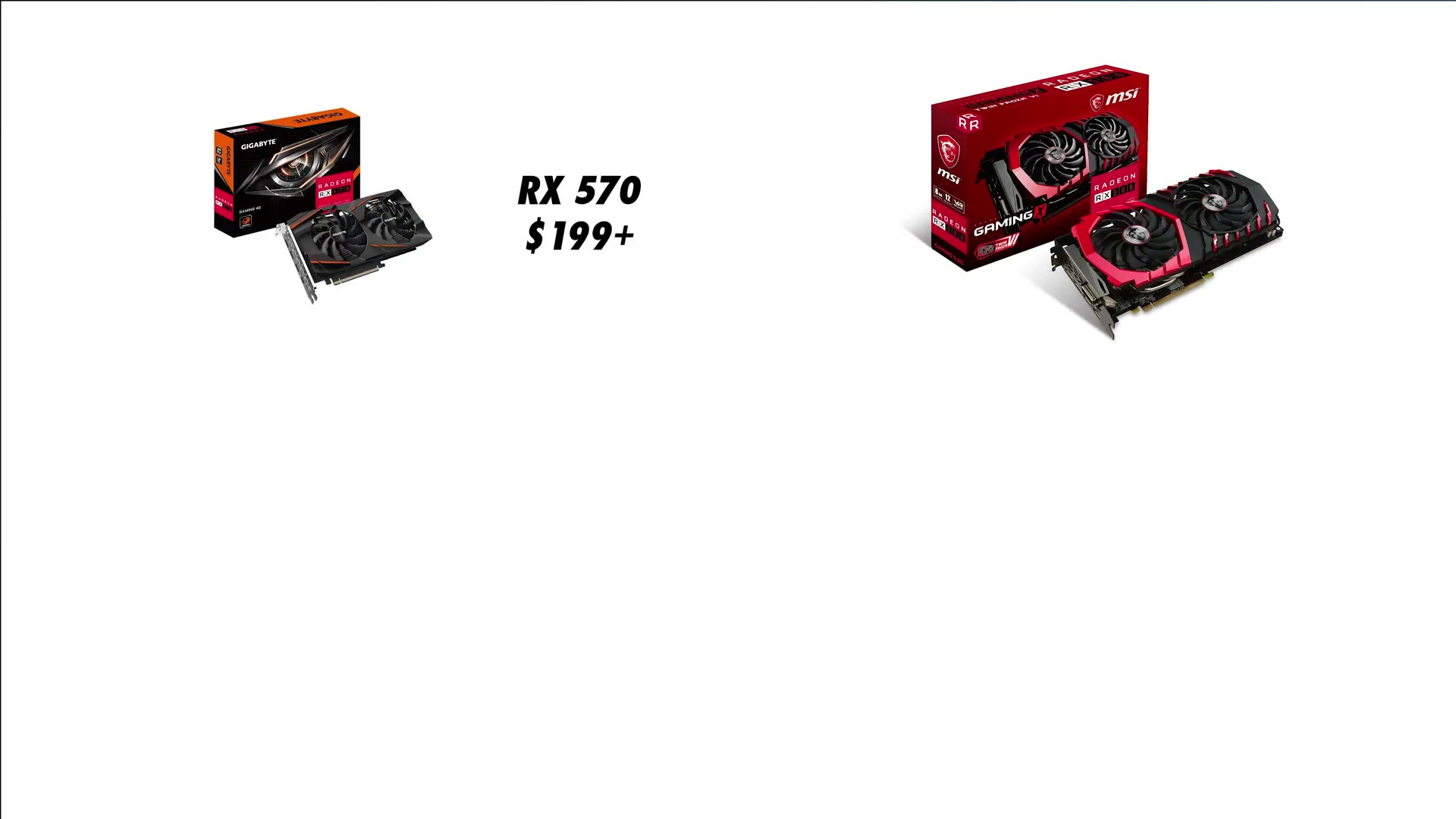
For AMD, I’d recommend the Radeon RX 570, the RX 580, the RX 5500 or the RX 5600. Any of those will be good for 4K editing, but make sure you get a model with 8GB of video RAM, because the 4GB versions aren’t quite as good.
I’ve linked all of these, but I can’t guarantee they’ll stay in stock, because it changes hour to hour. Set up stock alerts on Amazon, Newegg and B&H so you get notified the moment they’re back. And if you live near a Micro Center or Best Buy and can go in person, your odds go way up. I’ve actually heard from viewers of my previous build guides who walked into a Micro Center, said they were building a custom video editing computer, and got told oh yeah, we’ve got a card in the back for you. That’s awesome.
Power Supply
The power supply gives all your parts the electrical juice they crave. I’d go with the EVGA 500 BR, which has a great price and is quite energy efficient.
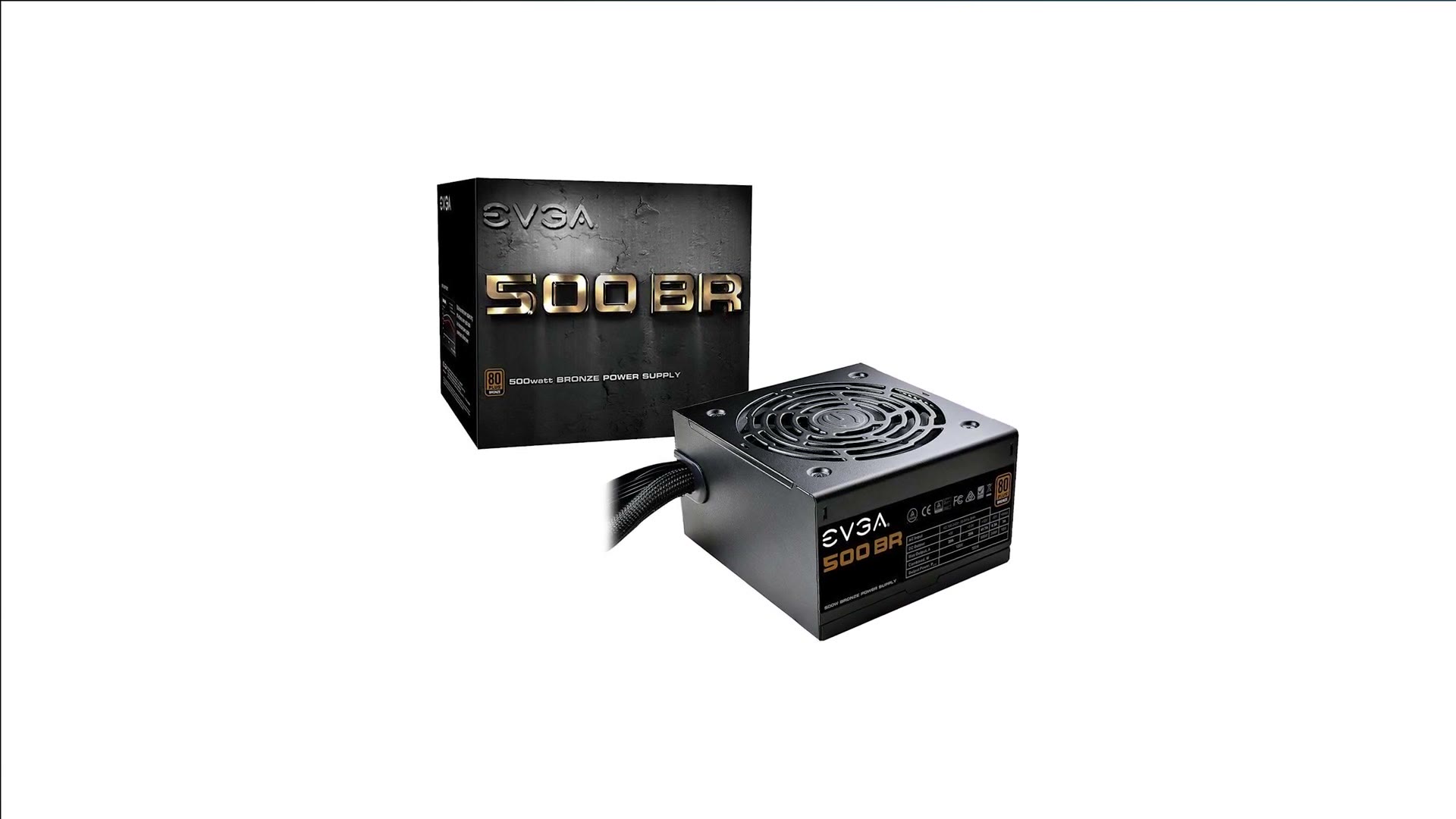
Keep in mind it isn’t modular, meaning every cable is permanently attached to the back of it, which makes cable management a bit harder but keeps the cost down. If you have some extra money and want easier cable management, the EVGA BQ 500W is semi modular and should result in a cleaner build for not much more.
Case Options
You need somewhere to put all of this, and I’m changing things up from my previous builds with a case from Corsair, the $79 275R Airflow mid tower. As the name implies, it offers great airflow.
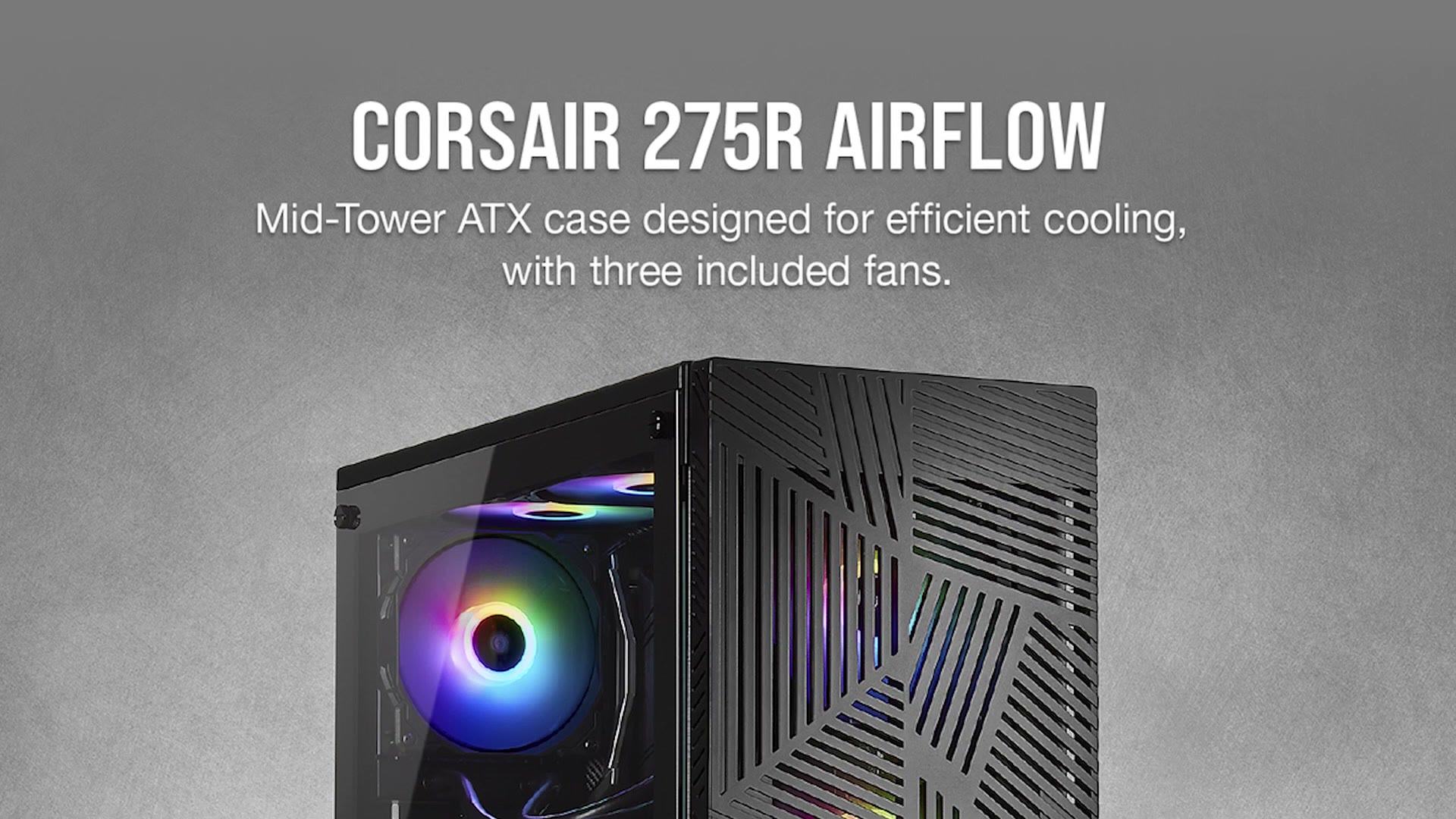
In the past I’ve recommended the NZXT H510, mainly because my build video shows everything going into that exact case. But I really want you to have good airflow, which is why I’m switching. Don’t worry, the parts go into this one very similarly, so you can still follow along.
Be aware that this case has no 5.25 inch drive bays, so you won’t be able to install a CD, DVD or Blu-ray burner inside it. The good news is you can get an external DVD burner for around 25 bucks and an external Blu-ray burner for under a hundred.
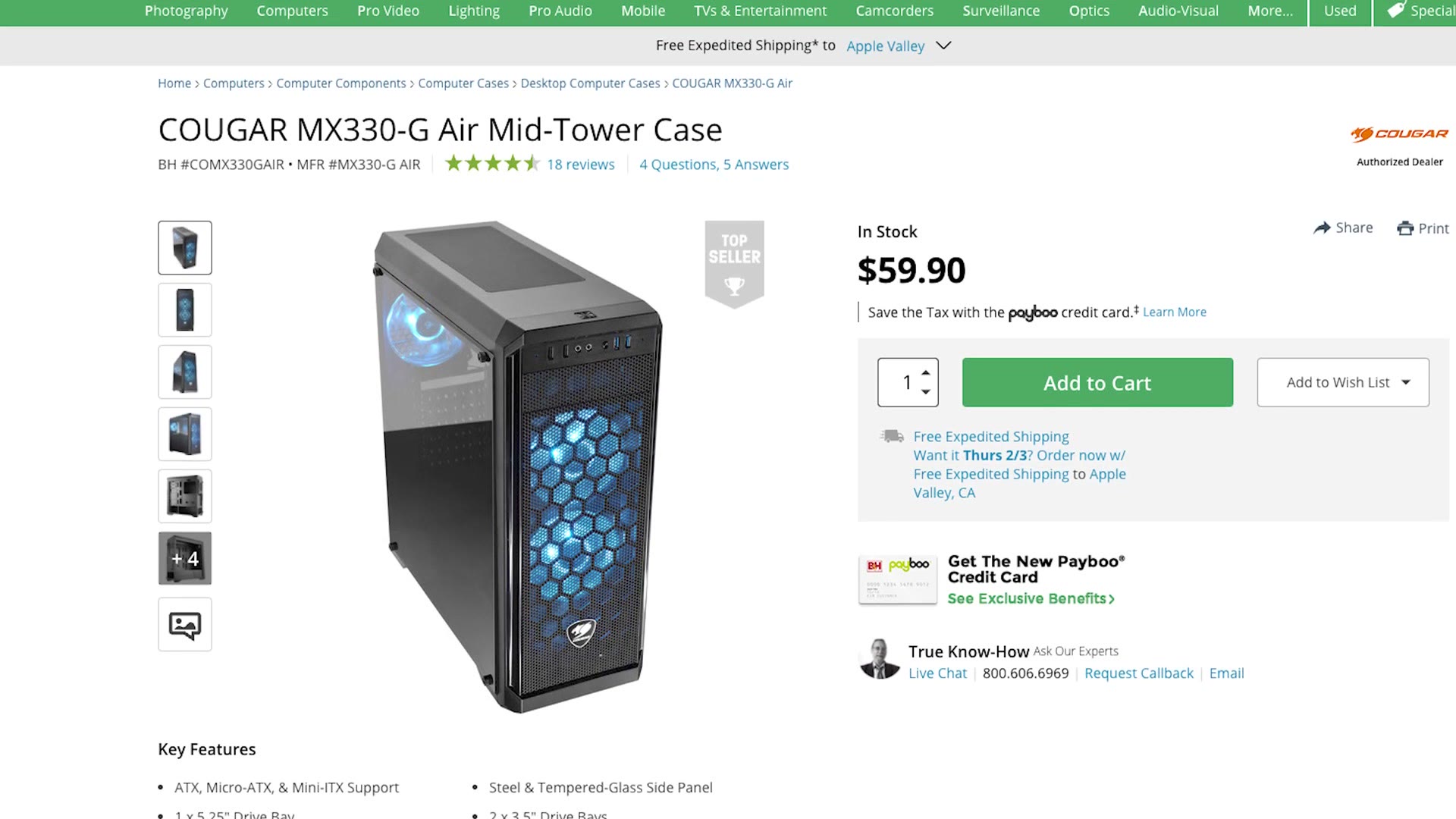
If you really want a case with a 5.25 inch bay for an internal burner, I’d recommend the Cougar MX330-G. It isn’t quite as pretty as the NZXT, but it has great airflow and thousands of people love it.
And that is your under $1,000 video editing PC build.
Mouse, Keyboard, Monitor, Speakers Etc…
There’s more you’ll need: a mouse, a keyboard, a monitor, speakers, an operating system. For the physical accessories there are so many options that it comes down entirely to what you prefer, but here are mine: a keyboard with macros for editing, the best mouse I’ve ever used, affordable speakers, and either a good 1080p monitor or a 27 inch 4K one. For 4K editing I’d take the 4K option.
For the operating system, I’d go with Windows 10, and here’s a Tom’s Hardware article on getting a copy free or very cheap. Once you’ve got Windows 10, you can upgrade to 11 for free.
What About Apple?!
Before we finish, I want to restate how crazy the computer industry is right now and how hard it is to find parts. Heck, in the time it took me to research this build and post the video, parts went out of stock and I had to revise it before publishing. It’s a whole deal.
So one final alternative. If you’ve read all of this and half the parts are out of stock, comment and let me know and I’ll try to update the links. But even then, as weird as it is to say in a guide about building a PC, I think you should also consider an Apple Mac mini with the M1 chip.
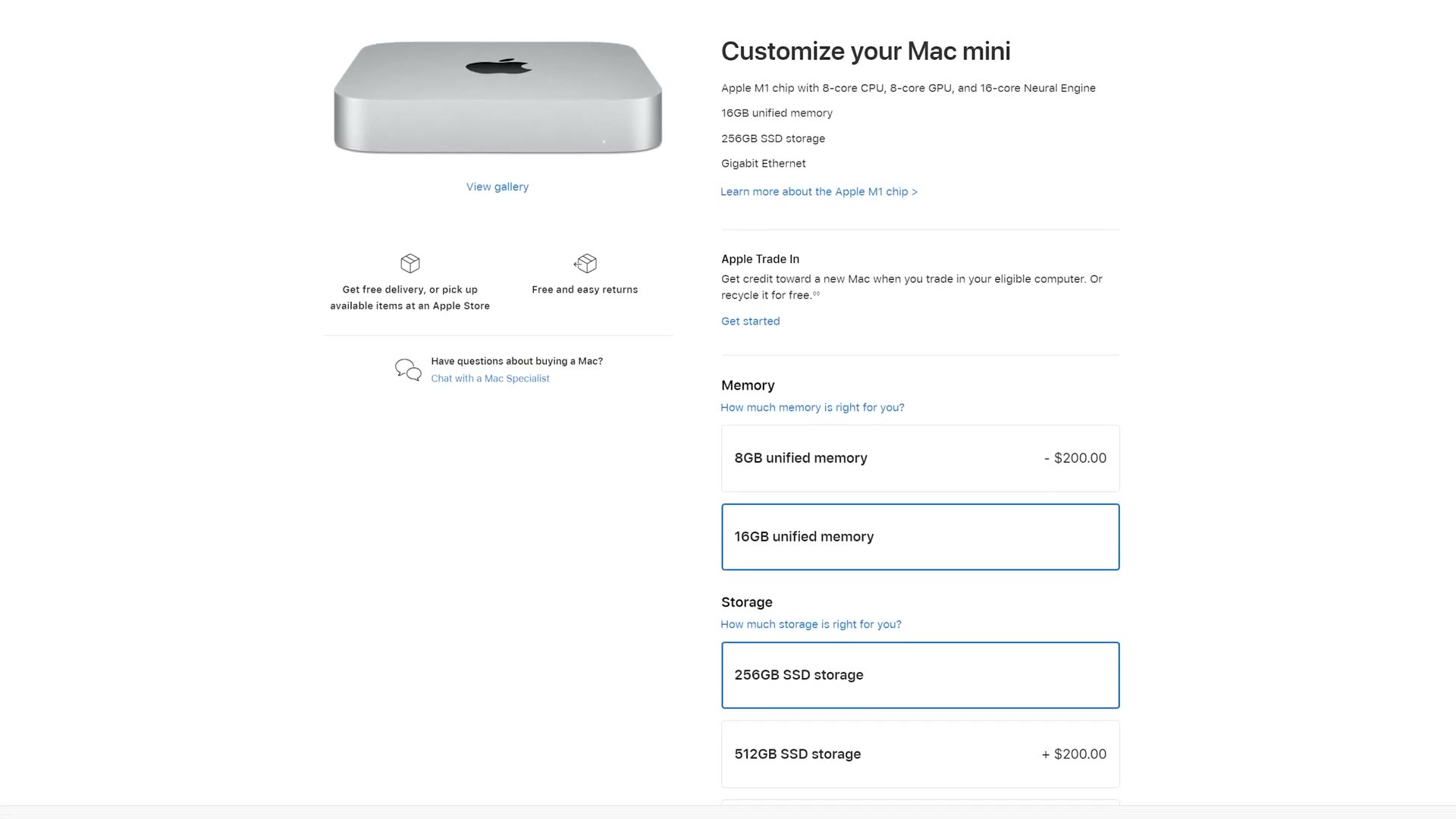
You can get an M1 Mac mini with 16GB of RAM for under a thousand bucks, and it’s a genuinely capable 4K editing machine.

The footage here is graded with my own color presets at whoismatt.com/luts, my filmmaking gear list is on kit.co, and I have filmmaking courses if you want to go deeper.
Thanks so much for reading, and have a great day!