
Because I respect your time, here’s the short version: the OLED MacBook Pro is worth it for a lot of video editors, but only if you actually color grade on the laptop screen. If you mostly edit plugged into an external monitor at your desk, save the 400 bucks and buy the mini-LED model, because the chip and the video hardware inside are identical.
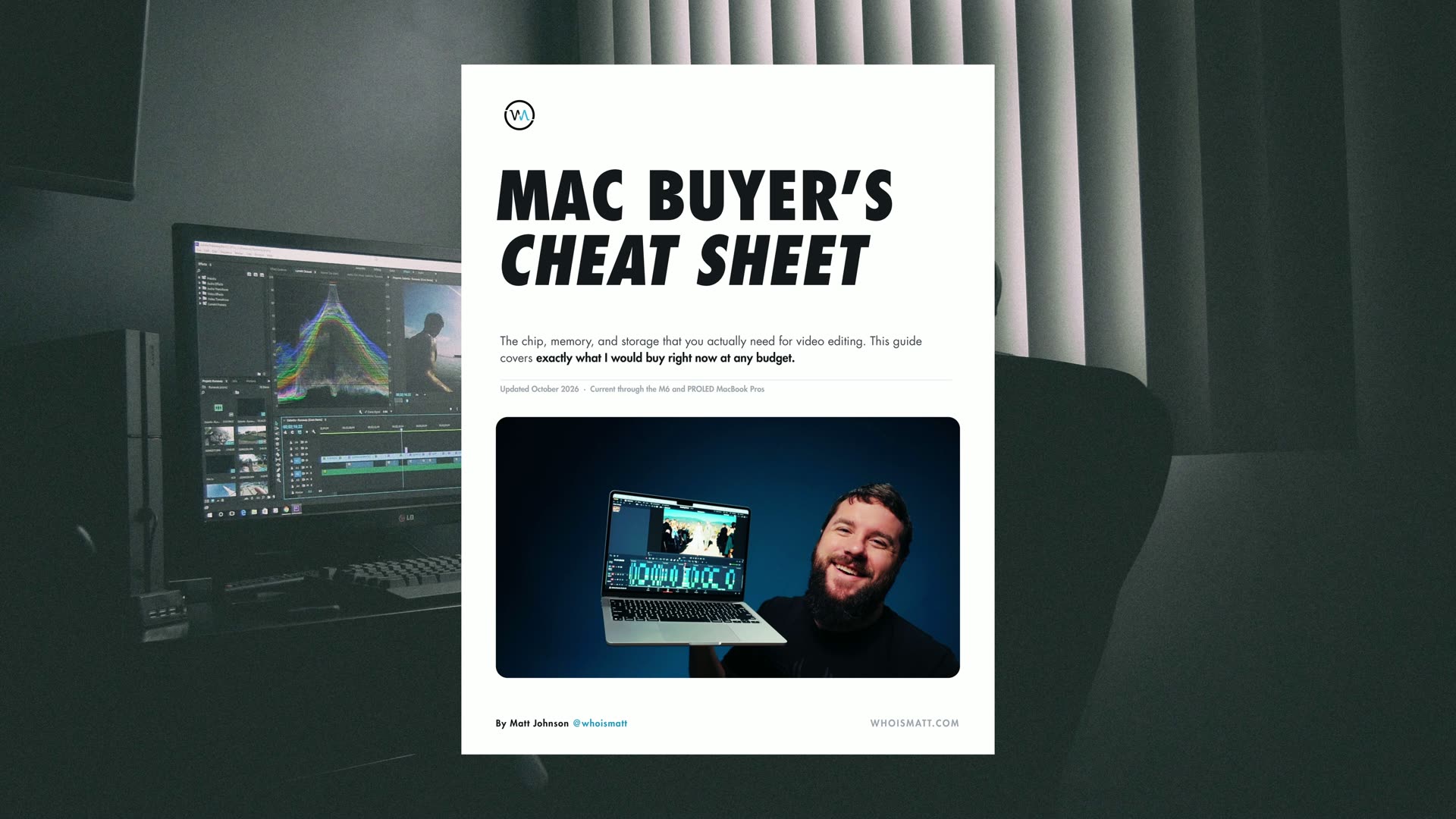
I’ve been editing video professionally for over 15 years, and below are the exact MacBook Pros I would buy for video editing right now at three price points, plus one bonus budget pick. Every configuration has its own link, one link per configuration, so you don’t have to go fight Apple’s configurator yourself. And if you want all of this on one page, my free Mac Buyer’s Cheat Sheet has my exact picks for every Mac at every budget, and I just updated the MacBook Pro page with everything in this post.
BONUS Budget Pick: Refurbished M5 MacBook Pro
Just like my last MacBook buyer’s guide this spring, I kind of lied about only having three recommendations, because I have one bonus budget option for you first.
If you don’t have a lot to spend, last year’s base MacBook Pro with the M5 chip, refurbished straight from Apple, is available for $1,609 at the time of recording this video. And here’s the good news: the media engine in the M5 has the same layout as the brand new M6, one video encoder and one video decoder. So for H.264 and H.265 video editing, you’re gonna have a very similar experience while saving a lot of money.
Apple’s refurbished store changes basically daily though, so check that link for the current price.
BUDGET Pick: Base M6 MacBook Pro
If you want a powerful, budget friendly MacBook Pro that will easily handle editing 4K video, especially footage filmed in the very common H.264 and H.265 codecs, this is actually a really easy choice: the base 14 inch M6 MacBook Pro for $2,000.
You’re getting Apple’s newest chip with a 12-core CPU and 12-core GPU, up from 10 and 10 on the M5, plus 16GB of memory and a 1TB SSD. Apple says the graphics are up to 30% faster than the M5, which is great to see.
There is a catch though: the base model went up in price. Whenever I made my last MacBook buyer’s guide this spring, the base M5 model was $1,700, and now the base model is $2,000. Thank you, AI, for driving up memory prices!
And there’s one more very important thing to keep in mind. You cannot get the new OLED display on this one. The PROLED display is only available with the M5 Pro and M5 Max chips, so if you want OLED, you have to step up to my next recommendation.
I would also try to keep at least 100GB free on the internal SSD, because that helps your computer stay as fast as possible. Instead of paying Apple for internal storage, look at editing from an external SSD if you can find one for cheaper. The two I recommend are the Samsung T7 and, if you want something faster, the Samsung T9.
The Only TWO Upgrades I’d Allow
I’m sure you’re wondering, “Matt, are you really only recommending the base MacBook for a budget option?” Here’s what I will allow: two small upgrades, and to be clear, both are entirely up to you.
- The nano-texture display for $150. If you commonly edit in bright places, like a coffee shop sitting by a window, nano-texture removes the vast majority of those reflections, and in my opinion it is entirely worth it.
- The 96W power adapter for $20. It charges your laptop faster, and hey, it’s 20 bucks. You might as well while you’re spending thousands of dollars.
Why I’d SKIP The Memory Upgrade
This one is actually more tempting than usual. Apple’s spec page says the 16GB model has 153GB/s of memory bandwidth and the 24GB model jumps to 170GB/s, so the $200 memory upgrade gets you more and faster memory.
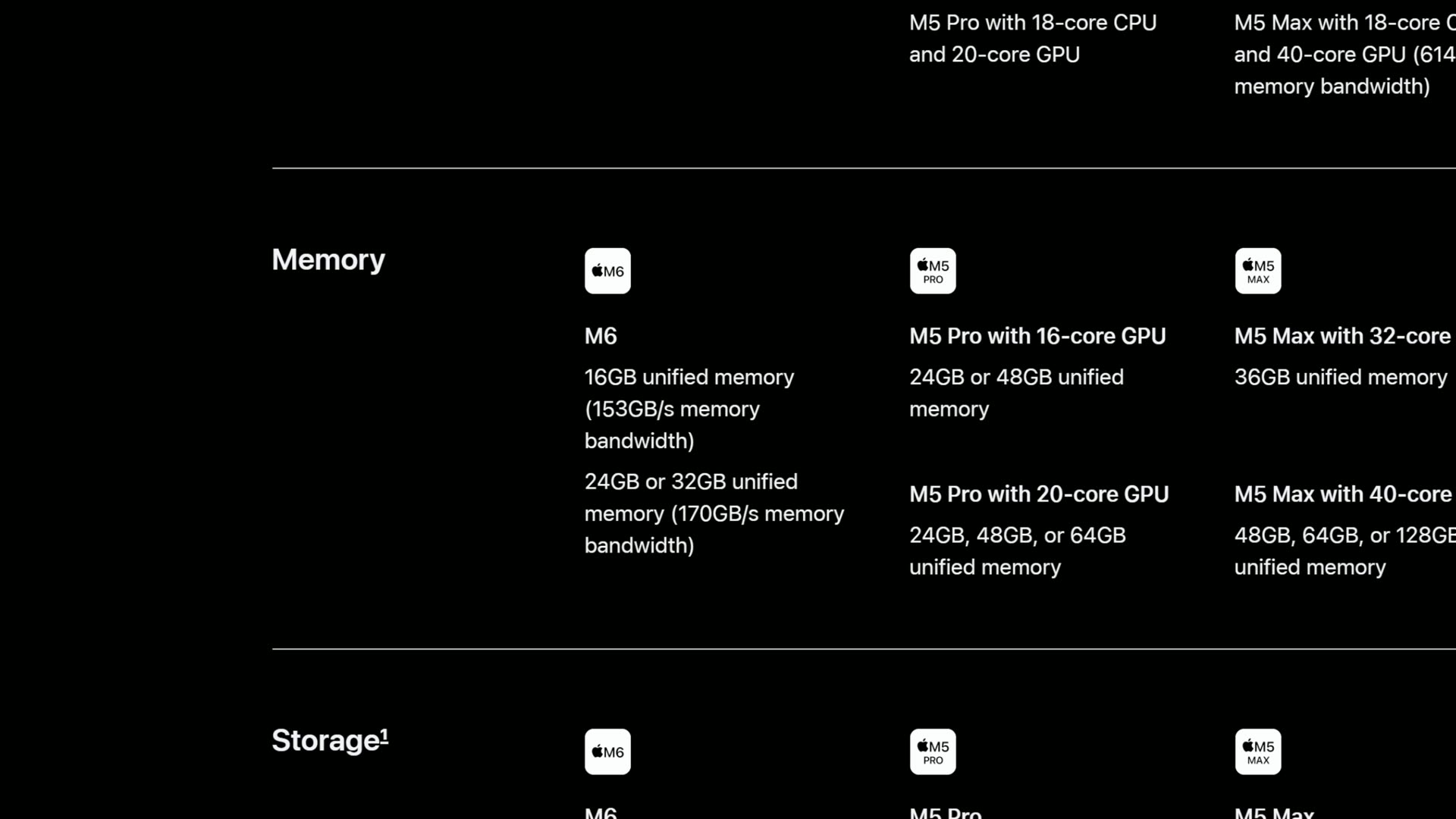
Here’s the deal though: that puts you at $2,200. The MacBook Pro with the M5 Pro chip is only $300 more than that, with 24GB of memory running at 307GB/s, which is almost double. So if you’re gonna upgrade the memory, stop and look at my best bang for your buck recommendation instead.
BEST Bang For Your Buck: Base M5 Pro
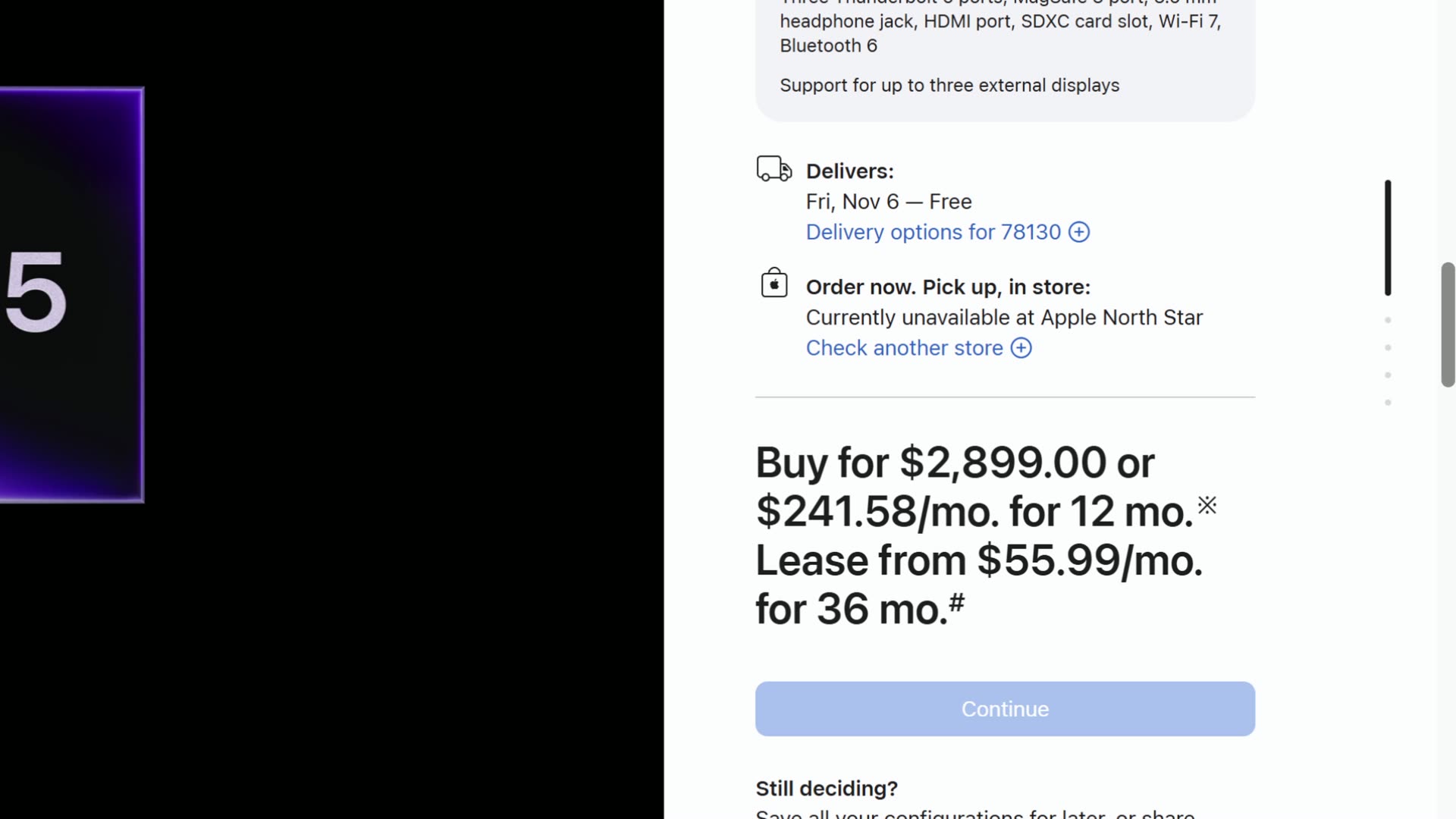
For the best bang for your buck, and the cheapest way to unlock the beautiful new touchscreen PROLED XDR display, get the lowest tier 14 inch MacBook Pro with the M5 Pro: 15-core CPU, 16-core GPU, 24GB of memory and a 1TB SSD. This is literally the cheapest M5 Pro model you can buy, and it now comes in two versions:
- M5 Pro MacBook Pro with the mini-LED display for $2,500
- M5 Pro MacBook Pro with the PROLED display for $2,900
To be clear, the chip inside both is identical, and so is the video hardware. The M5 Pro actually has the same number of video encoders and decoders as the base M6, one of each. What you’re paying for is more CPU cores, which make your editing faster, 24GB of much faster memory, Thunderbolt 5 ports for the fastest external SSDs, and now the option for that new display.
Is The OLED MacBook Pro Display WORTH $400?
For a lot of video editors, I think the answer is yes, and here’s why.
The important letters in the word PROLED are those last four. OLED means every single pixel makes its own light, and whenever a pixel is black, it is actually off. Apple says the contrast ratio is 10 million to one versus 1 million to one on the mini-LED display, and HDR peak brightness goes from 1,600 nits up to 2,000.
If you’ve ever color graded a dark scene on a mini-LED screen and seen that little glow around bright text or a bright light in a dark frame, that’s the backlight zones blooming. OLED doesn’t do that.
Apple also says every one of these displays is calibrated at the factory, covers P3 and Adobe RGB, and has all the reference modes like HDR video. So whenever you’re color grading, what you see is much closer to what you’re actually delivering. For anyone who grades their own videos on their laptop, whether that’s from scratch or starting from my LUTs, that is a really big deal, and it makes this one of the best screens you can use while editing on the go.
The main thing you need to keep in mind is that if you mostly edit plugged into an external monitor at your desk, you won’t see that fancy display most of the time. In that case, save the $400 and buy the mini-LED model.
Is Touch Actually USEFUL For Video Editing?
Honestly, as far as video editing goes, touch is not that exciting. Apple says DaVinci Resolve is one of the apps getting touch support, and I sure am curious to try scrubbing a timeline with my finger, but here’s the deal.
I’ve used touchscreen Windows laptops for many years, and it’s extremely rare that I actually touch the screen. It’s more annoying to then deal with smudges on the screen. So I wasn’t that excited about the MacBook Pro getting a touchscreen, and I don’t think that many people will use it.
I do think iPhone app developers will be very happy though. iPhone and iPad apps already run on these Macs, and now you can tap through them right on your laptop screen without grabbing your phone and transferring a build to test it. Not to mention the new laptop is half a pound lighter at about three pounds, which is great to see.
The last thing I’ll say about the touchscreen is this: if you go for a PROLED model and you plan on touching the screen, get the nano-texture display for an extra $150. That should help hide smudges from your fingers, and it also helps if you edit near bright windows.
M5 Pro Upgrades I Would SKIP
Here’s why you ideally want this base model, for real.
- Processor: there’s an upgrade to an 18-core CPU and 20-core GPU for another $200, but you’re not getting any more video encoders or decoders with it. I don’t think it’s worth it, so save your money.
- Memory: 24GB is enough for 4K video editing. You can upgrade to 48GB, but it’s now $600, which is $200 more than it was in my spring buyer’s guide. Again, memory prices are to blame. If you want the future-proofing, that’s up to you, but every dollar you spend here pushes you closer to my beastly laptop recommendation.
- Storage: you already get 1TB, which I think is good. Remember, an external SSD is the cheaper way to add space.
- Power adapter: I would definitely spend the extra $20 on the 96W adapter. It charges so much faster! Apple, why don’t you just include it?
Like I said, at $2,900, the M5 Pro MacBook Pro with the PROLED display is a killer deal for video editors who color grade on their laptop. Add the power adapter and nano-texture and you land at $3,069. The closer you stay to that number, the better deal you’re getting, in my opinion.
BEASTLY Pick: Base M5 Max
If you have a higher budget and you want a no-holds-barred laptop that will easily handle any resolution or quality of video you throw at it, especially if you commonly edit 6K or 8K footage, or raw footage, which more and more cameras are recording these days, this is my recommendation.
And no, it does not involve going to Apple’s configurator and selecting the maximum option for everything. Thanks to the new 16TB SSD option, a maxed out 14 inch PROLED MacBook Pro is now $14,249. Isn’t that wild? You don’t need to go anywhere near that expensive, especially for video editing.
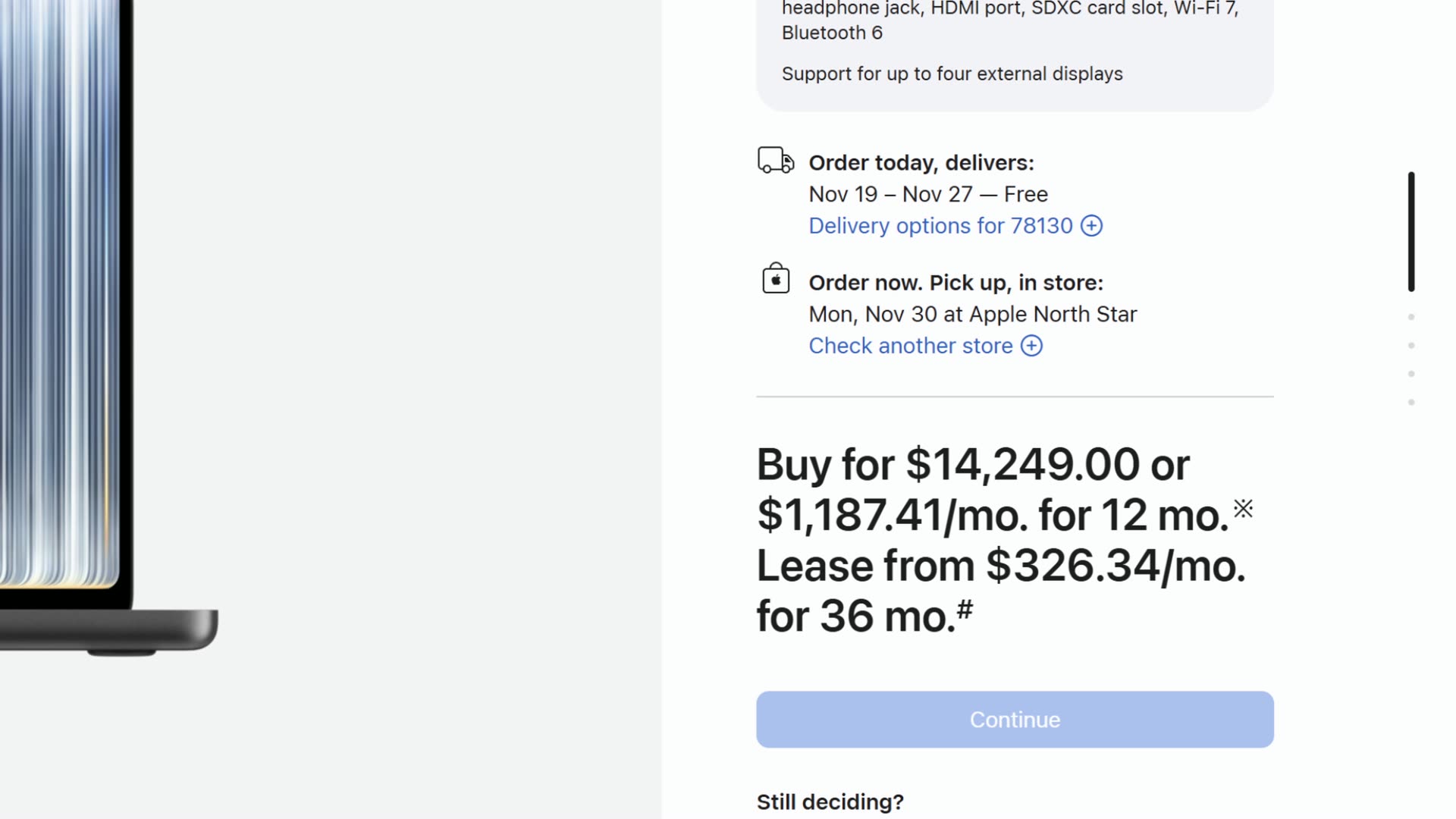
For the most powerful option, get the cheapest 14 inch MacBook Pro with the M5 Max: 18-core CPU, 32-core GPU, 36GB of memory and a 2TB SSD.
- M5 Max MacBook Pro with the mini-LED display for $4,100
- M5 Max MacBook Pro with the PROLED display for $4,500
Why The M5 Max Exports FASTER
Now I know somebody is thinking, “Matt, the M5 Max has the same 18-core CPU as the upgraded M5 Pro you just told me to skip.” And to that, my answer is yes, it does. But the CPU isn’t everything, because what matters most for video editing is the video hardware built into the chip.
The M5 Pro has one video encoder and one ProRes engine, and the M5 Max has two video encoders and two ProRes engines, which have the potential to dramatically speed up your exports.
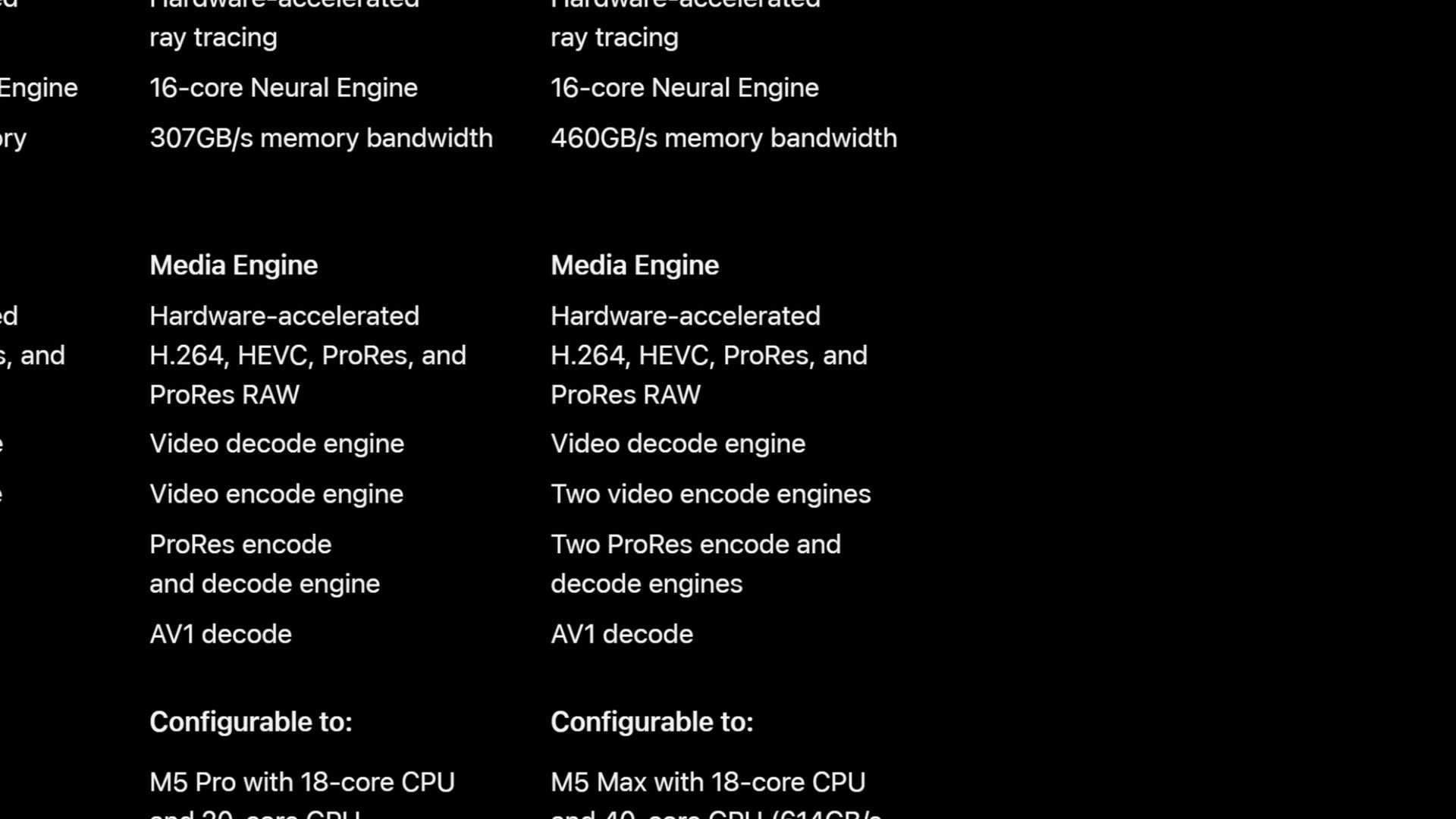
To be clear, Apple’s spec page still lists one video decoder on the M5 Max, so it’s not gonna be double the speed across the board. But especially whenever you’re editing or working in ProRes, it’s a dramatic difference, and this is the cheapest way to get that speed.
The case for the PROLED display is even stronger here, too. If you’re spending $4,100 on a laptop to edit 6K and 8K footage, you’re probably color grading it as well, and another $400 for what Apple calls the world’s best display in a pro laptop is a pretty easy call in my opinion.
M5 Max Upgrades Get COMPLICATED
Just like last time, this is where it gets complicated, because some upgrades unlock other upgrades. Apple makes it complicated for real.
- Nano-texture is still $150. Get it if you’ll be touching the screen.
- Storage: 4TB is another $1,000. Only buy it if you can’t find a cheaper external SSD.
- Memory: the default 36GB is fine for 4K, 6K and even 8K projects as long as they’re small. Once you start working on longer projects, that’s where your laptop is gonna run out of memory, and it’s one of the main reasons I upgraded my own video editing desktop to 64GB.
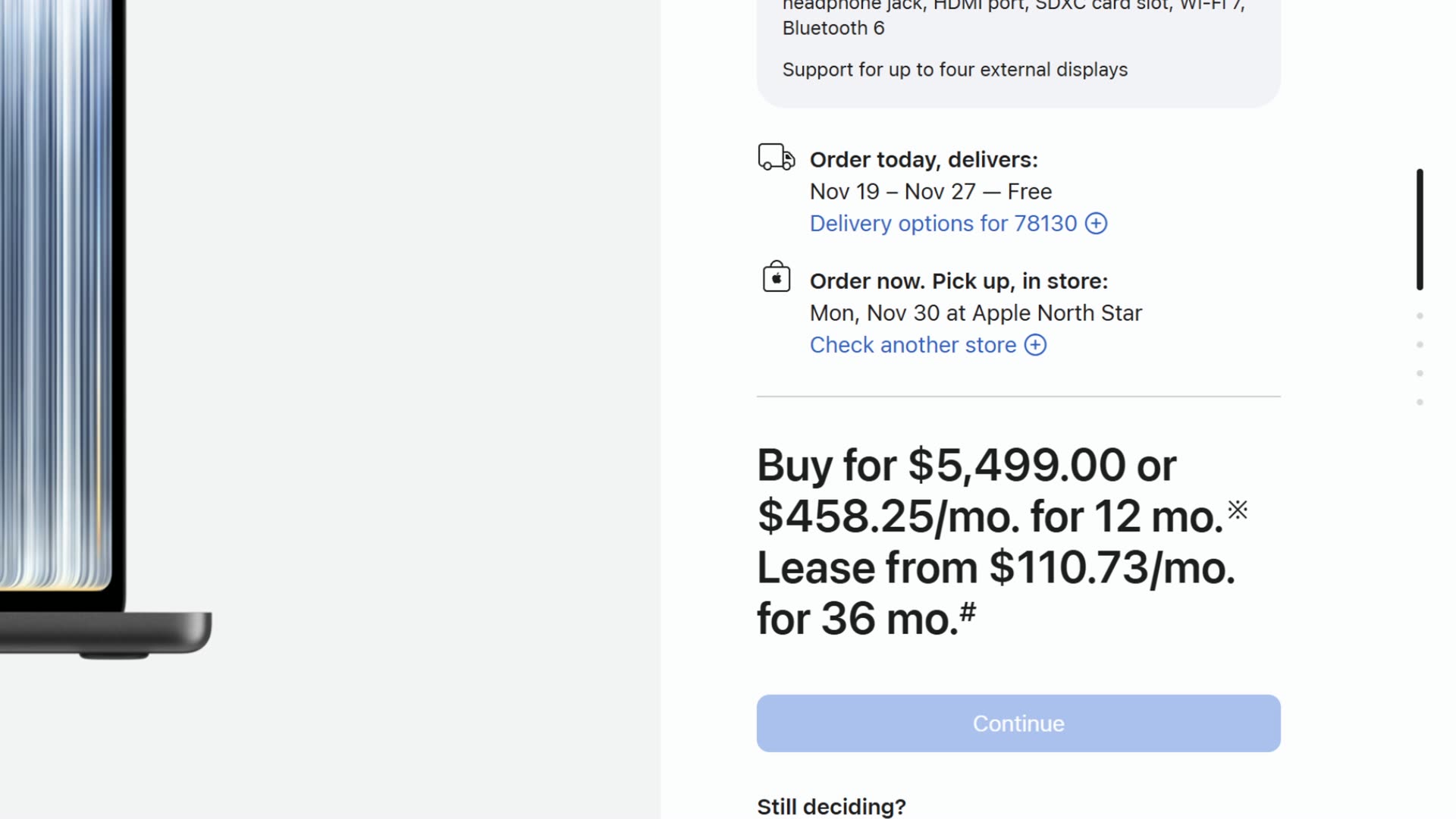
Here’s the catch: you can’t just add memory to the base M5 Max. To get 48GB or 64GB, you have to upgrade to the 40-core GPU for $300, which forces you up to 48GB for another $300, and then 64GB is another $400 on top of that. So 64GB of memory is an extra $1,000, which brings the PROLED M5 Max with the 40-core GPU and 64GB up to $5,499.
The Number Where You STOP Spending
And now we’ve reached the point where you stop spending money on an M5 Max MacBook Pro: $5,499. With a PROLED display and 64GB, I would not go past it.
The one exception is if you want the 16 inch model. That’s fine, no sweat there. It doesn’t make a huge difference other than the screen size, which some people really like. Otherwise, don’t get 128GB of memory. I don’t think you need it, and if you want to go crazy you can, but I wouldn’t.
SAVE Over $1,000 With A Refurbished M5 Max
If that sounds like a lot of money, which it definitely is, here’s a way to save some. Apple’s refurbished store currently has the 14 inch M5 Max with the mini-LED display, the exact same 18-core CPU and 32-core GPU chip, for $3,479 at the time of recording this video.
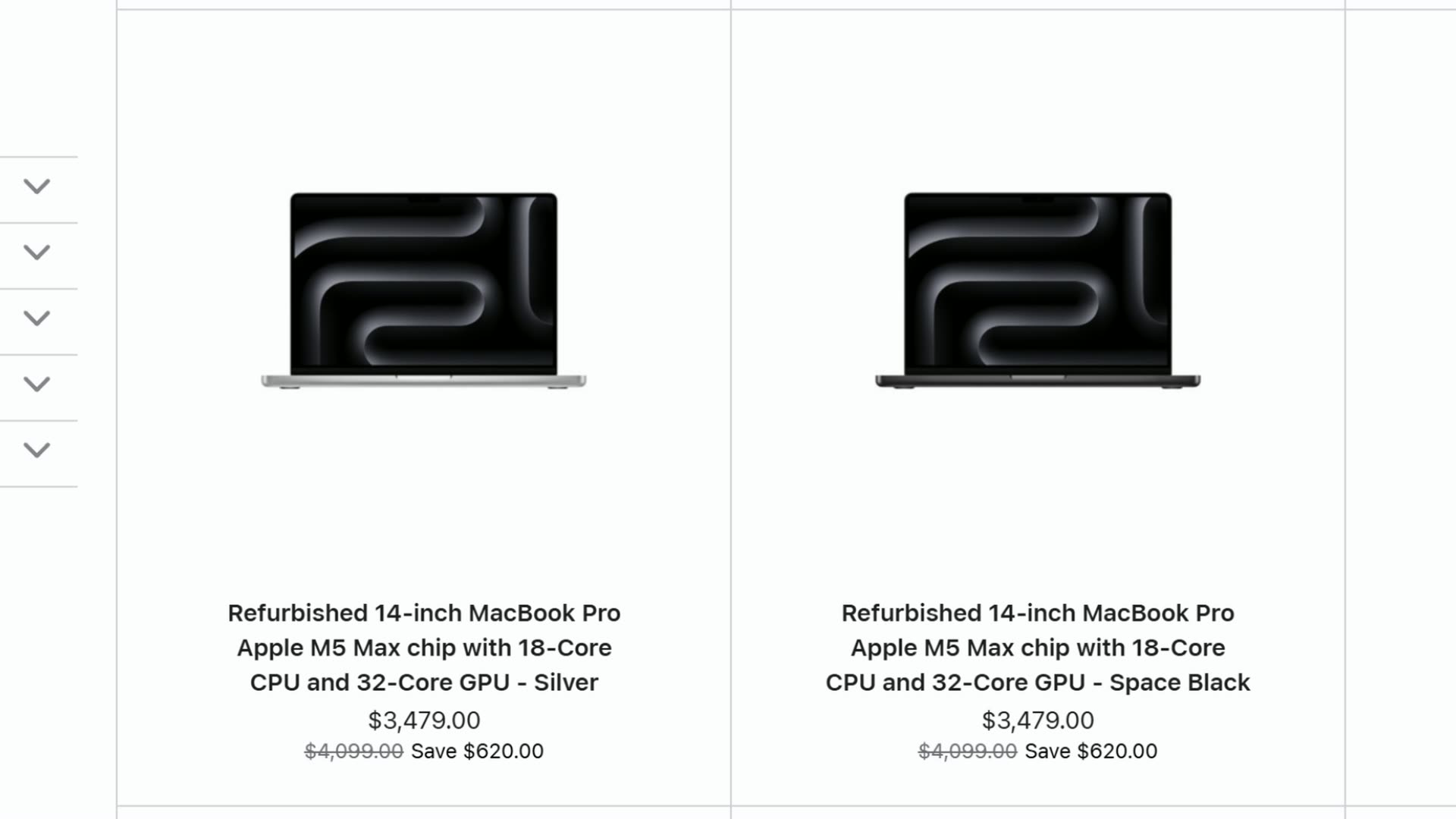
That’s over a thousand bucks less than the PROLED version, and you’re getting the exact same two encoders. If you mostly edit on an external monitor, I think that is one of the best ways to spend your money in this whole guide. Heck, use the leftover money to buy an OLED monitor to edit from, like the MSI 27 inch 4K OLED (here’s my full review of the $700 MSI OLED monitor) or the Dell 32 inch 4K OLED, which calibrates itself, as I found in my Dell U3226Q review.
How To Buy Any MacBook Pro For LESS
A few more ways to save money:
- If you’re a student, check Apple’s education store. The base M6 drops to $1,899, the M5 Pro drops to $2,349 with the mini-LED display or $2,749 with the PROLED, the M5 Max starts at $3,799, and even the nano-texture display drops to $135.
- Check Apple’s refurbished store regularly.
- Check other retailers before you buy. The links in this post open a page with several retailers, because some of them are where I found the absolute cheapest price. At the time of recording, I was already seeing discounts at Amazon and at Costco.
Which One Should YOU Buy?
If you’re still not sure, even after all of that, leave me a comment on the video with what you edit and what your budget is, and I’ll tell you which one I would buy. My Mac for video editing playlist has all of my videos on the MacBooks and desktops I recommend, including which M5 Mac Studio I’d buy for video editing and why I’d skip the M5 Pro Mac mini.
And don’t forget my free Mac Buyer’s Cheat Sheet, which has my exact picks for every MacBook Air, MacBook Pro, Mac mini and Mac Studio at every budget, plus four questions that help you decide which one you should actually buy. It was just updated, so it covers literally everything. And once your new Mac shows up, my free Edit Videos Like A Pro guide will help you get the most out of it.