
Here’s the short version, because I respect your time: for video editing, the M5 Mac Studio I think most people should buy is the base M5 Max model at $2,500, not the 40-core GPU upgrade Apple pushes for 8K. If you’re on a tighter budget, a refurbished M4 Max Mac Studio does almost the same job for $1,949, and if you edit RAW for a living, go straight to the base M5 Ultra. And the number where you stop spending money on an M5 Max is $3,800. Past that point, the Ultra is the better computer.
I’ve been editing video professionally for over 15 years, and Apple’s website makes two claims about the 40-core GPU that I have a problem with. First, that upgrade is not the $300 Apple shows you, it’s actually $600. And second, it does not give you an extra video encoder, which for video editing is the one thing that matters most.
Every configuration below is linked, one link per configuration, so you don’t have to go fight Apple’s configurator yourself. And if you want all of my Mac picks on one page, including the MacBooks and Mac Minis I recommend at every price point, grab my free Mac Buyer’s Cheat Sheet.
Budget Pick: Refurbished M4 Max Mac Studio
The most budget-friendly way to get Mac Studio level video editing performance right now is not a new Mac Studio at all. It’s a refurbished M4 Max Mac Studio from last year. And to understand why, you need the framework I want you to have before we talk about a single other computer.
The Spec That Matters Most For Video Editing
For video editing, the thing that affects your speed the most is not CPU cores. It’s the video encode and decode engines Apple builds into the chip. The encoders render your video out, and the decoders play your timeline back smoothly whenever you have a bunch of clips stacked up.
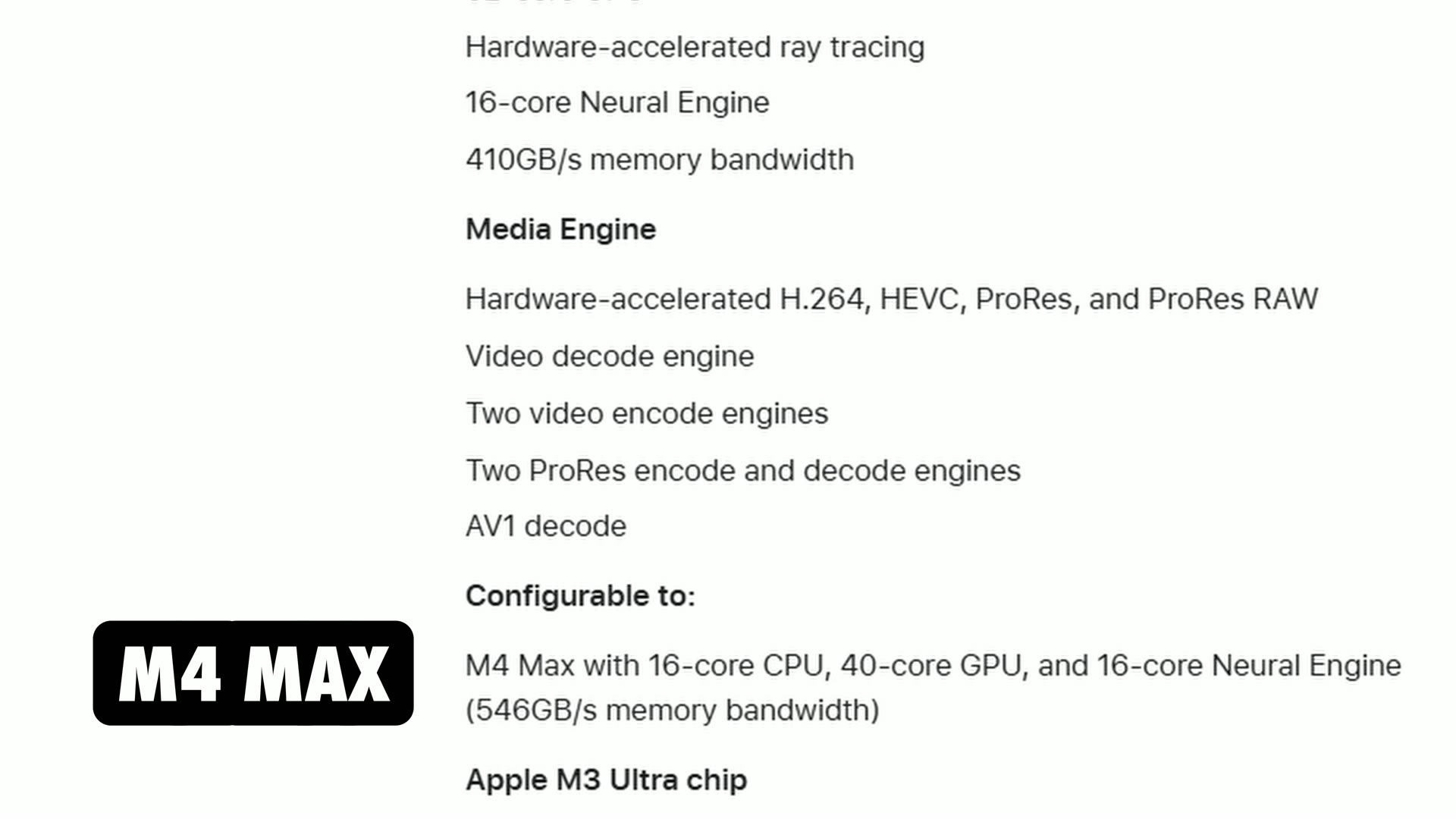
So whenever you go look at Apple’s own spec sheet, last year’s M4 Max has one video decode engine, two video encode engines, and two ProRes engines. And the brand new M5 Max? One decode, two encode, two ProRes. It is the same. Apple did not add a single new encoder this generation.
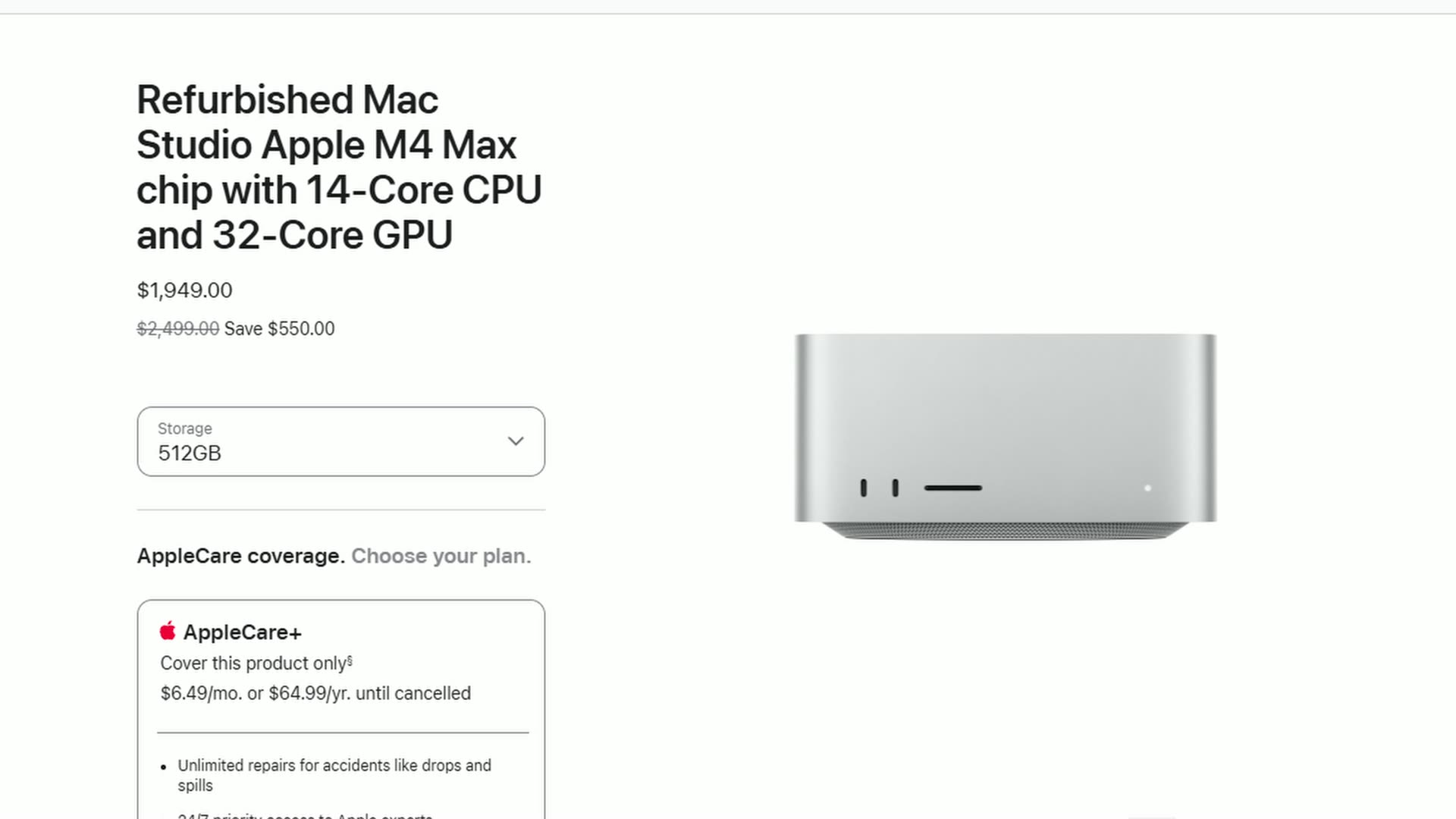
Which means that at the time of making this, Apple’s refurbished store has the refurbished M4 Max Mac Studio with a 14-core CPU, 32-core GPU, 36 gigs of memory and a 512 gig SSD for $1,949. That’s $550 off a brand new Mac Studio, with Apple’s one year warranty. For a video editor, that’s a fantastic deal!
Here’s my rule, because refurbished stock moves fast and could go out of stock at any time: buy a used or refurbished M4 Max Mac Studio if you can get it for about $1,950 or less. If the cheapest one you can find is $2,200 or $2,300, forget it and just buy the new one. Those last couple hundred bucks get you faster memory, an SSD that’s twice as fast, Wi-Fi 7 and genlock support. B&H already has the M4 Max marked as discontinued too, so I wouldn’t count on finding one forever.
Oh, and older Mac Studios with M1 Max, M2 Max and M3 Max chips also have two encode engines, so they’re very capable. But Apple upgraded the encoders themselves with the M4 generation, so those older chips run a slower version of the same engines. If the price is right, they’re great, just know what you’re getting.
Do You Even Need A Mac Studio?
If you’re only editing HD and 4K footage in H.264 or H.265, and you aren’t editing 6K, 8K or RAW, then you don’t need a Mac Studio at all. Buy the base M6 Mac Mini for $899 and put the difference toward a monitor. I walk through the exact specs to get in my Mac Mini buyer’s guide for video editing.
Best Bang For Your Buck: Base M5 Max
To get the best bang for your buck Mac Studio, you want the base model: the M5 Max Mac Studio with the 18-core CPU, 32-core GPU, 36 gigs of memory and a 512 gig SSD for $2,500 at the time of making this, or $2,300 through Apple’s education store.
I cannot overstate the value you’re getting for this price. You get the two video encode engines and two ProRes engines we just talked about, which is twice what any Mac Mini is gonna give you. So this thing is gonna chew through 4K, 6K, even 8K footage in H.264, H.265 and ProRes.
The CPU got redesigned this year, and it’s 18 cores now instead of 14. There are also no CPU upgrades to buy at all, which I absolutely love, because that’s one less thing Apple can upsell you on.
What’s New In The M5 Mac Studio
Even better, this generation finally got some things I’ve been asking for as a video editor:
- A PCIe Gen 6 SSD. Apple says storage is up to twice as fast, so importing and offloading footage and scrubbing the timeline should be quicker.
- Wi-Fi 7, for the first time.
- Genlock over USB-C. This is the one pro video people are gonna care about, because you can sync the Mac Studio precisely with professional camera capture. That’s fantastic to see on a $2,500 computer.
The One Limitation Of The Base Model
If the base Mac Studio has one limitation, it’s the 512 gig SSD. To be clear, that’s plenty of room for your operating system and your editing apps, but I would not put your video files on the internal drive and edit from them, because once you start filling it up, it’s gonna slow the rest of the computer down.
So my recommendation is the same one I’ve given for years: buy an external SSD like the Samsung T7 or the faster Samsung T9 and edit from that instead, if you can find one for cheap. Otherwise, the $300 bump to a 1TB M5 Max Mac Studio is the storage upgrade I won’t argue with, and that puts you at about $2,800.
Is The 40-Core GPU Worth It?
Apple’s own website tells you to upgrade to the 40-core GPU for 8K video editing. I hear you telling me, “Matt, Apple says to buy it, so I should buy it, right?” And to that my answer is: sort of, but not for the reason Apple gives you.
Here’s the deal. The 40-core GPU option does not give you one single extra video encoder. Not even one. You still get two encode engines, one decode engine and two ProRes engines, exactly the same as the base model. So if you’re exporting a timeline of H.264, H.265 or ProRes, that upgrade is not gonna make your export meaningfully faster. That’s the part of Apple’s recommendation I think is a bit misleading.
But it does give you two real things:
- Memory bandwidth. The base 32-core model runs its memory at 460 gigabytes per second, and the 40-core model runs at 614. That’s a 33% jump, and bandwidth is exactly what you’re leaning on whenever you’re scrubbing through a giant 8K timeline.
- Access to more memory. This is honestly the bigger deal. The base 32-core Mac Studio is locked at 36 gigs of memory, and you can’t upgrade it at all. The only way to get 48, 64 or 128 gigs in the Mac Studio is to buy the 40-core GPU model first.
The Hidden $300 Apple Doesn’t Tell You About
Which brings me back to that $300 that isn’t $300. On the website, the 40-core GPU shows up as a $300 upgrade, but whenever you click on it, Apple quietly bumps your memory from 36 gigs to 48, and that’s another $300. So you’re going from $2,500 to $3,100.
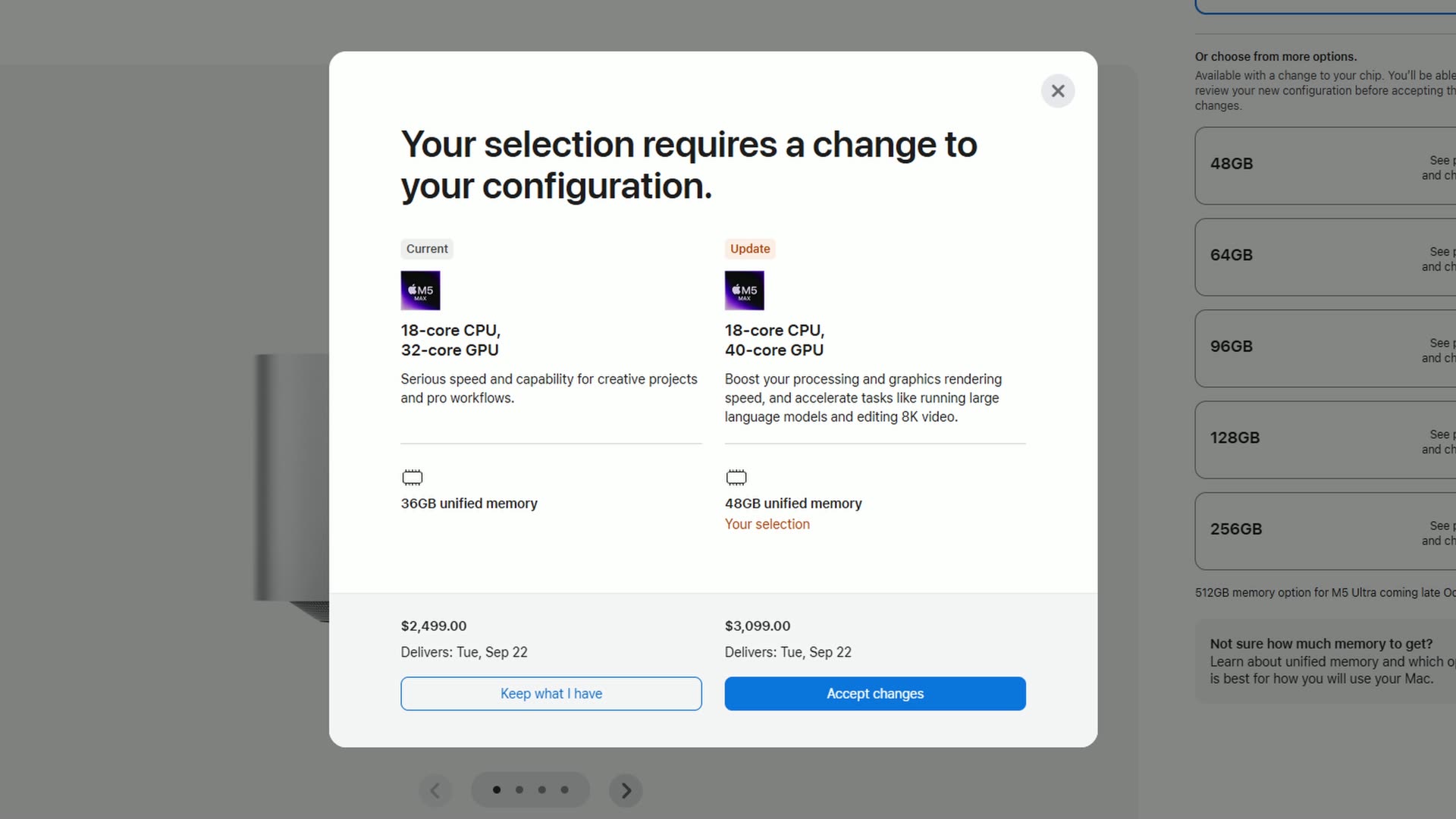
And all Apple tells you is that other parts of your configuration have been updated, please review the changes. Which is a very polite way of saying, “Hey, we just took another $300 from you.” Crazy, right?!
Who Should Actually Pay For It?
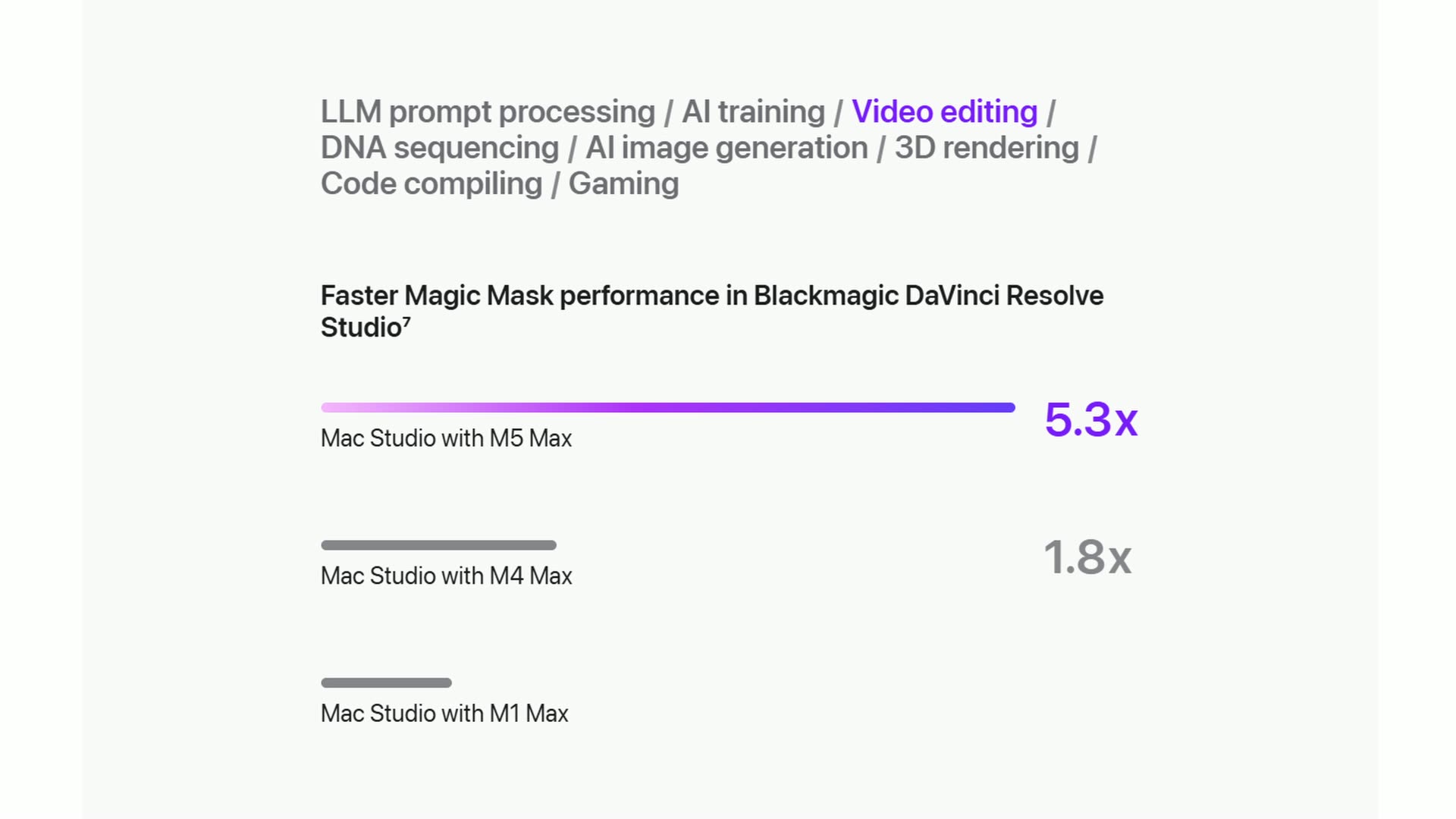
If you do a lot of effects work, color grading, noise reduction or Magic Mask in DaVinci Resolve, this is your upgrade, because that’s all GPU work. Apple claims Magic Mask runs up to three times faster than on the M4 Max. (And if you’re grading, my LUTs will get you to a finished look a lot faster too.)
And if you’re editing long 6K and 8K projects and 36 gigs is gonna run out, it’s your upgrade too, because it’s the only door to more memory.
But for straightforward 8K editing, cuts and titles and some color, the base model is genuinely fine, and Apple’s just upselling you.
Bonus Pick: 40-Core M5 Max With 64GB
If you are that person, here’s my bonus recommendation: the M5 Max Mac Studio with the 40-core GPU, 64GB of memory and a 1TB SSD. The 64 gigs is another $400 and the terabyte of storage is another $300, landing you at $3,800 at the time of making this.
If you’re editing 6K and 8K these days, 64 gigs is a really healthy amount of memory to have. It just annoys me that the door to it costs $600 instead of $300.
The Number Where You Stop Spending
And now here’s the number I promised you, the point where you stop spending money on the M5 Max: $3,800. Do not go past it.
I know somebody is eyeing that 128 gig memory option. It sounds great, right? But here’s what happens. 128 gigs is a $2,000 upgrade, so a 40-core M5 Max with 128 gigs and a 1TB SSD comes out to $5,400. And a brand new M5 Ultra is $5,500. That’s only $100 more for twice the video encoders and twice the memory bandwidth.
So please don’t do that. Just go Ultra!
Beastly Pick: Base M5 Ultra
If you edit 6K, 8K, 12K or 17K RAW footage, that is your actual job, and you want your editing to be as fast as possible, my final recommendation is the base M5 Ultra Mac Studio with the 30-core CPU, 64-core GPU, 96 gigs of memory and a 1TB SSD for $5,500, or $5,100 with an education discount.
Here’s why this year’s Ultra is such a big deal. If you read my Mac Studio buyers guide from 2025, I had to give you a whole complicated warning. Last year’s beast was the M3 Ultra, and it had four encode engines to the M4 Max’s two, but because it was an M3 generation chip, it had the older, slower version of those encoders. There were genuine codecs where the cheaper M4 Max was faster than the Ultra. I did a whole car analogy in that video about a turbo four-cylinder versus a V8, and if you don’t understand cars, that probably didn’t make any sense, but hey, it made sense in my brain!
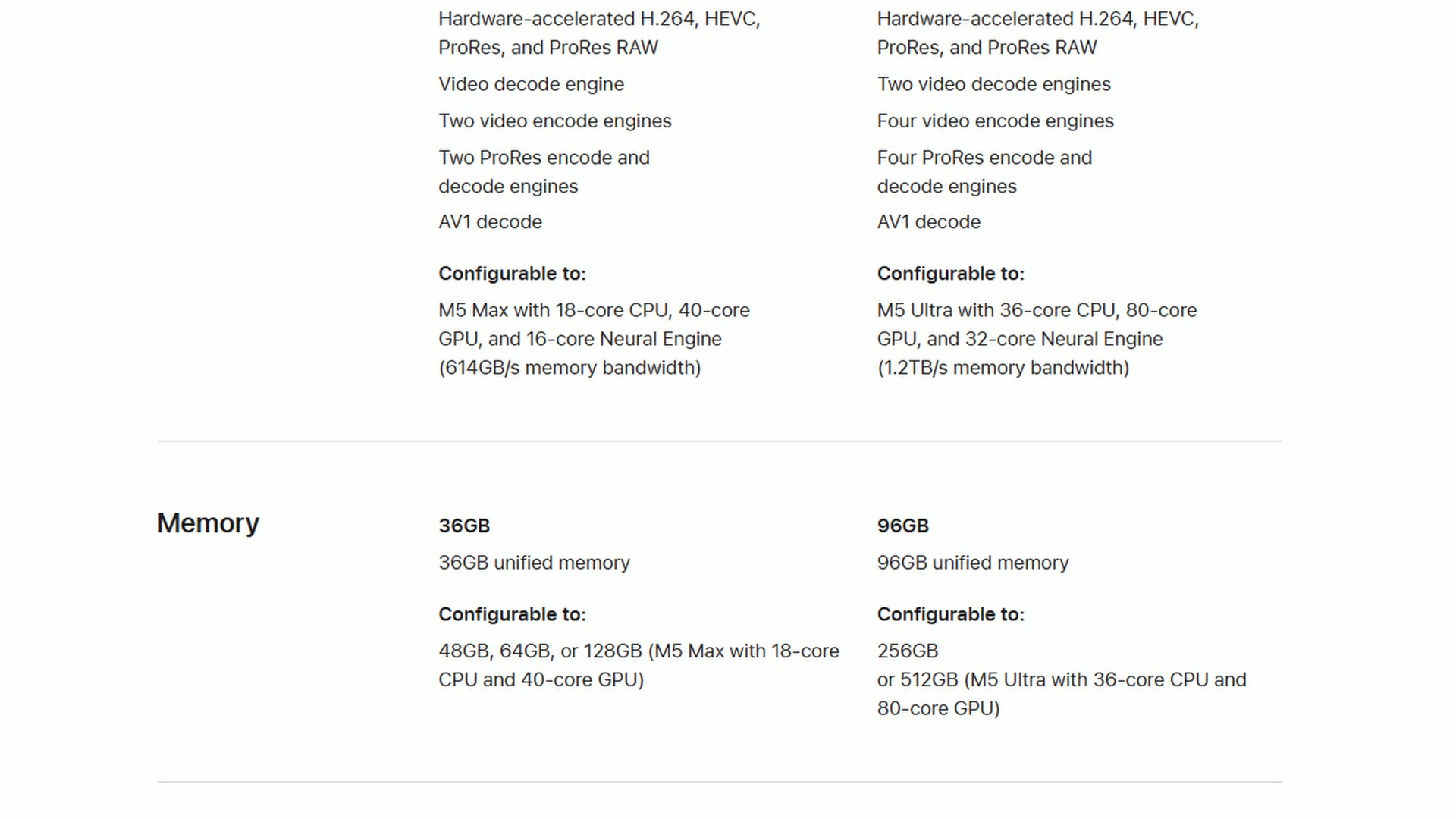
The good news is that problem is gone. This year, the Ultra and the Max are finally the same generation. The M5 Ultra gives you two decode engines, four encode engines and four ProRes engines, literally double the M5 Max on the exact same modern architecture, plus 1.2 terabytes per second of memory bandwidth, which is twice what the 40-core Max gets. Apple says it can play back 33 simultaneous streams of 8K ProRes. That’s an absurd computer!
If you have a RED or a Blackmagic camera, or maybe one of those brand new Sony FX5s recording RAW, this is the Mac Studio I would buy. (If you’re curious how far down the ladder you can get away with for that footage, I tested whether your computer can edit Sony FX5 RAW on the cheapest MacBook Air.)
Why I Would Not Max It Out
And notice what I did not do there, because I know somebody’s thinking, “Building a beast computer is easy, Matt. You just select the 36-core CPU with the 80-core GPU, throw in 256 gigs of memory and 16 eye-watering terabytes of storage, and drop a cool $18,300 on an absolute monster from Apple.” They would love it if you spent that much money.
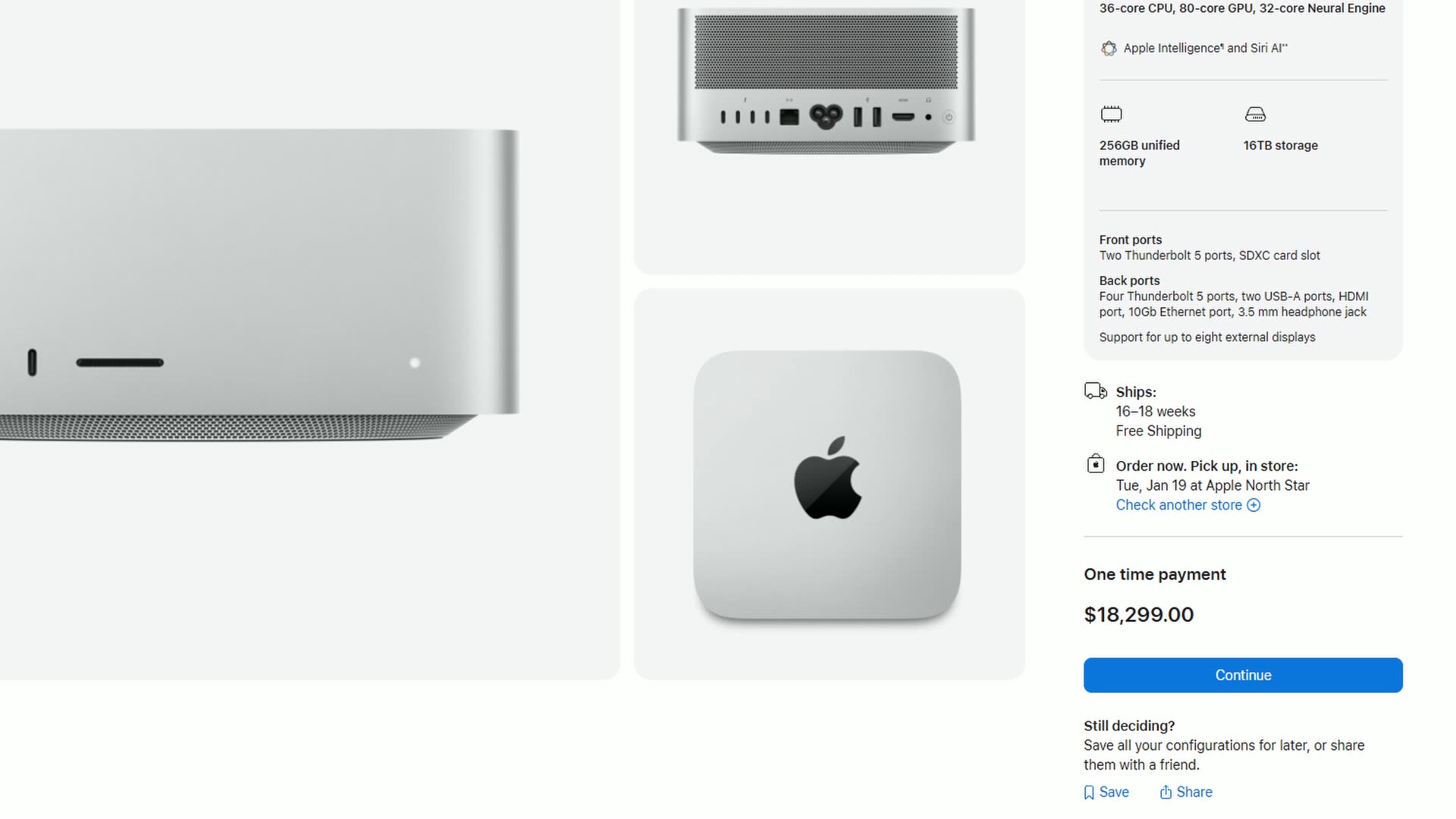
But to that, my answer is an emphatic no! That 80-core GPU is $1,300, and it doesn’t give you one single extra encoder. The jump to 256 gigs of memory is $4,000. And the 16TB SSD is $7,500, when an external Thunderbolt 5 drive does the job for a fraction of that. You could just buy a few of them and not have to worry about that sort of price.
If you wanna go crazy, don’t let me stop you. My point is that the base M5 Ultra at $5,500 is already more computer than the vast majority of video editors will ever need.
How To Buy Any Mac Studio For Less
There are a few ways to get any of these computers cheaper, so let’s run through them really quick:
- Download my Mac Buyer’s Cheat Sheet. It has all of my hacks and secrets for the best pricing, plus links to all the stores I recommend.
- Check Apple’s Education Store first if you’re a student or a teacher. It’s $200 off the M5 Max and $400 off the M5 Ultra, all the time, no sale required. Just sign in with your school ID.
- Watch the retailers. Apple and B&H are both showing $2,500 for the M5 Max right now with no discounts yet, but retailers usually start moving on the price a few weeks after launch. I keep the links in this post updated with wherever I find the lowest price.
- Check Apple’s Refurbished Store. That’s where the $1,949 M4 Max Mac Studio is living, and I expect the M5 Max to show up there in a few months too.
- Check Apple’s trade-in value if you’re upgrading from an older Mac, before you go sell it yourself.
Monitors, Keyboards, And Accessories
Keep in mind the Mac Studio does not come with a mouse, a keyboard or a monitor, so budget for those. Here are the budget options that keep your price as low as possible, plus the upgraded ones that are my personal favorites:
- Budget keyboard: Logitech Pebble Keys 2 K380s
- My favorite keyboard: Logitech MX Keys S
- Budget mouse: Logitech M510
- My favorite mouse: Logitech MX Master 4
- High quality 4K editing monitor: BenQ PV3200U
- 27 inch 4K OLED monitor: MSI 27 inch 4K QD-OLED
- 32 inch 4K OLED monitor: Dell UltraSharp 32 4K QD-OLED (U3226Q)
- 52 inch ultrawide monitor: Dell 52 inch Thunderbolt Hub Monitor (U5226KW)
- External SSDs: Samsung T7 and the faster Samsung T9
I’ve reviewed a lot of monitors, including a really cool OLED that calibrates itself, the Dell U3226Q. And if you want a 52 inch, man, super cool! Here’s my full review of Dell’s 52-inch ultrawide for video editing.
Still Not Sure Which Mac Studio To Buy?
If you’re stuck between the refurbished M4 Max and the new one, or you can’t tell if you accidentally need the Ultra, leave a comment on the video. Tell me what you’re editing and what your budget is, and I’ll reply and tell you which one I would buy, because the questions you ask down there are what I make my next videos about.
And whichever Mac you land on, if you want to get better at the editing part itself, grab my free Edit Videos Like A Pro guide. It covers some of the most important things it took me years to learn as a video editor.