
Here are the exact apps you should use to test any memory card as soon as you buy it, along with the settings that actually matter. These will help you make sure your cards are the correct size and speed and not counterfeit!
I am covering apps for both Windows and Mac, so it does not matter what kind of computer you use, and here is the best part: every single one of these apps is free.
To save you time, I have also linked the memory cards I recommend and a few fast card readers further down this post. That last one matters more than you would think, because if your card reader is slow, these tests are going to take forever.
Windows: the easiest test is H2testw
If you want the absolute easiest way to make sure your memory cards are not fake, download a free app called H2testw. It is kind of considered the gold standard for memory card testing. It has been around forever and it is dead simple to use.
Open the app and switch the language to English if you want to. Insert your memory card into your card reader, click Select target over on the right, choose your card from the list, and press OK. Then click Write + Verify.
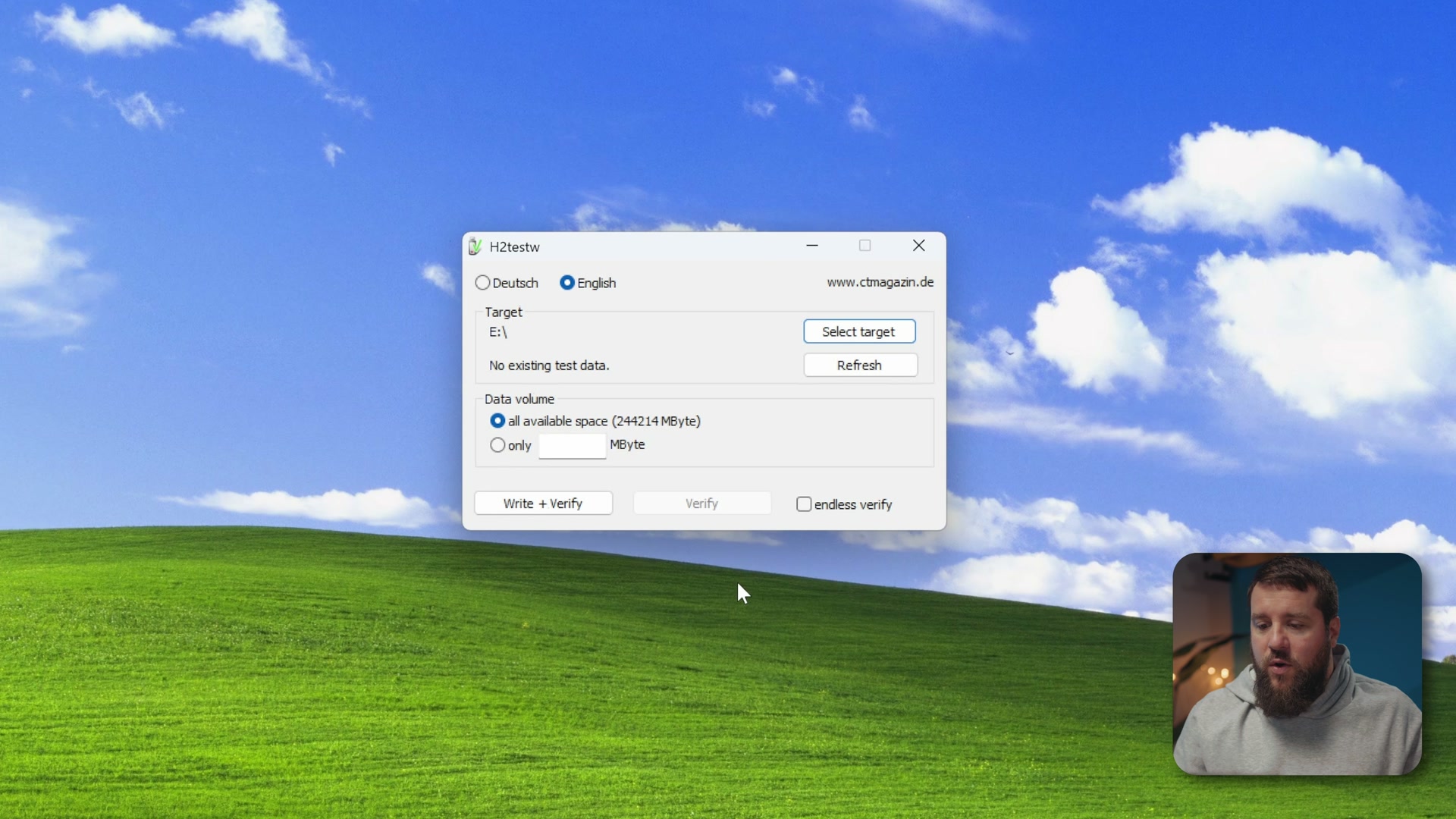
The app goes to work filling up the entire drive with data. That confirms the card is the actual size the manufacturer claims, and it checks the speed of the card at the same time. When it finishes, you get a nice little report page showing the size and the speed, which you can then compare to the sticker on the front of the card. If it roughly matches, congratulations, your card is real. If it does not, it is probably fake.
Cool, Matt, let’s talk about Mac apps now. Well, hold on a second. As great as H2testw is, it is also really slow, because it has to copy files until the entire card is full. That can take many hours, especially if you have one of those new fancy multi-terabyte cards.
If you do not have that kind of time and you want a significantly faster way to check your cards, I have two separate apps for you. One tests capacity, the other tests speed, and both of them run in about 30 seconds or less.
Windows: ValiDrive checks capacity in seconds
For capacity, download a free app called ValiDrive. And look at this vintage-looking website. This is how you know an app is good, when the site looks like this.
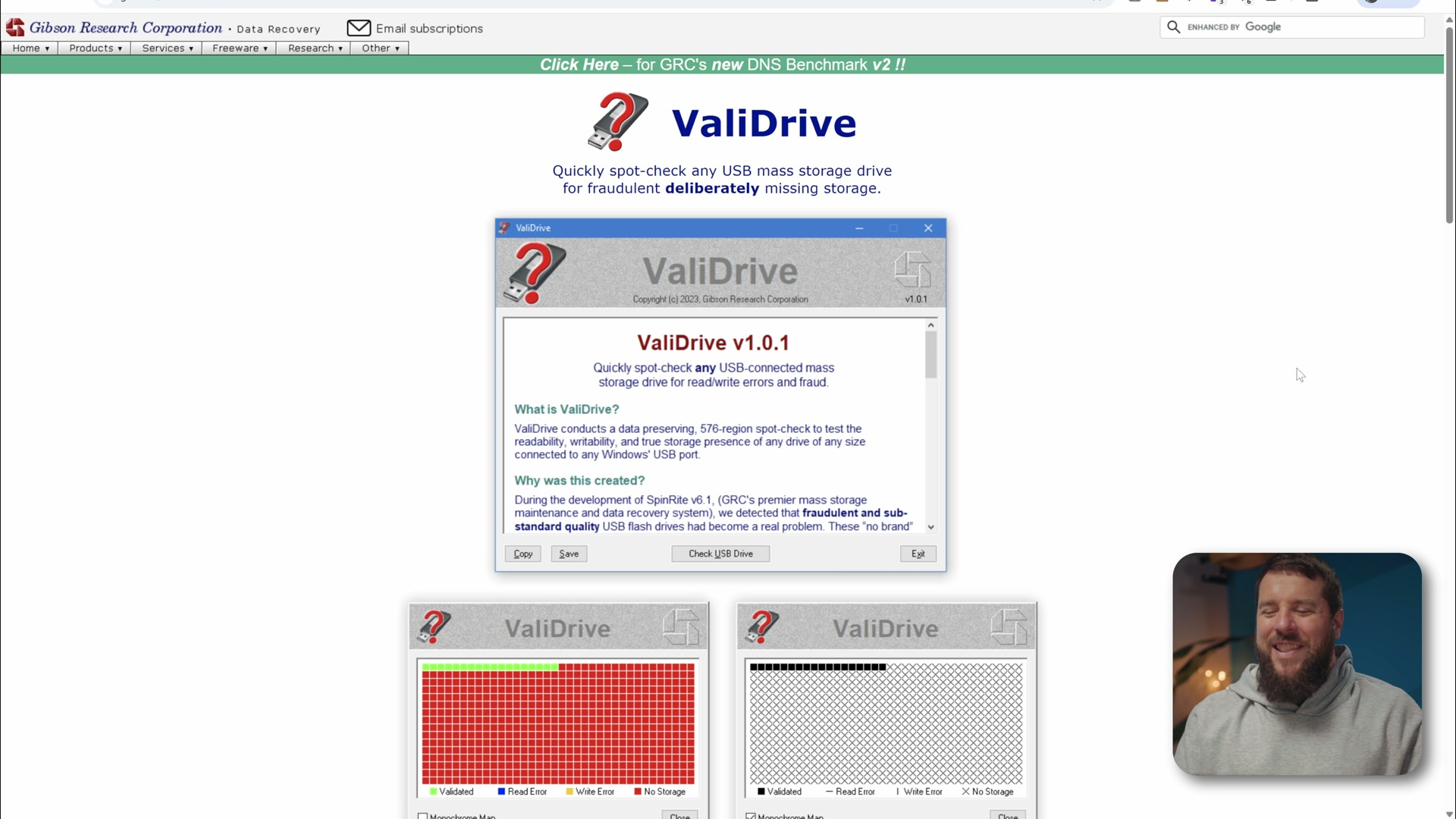
Scroll down, click Download ValiDrive, and open it up. This app works by detecting the most recent device that was plugged in, so disconnect your memory card first, then click Check USB Drive. It will say to introduce the drive you wish to validate. Insert your memory card, the app detects it, and then you click Validate this drive.
As soon as you do, you get this cool graphic with all the squares filling up. Well, hopefully they fill up green.
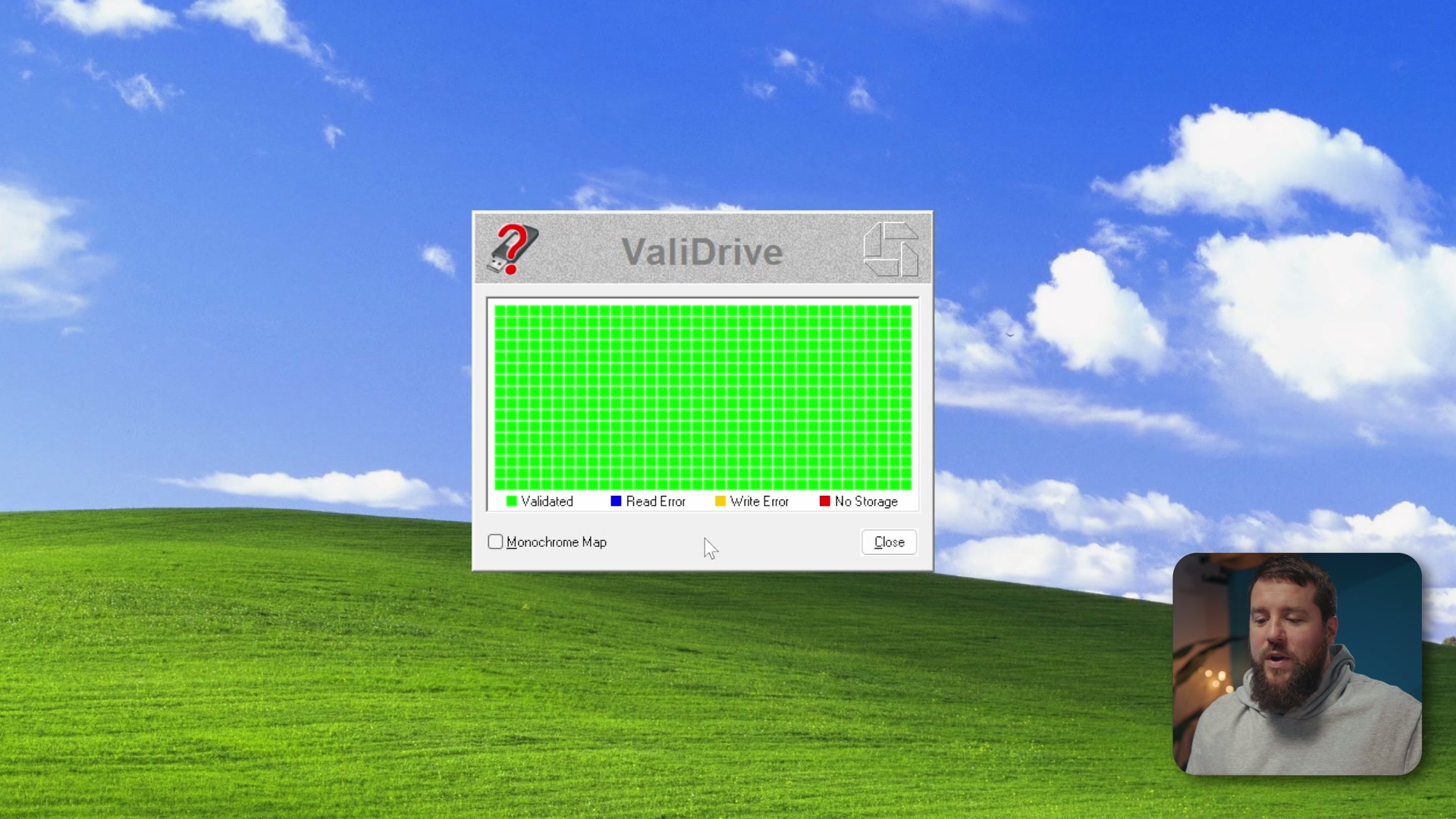
Here is what is actually happening. Instead of writing data to the entire card, which is what H2testw does and what takes so long, ValiDrive picks random spots throughout the whole card, writes to all of them, and then confirms they were written to. That is not an exact 100% guarantee the card has the capacity it claims, but it is more like a 95% guarantee.
So if the app runs and your card comes back with all green squares, you should be good to go. It is a real card. If you see red squares or anything else, that either means the card is corrupted or that it is fake, so keep that in mind.
Windows: CrystalDiskMark checks speed
Last for Windows, you want to check the speed of your memory card, and the free app for that is CrystalDiskMark. This is another one that has been around forever. I feel like I have used it for decades at this point when testing computers.
My favorite part is that there is a regular version you can download, or several versions that just have anime characters on them for some reason. So you go over to Download, and it asks if you are sure. You sure you don’t want anime? And I’m like, I really don’t need a cat girl right now, I just want the standard edition. Okay, fine, download the boring standard edition.
If you want the anime version you can absolutely have it. Otherwise, grab the zip of the standard edition. Unzip it and you will see three different versions inside. You want DiskMark64.exe.
Before you open it, make sure your memory card is already inserted in your reader. Launch it, press yes, and do not panic when the interface looks a little confusing. Here is all you need to change:
- Set the test count to 1.
- Set the size to 1 GiB.
- Set the test drive to your memory card, because otherwise you are just benchmarking your computer’s hard drive.
- Leave the units set to MB/s.
Then click SEQ1M Q8T1. The app starts reading and writing data to and from the card very quickly, and in a few seconds results appear at the top of the two columns. Those are your read and write speeds.
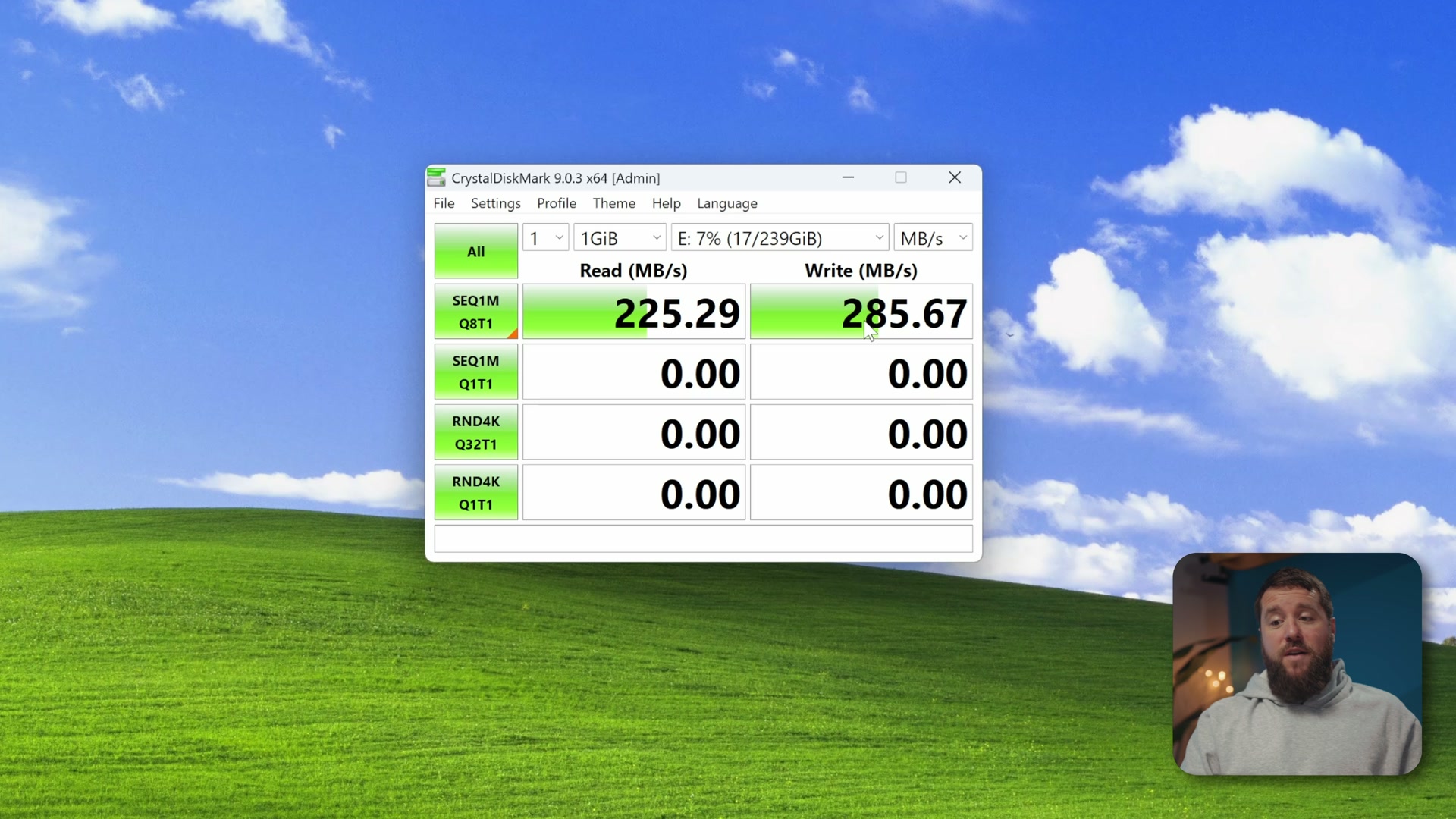
As you can see, this card is pretty darn fast, which tells us it is a real card. If your numbers come back really low, you are probably looking at a fake.
Mac: here is where it gets difficult
That is it for Windows, so let’s turn our attention to Mac. And this is where you are going to run into a big issue.
There are multiple apps you can use to test the read and write speed of a memory card on macOS, and I will get to those. But the moment you go looking for a Mac app that tests whether a card actually has the capacity it claims, things get significantly more difficult.
Here is the problem. When Fstoppers made their video about fake memory cards, they recommended an app called F3XSwift. When you go to download it, you find out it does not work with the latest version of macOS, because the creator has not updated it in years. From what I have read, he does not have the time to update it either.
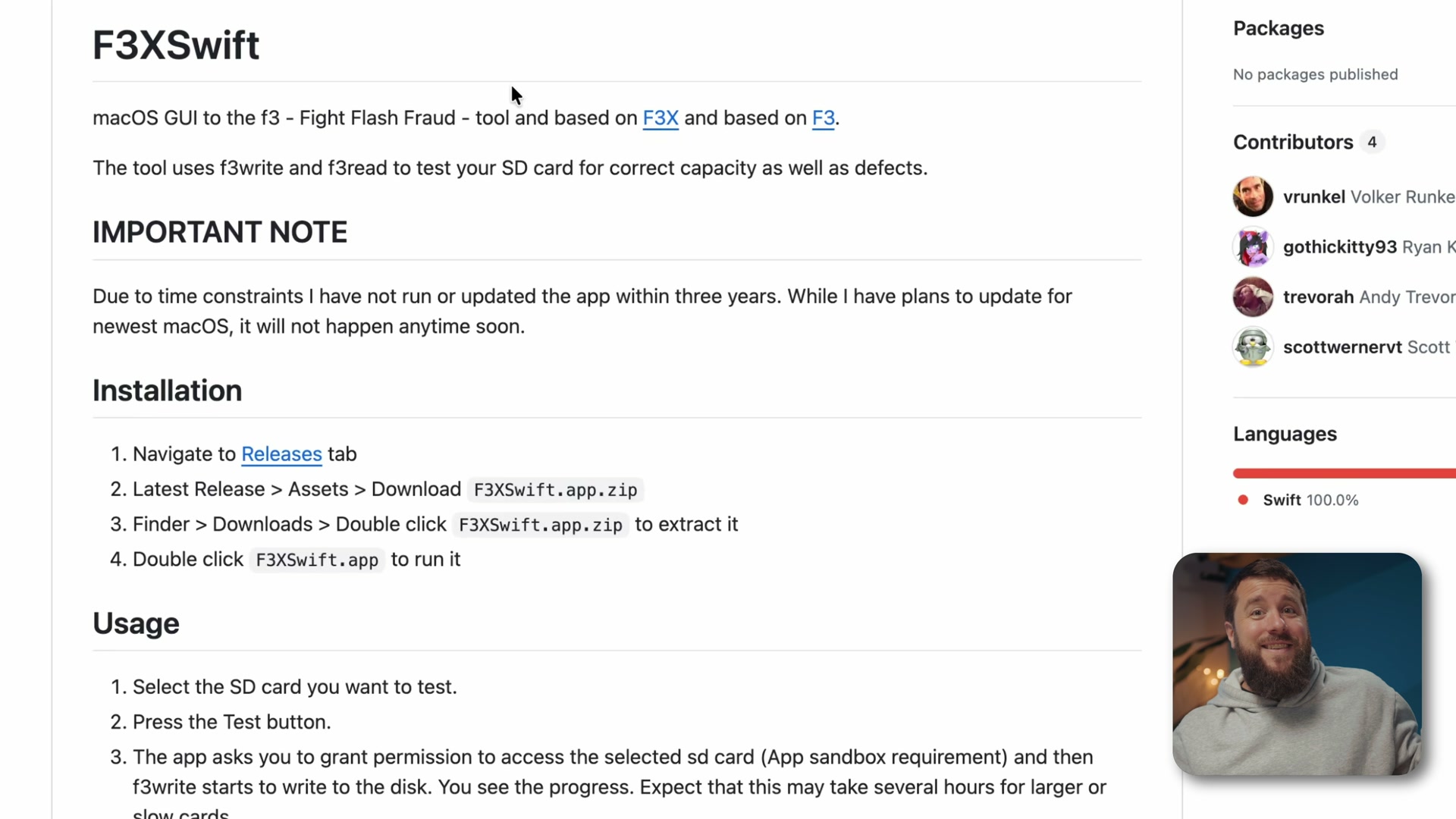
So if you want to test the capacity of your memory card on macOS, there is no easy-to-use app to do it. Which sucks.
So I built one. It’s called Memory Card Test
Yes, I built you an app. It is called Memory Card Test, it is completely free, and I have tested it with all kinds of memory cards. SD, CFexpress, microSD, you name it. It should work and help you confirm your cards are genuine.
You can download it at the link in the video description. Open it up, and if it does not want to open, just right-click and select Open and it should work. I promise you it’s safe. I made it.
I designed this app to be really simple. All you have to do is have a memory card inserted in your reader and it will appear in the dropdown menu. If you do not see it there, click the Refresh button. If it still does not appear, tick the Show all volumes box and that should do it.
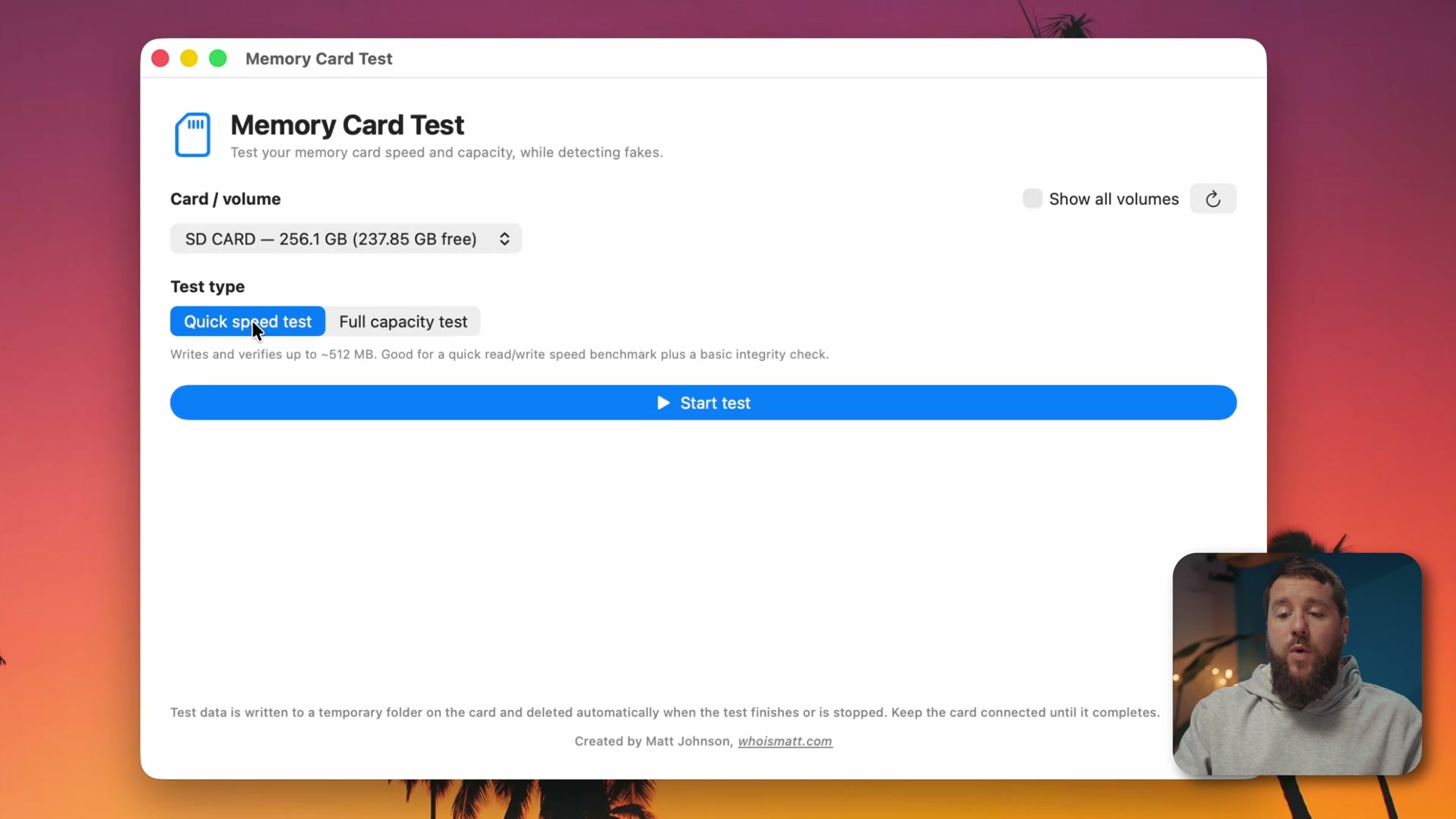
Down at the bottom you have two options for test types: a quick speed test or a full capacity test.
To check that your card is actually as fast as it claims, select Quick speed test and click Start test. Press Allow, and the app immediately goes to work reading and writing about half a gigabyte of data to the card. It tells you the exact speed of the card, and it even gives you a green check telling you the card appears to be genuine if it is real.
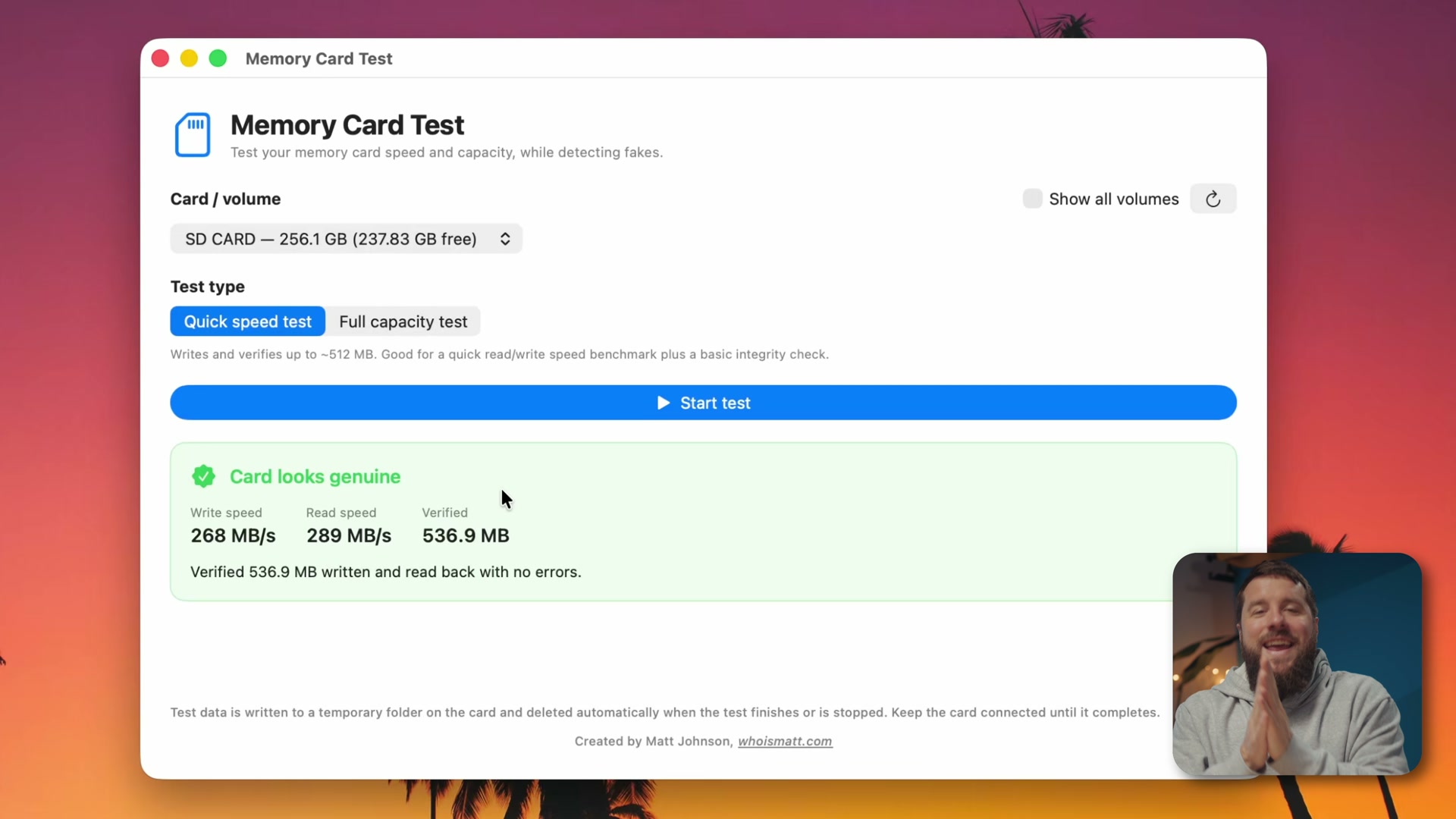
Then there is the feature that used to be available with F3XSwift and does not work anymore: the full capacity test. It operates the same way H2testw does on PC. The app completely fills up the storage of the memory card, then checks it to confirm all of that data is fully accessible, which proves the card is real.
This one may take a while depending on the size of your card, but it is really the gold standard for confirming that a card’s capacity is correct.
Mac alternative: AmorphousDiskMark
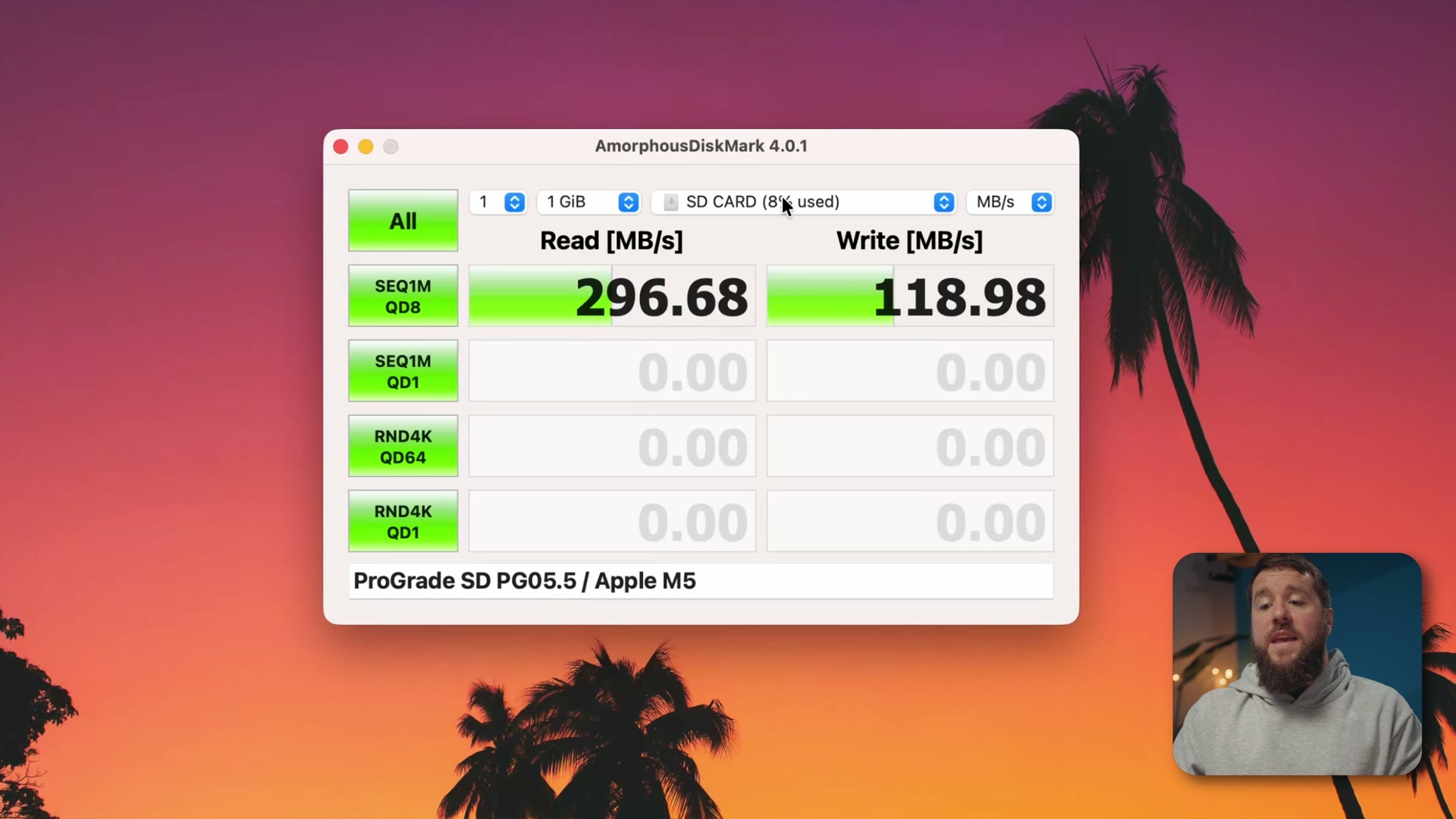
If you do not want to download my app for some reason, I understand. Completely your choice. As an alternative, if you just want to check the speed of your memory card, I would recommend downloading an app called AmorphousDiskMark.
And whoa, this looks a little bit familiar. That is because it is essentially a Mac version of the CrystalDiskMark app I showed you for Windows. Only this one does not come with any anime characters, unfortunately.
It works the exact same way. Download the app, set it to run one test at 1 GiB, choose your SD card from the list, and when it asks you to choose a writable folder, just choose the root folder. Then click SEQ1M QD8. In a few seconds it tells you the read and write speed of the card, and you can compare that to what the card claims.
The memory cards and readers I recommend
Testing is your safety net, but the easier win is not buying a fake in the first place. Stick to known brands bought from reputable retailers, which in my experience is where you never hear about anybody getting burned. These are the four brands I actually shoot on:
And do yourself a favor and pick up one of the card readers I recommend. A quick reader is what turns a capacity test from an afternoon into a coffee break, and it pays for itself every time you offload a shoot.
Test the card before the card tests you
That is how you guarantee your memory cards are not fake. None of these apps cost anything, most of them finish in under a minute, and all of them are a better use of your time than discovering a capacity problem during a shoot. Run the test the day a new card shows up, not the morning you actually need it.
This matters most on the jobs where there is no second take. If you shoot weddings, a card failing is the one problem you cannot edit around, which is why I am so particular about what goes in my bag in my destination wedding videography gear guide, and why it is worth being paranoid about your media when you are turning footage around fast on a same day edit.
And once your footage is safely off the card, if you want to get faster and better at what happens next, grab my free guide, Edit Videos Like A Pro.
Remember that everything here is linked down in the video description, including the Mac app I made. I hope they are very helpful to you.