
Back in mid-2017 I put together a video editing PC for my brother, made an hour-long video about the whole process, and that thing ended up being far more popular than I ever expected it to be. Ever since then the comments have all been some version of the same question: hey Matt, do you have an updated build for 2019, are these parts still relevant, what should I actually be buying now? So here it is. Around $700 of parts that will edit 4K and 1080p in Adobe Premiere Pro, DaVinci Resolve, or basically any editor that isn’t Final Cut, and it should stay fast for years to come.
The best part is that it’s both cheaper and significantly faster than the 2017 build. The full parts list lives on my gear page, and every part is linked individually as we go.
Prices below are from February 2019 and are worth checking before you buy.
Things You Need To Know
Three things before we start naming parts.
First, everything I recommend is linked, both here and on the gear page, so you don’t have to write any of it down.
Second, this is a list of which parts to buy, not how to put them together. I’m not gonna leave you high and dry though, because my 2017 build guide is over an hour long and covers every single step, from taking the parts out of the boxes all the way to turning the computer on. These parts go together exactly the same way those did. Watch this one to buy the parts, watch that one to assemble them.
Third, the parts below add up to roughly $700 at the time I’m writing this. But depending on your budget and how flexible you are, I’m also gonna give you a more expensive option for most of these, so you can swap in a faster part wherever you have the room.
Motherboard
One of the least glamorous and most important parts of any build, because it’s what your CPU, your RAM, and your graphics card all plug into.
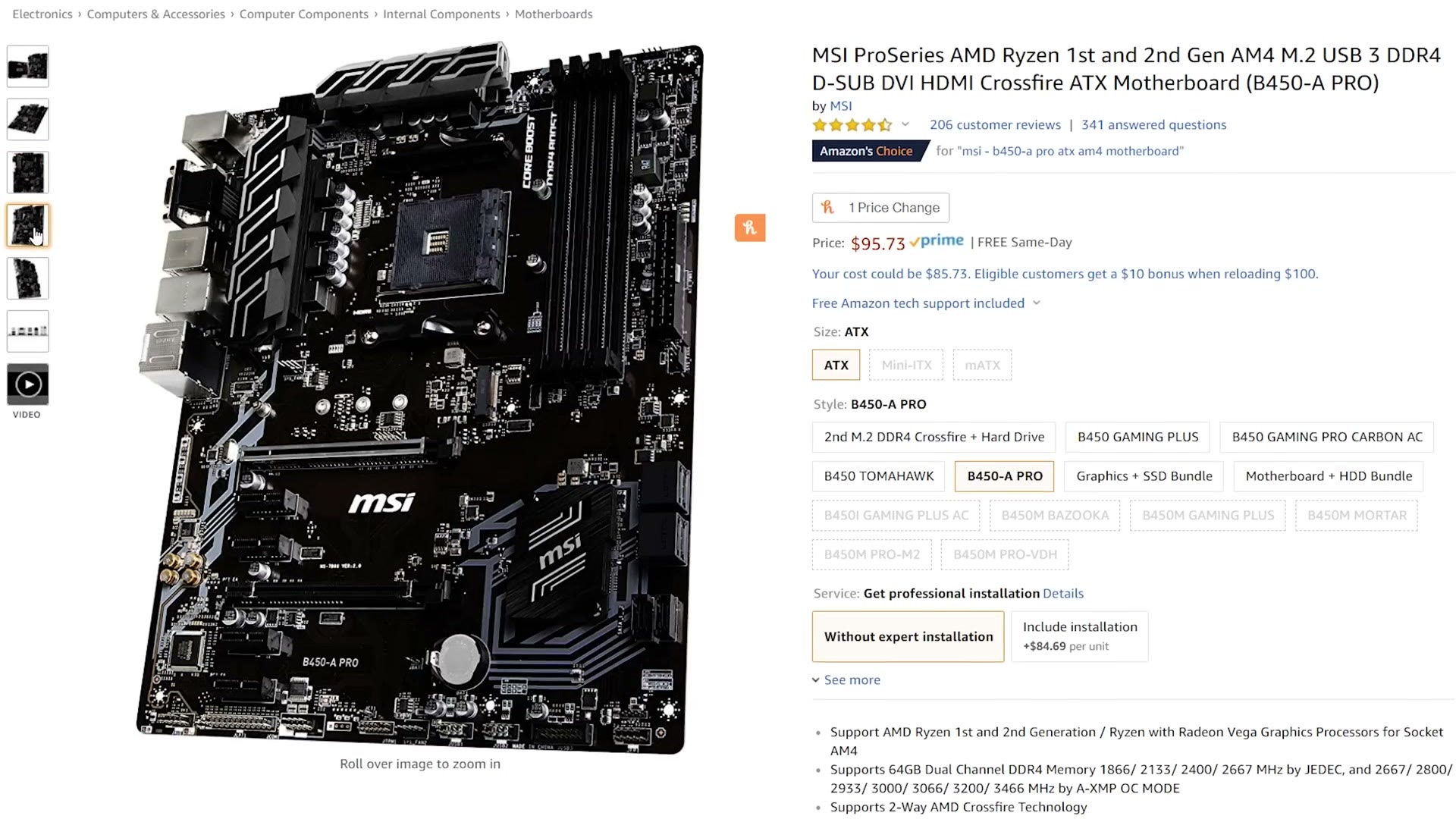
I’d go with the MSI B450-A Pro, currently around $96. The important thing is the AM4 socket, which means most of AMD’s Ryzen CPUs will drop into it, and it takes up to 64 gigabytes of RAM, so you have somewhere to go later.
Motherboards do get randomly discontinued, so if this one goes out of stock, leave a comment on the video and I’ll swap the link for something equivalent at roughly the same price. It’ll still work with this build, don’t worry.
CPU
The brain of the computer, and arguably the single most important part of the whole build whenever it comes to video editing, because your CPU is going to be one of the biggest factors in how fast this thing edits and renders.
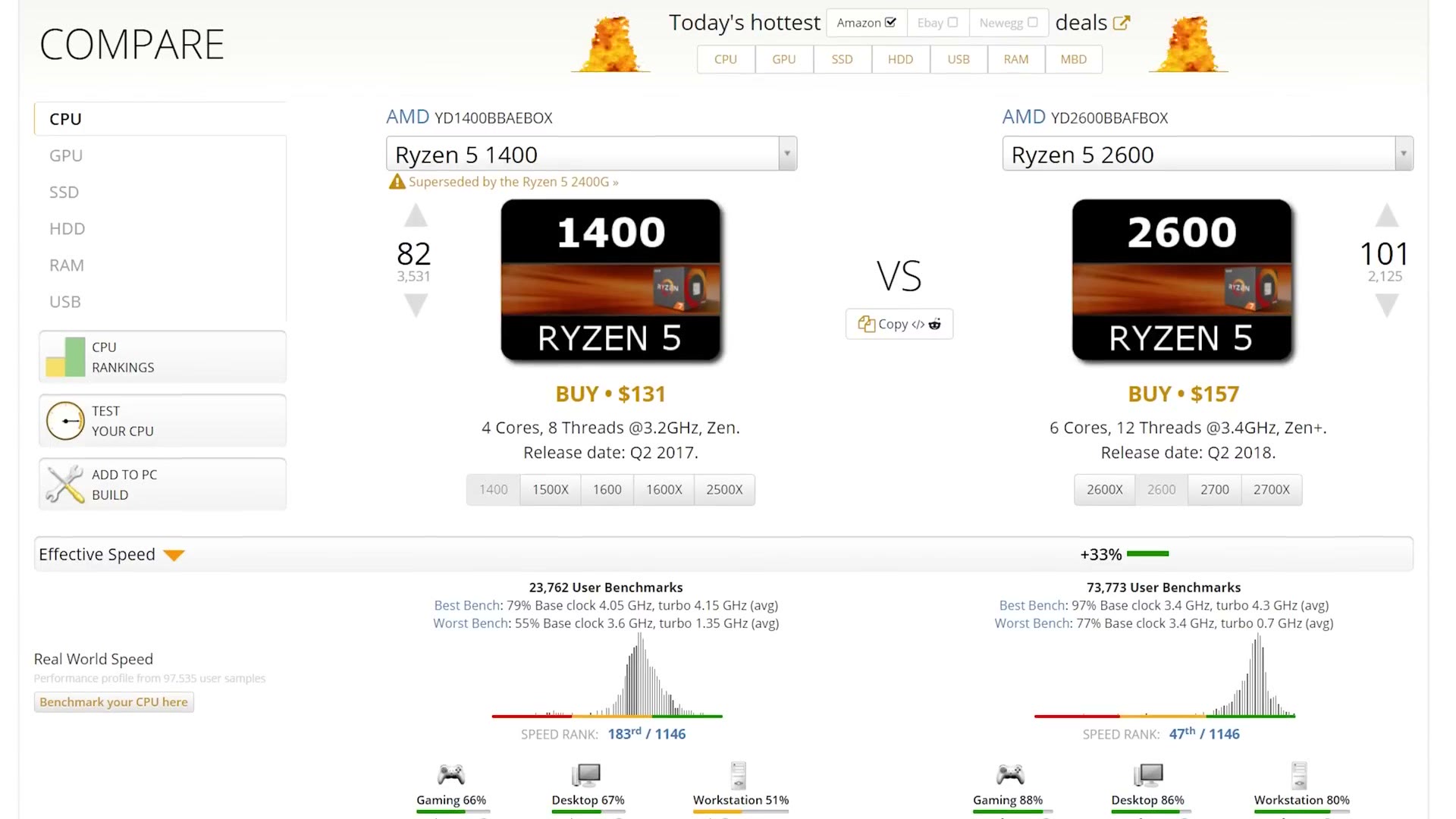
The budget pick is the AMD Ryzen 5 2600, which I found online for $150. That’s a big jump over my last budget build, going from a four-core eight-thread CPU to a six-core twelve-thread one, and more cores and threads means faster editing and rendering. It also comes with its own cooler, so that’s one less thing to buy.
If you have room in the budget, the CPU is the part I’d upgrade first. For 20 to 50 bucks more, depending on where you shop, find a Ryzen 7 1700. It’s last generation and it’s on its way out, so it’s sold out in a lot of places, but it works with this motherboard, it has 8 cores and 16 threads, and it should get you about a 20% bump in editing and rendering speed over the 2600. If you can’t find one, the Ryzen 7 2700 is the other option, about $100 over the 2600.
RAM
Your computer needs RAM to run its programs, and don’t confuse it with your hard drive, which is a different thing that we’ll get to in a minute.
Get 16 gigabytes of Corsair Vengeance LPX. That’s plenty for 4K editing, as long as you’re not editing a video in Premiere while simultaneously editing another one in After Effects. If you do multitask like that, spend the extra 70 to 100 bucks and go to 32 gigabytes. That’s what’s in my own 4K editing PC and it works great.
GPU
One of the funnest parts of building a computer, and also the reason I never made one of these videos for 2018. Graphics card prices got driven absolutely through the roof by cryptocurrency mining, Bitcoin and Ethereum and all the rest of it, and it’s hard to call something a budget build whenever over half the budget is going into one part.
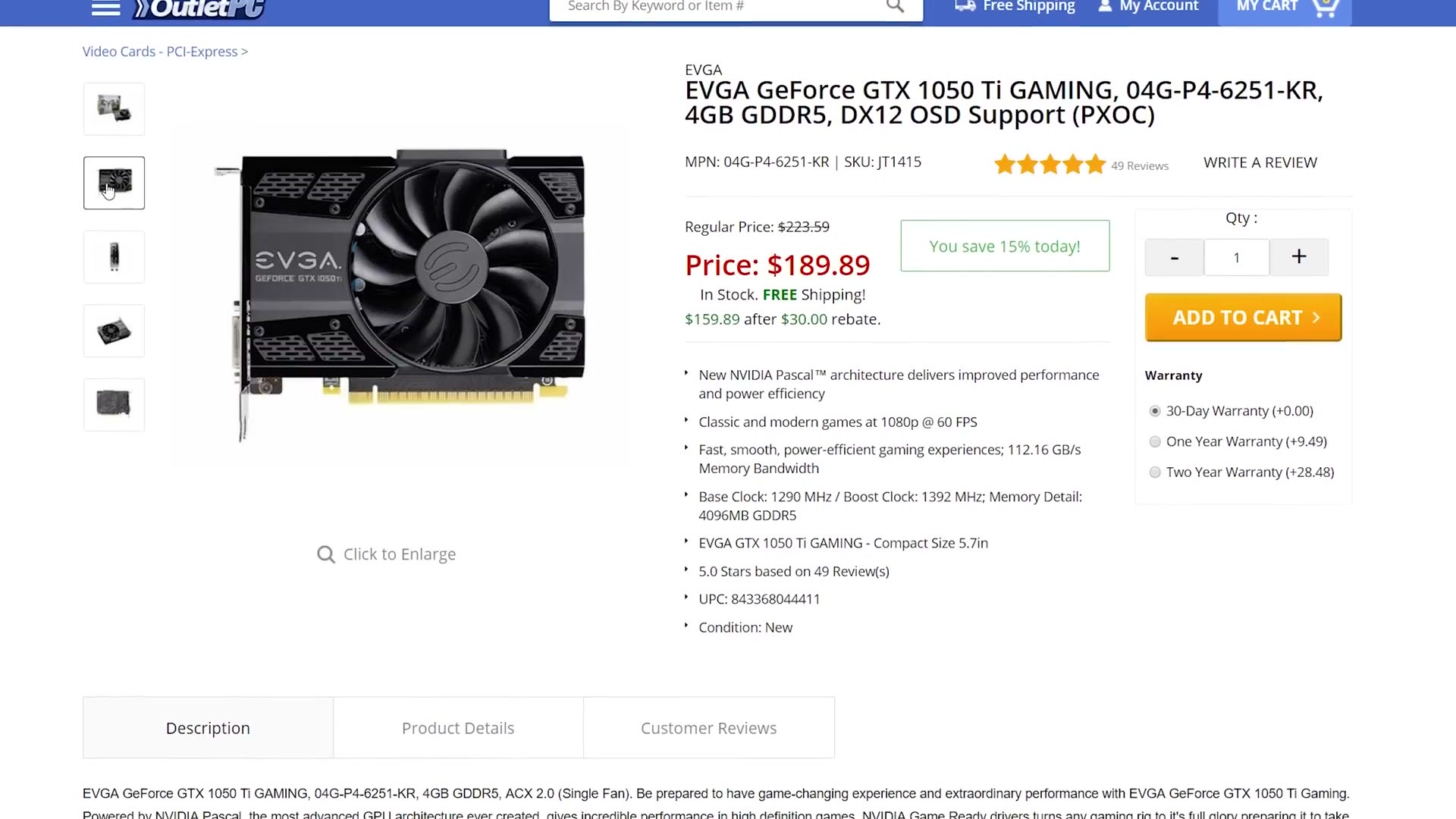
Thankfully prices have come way back down. An NVIDIA 1050 Ti runs about $160 and that’s what I’d buy. It is not a crazy powerful gaming card, but for video editing a fast CPU with a high core count matters much more than a fast GPU, and this will handle your 4K renders just fine.
If you can go up about $40, the AMD RX 580 is the upgrade. You probably won’t see a big jump in Premiere, but if you edit in DaVinci Resolve it should be noticeably faster.
I put together 5 Wedding Filmmakers To Watch In 2019 as well, which covers the part I skipped over here.
SSD
You need somewhere to put your programs and your files, and I do recommend an SSD over a traditional spinning hard drive, because it is so much faster.
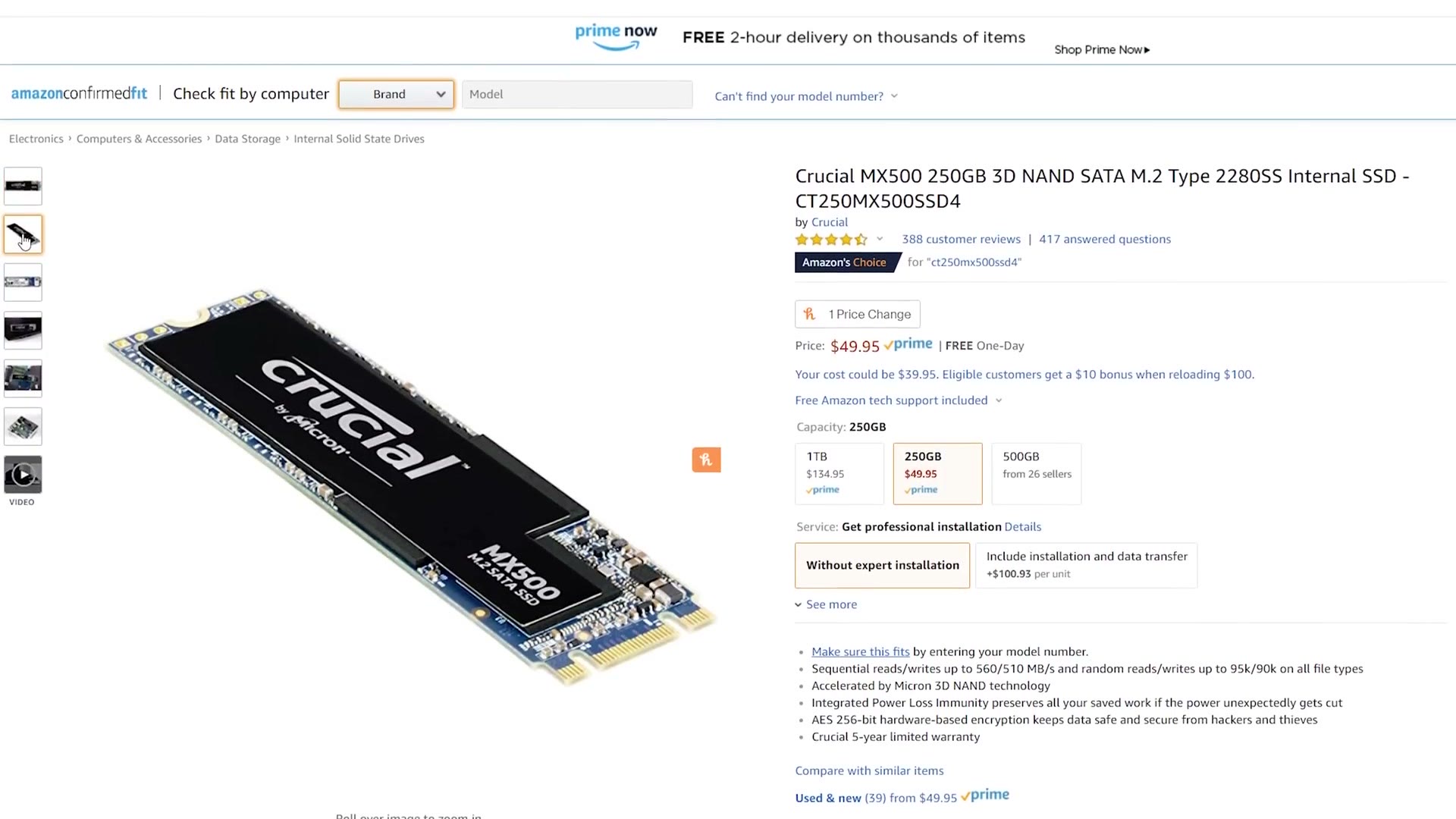
The Crucial MX500 250GB M.2 is about $50. It’s a budget drive, no question, but it’s a nice mix of speed and space. If you want faster, the 250GB Samsung 970 EVO M.2 NVMe is around $78.
Power Supply
The EVGA 500B, 500 watts, about 40 bucks. That’s plenty of power no matter which CPU and GPU you picked from the options above.
If you want nicer, the EVGA 550 B3 is modular, meaning the cables detach, so you only run the ones you actually need. Whenever it comes time to stuff everything into the case, it ends up looking a whole lot cleaner.
The Case
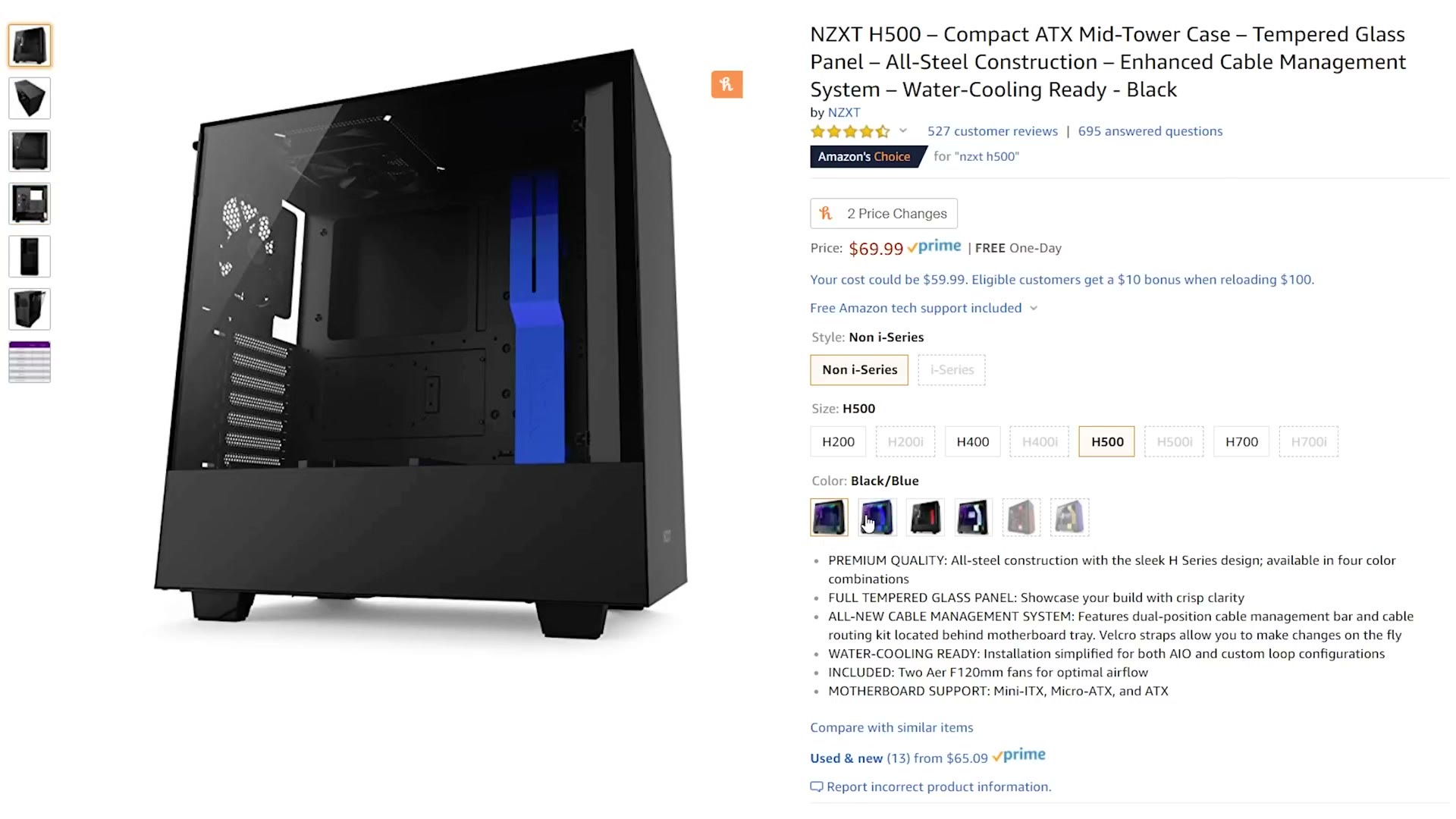
The NZXT H500, around $70 to $77 depending on the color you want. Yes, you get color options. Great airflow, a very open layout that makes installing parts easy, and it’s discreet, without a ton of crazy RGB going on.
And that’s your $700 computer.
Other Parts
But I can see you looking at me saying Matt, I still need a monitor, I need a mouse, I need a keyboard, I need an operating system, help me out here.
Operating system first. Anyone can download a free copy of Windows 10 from the Microsoft support site. What you pay for is the activation. The good news is that if you have an older machine lying around running Windows 7 or Windows 8 that you’re not using anymore, you can pull the product key off it and use that to activate Windows 10 on the new build. Tom’s Hardware has an article on exactly how to do this, and it also covers how to just buy a copy if you don’t have an old PC sitting around.
Monitor, keyboard, and mouse come down entirely to your preferences, and there are a zillion options. Here’s what I’d point you at:
- A 1080p monitor that won’t make you poor, or a 27-inch 4K one if you want the nicer thing.
- A keyboard with macros, genuinely useful for editing, and under $50.
- The best mouse I have ever used.
- A quick USB wifi adapter and a cheap USB DVD drive, if you need either.
Keep in mind that all of these prices are subject to change, especially if Bitcoin gets popular again and graphics cards suddenly cost a fortune. That would absolutely suck, but it can happen. If you spot a link that’s gone crazy expensive or out of stock, leave a comment on the video and I’ll update it with something equivalent at roughly the price I quoted here.