
One of the most popular things I’ve made is my series of video editing PC build guides, where I walk you through the exact parts to buy and how to put them together. A lot of you love those. And one of the most common emails I get is from people saying they don’t want to build one. You’d rather buy something pre-made that needs little or no work to set up, because you’re a working professional who doesn’t have the time, you want something fast, and you’re willing to pay for it within reason.
Now, I’m just a guy who films weddings and makes YouTube videos. I don’t have unlimited money to go out and buy a pile of PCs to review. I have a baby and she is quite expensive.
The good news is that Zotac reached out and asked if I wanted to review one of their newest mini PCs, aimed specifically at video editors and content creation. So today we’re talking about this deceptively tiny yet powerful little box, the Zotac Magnus, reviewed from the perspective of a video editor working in Premiere Pro.
The Size, And The Power Brick
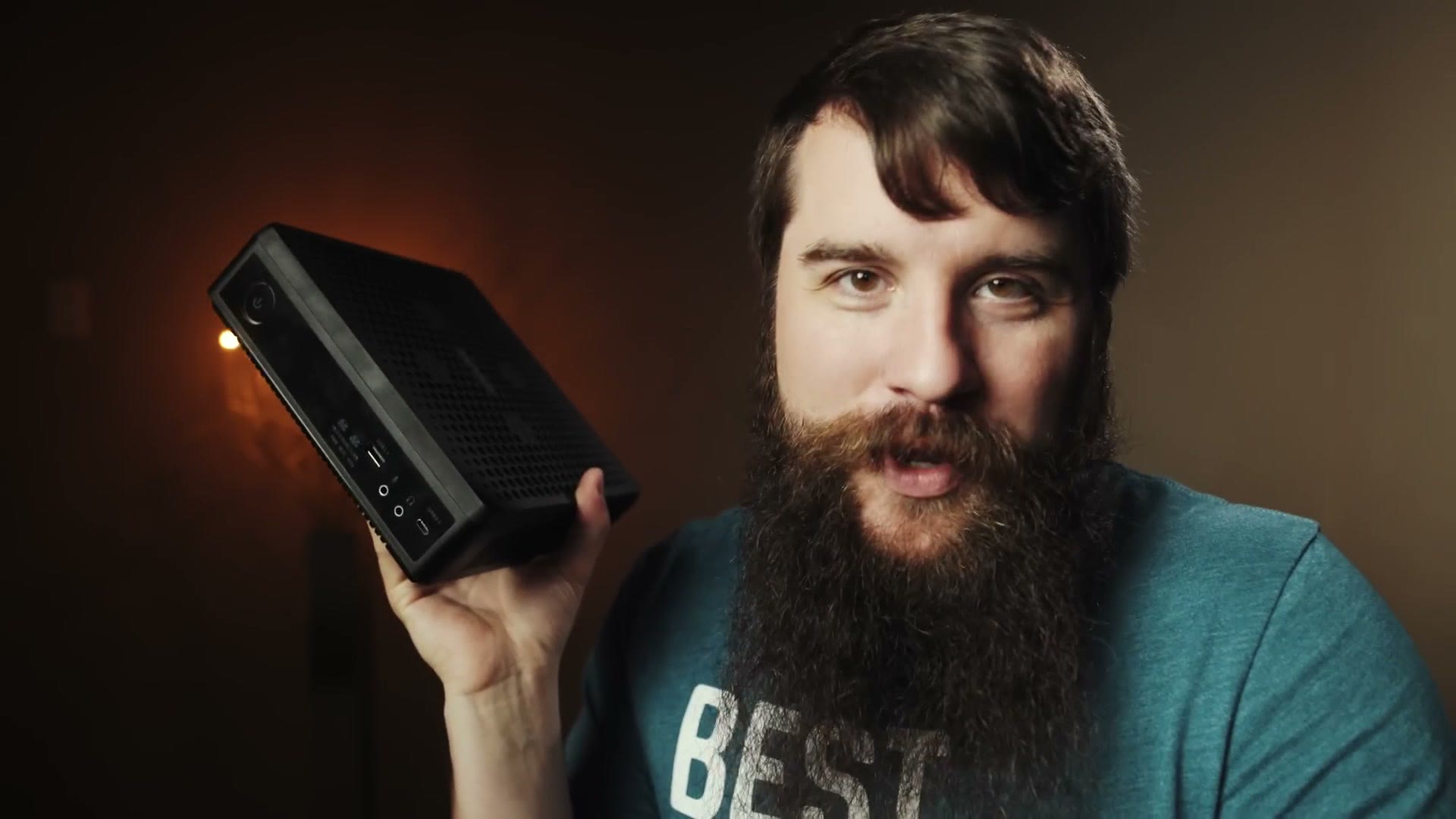
When it arrived, the FedEx box was smaller than I expected. The box inside that was smaller still. The computer inside that box was smaller again. My first PC was a full tower, my current editing desktop is a mid tower, and it completely dwarfs this thing.
The obvious size comparison is Apple’s Mac Mini, and much like the Mac Mini this is made to sit on a desk, out of the way, and still give you enough power to be productive. If you’re editing somewhere space is at a premium and you don’t want a laptop, I can see this fitting a small room very well.
There is a catch. There’s always a catch. Oddly enough, my catch is: make sure you have room for the power brick. Is the computer small, or is the brick large? It’s about a third of the size of the whole computer and it weighs 3.1 pounds. The computer itself weighs 3.9. Thankfully you can put the brick on the floor and forget about it.
Which raised three questions for me. How much power did Zotac cram in here? Is it going to overheat at this size? And is it going to be loud under load whenever those fans spin up?
Components
In the United States, Zotac only sells this as a bare-bones system. You get a motherboard, CPU, graphics card, wifi, power supply, fans and a case. You supply the SSD, the RAM and the operating system.
For this review Zotac sent me an international unit, which comes with the SSD, RAM and operating system of Zotac’s choosing. I say their choosing because the brands they picked would not necessarily be my first choice.
The bare-bones Magnus comes with an Intel Core i7-9750H, six cores and twelve threads. Yes, that’s a chip you normally see in laptops, but I’m sure that’s because building something this small gets a lot easier if you use parts designed for small computers. From a power standpoint the 9750H is a good mid to upper level CPU. I really wish they’d been able to fit one of Intel’s new eight core, sixteen thread chips in here, but that didn’t happen. It will still edit 4K very easily and chew through 1080p.
The graphics card is the surprising part. This version has an Nvidia RTX 2070 inside, which retails for around $500 on its own. Going back to the size, I’m quite impressed they got that in there. I didn’t run gaming benchmarks because I want to keep this focused on editing, but dang, if you want a small gaming machine you’d have no trouble.
Premiere doesn’t take nearly as much advantage of a graphics card as I’d personally like, but there’s still a noticeable rendering difference between having it enabled and disabled, especially with a lot of effects on the timeline. And if you edit in DaVinci Resolve, which loves a powerful GPU, that RTX 2070 is going to be very good to you.
The Missing Thunderbolt Port
There are cons to this graphics setup. First, upgradability. It isn’t a normal slot-in card, so you can’t just drop in a faster one later. You are stuck with the RTX 2070.
Which leads to the second con, and arguably the biggest omission on this computer. You might be thinking, Matt, you don’t need to upgrade the card, just plug an external GPU into the Thunderbolt port. Well. The Magnus doesn’t have a Thunderbolt port.
That is so perplexing, because one of the main reasons you buy an Intel system over an AMD one is Thunderbolt support. It isn’t here. And there are exactly two groups of people who care about Thunderbolt: gamers who want an external GPU, which is the audience Zotac is ostensibly courting by putting an RTX 2070 in the thing, and video editors, who run a butt-load of external drives and RAID arrays and want their media as fast as possible, and who might also want an external GPU to speed up rendering.
So yes, that’s a huge glaring omission, and I really hope Zotac adds one in a future version. For now, if you don’t need Thunderbolt drives and you don’t need an external GPU, I still think you’ll be fine, and the RTX 2070 is cutting edge enough to last you a while.
Ports And Getting Inside It
If Thunderbolt isn’t there, what else did they fit on? Actually a surprising amount for the size. On the back, four USB 3.0 and one USB 3.1 Type-C. On the front, another USB 3.1 and another USB 3.1 Type-C. Back round the back there are two ethernet ports, one gigabit and one 2.5 gigabit. I wish they’d managed 10 gigabit so you could edit off a NAS, but 2.5 works great for transferring footage even if I wouldn’t edit 4K over it.
For monitors you get two HDMI 2.0 and one DisplayPort 1.4, plus two connections for the wifi 6 antennas. That wifi is one of two things I love about this box. The other is on the front: a full size SD card reader. As somebody who copies a lot of footage, that makes me very happy. Headphone and mic jacks are on the front too, and there’s no audio on the back at all, so speakers plug in at the front.
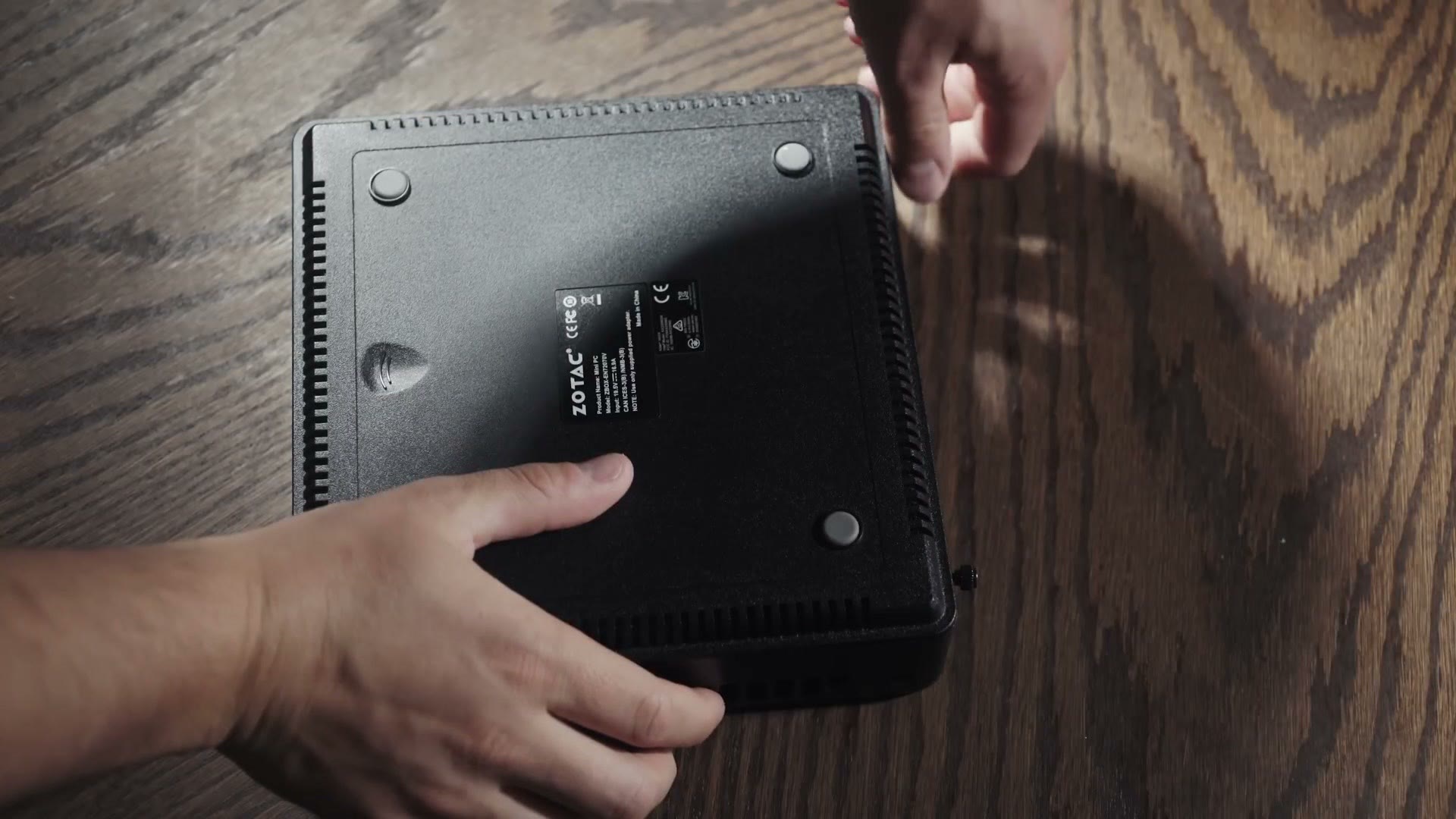
The Magnus is also one of the easiest computers I’ve ever opened. All you need is a screwdriver. Flip it over, take out two thumb screws, and the bottom slides off, giving you access to literally everything you can install or change: two RAM slots in the SO-DIMM form factor laptops use, an M.2 SSD slot, a bay for a 2.5 inch drive, the wifi card, and an Intel Optane slot.
You Need 32GB Of RAM
My international unit came with a 128GB SSD, 8GB of RAM and a 1TB 5400rpm Seagate drive. Premiere’s minimum is 8GB of RAM. Adobe recommends at least 16GB for HD and 32GB for 4K, and my benchmarks are about to make painfully obvious why.
Zotac knows people at HyperX, who were kind enough to send me 32GB of HyperX Impact DDR4 at 2666MHz so I could properly review this as a 4K editing machine. Installing it was two clips to release the old sticks and two 16GB sticks pressed down in their place. No tools. The Magnus recognized it immediately and it worked flawlessly.
Benchmarks
Three questions: does it overheat, does it thermal throttle, does it make too much noise? The answers are no, yes, and maybe depending on your office.
I ran synthetic stress tests in AIDA64 and exported a five minute wedding film in both 4K and 1080p out of Premiere. The synthetic tests showed the CPU idling between 45 and 50 Celsius, and rising to a maximum of 87 under combined CPU and GPU load. That’s hot, but not too hot. It isn’t hitting 99 like some machines do.
The catch is that at 87 it also starts to thermal throttle, by up to 41%. Which matters because a throttled CPU slows down, and your videos take longer.
Here’s what that looks like in the real world. Completely stock as delivered, with 8GB of RAM, the Magnus rendered that five minute film in high quality 4K in 26 minutes and 52 seconds, and in 1080p in nine minutes and two seconds. With the 32GB of HyperX memory installed, the 4K render dropped from 26:52 to 18 minutes and 34 seconds.
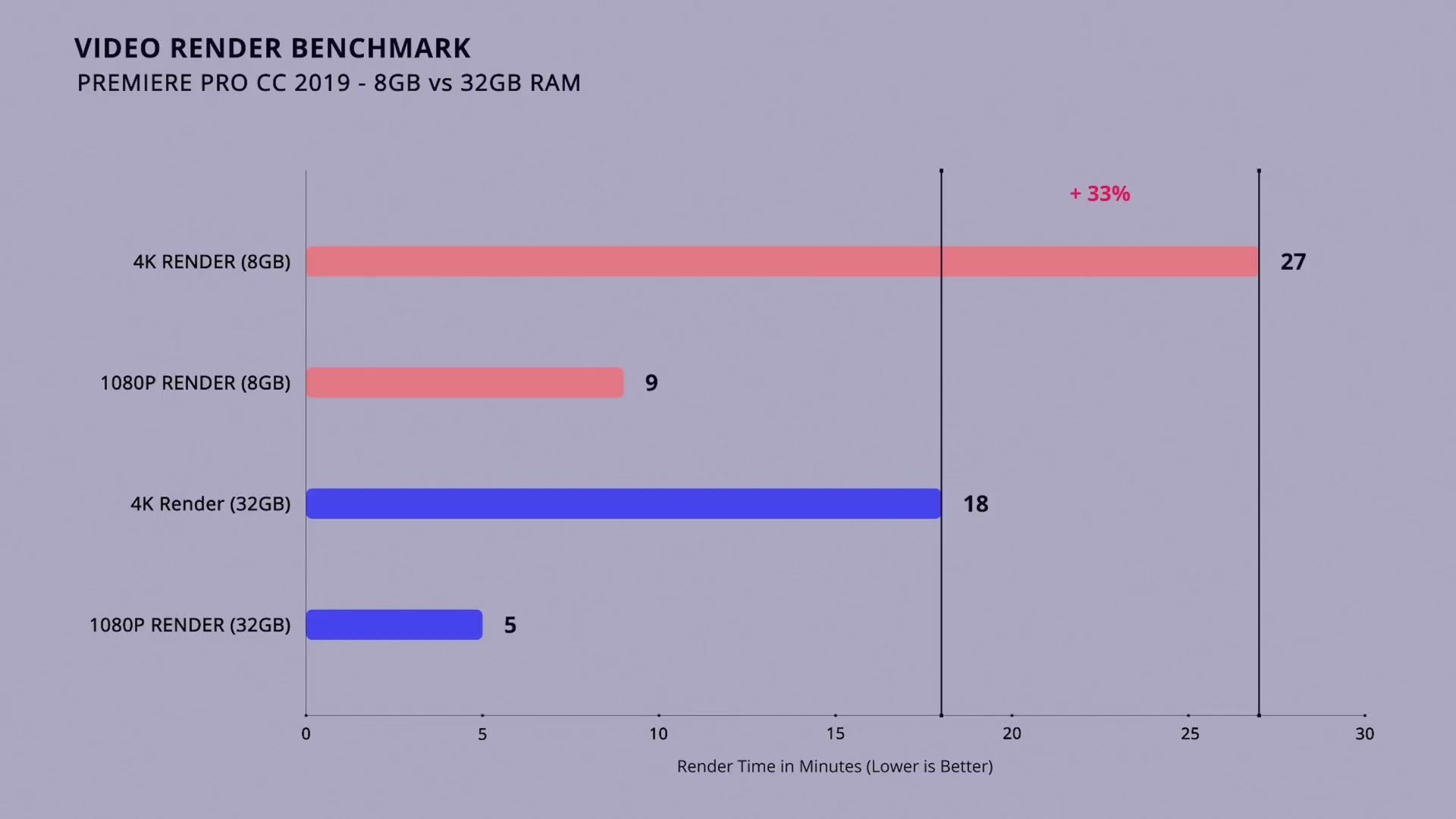
That is quite an improvement, and it’s the same computer. Only the memory changed.
Fan Noise, And One Thing Worth Doing
Zotac has tuned these fans to run at a maximum of 60% speed, which means they don’t get loud even when rendering. They also make a much deeper sound under load than, say, the fans in my Dell XPS 15, which tend to shriek. In a quiet room you’ll hear the Magnus while it renders, but it isn’t intrusive. I think they’ve done a fantastic job here, especially at this size.
So you’re thinking, if they’re only at 60%, what happens if I run them at 100? Will it throttle less and export faster? I tested it, and I don’t recommend it. They get significantly louder, and they ramp constantly, so you hear them even scrubbing a timeline. And the gain was at most 200MHz. Render times moved from 18:34 to 18:10 in 4K, and 5:45 to 5:26 in 1080p. Not close to worth the noise.
The thing that is worth doing is undervolting. I used an app called ThrottleStop to undervolt the CPU, and 4K renders went from 18:34 to 17 minutes and 42 seconds, 1080p from 5:45 to 5 minutes and 11 seconds, and temperatures dropped by up to five degrees Celsius. All at stock fan speed.
So my recommendation, if you buy a Magnus: max the RAM out at 32GB, and undervolt the CPU a little so it runs cooler.
Timeline Performance
A lot of you have emailed saying rendering is great, but rendering is a small part of editing. How does it handle scrubbing? Does it play 4K back smoothly?
First, while the CPU and GPU matter to playback speed, the amount of RAM and the speed of the drive your clips live on are arguably just as important. I edit off an external SSD so files load fast, and I’d recommend you do the same.
Premiere was much more responsive with 32GB than with 8GB. At 8GB I’d scrub to a 4K clip and Premiere would sit there for a second or two before it loaded, and it once froze while simply opening my project because it ran out of memory. With 32GB, clips loaded in under half a second.
If that still doesn’t sound ideal, make proxies, especially for 4K. Even on my ten core, twenty thread desktop clips don’t load instantaneously, which is exactly why I use them. With proxies, scrubbing feels like it’s made of butter. Here’s my proxy workflow if you want it.
Overall I found the Magnus about as responsive as my ten core editing desktop. Is it perfect? No, but that’s more a knock against Premiere’s optimization than against this computer. I’m very impressed with it, especially at this size.
Price, And The Mac Mini
The bare-bones version sells from Zotac’s own store for $1,599.99, and it’s also at B&H. Even if you live somewhere the fully built version is sold, I’d still buy bare-bones, because that build only comes with 8GB of RAM, which we’ve established isn’t enough, plus 128GB of SSD and a 1TB spinning drive you’ll outgrow immediately shooting 4K.
You’ve probably already opened PC Part Picker. If you didn’t, I did it for you. A roughly equivalent bare-bones build with a desktop class six core Intel chip, cooler, decent motherboard, RTX 2070, power supply, wifi adapter and case comes to around $1,250. So the Magnus is $350 more, and you’re thinking, why would I buy this?
Here’s where I stop you, because there’s one differentiating factor. Your custom mid tower is comparable to the Magnus on raw power and specs. Add physical size to the equation and it’s a completely different argument. The Magnus is many times smaller than my desktop. Heck, it’s only a bit bigger than my graphics card. So yes, the parts cost more. I would not recommend buying one if you have room for a normal desktop. But if you need desktop power in a much smaller, more portable setup, that’s exactly where this shines, and whether the size saving is worth $350 is your call.
The other obvious competitor is the Apple Mac Mini. Both are small machines meant to get out of the way. On Apple’s configurator you can spec a Mac Mini with a six core i7 very similar to the Magnus, 8GB of RAM and 256GB of storage, for $1,299. That’s $300 less than the bare-bones Magnus, and you’re getting a fully usable computer.
Wait a second. Intel integrated graphics. The Magnus has a roughly $500 graphics card in it and the Mac Mini has nothing dedicated at all, which will make rendering noticeably slower.
You can work around it, because Apple generously gives you four Thunderbolt 3 ports on the back, so you can buy an external GPU enclosure and an AMD card and get pretty close to RTX 2070 performance for editing. Not for gaming, but for editing, comparable. A good enclosure runs about $300, add a Radeon RX 5700 XT at $399, and suddenly your Mac Mini is around $2,000, and you’ve substantially increased your footprint with an enclosure and all the cabling that comes with it.
At $1,600 for the bare-bones Magnus you should comfortably be able to add the 32GB of HyperX RAM, a fast Samsung 970 EVO and a 2TB drive for your 4K files, still come in under the Mac Mini, and fit it all in this small footprint.
Conclusion
If you’ve read any of my build guides you know I love building computers, and I think building your own is the best way to guarantee the best parts for the best price. But there are situations where it isn’t the best option. Maybe you don’t want the hassle and don’t want to screw it up. Maybe you have the budget but not the time. Or, most applicable here, maybe you have a small workspace and need something that doesn’t take up much room while still being powerful.
If you’re in one of those, the Magnus could be a great choice. Is it perfect? No. I wish Zotac had included Thunderbolt 3 for external RAID arrays and GPUs. But if you don’t need it, they’ve crammed a remarkable amount into this box, from the integrated wifi to a genuinely powerful graphics card. It costs more than some of your options, but most of those options won’t fit in this space. And yes, the bare-bones version means opening it up to install RAM, an SSD and an OS, but that’s still much quicker than building a whole PC from scratch, and it’s really hard to screw up.
And if you’d rather save the money and build your own after all, that’s what my PC build guides are for.