
If you’re a filmmaker or a photographer, or basically anyone who uses a computer, and you do not have at least three backups of your files, you are risking losing everything.
Ideally you need at least two on site backups, which can just be extra hard drives with your files on them, plus one off site backup, which can be a drive in a different location or an online backup in the cloud. I first wrote about all this back in 2012, and that original version is still up, though the drives in it are long obsolete.
Here I want to share my super simple, easy to use system for keeping files backed up on site. This covers how I have all the hard drives in my house set up, and then the online backup side is over here.
Storage Hard Drives
Here’s the whole system, and it only takes three hard drives.
First, buy two identically sized external hard drives. These can be internal drives if you want, but considering how fast you’ll fill them up, especially filming 4K or higher, you’d be opening up your computer pretty often to swap them. So I really recommend externals to make hot swapping easier.
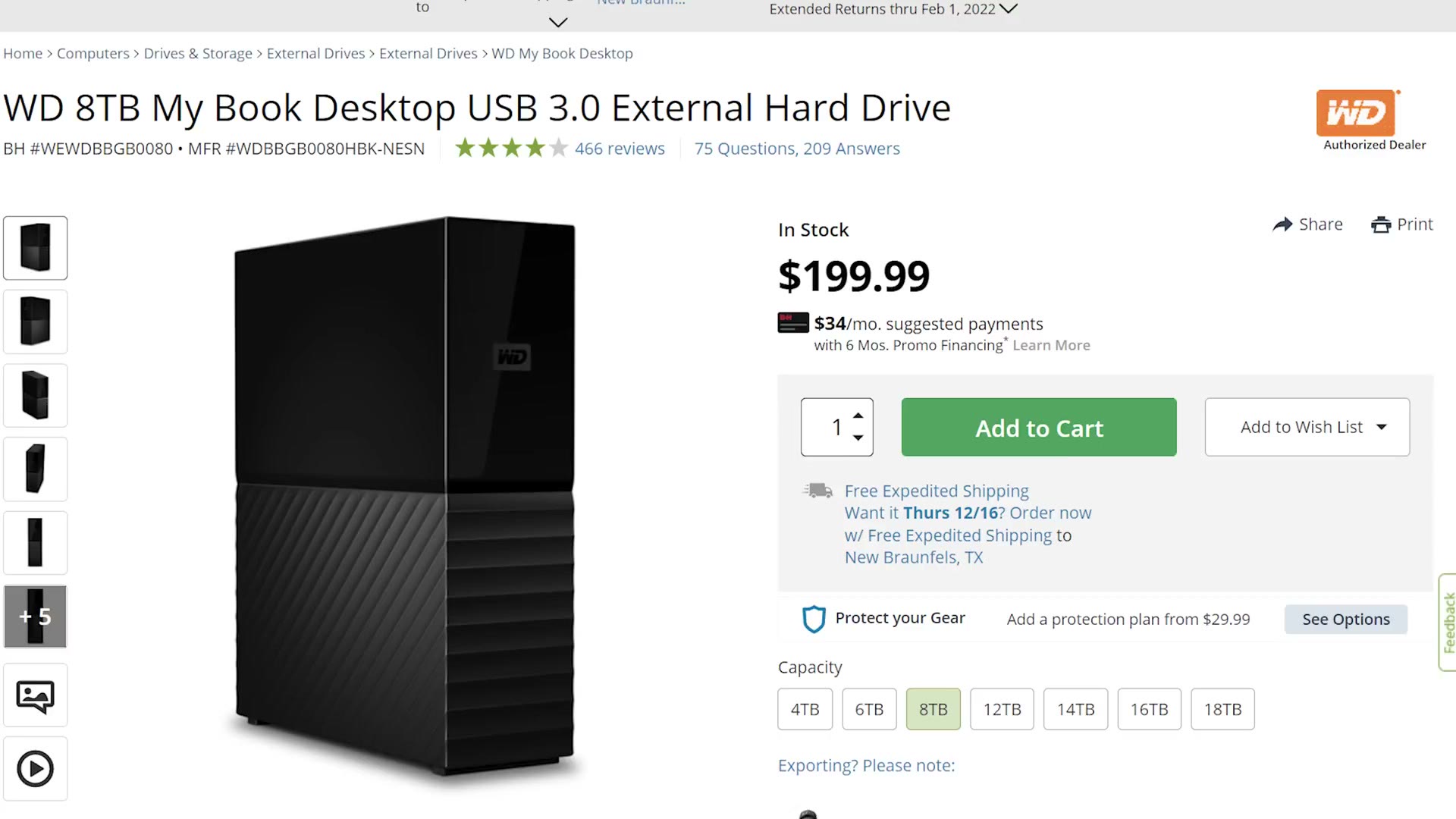
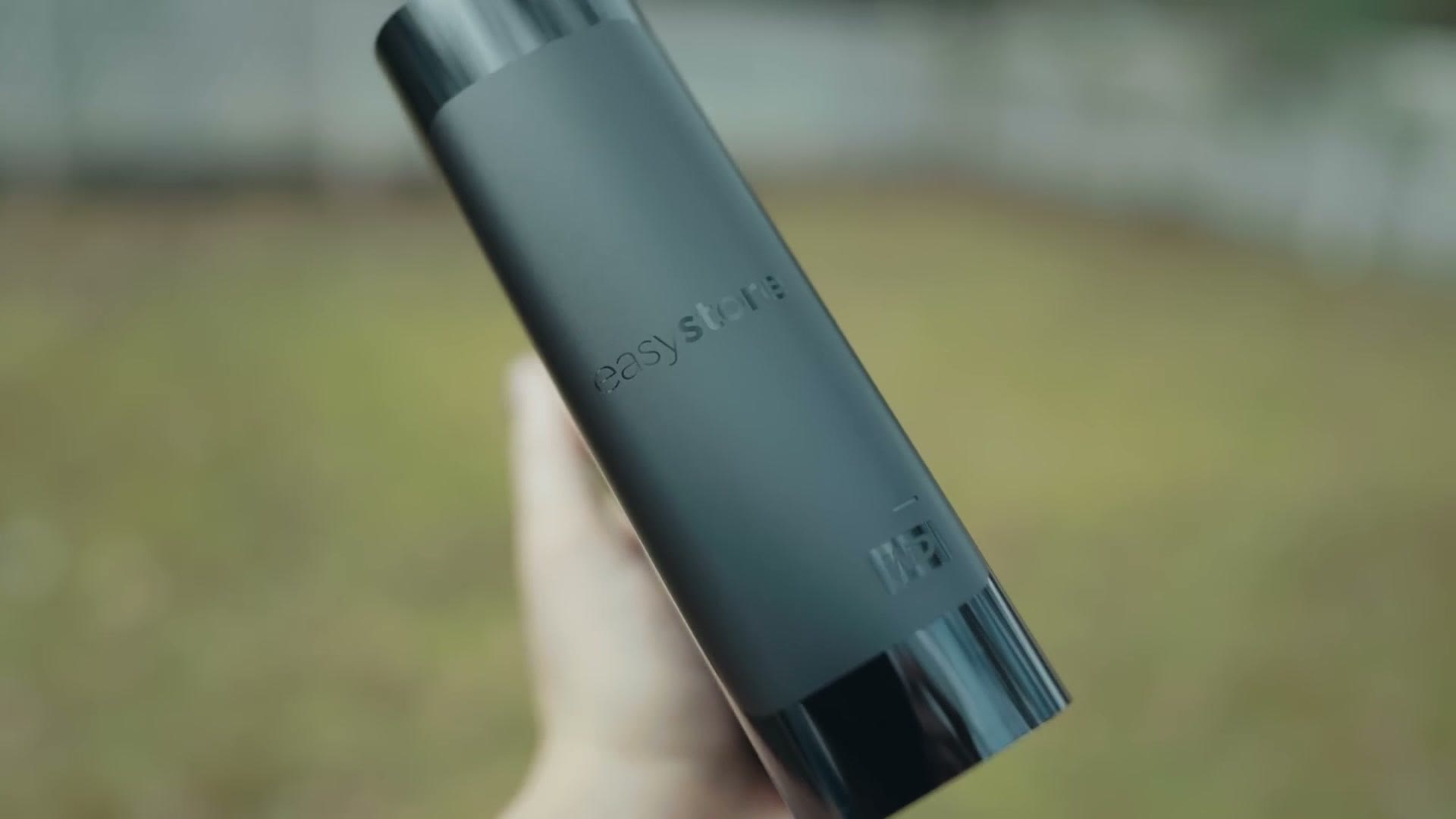
Personally I’m partial to Western Digital externals, specifically their My Book, Elements and easystore models, which I usually buy somewhere between 8TB, 10TB and 12TB. They do get bigger, but the price goes up with them. Western Digital usually has a sale a couple of times a year, and that’s when I’ll grab a couple.
With those two identical drives, any time I film something important, say a wedding I need backed up, I connect both externals to my computer, plug in a card reader, and copy the important files to both drives. Copying the same files to two drives creates a mirror of the data, so if one of them fails I still have everything identical on the other.
Once the files are copied, I disconnect one of those drives and put it in another room. That way it isn’t plugged into the same computer all the time. As a plus, if somebody breaks into my house there’s less chance they find both drives. And if my computer ever picked up a virus or ransomware that encrypted everything on it, I know the drive that’s unplugged is safe.
Editing Hard Drives
Now the third drive. Those first two externals are great for storing a lot of files, but they typically have a 5400 rpm drive inside, which makes them among the slowest drives you can buy and really not good for editing video.
So the third drive I recommend is an external SSD, anywhere from 500GB to two or four terabytes, and this is where your current projects live while you’re editing them.
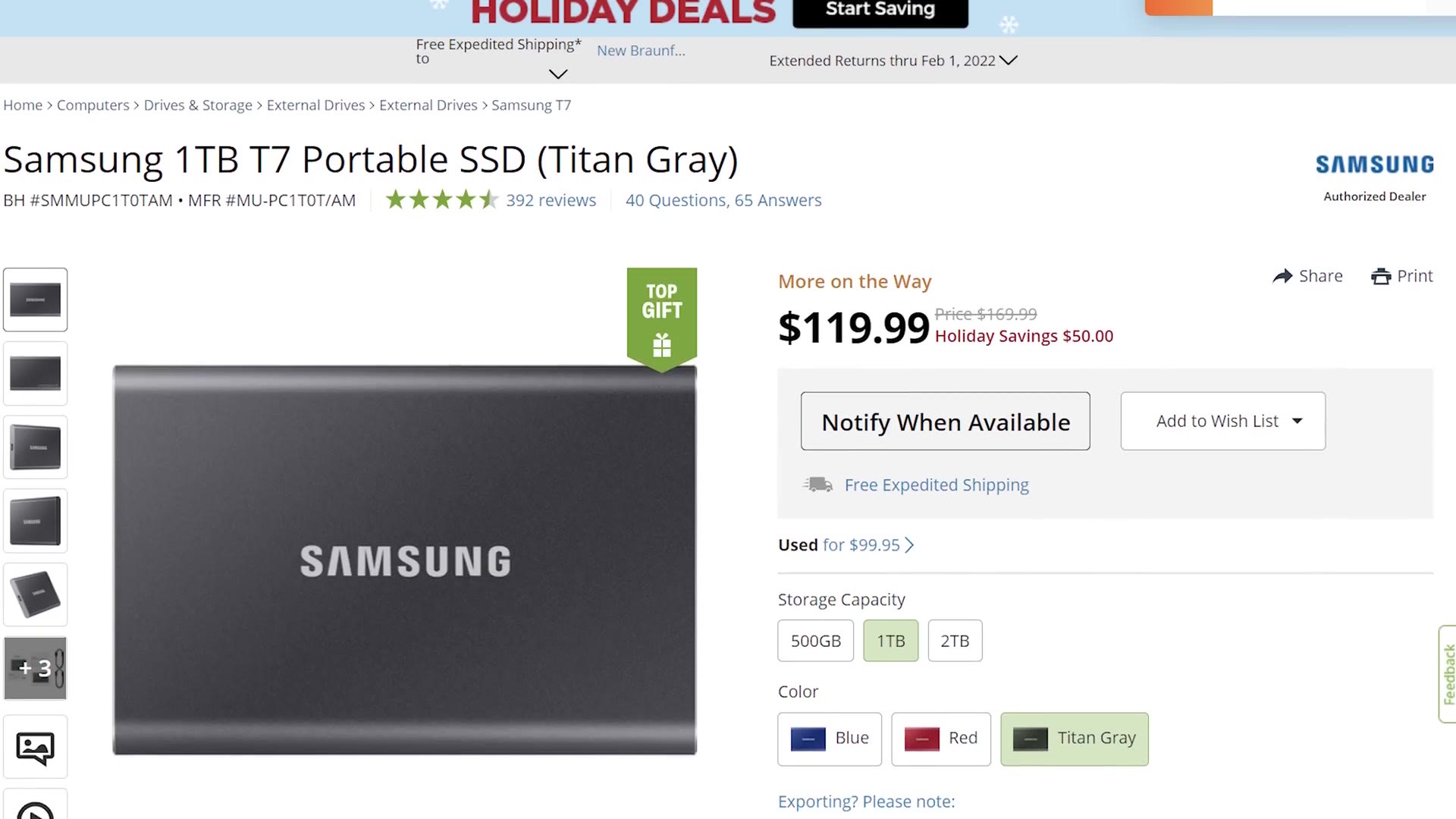
For specific drives, I really like the Samsung T7 on the cheaper end and the SanDisk Extreme Pro portable SSDs, which cost more but are faster.
As I work through projects, I copy new ones onto that SSD to edit from, and whenever they’re finished I copy them back to the slower external drives for long term storage. Then, as those two big drives fill up, I buy new ones and put the old pair into storage where I can get at them if I need to.
So to sum it up: buy three external drives. Two large ones for storing a lot of files, one of which stays plugged into your computer and one of which stays unplugged in a safe location. Then a third drive, an external SSD, to actually edit from.
I put together How to Backup UNLIMITED Footage Online for Cheap and The Best Online Backup Services For Filmmakers (Store UNLIMITED Footage For Cheap) as well, which cover the part I skipped over here.
How To Sync Files Between All Your Hard Drives
You may be wondering how you make sure everything stays mirrored between the drive that’s plugged in and the drive you normally leave unplugged.
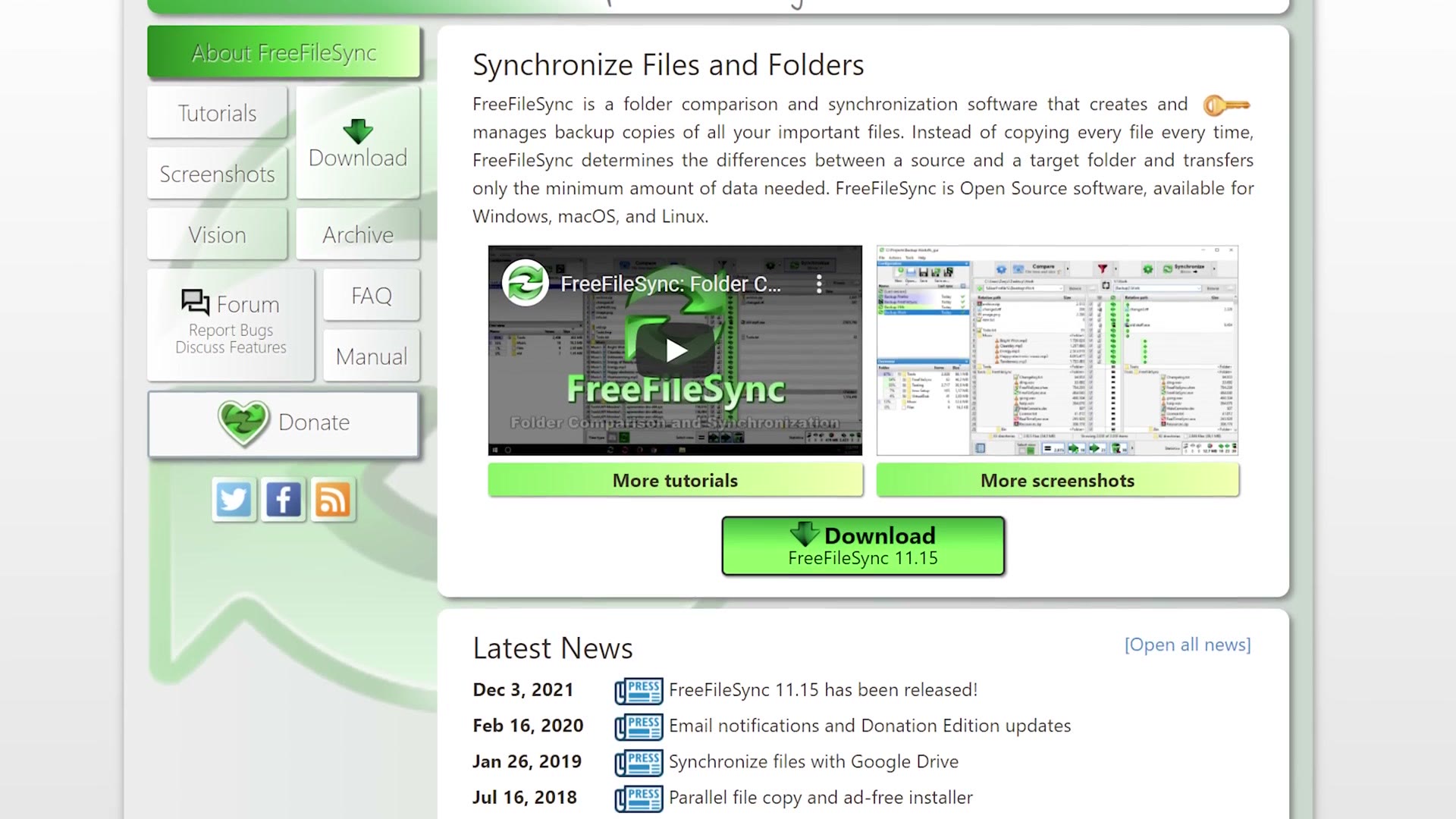
That’s where a program called FreeFileSync comes in, and as the name implies it’s completely free and works on both Mac and Windows. Its whole purpose is to sync files between two drives.
So every few days, or once a week or so, take the external drive that’s usually disconnected, plug it in, run the program, select both drives you want mirrored, and FreeFileSync makes sure every file is properly duplicated across the two.
Bonus Tip!
One more. While you’re editing, if you really want to make sure you never lose any of your work, take your project file, the one with all your latest edits in it, and every day whenever you finish for the night, make a copy and upload it to an online backup service.
That takes a few seconds, and it’s another great way to guarantee you never lose your editing progress.
And if you’re wondering which online backup services to use, I’ve covered that separately. Every drive mentioned here is also collected on one gear page.
The footage here is graded with my own color presets at whoismatt.com/luts, and if you film weddings, come join us in the Learn Wedding Filmmaking Facebook group.
Thanks so much for reading, and have a great day!