
Today I’m going to make a big claim, because I’m going to show you a guaranteed way to remove flicker from your videos in Premiere Pro, Final Cut, DaVinci Resolve, basically any editing software.
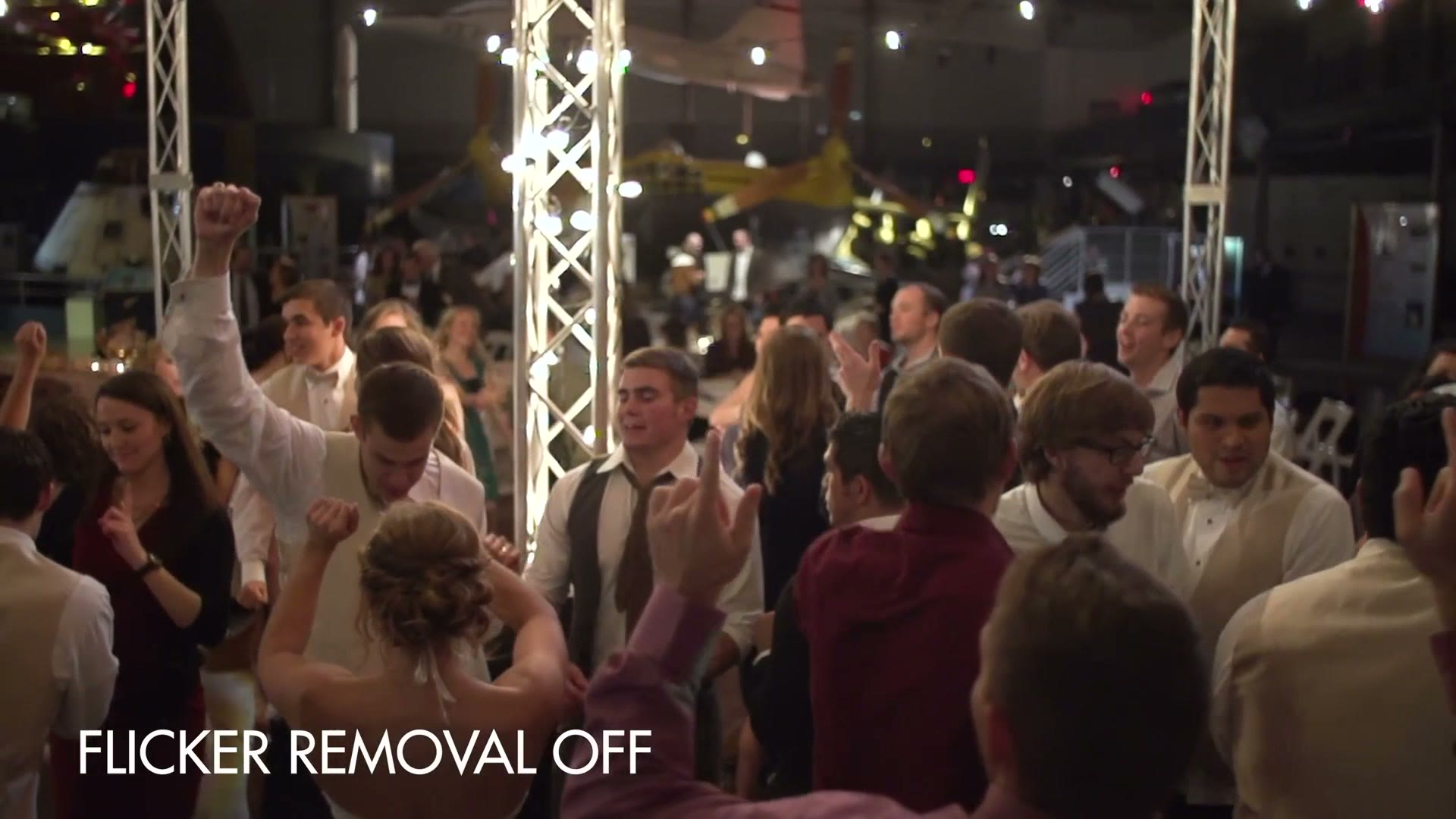
There are two methods here. The first is a quick and easy trick that may fix it outright. The second is a more advanced way to kill really stubborn flicker that the first method can’t touch. And if method one doesn’t work, I guarantee you method two will.
Method 1 (That Everyone Talks About)
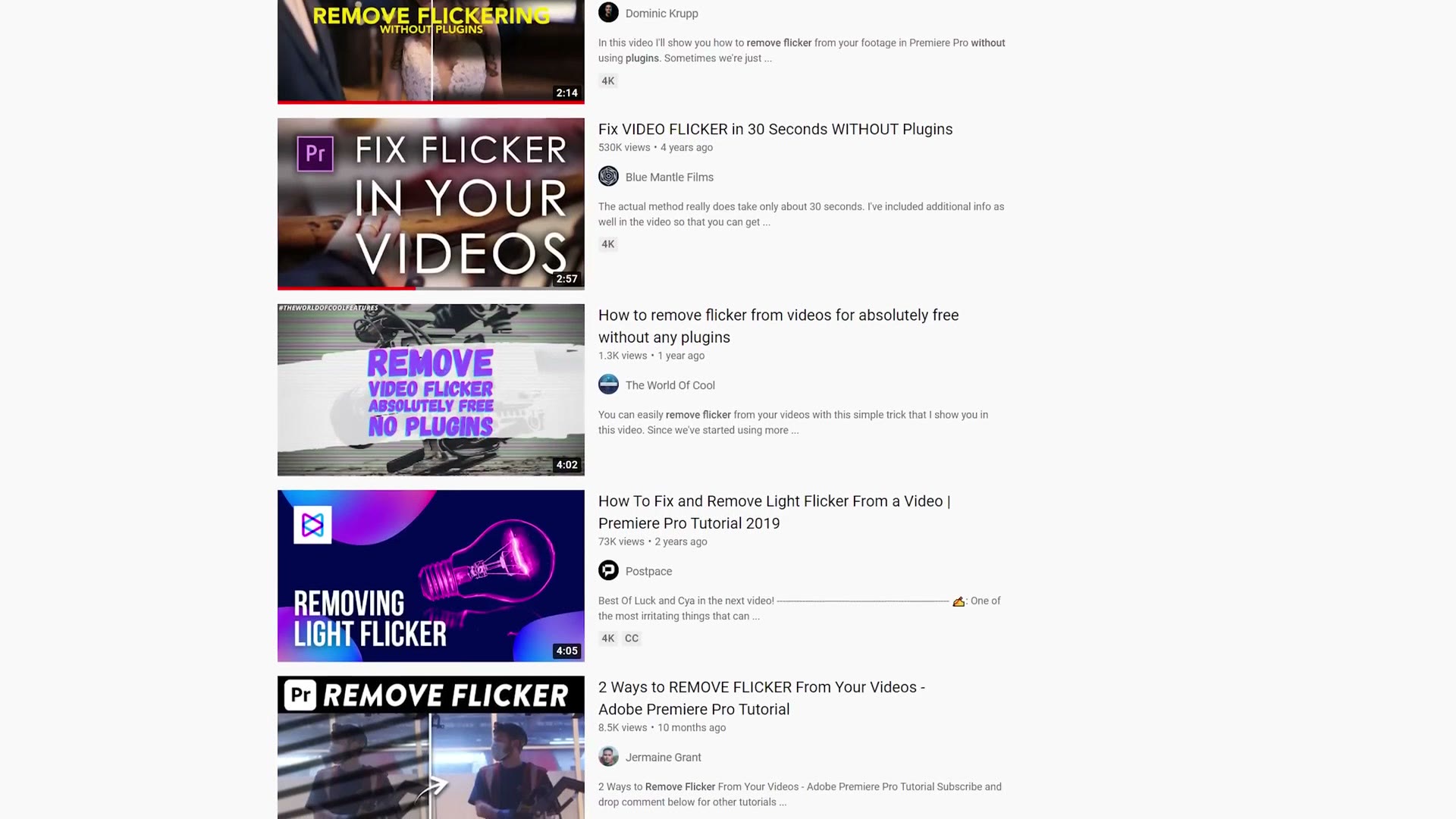
Let’s get this one out of the way fast, because you may have seen it before. The vast majority of flicker removal tutorials on YouTube cover this exact technique.
I’m going to show it in Premiere, but the same thing works identically in any other editor.
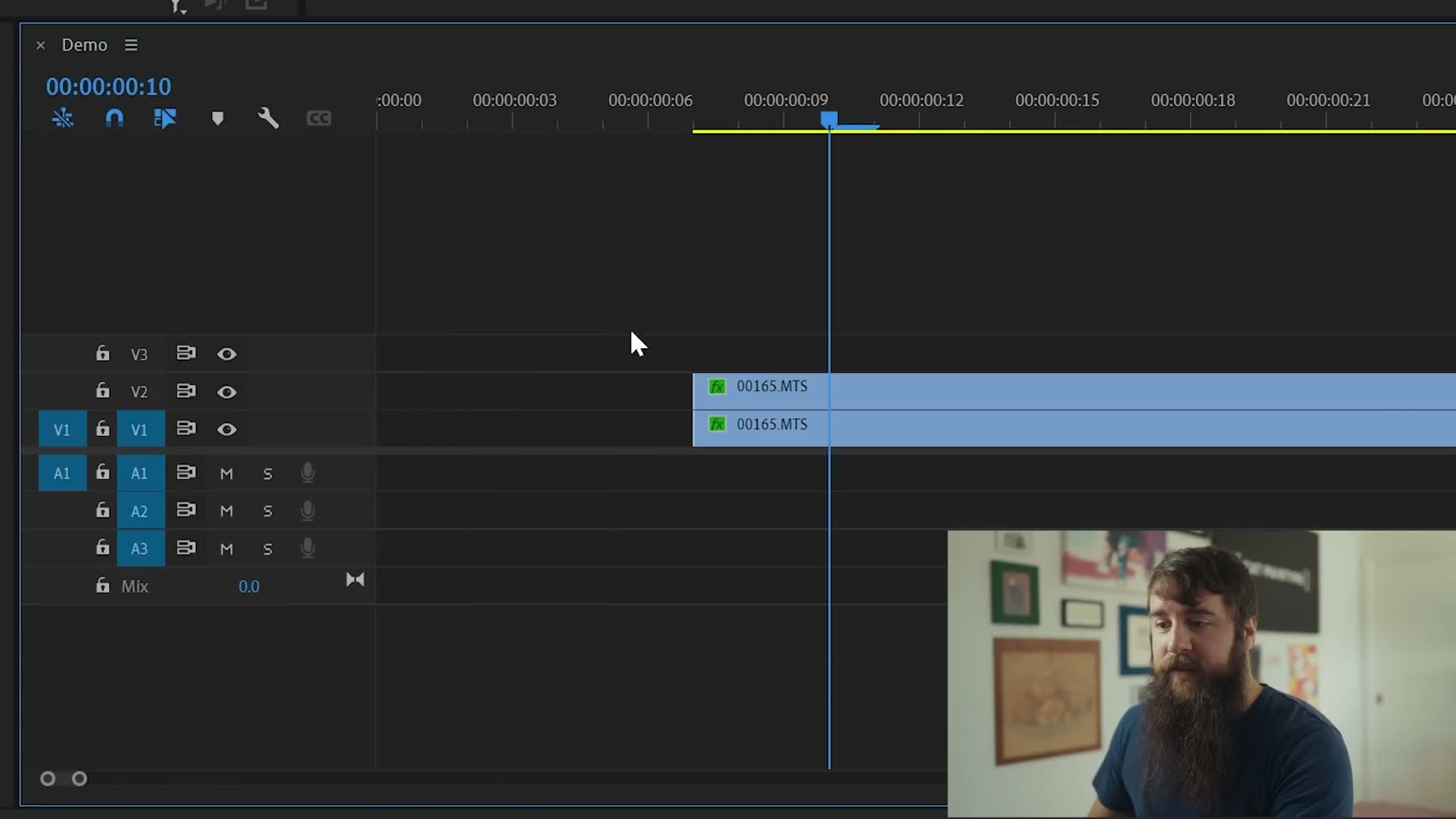
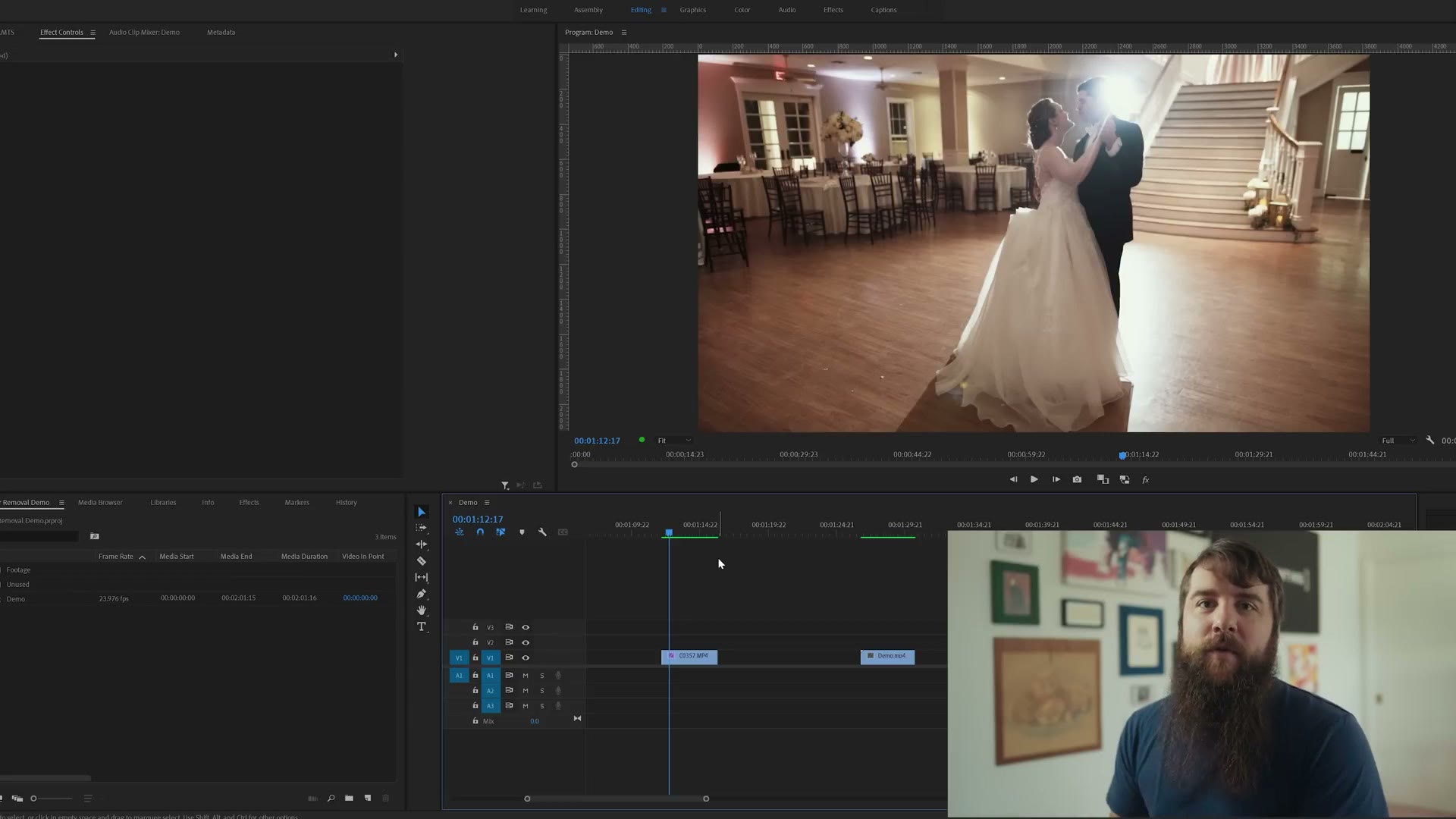
Take your clip that has flicker. Hold down Alt and drag up to duplicate it onto the track above. Press plus to zoom into the timeline, move the duplicate over by exactly one frame, zoom back out, and then set the opacity of the upper clip to 50%.
Hit play. Flicker gone. The only side effect is a slight increase in motion blur.
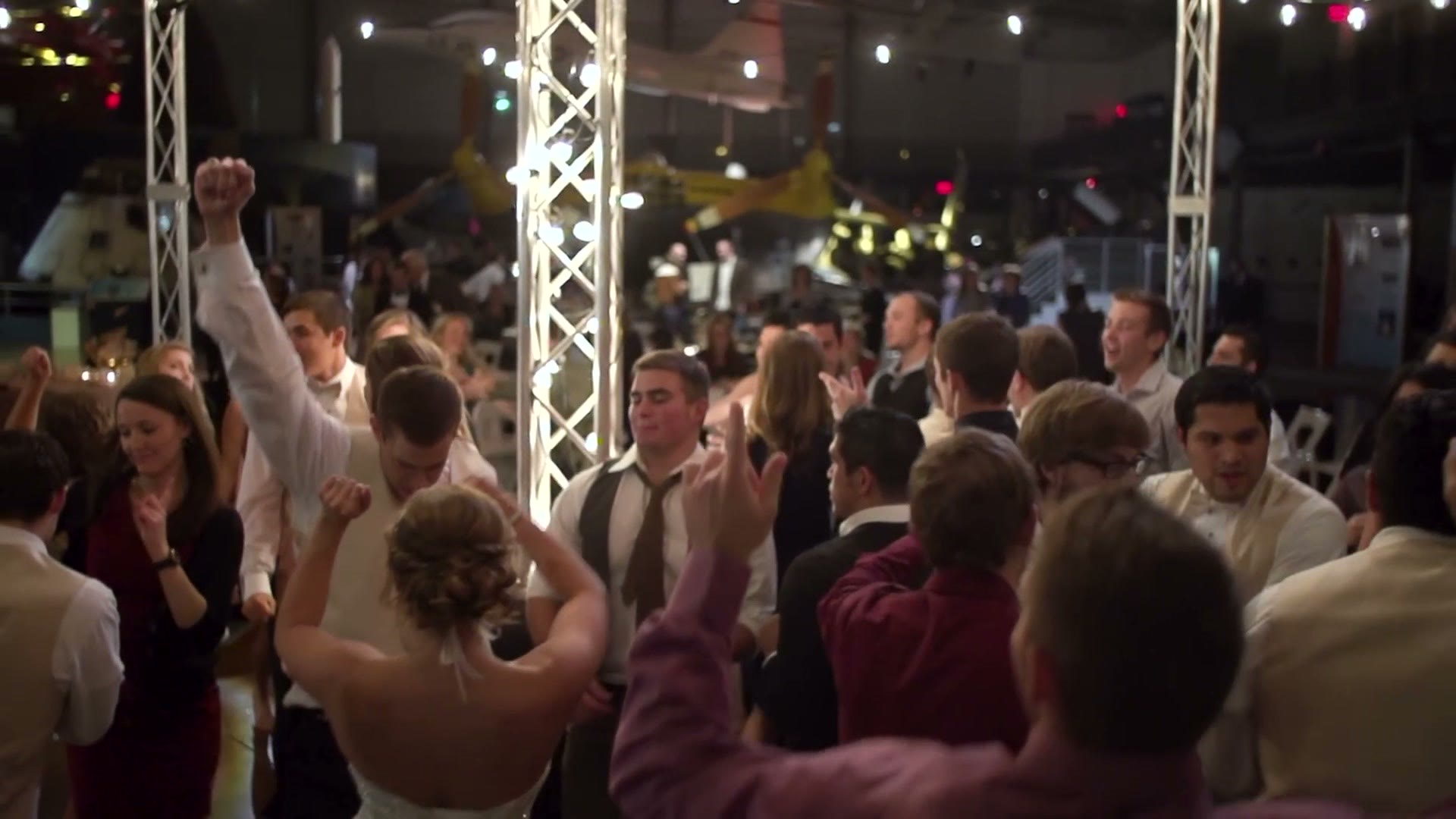
Pretty easy, right? But what if it doesn’t work? What if you try it and the lights are stubbornly still flickering?
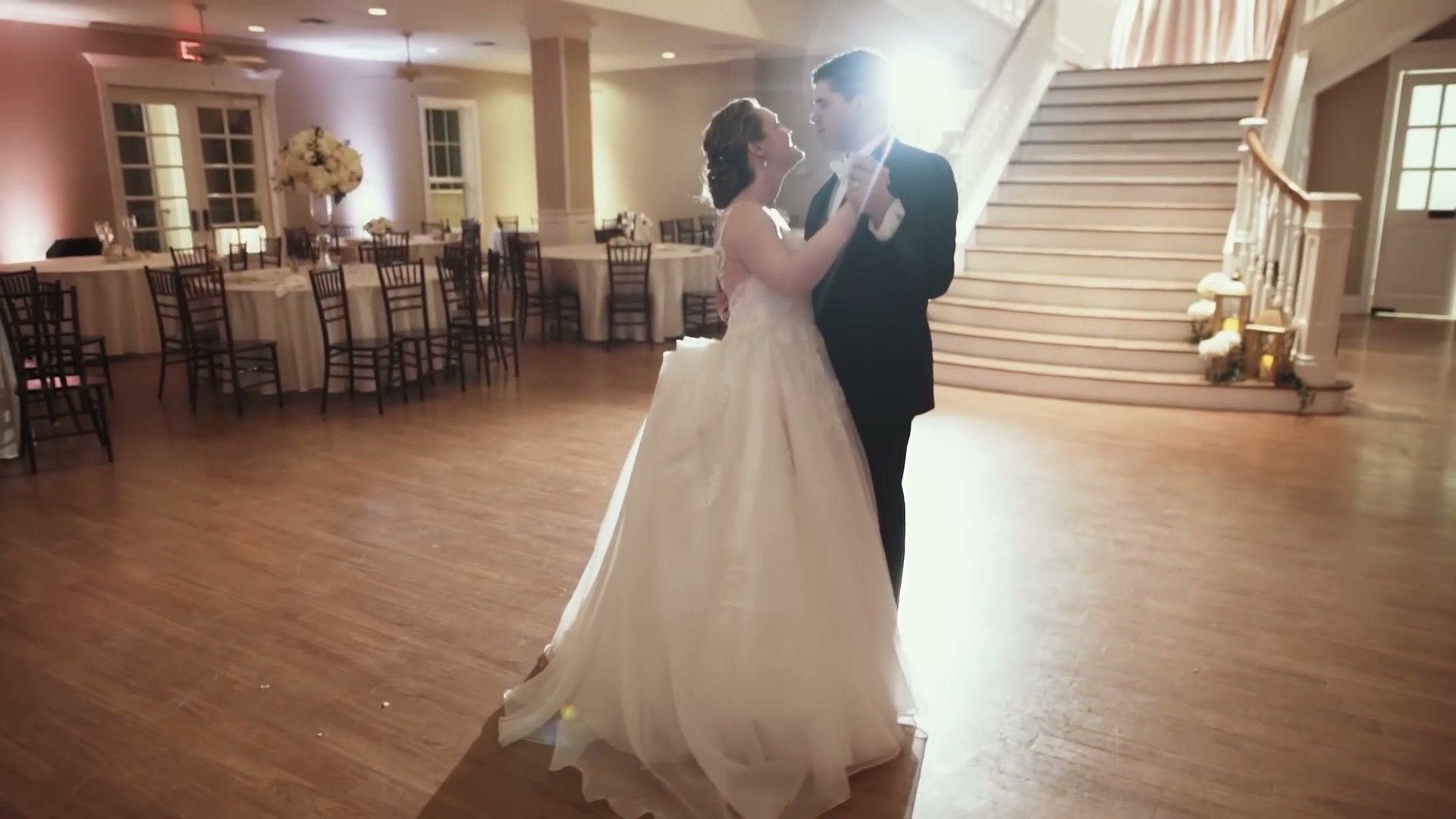
Check out this example. A couple dancing, and a lot of flicker. Two lights back in the background flickering at different rates, plus flicker on the bright dress. It’s everywhere.
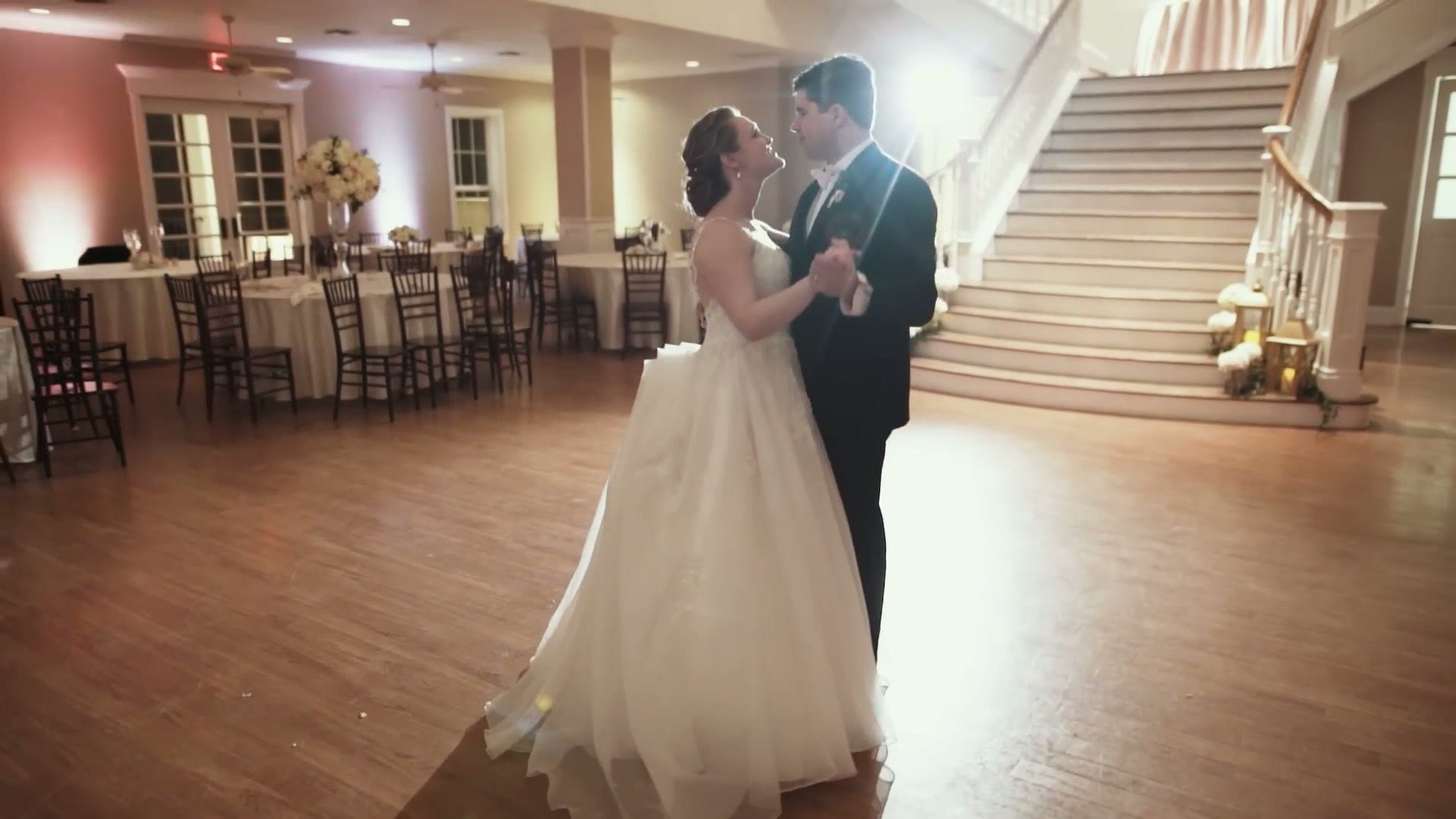
I tried to fix it the same way, copying the clip, dragging it over, setting opacity to 50%. And when I hit play, that really didn’t fix anything. It still looks bad, and now it’s a lot of flicker with motion blur on top.
Method 2 – GUARANTEED Flicker Removal
This is my method for removing really stubborn flicker that does not want to disappear, and here’s the good news: I have never had it fail. I have always been able to get the flicker out using this.
First, the bad news. You’re going to need to buy a plugin called Flicker Free from a company called Digital Anarchy, and at the time of writing it costs $149. I’m sorry, this technique is not free. But this is a plugin I use multiple times a year, I’m betting you will too, and I think it’s completely worth it. Plus it works with Premiere, Final Cut, DaVinci Resolve and more.
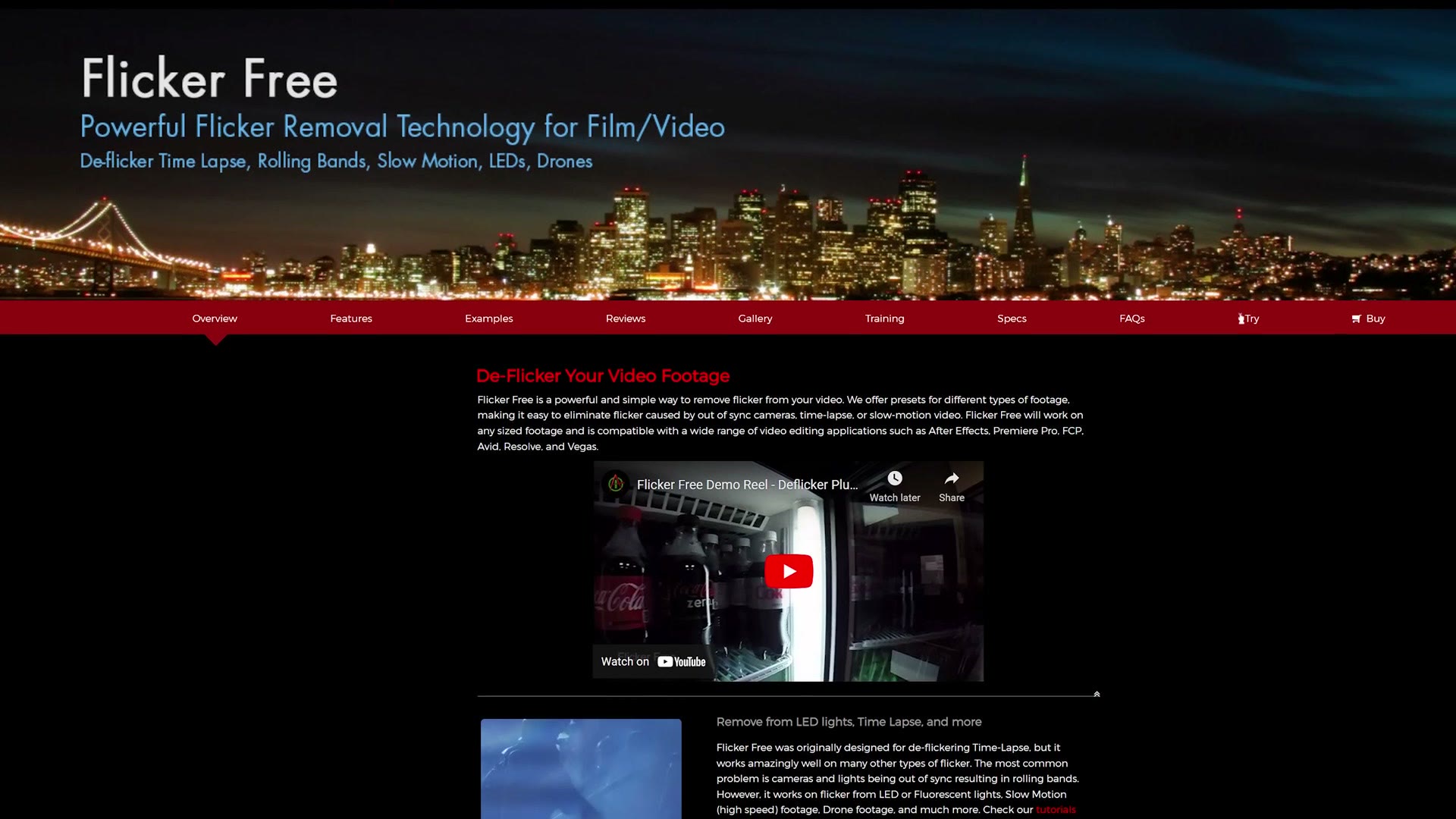
As another plus, they offer a demo on Windows. So if you aren’t sure whether it’ll actually remove your flicker and you’re on Premiere or Resolve, download the demo, throw it on your clip and test it before you put any money down. Sorry Final Cut users, there’s no demo for you.
Also, for the sake of ethics, I want you to know this isn’t paid or sponsored by Digital Anarchy or anyone else. I bought this plugin with my own money, and I’m telling you about it because I love it.
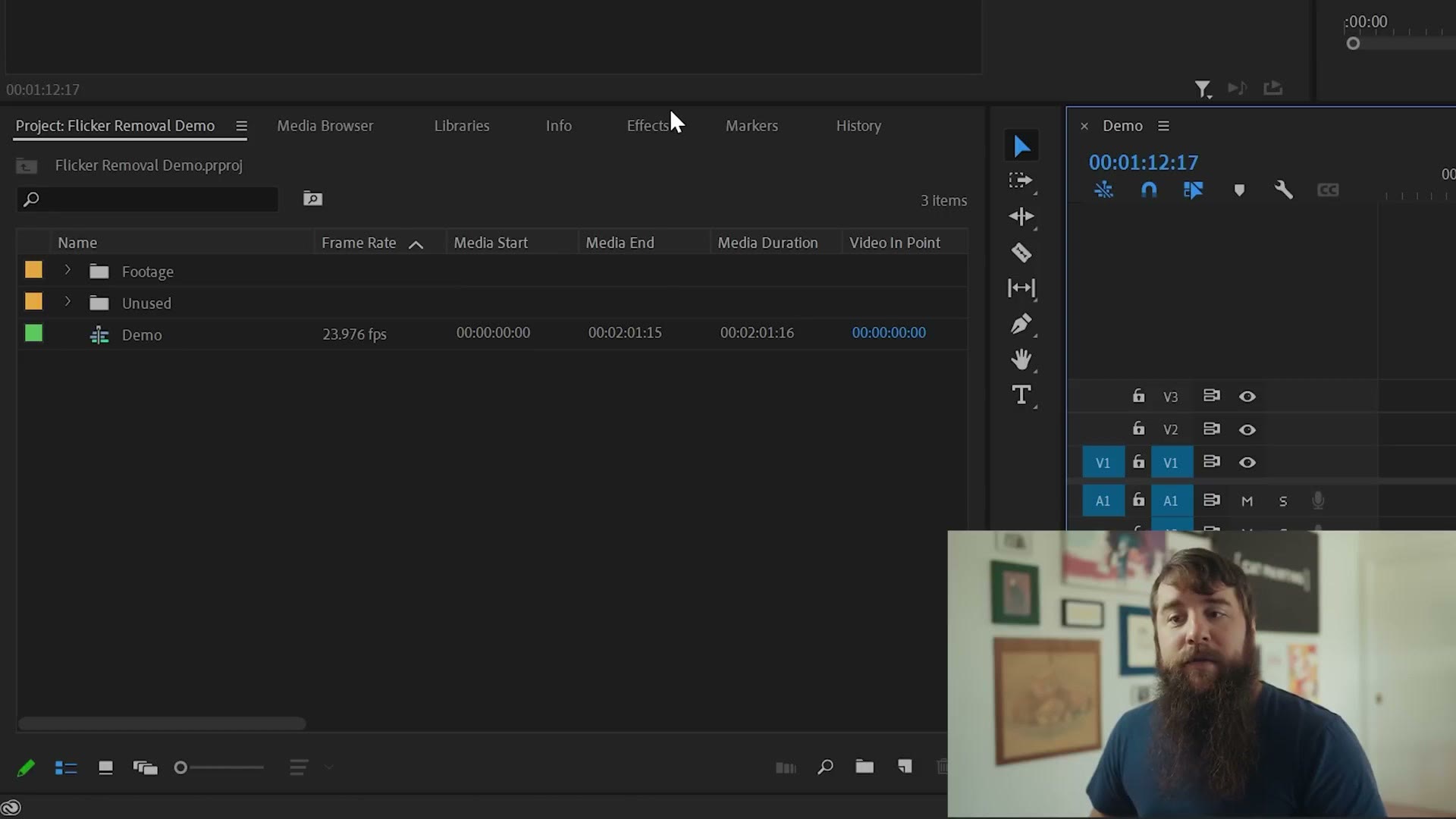
Okay, bad news out of the way. Download and install Flicker Free, then take that clip with the very bad stubborn flicker, open your effects panel, find Flicker Free and drag it onto the clip.
Hit play and wait a second. The flicker is still here. What the heck?
Out of the box, Flicker Free can be a little finicky, so let’s dial in some settings. There are two critical ones that make the most difference.
The first is the preset. By default it’s set to Rolling Bands, which usually works pretty well. If it doesn’t, go through and try the other presets and see which one looks better. One of my favorites is the Slow Motion preset, which, as the name implies, works well with slow motion footage.
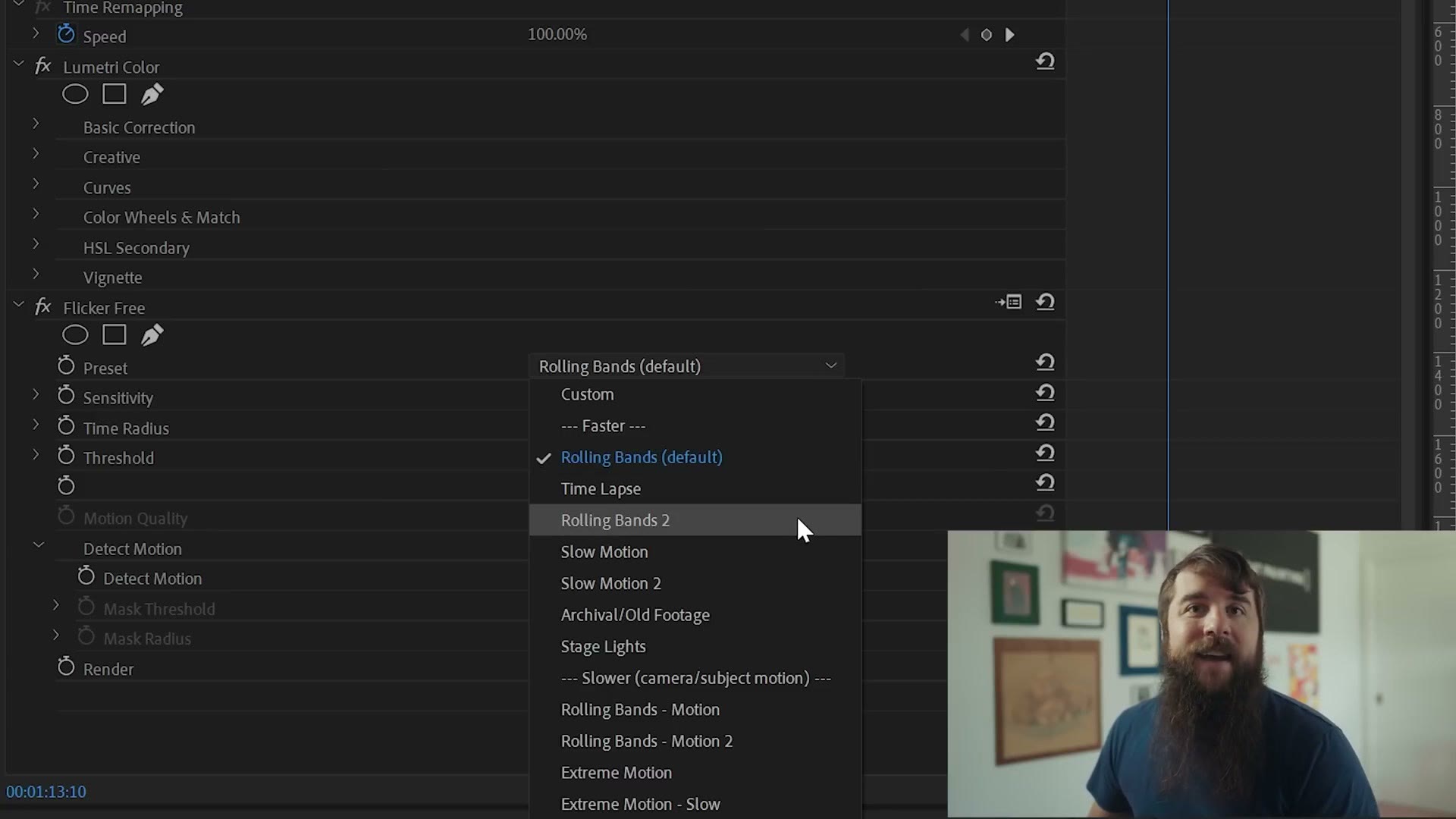
Let’s select Slow Motion and hit play. It’s fixed some of the flicker, but now there’s a weird ghosting effect on the motion. It looks like the couple’s arms have a motion trail behind them.
To fix that, check the Motion Compensation box. Check it out. Ghosting gone, and the couple’s motion looks a whole lot better.
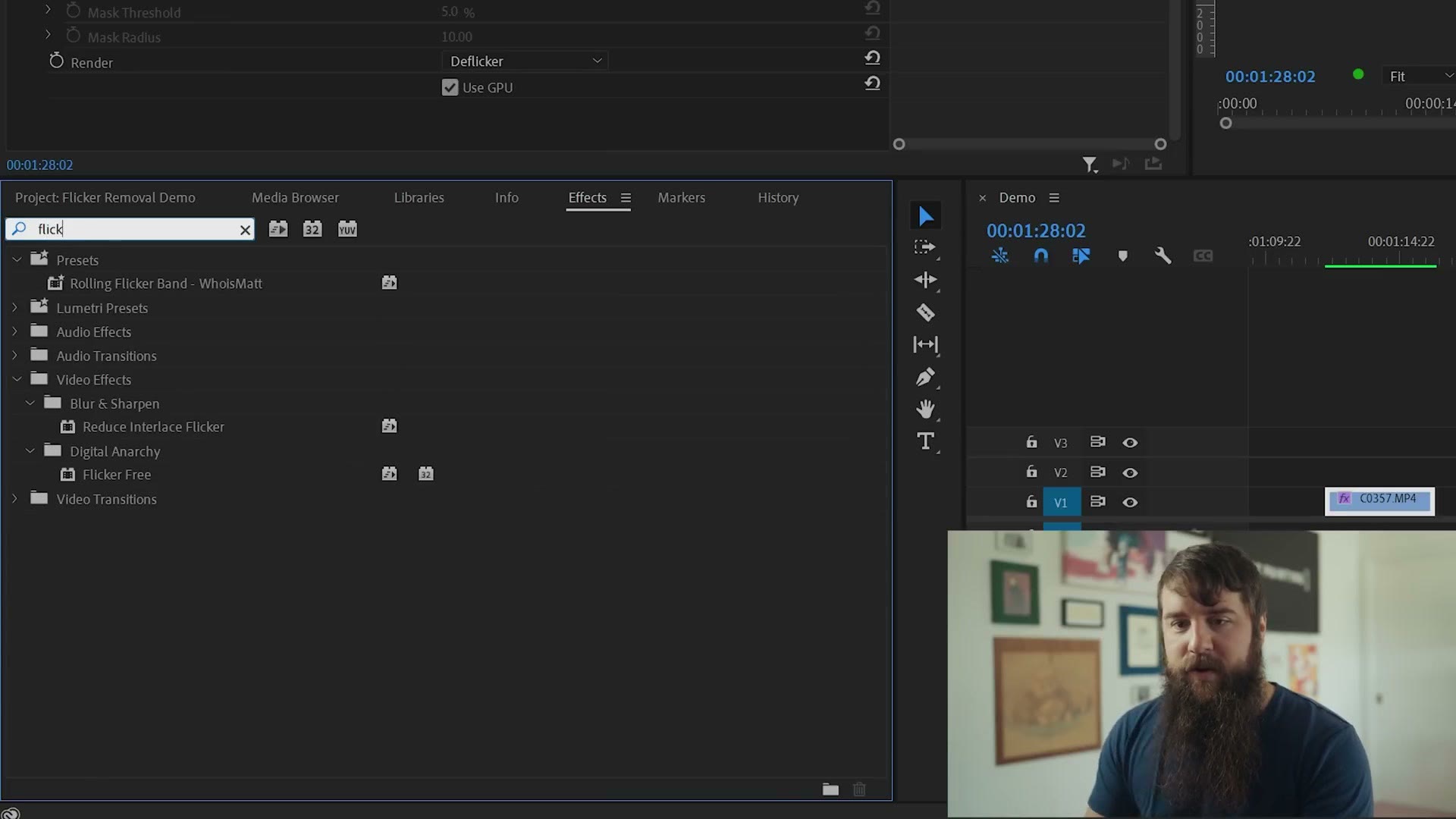
Trick To Remove Flicker At Different Refresh Rates
But look over here. We still have this pesky flicker that the plugin isn’t fixing, because that light is flickering at a different rate than the others.
So here’s the trick. You don’t have to apply Flicker Free just once. You can apply it multiple times.
That said, I would not just drag the effect onto the clip a second time, and I wouldn’t nest the clip either. That confuses the plugin, and in my experience it usually crashes or makes Premiere unbearably slow.
Instead, apply one pass of Flicker Free like we just did, render that clip out as its own standalone video file, and then re-import that new file back into your editor. Now the first pass of flicker removal is baked in, and you’re only dealing with the one light that’s left.
Go back to Effects, grab Flicker Free again and drag it onto the new clip. Set the preset to Slow Motion again, and this time also change the threshold from 20% to 100%.
While you’re here, take a look at How To Quickly & Easily Remove Flicker In DaVinci Resolve and How To Remove Slow Rolling Flicker Bands in Premiere Pro.
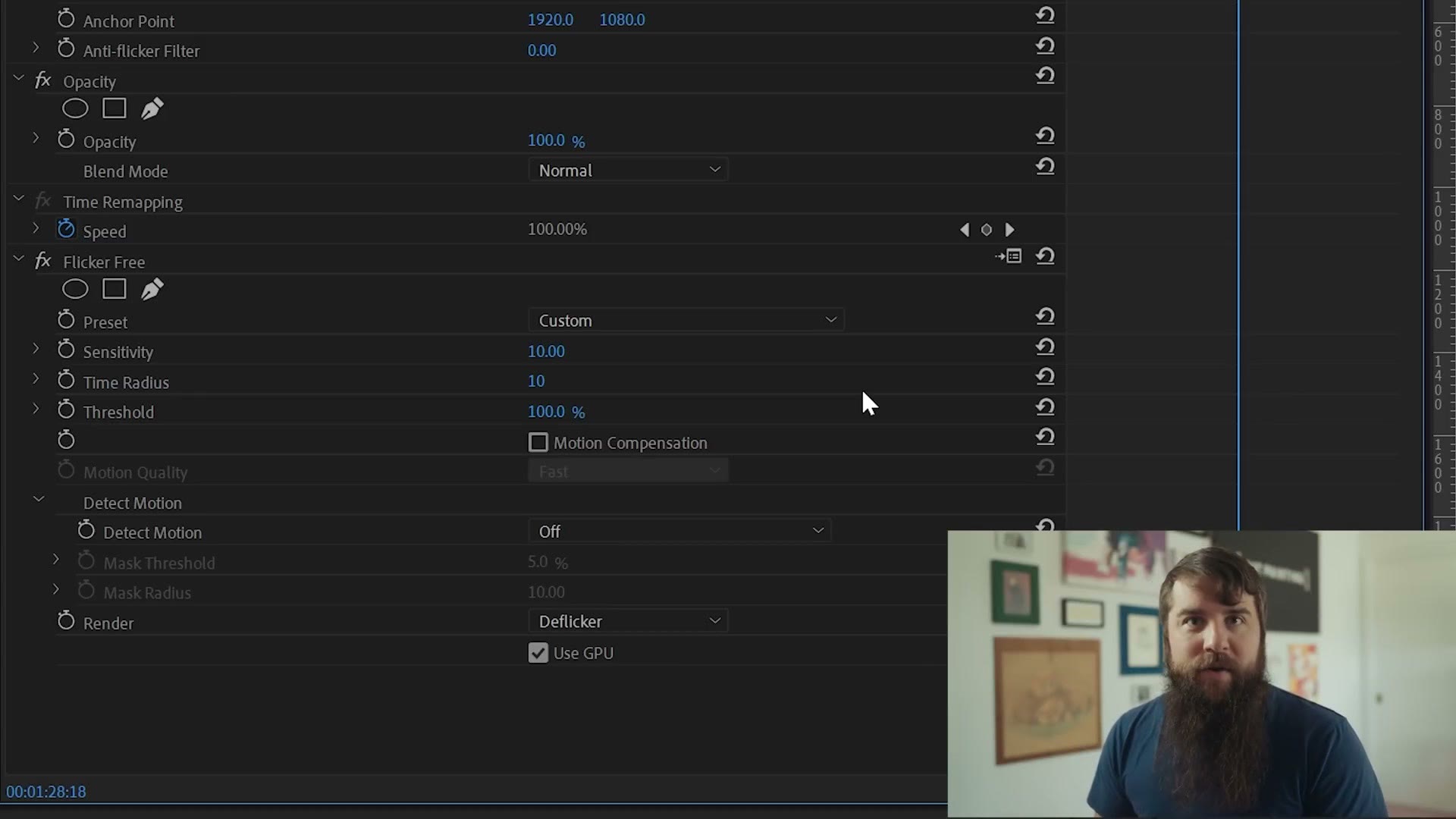
Think of threshold as how sensitive the plugin is to the flickering light. If it’s a big flicker swinging from very bright to very dark like this one is, setting the threshold higher makes the plugin detect it.
Test it and look at that. Ding. The flicker is gone. You would not even know there had been flicker in this clip.
But hold on a second, the couple now look super ghosted with a lot of motion trails. No problem, let’s turn Motion Compensation on. Hit play and dang it, we fixed the motion blur but now the flicker is back.
Time to fix this once and for all. The last thing you need to know about Flicker Free is that you can choose which parts of the clip the effect applies to. In this case I only want it on that flickering light on the left, and I want it to completely ignore the couple.
So uncheck Motion Compensation, click the mask pen tool, and change the viewer fit to 25% so you get a much better view around the edges of the clip.
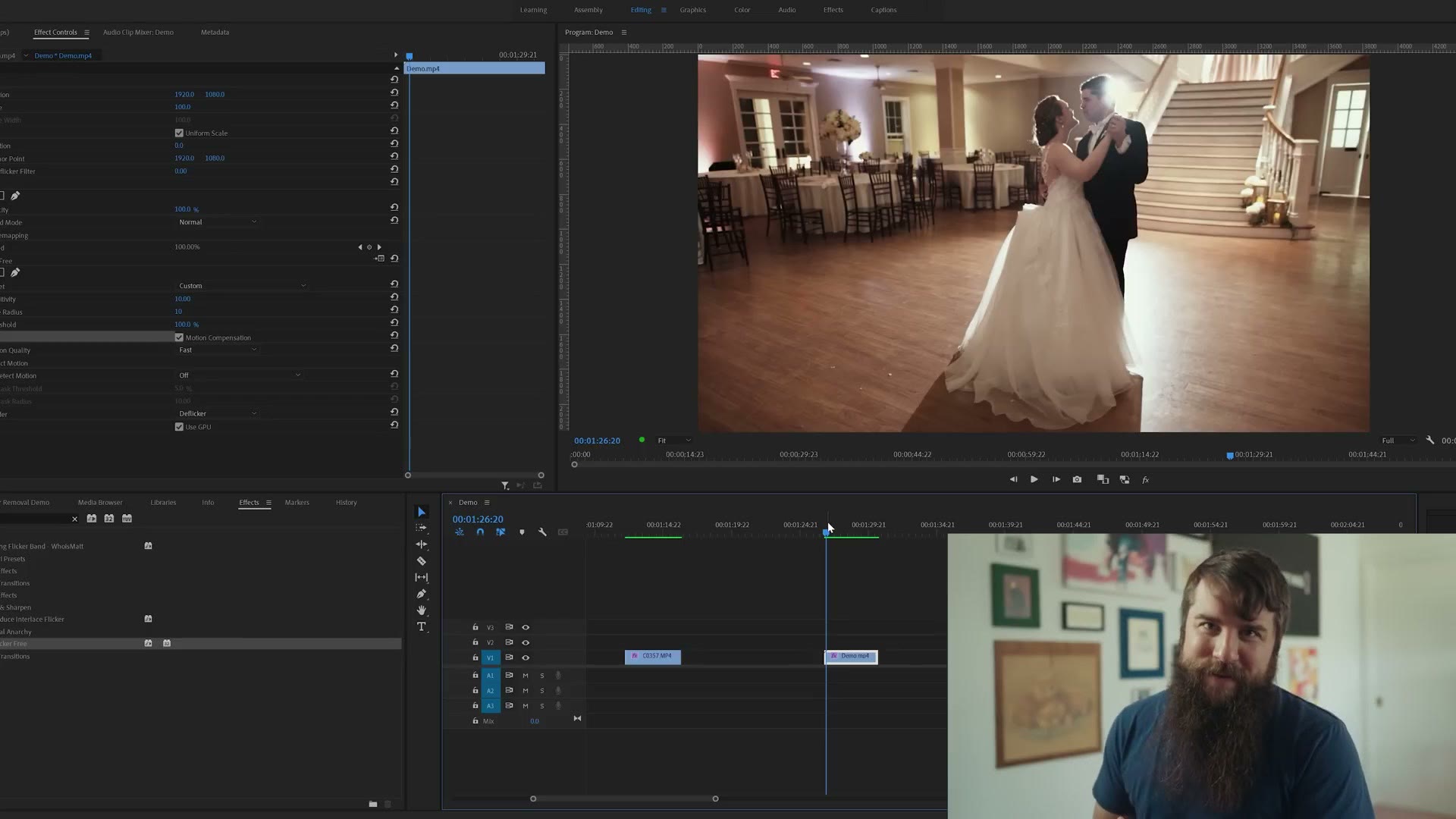
Click five times to draw a shape around the light, then bump up the mask feather to soften the edge a little.
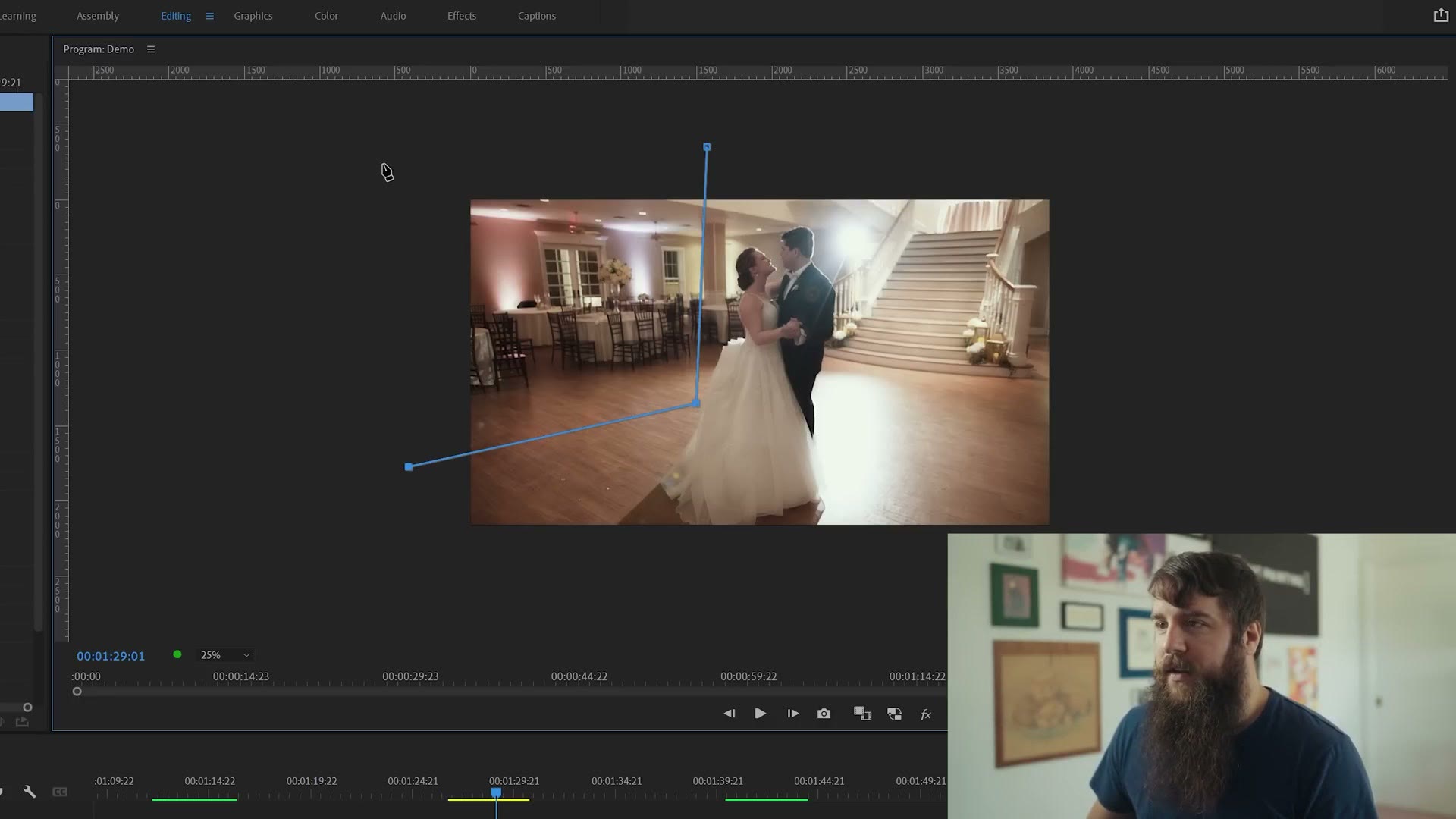
Hit play, and the flicker is gone and the couple aren’t ghosting. Do you remember how bad this clip looked to start with? This is incredible. I love it. Completely fixed.
So if you have flicker in your videos, first try the simple trick of duplicating the clip on top of itself, moving it over one frame and setting the opacity to 50%. But if you’ve got very stubborn flicker that won’t go away, or you aren’t happy with the extra motion blur that trick adds, investing in Flicker Free can genuinely save your clips.
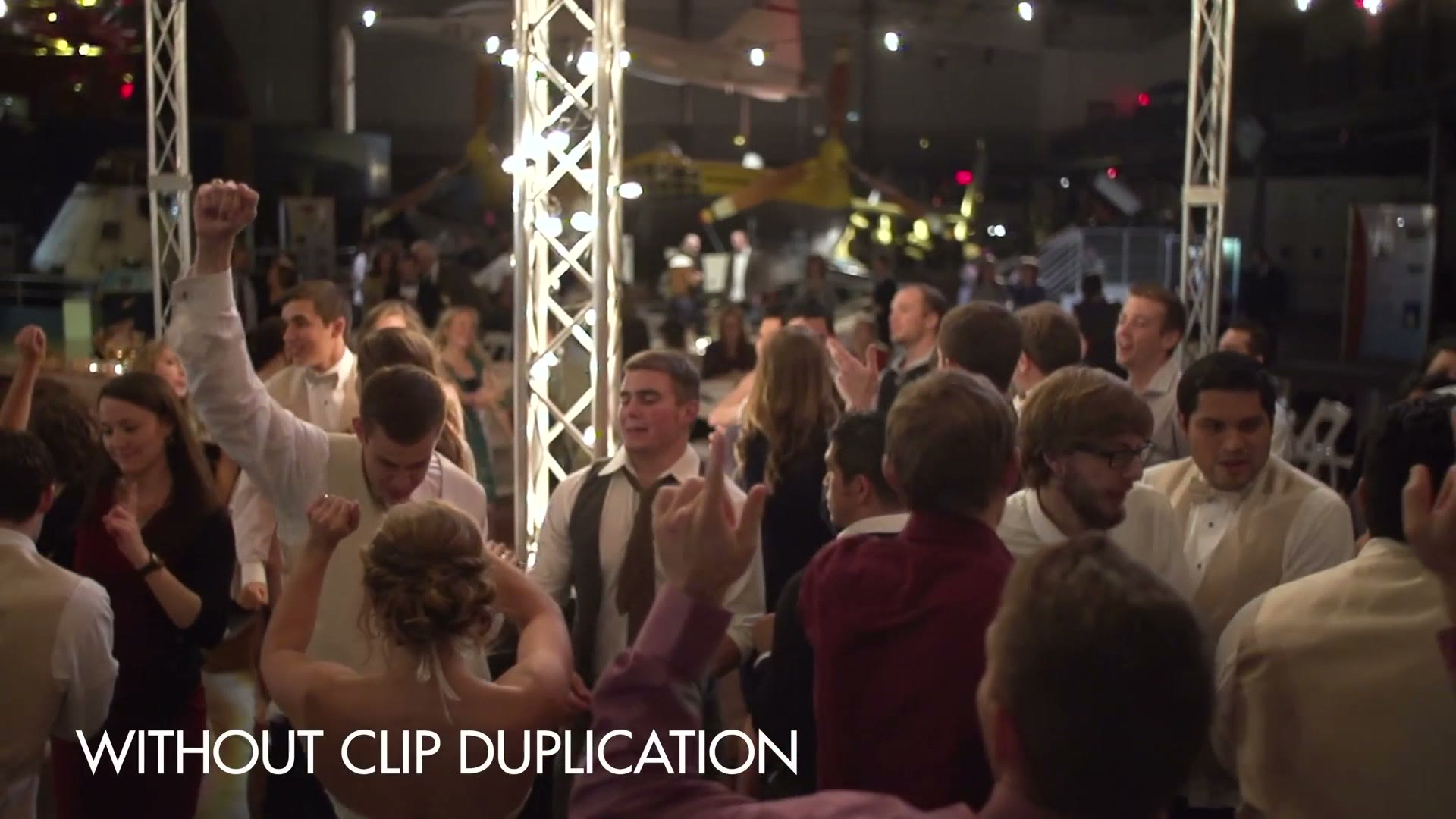
In fact, look at that first clip I fixed at the start. Here it is fixed by duplication.
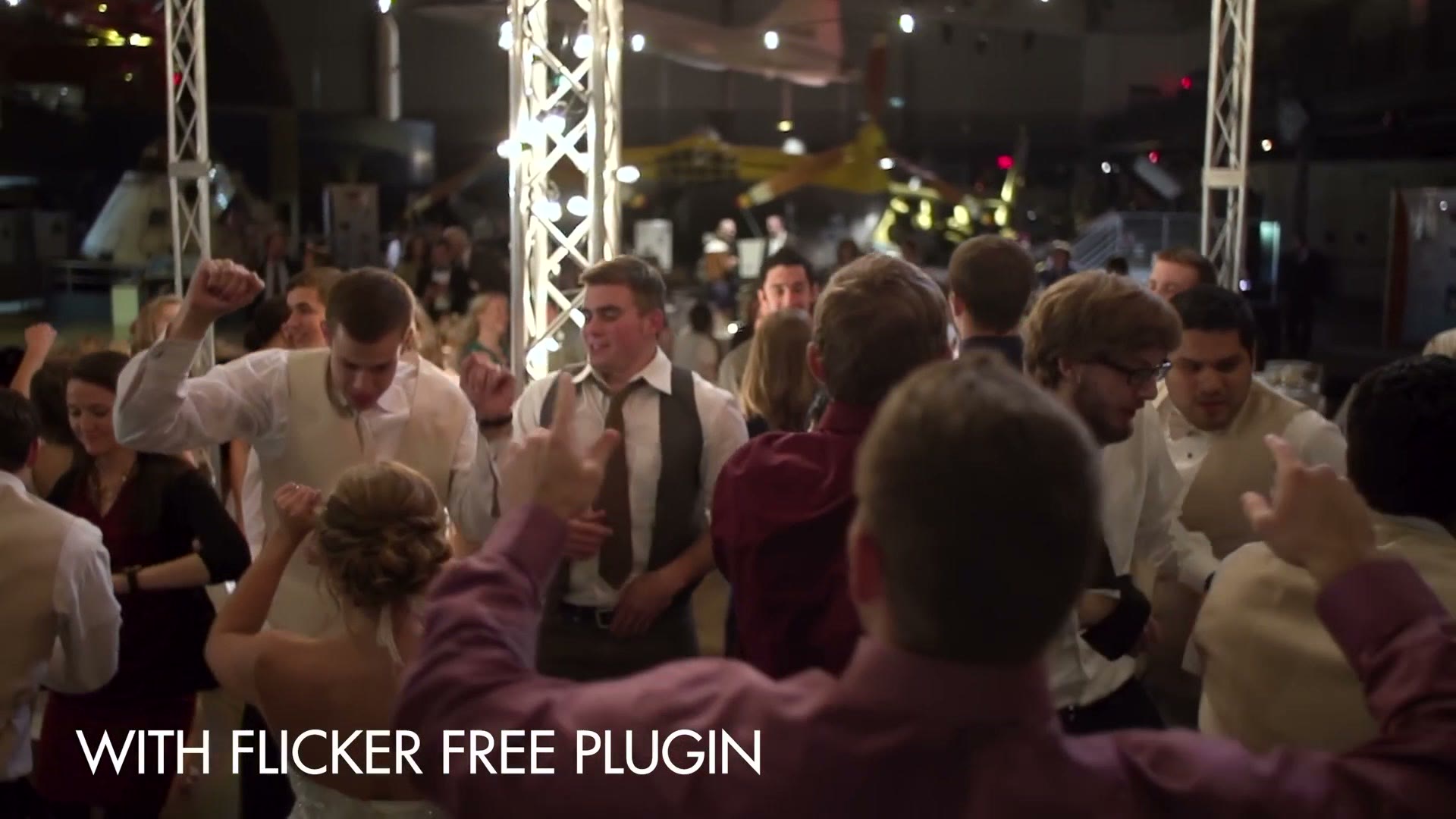
And here’s the same clip using Flicker Free with motion compensation checked. There’s much less motion blur.
Colored With WhoisMatt LUTs
This one is about the fast flicker you get from cheap LED lighting. If your problem is instead a slow band rolling up through the frame, usually from shooting at a high frame rate, that has its own fix over here.
All the clips here are graded with my own color presets, which you can grab at whoismatt.com/luts, and the Flicker Free plugin is right here.

If you film weddings, I’ve also put together a free guide to booking more wedding film clients. My full gear list is on kit.co, and I have filmmaking courses if you want to go deeper.
Thanks so much for reading, and have a great day!