
My name is Matt Johnson, and Adobe just added two new features to Media Encoder that are genuinely useful if you spend any part of your life staring at a render bar. Let’s talk about them.
First though, make sure you are running at least version 22.5 of Media Encoder, or you are not going to see either of these.
Feature 1: Auto Shutdown
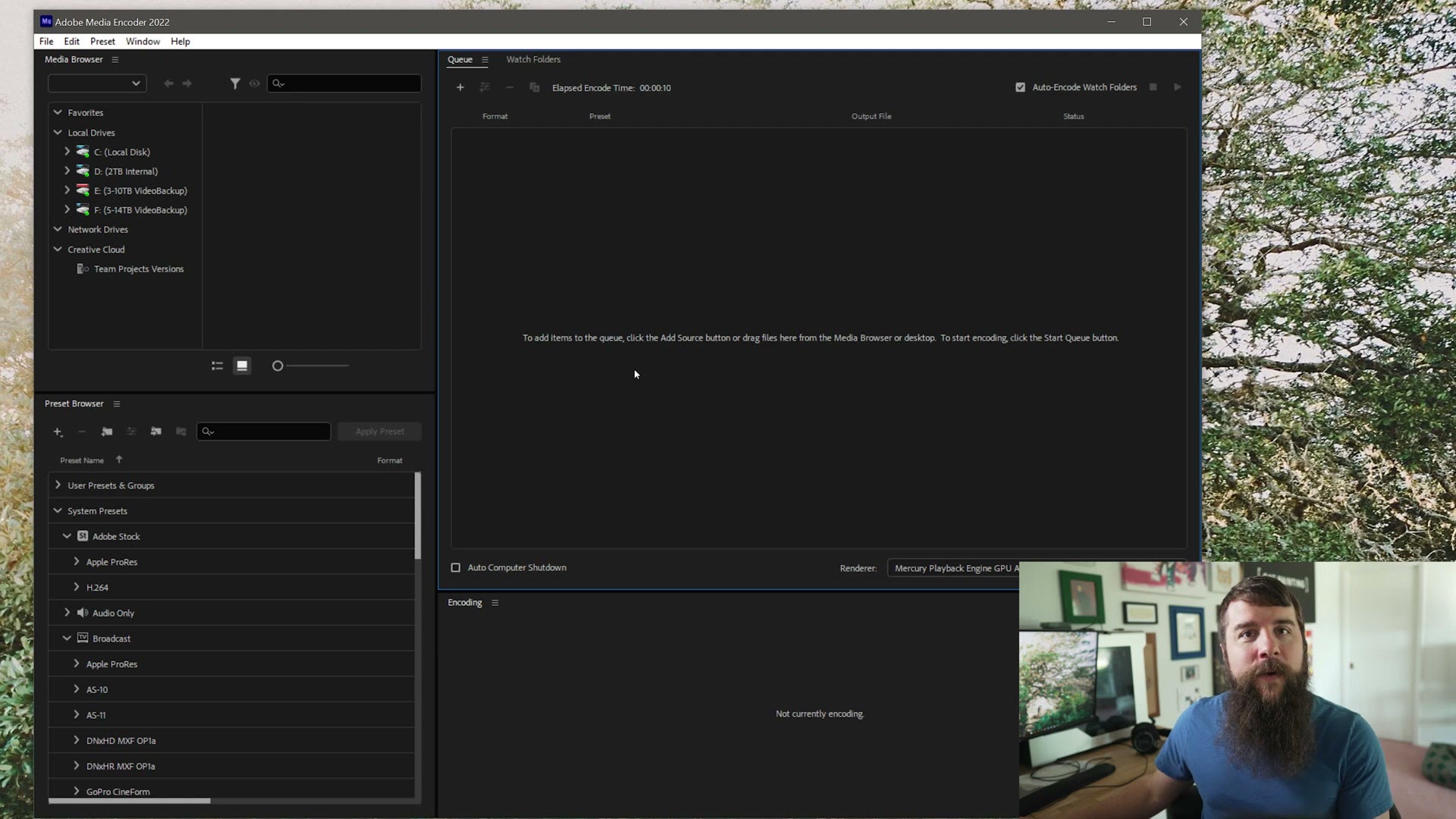
You will notice this one right away after you update. There is now a checkbox that shuts your computer down once Media Encoder finishes rendering.
This is really useful if you render overnight. I can think of a lot of times where I was exporting, say, a hundred stock footage clips, so I queued them all up in Media Encoder, pressed render, and went to bed so I could wake up to a finished pile of files.
The problem with rendering overnight has always been that the second your computer finishes, it just sits there the rest of the night burning power while you sleep and quietly driving up your electric bill. Check the auto shutdown box and the machine powers itself down the moment the last file is done.
Feature 2: Get Notified On Your Phone When Your Videos Are Exported
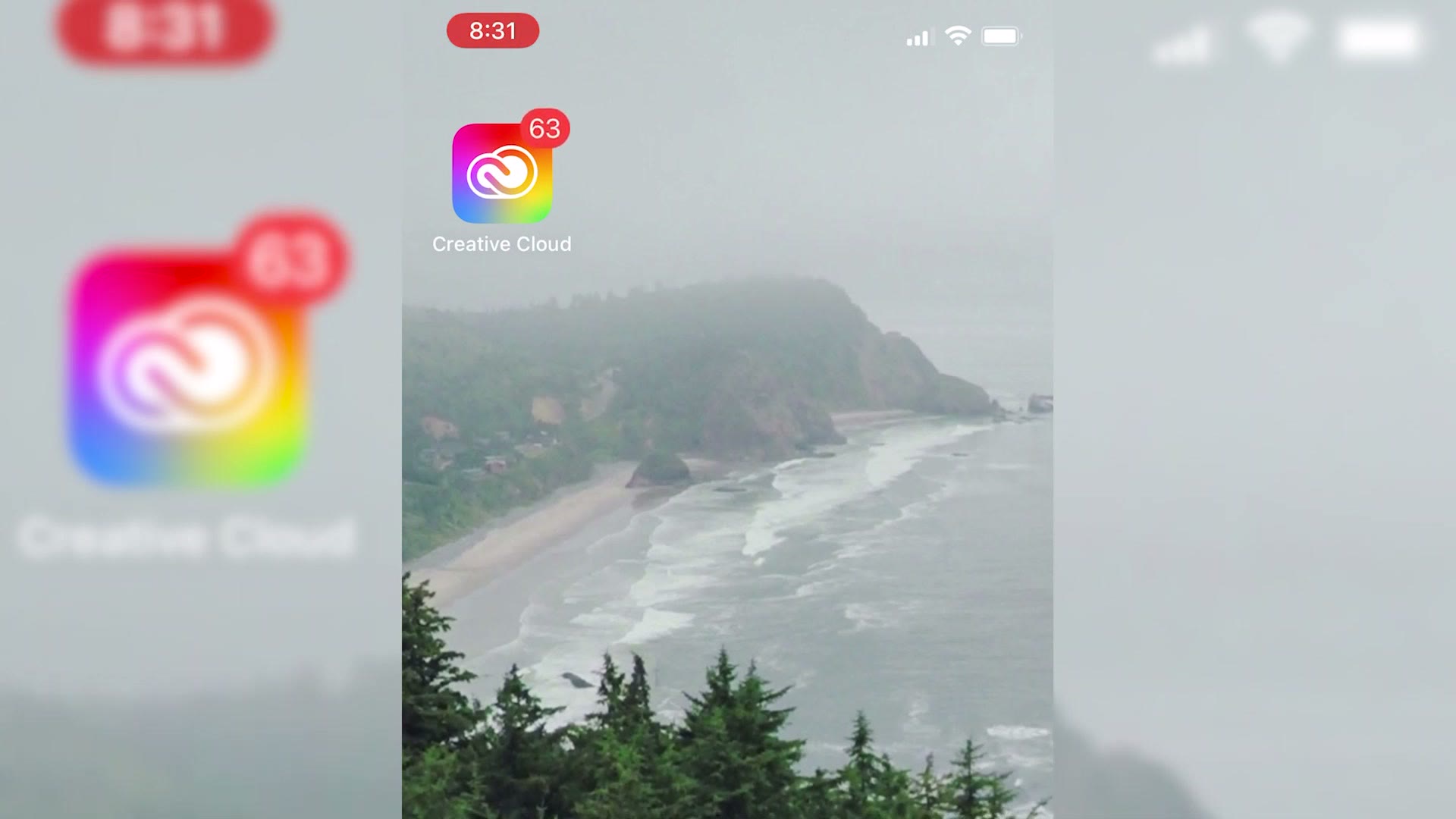
This one is even cooler, and it is something I have wanted for a long time. Media Encoder can now send a notification to your phone the moment your video finishes rendering.

This is super helpful if you are someone like me, where you press render on a video to finish it and think, alright, I am just going to take a five minute break. And then you end up watching cat videos for an hour, and you look down and realize your video finished exporting 55 minutes ago. What have I been doing?
With this, your phone tells you the instant it is done so you can get back to work.
How to turn it on
With Media Encoder open, go up to Edit, then Preferences, then Notifications. You will find two checkboxes in there, and both are off by default.
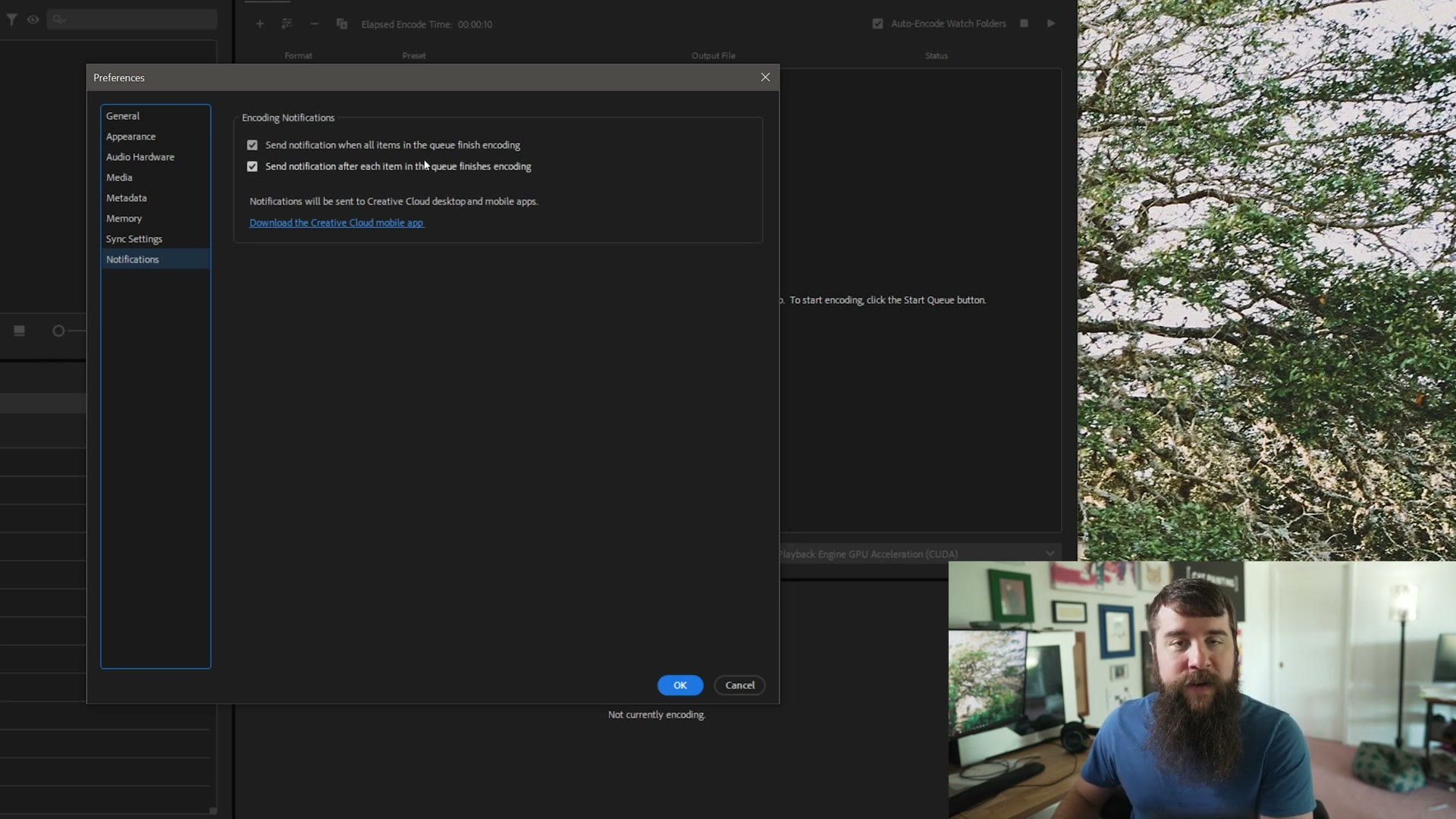
- Send notification when all items in the queue finish encoding. Definitely turn this one on. This is the one that tells you the instant your exports are done.
- Send notification after each item in the queue finishes encoding. Think about this one. I know everybody is already being bombarded with far too many phone notifications, and if you are exporting a hundred clips, that is a hundred notifications. Which is kind of crazy. I would leave this one off.
Then you need the Adobe Creative Cloud mobile app, which Adobe helpfully links to right there in the same preferences panel. Download it, sign in with your Creative Cloud account, and make sure notifications are enabled in the app.
That is everything. Media Encoder handles the rest, and the moment your videos are done rendering you get a notification on your phone so you can get back to editing instead of wasting time on YouTube.
Free Guide To Help You Edit Videos
Those are two really cool new features for Adobe Media Encoder, and I hope they are helpful to you.
Speaking of being helpful to you, I made a free guide called Edit Videos Like A Pro, which walks through some of the biggest things I have learned in my decade plus of making videos. If you want to step up your editing, you can download the guide for free right here.
A couple of other things you might find useful:
- How to edit and export high quality YouTube Shorts in Premiere Pro, if you want export settings that actually hold up after upload.
- My filmmaking courses, and my full gear list.
Thanks so much for reading, and have a great day!