
My name is Matt Johnson, and if you want to buy an Apple laptop for 4K video editing, in this post I have three recommendations for you at three different price points. We are going to cover a budget option, a best bang for your buck option, and an extremely powerful beastly option that will handle literally anything you throw at it.
All three laptops are linked below, because I respect your time like that.
The Budget Video Editing MacBook
If you want a powerful video editing laptop that is not going to break the bank, I am actually going to recommend you buy the M2 MacBook Air with the 512GB SSD upgrade, 16GB of RAM and the 67 watt USB-C power adapter, for $1,619 at the time of making this video. Heads up: this link goes to the newer Apple 70W USB-C Power Adapter.
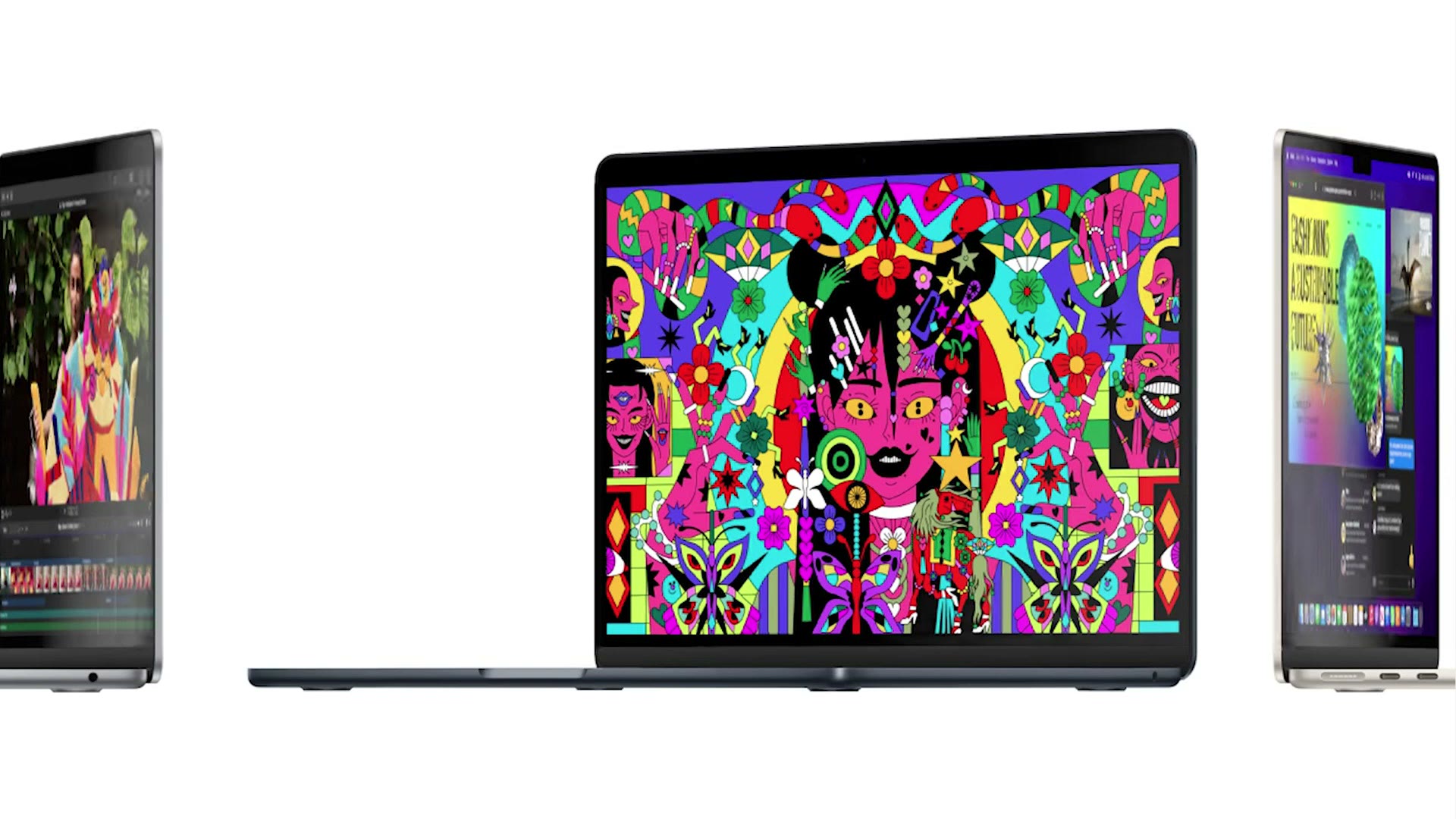
Yes, this is Apple’s newest base level laptop, and it does not even include a fan. But trust me, it is going to be fantastic for video editing, even if you are editing 4K.
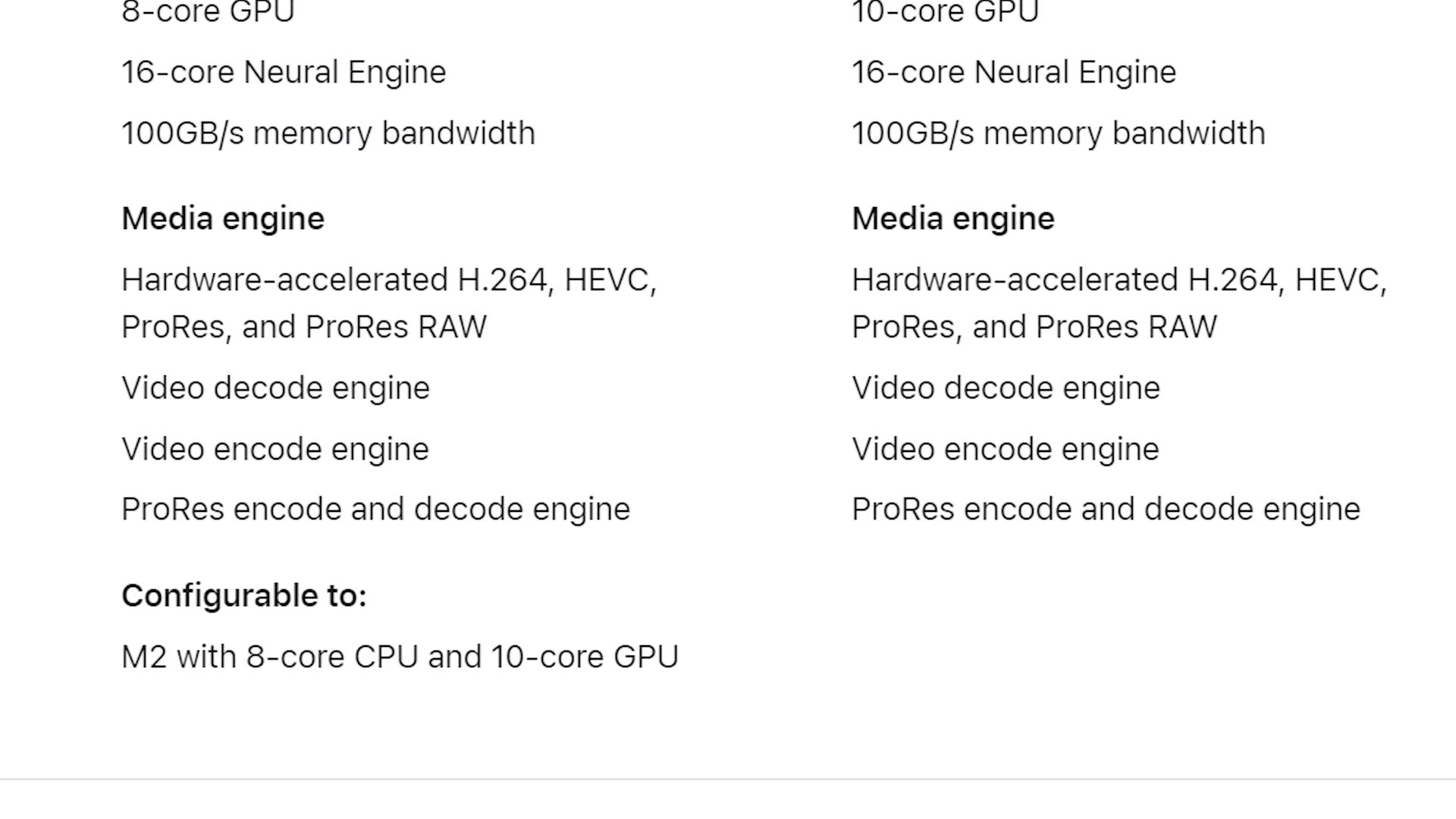
To be clear, you do not need to upgrade the CPU to 10 cores, or even consider the 13 inch M2 MacBook Pro. With this 13 inch M2 MacBook Air you are getting all the performance you need for 4K video editing, and because this base version includes hardware encoders and decoders for H.264 and H.265 in both 8-bit and 10-bit, as well as ProRes encoders and decoders, this laptop can play back and render the video files from most cameras today significantly faster than laptops with Intel and AMD processors.
That said, I did recommend some upgrades, and here is why.
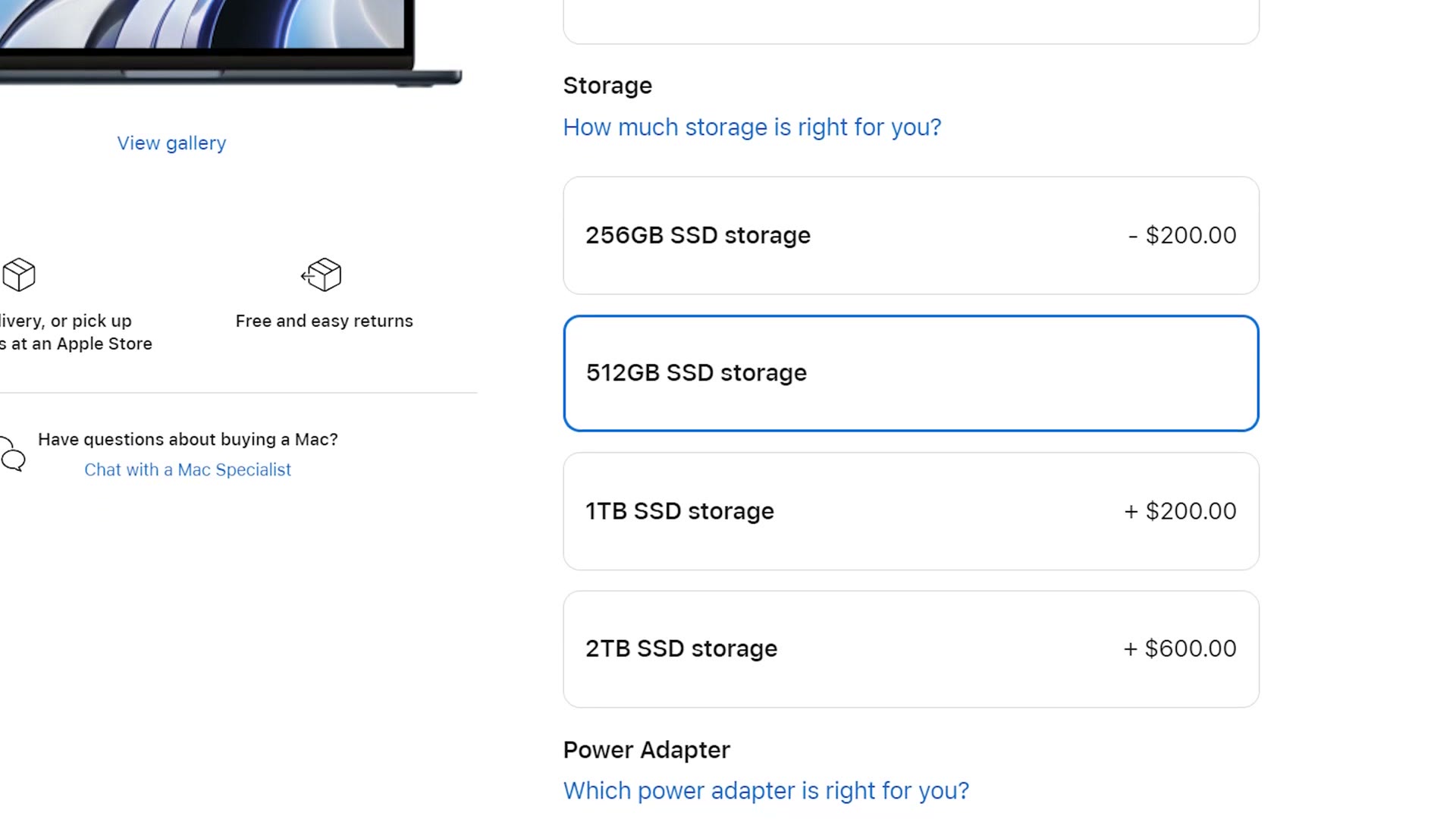
Starting with the most important, the reason I recommend upgrading to the 512GB SSD is that the 256GB SSD is approximately half the speed of the 512GB model. That is going to make a huge difference whenever you are editing video, so spending that extra $200 is completely worth it.
Next, the reason I recommend 16GB of RAM is that while you can probably get by with 8GB if you are only video editing, once you start multitasking, so you have a web browser open in the background or you are playing music while you edit, having those 16GB is going to help your editing software stay speedy.
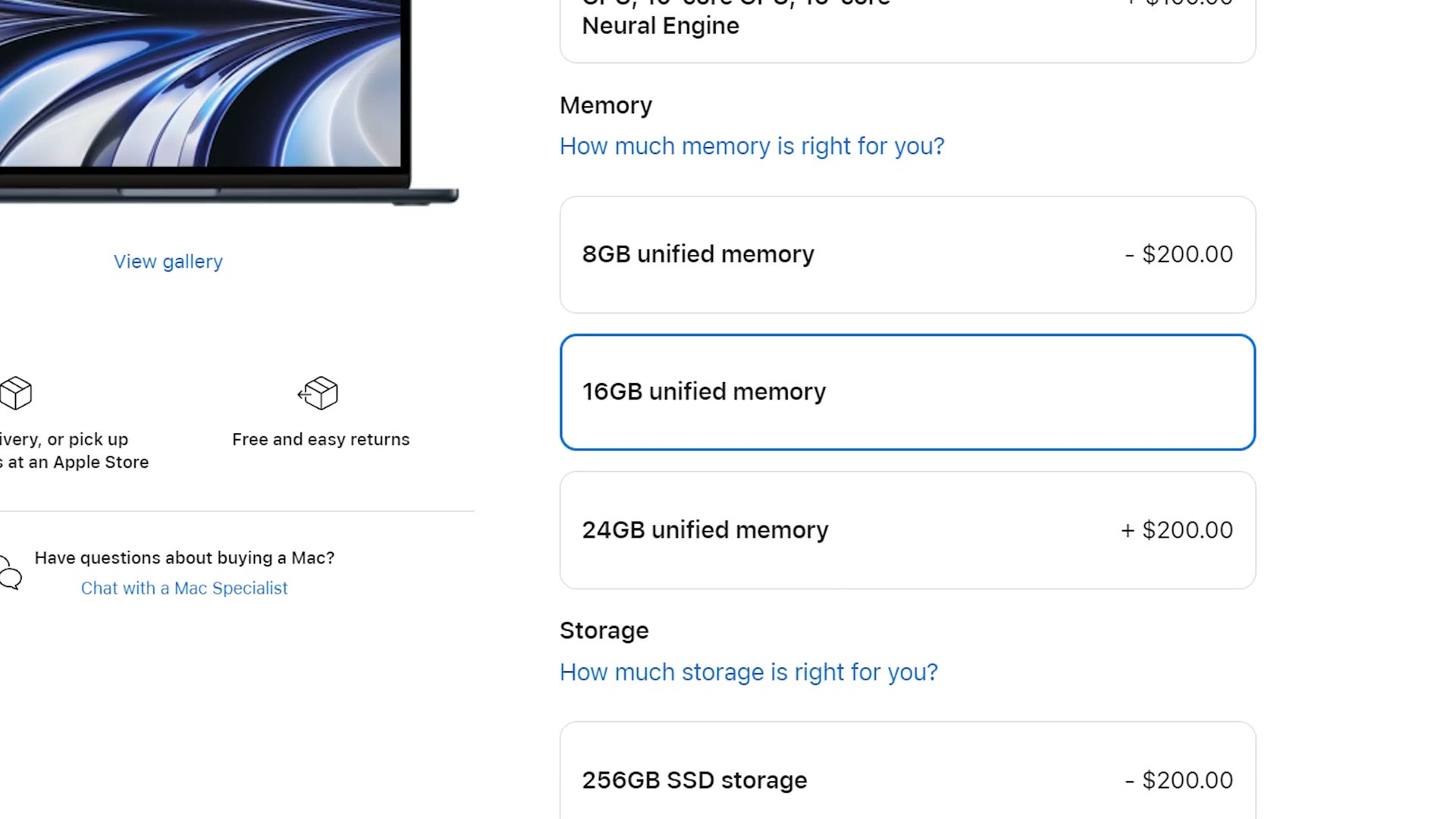
Lastly, spending $20 more for the 67 watt USB-C power adapter is going to make charging significantly faster, so I totally recommend it. Feel free to skip that one if you do not want it.
You can buy the budget MacBook at Amazon, at B&H, or from Apple, where you will want to add 16GB of memory and 512GB of storage.
Bonus: An Even More Budget Friendly MacBook
Now, before we talk about the best bang for your buck option, I am sure some of you are already starting to type in the comments, “Matt, $1,619 for a laptop is not exactly budget friendly.” I totally agree. I wish this laptop was cheaper, and to help you out, as a bonus I have an even more budget friendly option.
If you want a laptop that gives you very similar video editing performance to the M2 MacBook Air for dramatically less money, I am going to recommend you buy the M1 MacBook Air, specifically a refurbished base model with a 16GB RAM upgrade.
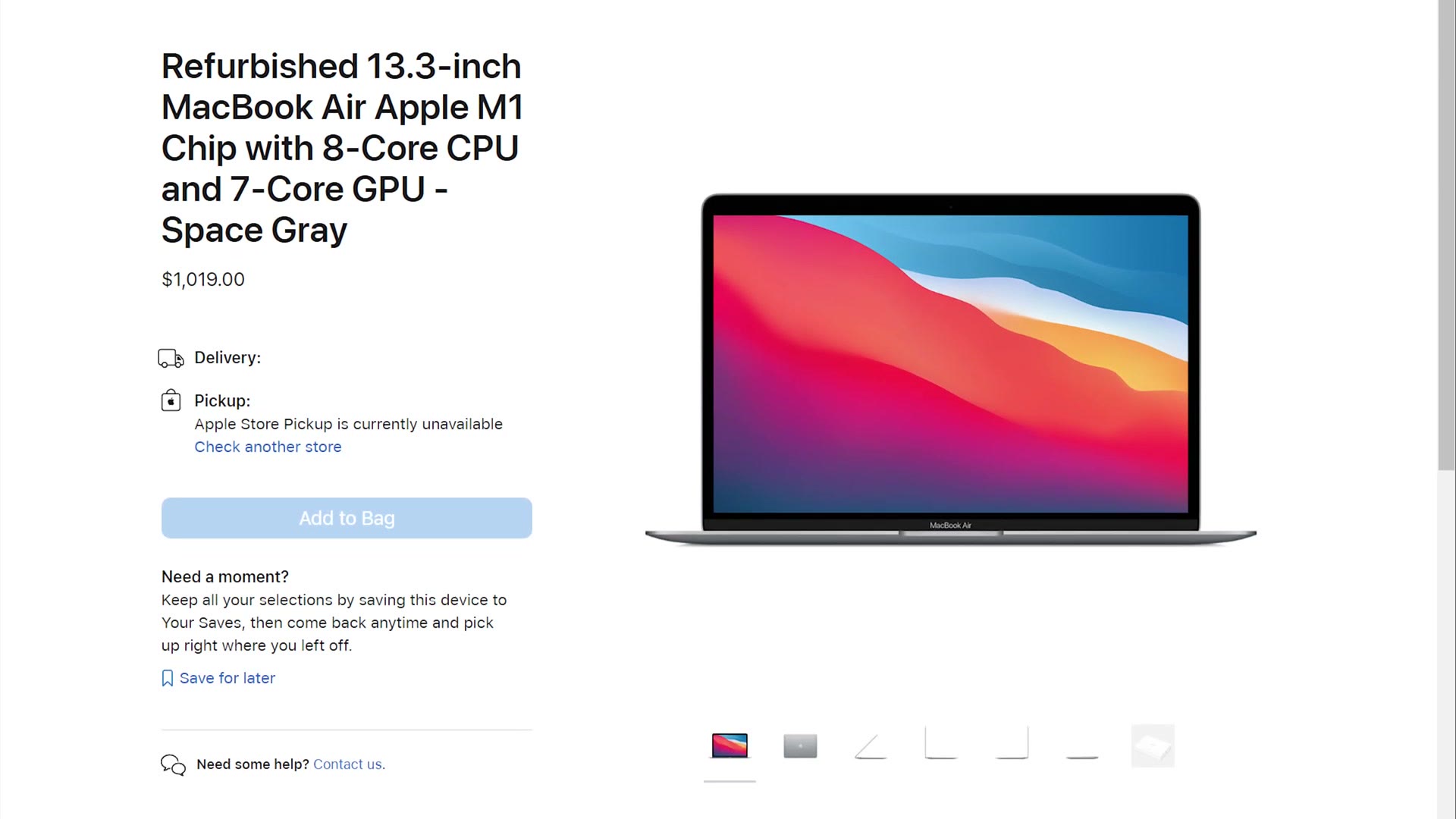
At the time of making this video you can buy a refurbished M1 MacBook Air from Apple for as cheap as $1,019. And heck, if you promise not to multitask and you only edit videos, you are probably fine with an 8GB model, and you can get one for as cheap as $850. That is almost half the cost of the M2 MacBook Air.
To be clear, the M2 MacBook Air is lighter, it is thinner, and it has a newer screen. But if you want to save some money, the M1 Air is still great for video editing.
The Best Bang For Your Buck Video Editing MacBook
The best bang for your buck MacBook I recommend is the 14 inch MacBook Pro with the 12-core M2 Pro CPU and the 1TB SSD upgrade, which comes in at roughly $2,500 at the time of making this video.
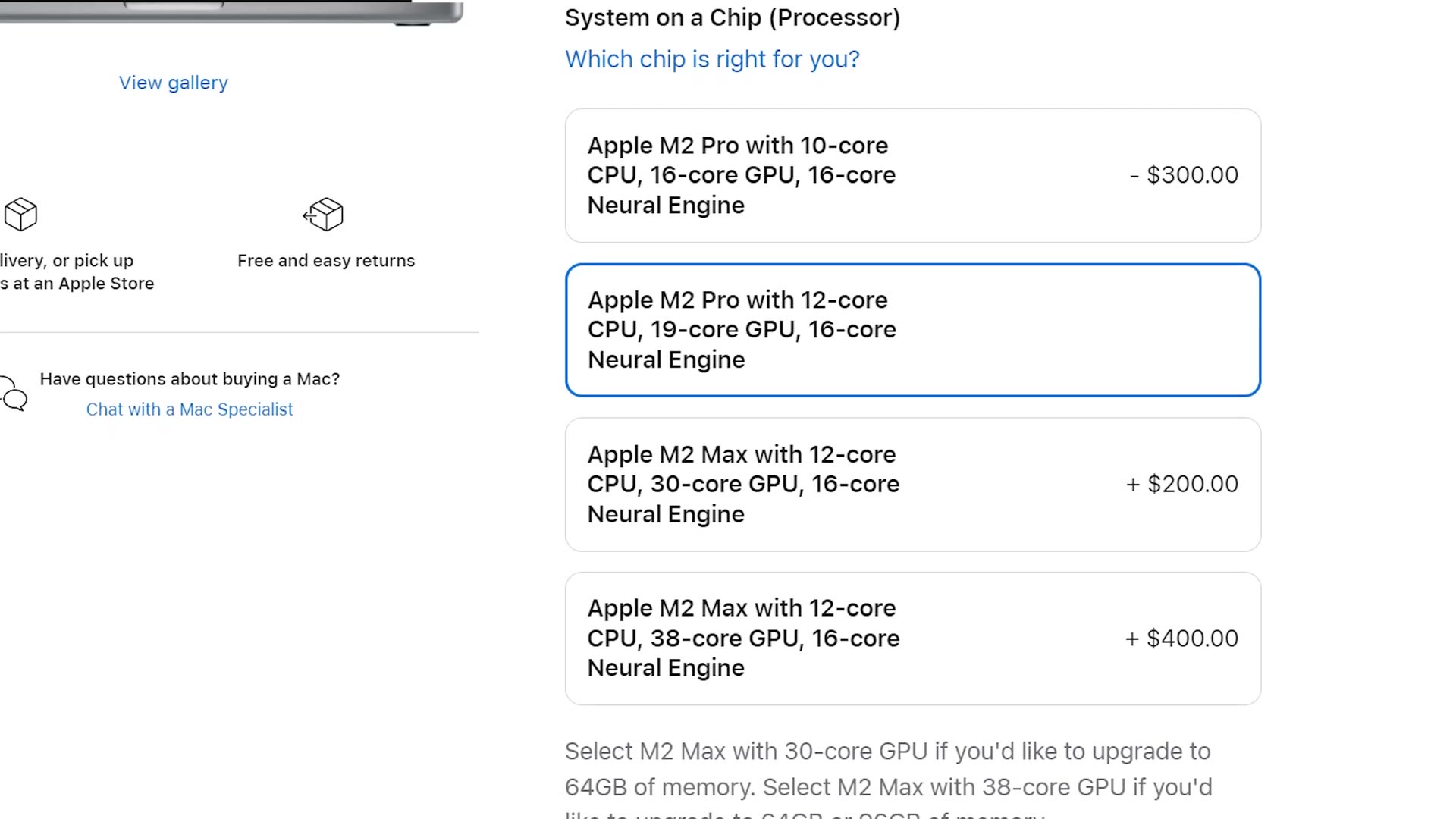
What makes this one so good? Well, the 12-core M2 Pro not only gives you the same hardware encoders and decoders as the MacBook Air, it also gives you four more CPU cores whenever you select the $300 CPU upgrade, which I think is totally worth it for dramatically faster performance.
The second upgrade I recommend is going from the 512GB SSD to 1TB. Just like the base M2 MacBook Air with 256GB, Apple made the base 512GB SSD in the M2 Pro MacBook approximately 50 percent slower. So if you want the absolute fastest SSD speeds, which you definitely do for video editing, you need to pony up the extra $200 for the 1TB SSD.
Lastly, for memory, because I am sure you are wondering, I would stick with 16GB of RAM. This is unified memory shared between the CPU and GPU, and the laptop is so optimized that this amount is going to be significantly more efficient than the regular memory you may be used to. Even if you are a heavy multitasker, I do not think you are going to see any major difference going from 16GB to 32GB, so I would save your money.
You can buy the best bang for your buck MacBook at Amazon, at B&H, or from Apple, where you will want to upgrade to the 12-core CPU and the 1TB SSD.
Congratulations. You have now spent $2,500 and you have a laptop that is going to blow your mind, hopefully without completely destroying your wallet.
The Monstrous Video Editing MacBook
But we are not done yet. We have one more laptop to talk about, and this one is an absolute beast that will give you a crazy amount of power. So if you edit 6K, 8K, 12K or raw video, which to be clear the cheaper M2 Pro MacBook can handle, but if you want to edit that resolution and quality of footage as fast as possible and you have a larger budget, this is the laptop I would recommend.
If you want to go deeper, I’ve also got How Much Money I Made Selling Stock Footage In 2023.
The first thing you are probably thinking is, this is easy, I want the best laptop, I will just go to Apple’s website and max out the entire machine for over $6,000. Right? Well, no, actually. You can think of this third laptop as another best bang for your buck option, one that gives you even more power while not getting anywhere close to that maxed out price.
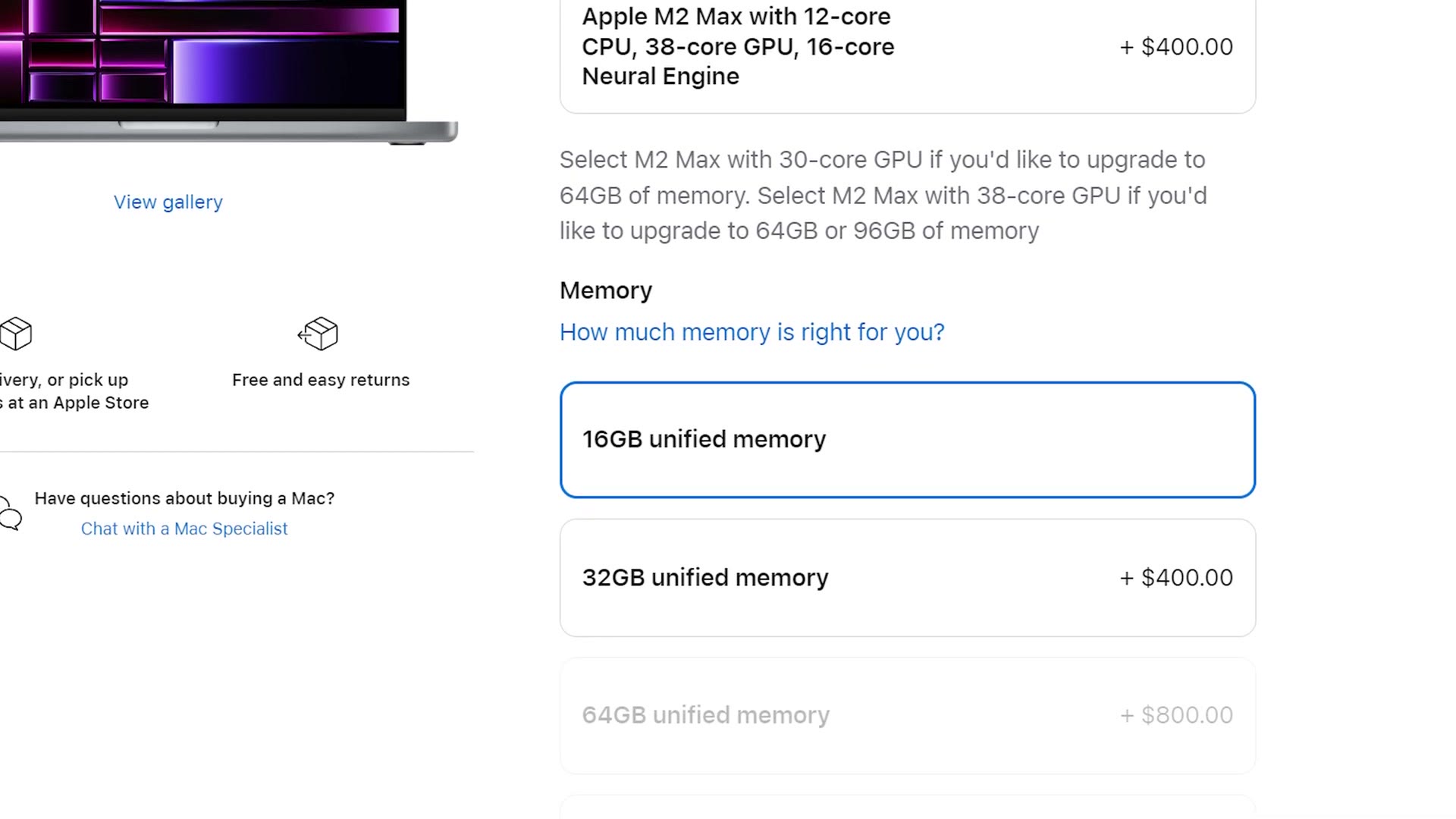
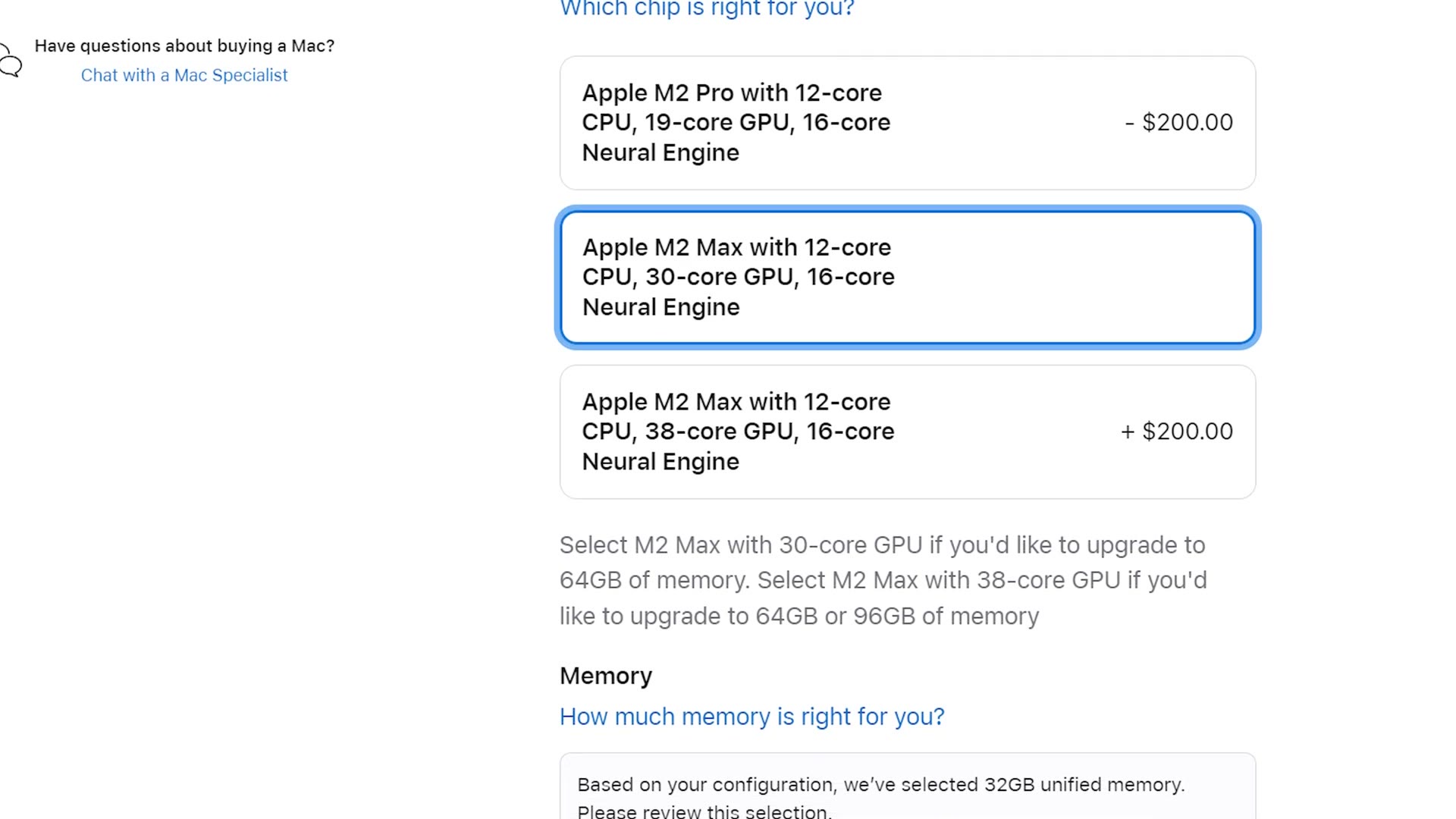
For option number three, I recommend you upgrade to the 16 inch MacBook Pro. Yes, we are finally going up in size. This is also the point where I recommend upgrading to the M2 Max processor, specifically the option with the 12-core CPU and 30-core GPU. This is the entry level M2 Max model, and it has one significant change over the M2 Pro that makes a huge difference for video editing.
We have got to talk hardware decoders and encoders again, but do not worry, I promise this is the last time. Remember how I said the M2 Pro has dedicated hardware video encoders and decoders for H.264, H.265 and ProRes to make editing and rendering super fast? Well, the M2 Max takes everything to another level, because it includes two of them.
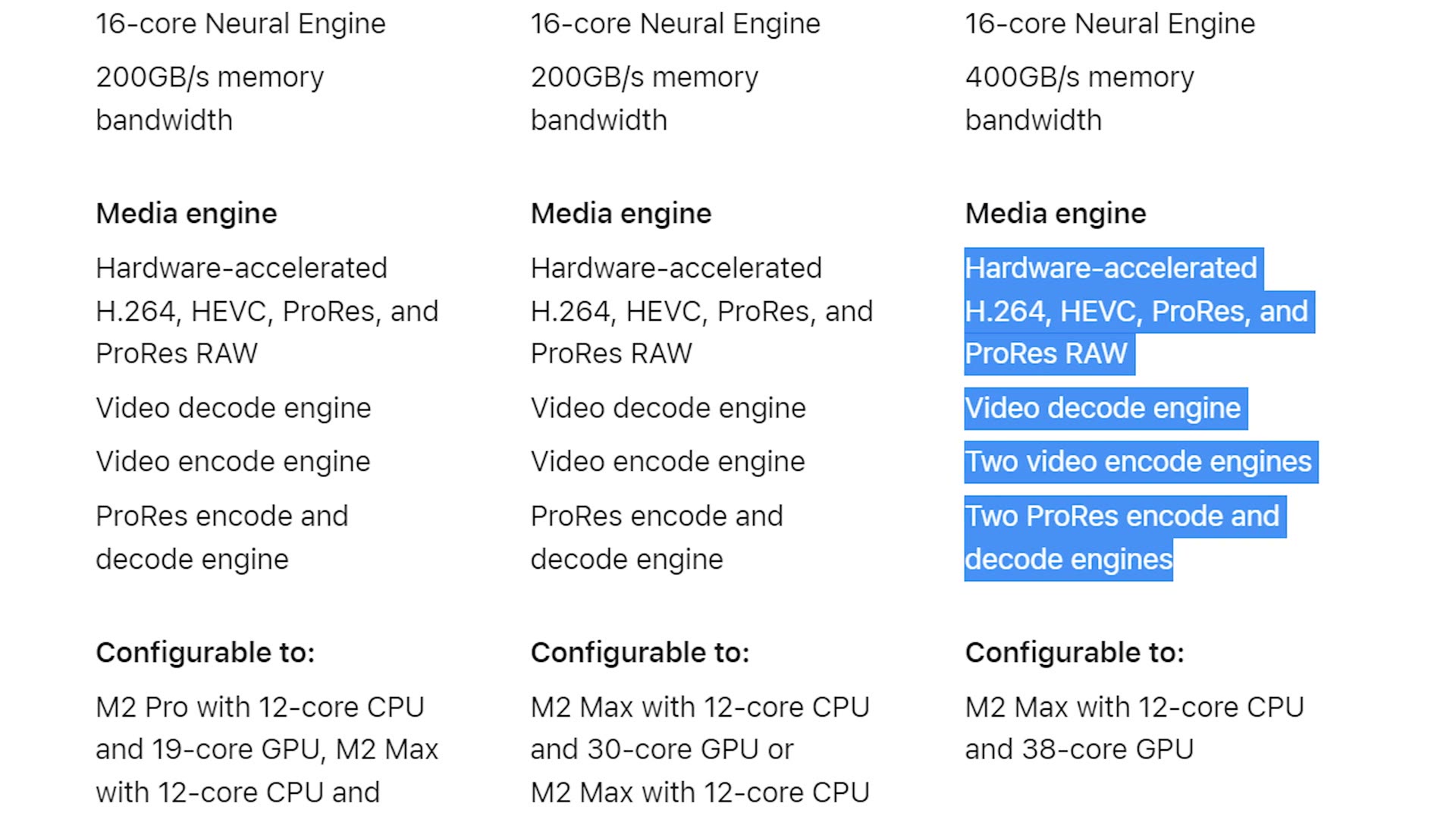
Yes, you get twice as many hardware encoders and decoders with this chip, which is going to skyrocket your editing and rendering speeds even more over the already blazing fast M2 Pro.
In addition, because you are choosing the 16 inch model, you are also going to deal with less throttling of the CPU than if you put the M2 Max into the 14 inch chassis. Yet again, just like my last MacBook buyer’s guide, I want to give Max Yuryev over at Max Tech a big thank you for discovering this difference between the two laptop bodies. His videos about these laptops are awesome and I highly recommend checking them out.
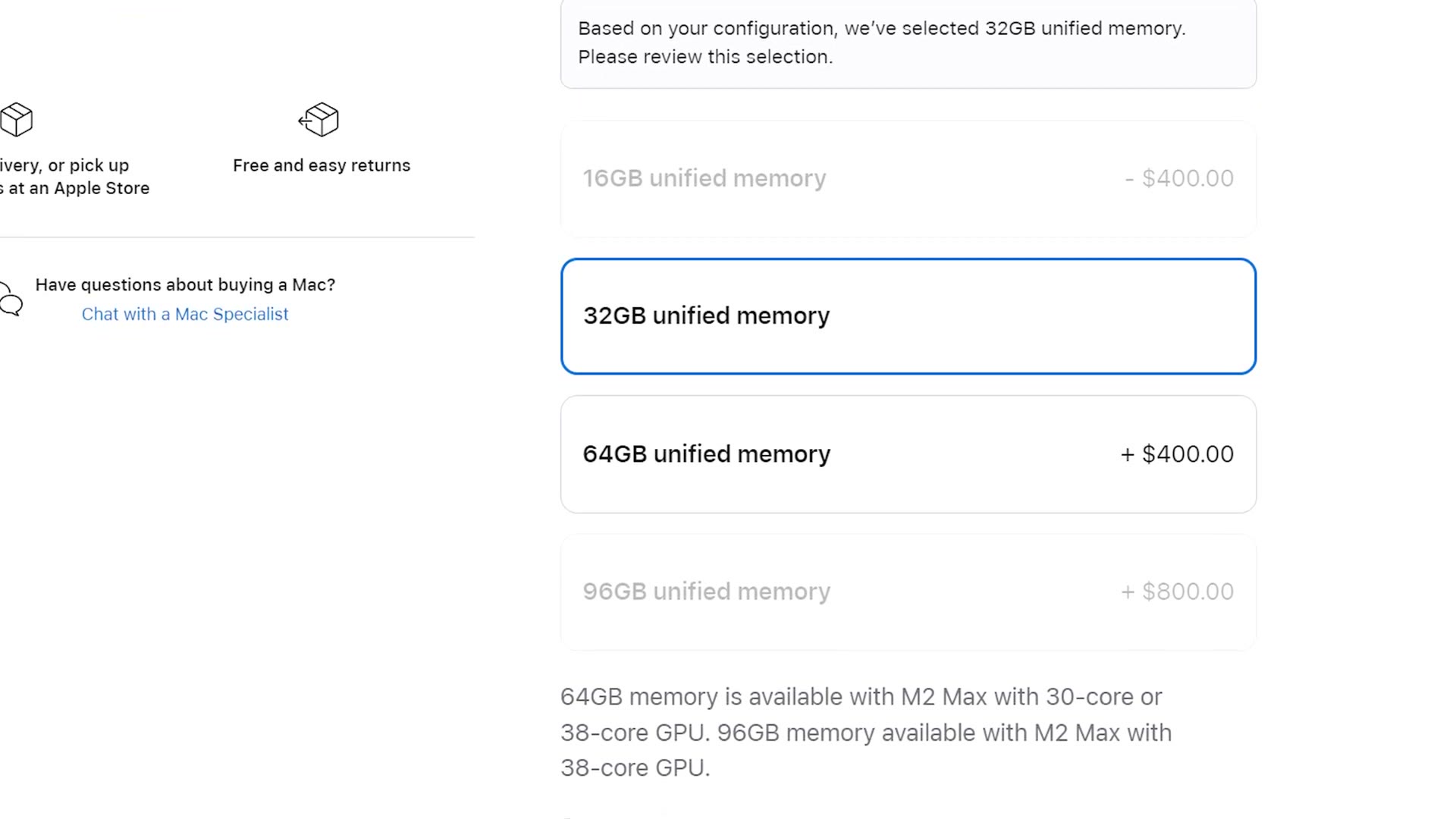
Now that we have covered the CPU, let’s talk memory. By default, if you select the M2 Max, Apple is going to require you to also select 32GB of RAM, and I think that is plenty. Remember, this is unified memory shared between the CPU and GPU, and even if you are very heavily multitasking you should be fine for video editing, even with higher resolution footage. So I would save your $400 and not upgrade to 64GB. And do not get that eye watering 96GB either. It’s cool. Do not get me wrong, it is very cool. But trust me, you do not need it for video editing. You don’t. Okay.
Lastly, for storage, just like with the M2 Pro and the M2 Air, I would avoid that 512GB SSD like the plague and upgrade to at least 1TB, or more if you can afford it. Remember that if you are editing 6K, 8K or raw files, having some extra space on your drive to store those files is always nice. So this is where I would spend the extra money if you have it.
With that you are now looking at an absolute beast of a laptop, capable of editing pretty much any resolution or format of footage you want to throw at it. You can buy the beast MacBook at B&H or from Apple, where you will want to upgrade to the base M2 Max CPU and the 1TB SSD.
So Which One Should You Buy?
And there you have it, three Apple laptops recommended at three different price points. Regardless of your budget, you should be able to find an option that works well for you. But if I had to pick, the 14 inch MacBook Pro with the upgraded M2 Pro CPU and the 1TB SSD is such a killer option for that price, and definitely the best bang for your buck.
If you are shopping desktops instead, here is my Mac Studio buyer’s guide.
I will also link my free Edit Videos Like A Pro guide. If you are a video editor, which I assume you are considering this is about video editing laptops, this guide is going to show you some of the biggest things that took me years to learn as an editor and that are going to skyrocket your editing. It is completely free.
I colored everything you see here with my color presets.
Thanks so much for reading, and have a great day!