
If you want to buy an Apple laptop for 4K video editing, I have three recommendations for you at three different price points. A budget option, a best bang for your buck option, and an extremely powerful, beastly option that will handle anything you throw at it.
Sound cool? To save you time, all three are on my gear page, because I respect your time like that.
Budget Video Editing Macbook
Typically the words budget and Apple don’t really go together, but that’s all changed with the M1 chips. For contrast, the 2020 version of this guide was written before Apple silicon existed.
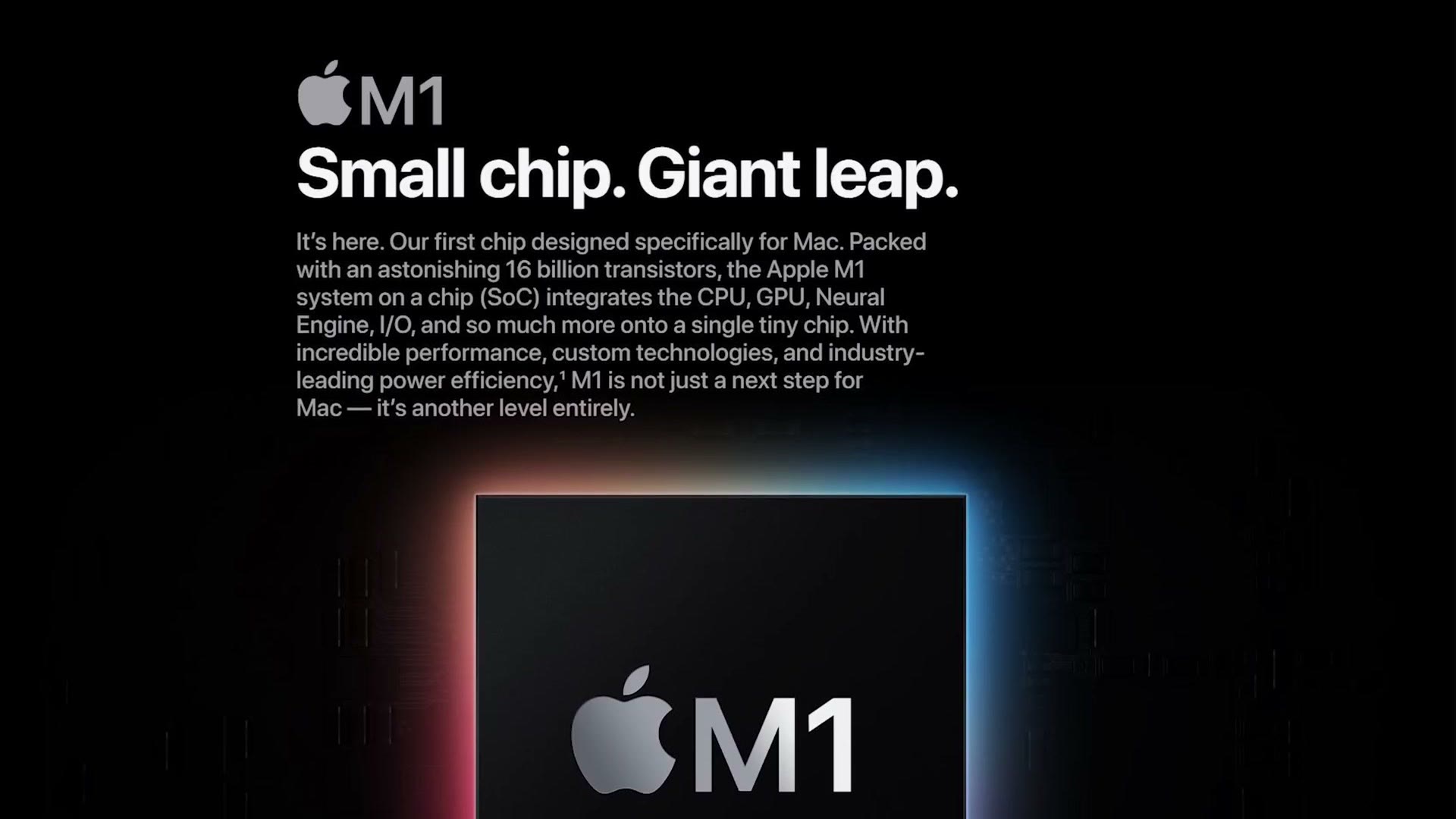
So if you want a powerful editing laptop that isn’t going to break the bank, I’m recommending the M1 MacBook Air with 16GB of RAM. Yes, literally the cheapest laptop Apple makes with an M1 chip. With that RAM upgrade it comes out to about $1,200, and trust me, this laptop is fantastic for video editing, even in 4K.
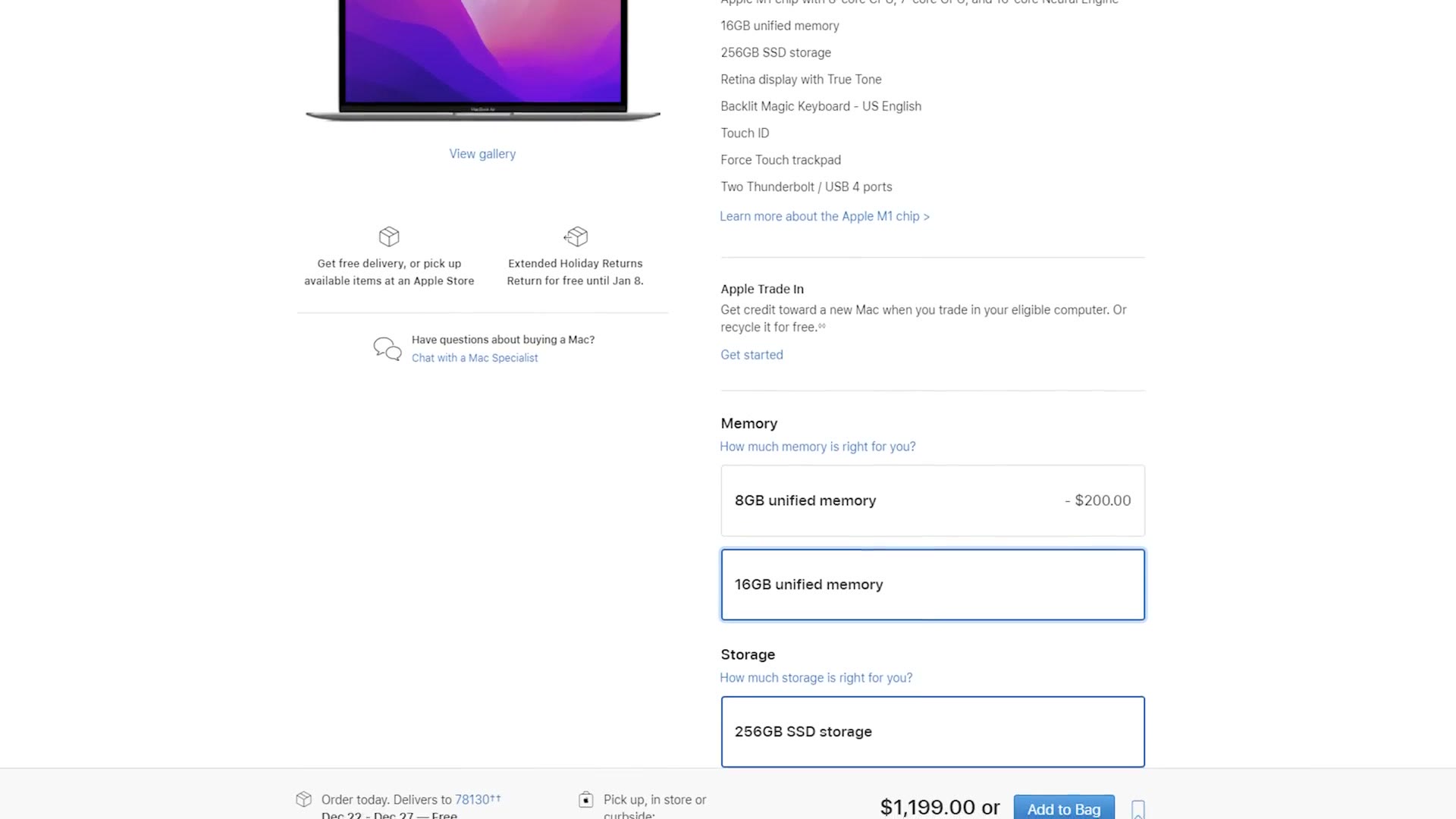
Now I know some of you are thinking, really Matt, the MacBook Air? Heads up: this link goes to the newer MacBook Air M4. You’re telling me not to upgrade to the 8-core GPU, or to consider the 13 inch MacBook Pro? Heads up: this link goes to the newer MacBook Pro. Yes, that’s exactly what I’m telling you, and here’s why.
With the base M1 Air you’re already getting 95% of the performance you need out of the M1 chip. Those upgrades are going to be negligible at best, because every M1 chip already has the two things video editors actually care about: a hardware encoder and decoder for H.264 and HEVC in both 8-bit and 10-bit. That means this laptop plays back and renders footage from most cameras significantly faster than anything from Intel or AMD, and those encoders come with the base chip.
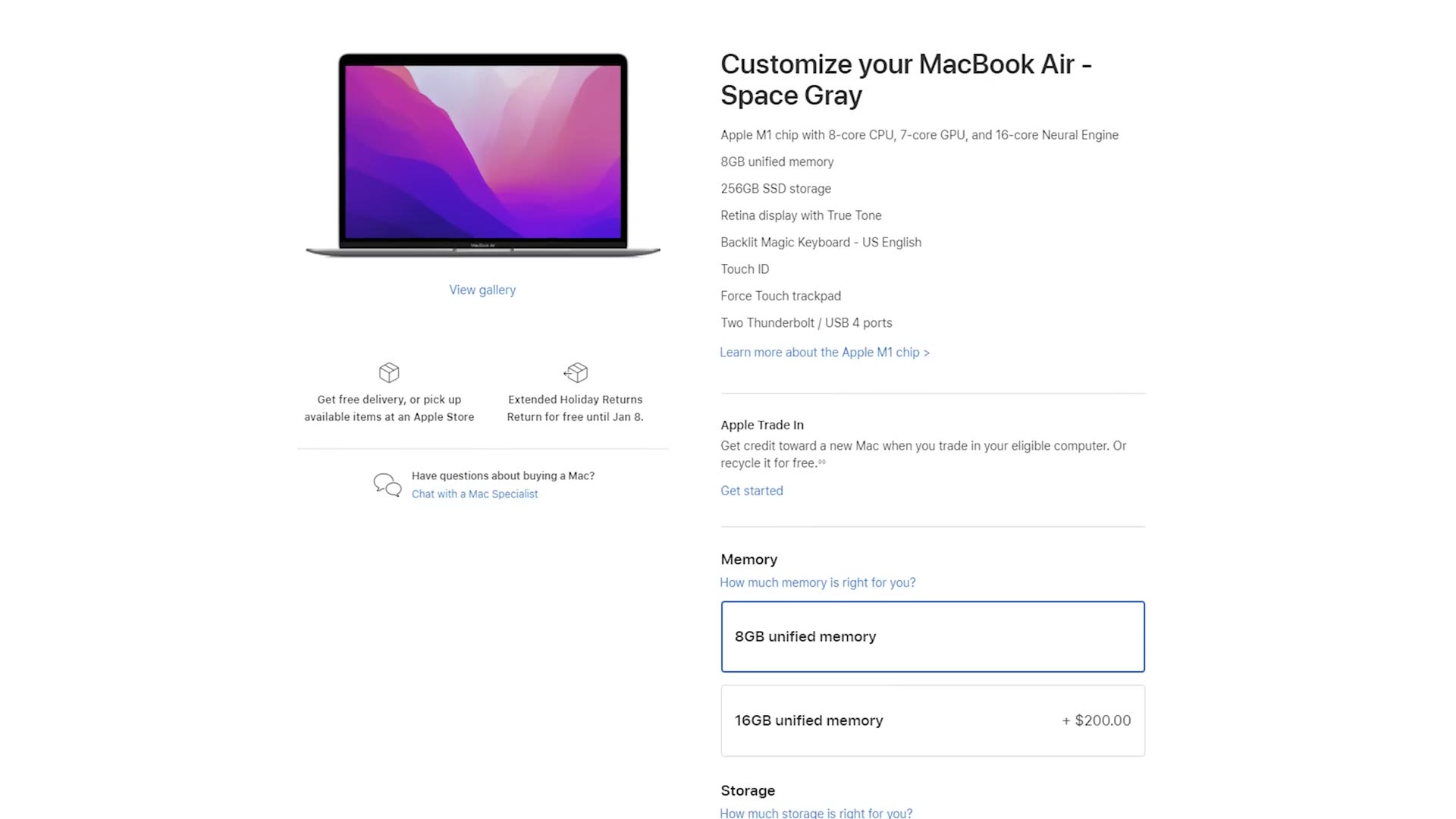
Honestly, the only reason I’m telling you to upgrade the RAM is if you’re a heavy multitasker and you want some futureproofing. If you’re really on a budget, stick with the $999 8GB model and it should still work well, as long as you don’t have a ton of programs open at once.
Best Bang For Your Buck Video Editing Macbook
Here’s the other reason I don’t think you should spend a lot on Air upgrades, and it ties straight into the second laptop.
The best bang for your buck editing MacBook is the 14 inch MacBook Pro with the M1 Pro, at roughly $2,000.
Remember, the MacBook Air I recommended is $1,200. But start spending on upgrades, the 8-core GPU and a bigger SSD, and you’re at $1,450. Switch to the 13 inch MacBook Pro and you’re around $1,500 for a similar system.
Here’s the issue. Every dollar you spend upgrading past that $1,200 Air is getting you closer and closer to the $2,000 price of the 14 inch Pro. And that’s a problem, because the 14 inch Pro is such a dramatic upgrade over the Air, and over most other laptops for that matter, that there very quickly comes a tipping point. If you want to spend more than about $1,200 on an Air, it’s smarter to just save up and get the 14 inch instead.
So what makes it so good? For $1,999 you’re getting a laptop that runs circles around Apple’s previous most expensive Intel laptops, the ones that cost well over $4,000. Compared to the Air you get a bigger and better mini LED screen with a 120Hz refresh rate, more ports, MagSafe, a superfast SSD, a ton of great stuff.
But most importantly for video editing: remember how the M1 has hardware encoders and decoders for H.264 and HEVC? The M1 Pro has those too, and it adds hardware encoding and decoding for ProRes, one of the most popular codecs there is. Combine that with the M1 Pro’s CPU and GPU and it’s frankly insane. Your editing gets orders of magnitude faster.
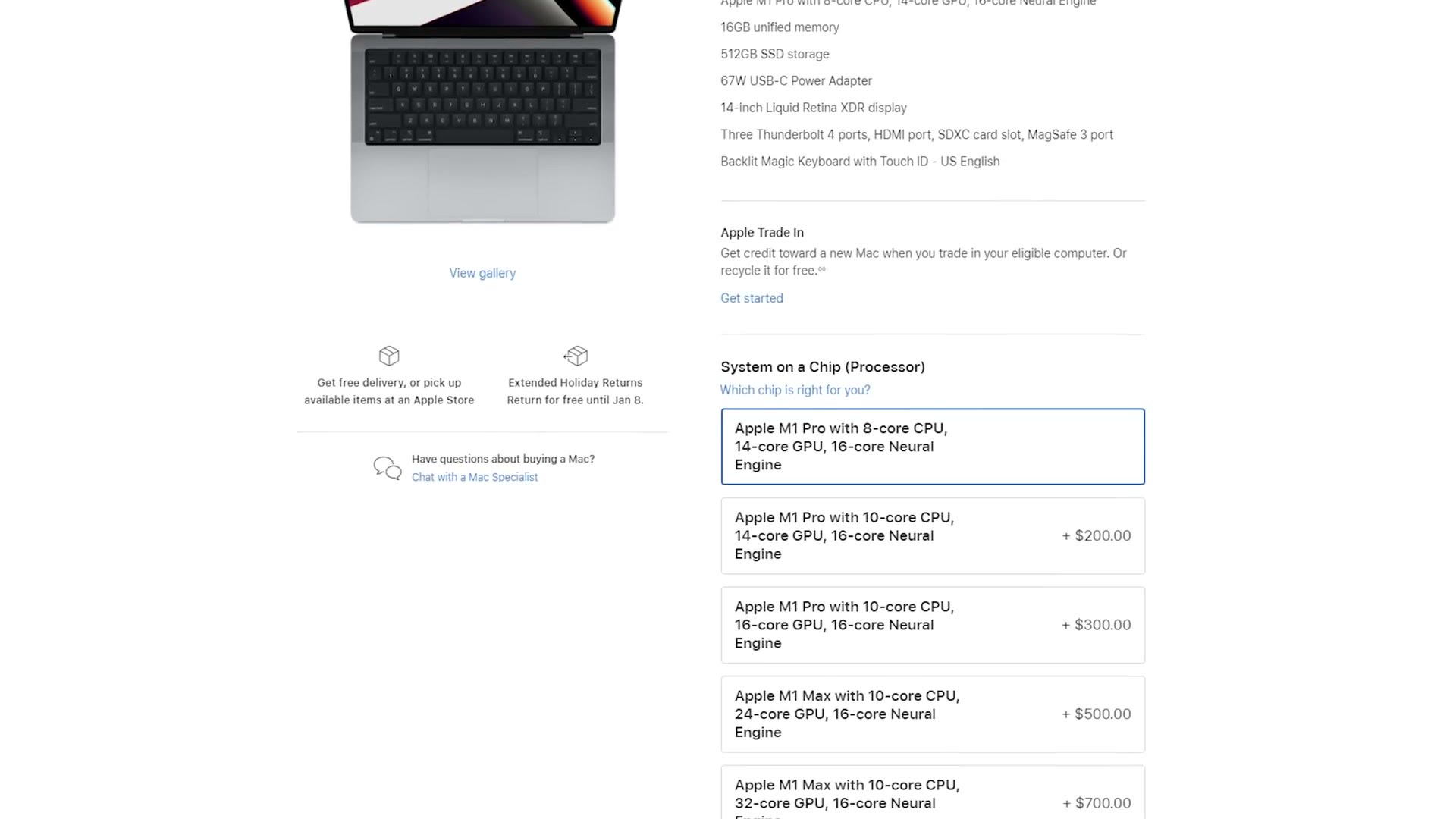
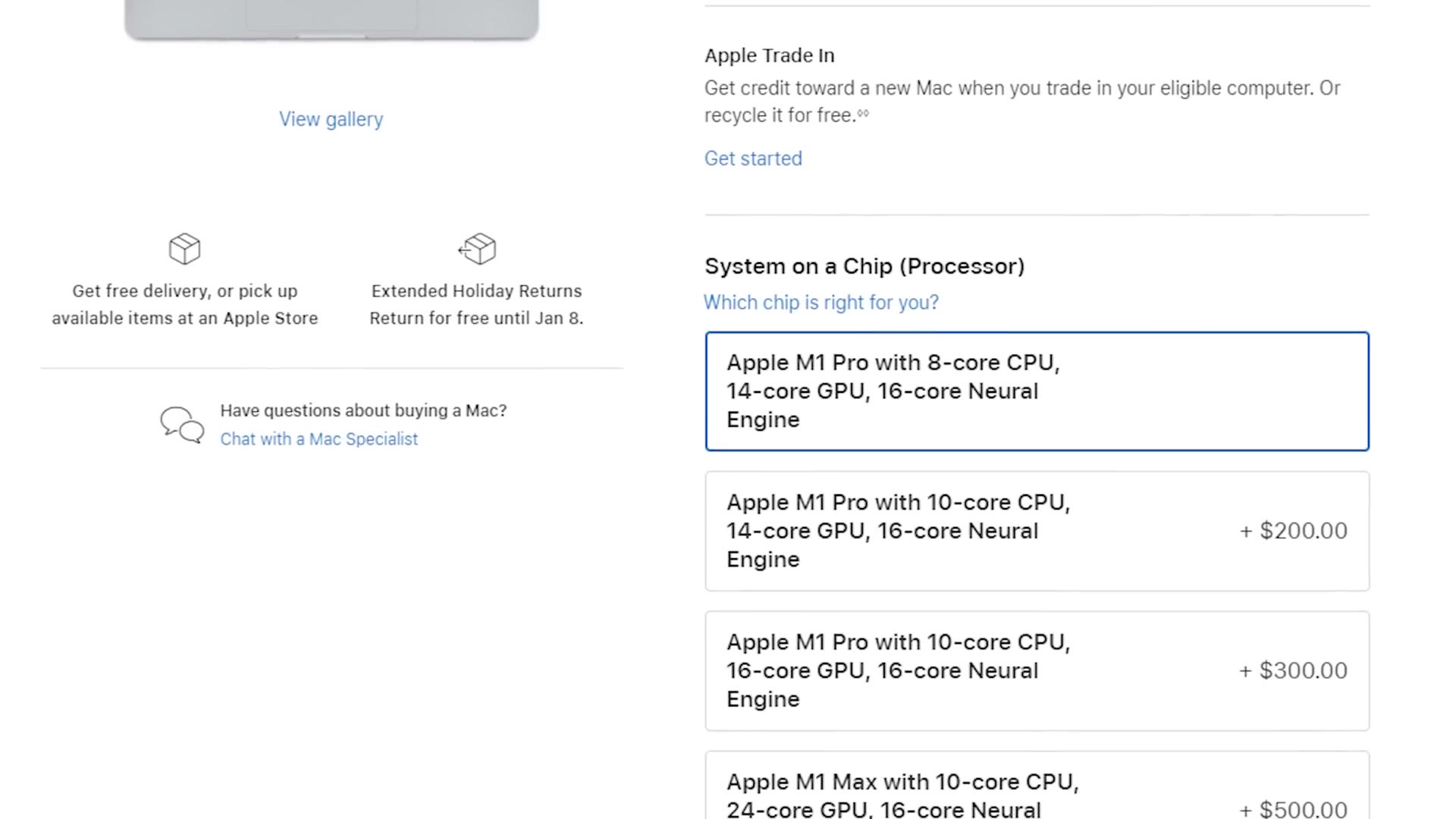
And you’re getting all of that with the base M1 Pro chip. So my recommendation is the 14 inch MacBook Pro with the 8-core CPU and 14-core GPU. I don’t think the upgrade to the 10-core CPU or the 16-core GPU is really worth it for editing, because you aren’t going to see a big increase in encoder and decoder speed for that money.
On memory, stick with 16GB. This is unified memory shared between the CPU and GPU, and this laptop is so optimized that it’s significantly more efficient than the regular memory you may be used to. Even as a heavy multitasker, I don’t think you’ll see a major difference going from 16 to 32GB. Save that money for storage, which is the one area I would upgrade. I’d take 1TB if you can afford it, because extra space is always a good thing.
Lastly, if you buy the base model you’ll notice it ships with a 67 watt power adapter. I’d highly recommend spending $20 on the 96 watt adapter, because that unlocks fast charging.
Congratulations. You’ve now spent somewhere between $2,000 and $2,220, and you have a laptop that’s going to blow your mind, hopefully without completely destroying your wallet.
Beastly Video Editing Macbook
But we’re not done yet. One more laptop, and this one is an absolute beast.
If you edit 6K, 8K, 12K or raw video, which to be clear the cheaper 14 inch M1 Pro can handle, but you want to do it as fast as possible and you have a bigger budget, this is the one.
You’re probably thinking this is easy, I just go to Apple’s site and max out the machine for about $6,000, right? No, actually.
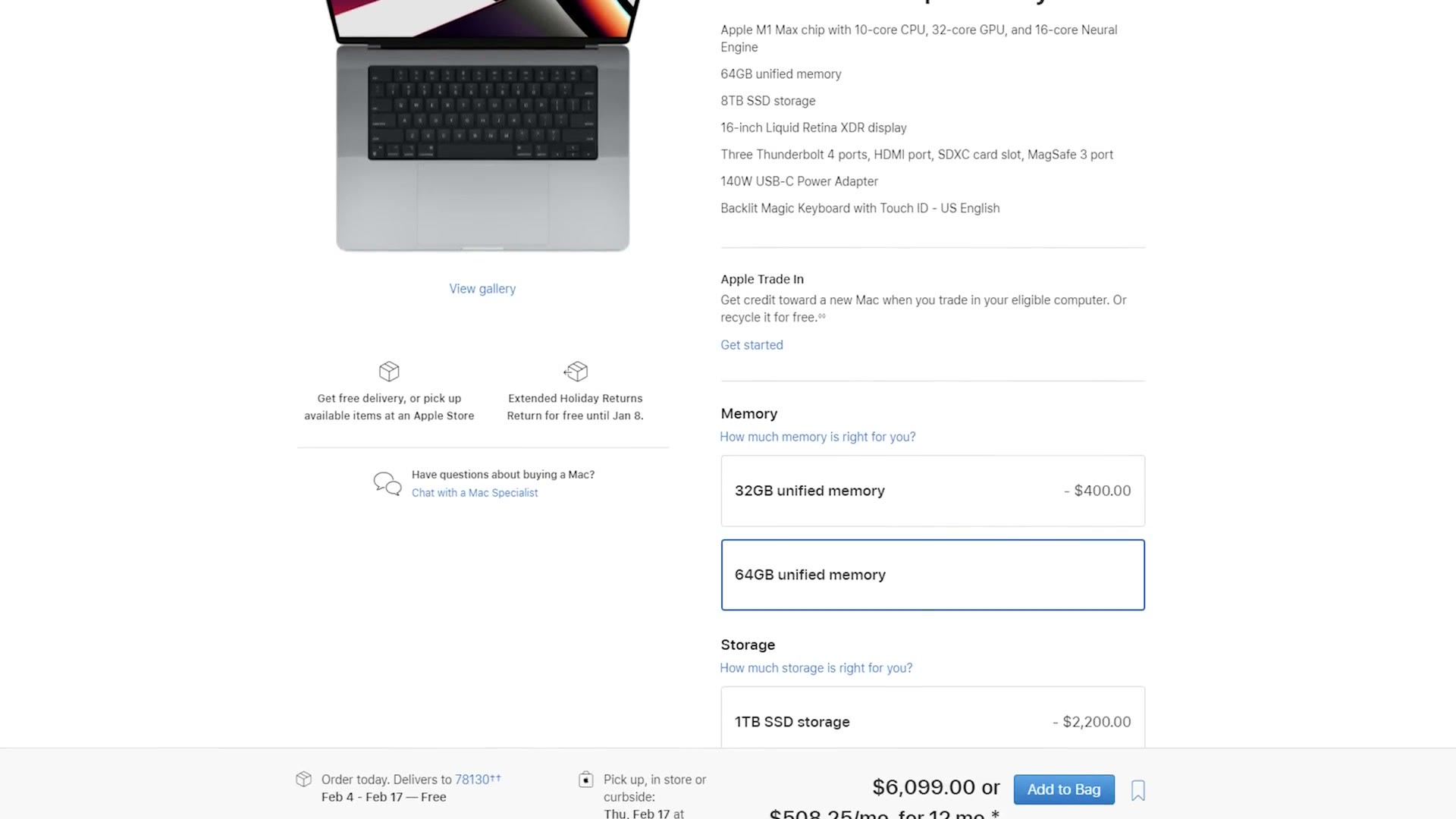
Think of this as another best bang for your buck option, one that gives you a lot more power without getting anywhere near that maxed out price. For option three, I’d upgrade to the 16 inch MacBook Pro with the M1 Max, specifically the 10-core CPU and 24-core GPU.
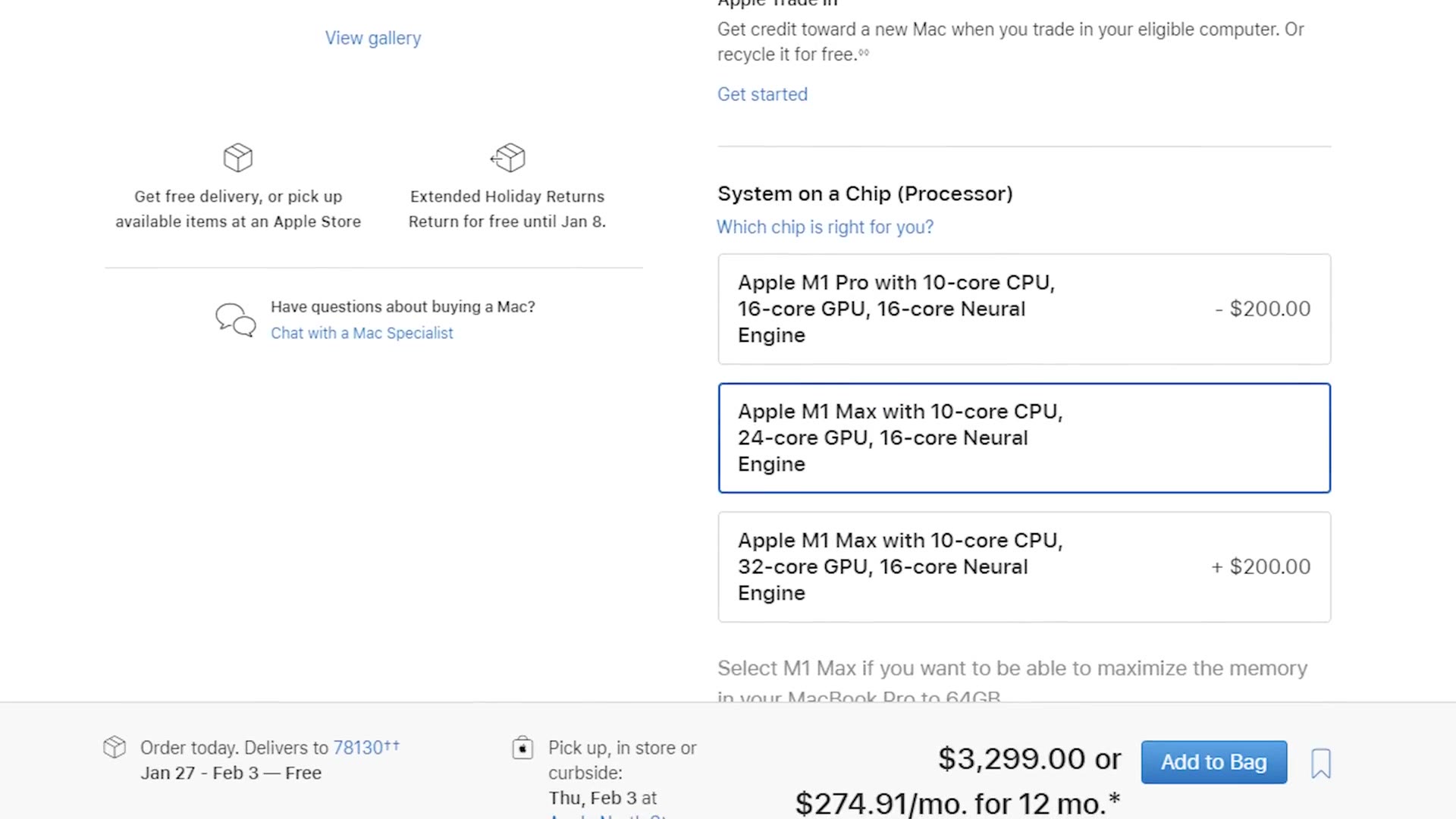
That’s the entry level M1 Max, and it has one significant change over the M1 Pro that makes a huge difference for editing. We have to talk hardware encoders and decoders one last time, I promise.
Remember how the M1 Pro has dedicated hardware encoders and decoders for H.264, HEVC and ProRes? The M1 Max includes two of them. You get twice as many, which is going to skyrocket your editing and rendering speed even over the already blazing fast M1 Pro.
And because you’re going with the 16 inch body rather than the 14, you’ll also deal with less CPU throttling than you would putting an M1 Max into the smaller chassis. Big thank you to Max Tech for discovering the difference between the two laptop bodies. Their videos about these laptops are awesome and I highly recommend checking them out.
On memory, if you select the M1 Max, Apple requires you to take 32GB of RAM, and I think that’s plenty. It’s unified memory shared between the CPU and GPU, and even heavily multitasking you should be fine editing high resolution footage. So save your $400 and skip the 64GB.
Storage is where I would spend, though. At least 1TB, maybe 2TB depending on your budget, because if you’re editing 6K, 8K or raw, extra space is always nice.
With that you’re looking at an absolute beast capable of editing pretty much any resolution or format you throw at it, for around $3,300.
And there you have it. Three Apple laptops at three price points, so whatever your budget you should find something that works. But if I had to pick one, the 14 inch MacBook Pro with the base M1 Pro is such a killer option for the money, and it’s definitely the best bang for your buck.
If you’d rather have a desktop than a laptop, I’ve also put together a Mac Studio buyer’s guide.

The footage here is graded with my own color presets at whoismatt.com/luts, my gear list is on kit.co, and if you film weddings, come join us in the Learn Wedding Filmmaking Facebook group.
Thanks so much for reading, and have a great day!