
If you want to buy an Apple laptop for 4K video editing, I have three recommendations for you at three different price points. I’m going to cover a budget MacBook option, a best bang for your buck MacBook option, and an extremely powerful, beastly MacBook option that will handle literally anything you throw at it.
All of the laptops are linked below as we go, because I respect your time like that.
I’m going to warn you now, this one is a bit more complicated than the MacBook buyer’s guides I’ve made in the past, because it used to be that whenever Apple released a new chip generation, like going from the M1 to the M2, it was a no brainer to recommend the newer one. But now that we’re seeing Apple go from the M2 to the M3, there is not nearly as big of a performance jump, and there are now so many used and refurbished deals and sales on older MacBooks that you can save a ton of money and still get an extremely powerful laptop.

Budget Video Editing MacBook
I actually have two different low budget video editing laptops for you to consider if you’re on a very tight budget.
First, if you want a powerful video editing laptop that isn’t going to break the bank, I’m going to recommend the 13 inch M2 MacBook Air with the 512GB SSD upgrade, the 8 core CPU and 16GB of RAM, which was going for about $1,500 new at the time I made this.

If this laptop sounds familiar, that’s because I recommended it in my previous best bang for your buck MacBook buyer’s guide, because it’s so great, and it’s still great. You’re getting all the performance you need for 4K video editing, because even this base version includes hardware encoders and decoders for H.264, H.265, ProRes and ProRes RAW, meaning this laptop can play back and render the video files that most cameras shoot today significantly faster than laptops running Intel and AMD processors.
That said, I’m sure you noticed I recommended some upgrades, so here’s why.
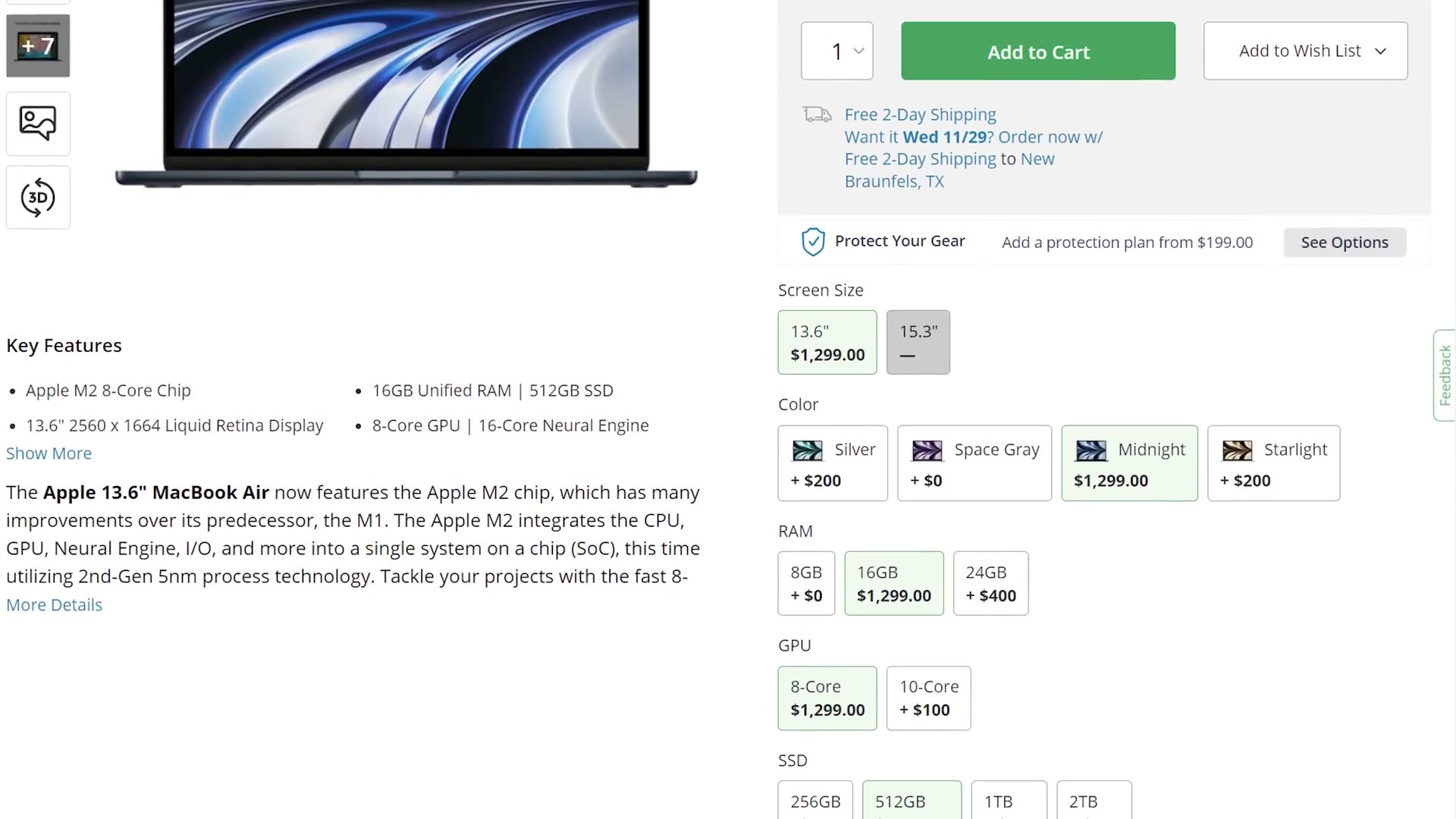
Starting with the most important one, the reason I recommend upgrading to the 512GB SSD is that Apple has throttled the 256GB SSD and made it approximately half the speed of the 512GB model. That is going to make a huge difference whenever you’re editing video, so spending the extra $200 on this upgrade is completely worth it.
Next, the reason I recommend 16GB of RAM is that while you can probably get by with 8GB if you’re only video editing, once you start multitasking, say you have a web browser open in the background or you’re playing music while you edit, having 16GB is going to help your video editing software stay speedy.

BONUS: Even More Budget Friendly MacBook
Alternatively, if you want to save more money because $1,500 is just too dang expensive for a laptop, let’s talk about my second, even cheaper budget recommendation, and that is the M1 MacBook Air, which I have seen online at times for as cheap as $750 on sale. Heads up: this link goes to the newer MacBook Air M4. When I checked recently it was $850, which is not bad at all.

Yes, this laptop came out in 2020, but it is still quite capable when it comes to 4K video editing, and if your budget is under $1,000, I think it’s a great choice.
What About The 15 Inch MacBook Air?
At this point I’m sure you’re thinking, what about the 15 inch M2 MacBook Air that Apple recently introduced? Why are you skipping that laptop? It has better thermal performance than the 13 inch!
Well, here’s the issue. Because the 15 inch MacBook Air is newer, if you configure it with the best possible specs for video editing, which would be upgrading it to 16GB of RAM and a 512GB SSD, the price is $1,700 new. Which would not be bad, if Apple’s base 14 inch MacBook Pro with the drastically faster M2 Pro chip weren’t selling for only $200 more brand new. I even saw it on Black Friday for $100 cheaper than the 15 inch M2 MacBook Air.
So it’s really hard for me to recommend a 15 inch MacBook Air at $1,700 when you can commonly get way more power for $1,900 with the M2 Pro. Sorry, the 15 inch MacBook Air is a no go for budget video editing in my opinion. Just buy the base 14 inch MacBook Pro with the M2 Pro chip inside and you’re going to be much happier.
Best Bang For Your Buck Video Editing MacBook
Which takes us to the best bang for your buck option, the 14 inch MacBook Pro with the M2 Pro chip, with the 12 core CPU and 19 core GPU, 16GB of RAM and a 1TB drive, for about $2,500 at the time of making this. Or you can get it for $1,950 from Apple refurbished.

If you’re wondering why I’m not recommending the M3 Pro with similar specs, here’s the reason. While the M2 Pro and M3 Pro both have 12 CPU cores, the M2 Pro has eight performance cores and four efficiency cores, while the M3 Pro only has six performance cores and six efficiency cores. Which means there is not really a performance jump going from M2 to M3, and in some cases the M3 Pro is actually going to be slower, because it has less memory bandwidth than the M2 Pro.
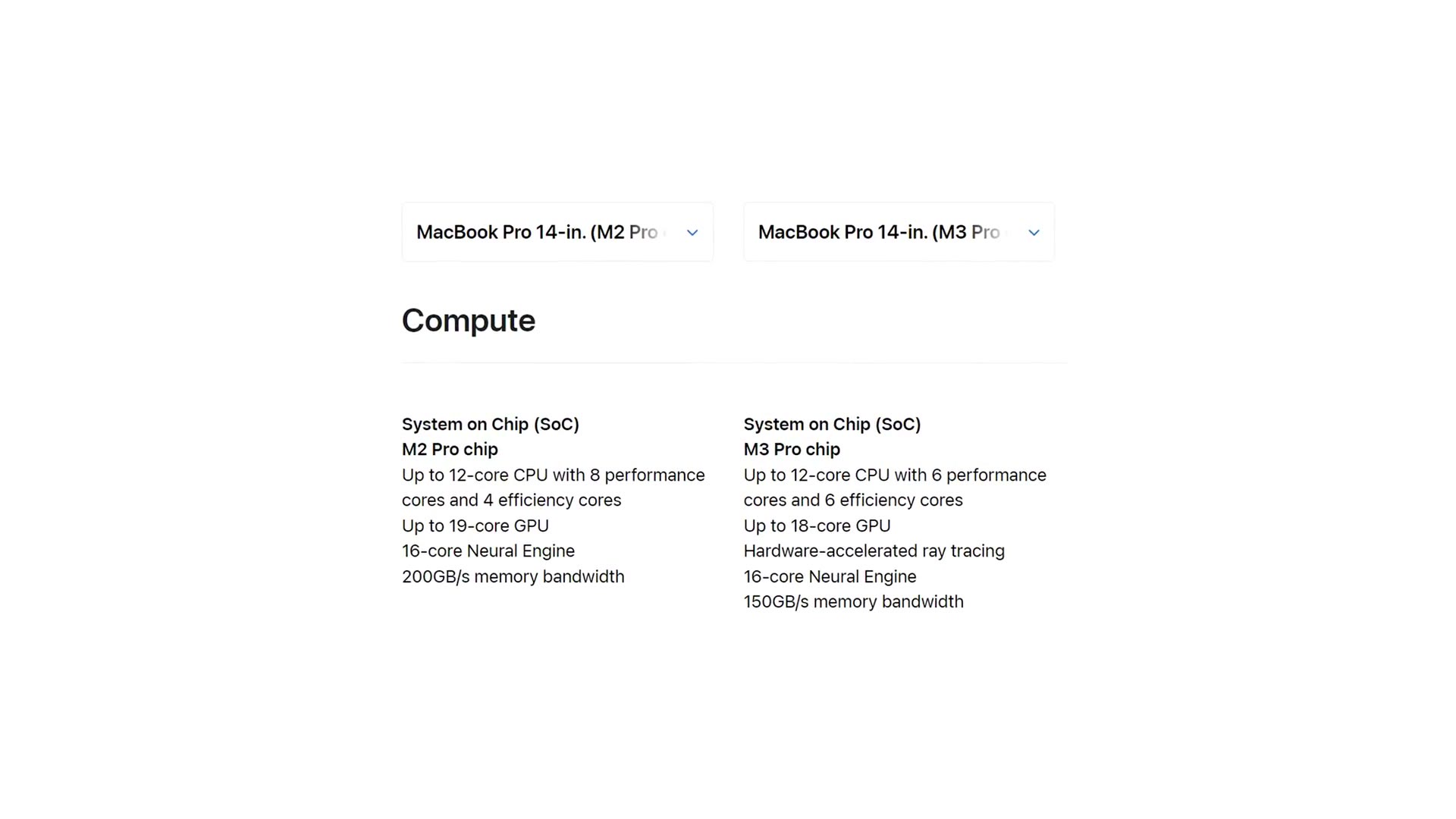
So it’s a much better bang for your buck to just buy an M2 Pro, especially if you can find one refurbished or on sale.
Now, about the upgrades I’m recommending on the M2 Pro. You’ll notice I recommend upgrading the CPU from 10 core to 12 core, which is the highest level M2 Pro CPU Apple offers before you switch to the M2 Max chip. This bump of two CPU cores and three GPU cores over the base model gives you a nice boost in editing speed, and I think it’s worth it if you can afford it.
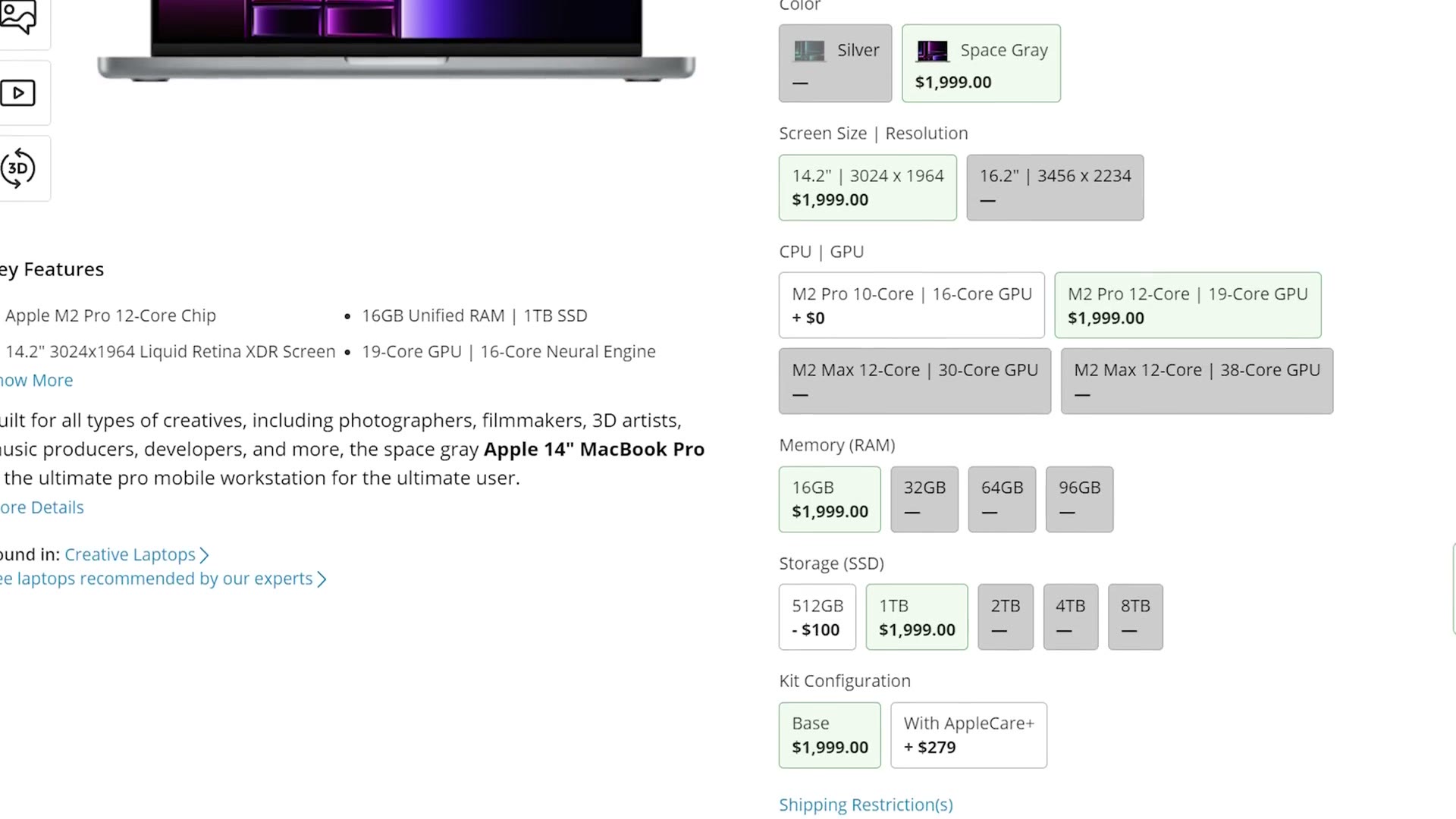
Of course, if you want to save even more money, the M2 Pro with the 10 core CPU is still a great option, and it is light years better than any MacBook Air, so I would buy even the cheapest M2 Pro you can find if you need to save.
The second upgrade I recommend is going from the 512GB SSD to 1TB. The reason is that just like the base level M2 MacBook Air that came with 256GB, which Apple was throttling and making approximately 50% slower, that’s also true of the base 512GB SSD in this M2 Pro MacBook. So if you want the absolute fastest SSD speeds, which for video editing you definitely do, you need to pony up the extra cash for the 1TB.
Lastly, for memory, because I’m sure you’re wondering, I would stick with 16GB of RAM, because the cost to upgrade to 32GB would probably be better spent on just upgrading to the maxed out version of this laptop, which we need to talk about right now.
Monstrous Video Editing MacBook
This final MacBook is an absolute beast that’s going to give you a crazy amount of power. So if you shoot 6K, 8K or 12K RAW video, which to be clear the cheaper M2 Pro can handle, but if you want to edit that resolution and quality of footage as fast as possible and you have a larger budget, this is the laptop I’d recommend.
Now, you’re probably thinking this one is easy. If I want the best MacBook, I just go to Apple’s website and max out the M3 Max for over $7,000, right? Well, no, actually. You can think of this third laptop as another best bang for your buck option, one that gives you even more power while still not getting anywhere close to the absolute maxed out price.
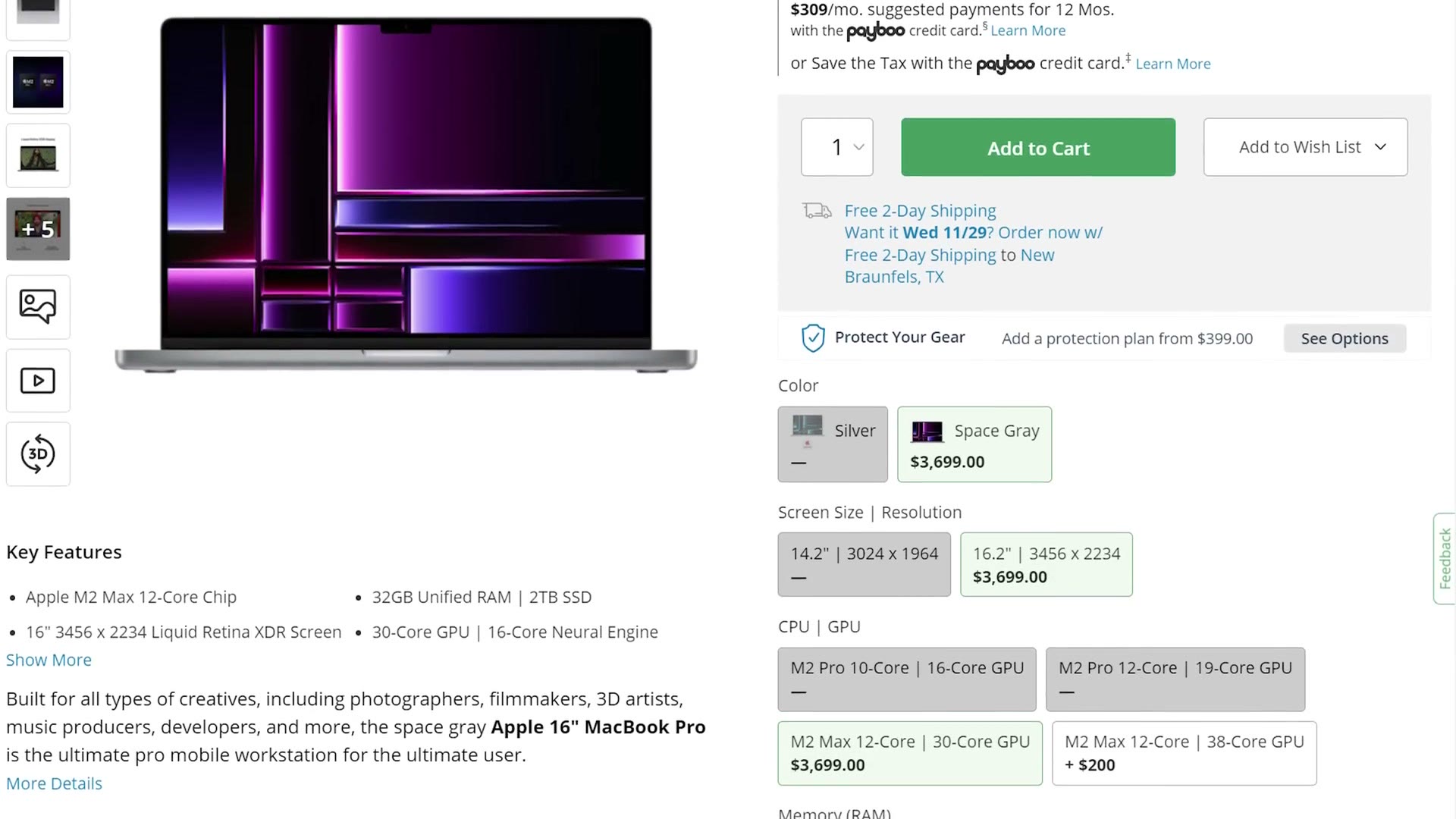
For option number three, I’m going to recommend you upgrade to the 16 inch MacBook Pro. Yes, we’re finally going up in size, but we are still sticking with the M2 Max and ignoring the M3 Max, because in all my research it’s looking like the M2 Max gives you very similar video editing performance to the M3 Max, and you can get it for significantly cheaper. Don’t waste your money.
Specifically I recommend the M2 Max with the 12 core CPU and 30 core GPU, which you can get new for around $3,700, or refurbished from Apple for $2,900.
- Beast MacBook at Amazon
- Beast MacBook at B&H
- Beast MacBook at Apple Refurbished
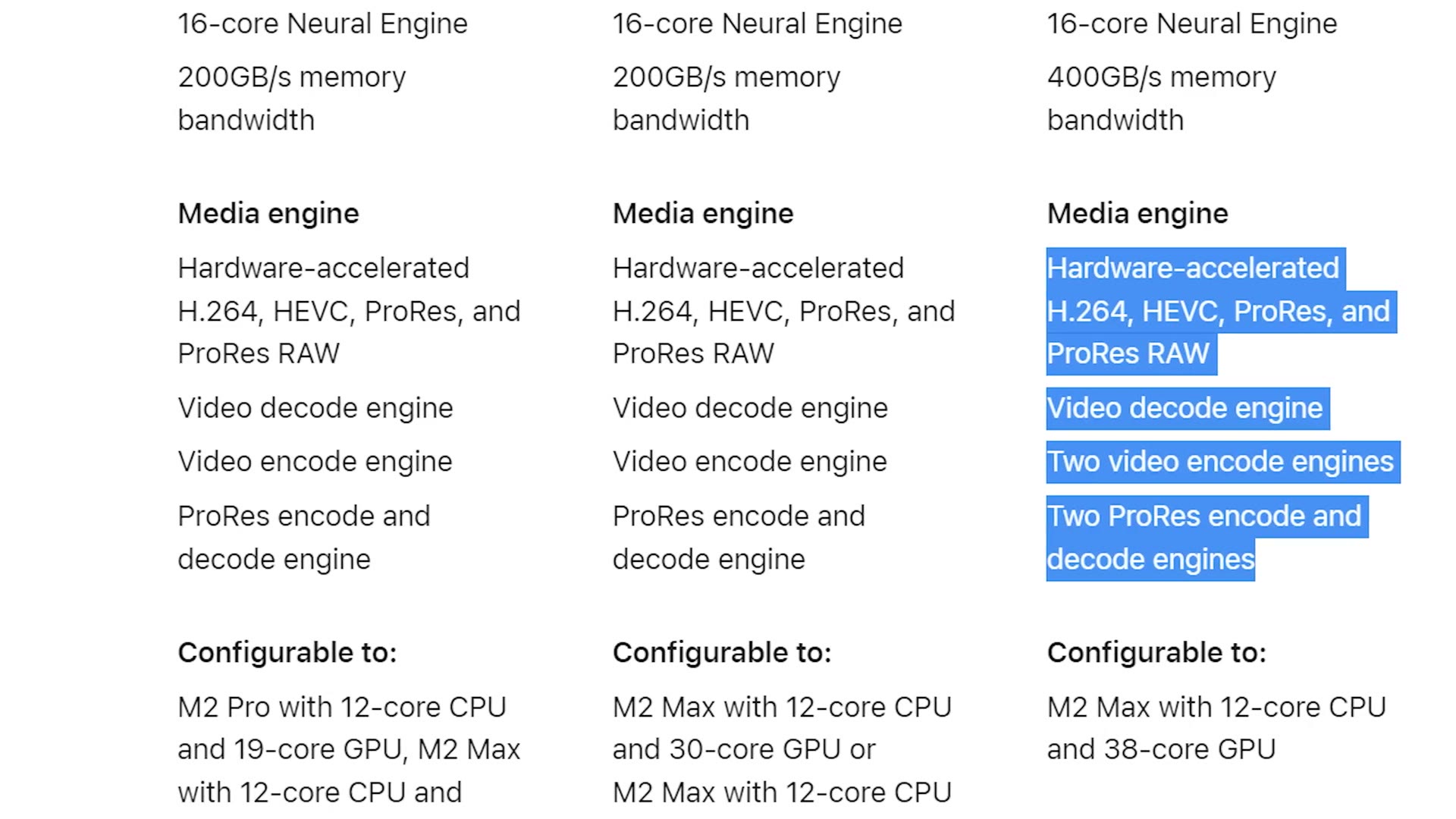
This is the entry level M2 Max model, and it has one significant change over the M2 Pro that makes a huge difference for video editing. We’re going to talk hardware encoders and decoders again, but don’t worry, I promise this is the last time.
The M2 Max takes all of those encoders and decoders from the previous laptops and gives you twice as many of them. So this is going to skyrocket your video editing and rendering speed even further over the M2 Pro.

In addition, because you’re choosing the 16 inch model of the MacBook Pro, you’re going to deal with less throttling of the CPU than if you put the M2 Max into the 14 inch chassis. And yet again, just like in my last MacBook buyer’s guide, I want to give Max and Vadim over at Max Tech a big thank you for discovering this difference between the two laptop bodies. Their videos about these laptops are awesome and I highly recommend checking them out.
Now that we’ve covered the CPU, let’s talk memory. By default, if you select the M2 Max, Apple is going to require you to also select 32GB of RAM, and I think that is plenty. Remember, this is unified memory shared between the CPU and GPU, and even if you’re heavily multitasking you should be fine for video editing, even with higher resolution footage. So I would save your money and not upgrade to 64GB, or the eye watering 96GB. Trust me, you do not need that for video editing.
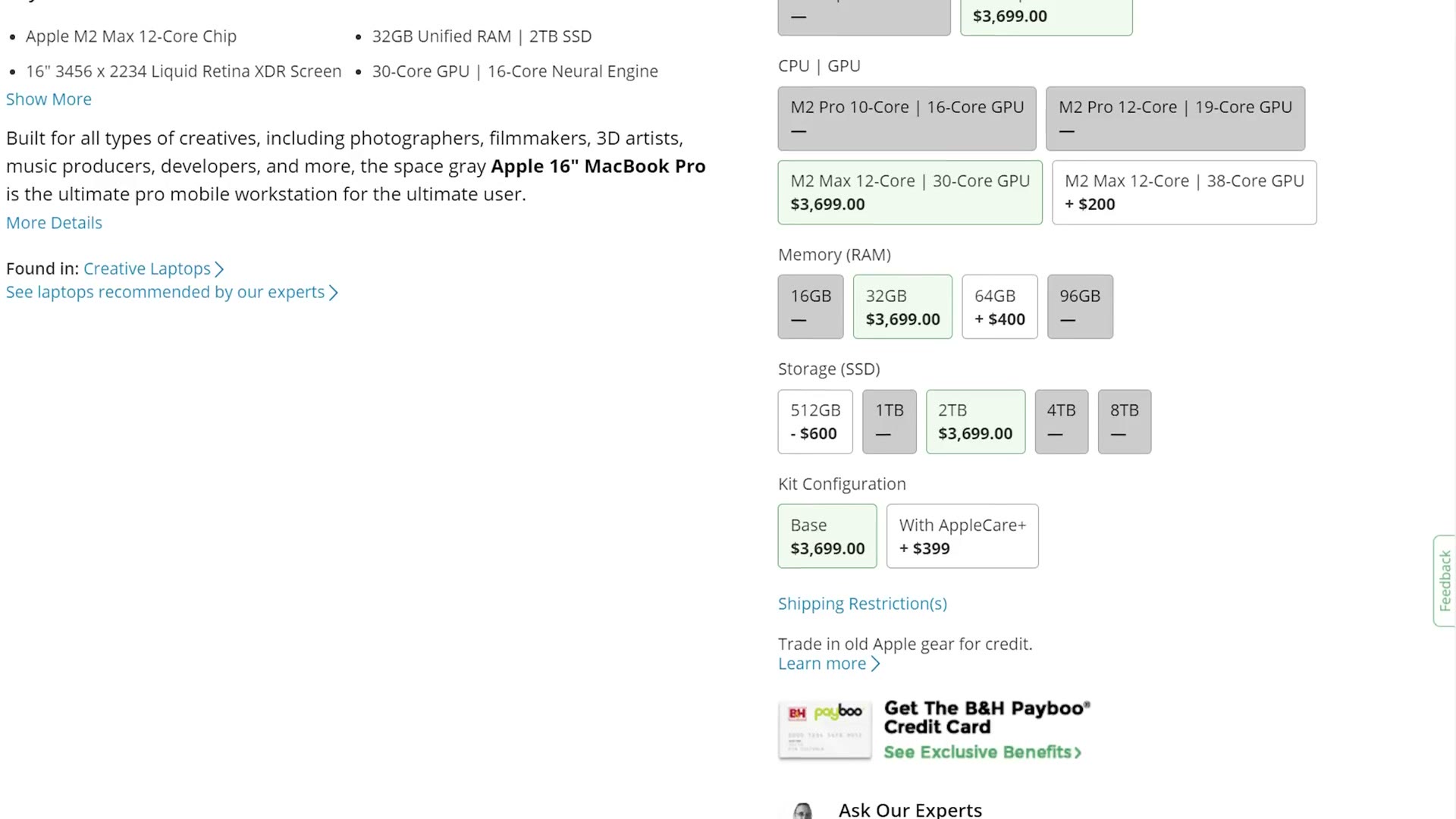
Lastly, for storage, just like with the M2 Pro and the M2, I would avoid that 512GB SSD like the plague and upgrade to at least 1TB, or more if you can afford it. Remember that if you’re editing 6K, 8K or RAW files, having extra space on your drive for caching is always nice, so that’s where I’d spend the extra money if you have it.
With that, you are looking at an absolute beast of a laptop that’s capable of editing pretty much any resolution or format of footage you want to throw at it, for a much cheaper price than the M3 Max.
Edit Videos Like A Pro
And there you have it, three Apple laptops I recommend at three different price points, plus a couple of bonuses. Regardless of your budget, you should be able to find an option that works well for you. But if I had to pick, the 14 inch MacBook Pro with the upgraded M2 Pro CPU and the 1TB SSD upgrade is the best bang for your buck.
I’ll also point you to my free Edit Videos Like A Pro guide. If you’re a video editor, which I assume you are considering this is a post about video editing laptops, this guide shows you some of the biggest things that took me years to learn as an editor, and they’re going to skyrocket your editing capabilities. It’s completely free.
Thanks so much for reading, and have a great day!