
I’m about to show you the new way to sync audio and video with timecode in Adobe Premiere Pro, so you can take footage and audio with either embedded timecode or linear timecode and go from having your files completely disorganized to perfectly synchronized in just two clicks.
To start, you’re going to want to open up Premiere Pro and import some footage and audio that you filmed with timecode. I have two examples to show you.
How To Sync With Metadata Timecode
First, let’s talk about the old way that Premiere Pro supported timecode, and we’re going to do that with this video clip and audio clip here. The video clip was filmed with a Sony a7S III and the audio was recorded with a Deity PR-2. To synchronize the timecode between both of these devices, I used a Deity TC-1 timecode box.
For this first example we are using embedded timecode, meaning I used a cable to go from the TC-1 into the micro USB port of the a7S III, which causes the timecode signal to be embedded into the actual metadata of the video file the camera recorded. And then, because the PR-2 audio recorder also had its timecode embedded into the metadata of its audio file, it’s super seamless to synchronize this audio and video in Premiere Pro.
All you have to do is make sure that the audio and video clips you want to sync are on the timeline. Drag to select them, right click, go to Synchronize, then make sure you select Timecode.
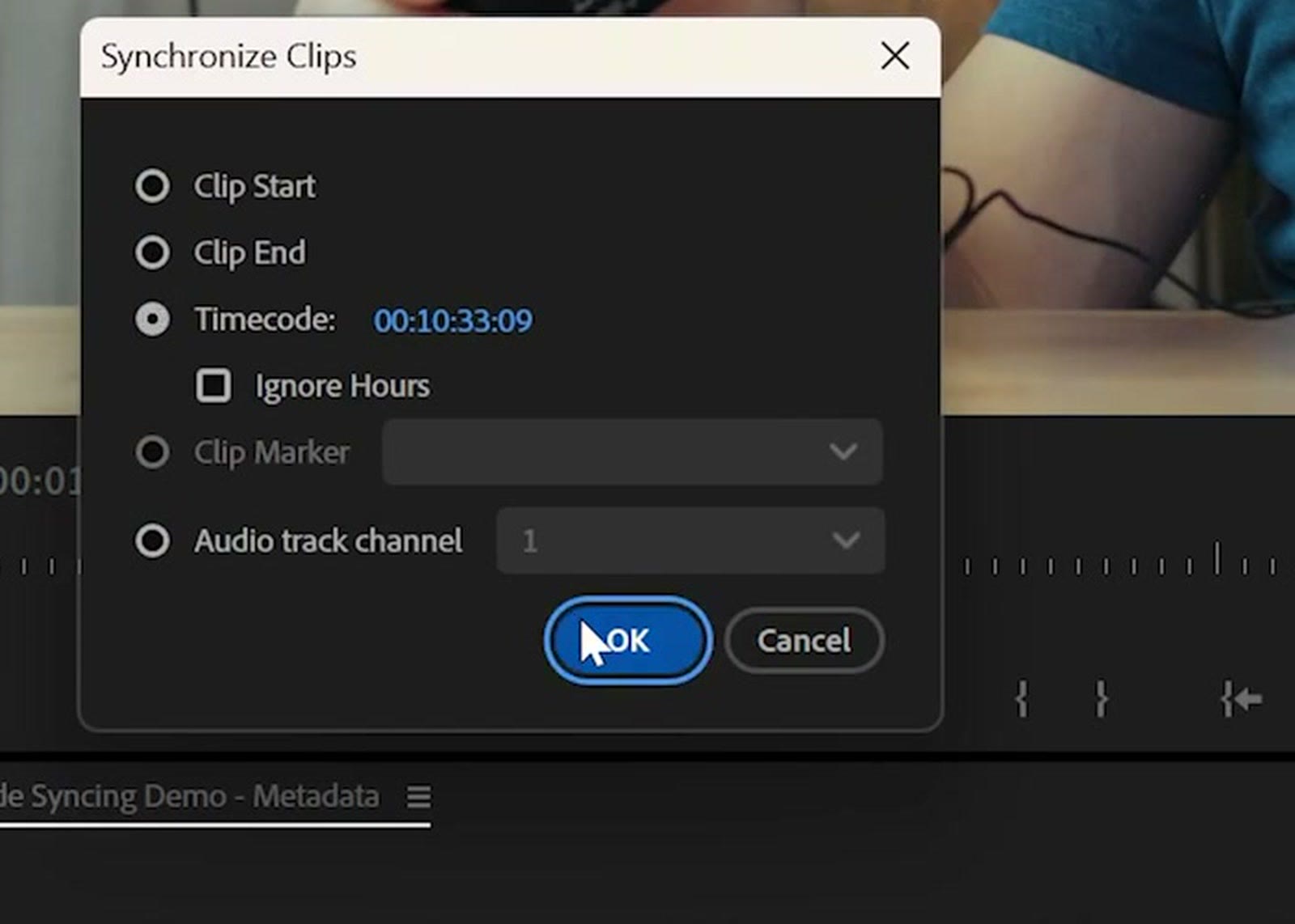
Press OK. Boom. They’re synchronized just like that. Instantly. It’s awesome.
Or alternatively, if you have more than just one camera and audio clip, you can go over to where all of your footage is, select all of your video and audio clips, right click on them, select Create Multi-Camera Source Sequence, then go over to Timecode.
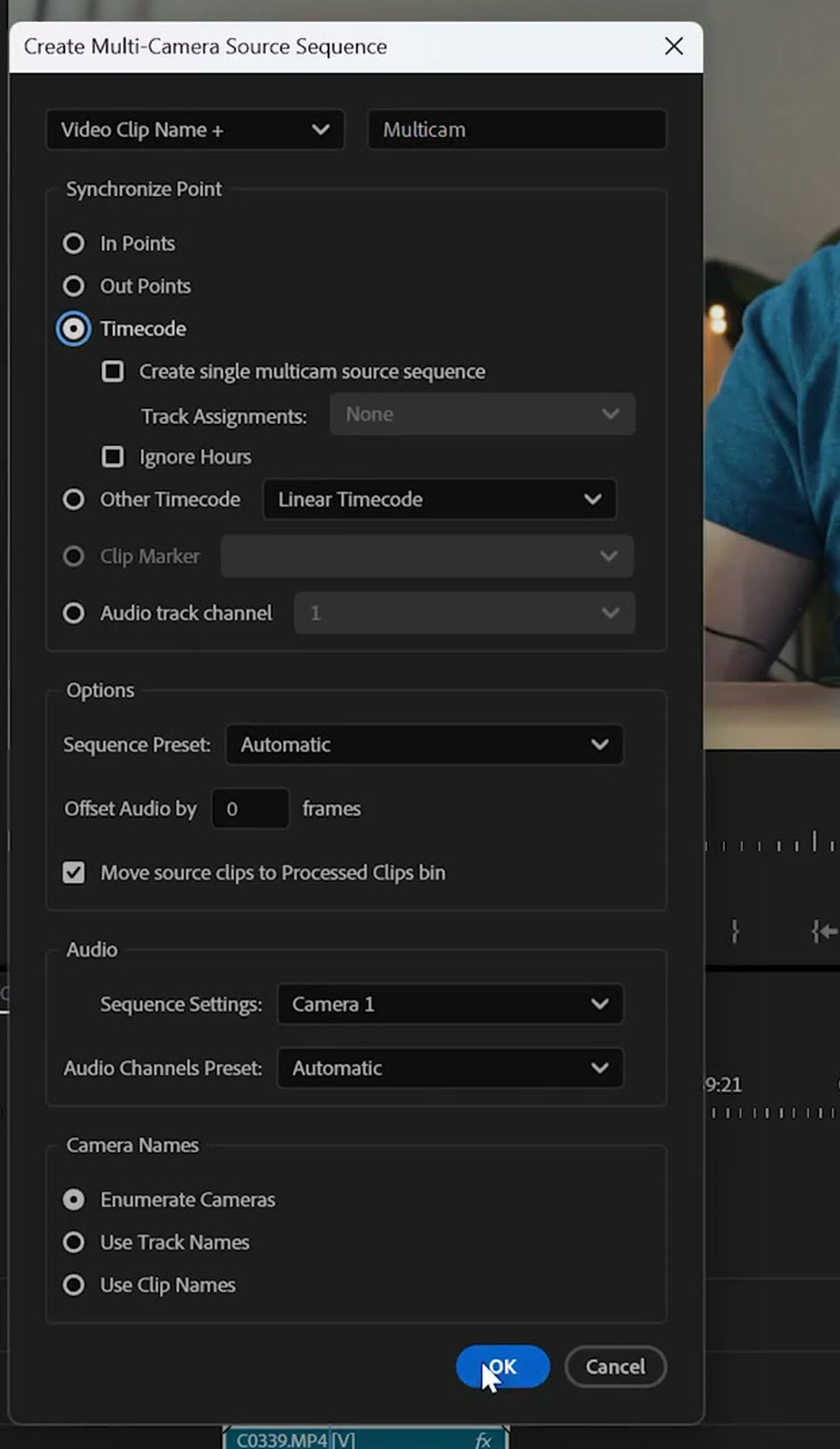
Press OK, and you’re going to have a fancy new multicam sequence created that has all of your video and audio clips synchronized using timecode. That works really great as well.
How To Sync With Linear Timecode (LTC)
But remember how I said at the start that there’s a new way to synchronize with timecode in Premiere? That’s what our second example is for, because Adobe recently added the ability for Premiere Pro to synchronize your audio and video clips using a different flavor of timecode called linear timecode.
This is a feature that has been in DaVinci Resolve for many years, and I’m so excited to see it in Premiere Pro as well, because linear timecode is arguably a significantly more versatile way to use timecode due to it working with virtually any audio recorder or camera.
You remember how in the first example I used a special cable plugged into the micro USB port of my a7S III to embed the timecode into the video file? Well, that’s a feature that was only recently added to the a7S III, and there are a lot of cameras and audio recorders out there that may not support embedded timecode like that. The good news is that linear timecode doesn’t need any special features or capabilities for it to work.
All your camera or recorder needs is a spare audio channel. So if you have a camera that can record audio in stereo, you can use either the right or left channel to save a linear timecode signal that can now be read by Premiere Pro and used to sync your audio and video. It’s pretty darn magical.
For this second example I have another audio and video clip, but the difference is that while the PR-2 audio clip is still recording the same audio with embedded timecode, for my camera, instead of inserting a special timecode cable into the micro USB port, I inserted a 3.5mm cable from the TC-1 into the microphone jack of the camera. The TC-1 then output a linear timecode audio signal that was saved to the left channel of my camera’s audio file.
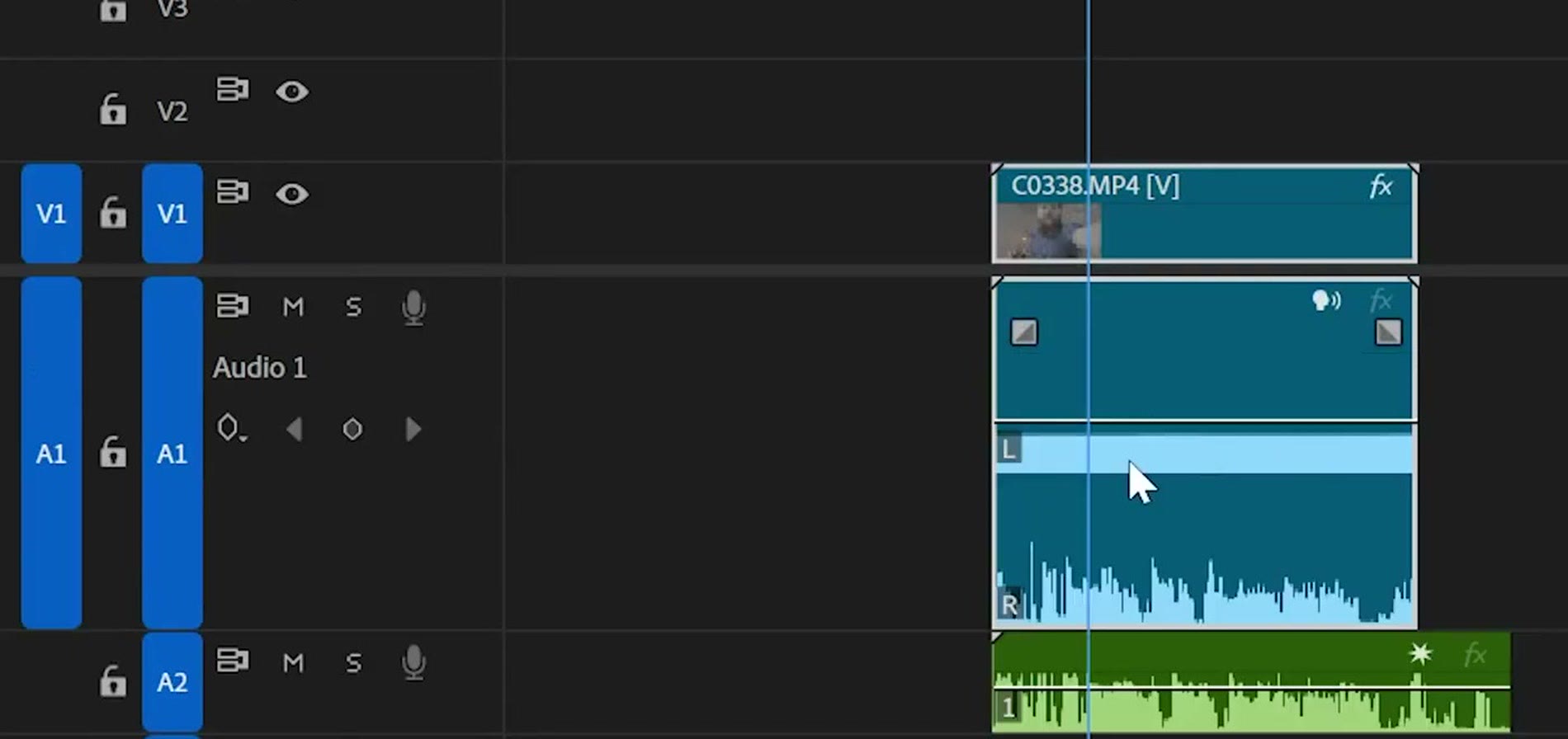
You can see it right there. It’s this solid line. And side note, I’m not going to play that audio file for you, because the timecode signal will hurt your ears. It’s basically a very loud, very fast electronic beep, which actually brings me back to the old days of dial up internet whenever the modem would make a lot of sound as it was connecting. Do you know what I’m talking about? I feel old now. It’s kind of like that, but arguably better, because instead of giving you super slow internet you get synchronized audio and video files.
The One Extra Step With Linear Timecode
Just like before, we have our audio and video files here on the timeline ready to synchronize. But you do have one extra step when working with linear timecode, and that is that you need to go over to your video clip in the project panel, right click on it, and go to Modify, then Timecode.
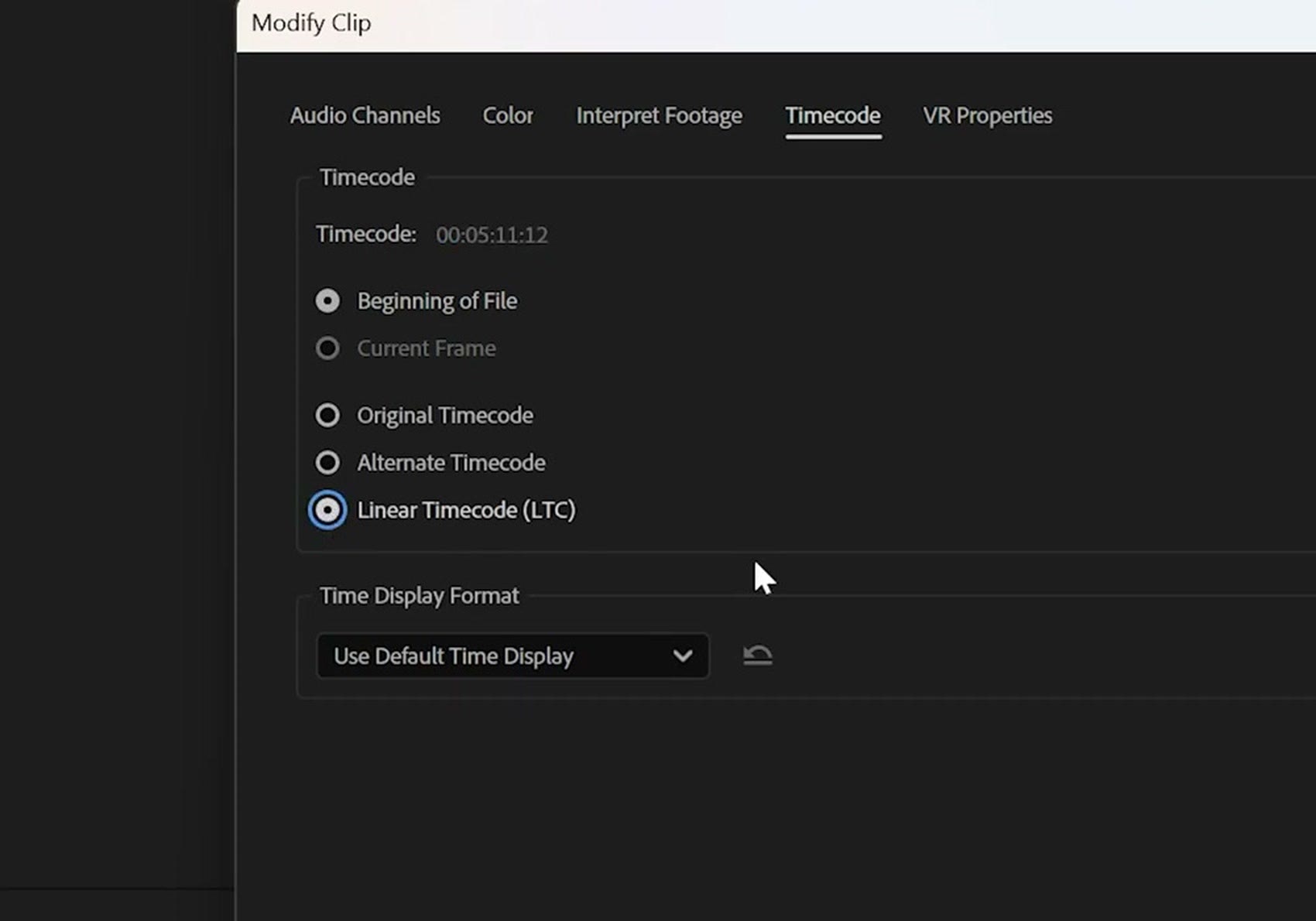
This box is going to give you a lot of options, but you’re going to want to make sure that Linear Timecode (LTC) is selected. Because by default there’s a chance Premiere may not recognize that the audio from one of your channels is timecode, which has happened to me before. So changing this setting helps guarantee that Premiere Pro sees the timecode signal and uses it to sync your video.
Then press OK, select your video clip and audio clips, right click and go to Synchronize, select Timecode, press OK. And just like that, in less than a tenth of a second, your audio and video clips are now synchronized using this new linear timecode capability.
And again, just like earlier, if you have a lot of audio and video clips from a lot of different cameras and audio recorders that all have timecode, you can select all of them, right click and go to Create Multi-Camera Source Sequence. But here’s the difference. Instead of selecting Timecode, you’re going to want to go down to Other Timecode and make sure it says Linear Timecode.
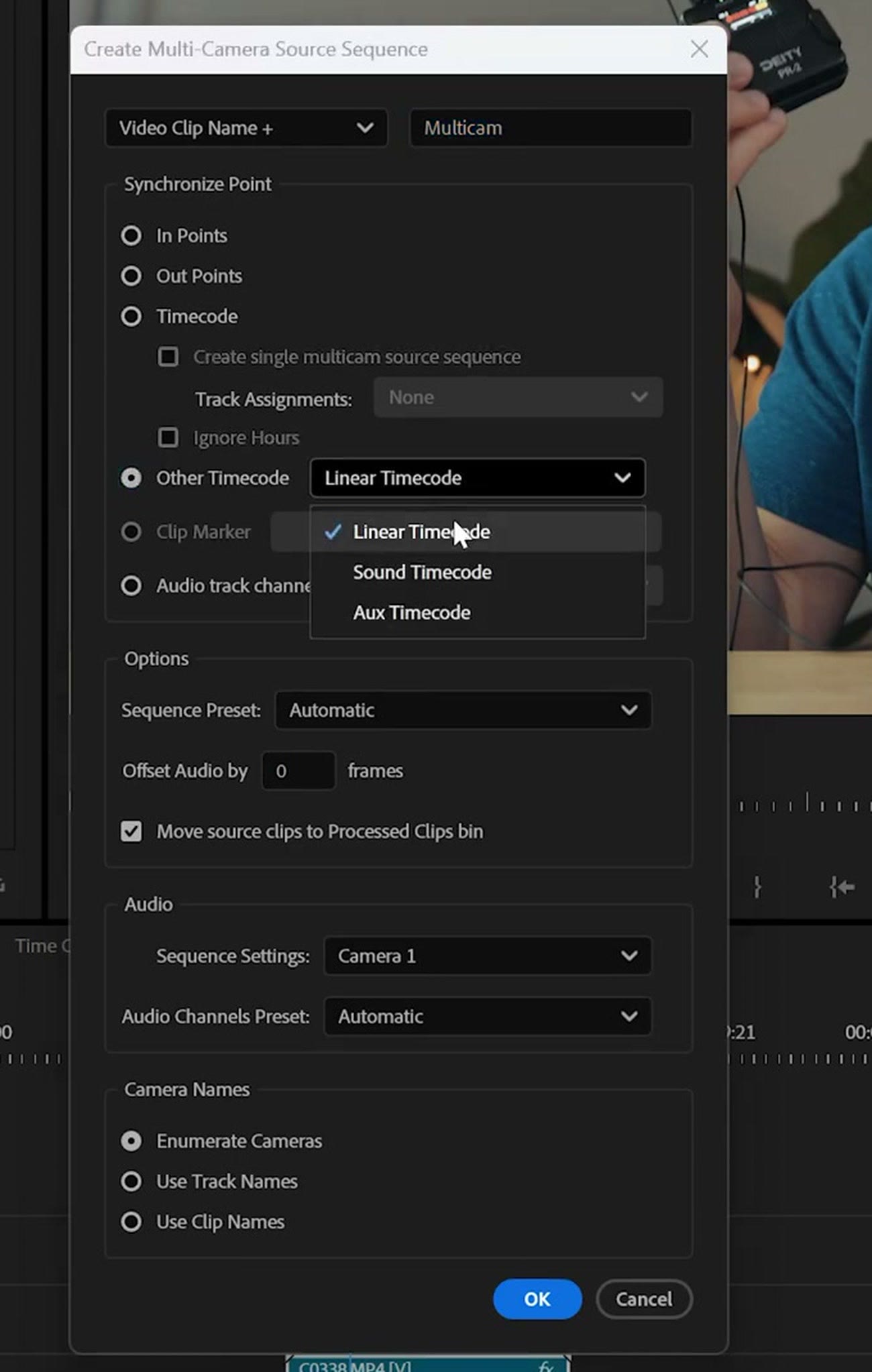
Press OK, and now you have another multicam sequence ready for you to edit that has all of your audio and video clips synced up at once. Isn’t that cool?
Timecode is awesome, and it’s going to save you a ton of time synchronizing your audio and video clips. I’m so glad that Premiere Pro now supports linear timecode.
I’m also glad I can tell you about my free guide called Edit Videos Like A Pro. This guide is going to show you some of the most important things that took me years to learn as a video editor and help you level up your editing skills super fast, in Premiere Pro, DaVinci Resolve, Final Cut, or any other editing software. You can download it for free.
Thanks so much for reading, and have a great day!