
I’ve been daily driving an ultrawide monitor for video editing and gaming for two years now and it has been such a great experience. Video editing software with a really long horizontal timeline makes so much sense to pair with an ultrawide, and for gaming, if you want something super immersive, an ultrawide is a no brainer.
But if there’s one area where ultrawide monitors have been lacking, it’s resolution. Put simply, in the past, if you wanted an ultrawide you were most likely going to have to sacrifice the number of pixels the screen could display.
That actually led to me recommending a, let’s say, interesting setup, where I’d say if you want to use an ultrawide for 4K editing that’s fine, but if you want to actually be able to view your rendered 4K video at its native resolution, I’d pair that ultrawide with a more traditional 16 by 9 monitor with a 4K screen.
Which brings us to the Dell U4025QW. Full of letters and numbers there, I know. This monitor’s claim to fame is that it’s the first one I’ve used that not only has an ultrawide aspect ratio but still has a higher than 4K resolution. Specifically, 5120 by 2160.
So this is really the best of both worlds. You get a monitor that can play back every pixel of a 4K video at its native resolution, while also giving you the extra screen real estate for editing that you get from an ultrawide. Oh yeah, and it has an extremely color accurate IPS Black display for color grading, and a 120Hz panel, which makes it surprisingly good for gaming.
It’s pretty darn magical. This is like a unicorn monitor that can edit video and game, and I’m really excited about it. Oh, and did I mention it’s also 40 inches? It’s massive. It’s larger than my one year old baby.
I’m reviewing this from the perspective of a video editor, and we’re not going to talk about gaming as much, but just know that you can very easily do that with this screen too. Also, for the sake of ethics, I want you to know this review is not paid or sponsored by Dell, but they did send me this monitor so I’d be able to make it.
A Word From My Sponsor
This one does have a sponsor though, and it’s my friends at Track Club. A subscription gives you access to a meticulously curated, small batch catalog of music you can license for your films, and I have to tell you, they have one of the best libraries out there with so many unique sounding song choices.
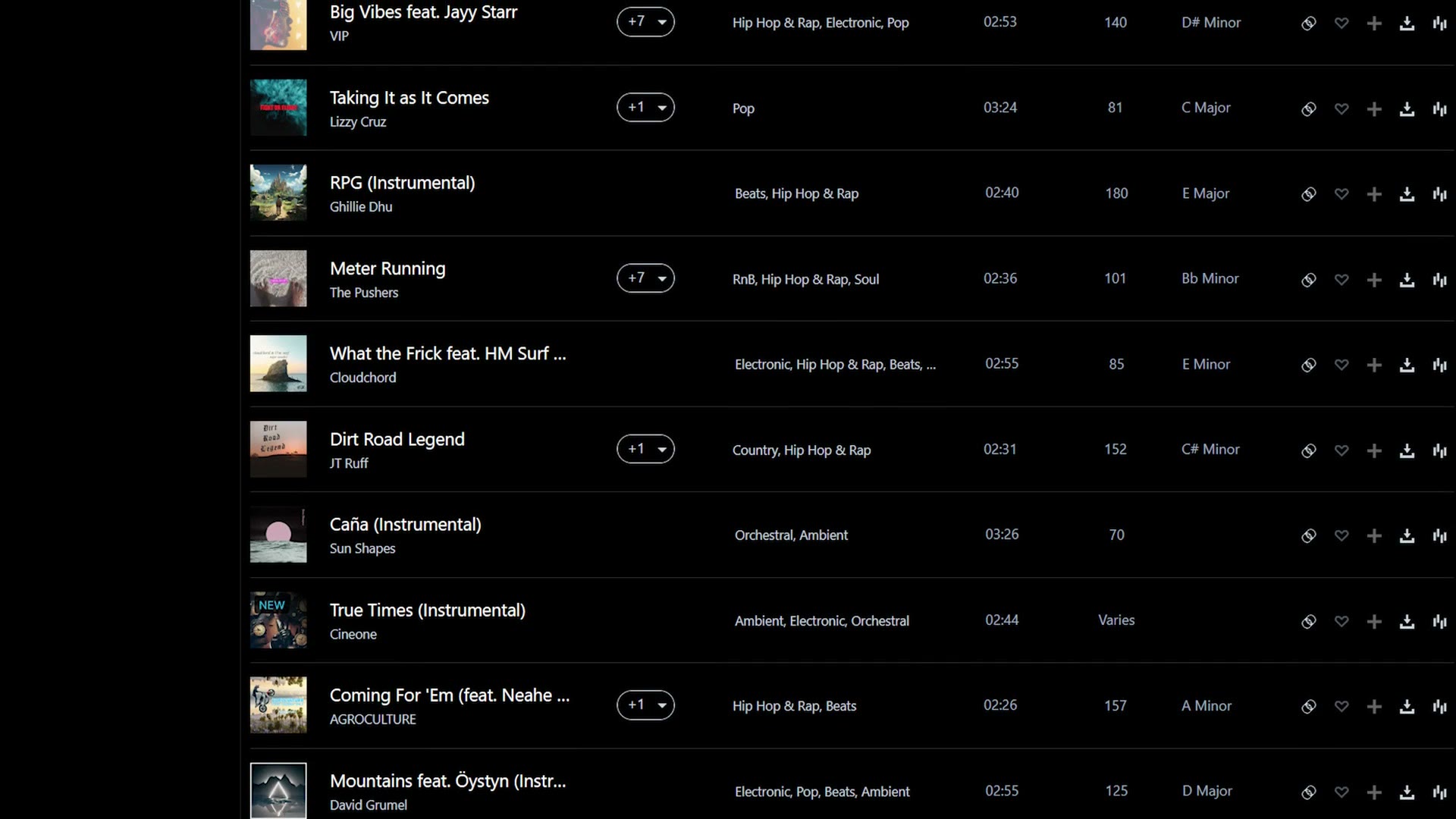
Not to mention, every one of these high quality songs is customizable right in your web browser, so you can change the volume of individual instruments in the song and then download and license that customized track to use in your video. You can check out Track Club for yourself and get two months free with my link.
Unboxing And Size
The first thing you’re going to notice about the U4025QW is just how massive it is. When they shipped it to me it came in a massive box that held a slightly smaller yet still massive box, and spoiler, once the monitor was set up it was still massive.
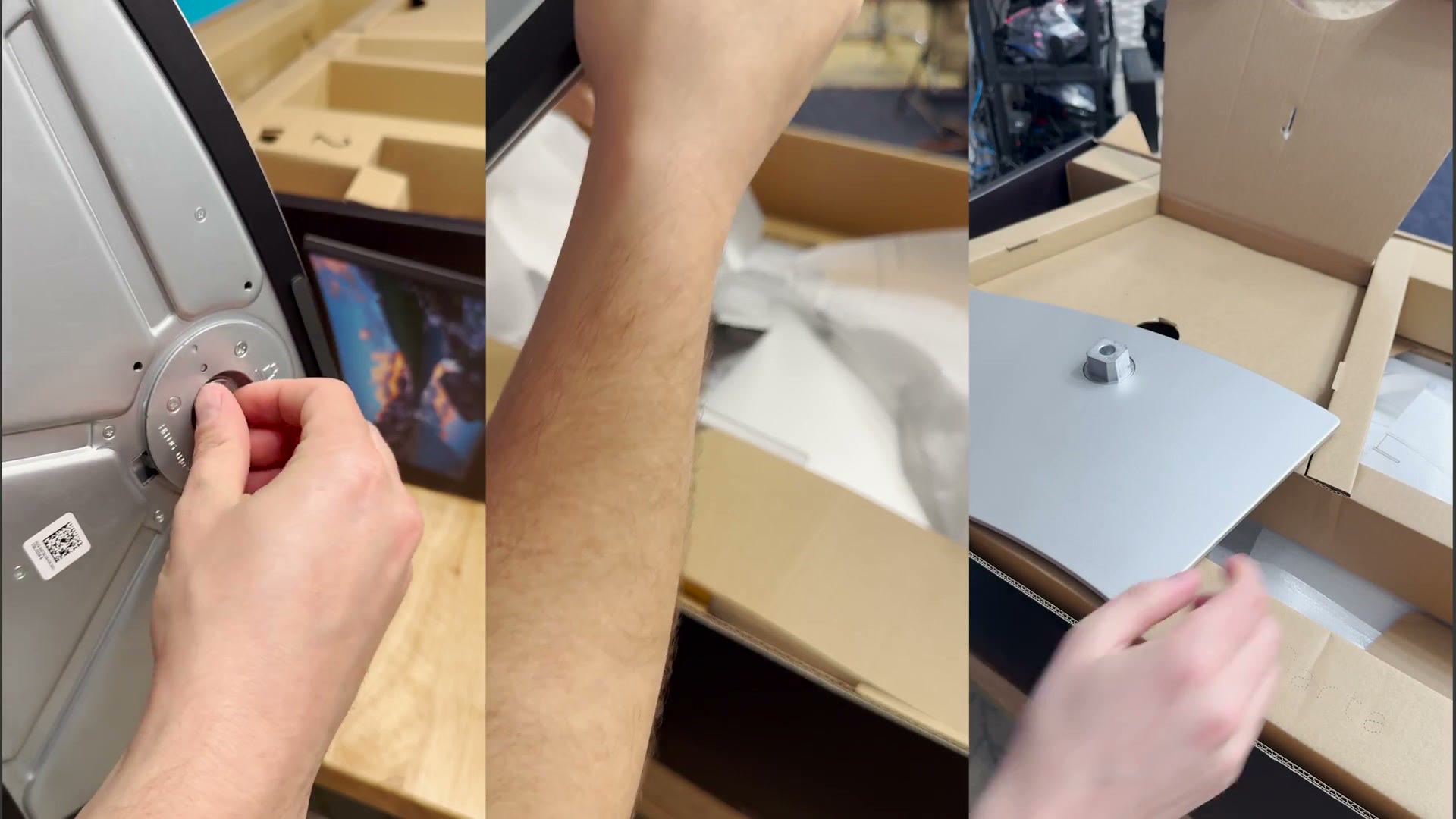
That said, I want to shout out the unboxing process Dell has built here, because it was incredibly well thought out and intuitive with numbered steps. And considering how large this monitor is, the riskiest moment where you could break something is really when you’re taking it out of the box. So I really appreciated how easy it was to put together and get up and running.
The Curve And The Panel
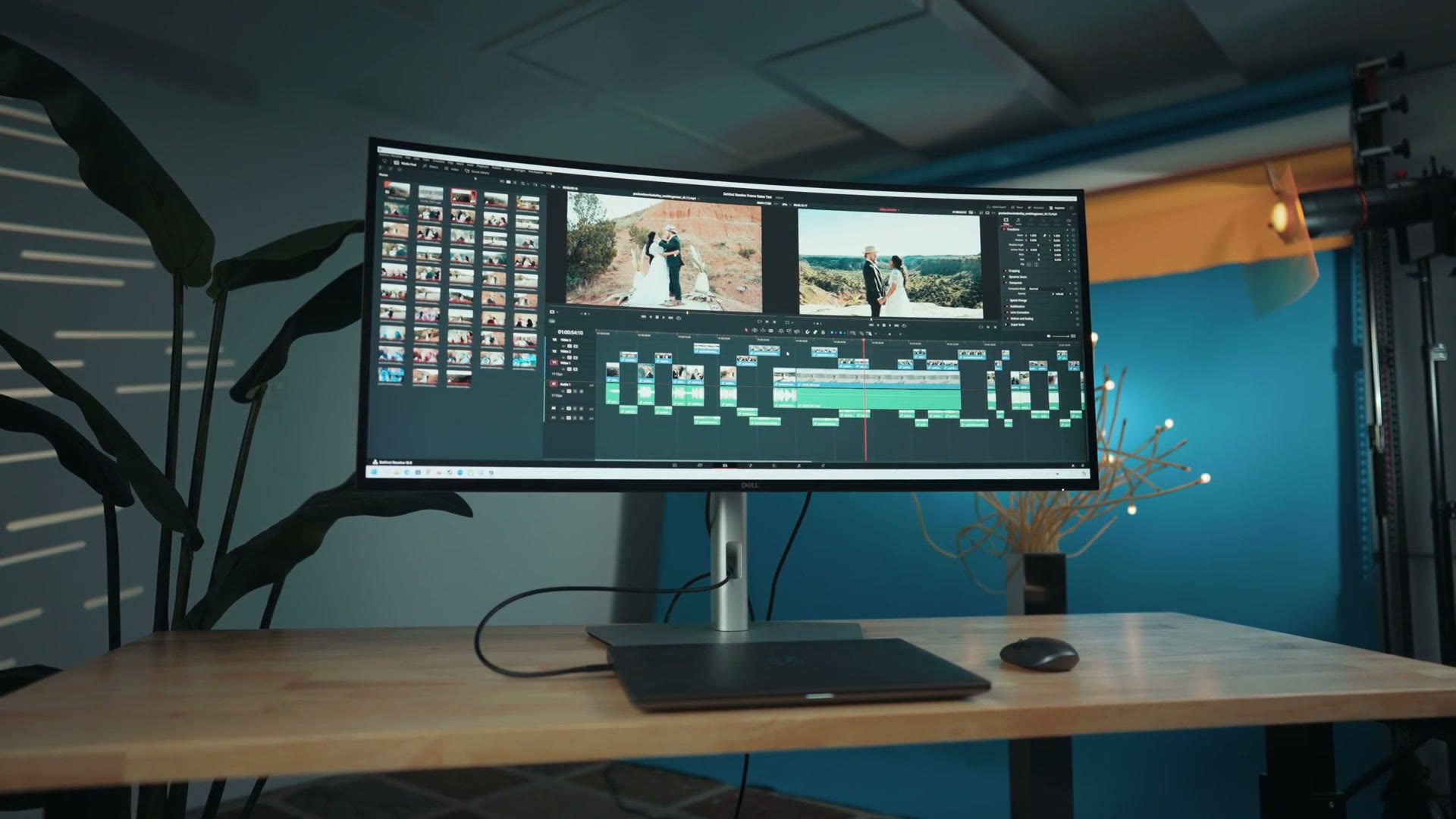
Once you get it set up and your brain starts to process the extreme size of the screen you’ve just bought, you’re going to notice that this monitor is curved. And I know I’m going to get called out about this if I don’t address it, because in my last ultrawide review I said I don’t like curved monitors, and I got a surprisingly large amount of comments disagreeing with me from a very vocal contingent of people who apparently love curved monitors.
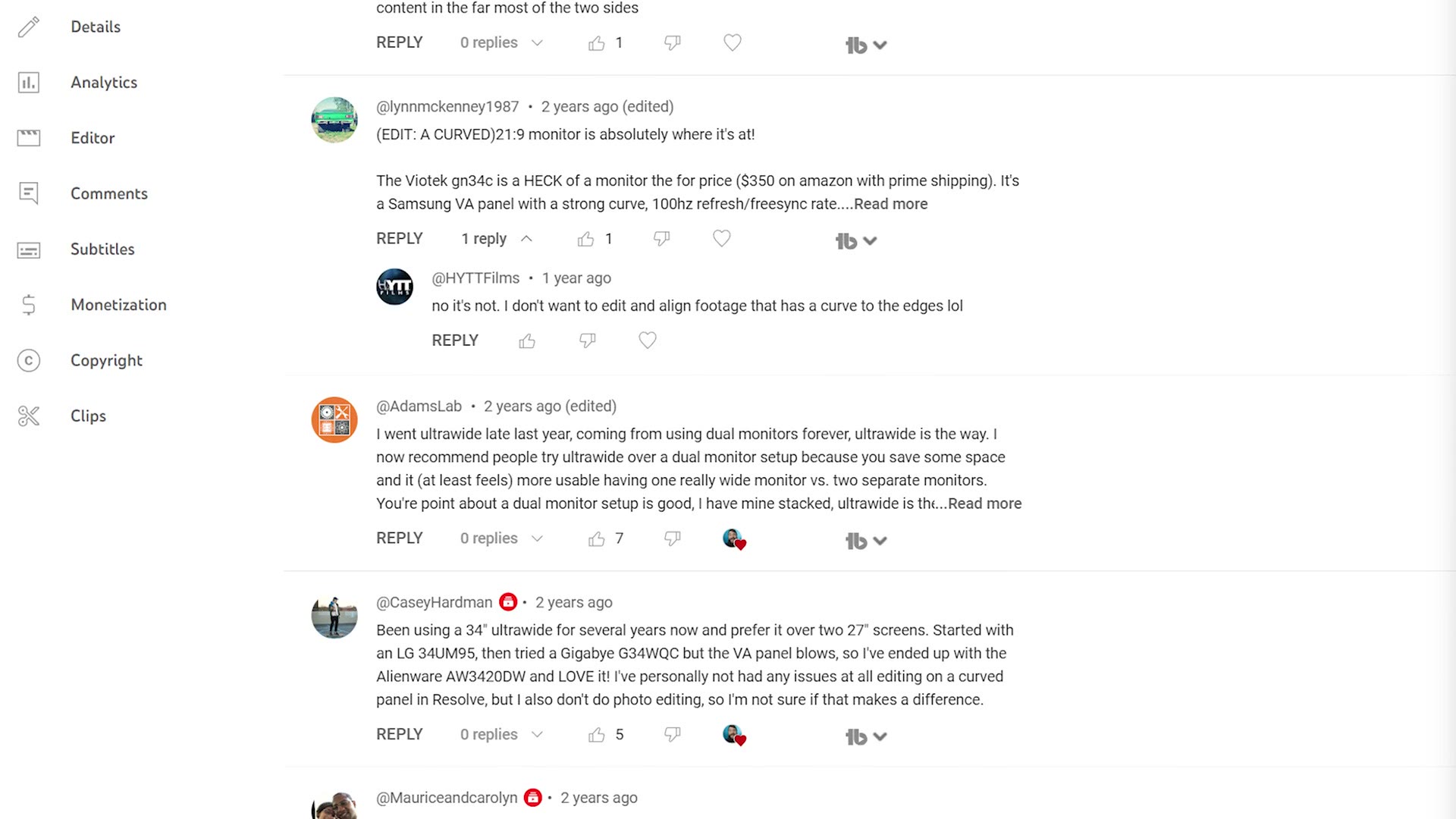
And now that I’ve had more experience with curved ultrawides, ones I’ve used and ones I’ve seen from friends as well as this one, I’ve softened in my heart a bit about them. I think using a curved ultrawide is perfectly fine. That is, as long as it’s a curved ultrawide using an IPS panel and not a VA panel.
You may have heard me say it before, but VA panels are not good when it comes to viewing angles and color accuracy, and you really want an IPS panel if you want the footage you’re viewing to be accurate. That accuracy matters because you want to color grade your footage and know that how it looks on your screen is how it’s going to look on anyone else’s screen.
Thankfully this monitor uses an IPS Black panel, which you can think of as a subgenre of IPS panels with two big benefits. The first is better contrast, so the blacks look blacker and the colors pop out more. To be clear, it’s still not as good as an OLED panel, but it’s a jump over a traditional IPS panel.
The second is a wider viewing angle, which means your colors aren’t going to shift if you’re viewing the monitor off axis. With my Gigabyte ultrawide I had to move my head so it was centered on the preview window in my editing software while color grading, just to make sure the colors weren’t shifting. With this monitor you don’t have to do that, and the colors look accurate regardless of where you’re sitting.
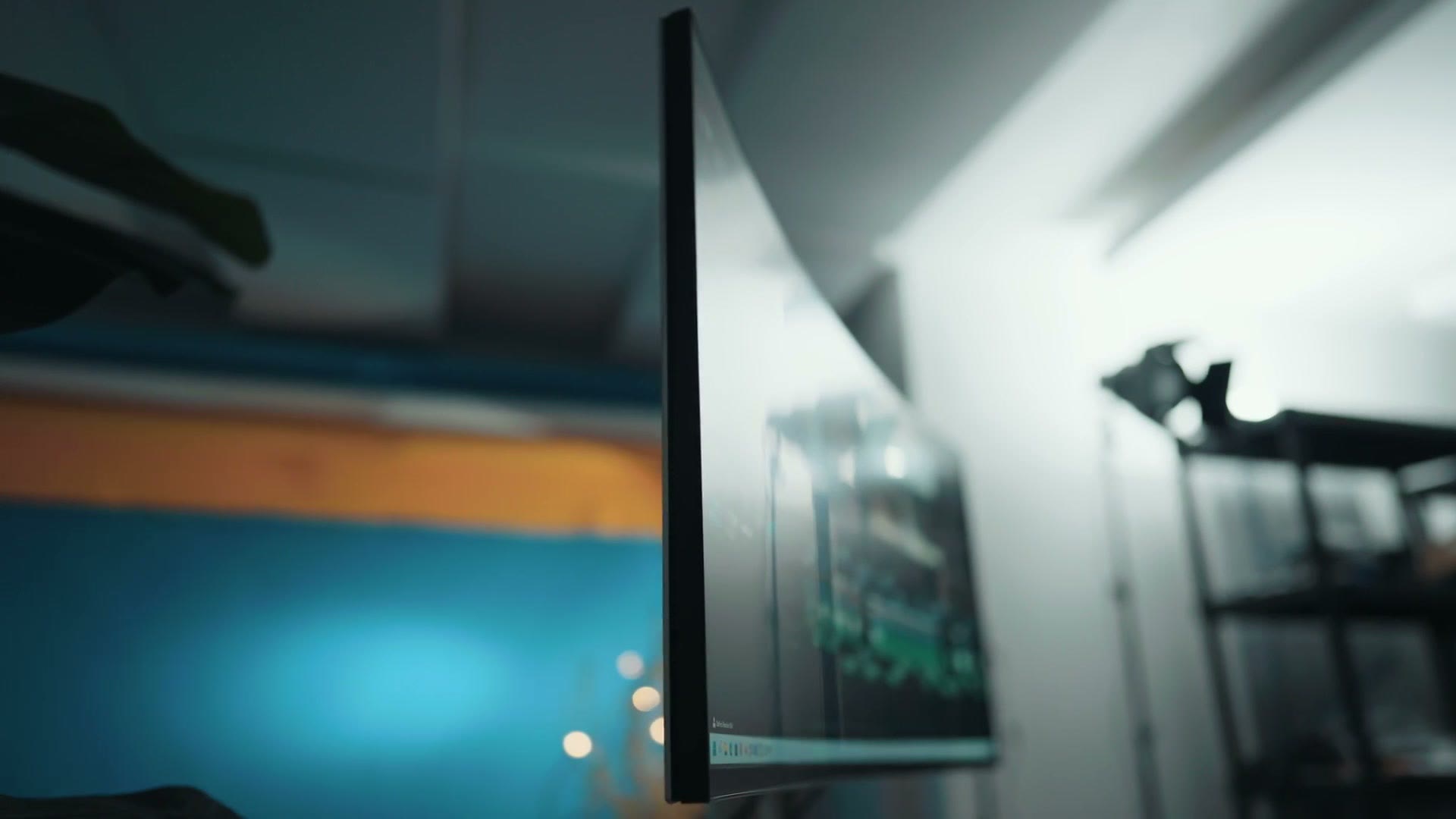
As for the curve itself, this is a pretty darn subtle one. If you’re looking at the monitor off center you can tell it’s curved, but whenever you’re sitting directly in front of it the curve is much less obvious. If anything it just makes the monitor feel closer to you and slightly less big than it is. It takes a bit of using it to get used to, but once you do I think you’re going to love it.
The Lackluster Stand
This is the one area where I have a complaint. The stand is a sturdy base that’s quite adjustable, you can raise it up and down and tilt it, and it doesn’t feel like it’s going to tip over. But I can’t help but feel that this screen is pushing the stand to its limits, specifically in the area of stability.

In short, if you have the monitor on your desk and you bump it or push on the desk in any way, it’s going to wobble a bit from side to side. My concern is that if you’re someone who types aggressively, there’s a chance your screen wobbles and that may bother you.
For me it’s not a big deal, and I usually use a monitor arm attached to my desk, so that’s probably what I’m going to do here, as long as I can find an arm strong enough to hold this giant of a monitor. Just know that it does come with a VESA mount, so that’s an option for you as well.
An Insane Amount Of Inputs
This one gives you a lot. You have HDMI 2.1, DisplayPort 1.4, Thunderbolt 4 for power and daisy chaining, USB-C, four USB-A ports, and heck, there’s even a 2.5 Gigabit Ethernet port.
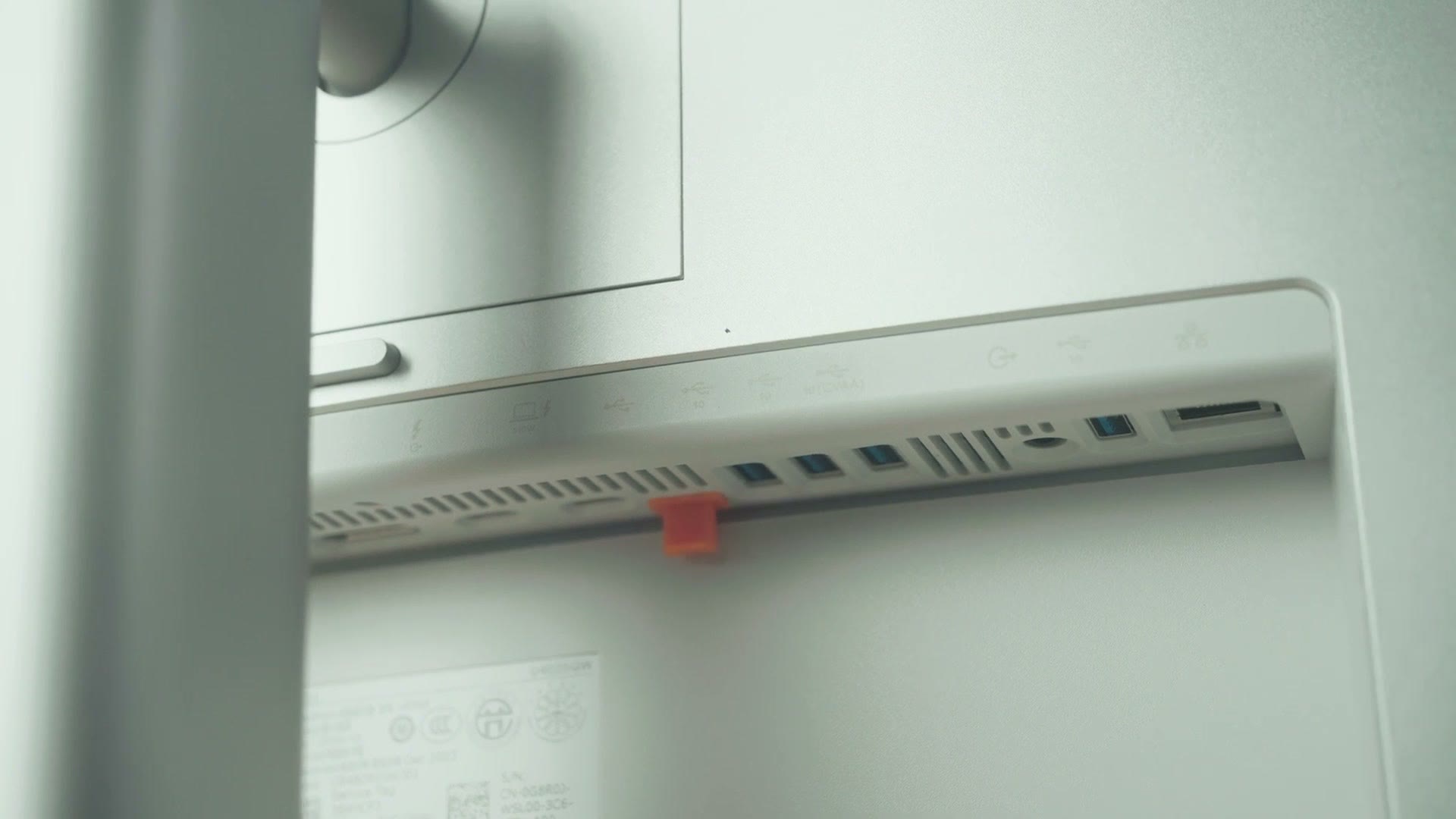
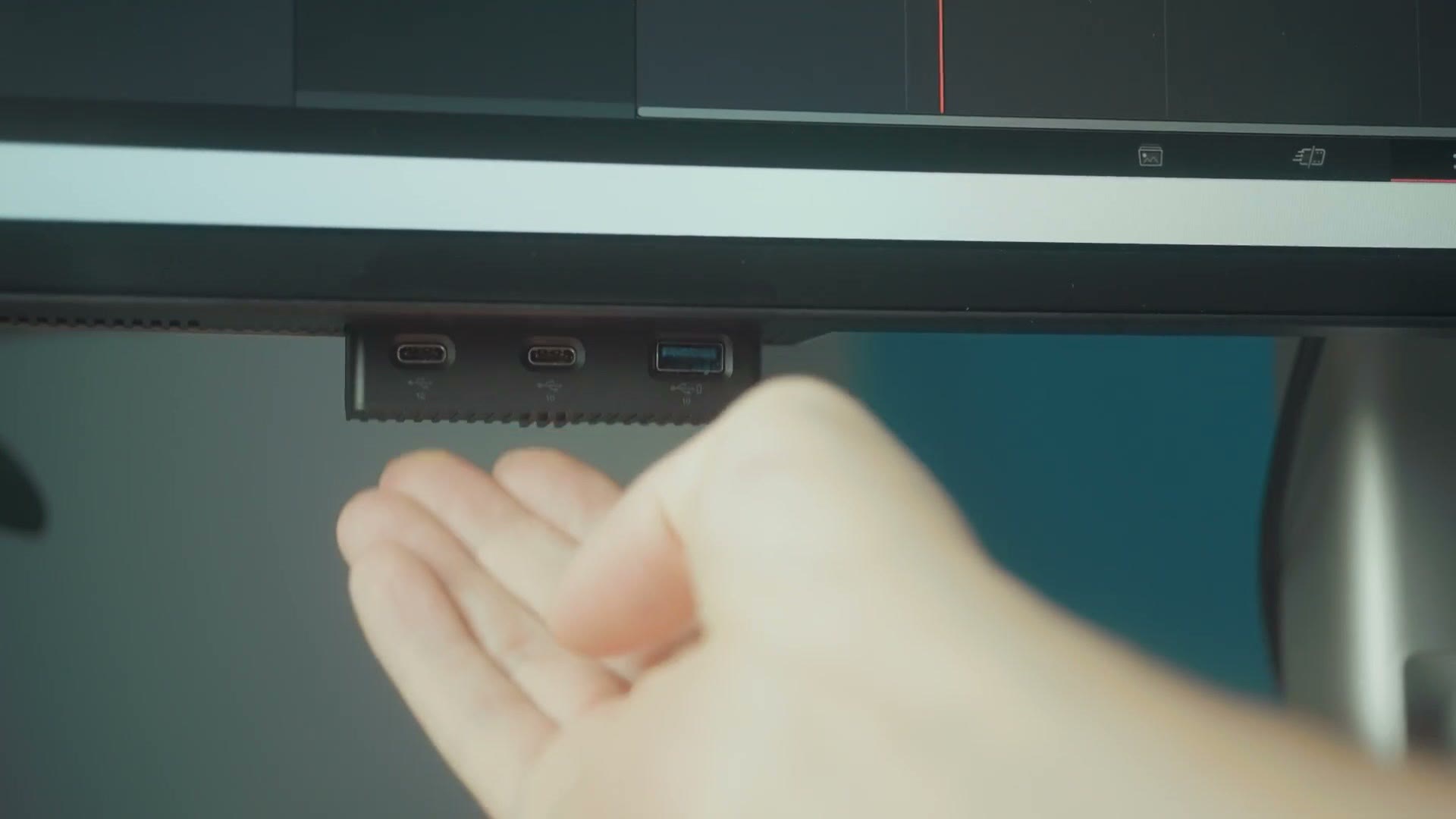
Also, I just lied to you. There are actually two more USB-C and one USB-A in a hidden slide out panel in the front. It’s super slick and I love it.
So this monitor works as a USB hub and a KVM for switching between multiple computers, and you can daisy chain multiple monitors together. It’s pretty nuts, and especially if you have a laptop with limited ports, this is going to give you a ton of expansion.
Color Accuracy
Out of the box this monitor is pre-calibrated from the factory, and it comes with a piece of paper reporting that it’s been tuned for color accuracy. But don’t worry, I tested and calibrated it myself with my Spyder X2 Ultra. Heads up: this link goes to the newer Datacolor SpyderPro.
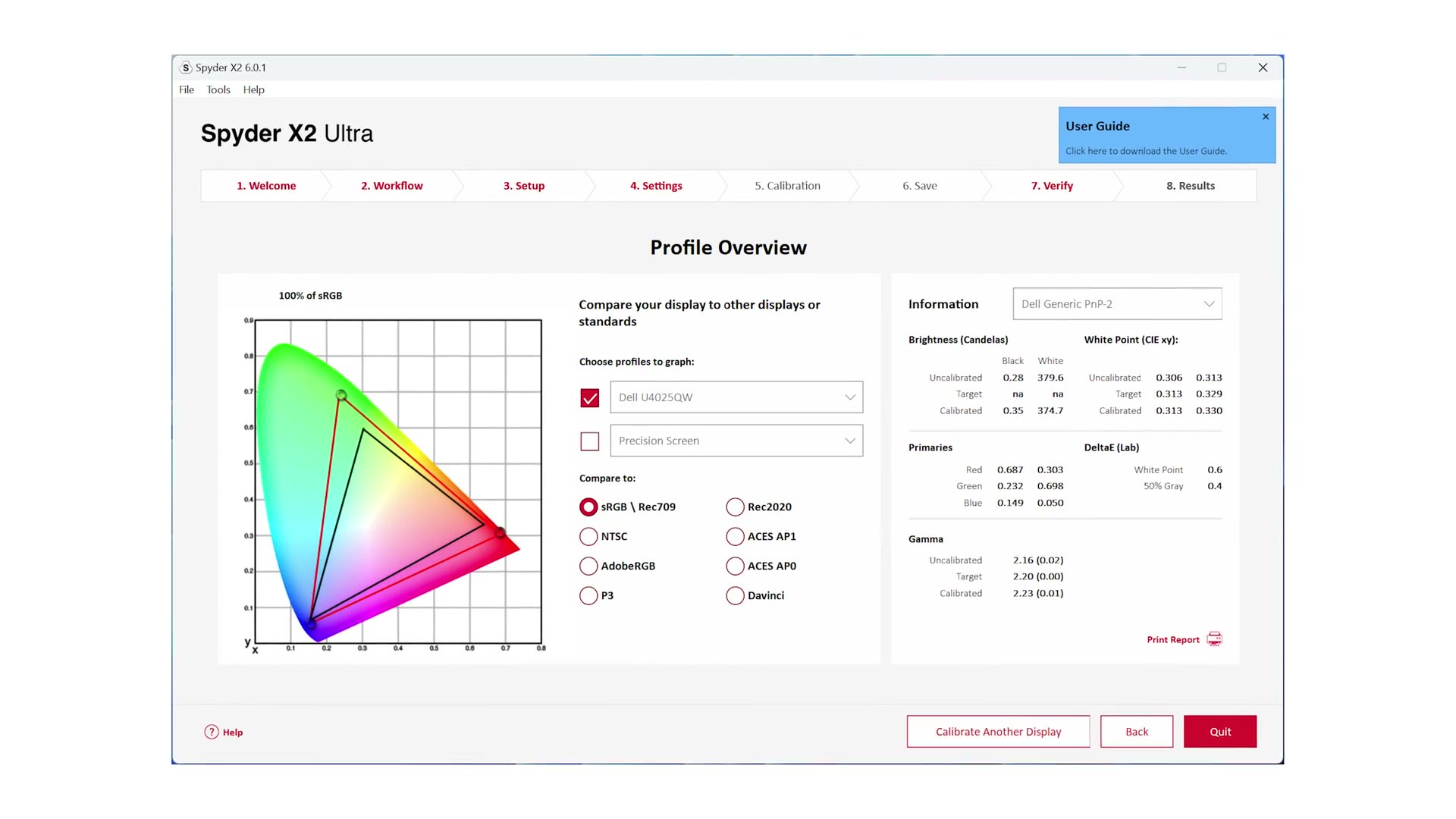
Dell says this monitor hits 100 percent of Rec.709 and 99 percent of DCI-P3, and in my testing that does appear to be accurate. In short, this is a very color accurate screen and I have zero qualms about recommending it for color grading.
I put together Time to edit videos with an ULTRAWIDE monitor? Gigabyte M34WQ Review as well, which covers the part I skipped over here.
That was proved to me again in the real world. Whenever I opened up a project in DaVinci Resolve and graded it, the colors looked vibrant and accurate, there was minimal light bleed around the edges, and the colors looked consistent across the panel. Most importantly, whenever I watched that graded video back on other screens and displays around my house, the colors looked the same across all of them, which tells you this monitor isn’t going to give you dramatically different colors than you’d expect.
The Resolutions It Supports
One of the biggest perks here is the resolution. It’s an ultrawide, but you still get enough pixels to display a native 4K image. At 5120 by 2160, whenever you play back an ultra HD video at 3840 by 2160, the monitor doesn’t have to downscale the image. You see it in true 4K, with the only difference being black bars on the sides of the screen, because your video is only 3840 pixels wide and not 5120.
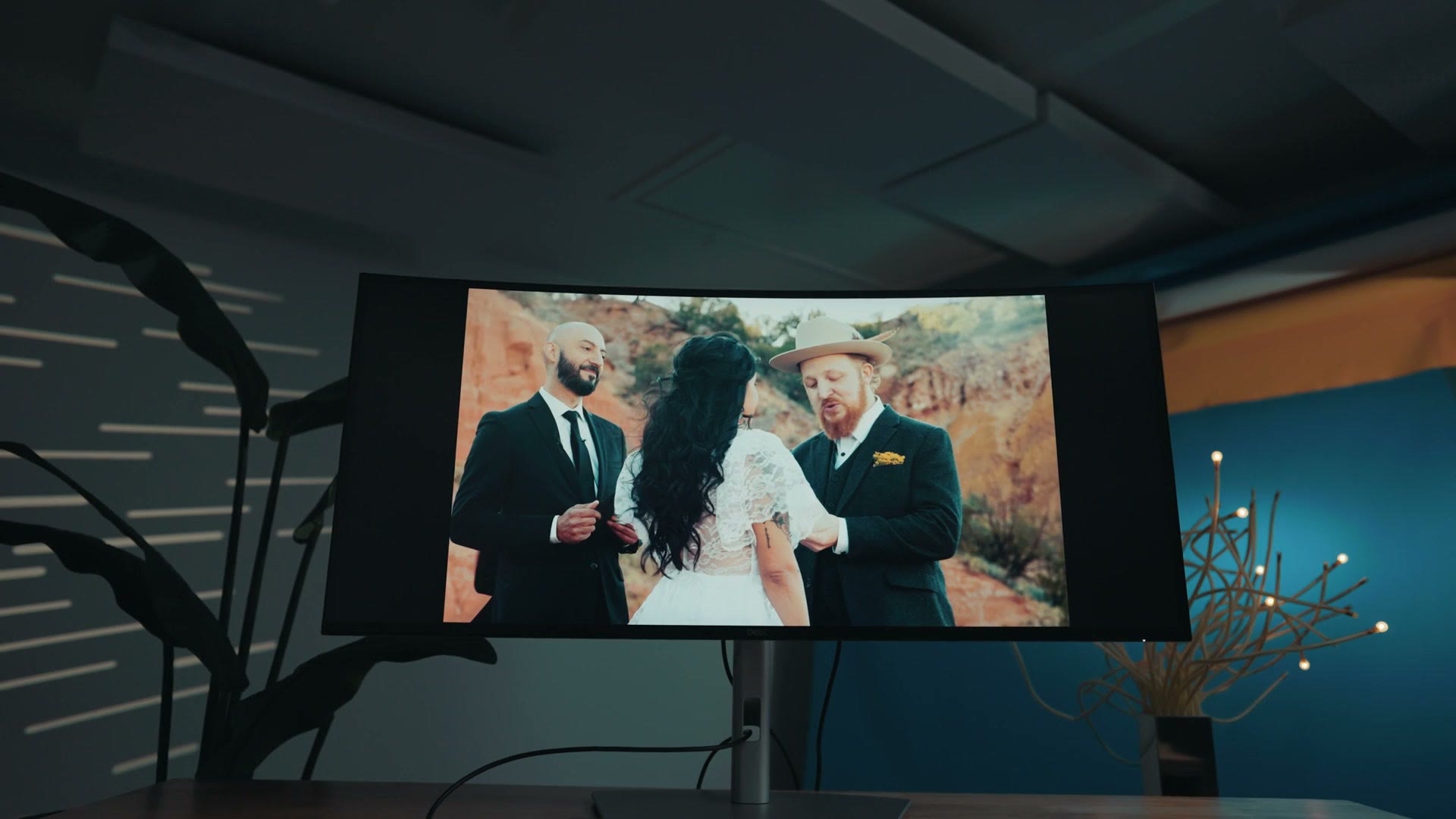
What’s also nice is that if you’re filming and editing in DCI 4K, which is a larger 4096 by 2160, you can still view that natively too.
And yes, just like with any other 21:9 ultrawide, if you’re someone who likes to film and edit in the 2.35:1 aspect ratio, where you cut off the top and bottom of your video to get that super cinematic thin image, that translates perfectly here. You get a full screen image, and it looks spectacular when you watch movies.
10-Bit Color And HDR
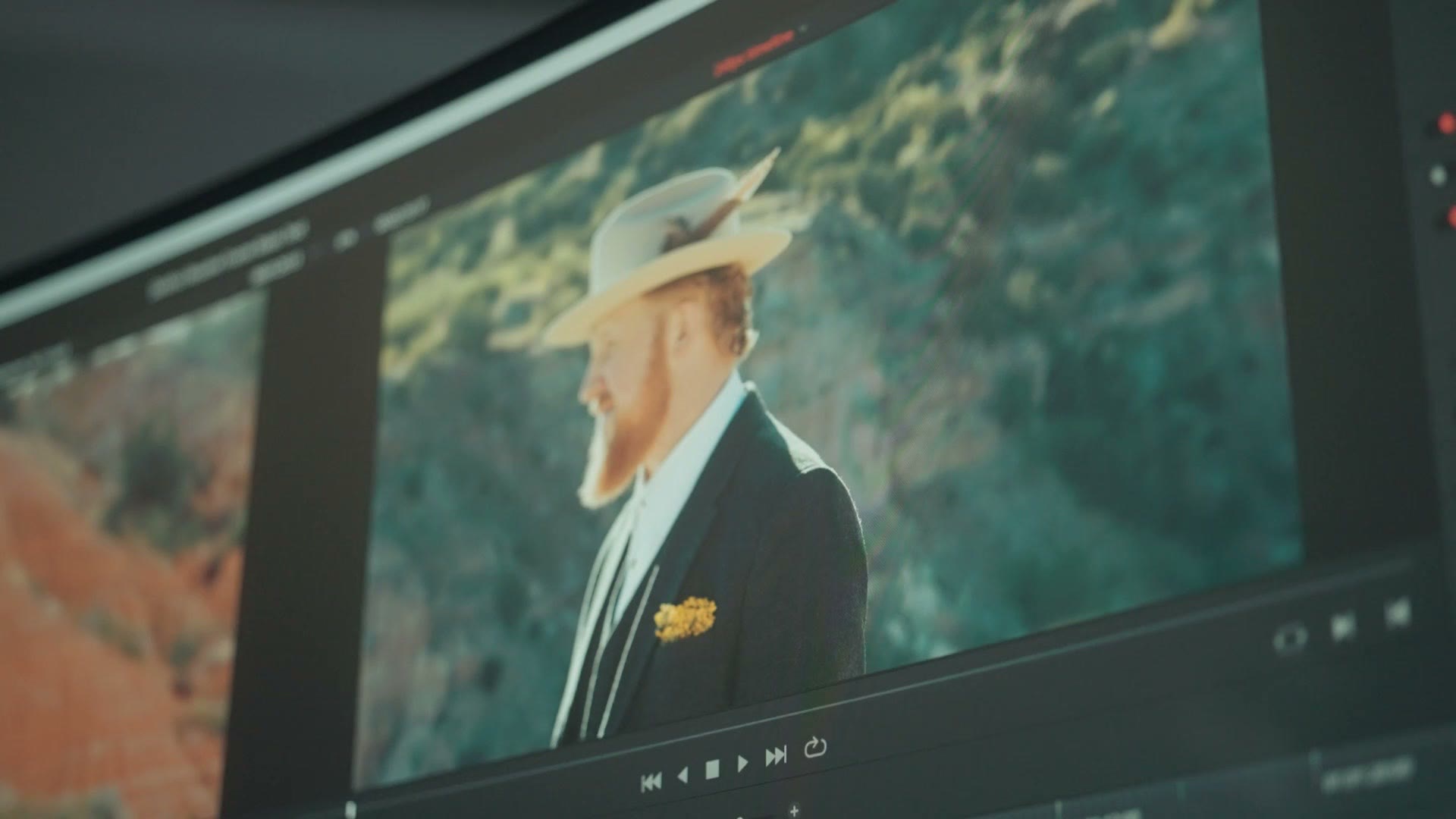
This monitor is technically 8-bit plus FRC, which if you don’t know what those words mean, in short it means it’s a 10-bit monitor capable of displaying billions of colors, which does make it possible to edit HDR video if you want to.
But just know it’s only rated to the HDR 600 specification, meaning it can hit a maximum of 600 nits of peak brightness in HDR. Typically for HDR you’re going to ideally want a monitor that can hit at least a thousand nits, so in that case you may want to look at something brighter. Just prepare your wallet in advance, because a monitor that can hit a thousand nits is probably going to be quite expensive.
Gaming Performance And VRR
I said this monitor is good for gaming as well, and I’ve definitely not been disappointed. This ultrawide comes with a 120Hz screen, meaning you can play games up to 120fps on it. And when I tested this for many hours, which I told my wife was for research purposes, so please back me up on that if she asks, the screen is incredibly massive and the motion is very smooth. It’s super immersive, and yeah, you can spend a lot of time gaming on this screen.
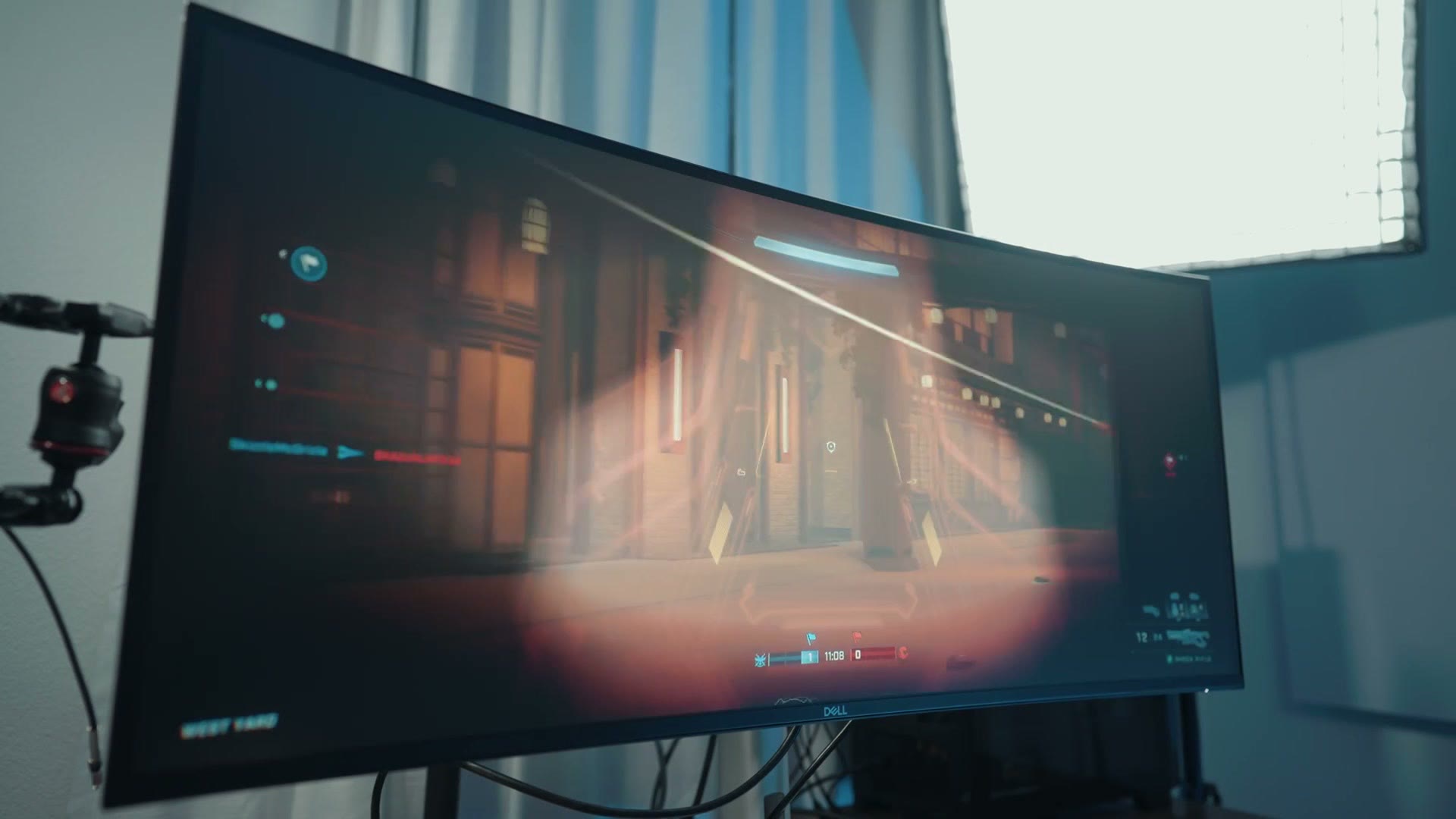
I’m also happy to tell you that while Dell doesn’t mention AMD FreeSync or Nvidia G-Sync on their website for this monitor, they do mention VRR, which is a blanket term for that technology. So I was very pleased to discover that I could enable G-Sync on this monitor and it worked great.
Should You Buy It?
Overall I’m really impressed by this monitor and the amount of features Dell has been able to put into it.
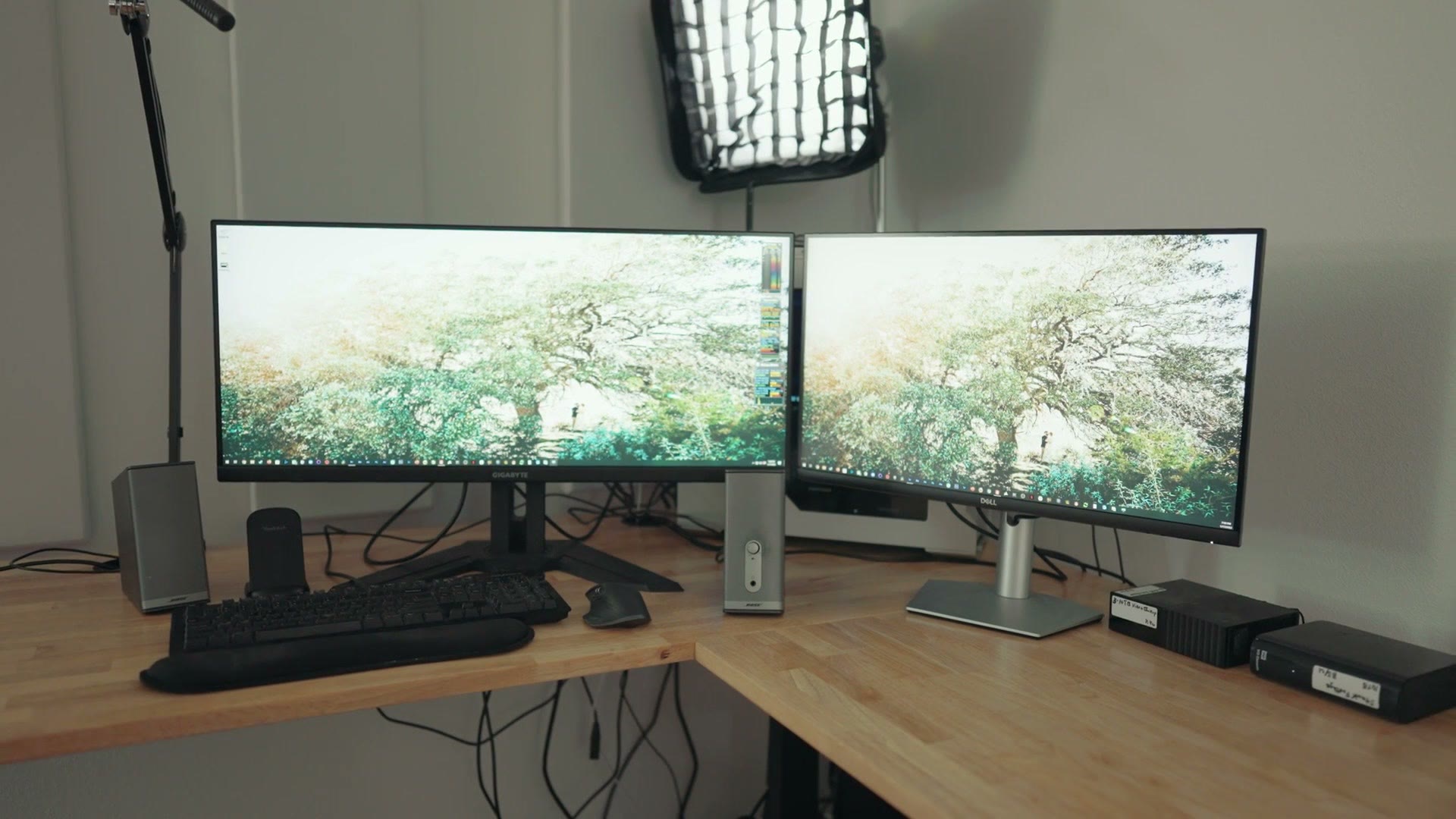
Like I said at the start, ultrawides have always had a lot of compromises, where you could get a really immersive ultrawide screen but it came at the expense of only having a VA panel that was bad for color grading. Or you could have something like the Gigabyte ultrawide I used for two years, where the IPS panel was great for grading but it wasn’t 4K resolution, so I had to pair it with a separate 4K screen.
With the U4025QW, still a mouthful, it feels like a monitor with virtually no compromises, because you get a really color accurate screen that’s high resolution enough while also being 120Hz so you can game on it. Throw in the amount of ports and the Thunderbolt hub and the KVM switch, and this is a super full featured monitor that checks so many of the boxes editors and gamers are looking for. I’m a big fan.
The Price
Coming in at about 1800 bucks at the time of writing this, this is definitely not a cheap monitor, and for that price there are a lot of other options out there.
But in all of my testing and research, if you’re looking for a really big 40 inch ultrawide that prioritizes the color accuracy you need for video editing while giving you a high resolution panel at 120Hz, that’s where the list of competitors gets pretty darn short, and where this monitor becomes a really compelling option. So yeah, it’s a lot of money, but I also think that if you get it, you’re going to be really happy with it for many years.
You can grab the Dell U4025QW at B&H or at Amazon.
And if you’re a video editor, I’d love to help you out even more, so I’ve put together a free guide called Edit Videos Like A Pro. It shows you the most important things it took me years to learn as a video editor, and it applies whether you’re using Premiere Pro or Resolve or Final Cut. It’s completely free.
Thanks so much for reading, and have a great day!