
Is it time to edit videos in ultrawide? This is the Gigabyte M34WQ, and I want to review it from the perspective of a video editor and answer the question of whether you should get an ultrawide monitor for editing at all.

Before we start, for the sake of ethics, I want you to know this isn’t paid or sponsored by Gigabyte, but they did send me this monitor for review. They have no control over what I say, and the first time anyone at Gigabyte sees this is the same time you do.
Is It Time To Edit Videos In Ultrawide?
If you’ve ever used editing software, and I personally use Premiere Pro, you learn quickly that a larger screen is always better. You see more detail, the tools are clearer, and most importantly, editing software has a lot of panels. The bigger those panels can be, the more information you have and the better the whole experience is.

Which brings us to ultrawides, and I have to say, it’s rare for me to find a piece of technology that feels this perfectly suited to video editing. Editing is a horizontal experience. You have this massive horizontal timeline eating up a ton of space, and the more room your timeline has, the more of your video you can see and manipulate at once. So a wide monitor is great, and an ultrawide is ultra great.
Do You Need A Curved Ultrawide?
The first thing you notice about this monitor is that it’s huge. It is ultra in every sense of the word. I’ve never had a monitor where I actually had to turn my head side to side to see all of it. It’s awesome, and it’s incredibly immersive.
Also, unlike some of its competition, this one is not curved. There are plenty of ultrawides with either a subtle or a more extreme curve, but as a video editor I really didn’t want that, because I’m often dealing with footage where I need to know whether a line is straight or crooked. Any time you introduce a curve to your monitor, there’s a greater chance you end up baking a curve into your footage, which looks really weird to anyone who doesn’t have a curved monitor.
VA Panels vs IPS Panels
While we’re on curved monitors for a second, another reason manufacturers offer them is that a lot of these panels are VA panels. That’s a screen technology with really great contrast, but it comes at the expense of viewing angles, meaning if you aren’t looking at it straight on you start to see colors shifting.
A curve helps offset some of that shift, and if you’re gaming it isn’t a big deal at all. But if you’re doing color critical work where you need accuracy, a VA panel is really not ideal.
The good news is the M34WQ uses an IPS panel, which is widely considered one of the best options for creative work, with much wider viewing angles and none of the color shift problems VA has. And because it’s IPS, even though the panel is very wide and completely flat, the viewing angles hold up well enough that there’s no dramatic shift.
To be clear, there is still a subtle shift, especially if you sit very close. So if you want to grade on it, and I think it’s definitely good enough for that, I’d recommend positioning your head right in front of whatever part of the screen your preview panel is on. If your preview is off to the right, scoot your chair a bit to the right so you’re looking straight at that part of the panel.
8-Bit vs 10-Bit Panel & Color Accuracy
This is an 8-bit panel, not 10-bit, and that really isn’t a big deal unless you want to edit, grade and deliver in HDR, in which case you’re going to spend a lot more money on a different display. For the vast majority of filmmakers, myself included, who aren’t delivering HDR, 8-bit color is plenty.
Gigabyte does advertise this monitor as supporting HDR 400, which means it reaches the bare minimum brightness needed for HDR, but the 8-bit panel is going to prevent it from showing all the colors HDR needs. So like I said, I wouldn’t use it for HDR grading.
On accuracy, in my testing it’s pretty color accurate out of the box, with a subtle shift into the blues and greens. Once I ran my color calibrator on it, it got incredibly accurate, with 100% coverage of sRGB, and I’d have zero issues recommending it for color grading.
Resolution & Aspect Ratios
As someone who films pretty much everything in 4K, I’ve always prioritized a 4K screen so I can see a one to one representation of my video while editing. I’ve been using a 27 inch 4K screen at 16:9 and it’s worked great.
But as soon as you start looking at ultrawides, you realize the aspect ratio isn’t going to be 16:9. In this case you’re getting 21:9. Which means your 4K videos shot in 16:9 won’t fill the screen, and you’ll see black bars on the sides.

In my experience that isn’t a deal breaker and it’s still totally usable. And there is one super cool benefit to this aspect ratio for filmmaking: if you shoot and deliver with a 2.35:1 crop, meaning you put black bars on the top and bottom to make it look more cinematic, your footage completely fills this screen edge to edge. And it looks gorgeous.

You cannot get that on a 16:9 screen. You have to have an ultrawide, and it’s a truly fantastic way to watch this kind of video. So if you typically crop your videos, that’s another reason to consider one.

Back to resolution for a minute, because one of the fears that kept me away from ultrawides is the generally lower resolution they come with. I love 4K because I film and edit in 4K, but there really aren’t any 4K ultrawides on the market. There are a few rare 5K ultrawides that are also 2160 tall, but the price tags are eye watering, and if you’re like me you may not feel great about taking a leap of faith on both an ultrawide and that much money at once.

The Gigabyte comes in at 3440 by 1440, which definitely isn’t 4K but is a very nice jump over 1080p. And here’s a genuine plus. With my older 27 inch 4K screen I have to use Windows 10’s less than stellar scaling feature to scale everything up by 150% so I can actually read it, because at native resolution everything is way too tiny. That scaling causes issues with apps that don’t support it properly, making text and controls super small. It’s a pain.
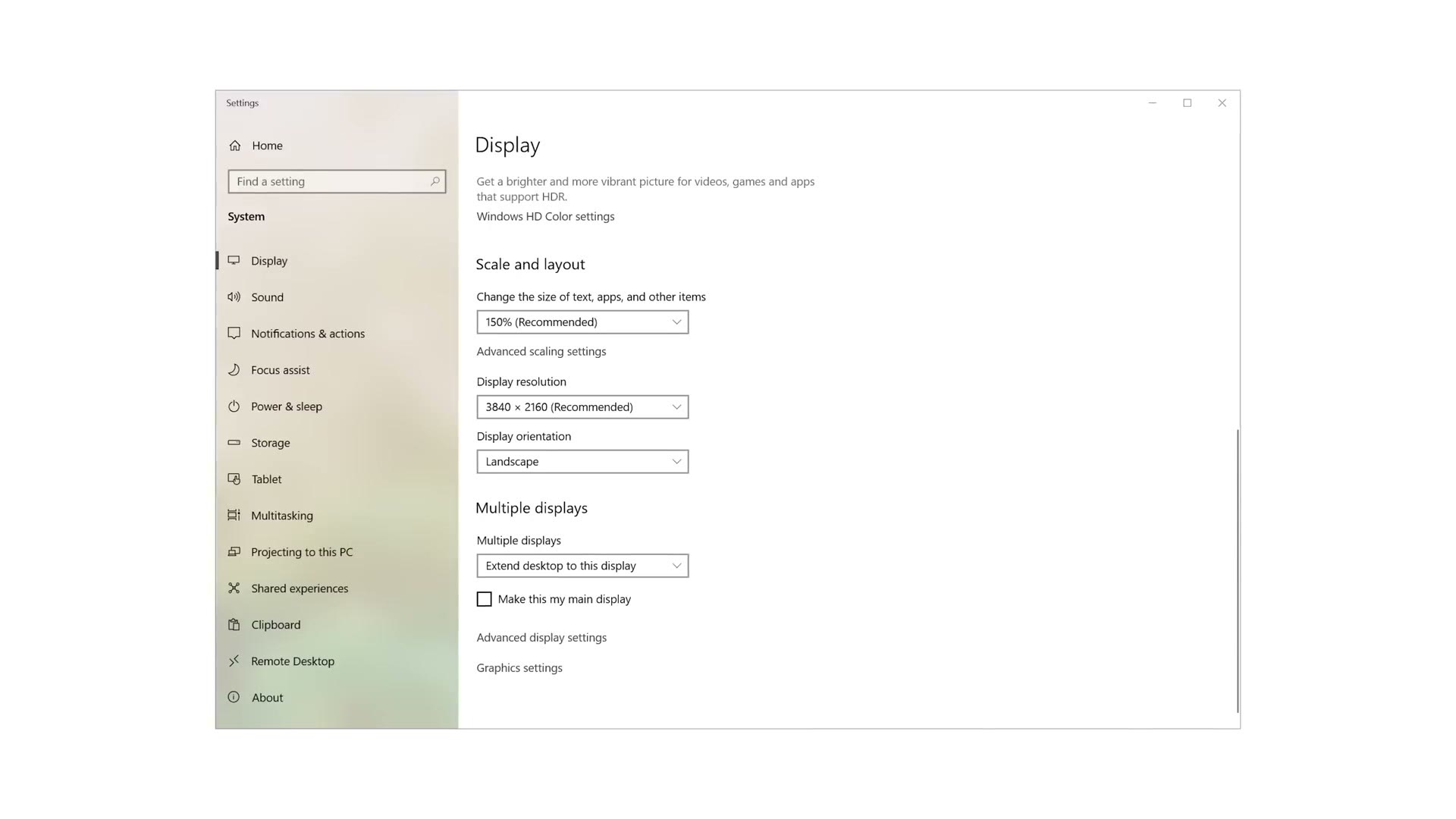
The Gigabyte has a great screen size for its resolution, meaning you don’t need to scale anything. Leave it at 100% and it looks great.
Gaming On An Ultrawide!
This wouldn’t be a comprehensive review if I didn’t touch on the headline features, because Gigabyte has focused heavily on this thing as a gaming monitor.
It has a 144Hz refresh rate panel, which means your mouse looks buttery smooth whenever you’re scrolling around, and higher frame rate footage, like something you shot at 120fps, plays back beautifully.

More importantly, if you want to play any kind of game on it, it looks fantastic and ultra smooth, as long as your graphics card can push those frame rates. It also includes AMD FreeSync Premium, and although I’m running an NVIDIA GPU, I was still able to enable G-Sync with it to remove screen tearing, and it looks fantastic.
I don’t have the most powerful card, but whenever I relived my college days and tested Halo Infinite, I was hitting around 120 frames per second, and it looked very smooth. I’m sure 144 would look even smoother.

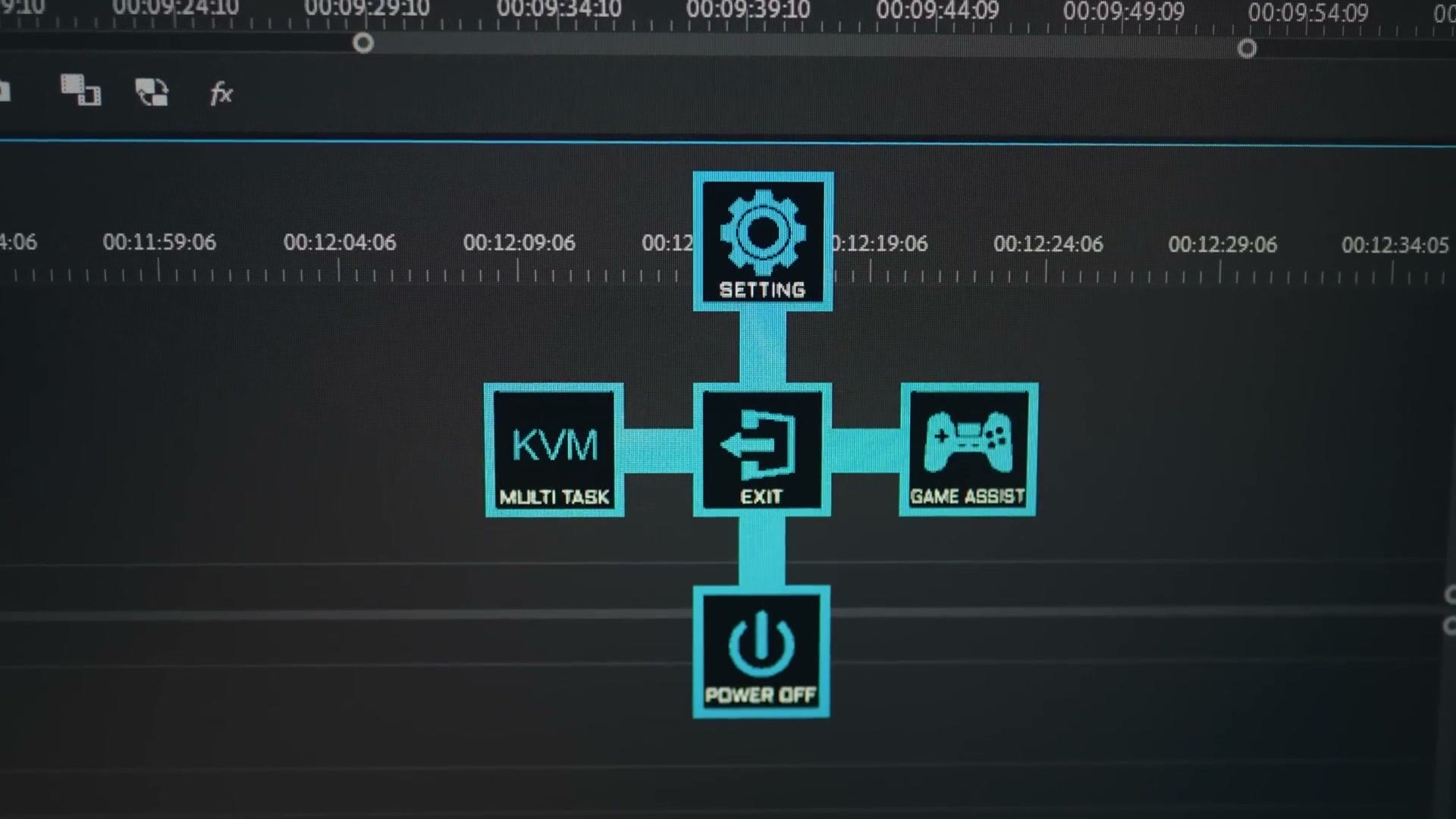
The monitor also includes a USB hub and a built in KVM switch, so you can plug a lot of accessories into it, and if you use two computers, say an editing desktop plus a laptop, you can plug both in and use the KVM to switch your mouse and keyboard between them.
The Ultimate Monitor Pairing For Video Editing
Overall I have really fallen in love with this monitor, and with ultrawides in general, and it’s genuinely hard for me to imagine not using one for editing going forward.
That said, seeing a huge chunk of my timeline at once is great, but there’s still a part of me that wants to see my 4K videos at their full one to one pixel resolution, and you only get that on a 4K screen.
So while I think investing in an ultrawide like the M34WQ is great, if you have room in the budget and you’re crazy like me, pairing an ultrawide with a more traditional 4K 16:9 monitor is the best of both worlds. Use the ultrawide for editing, with your timeline and all your tools and settings on it, and then when it’s time to preview how your video actually looks, you’ve got that second 4K screen right there. That’s exactly how I’ve ended up running it, and you can see the whole setup in my desk setup tour.
So, is it time to edit videos in ultrawide? Considering this monitor retails for $499 at the time of writing, which I think is very reasonable for an ultrawide, especially one with these specs, I think it is definitely time. You can grab it at Amazon, B&H, Best Buy or Newegg.

The footage here is graded with my own color presets at whoismatt.com/luts. If you film weddings, I’ve also got a free guide to booking more clients, and you can come join us in the Learn Wedding Filmmaking Facebook group.
Thanks so much for reading, and have a great day!