
If you want to buy an Apple M4 MacBook Pro for video editing, I have three recommendations for you at three different price points, and I’m going to cover a budget option, a best bang for your buck option, and an extremely powerful, beastly option that will handle any size or quality of video that you throw at it.
To save you time, I’ve linked to every laptop I recommend below, and I will tell you that some of these links are to websites where I’ve found the absolute cheapest price for these laptops, so I would definitely recommend checking all of them before you make your purchase.
Budget Video Editing M4 MacBook Pro
If you want a powerful M4 MacBook video editing laptop that’s not going to break the bank and can easily handle editing 4K video, especially video that’s been filmed in the H.264 or H.265 codecs, which are very common, this is actually a really easy choice. It is the base 14 inch M4 MacBook Pro for 1,600 bucks.
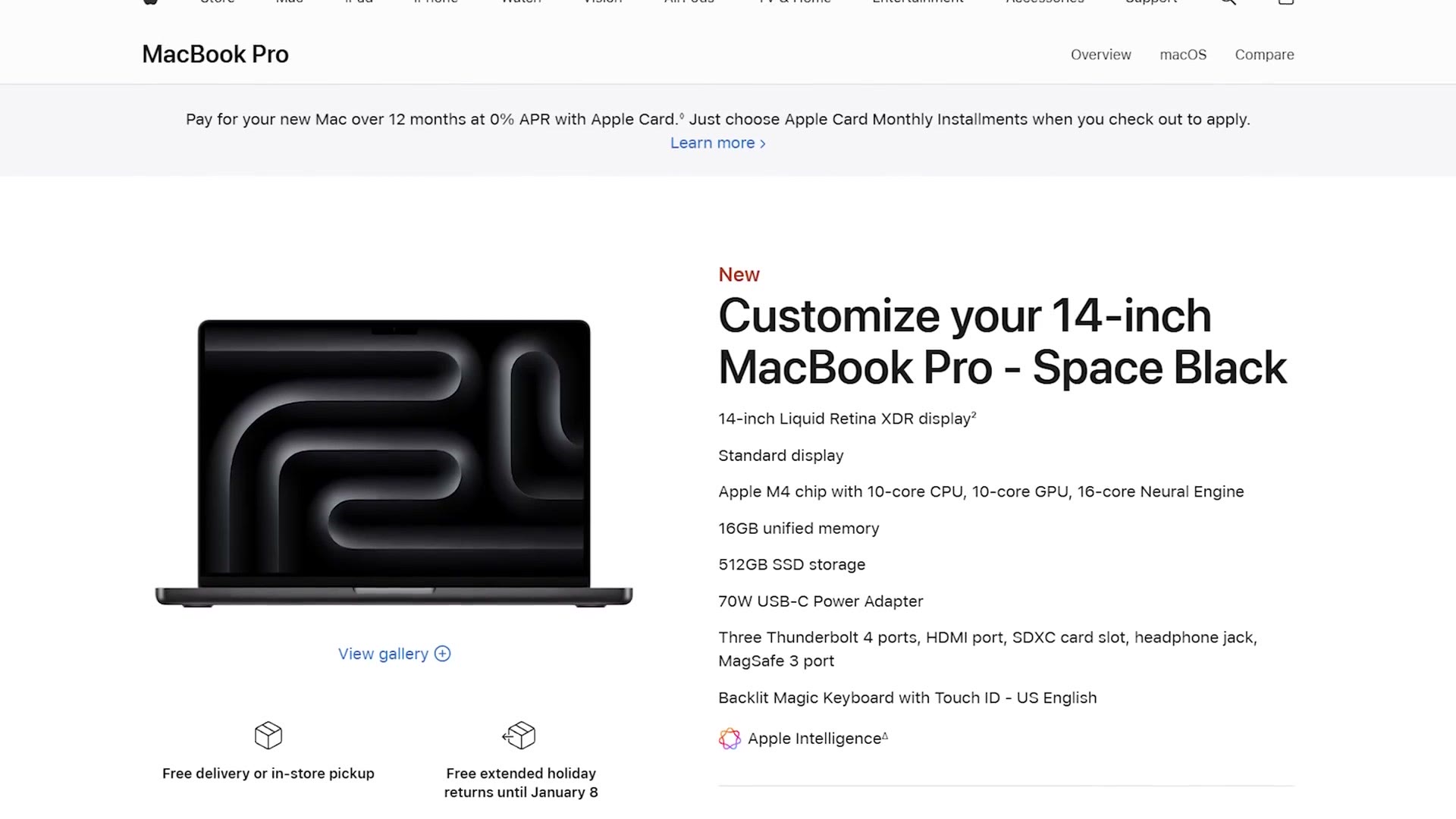
With it you’re getting Apple’s latest processor, which is dramatically more powerful than the base option from prior years, and it now comes with a 10 core CPU and, most importantly, 16GB of RAM minimum. If you remember from any of my previous buyer’s guide videos, all those older budget MacBooks started with 8GB of RAM and I was always recommending that you upgrade to at least 16 for video editing. But here we are with the M4, and Apple has increased the minimum RAM to 16GB while keeping the same price, which is fantastic to see.
You also get 512GB of storage on the base model, which is plenty for the operating system and your video editing programs. Just please be aware that I would not recommend editing video from this SSD due to the size, unless you were maybe editing one small video at a time. Instead I would try to keep as much storage space free as possible on the internal SSD, because it’s going to help your computer operate as fast as possible, and I would look at investing in an external SSD to edit from. Whatever you end up editing from, my backup workflow covers how I keep those drives duplicated.
Where to buy it
The two upgrades I’d allow, and the ones I wouldn’t
Now let’s talk upgrades, because I’m sure you’re wondering, Matt, are you really only recommending the base MacBook as a budget video editing option? And here is where I will allow two small upgrades, which to be clear, are not mandatory. They’re entirely up to you.
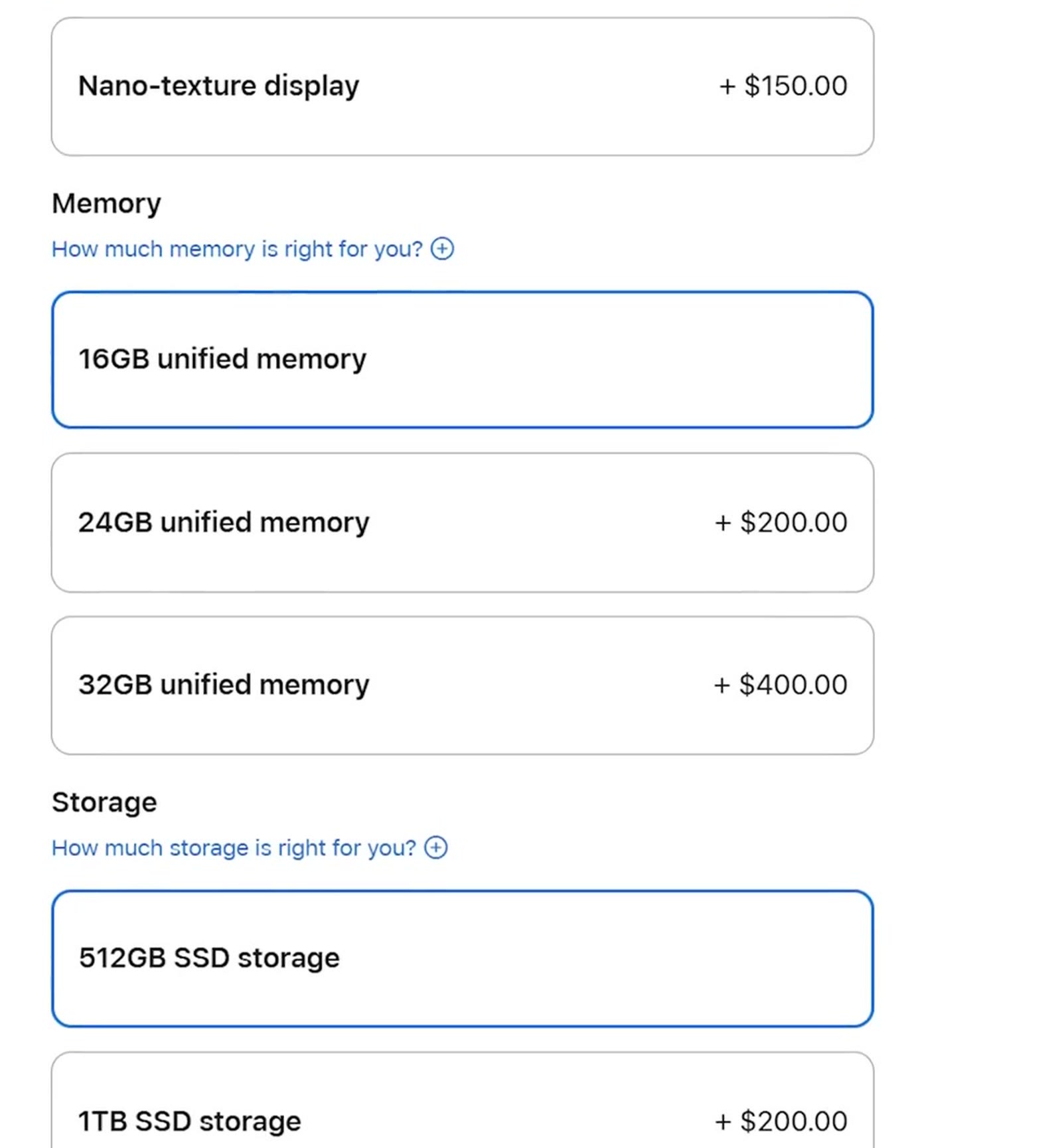
The first one is the screen, because Apple now gives you the option to upgrade from a standard glossy display that shows a ton of reflections to a nano-texture display, which essentially removes the vast majority of those reflections and makes it much easier for you to see what you’re doing while you’re editing. So in short, if you commonly find yourself editing videos in bright places, maybe you always take your MacBook to a coffee shop where you edit and you’re sitting by a window and you get a lot of bright sunlight coming in, in that case the nano-texture display at 150 bucks is entirely worth it in my opinion.
In addition, for another small upgrade at only 20 bucks, I would also get the 96 watt USB-C power adapter. This is going to help your laptop charge much faster. And hey, it’s 20 bucks. You might as well do it if you have a bit extra.
But what about the other upgrades? Apple lets you upgrade the RAM and the internal SSD storage space. Should you upgrade those as well? And to that, my answer is an emphatic no. Here’s the deal. If you upgrade the RAM or the SSD even one tier, you are looking at spending 200 bucks extra for each of them, and if you toss in that nano-texture display and the power adapter for another 170, you are right at the cusp of upgrading to a dramatically more powerful laptop. And I do not use that word dramatically lightly.
Best Bang For Your Buck Video Editing M4 MacBook Pro
So if you’re not on as much of a budget and you looked at that $1,600 MacBook and said, hey, I can spend a bit more, if there was ever a year to go for the best bang for your buck option, it is this year. You’re going to want to select the lowest tier 14 inch MacBook Pro with the M4 Pro chip, the 12 core CPU and 16 core GPU, for $2,000.
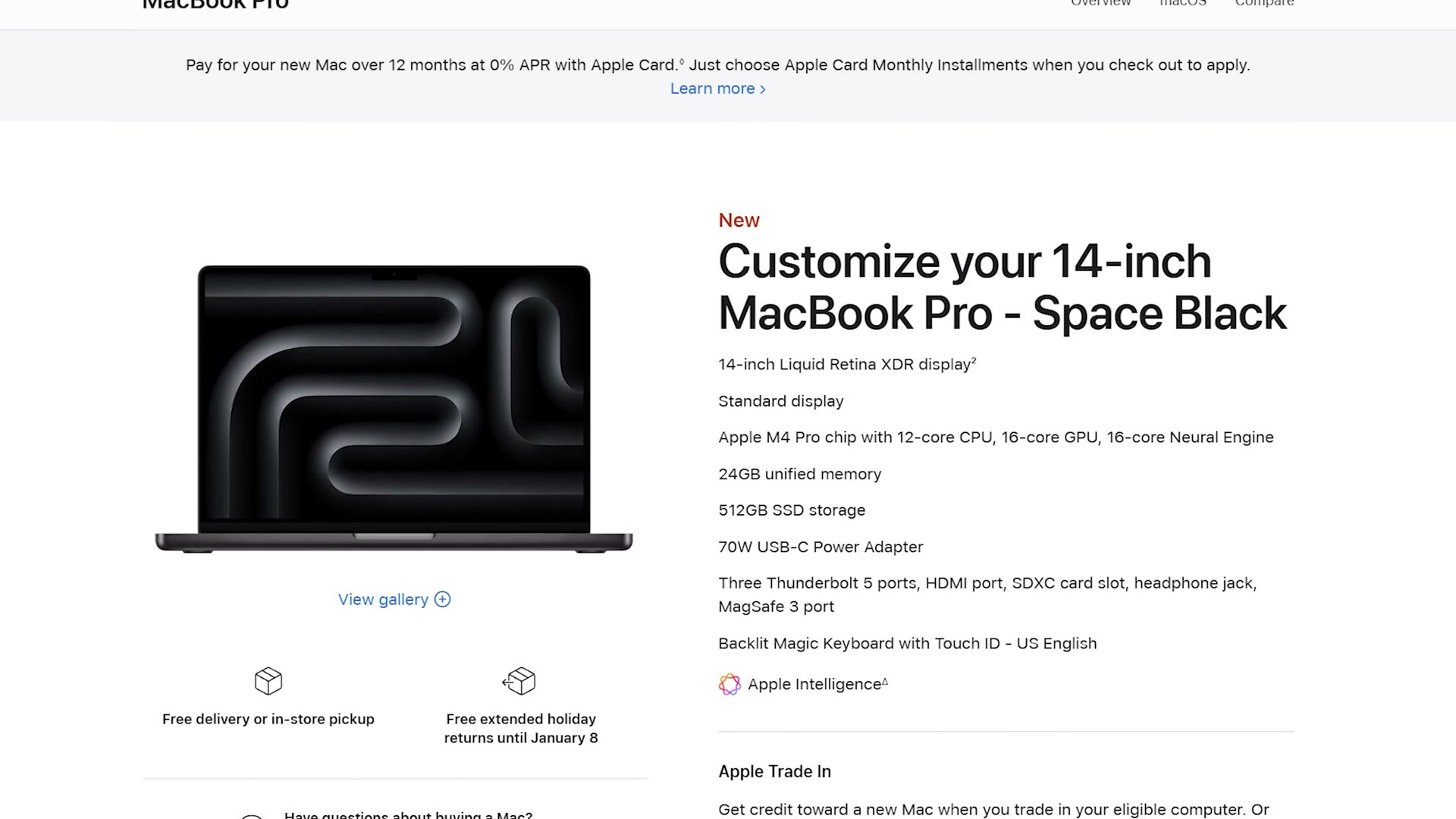
This is literally the cheapest model you can get with an M4 Pro chip in it, but in terms of performance and power the M4 Pro in particular is a significant leap over many previous MacBook generations, with this base version of the M4 Pro chip outperforming even the fully upgraded version of the previous generation’s M3 chip that cost thousands of dollars more. So whenever I say that this laptop is the best bang for your buck, I really mean it. This laptop is more powerful than any previous MacBook you could get at this price point before, and for the vast majority of video editors, this is the one that I would choose.
Where to buy it
Why you want to stay close to $2,000
Looking at the processor first, I recommend the base M4 Pro 12 core chip, and while there is an upgrade option to a 14 core, in all of my research this does not appear to be as big of a performance jump as it was in years prior. I would expect the 14 core to be a very negligible speed improvement when it comes to video editing, and keeping in mind that I’m trying to recommend you the best bang for your buck option, I can’t really recommend you spend the $200 on that upgrade. Your money would be better saved and spent elsewhere.
Next up is memory, and I have great news here as well. Just like how the base MacBook RAM was upgraded to 16GB on my budget option, the M4 Pro MacBook has also received a RAM bump up to 24GB of memory, up from 16 in previous years. This is a really nice jump, and for 4K video editing I think that this is enough memory. Just keep in mind that hey, I just saved you $200 by telling you to skip the 14 core chip, so you could take that 200 bucks and put it toward the $400 upgrade to 48GB if you wanted a bit more future proofing.
That said though, every extra dollar you spend on upgrades here does push you closer toward the top of the line beastly M4 MacBook that I’m going to be recommending in a minute.
Notice that by default this laptop also gives you 512GB of storage, so just like with the budget laptop, I would recommend editing from an external SSD. If you want to upgrade to one terabyte of storage you can feel free to do so, and it will make the internal SSD performance a bit faster while you’re working, just keep in mind that this is a $200 upgrade and you can definitely get an external SSD for cheaper than that if you want to save some money.
Lastly, the final two upgrades for this laptop happen to be the same optional upgrades as the budget laptop, meaning that of course I would recommend spending the extra 20 bucks on the 96 watt power adapter, and while you’re at it you need to make the decision on whether you want the anti-reflective nano-texture display for another 150 bucks. All of these upgrade choices are entirely up to you. But like I said, at 2,000 bucks the base MacBook Pro with the M4 Pro chip is a killer deal, and the closest you can stay to that dollar amount, the better deal you’re getting in my opinion.
Beastly Video Editing M4 MacBook Pro
All that said, if you still want a good deal but you have an even higher budget and you want a no holds barred laptop that’s going to easily handle any resolution or quality of video that you throw at it, we need to talk about my final, absolutely beastly recommendation. If you are someone who commonly finds himself editing 6K or 8K footage, especially if it is raw footage, this is going to be my recommendation for you.
This is also where you have a choice, because unlike the M4 Pro chip, which is such a dramatic improvement over previous generations, the M4 Max chip is not nearly as big of a performance jump when it comes to video editing. So if you would like to save some money, which I’m all about helping you do, if you can find a previous generation M3 Max MacBook Pro, and hey, there’s a lot of them out there, I think you would be very happy with one of those laptops. It would perform almost as well with video editing as the M4 Max, but for a potentially significantly cheaper price.
If you’re not sure exactly which specific version of the M3 Max to buy, I have good news, because I made a whole M3 Max MacBook buyers guide that walks you through it.
- Alternative M3 Max MacBook at Amazon
- Alternative M3 Max MacBook at B&H
- Alternative M3 Max MacBook refurbished at Apple
Anyways, this article is all about the M4 MacBook, so if you want to go all out and get the most powerful M4 MacBook that you can buy, don’t worry, I have a recommendation for you as well. And no, this recommendation is not going to involve you going to the Apple configurator and selecting the maximum option for CPU, RAM and everything else for 7,000 plus dollars. You don’t need to go that expensive, especially for video editing.
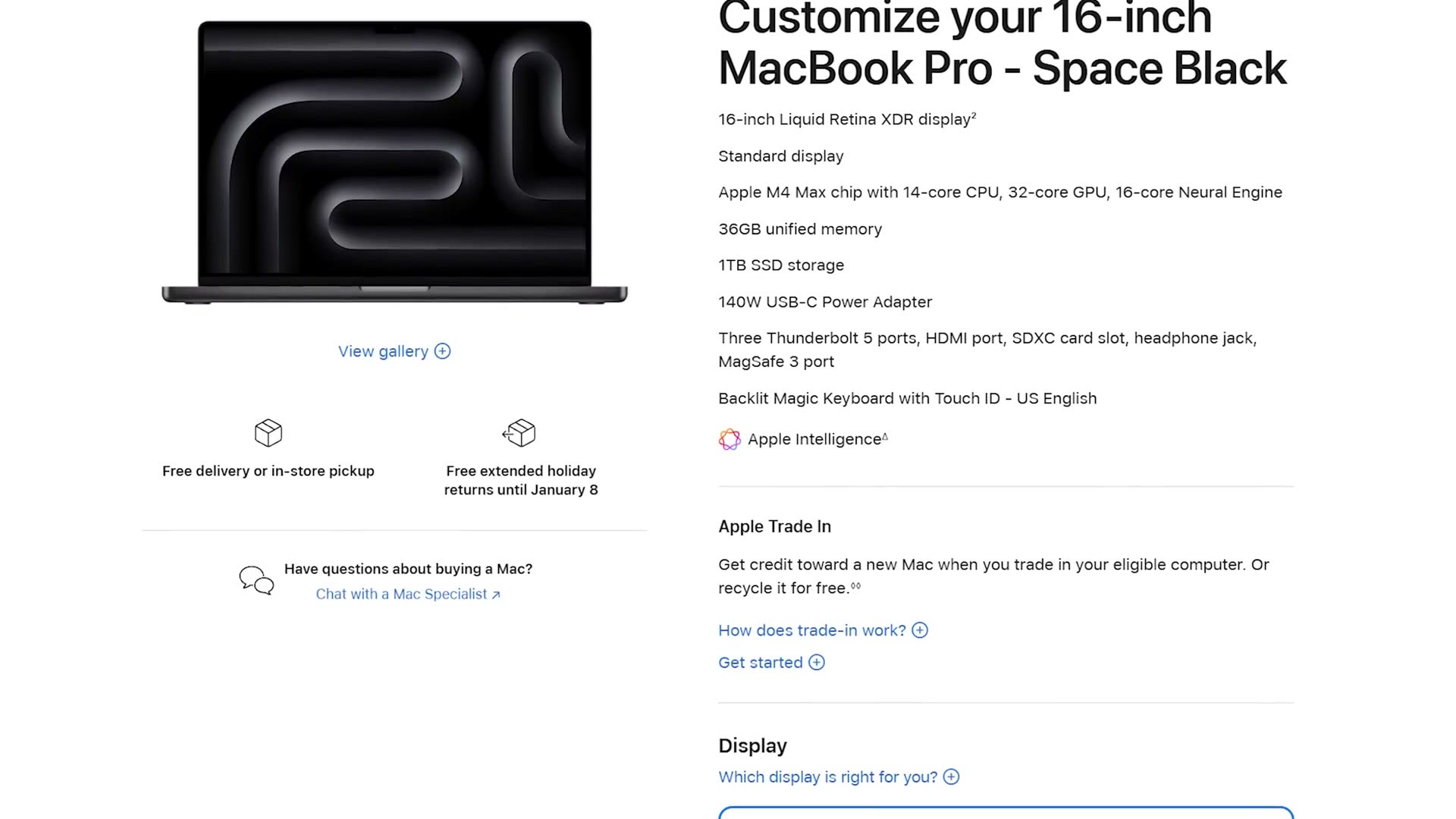
You’re going to want to choose the cheapest 16 inch M4 Max MacBook with the 14 core CPU, 32 core GPU, 36GB of memory and one terabyte of storage for 3,500 bucks.
Where to buy it
Why the base M4 Max and not the upgraded one
The first thing you may be noticing is that the M4 Max is a 14 core CPU, while the M4 Pro I was recommending earlier as the best bang for your buck option was a 12 core, and you had the option to upgrade it to a 14 core, and I recommended that you don’t do it. So you may be wondering why I’m recommending the 14 core here whenever I told you to skip it on the M4 Pro, especially because that doesn’t seem like a big upgrade for $1,000 more.
Well, what you need to know is that the CPU isn’t everything, and what matters most for video editing with these MacBooks is the video encoder and decoder built into the processor. Ever since the M1 MacBook, Apple has used the same encoder and decoder, but with the M4 MacBooks, for the first time, it looks like they have upgraded these and they are even faster, so any of these M4 laptops I’ve recommended should perform faster than previous generations in regard to encoder and decoder speed.
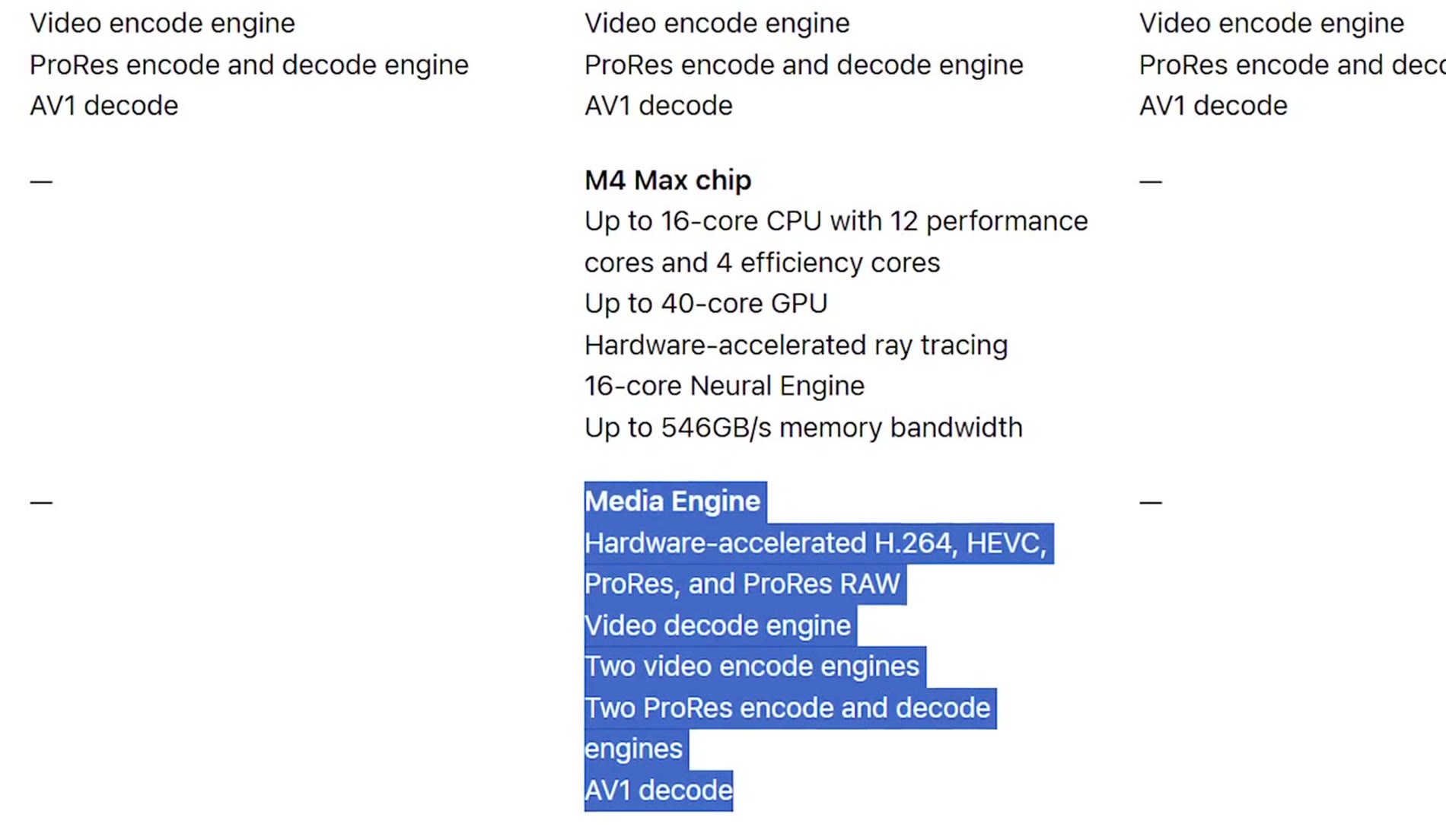
And here’s the reason you would want to spend over $1,000 more for this laptop versus the best bang for your buck option. With the M4 and M4 Pro chips, Apple gives you one video encode engine and one ProRes encode and decode engine. With the M4 Max, you get two of each, which has the potential to dramatically increase the speed of your video editing. So if you have the budget, this can be completely worth it. This is why I recommend you get the base M4 Max chip, because that’s the option that gives you access to these dual engines for the cheapest price.
The upgrade trap on the M4 Max
Of course, here is where you may want to look at upgrades for even this model, and here’s also where things get significantly more complicated than other versions of Apple’s MacBooks, because you’re going to have to select certain upgrades to unlock other upgrades.
Let’s get the easy ones out of the way first. If you want the nano-texture display, that’s still a $150 option and completely up to you. Likewise, if you want more internal storage, the good news is that Apple now gives you a one terabyte internal SSD by default with the M4 Max, but if you want to upgrade to two terabytes or more, just know that these prices drive up the cost of your laptop dramatically. If you can get away with using an external SSD, I would stick with the one terabyte size, especially if you want to make other upgrades.
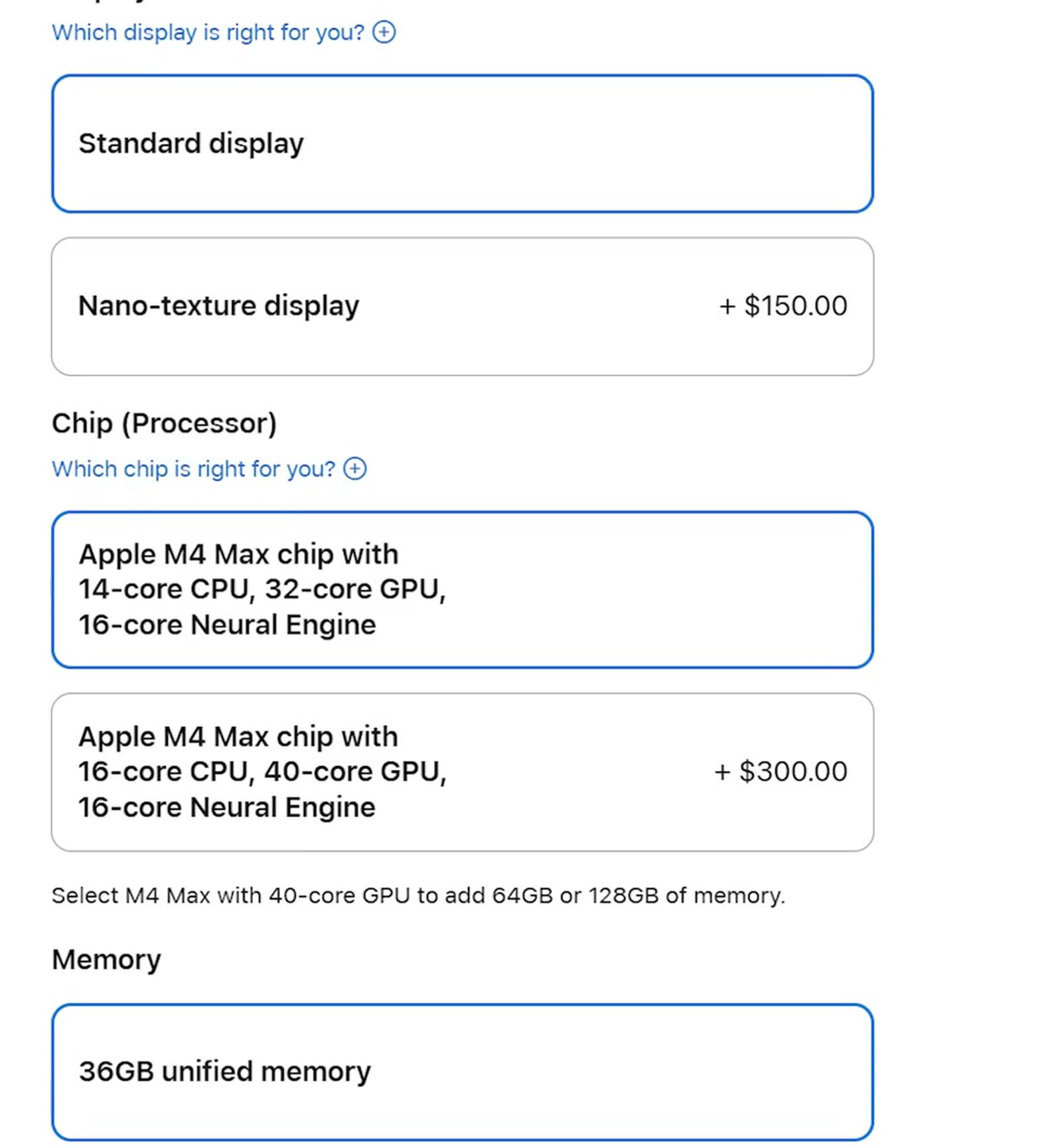
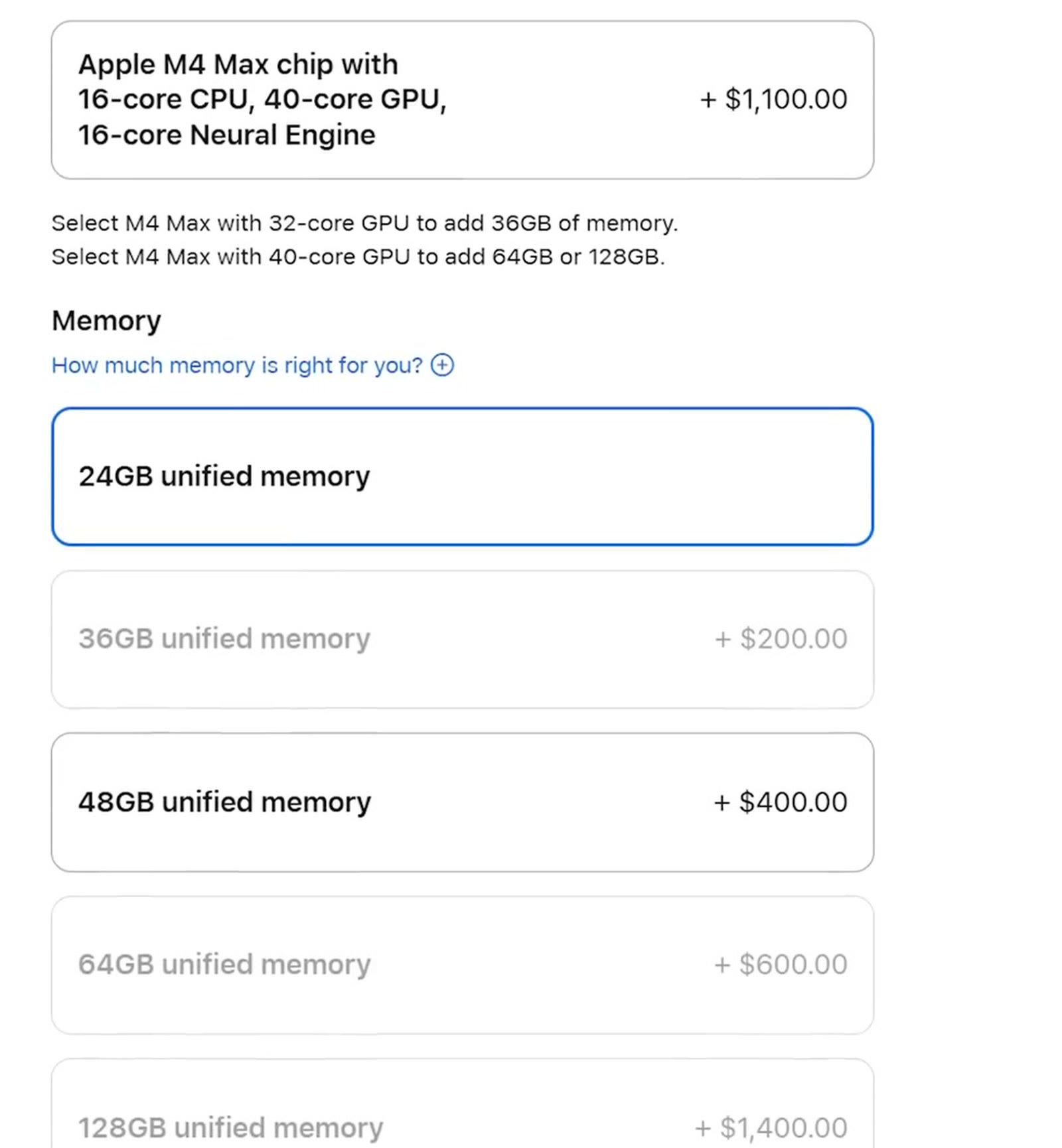
Now let’s get more complicated, because here’s where I think most video editors are going to get hung up. By default the M4 Max is going to give you 36GB of memory, which I would say is fine for 4K, 6K, even 8K resolution projects, as long as they are smaller, shorter video projects. But once you start working on larger video editing projects, that’s commonly where you can find your laptop running out of memory, and it’s one of the main reasons I personally upgraded my video editing desktop to 64GB.
Unfortunately, selecting 48GB or 64GB of memory on the base M4 Max MacBook is not an option. Those upgrades are locked behind upgrading the CPU first, so an upgrade to 48GB or 64GB of memory isn’t 200 or $400 for the M4 Max, because you have to first upgrade the CPU to the most powerful option for an additional $300. So if you want 64GB of memory, which I think is really the sweet spot for high end video editing, you’re going to need to spend at minimum another $700, bringing the total cost of this laptop up to 4,200 bucks.
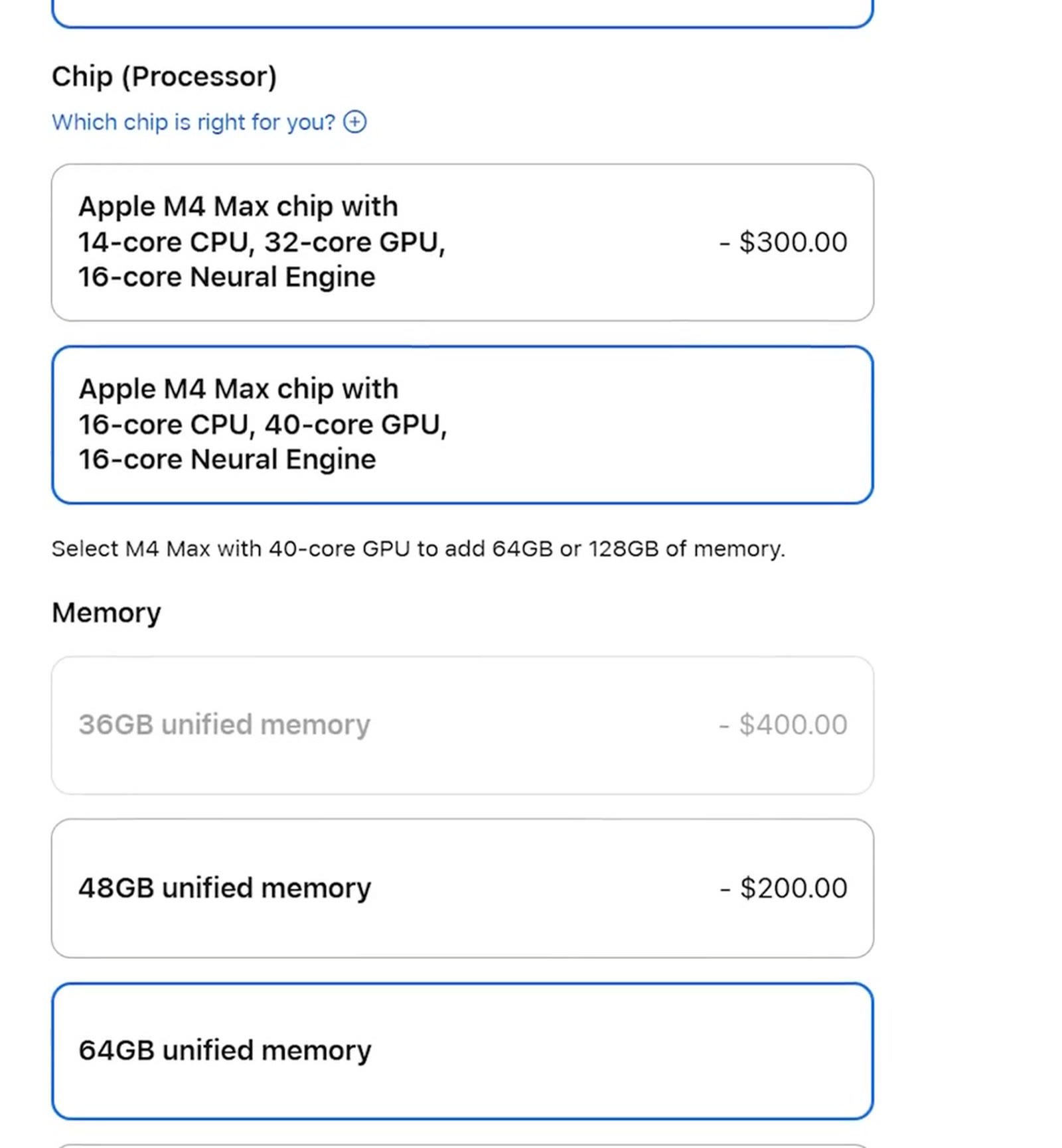
Isn’t that wild?
So to be clear, if you are commonly editing 6K or 8K raw videos, I would start by looking at the base M4 Max MacBook at 3,500 bucks, as that will give you the dual encode and decode engines you’re needing, and as long as you’re not editing larger video projects you should be fine. But if you commonly find yourself editing at these larger resolutions and you’re editing much longer videos, 20 minutes, 30 minutes, an hour in length, where the project sizes get really big and you’re needing to multitask and have multiple programs open at the same time and you’re pushing the computer really hard, that is where the upgrade to 64GB of RAM is worth it in my opinion.
Alternatively though, like I’ve said repeatedly, I’m trying to help you save money, so if you want to save a potentially very significant amount and still get a laptop that performs almost as well as the M4 Max, I would definitely look at the M3 Max, because that laptop is going to come very close in performance but should be a cheaper price.
Want To Edit Videos Like A Pro?
My Edit Videos Like A Pro guide is going to show you some of the most important things that took me years to learn as a video editor, and regardless of which editing software you use, I know these tips are going to help make you a better video editor as well. You can check out this guide completely for free.
Thanks so much for reading, and have a great day!