How to Show Thumbnail Previews for 10-Bit Video in Windows 11 and Windows 10

Show Thumbnail Previews for 10 Bit Videos in Windows 10

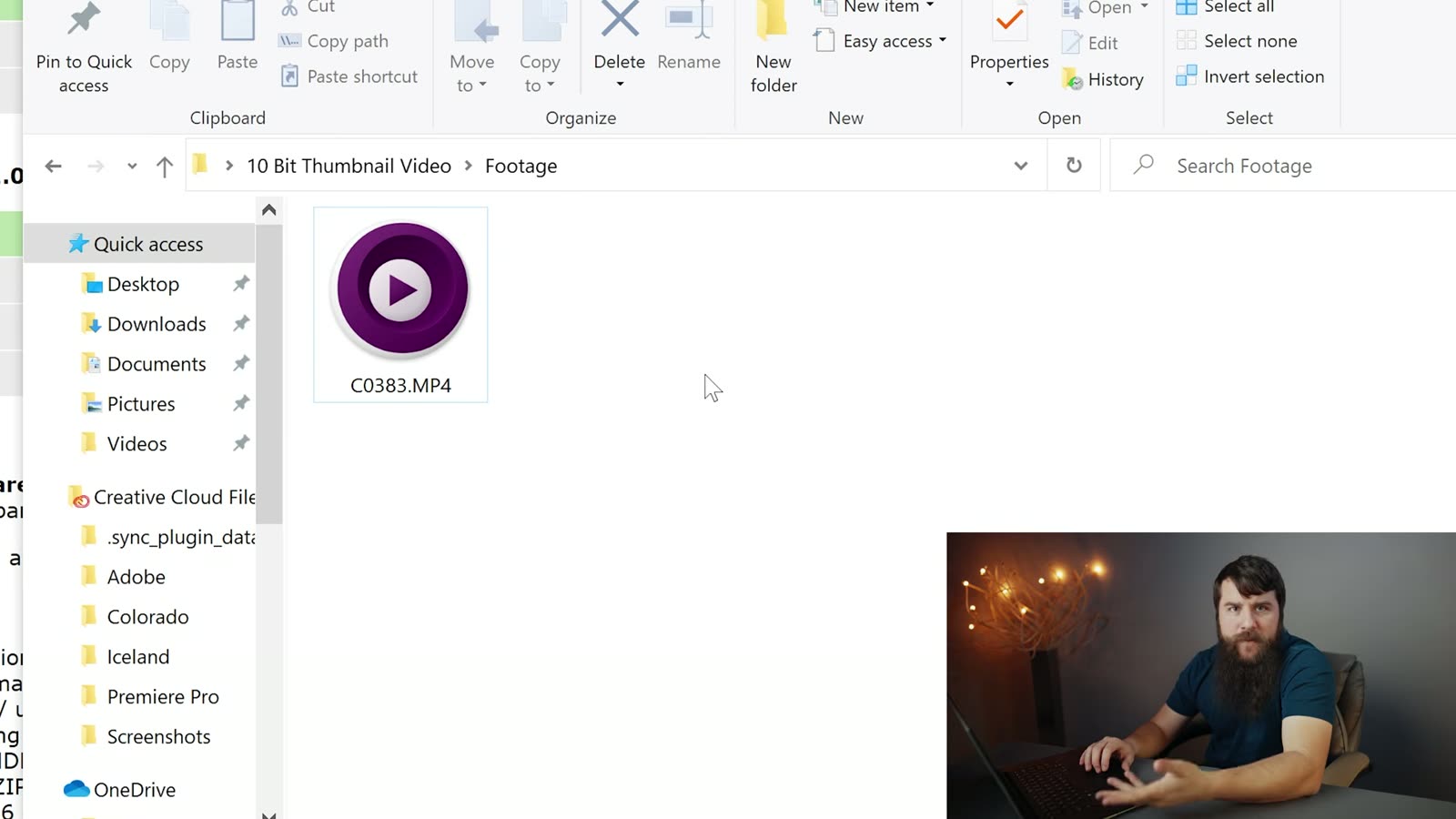
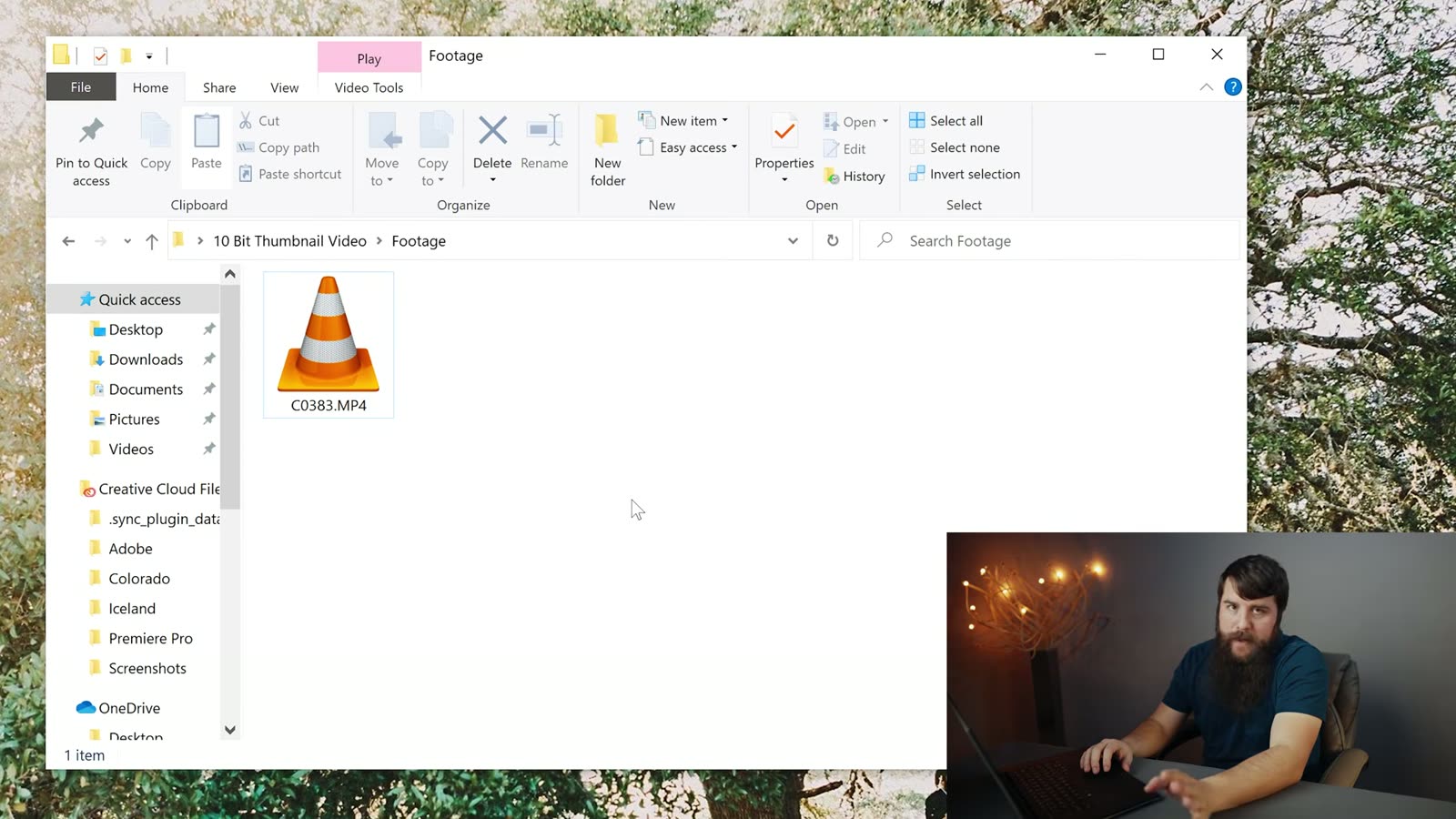
I’ve always loved being able to see thumbnail previews of my video clips in Windows, because whenever you’re digging through a wedding day’s worth of footage looking for one specific shot, being able to see your clips instead of reading file names is the difference between finding it in ten seconds and finding it in ten minutes. But then I upgraded to a 10-bit camera and all those previews disappeared, and every single clip turned into a VLC traffic cone. Bummer!

Here’s how to get your thumbnails back, for free, in about three minutes.

Quick note before we start. The video above is from 2021 and Icaros has moved house since then, so the download link in the video points at an older version. Everything below is updated for where it actually lives today, and the setup steps inside the program are still exactly the same.

Why did your thumbnails disappear?

Windows generates those little preview images itself, and it only knows how to do it for formats it understands. Whenever your camera started recording 10-bit, Windows stopped recognizing the files, so it quietly gave up and handed the job to whatever media player you had installed, which is why you’re staring at a folder full of traffic cones instead of your footage.

The fix is a free tool called Icaros, which does the thumbnail work Windows won’t do. It’s been actively maintained for years, it’s open source, and it runs on Windows 11 as well as 10.

Where to download Icaros now

Icaros lives on GitHub these days, at github.com/Xanashi/Icaros, and the current version as I’m updating this is 3.3.6. Grab the installer from the latest release page.

You can also still get it from VideoHelp, which is the link I used in the video, and that page is still kept current. Either one gets you the same program, so use whichever you like.

Install it and switch it on

Run the installer, and at the end make sure Launch IcarosConfig is ticked before you click Finish. You don’t need the README.
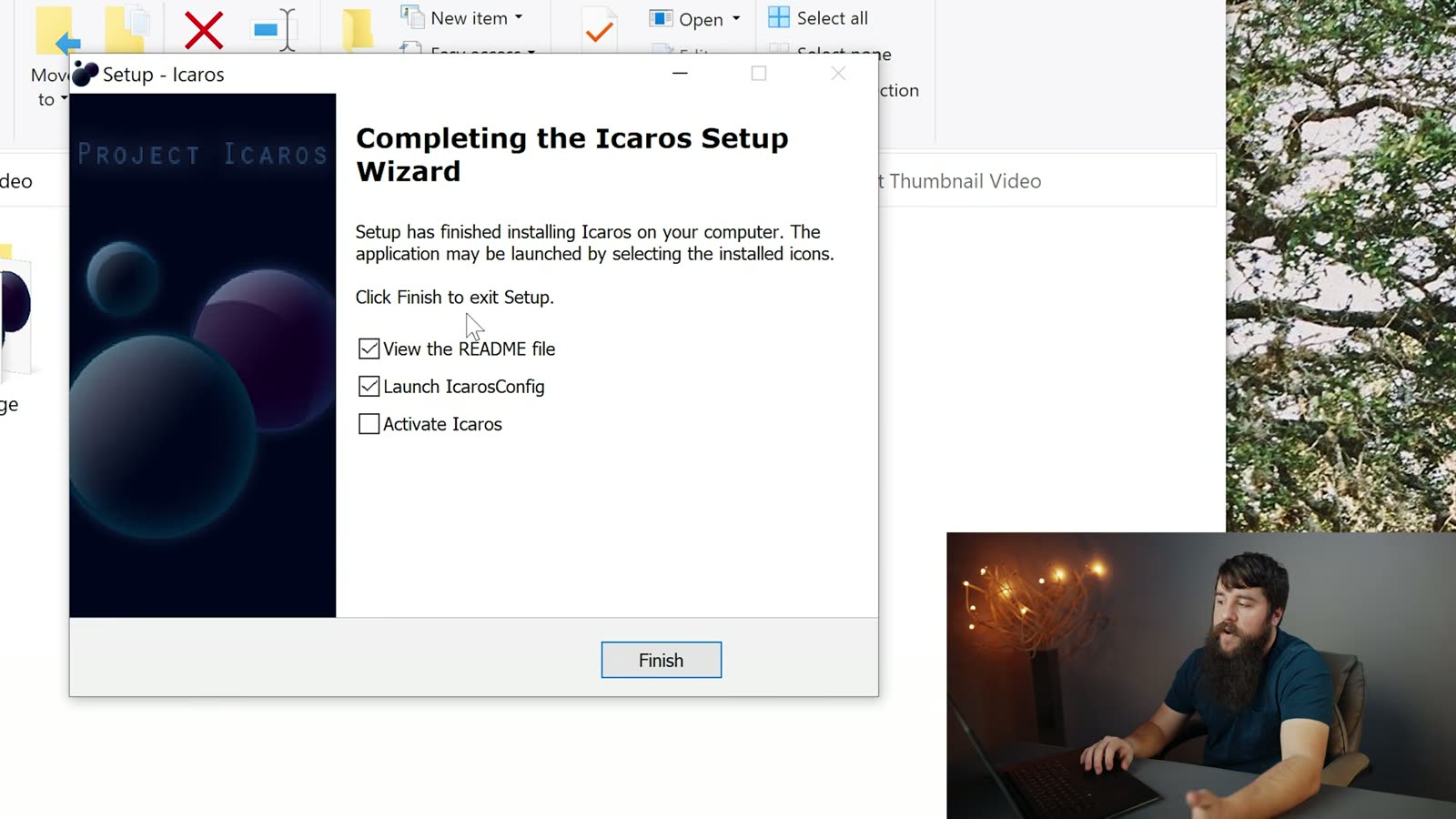
The Completing the Icaros Setup Wizard screen with the Launch IcarosConfig option
Tick Launch IcarosConfig, skip the README.

Once IcarosConfig opens, you’ll see it’s currently switched off, which is what that DEACTIVATED label is telling you. We’re gonna fix that in two clicks.
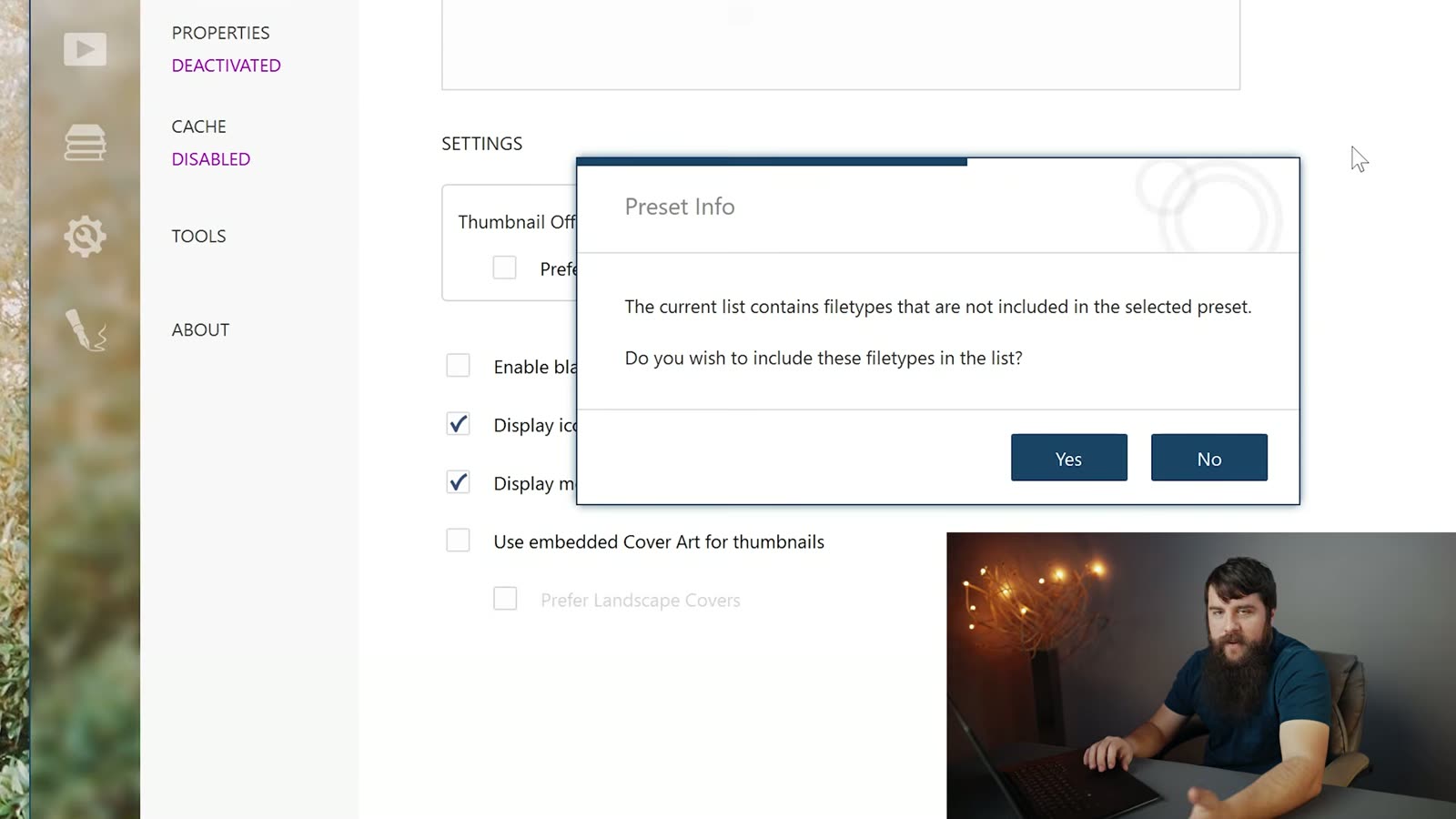
The IcarosConfig window showing thumbnailing set to DEACTIVATED before it is switched on
DEACTIVATED, for now.

First, click the PRESET dropdown and choose Video only. You don’t need Icaros generating thumbnails for every file type on your computer, you just need it for your footage. A dialog will pop up asking whether you want to include the extra filetypes, and you can click Yes.
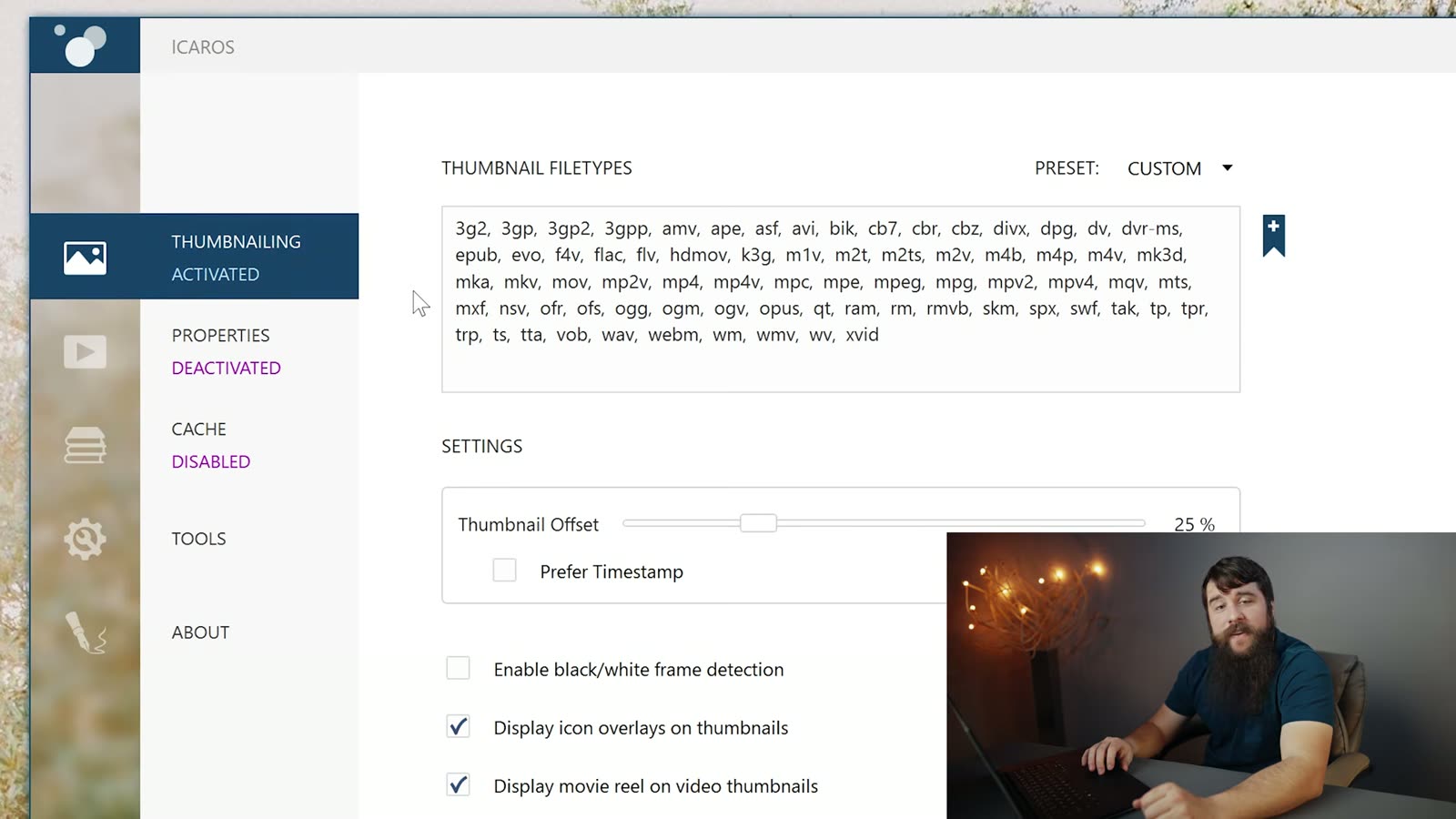
The Icaros Preset Info dialog asking whether to include the extra filetypes in the list
Click Yes here.

Then click that magenta DEACTIVATED text so it flips to ACTIVATED. That’s it. That’s the whole thing. Minimize Icaros, go back to your footage folder, and your thumbnails are there.

The same folder after Icaros is active, the 10-bit clip now showing a real preview thumbnail
There it is. A real preview, on a 10-bit file.

Common questions

Windows says the installer might be harmful. Is Icaros safe?

A few of you have asked me this in the comments and it’s a fair question, so here’s a straight answer. That warning is Windows SmartScreen, and it shows up whenever an installer isn’t code-signed with an expensive certificate. It is not Windows telling you it found something bad in the file. Small open-source projects run into this constantly because those certificates cost real money every year, and one developer maintaining a free thumbnail tool understandably hasn’t bought one.

What I’d tell you to do is what I do: download it from the project’s own GitHub releases page rather than some random download-aggregator site, because then you know exactly who built the file you’re running. The source code is right there to look at. If you’re still not comfortable, that’s completely fine, don’t install it, and no hard feelings.

Does Icaros work on Windows 11?

It does. Windows 10 stopped getting support back in October of 2025, so most of you are on 11 now, and Icaros supports it. The IcarosConfig window looks the same and the two steps above haven’t changed.

My thumbnails still aren’t showing up. What now?

Two things to try. First, make sure the label actually reads ACTIVATED and not DEACTIVATED, because it’s easy to click the preset and think you’re done. Second, Windows caches thumbnails aggressively, so a folder you were staring at before you installed Icaros may keep showing the old cones out of pure stubbornness. Open a different folder, or restart Explorer, and they should populate.

My 10-bit footage won’t play either. Can I fix that too?

You can, and it’s a separate free program. Thumbnails and playback are two different problems in Windows, which feels like it shouldn’t be true but here we are. I wrote that one up over here: how to play 10-bit video in Windows. Do both and your footage folder finally works like it did before you upgraded your camera.

How to Play 10-Bit Video in Windows 11 and Windows 10

How to Play 10-Bit Video in Windows 10

You just bought a camera that shoots 10-bit footage, you copied that footage over to your PC, and now Windows either refuses to play it at all or plays it back like a slideshow, and even VLC, which normally plays back anything you throw at it, is just sitting there stuttering. You’re not doing anything wrong! This is a Windows problem, and you can fix it in about five minutes with a completely free program.

One heads up before we start. I made the video above back in 2021, and the mpv download page has changed since then. In the video I tell you to click “stable” over on SourceForge, and that folder does not exist anymore, which is why so many of you have left comments saying you can’t find it. You’re not going crazy! The written steps below are updated for what the site actually looks like today, so follow these and you’ll be fine.

Hey, my name is Matt Johnson, I’ve been filming weddings for over 15 years, and I’m here to help you become a better filmmaker and video editor.

Why won’t Windows play 10-bit video?

Whenever your camera records in 10-bit, it’s storing a lot more color information than the 8-bit footage Windows has been handling comfortably for years, and Windows doesn’t ship with everything it needs to decode that on its own. So you get one of two things: a file that won’t open, or playback so choppy that you assume the file is corrupted. It isn’t corrupted! Windows just doesn’t know what to do with it.

A Windows folder of 10-bit clips showing only VLC traffic cone icons instead of preview thumbnails
A whole folder of footage and not one preview. Just traffic cones.

The fix is a free media player called mpv. I’ve traditionally loved VLC, and I still use it for plenty of things, but for 4K 10-bit files it just does not hold up, and mpv handles them without breaking a sweat.

How do you download mpv now that the page has changed?

Here’s the deal: mpv doesn’t build its own Windows version, so the site sends you off to a third party who does, and that’s the part that moved. It used to live on SourceForge with a folder called “stable” and now it lives on GitHub with no such folder, which is why the old instructions dead-end.

Go to mpv.io/installation. Under the Windows heading, the very first row says “Windows builds by shinchiro (git)”, and the link next to it goes to github.com/shinchiro/mpv-winbuild-cmake/releases. That’s your destination. There’s a second row for builds by zhongfly, and that works too, so if one of them is ever down you have a backup.

Which file do you actually download?

This is the part that trips everybody up, because that GitHub page throws about eight files at you with names like mpv-x86_64-20260809-git-dd5d17d328.7z and none of them say “stable” or “download this one.” Those numbers aren’t random though, and once you know what they mean it’s easy.

Take the newest release at the top of the page, open the Assets list, and grab the file that starts with mpv-x86_64- followed by a date. That’s the normal 64-bit Windows build, and it’s the one almost everybody wants.

Skip the rest, and here’s what they are so you’re not guessing:

  • Anything with dev in the name is for programmers building software against mpv. It’s not the player. You don’t want it.
  • i686 is the 32-bit build, and unless you’re on a very old PC, that’s not you.
  • aarch64 is for ARM processors, like a Surface Pro X. Not a normal desktop or laptop.
  • x86_64-v3 is the same player tuned for newer processors. It’ll usually work fine, but plain x86_64 is the safe pick and you won’t notice a difference playing back footage.

Unzip it with 7-Zip

That download is a .7z file, which Windows can’t open by itself, so you’ll need 7-Zip. It’s free, it takes ten seconds to install, and honestly it’s worth having on your machine anyway. On the homepage, click the download link next to the 64-bit version.

The 7-zip.org download page with the 64-bit Windows download link
Grab the 64-bit version unless you know you need otherwise.

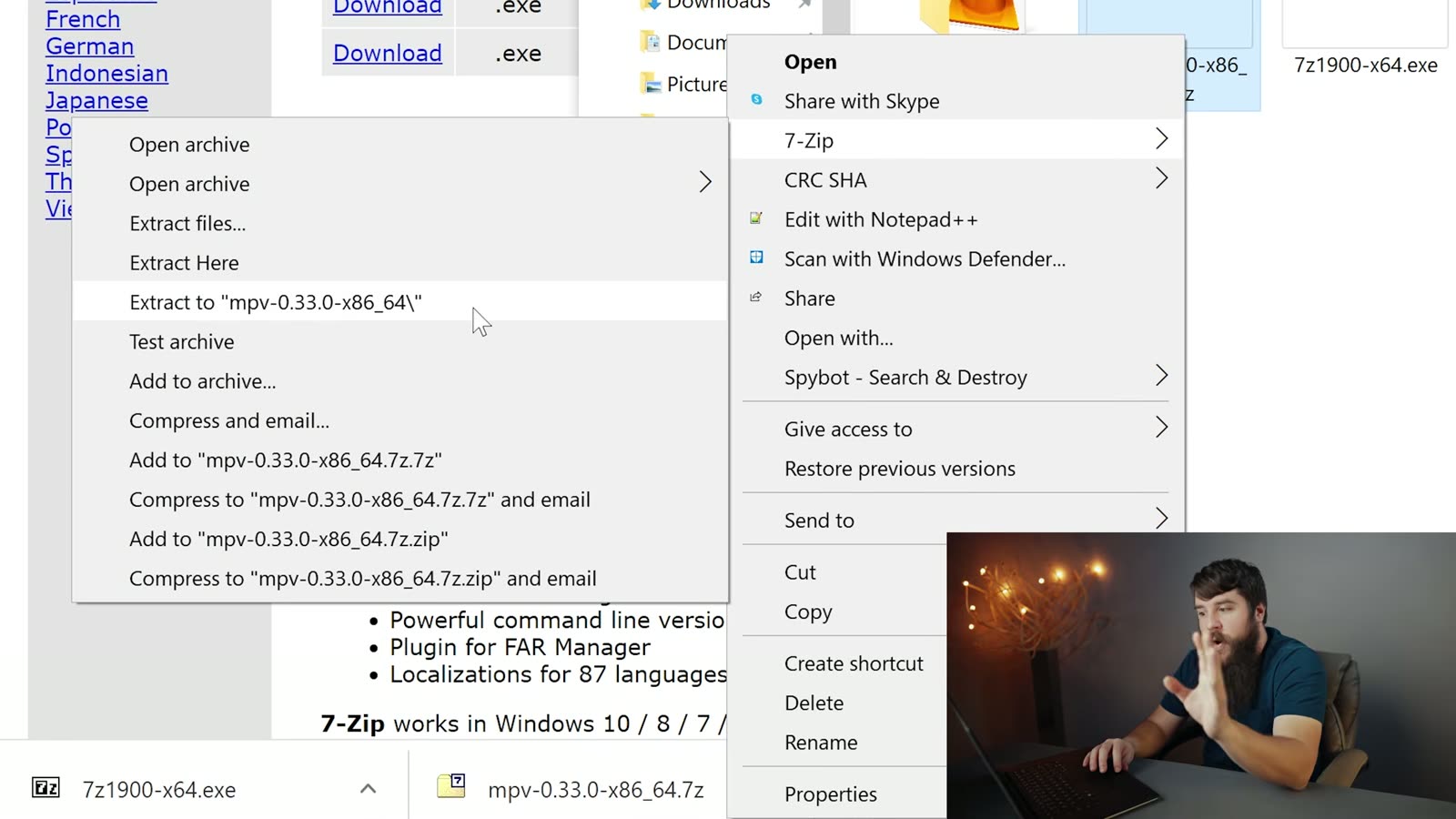
Once 7-Zip is installed, right click the .7z file you downloaded, go to the 7-Zip menu, and click Extract to “mpv-…”. That drops everything into its own folder.

While you’re here, take a look at How To Play Wedding Videos From A USB Flash Drive On ANY TV.

The 7-Zip extraction dialog unpacking the downloaded mpv archive
Extracting the archive into its own folder.

Open that folder and you’ll find mpv.exe sitting inside. There’s no installer here and nothing else to run, that file is the program. Remember where it lives, because we’re gonna come back to it in a second. I’d honestly move the whole folder somewhere sensible like your Documents rather than leaving it in Downloads, because whenever you clean out your Downloads folder in six months you’ll break your video playback and have no idea why.

Tell Windows to open your footage with mpv

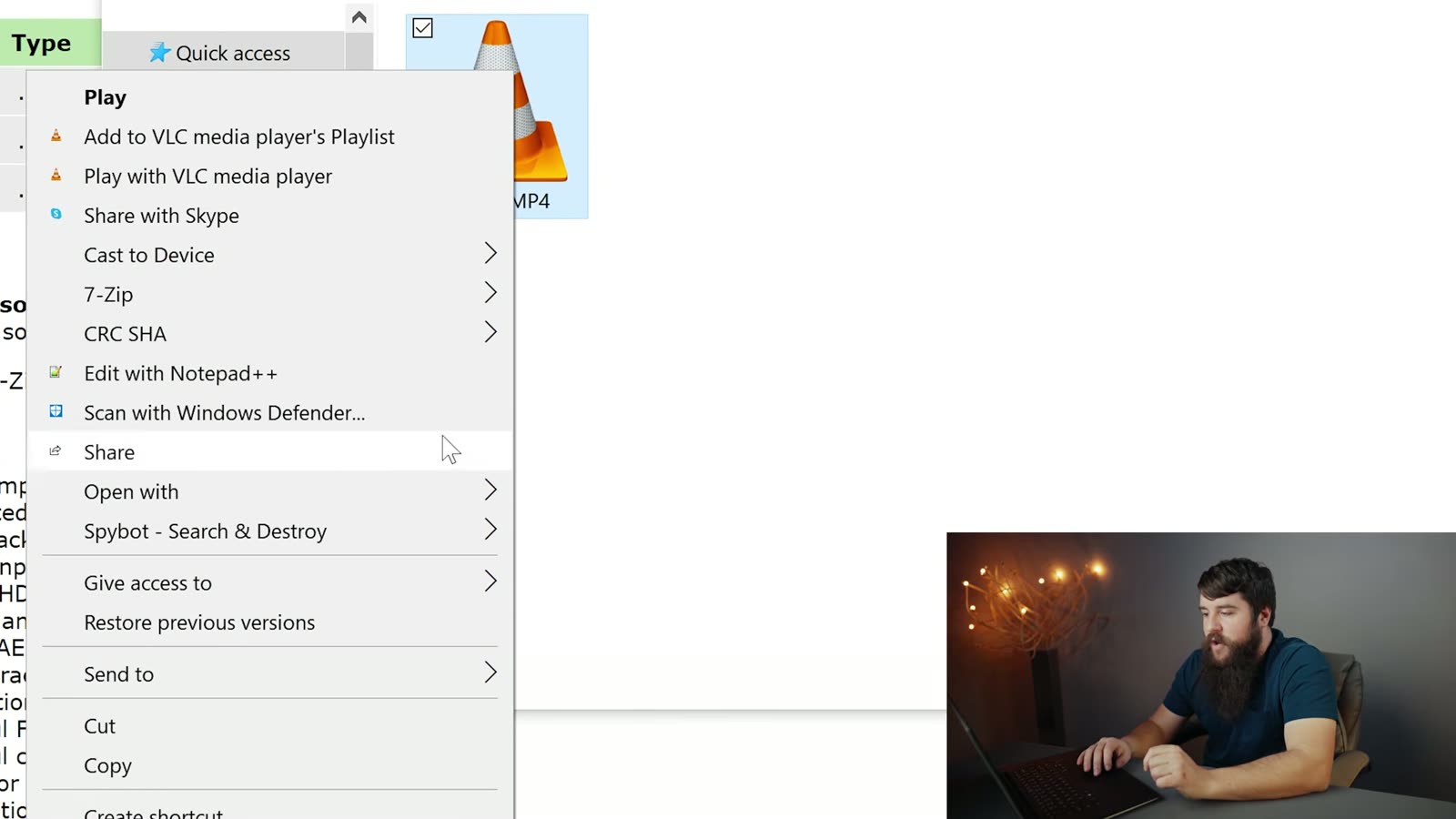
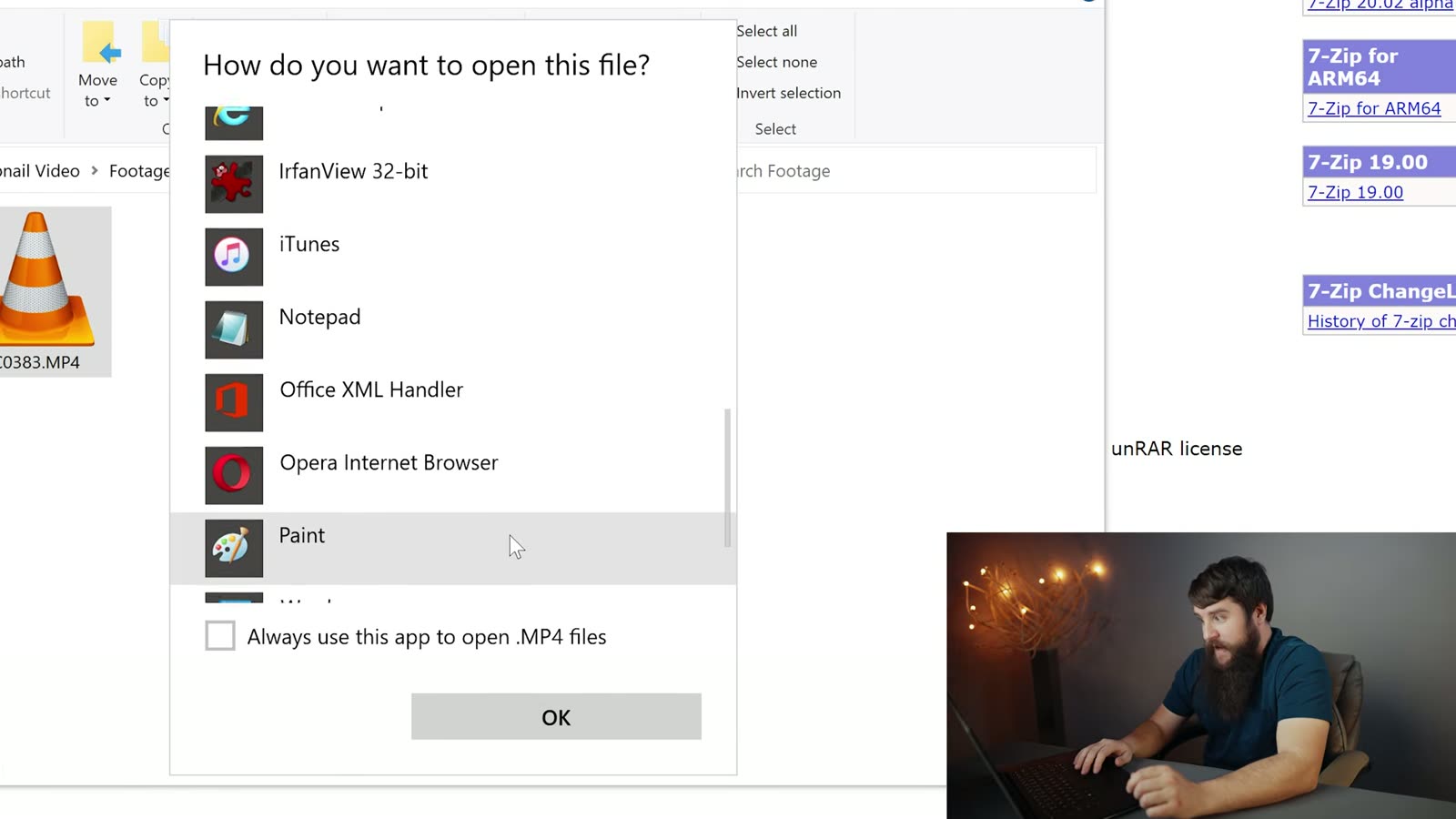
Now navigate to some 10-bit footage that you can’t normally play. Right click the video file, go to Open with, then Choose another app. Scroll to the bottom of the box that opens, click More apps, scroll down again, and click Look for another app on this PC. Then browse to that mpv.exe file, select it, and click Open.

The Windows Open with browse dialog with mpv.exe selected inside the extracted mpv folder
Point Windows straight at mpv.exe inside the folder you extracted.

Ta-da, your footage plays. Smoothly!

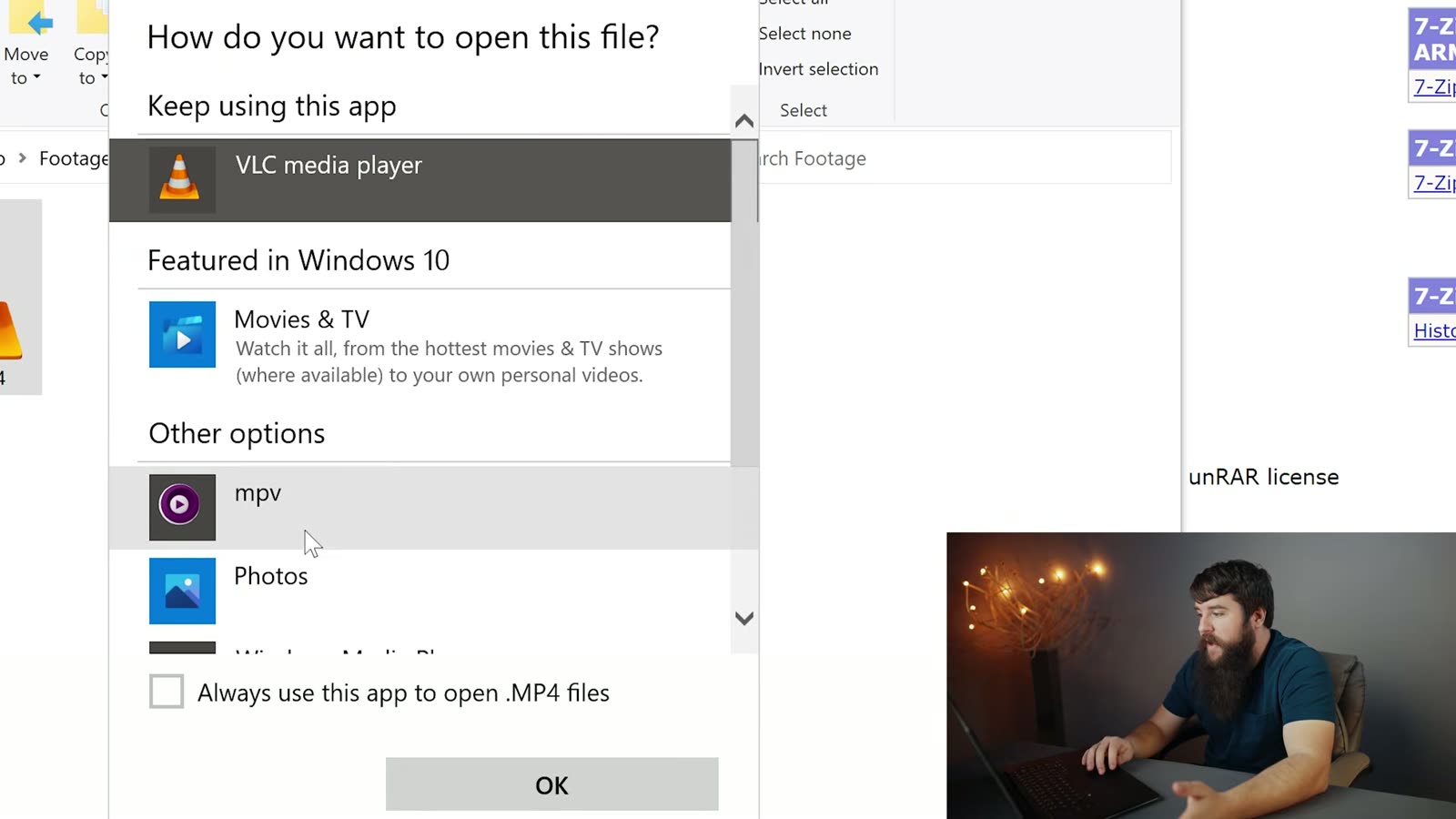
One last step, because right now you’ve only told Windows to open that one file that one time. Right click your video file again, go to Open with, Choose another app (this’ll feel familiar), and this time mpv is right there in the list. Click it, tick Always use this app to open .MP4 files, and click OK.

The How do you want to open this file dialog with mpv chosen and Always use this app ticked
Tick the box or you’ll be doing this dance for every single clip.
A 10-bit MP4 in Windows Explorer now showing the purple mpv icon after being associated with the player
The purple mpv icon means Windows got the message.

Does this work on Windows 11?

Yes. The video was filmed on Windows 10 back when that’s what everybody was running, and Windows 10 stopped getting support in October of 2025, so most of you reading this are on 11 now. mpv runs on Windows 11 exactly the same way, and the steps above are identical. The Open with menu looks a little different on 11 and you may need to click Show more options first to get to the full right-click menu, but everything else is where you’d expect it.

Common questions

I can’t find “stable” anywhere. Where did it go?

It’s gone, and it’s not coming back. The builds moved from SourceForge to GitHub, and GitHub doesn’t use folders like that, it just lists releases newest-first with the files attached underneath. Take the top release and grab the mpv-x86_64- file. That’s the modern equivalent of what “stable” used to give you.

Will this fix playback in Premiere or Resolve too?

Nope, and I don’t want you to be disappointed later, so I’ll say it plainly. mpv fixes playback in Windows, for previewing and sorting your footage. Your editing program does its own decoding and doesn’t care what media player you installed. If your 10-bit footage is choppy on the timeline, that’s a proxy workflow conversation, not this one.

My files still have no thumbnails. Didn’t this fix that?

Playback and thumbnails are two separate problems, and mpv only solves the first one. Getting real preview images back in Explorer takes a second free tool, and I wrote that up separately: how to show thumbnail previews for 10-bit video in Windows. Do both and your footage folder finally behaves like it used to.