
Read this first: IGTV no longer exists. Instagram folded it into the main video experience and retired the IGTV branding and the standalone app in 2022, so the upload flow and the cover photo screen described below are gone. I’ve left the post up because the Premiere side of it, the vertical sequence, the export settings and the bitrate reasoning, still applies to any vertical video you’re making today, including Reels. Treat the Instagram-specific numbers as a snapshot of July 2018.
With that said, here’s what a lot of research turned up at the time, including several things Instagram’s own help pages were flatly wrong about.
IGTV Was Not HD
This surprised everybody. Download an IGTV video back off the platform after uploading it and check the resolution and it came back at 640 by 1136. Not 1080p. Not even 720p.
So should you have been downscaling all your 1080p and 4K footage to 640 by 1136 before uploading? No. Instagram did not care much what resolution you handed it and coped with a range of them fine. What actually mattered was the bitrate.
Video Length
Minimum was 15 seconds. The maximum depended on your follower count, and Instagram’s stated numbers were both off by one second:
- Under 10,000 followers: Instagram said 10 minutes. It was actually 9:59. Upload exactly ten minutes and it told you the video was too long.
- Over 10,000 followers: Instagram said an hour. It was actually 59:59.
Though if your hour-long video comes down to one spare second, you may want to reconsider how you’re editing.
The Sequence
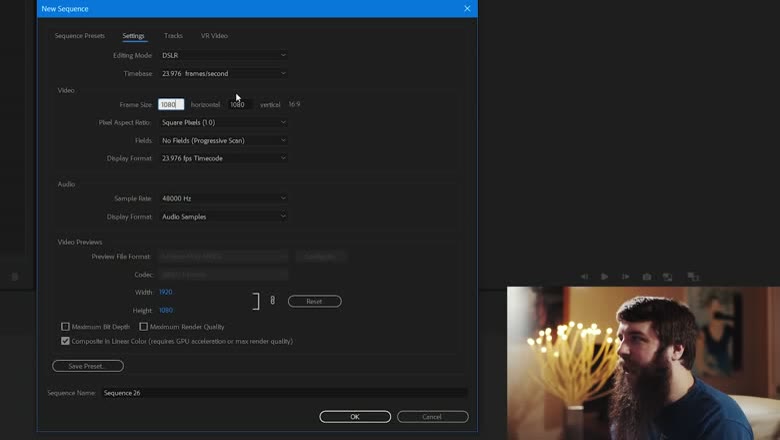
Work at 1080 by 1920 regardless of what the platform does with it afterwards.
Press Ctrl+N or Cmd+N for a new sequence, go to Digital SLR, 1080p, DSLR 1080p24. Make exactly one change: frame size from 1920 horizontal to 1080 horizontal, leaving the vertical at 1920.
Then hit Save Preset so you never do it again. I called mine “IGTV Vertical 1080×1920 23.976”. It’ll show up under Custom in the sequence presets from then on.
Keep Text Away From The Edges
IGTV cut off somewhere between 5 and 10% of the edges of your video depending on the screen it was being watched on.
If you want to go deeper, I’ve also got How to Edit & Export High Quality Twitter Videos in Adobe Premiere Pro, How To Edit & Export High Quality YouTube Shorts In Adobe Premiere Pro 2022, and How To Export High Quality TIK TOK Videos in Premiere Pro CC.
So don’t put text or anything else that matters right up against the frame edge. This one has outlived IGTV: it’s still true of vertical video generally, and it’s a good habit regardless.
Export Settings
Set your in and out points with I and O, then Ctrl+M or Cmd+M.
Format H.264. For preset, Match Source – High Bitrate, or honestly any preset, because we’re about to override the parts that matter. Make sure width is 1080.
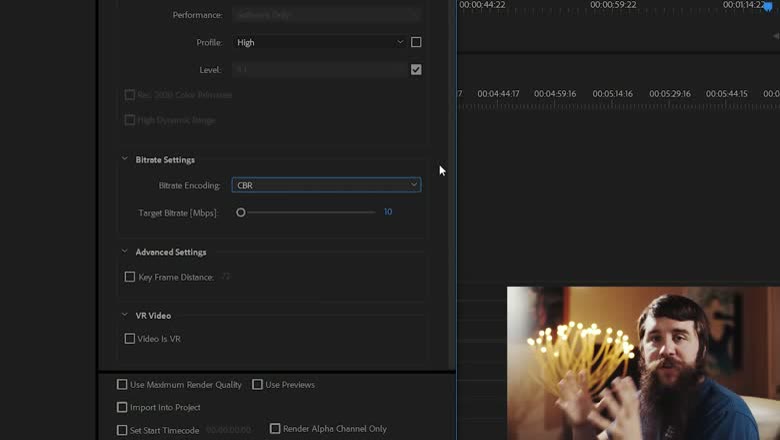
Then scroll to Bitrate Settings, which is the single most important part of this whole thing. Set Bitrate Encoding to CBR, constant bitrate, and set the target to 7.5 Mbps.
That number may need tweaking for your footage. Going higher doesn’t automatically help, because the platform re-encodes what you send it anyway.
The Cover Photo
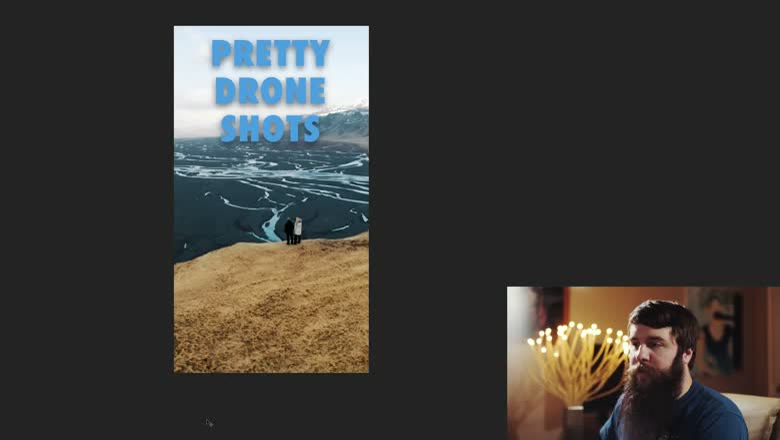
This mattered more than it should have, because once you set a cover photo you could not change it. Get it right the first time.
The trap: uploading a 1080 by 1920 cover photo got the edges cropped off. What worked was making it in Photoshop at 640 by 1136, which came through uncropped.