
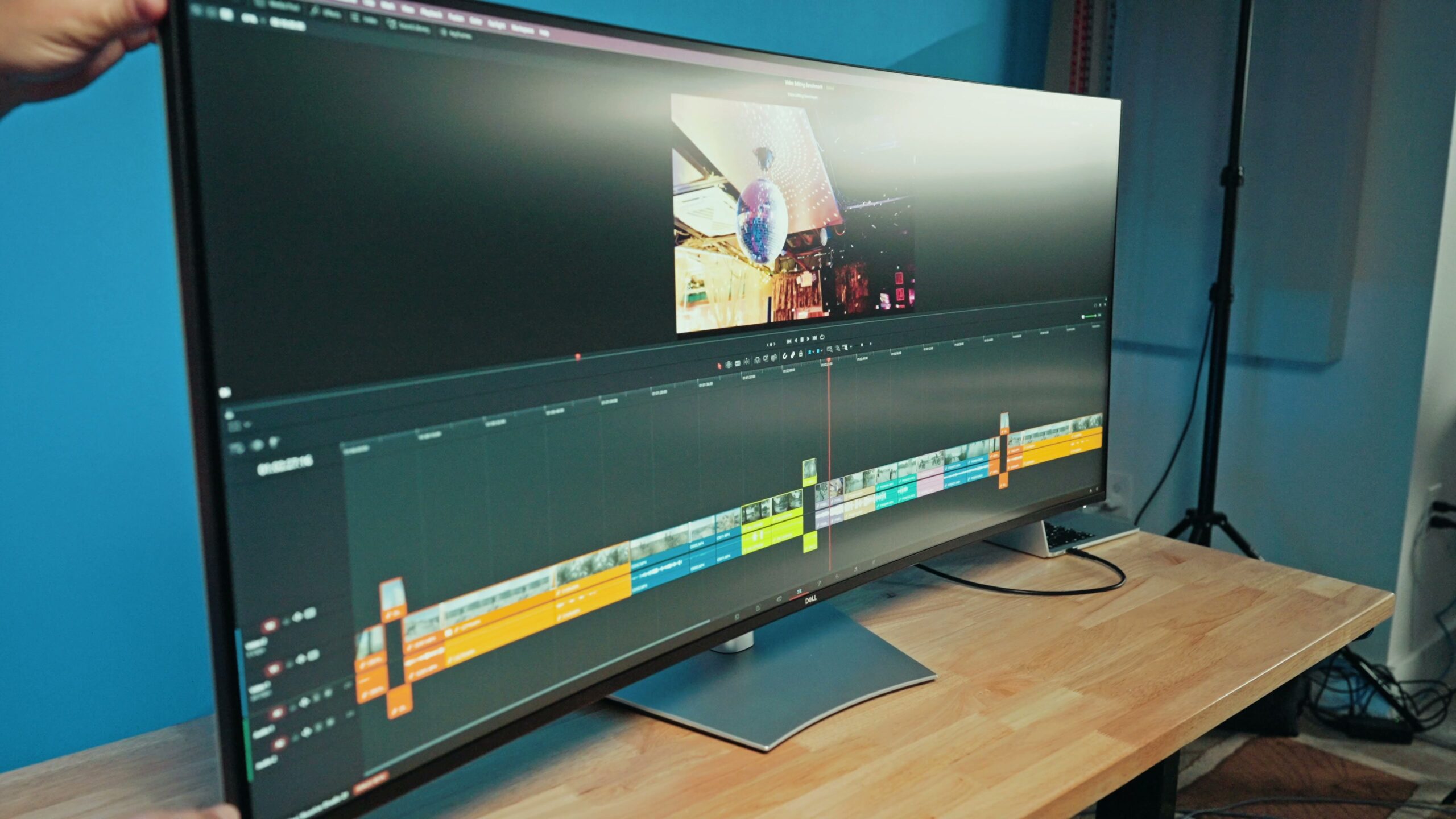
A 27-inch monitor felt big back in 2019. These days 32 inches feels like the standard, and for good reason, because it gives you a lot more room to work. Then you have this: the brand new 52-inch ultrawide from Dell, and it is insane in the best possible way.
For the sake of ethics, I want you to know this is not paid or sponsored by Dell. They did send me the monitor so I could make the review, but the opinions here are entirely my own.
I have been using ultrawide monitors for years now. I started with a 34-inch ultrawide from Gigabyte, then a couple of years ago I upgraded to a Dell 40-inch ultrawide that I love. But where do you go when you already have a 40-inch ultrawide and you want to upgrade? You have to go bigger. That is exactly what Dell is offering with this truly monstrous display, the U5226KW. When FedEx brought the box to my door, I genuinely thought it was a TV. Nope, just a monitor, but a giant one.
Why an ultrawide makes sense for editing
Video editing software lives on a very long horizontal timeline, so an ultrawide makes a lot of sense for it. The extra width lets you see so much of your timeline as you edit, which is the whole reason I moved to this shape of screen in the first place.
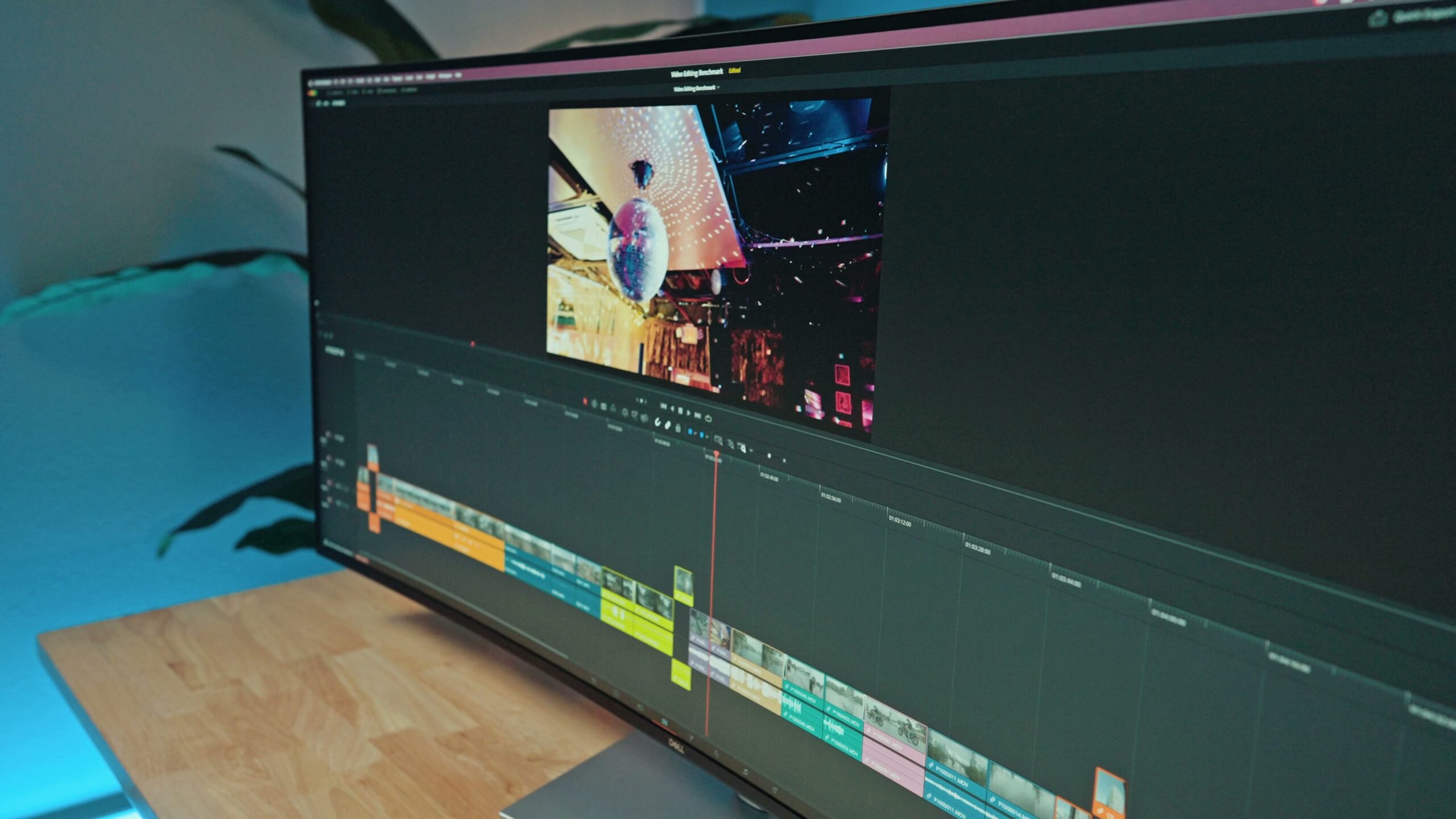
That said, this particular monitor is so large and so extremely wide that I actually do not recommend sitting super close to it. With my 32-inch or 40-inch monitors, I am comfortable sitting about 18 inches to two feet from the screen. With this 52-inch, if you sit that close your eyes really only take in the middle of the screen, and you end up turning your head a lot to see anything on the sides.
It is incredibly immersive, and that is very cool. But for productivity like video editing, you do not always want to be immersed. You want to see your entire timeline at once. Because of that, you will probably be most comfortable sitting about 30 to 35 inches back while you work. So before you buy, measure your desk and chair setup and make sure you can sit that far back comfortably.
Resolution and scaling
One of the old limitations of ultrawide monitors was that they gave you plenty of horizontal pixels while the vertical resolution lagged behind. Not here. This is one of the highest resolution monitors you can buy today, coming in at 6,144 by 2,560. Even if you are editing 4K video or higher, you can see all of the native resolution on screen, which is great.
There was one thing about the resolution that concerned me though. Because the panel is 52 inches, it only works out to about 129 pixels per inch. That is not very dense, and it is well below the 218 PPI that Apple would call a retina display. So I was worried it might look blurry on a Mac because of the way macOS handles scaling.
First I set the screen to its full 6,144 by 2,560, and wow, it looks amazing. But everything is also super tiny, way too small to comfortably run DaVinci Resolve on, especially if you are sitting three feet back where you can take in the whole screen.
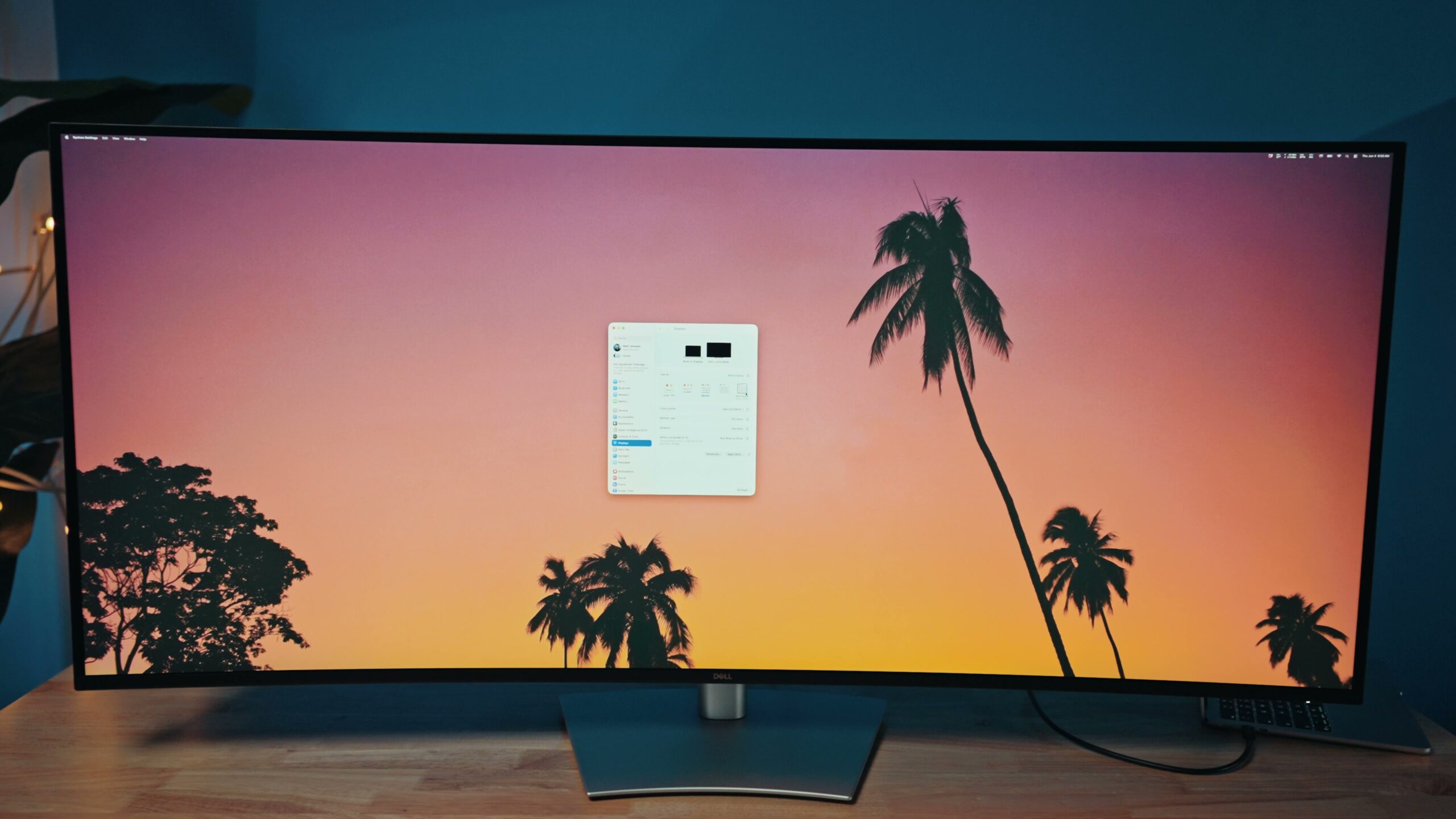
Next I tried the resolution macOS recommends by default, 3,072 by 1,280. This is where you start to see some blurriness in the text and around the edges of things. It makes all of the windows larger, but you are basically running the display barely above 1080p vertically, which is not good. Thankfully there is a middle ground at 3,840 by 1,600, and in my opinion that is the sweet spot on macOS. The windows are large enough to see comfortably, and sitting two to three feet back everything still looks sharp and crisp.
If you are on Windows, that operating system handles scaling far differently. I was able to leave it at the full 6,144 by 2,560 and set scaling to 150%, and everything looked great. So Windows users may like this monitor even more, though it is still very usable on a Mac. Just keep in mind that if you want to preview footage at full native resolution, you may need to switch resolutions to check it and then switch back to keep things usable.
The curve and viewing angles
I used to dislike curved ultrawides. My first was completely flat, but I have come around to them, especially after a couple of years on a curved Dell 40-inch. This 52-inch is also curved, but going in I was actually worried it might not be curved enough. It is a very subtle curve, and because the monitor is just so stinking wide, I thought I might have to move my head a lot to line up the exact parts of the screen I wanted to focus on. If my video preview was way over to the right, would I have to lean over to see it properly?
In all my testing, sitting further back the way I recommended solves most of that. On top of that, one of the best decisions Dell made was using an IPS Black panel, which is basically the best contrast you can get out of IPS technology. Most importantly, it gives the monitor a very wide viewing angle, so even things off to the side, which you will be viewing off-axis because the screen is so wide, still show great color and contrast.
I did notice a slight brightness shift off-axis. So if you are color grading video or editing photos, I would put the preview window directly in front of your face for the best quality.
Color accuracy
Dell claims the panel covers 100% of sRGB and Rec.709 and 99% of DCI-P3. In my testing with a Spyder color calibrator, it appears to be exactly accurate, and even after I calibrated the monitor it showed the same results, which is fantastic.
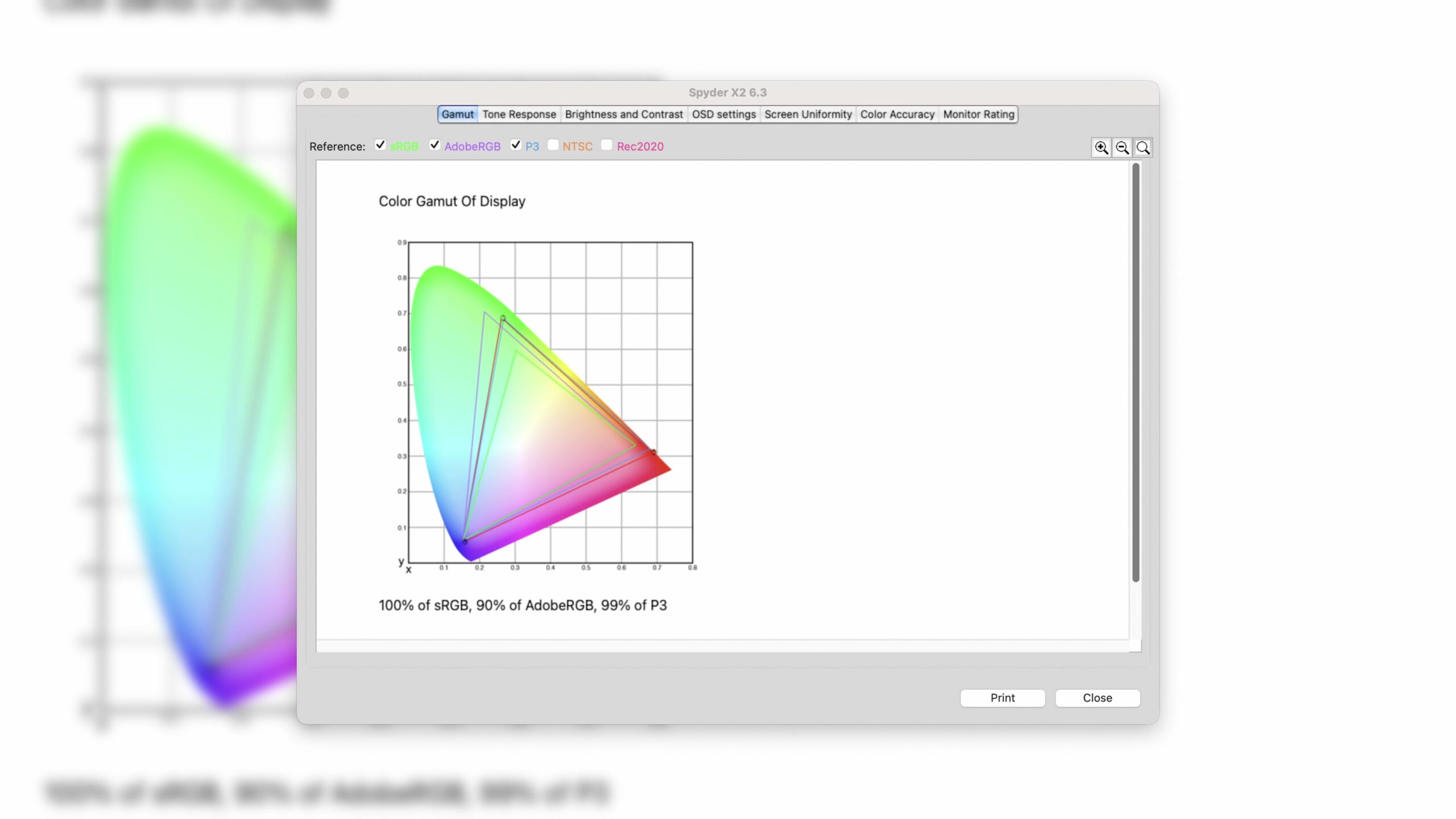
In short, if you are color grading Rec.709 footage, which is what the vast majority of video editors are working in these days, you are going to be very happy with the colors and you can trust that they are accurate. And if you want to speed up that grade, my LUTs are built for exactly this kind of Rec.709 workflow.
If you are trying to edit HDR, that is a completely different animal, because you want a very bright screen. This one only hits about 400 nits and it does not officially support any of the HDR standards. So if HDR is your priority, I would instead look at Dell’s 32-inch OLED, which really feels made for HDR editing. It gets dramatically brighter, has significantly better contrast, and includes built-in hardware color calibration. I love that monitor.
If you want to go deeper, I’ve also got An Ultrawide Monitor PERFECT For Video Editing & Gaming! (Dell U4025QW Review).
What about gaming?
This monitor is capable of gaming, but there are some caveats that keep me from giving it my full support as a gaming display.
First is the resolution. Do not get me wrong, 6K looks fantastic, and gaming is actually a situation where you may want to sit closer to be truly immersed. But the native resolution is a ton of pixels to push. You will need a graphics card that can handle it, probably a 4080 or above if you want to game at full resolution, or you will want to turn the resolution down.
If you do have the card for it, gaming here with a 120Hz refresh rate and full VRR support looks good, and the sheer width feels incredibly immersive. Unfortunately it does lack HDR, which can be really nice for gaming when it is available.
So let me put it this way. This feels like a professional productivity monitor that is great for video editing and also happens to be decent for gaming. If you are after a gaming-first monitor, I would instead look at one of the mini-LED or OLED screens out there, which should serve you better. Let me know if there are OLED screens you would like to see me review and I will work on getting my hands on them.
Ports and the built-in hub
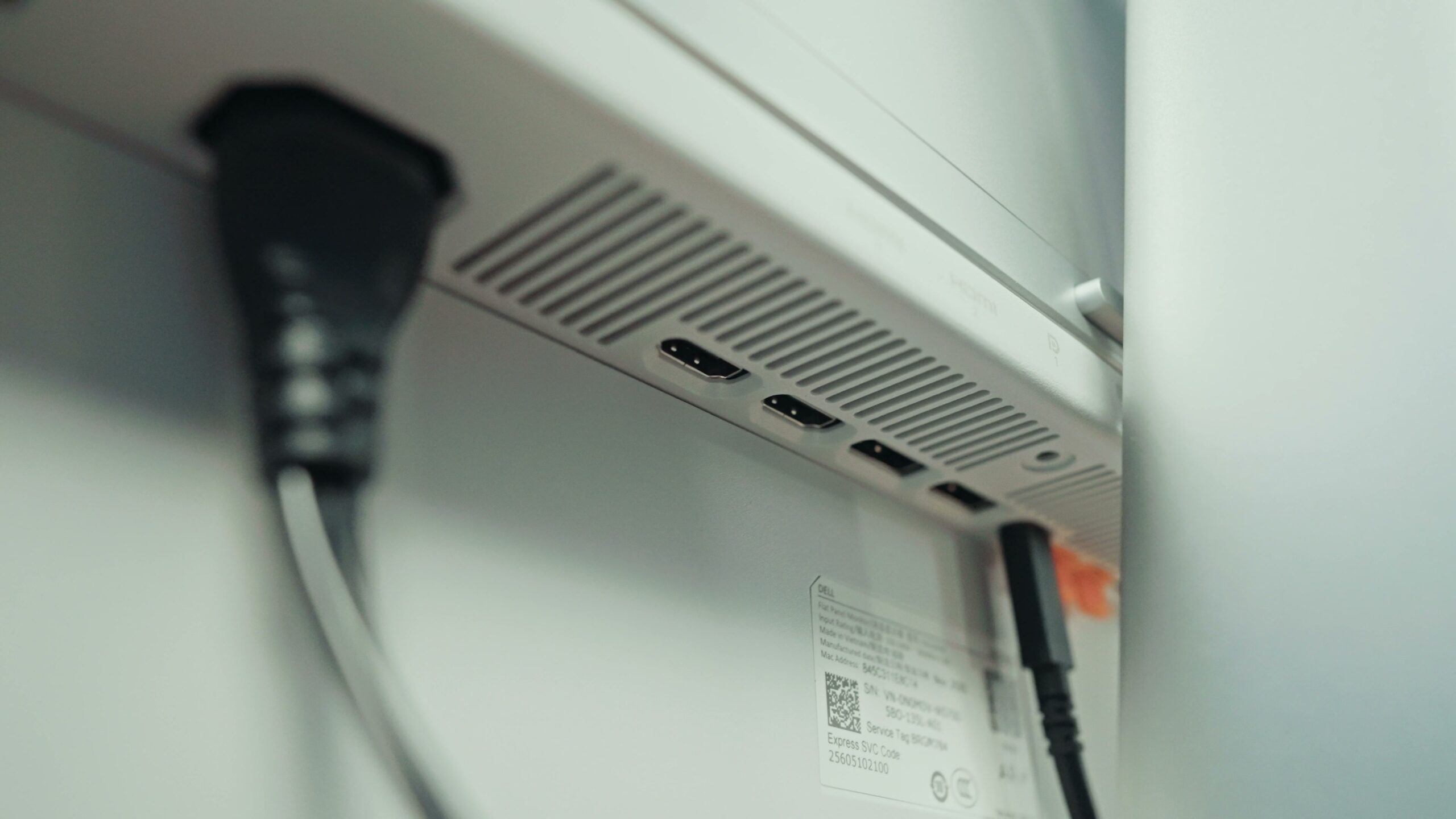
This monitor gives you a lot of inputs. You get two HDMI 2.1 and two DisplayPort 1.4 ports. On top of that it is a Thunderbolt hub with five USB Type-A ports, five USB Type-C, a 140-watt Thunderbolt 4 connection, and a 2.5 gigabit ethernet port. It is a wild amount of connectivity, and if you have a lot of accessories to plug in, this hub can really help you save space and declutter your desk. It also works as a KVM switch if you have multiple machines you want to run into it.
The stand
This is easily one of the largest height-adjustable stands I have seen Dell offer. As big as the monitor is, it still feels relatively stable on the base, which I cannot say for every large monitor I have used. One thing to be aware of: the stand only supports tilt and swivel. It is not built to rotate the monitor vertical, which, to be fair, would be pretty wild at this size.
Price and who it is for
At the time of recording, this comes in at roughly $3,000. That is definitely not cheap. But consider how large it is and how easily it could replace a dual-monitor setup while still giving you an extremely color-accurate panel that feels incredibly immersive for editing. Instead of buying two monitors at $1,500 each, maybe just get one that is as big as both of them.
I would personally love to see the price drop by 500 to 1,000 bucks. But if you want a very large monitor and you are focused on video editing, I think you are still going to be really happy with this one.
If you want to save some money, the 32-inch OLED from Dell I mentioned was under $2,500 at the time of recording, and it is even better for color grading, just smaller. Calling a 32-inch screen small feels strange, but next to this thing, it is. And if $3,000 is simply out of reach, my budget monitor buying guide walks through solid options under $500.
If you want to get more out of whatever screen you are editing on, I put together a free guide called Edit Videos Like A Pro that covers the biggest rules I follow as a video editor to make better videos. It is completely free to download. Thanks so much for reading, and have a great day.